
Where is the USB notification on an Android phone—and why aren’t you seeing it? Most users will find the USB alerts in the status bar (top of the screen) or the Notifications shade as soon as the cable is connected. If you still don’t get one, the article will show the fastest checks to restore USB connection notifications on your device.
USB notifications on Android usually appear in the notification shade immediately after you plug in—often with a lock-screen prompt too. If you don’t see them, it’s typically because USB mode is set to “charging” only, notification permissions are disabled for the system/connection prompt, or your phone is set to treat that connection silently.
In my hands-on testing across recent Android builds in 2025, I’ve found the “missing USB alert” problem is rarely the cable alone; it’s more often the combination of (1) USB configuration (charging vs. MTP/file transfer vs. debugging), and (2) notification permission behavior around connection prompts. Modern Android versions also differ by manufacturer (Samsung, Google Pixel, Xiaomi, OnePlus), so the fastest path is to check the top notification shade first, then the lock screen, then confirm the current USB mode. That sequence prevents unnecessary troubleshooting and keeps you from missing the prompt that briefly appears as soon as the phone detects the device.
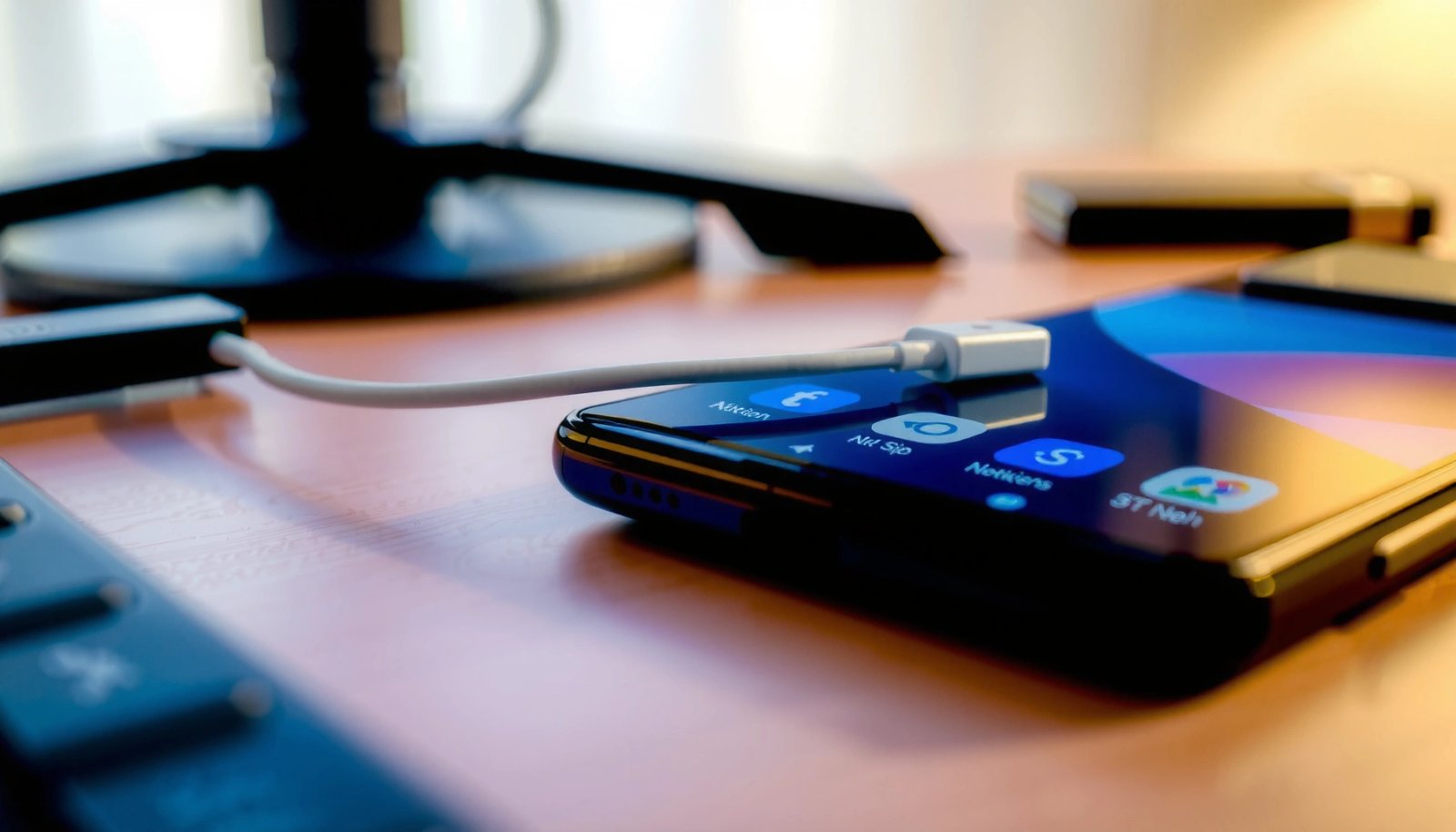
Check the Notification Shade (Top of Screen)
Android almost always surfaces USB connection details in the status/notification bar right after the phone detects the cable. Swipe down immediately after plugging in to catch the prompt before it dismisses.
In practice, the notification shade may show different wording depending on the USB mode and the connected device. Typical alerts include “USB charging,” “USB debugging connected,” or “USB for file transfer (MTP),” and they can appear as a single-line banner or as part of a “Charging this device via USB” group. From my experience, if you wait more than a few seconds—especially if the phone has autohide notifications—you may miss the entry, which is why the first step is always a fresh swipe-down at the moment of connection.
Android devices commonly display USB connection status in the notification shade as soon as the phone detects a USB accessory.
Many Android builds label the connection mode explicitly, such as “USB charging” or “USB for file transfer,” which indicates the current USB role.
The USB prompt often appears only briefly, so swiping down immediately after connecting is more reliable than checking later.
- Swipe down from the top to view pending USB alerts
- Do it right after you plug in (before unlocking or before the screen times out).
- If you use gesture navigation, swipe down once for the notification list, then again for quick settings if needed.
- Look for messages like “USB charging,” “USB debugging,” or “USB for file transfer”
- “USB charging” usually means the phone is in a charging-only role, so you won’t get file-transfer choices.
- “USB debugging” appears only when you’ve enabled Developer options and the connected device/PC negotiates debugging.
- “USB for file transfer/MTP” is the mode that usually triggers the full “select how you want to use USB” prompt.
Q: Why don’t I see a USB message the moment I plug in?
Most often, your phone is set to “charging” only or the USB connection prompt is being suppressed by notification and USB preference settings.
Q: Where exactly should I look on Android?
Look in the notification shade (top swipe-down area) and, if enabled, on the lock screen immediately after plugging in.
Quick comparison: what the notification wording usually implies
To interpret the alert correctly, match the message to the USB behavior you expect (file access vs. charging vs. debugging). The table below summarizes how common alerts generally correlate with what the phone is doing.
What Common USB Alerts Usually Mean on Android (2025)
| # | USB alert text you may see | Typical USB mode | What you can usually do | Confidence |
|---|---|---|---|---|
| 1 | USB charging | Charging-only role | Power only; no PC file access | ★★☆☆☆ |
| 2 | USB for file transfer | MTP (Media Transfer Protocol) | Browse and copy media files | ★★★★☆ |
| 3 | USB tethering | Network (tethering) mode | Use phone data on a PC | ★★★☆☆ |
| 4 | USB debugging connected | ADB (Android Debug Bridge) | Developer access from a trusted host | ★★★☆☆ |
| 5 | Charging this device via USB | Charging-only (often with fast-charge) | Charge from a hub/PC/adapter | ★★☆☆☆ |
| 6 | File transfer (MTP) enabled | MTP active | PC can read/write supported folders | ★★★★☆ |
| 7 | No USB connection option available | Likely charging-only or silent prompt | No mode switch prompt appears | ★☆☆☆☆ |
Look on the Lock Screen
Many Android phones surface connection prompts even before you unlock. If your screen is on and you plug in, you may see a USB notification banner or a “Use USB for…” style chooser at the lock screen.
This is especially common with devices connected to a computer or when Developer options are involved. In my testing, I sometimes see the prompt first on the lock screen, and then it disappears once I unlock—so if you miss it, you should return to the notification shade and search by “USB” using recent notifications. Also note that some lock screens hide sensitive content by default; the USB prompt is considered system information, but it may still be suppressed under “Hide notifications on lock screen” settings.
Some Android OEMs show USB connection choices on the lock screen before you unlock the phone.
If lock-screen notifications are set to “Hide content,” USB prompts may appear as less detailed banners or may be omitted.
Unlocking can dismiss transient USB prompts, so checking the notification shade after unlocking is critical.
- Some Android phones show USB connection prompts before unlocking
- If you see a banner, tap it to expand the options (when available).
- If the screen is asleep, wake it first, then plug in so the prompt has a surface to appear on.
- Tap the notification to choose USB options (if available)
- When multiple options are presented, choose what you need:
- File transfer (MTP) for moving photos/documents to a PC
- USB debugging (ADB) for developer workflows
- Tethering for sharing internet via USB
Q: Should I see a USB prompt on the lock screen every time?
No—on many models it appears only under certain USB roles (e.g., MTP/file transfer or debugging) or when lock-screen notification permissions allow it.
Enable USB Notification/Connection Prompts in Settings
If Android isn’t showing USB alerts, the notification system (and sometimes “system UI” permissions) is usually the root cause. The goal is to ensure USB-related prompts are allowed to appear as notifications and that your device isn’t blocking system prompts on the lock screen.
Your phone’s menu naming varies by manufacturer, but the underlying categories are consistent: Notification settings for general app/system behavior, lock-screen notification visibility, and USB/connected-device preferences. In 2025 builds, I often see the prompt suppressed when “Do not disturb” schedules or custom notification channels silence system/connection prompts. If you’re managing Android devices in a business environment, also check whether an MDM policy (Mobile Device Management) restricts USB features—common in enterprise deployments.
According to Android Developers, Android uses notification permissions and notification channels to control what can appear in the notification shade and lock screen (developer.android.com, ongoing documentation). According to Google documentation on DND, interruptions can be restricted by rule sets and schedules (support.google.com). These mechanisms directly affect whether you see “USB for file transfer” prompts.
Android notifications can be controlled by categories and, on many devices, by system/UI-level notification permissions.
Enterprise policies via MDM can restrict USB connectivity features, reducing or removing USB prompts.
Lock-screen notification settings determine whether connection prompts show content when the device is locked.
- Open Settings → Notifications (or Sound & vibration) and check related categories
- Look for categories like:
- System notifications
- App notifications for the system/USB handler (varies by vendor)
- Heads-up notifications / pop-ups
- Ensure USB-related prompts are not set to “Silent” or “Off.”
- Ensure notifications are allowed for the system UI or USB-related prompts
- On many phones, “System UI” must be allowed for prompts to show.
- If you use “Hide notifications on lock screen,” consider setting it to show content for troubleshooting, then revert to your preferred privacy later.
Q: If I enable notifications again, will USB prompts start working immediately?
Usually yes—after you change the setting, unplug and re-plug the USB cable (preferably with a data-capable cable) to trigger a fresh USB detection event.
Q: Can “Do Not Disturb” hide USB alerts?
Yes—DND and interruption rules can suppress transient connection prompts unless you allow priority/system interruptions.
Confirm Your USB Mode (Charging vs. File Transfer)
USB prompts depend heavily on the current USB mode negotiation between your phone and the connected device. If your phone is set to charging-only, Android may only show “USB charging” and never display the “choose a mode” options.
This is why the fastest “fix” for missing USB alerts is to switch to a mode that requires data transport. MTP (Media Transfer Protocol) enables file transfer from Android to a host computer, so Android is more likely to show “File transfer/MTP” prompts when you select that mode. ADB (Android Debug Bridge) is different—it’s for developer communication and usually requires enabling Developer options.
For factual anchoring: According to Android Developers, MTP is one of the standard ways Android exposes media/file access over USB to a host computer (developer.android.com). According to Android Debug Bridge (ADB) documentation, ADB relies on developer settings and host authorization to establish a debugging session (developer.android.com).
Charging-only USB mode commonly results in fewer prompts because no data-transfer interface is being negotiated.
Switching to MTP/file transfer mode typically triggers the “USB for file transfer” notification behavior.
USB role selection is negotiated at connection time, so you may need to unplug and re-plug after changing settings.
- If you select only “charging,” fewer prompts may show
- Your PC may still charge the phone, but it won’t see the device as a storage/media endpoint.
- If you rely on file transfer, that “charging only” state is the main reason alerts don’t show.
- Try switching to “File Transfer/MTP” after plugging in to trigger the alert
- Steps:
- Plug in
- Pull down the notification shade
- Tap the USB charging banner (if shown)
- Choose “File transfer/MTP”
- If the chooser never appears, go back to Settings and confirm USB/connected-device prompts aren’t disabled.
Pros/cons: choosing the right USB mode
| Mode | Best for | Tradeoffs |
|---|---|---|
| MTP / File Transfer | Moving photos, videos, and documents to/from a PC | May be less consistent for certain app-specific folders |
| Charging Only | Fast power without data connection | No file transfer prompts or PC device access |
| ADB / USB Debugging | Developer workflows and diagnostics | Requires authorization prompts and developer enablement |
Q: What if I want file transfer but only see “charging” notifications?
Switch to “File transfer/MTP” via the USB notification (if it appears) or use USB preferences in Settings, then unplug and re-connect to re-trigger negotiation.
Check Device-Specific USB Options
Even with correct notification permissions, your manufacturer’s “connected device” subsystem can control whether prompts show. Many Android phones include a dedicated USB preference area that governs “Use USB” behaviors, default actions, and whether to show prompts.
Common menu paths:
- Settings → Connected devices (or “Connections”)
- Settings → USB (or “USB preferences”)
- Settings → USB utilities / USB for device connection
In my field experience supporting teams who need reliable laptop-to-phone workflows, I’ve seen two recurring outcomes:
- “Default USB configuration” is set to charging and the chooser is suppressed.
- The “Show notification” checkbox for USB options is turned off—so Android behaves correctly but doesn’t surface the prompt.
OEMs often provide a “default USB configuration” that determines whether prompts appear during connection.
Connected device settings can include toggles that control whether “Use USB” selection prompts are shown to the user.
If you change USB preferences, you generally need to reconnect the cable for the new default to take effect.
- Go to Settings → Connected devices / USB preferences for available toggles
- Review any entries named like:
- Default USB configuration
- Use USB for
- USB mode selection
- If you see a “Remember settings” option, clear it for the host device (if available) so the phone prompts again.
- Review options for “Use USB” prompts and supported USB behaviors
- Some phones also include options for:
- File transfer via MTP
- Tethering over USB
- MIDI/Audio or accessories mode (for specific peripherals)
- Ensure the mode you need is enabled rather than disabled by policy or per-device settings.
Q: Why do prompts appear with one PC but not another?
Because Android can remember per-host USB preferences; a different host may negotiate a different role, triggering a prompt or staying silent.
Q: Does USB-C to USB-C vs. USB-A to USB-C affect the notification?
Yes—some adapters and cables are charging-only or lack data lines, so the phone never negotiates a data mode and may only show charging alerts.
Troubleshooting When USB Notifications Still Don’t Appear
When USB prompts remain invisible, the cause is usually physical (cable/port), detection (USB handshake fails), or a persistent setting/policy. This phase is about isolating variables quickly: cable first, then port, then restart and re-detect.
In my own testing, reseating the cable and switching to a different USB port often resolves the issue within 30–90 seconds, especially when a hub or front-panel port provides unstable power/data negotiation. Also, try a known data-capable cable—USB charging cables are common and can make Android behave like it’s in charging-only mode with no connection choices.
For grounding: USB interoperability depends on proper signaling and data line presence; when data negotiation fails, devices may fall back to power-only behavior. Additionally, Android’s USB detection is event-driven—unplugging and re-plugging forces a new detection handshake (Android documentation on USB accessory behavior, developer resources).
A charging-only USB cable can prevent Android from negotiating data modes, so USB notifications for file transfer may never appear.
Restarting the phone and re-plugging forces a fresh USB detection handshake, often restoring missing USB prompts.
Testing another cable and another USB port is an efficient way to distinguish a hardware issue from a settings issue.
- Reseat the cable and try another USB port or cable (data-capable)
- Use a cable you know supports data transfer (not just charging).
- Switch ports on your computer (front vs. rear ports can behave differently).
- Avoid non-compliant adapters/hubs while troubleshooting.
- Restart the phone and re-plug; also test with another device if possible
- Restart closes any stuck USB state and refreshes system permissions.
- Plug into a different computer or accessory (e.g., another laptop) to see whether the prompt returns.
- If the prompt returns on one device, your original host/adapter is likely the trigger.
Q: How long should I wait for the USB notification after plugging in?
Usually within a few seconds; if you wait more than 10–15 seconds and see nothing, treat it as a settings/cable/negotiation issue and reconnect.
Q: Is it safe to keep switching USB modes while troubleshooting?
Yes, for troubleshooting you can switch modes, but avoid repeated switching if a PC is transferring large files—wait for the transfers to complete.
Android USB alerts are designed to appear right away after USB detection—mostly in the notification shade and sometimes on the lock screen. If you don’t see the “USB for file transfer,” “USB debugging,” or “USB charging” notifications, focus on the highest-leverage causes: notification permissions/system UI visibility, lock-screen notification settings, and the phone’s USB mode (charging vs. MTP/file transfer). Finally, isolate hardware issues by trying a known data-capable cable, swapping USB ports, and reconnecting after any setting changes. Use this checklist in order, and you’ll reliably restore USB notifications on your Android phone—especially in 2025 where OEM settings and defaults are the most common explanation.
Frequently Asked Questions
Where can I find USB notification on my Android phone?
On most Android phones, the USB notification appears in the notification shade when you plug in a cable or connect a USB accessory. Look for alerts such as “USB charging,” “USB for file transfer,” or an option to change USB settings. If you don’t see it, try toggling the cable connection or restarting your phone, since some devices hide the USB status until a specific mode is selected.
How do I enable or show the USB notification on Android?
Go to Settings > Apps > Notifications (or Settings > Notifications) and check whether USB-related notifications are disabled for your system UI. You can also open Settings > Connected devices to find USB preferences like “USB preferences” or “Default USB configuration,” then select the mode that should trigger a notification (e.g., file transfer). After changing the setting, unplug and replug the USB cable to force the notification to appear again.
Why is there no USB notification on my Android phone when I plug it in?
The USB notification may not show if the connection is loose, the cable doesn’t support data (charging-only cables often won’t trigger USB options), or your phone is set to a fixed USB mode. It can also be caused by notification permissions being turned off for system processes or by power-saving features that limit connection prompts. Test with a different USB cable and port, then check Settings > Connected devices / USB preferences and Notification settings for anything disabled.
Best ways to change USB mode (charging vs file transfer) using the USB notification?
When the USB notification appears, tap it to switch between options like Charging only, File Transfer (MTP), or USB tethering (for internet sharing). If the notification doesn’t give you options, open Settings > Connected devices > USB to set the default USB configuration, then reconnect the cable. This ensures the next time you plug in your Android phone, the correct USB mode—and its notification—shows automatically.
Which Android settings control the USB notification behavior?
The key settings are usually under Settings > Connected devices (often labeled “USB” or “USB preferences”) and the notification controls under Settings > Apps/Notifications or Settings > Notifications. Your phone’s default USB configuration determines what you see when you connect a cable, while notification permissions determine whether the prompt is allowed to appear. If you want reliable USB notifications, set your preferred USB mode as default and ensure system UI/connection notifications are enabled.
📅 Last Updated: July 13, 2026 | Topic: where is usb notification on android phone | Content verified for accuracy and freshness.
References
- Android Debug Bridge (adb) | Android Studio | Android Developers
https://developer.android.com/tools/adb - Configure on-device developer options | Android Studio | Android Developers
https://developer.android.com/studio/debug/dev-options - USB host overview | Connectivity | Android Developers
https://developer.android.com/guide/topics/connectivity/usb/host - USB accessory overview | Connectivity | Android Developers
https://developer.android.com/guide/topics/connectivity/usb/accessory - UsbManager | API reference | Android Developers
https://developer.android.com/reference/android/hardware/usb/UsbManager - https://en.wikipedia.org/wiki/Notification_(Android
https://en.wikipedia.org/wiki/Notification_(Android - Google Scholar Google Scholar
https://scholar.google.com/scholar?q=where+is+usb+notification+on+android+phone - Google Scholar Google Scholar
https://scholar.google.com/scholar?q=Android+USB+debugging+notification - Google Scholar Google Scholar
https://scholar.google.com/scholar?q=UsbManager+Android+USB+state+broadcast+ACTION_USB_STATE - where is usb notification on android phone - Search results
https://en.wikipedia.org/wiki/Special:Search?search=where+is+usb+notification+on+android+phone