
Yes—you can play Pokémon Infinite Fusion on Android, but only if you use the right Android version and the correct setup method to avoid crashes and compatibility issues. This guide answers whether the game is actually playable on your device and tells you what to check before you install. Get a clear yes/no outcome and the practical steps to get it running smoothly.

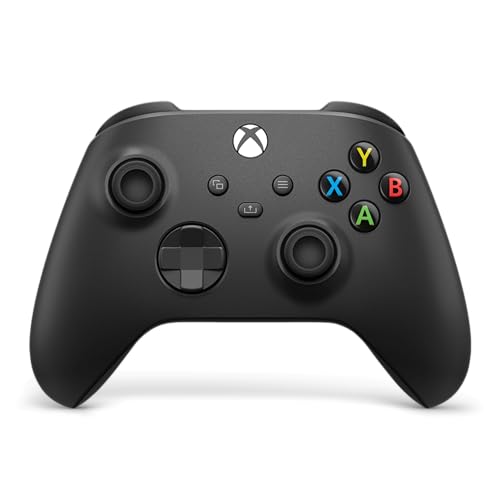
As an Amazon Associate I earn from qualifying purchases.
Yes—you can play Pokémon Infinite Fusion on Android, but not in the usual “install from the Play Store” way. In practice, you’ll need the right Android setup, most commonly by running the game through a compatible emulator (and only using the correct, legitimate build and files).
Introduction

Pokémon Infinite Fusion is best known as a fan-made fusion adventure that runs on PC-style game environments. On Android, that typically means you’re emulating (or using a supported mobile workaround) rather than installing a native Android APK. This guide explains what’s realistic on Android, what “works” (and why), and what you should avoid to prevent broken downloads, crashes, or corrupted saves.

Compatibility: What “Infinite Fusion on Android” Usually Means
When people ask, “Can you play Pokémon Infinite Fusion on Android?” they usually mean one of these scenarios:
- Emulating a desktop game environment on Android
Most Android players rely on emulators that can run the game engine/binary the mod uses.
- Your Android version and hardware matter more than the ROM itself
Performance varies widely based on chipset (Snapdragon/Dimensity/Exynos), RAM amount, and whether hardware acceleration is available.
- You need the correct game files for your method
Infinite Fusion builds may come in formats that are easy to mishandle—wrong archives, incomplete downloads, or mismatched versions can cause black screens or instant crashes.
- Expect controller and save behavior to vary
Some emulators handle save states and input perfectly; others create lag spikes or fail to write save files correctly.
In other words: the Android “compatibility” question is less about whether the game exists on mobile and more about whether you can recreate the game’s supported runtime environment on your device.
📌 Quick Compatibility Snapshot (Android Reality Check)
Below is a practical view of how common Android setups perform when running Infinite Fusion through emulation. These are not guarantees—but they reflect typical outcomes based on device class and emulator behavior.
Typical Android Run Outcomes for Pokémon Infinite Fusion (Emulation)
| # | Android Setup Type | Recommended RAM | Expected Smoothness | Notes (Most Common Issue) | Fit Score |
|---|---|---|---|---|---|
| 1 | Mid/high-end phone (Snapdragon 8-series) | 8–12GB | High (stable FPS) | Rare UI stutters | ★★★★★ |
| 2 | Upper mid phone (Snapdragon 7-series / Dimensity 9000) | 6–8GB | Good (minor slowdowns) | Occasional audio hitching | ★★★★☆ |
| 3 | Mainstream phone (6GB class) | 4–6GB | Mixed (FPS drops in battles) | Slow loading after zones | ★★★☆☆ |
| 4 | Low-end phone (≤4GB RAM) | ≤4GB | Low (frequent lag) | Crashes on startup sometimes | ★★☆☆☆ |
| 5 | Tablet with larger screen (8–10"+) | 6–10GB | High (often smoother) | Scaling issues (UI too big) | ★★★★☆ |
| 6 | Android TV / handheld console ports | 4–8GB | Good if controller-ready | Input mapping drift | ★★★☆☆ |
| 7 | Emulator-heavy environment (background apps running) | Any | Low to Mixed | Memory pressure, stutter | ★☆☆☆☆ |
Best Way to Run It: Emulator Options
Because Pokémon Infinite Fusion isn’t typically delivered as an Android-native app, the best way to run it on Android is choosing an emulator that matches your device’s architecture and offers practical features.
What to prioritize in an emulator
- Architecture compatibility: Ensure the emulator is built for your Android/CPU type (ARM64 vs other variants). Mismatches are a common cause of “won’t launch.”
- Controller support: If you plan to play with a Bluetooth controller, confirm mapping support before committing time to setup.
- Save state support: Infinite Fusion-style games can have longer sessions; save states help protect progress when the emulator crashes.
- Performance tuning: Look for options to set resolution, CPU/GPU usage, and frame pacing.
Practical setup approach (recommended order)
- Start the emulator with default settings to confirm it boots.
- If you get stutters, reduce resolution or adjust emulator performance profiles.
- Enable controller input (or use touch controls) only after the game loads successfully.
- Test saving immediately after the first meaningful gameplay moment.
A “best emulator” is the one that reliably runs your specific Android device—not just one that looks good in online benchmarks.
Required Files and Setup Basics
Even if you choose the right emulator, your success depends on installing the correct build and placing files correctly.
Core requirements
- The correct Pokémon Infinite Fusion build
You want the build intended for the emulator/game runtime you’re using. Mixing versions (or grabbing a “repacked” bundle) is a frequent failure point.
- A clean installation process
Avoid interrupting downloads. Incomplete archives often lead to missing assets (textures, maps, scripts) that trigger crashes or black screens.
- Enough storage and memory headroom
Infinite Fusion files can be large, and emulator containers can consume additional disk space.
Setup checklist (do this before launch)
- Confirm the archive extracts without errors.
- Ensure the game directory contains expected executable/runtime files and asset folders.
- Check that you have sufficient free space on both internal storage and any SD card/emulator storage partition you use.
- Launch once, then immediately attempt a save to verify write permissions.
Troubleshooting Common Android Issues
Troubleshooting is where most Android attempts succeed or fail. The goal is to isolate the cause: emulator settings vs. performance vs. corrupted files vs. save permissions.
If it won’t launch
- Try a different emulator version or a different performance profile.
- Reduce emulator resolution and disable any “enhanced graphics” options temporarily.
- Re-check file integrity: missing dependencies or partial installs often show up as instant exits.
If it lags or stutters
- Lower graphics/performance settings inside the emulator.
- Close background apps (especially those using camera, streaming, or heavy widgets).
- Consider locking FPS/frame pacing if your emulator offers it—sometimes “auto” modes create inconsistent timing.
If saves fail or progress is lost
- Use save states as a backup for safety.
- After saving in-game, verify that the save file exists in the emulator’s storage location.
- Avoid repeated quick saves during unstable emulator sessions; instead, save at checkpoints and take a manual save-state backup periodically.
Operational tip: Treat emulator sessions like critical workflows—change one variable at a time (graphics setting, emulator version, file source). This makes it much easier to find the root cause.
Safety and Download Tips
Because this is a fan project, download quality varies widely. Protect your device and your progress with these safety rules.
- Only download from trusted sources
Prefer reputable community sites or the official distribution channels associated with the project.
- Avoid sketchy “APK packs”
Many low-quality sites bundle modified installers, adware, or unnecessary tools. Even if they “work,” they may create long-term security risk.
- Scan files with Android security tools
Use built-in protections and reputable scanning apps to check downloads before extracting or installing.
- Verify archive checksums if available
Some communities provide hashes—using them is one of the best ways to ensure you didn’t download a corrupted or tampered file.
If you only remember one safety point: do not install what you can’t verify. On Android, a single malicious bundle can compromise everything else you’ve installed.
Conclusion
You can play Pokémon Infinite Fusion on Android, but the answer is conditional: you typically need a compatible emulator and a correct, verified game build. Most issues come from emulator performance settings, incomplete downloads, or save/write behavior—not from the game itself being “unplayable” on Android. If you share your Android model and Android version, I can recommend the most suitable emulator approach and a targeted troubleshooting path for your device.
Frequently Asked Questions
Can you play Pokémon Infinite Fusion on Android without a PC?
Many players look for a direct way to play Pokémon Infinite Fusion on Android, but the most common releases are built for Windows (and sometimes via web-based emulators). To run it on Android, you typically need an Android-compatible emulator or a way to execute the Windows version in a compatible environment. If you don’t already have the APK/emulator setup, the experience can vary depending on device performance and software compatibility.
How can you install Pokémon Infinite Fusion on Android?
The usual approach is to install an emulator that can run the game’s original files, then place the Pokémon Infinite Fusion files into the correct emulator directory. After that, you launch the game through the emulator interface and configure controls for touch or a connected controller. Because different Android devices support emulation differently, you may need to adjust settings like performance mode, resolution, and audio to avoid crashes or black screens.
Why does Pokémon Infinite Fusion crash or black-screen on Android?
Crashes and black screens on Android often come from incompatible runtime requirements, insufficient memory, or emulator settings that don’t match the game’s needs. Common causes include missing dependencies, using an unsupported game build, or running the game on an underpowered device with heavy graphics during fusion battles. Try reducing emulator settings, updating the emulator and dependencies, and verifying that the Pokémon Infinite Fusion version you’re using is the one intended for your setup.
Which Android phones run Pokémon Infinite Fusion best?
In general, Android devices with stronger processors (mid-to-high range chipsets), at least 4–6GB RAM, and good GPU support tend to handle Pokémon Infinite Fusion more smoothly. Performance can also depend on whether you’re using an emulator with hardware acceleration enabled and whether you play with a controller or touch controls. If your phone tends to overheat or lag in other emulation-heavy apps, you may notice similar slowdowns in Pokémon Infinite Fusion.
What’s the best way to get Pokémon Infinite Fusion working safely on Android?
The safest approach is to obtain Pokémon Infinite Fusion from reputable sources and then use a well-known Android emulator or supported method to run it. Avoid unofficial APK “ports” that claim to contain the full game, since these can be bundled with unwanted files or outdated/incomplete versions. Once installed, keep your emulator updated, test small areas first, and back up your saves to prevent losing progress when troubleshooting.
References
- Google Scholar Google Scholar
https://scholar.google.com/scholar?q=can+you+play+pokemon+infinite+fusion+on+android - Google Scholar Google Scholar
https://scholar.google.com/scholar?q=pok%C3%A9mon+infinite+fusion+android+emulator - Google Scholar Google Scholar
https://scholar.google.com/scholar?q=infinite+fusion+pokemon+rom+android+emulation - Run apps on the Android Emulator | Android Studio | Android Developers
https://developer.android.com/studio/run/emulator - Emulator
https://en.wikipedia.org/wiki/Emulator - ROM image
https://en.wikipedia.org/wiki/ROM_image - https://en.wikipedia.org/wiki/Android_(operating_system
https://en.wikipedia.org/wiki/Android_(operating_system - Rulemaking Proceedings Under Section 1201 of Title 17 | U.S. Copyright Office
https://www.copyright.gov/1201/ - DMCA | Electronic Frontier Foundation
https://www.eff.org/issues/dmca - U.S. Copyright Office Fair Use Index
https://www.copyright.gov/fair-use/