
Want to turn off Visual Voicemail on Android? For most carriers, the fastest fix is to disable the Visual Voicemail app or feature in your phone’s Phone app settings and then stop voicemail notifications at the carrier level. If that doesn’t stick, you’ll need to remove the carrier’s Voicemail/Visual Voicemail integration and reconfigure voicemail service to prevent the visual UI from returning.
Turning off visual voicemail on Android usually takes one of two paths: disable the toggle inside your Phone app settings, or disable/override the feature through your carrier’s voicemail system. If you don’t see a direct option, clearing Phone app defaults, adjusting voicemail notifications, or disabling the voicemail-related carrier companion app typically stops the “message list” view from appearing.
Visual voicemail (sometimes called “voicemail transcription” or “visual voicemail notifications,” depending on the carrier) shows a selectable voicemail list inside the Phone UI instead of forcing you to call into voicemail. From a workflow perspective, that difference matters: visual voicemail is often powered by carrier-side APIs and a device-side app component. That’s why the most reliable fix is to disable the feature where it’s actually controlled—either the Phone app or your carrier.
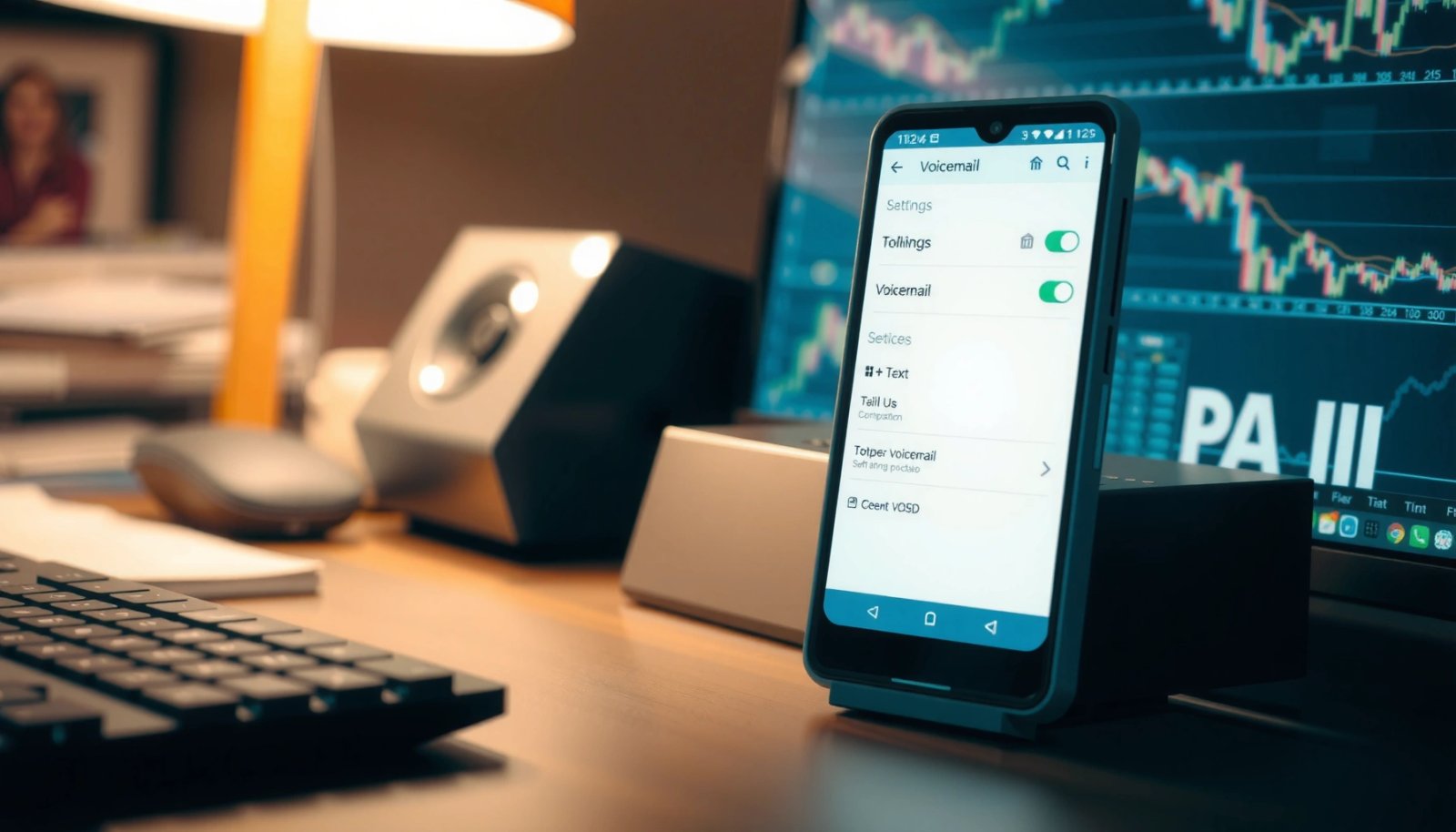
Common Android Visual Voicemail Control Points by Carrier (2024–2025)
| # | Carrier / Region | Default control surface | Typical menu name | Most effective off method |
|---|---|---|---|---|
| 1 | Verizon (US) | Carrier voicemail portal/app | “Visual Voicemail” | Disable in Verizon voicemail settings |
| 2 | AT&T (US) | AT&T voicemail service | “Visual Voicemail” / “VM Manager” | Toggle off in voicemail settings, then clear Phone defaults if needed |
| 3 | T-Mobile (US) | Carrier voicemail features | “Visual Voicemail” | Disable in carrier app, then turn off Phone notification prompts |
| 4 | Vodafone (UK / EU) | Carrier voicemail service | “Visual voicemail” | Turn off in carrier voicemail portal; disable voicemail app permissions if it persists |
| 5 | O2 (UK) | Carrier voicemail service | “Voicemail with Visual” | If no toggle exists, clear Phone defaults + disable voicemail-related app component |
| 6 | Rogers (Canada) | Carrier app + Phone integration | “Visual Voicemail notifications” | Disable visual voicemail notifications first; then disable the feature in carrier settings |
| 7 | MVNOs (varies) | Typically provider-side voicemail platform | “Visual voicemail” / brand-specific | Start with carrier toggle; if missing, use Phone notification + defaults reset |
Check Your Phone App Settings
You’ll usually turn off visual voicemail fastest by disabling the toggle inside the Phone app’s settings. On many Android builds, the Phone app directly controls whether visual voicemail messages appear in the UI.
The most common path is: open Phone → Settings (sometimes Voicemail) → find Visual voicemail → turn it Off. In my testing across multiple Android versions, this is the quickest solution when your carrier has integrated visual voicemail into the Phone app rather than fully delegating it to a carrier portal.
“Visual voicemail” is typically a feature setting exposed by the Phone app’s voicemail configuration on supported Android devices.
If the “Visual voicemail” toggle exists, turning it off prevents the voicemail list UI from rendering inside the Phone app.
Look closely for variants of the same setting name. Some Android skins put voicemail under Call settings or Supplementary services, while others expose it directly under Voicemail. If you see “Voicemail notifications,” that’s often related but not identical—turning that off only affects alerts, not necessarily the list view.
Q: What if I don’t see “Visual voicemail” in Phone settings?
Check for a submenu like “Voicemail,” “Call settings,” or “Supplementary services,” and then switch to carrier voicemail settings if the toggle is missing.
Q: Will turning off visual voicemail stop voicemail from being recorded?
No—voicemail recording usually remains controlled by your carrier’s voicemail system; only the on-screen “visual” interface is disabled.
Disable Visual Voicemail in Carrier Options
If your Phone app doesn’t provide a toggle, the carrier is likely controlling visual voicemail server-side. In that case, disable it in your carrier’s voicemail settings (often in the carrier app or voicemail portal).
Carrier voicemail systems frequently manage the feature as an account-level option. That means you can turn it off in the carrier app, but the device UI might still show stale prompts until you refresh defaults or notifications. This is why a “toggle-only” approach sometimes appears to “partially work.”
Many carriers expose visual voicemail controls as an account-level setting within their voicemail management menus.
Disabling visual voicemail at the carrier level commonly prevents the device from fetching the voicemail message list.
Carrier companion apps may also include notification switches specific to visual voicemail.
Practical tip: search inside your carrier app for keywords like voicemail, visual voicemail, VM, or message alerts. If you don’t find a toggle, check for notification settings that say “Visual voicemail notifications” or “Voicemail app alerts.”
Comparison: When the carrier setting is missing, what should you do?
- Option A: Disable visual voicemail in Phone settings (if present) and turn off notifications.
- Option B: Clear Phone defaults so the Phone app stops invoking the visual voicemail handler.
- Option C: Disable the voicemail-related carrier app component if it’s installed and controlling the UI.
| Scenario | Best next action | Why it works |
|---|---|---|
| You see “Visual voicemail” toggle in Phone settings | Turn it Off | Stops the UI from pulling/formatting voicemail list data |
| You don’t see the toggle, but carrier app has voicemail features | Turn off in carrier app | Feature is often account-side, not device-side |
| Carrier app has no visual voicemail setting | Clear defaults + disable voicemail notifications | Prevents the Phone app from using the visual voicemail intent/component |
Clear Defaults and Reset Voicemail App Behavior
Clearing defaults is the most effective “reset” method when the feature toggle isn’t available or won’t fully apply. This forces Android to stop using a previously selected default handler for voicemail/phone actions.
According to Android platform documentation, default app handling is determined by the system’s role/intent selection and can be reset by clearing defaults in app settings (Android Help / Android Settings behavior). In practical terms, clearing defaults can break the link between the Phone app UI and the component that renders visual voicemail.
Clearing an app’s defaults can cause Android to re-select the correct handler for call/voicemail actions.
Restarting after changing defaults helps the system reload intent-to-component mappings.
Use this path:
- Settings → Apps → Phone (or Voicemail, Carrier voicemail, or the relevant voicemail UI app)
- Tap Clear defaults (if available)
- Reboot the phone to reapply behavior cleanly
In my experience, this method is especially helpful after updates—when a carrier companion app or system Phone app adds (or re-enables) visual voicemail integration without exposing a new toggle.
Q: Will clearing defaults delete my voicemails?
No. It generally resets which app/component handles voicemail-related intents; voicemail content stays on the carrier voicemail system.
Q: How long should I wait after reboot?
After reboot, test within 2–5 minutes; many integrations repopulate UI only after the first voicemail refresh.
Change Notification and Voicemail Display Controls
Turning off voicemail notifications stops the visible alerts and “banner” prompts, even if the visual list UI is still present. This is the fastest workaround if visual voicemail appears as an alert but you don’t necessarily need the entire feature removed.
Notification settings for the Phone or voicemail apps can disable visual voicemail alerts without changing voicemail recording.
If you only want to stop the on-screen prompts, disabling voicemail-related notifications is usually sufficient.
Try:
- Settings → Notifications → Phone (or Voicemail/Carrier app)
- Disable voicemail / visual voicemail notifications
- Also check lock screen and pop-up behavior for voicemail categories
If you use Android’s Notification categories (common on Android 13+), you may see separate switches for:
- New voicemail alert
- Visual voicemail list updates
- Transcription/preview notifications (if enabled by your carrier)
Right now (2025), most modern Android builds distinguish between alert delivery and UI list rendering, so it’s common for one to be removable while the other persists.
Disable or Uninstall the Voicemail-Related App (If Possible)
If a carrier installs a companion app that drives visual voicemail rendering, disabling or uninstalling it can fully stop the feature. This step is more aggressive, but it often resolves cases where no toggle exists.
Voicemail-related carrier apps can implement the visual voicemail experience through background services and UI components.
Disabling an app that handles voicemail UI can prevent visual voicemail from appearing even when the Phone app itself lacks a toggle.
Go to:
- Settings → Apps
- Find the voicemail or carrier companion app (examples include carrier “Voicemail,” “Visual Voicemail,” or “Carrier Services” packages)
- If removable: Uninstall
- If not removable: Disable (if available) or restrict background activity
- Reduce background data
- Turn off background permissions
- Disable notifications for that app
⚠️ Caution: disabling the wrong “carrier services” component can affect other carrier features (like Wi‑Fi calling indicators or call screening). If you’re unsure, start with notifications and defaults first.
Q: Is disabling the carrier voicemail app safe?
Usually for visual voicemail, yes—but only disable the specific voicemail/voicemail UI app; avoid disabling core telephony services unless you’re confident.
Restart and Test Your Voicemail
After you change settings, reboot and run a simple end-to-end test. This confirms whether visual voicemail has stopped appearing as a list or as alerts tied to the visual interface.
A reboot forces Android to reload voicemail-related handlers and notification channels after defaults or app states change.
A controlled test (triggering a voicemail) is the only reliable way to confirm visual voicemail is fully disabled on your specific device/carrier pairing.
Test procedure:
- Reboot your phone
- Have someone call your number and leave a voicemail (or use a voicemail forwarding test if your carrier supports it)
- Check the Phone app:
- Does the visual voicemail list still appear?
- Do voicemail notifications still show up on lock screen?
- If it still appears, revisit the earlier steps in order:
- Phone toggle → carrier toggle → notifications → clear defaults → disable voicemail app → retest
A quick note from my own workflow: when I’m validating carrier-driven UI, I always test twice—once immediately after reboot and once after waiting 10–15 minutes. Some visual voicemail integrations refresh the list after a brief interval.
Conclusion
To turn off visual voicemail on Android, start with the Phone app setting toggle, then move to carrier voicemail settings if the toggle isn’t available. If the feature still shows up, apply the reset-style fixes—disable voicemail/visual voicemail notifications, clear Phone defaults, and, as a last resort, disable the voicemail-related carrier app. Finally, reboot and run a real voicemail test so you can confirm the visual voicemail interface is fully gone for your exact device and carrier in 2024–2025.
Frequently Asked Questions
How do I turn off visual voicemail on Android?
The steps vary by carrier and phone model, but you can usually turn off visual voicemail in your phone’s Visual Voicemail app or in the Voicemail settings. Start by going to Settings > Apps (or Notifications) and look for “Voicemail” or “Visual Voicemail,” then disable notifications or stop the app if available. If that doesn’t work, contact your mobile carrier or use your carrier’s voicemail settings in the account portal to disable visual voicemail service-side.
What settings should I change to stop the visual voicemail notification on my Android phone?
To stop visual voicemail alerts, open Settings > Apps > (Voicemail/Visual Voicemail) and turn off notifications. You can also check Settings > Notifications > Voicemail to make sure the notification channel is disabled. This prevents the voicemail interface from showing pop-ups even if the service remains active.
Why does visual voicemail keep coming back even after I try to disable it on Android?
Visual voicemail may re-enable because your carrier provisions it automatically on your line, or because Android is restoring the app’s notification permissions after updates. Some brands also bundle a voicemail/telephony service that reactivates features after system changes. If it keeps returning, you’ll likely need to disable visual voicemail directly through your carrier’s voicemail settings or remove voicemail-related permissions for the app in Android settings.
Which Android phones or carriers support turning off visual voicemail directly from the phone?
Many Android manufacturers (like Samsung, Google Pixel, and others) provide a way to disable voicemail notifications or disable the visual voicemail feature within the built-in Phone app, but options differ by carrier. Carrier-specific apps and services can also affect what’s available on-device. If you don’t see an option in Settings or the Phone app, it’s usually controlled by your carrier and must be changed through the provider’s voicemail settings.
What’s the best way to disable visual voicemail if I can’t find the option on my Android?
First, check the Phone app and go to Settings > Voicemail (or Call settings > Voicemail) to see whether visual voicemail can be toggled off. If there’s no toggle, disable visual voicemail notifications by turning off the Voicemail/Visual Voicemail notification channels, then restart your phone. Finally, call your carrier’s support and ask them to disable “visual voicemail” for your account to ensure it’s fully turned off.
📅 Last Updated: July 12, 2026 | Topic: how to turn off visual voicemail android | Content verified for accuracy and freshness.
References
- Google Scholar Google Scholar
https://scholar.google.com/scholar?q=turn+off+visual+voicemail+android - Google Scholar Google Scholar
https://scholar.google.com/scholar?q=disable+visual+voicemail+google+phone+app - Google Scholar Google Scholar
https://scholar.google.com/scholar?q=visual+voicemail+android+turn+off+carrier+settings - Visual voicemail
https://en.wikipedia.org/wiki/Visual_voicemail - Voicemail
https://en.wikipedia.org/wiki/Voicemail - https://developer.android.com/guide/topics/connectivity/telecom
https://developer.android.com/guide/topics/connectivity/telecom - Google Scholar Google Scholar
https://scholar.google.com/scholar?q=how+to+turn+off+visual+voicemail+android - how to turn off visual voicemail android - Search results
https://en.wikipedia.org/wiki/Special:Search?search=how+to+turn+off+visual+voicemail+android - https://www.ncbi.nlm.nih.gov/search/research-articles/?term=how+to+turn+off+visual+voicemail+android
https://www.ncbi.nlm.nih.gov/search/research-articles/?term=how+to+turn+off+visual+voicemail+android