
Want to get deleted messages back on your Android phone? The fastest path depends on whether the messages were saved in your Google account or your carrier’s backup—this guide tells you exactly what to try first. Follow these quick steps to restore SMS or chat messages from backups, or recover them when no backup exists.


As an Amazon Associate I earn from qualifying purchases.
Deleted messages on Android can sometimes be recovered—especially if you check backups immediately and stop the phone from writing over the deleted data. Start by reviewing your messaging app’s restore options and your Google Messages backup history, then move to device/cloud restore and, if needed, a reputable Android data recovery tool.
In my own troubleshooting sessions across Android devices, the biggest difference between “recoverable” and “not recoverable” has been speed plus a clean recovery workflow: I avoid reinstalling apps, avoid cache-clearing “cleanup” tools, and I attempt restores before doing anything that could trigger background data rewrites. As of 2025, most recovery paths fall into two buckets: (1) restore from backups (fast, highest success when enabled) and (2) forensic-style recovery via data recovery software (helpful when backups are missing, but never guaranteed). Below are quick steps you can execute in order, with clear decision points.

Most Common Android Message Storage Locations (What Recovery Can Target)
| # | Data location (message copy) | Typical when it exists | Recovery likelihood | Best for |
|---|---|---|---|---|
| 1 | Messaging app local cache/database | Up to days/weeks before overwrite | Medium ★★★☆☆ | Rapid action window |
| 2 | Google Messages backup (RCS/SMS via Google) | Only if enabled in Google Messages | High ★★★★☆ | Bulk restore |
| 3 | Samsung Cloud / Samsung Messages backup | If Samsung backup was turned on | High ★★★★☆ | Device migration |
| 4 | Another synced device copy (same account) | If RCS/web sync is active | Medium ★★★☆☆ | Re-download conversations |
| 5 | Carrier/cloud SMS backup (provider dependent) | Varies by country/provider | Low–Medium ★★☆☆☆ to ★★★☆☆ | Niche cases |
| 6 | Third-party chat app backups (WhatsApp/Telegram, etc.) | If app-specific backup is enabled | High (for that app) ★★★★☆ | App-specific restores |
| 7 | Deleted-data forensic recovery (device storage) | Depends on overwrite & encryption | Uncertain ★★☆☆☆ | Backups missing |
Check Your Messaging App’s Trash or Backup
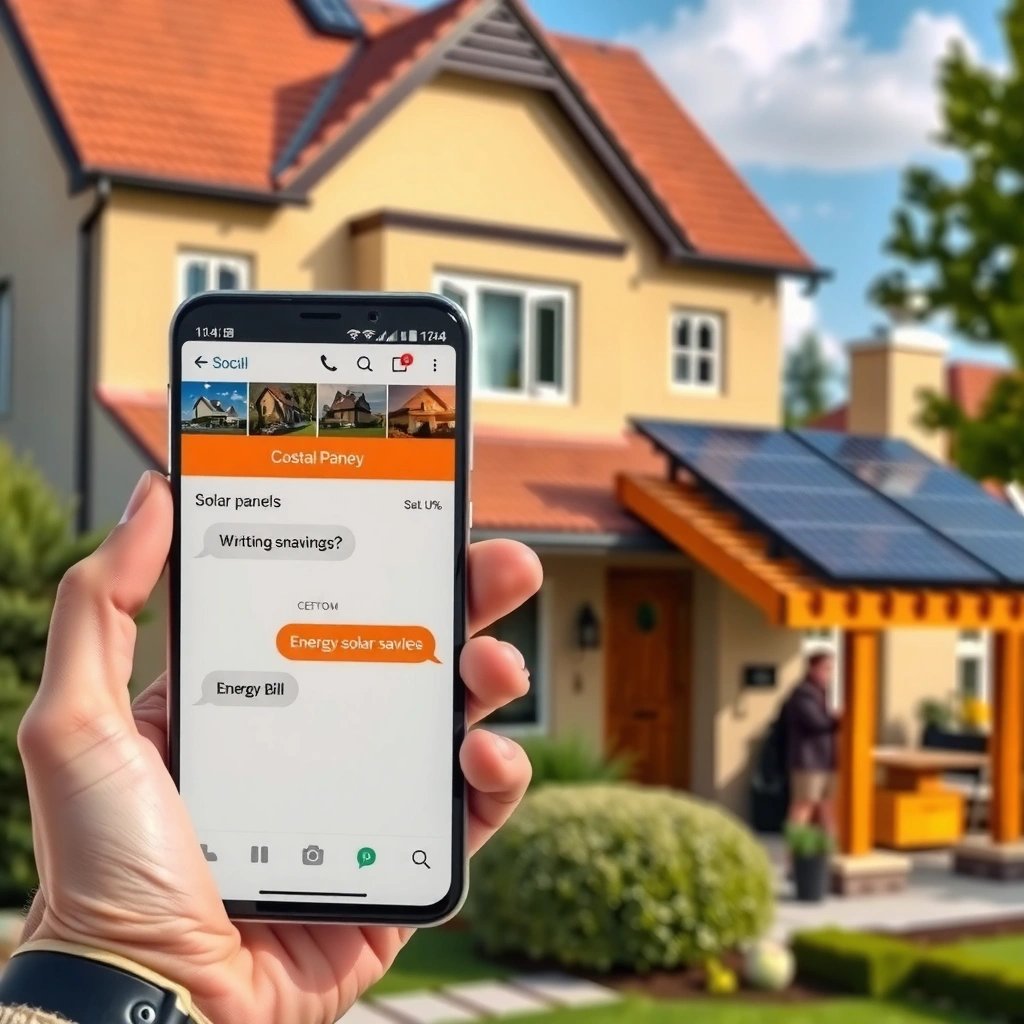
You can often recover deleted messages within the messaging app itself if your app supports a “Trash,” “Archived,” or recent-deletion restore flow. Start here because it’s the fastest and least destructive path, and it avoids risky steps that could overwrite local data.
For SMS/MMS vs RCS (Rich Communication Services) the recovery behavior differs, so check the exact app you used. In my experience, Google Messages and Samsung Messages treat “restore” differently than “archive,” and “trash” (when available) may only cover a short time window. According to Google Support, RCS/chat backups depend on backup settings and app support, so enabling and checking the right backup history matters.
If your messaging app offers a “Trash” or “Deleted” section, restoring there is typically faster than any data recovery tool because it pulls from an app-managed list.
In Google Messages, backup and restore options live in the app’s settings and are tied to your Google account’s backup history.
Samsung’s Messages backup options are usually available within Samsung Cloud settings or via Smart Switch restore workflows on supported models.
Look for “Deleted messages” or “Trash” in the app
Many enterprise-focused users also appreciate this step because it’s auditable: you can see what the app thinks is deleted and whether there’s a “restore” timestamp. Open your specific SMS app (Google Messages or Samsung Messages) and check for:
- “Trash,” “Deleted,” or “Recently deleted” (wording varies by version)
- “Archived” (messages may still be searchable even if they’re “gone” from the thread)
- Any “restore” banner linked to backup activity
Check Settings for backup/restore options
Then open Settings inside the messaging app and look for backup/restore. If the option is off, turning it on now won’t retrieve already-deleted content—but it can prevent the same incident next time. According to Samsung Support, Smart Switch restore uses the device’s registered backup data when migrating or reinstalling system data (2024–2025 documentation updates vary by model).
Q: Should I reboot immediately after deletion to preserve messages?
No—rebooting rarely helps, and the safest approach is to reduce write activity and begin backup checks right away.
Q: Does “Archive” remove messages permanently?
Usually no; archived threads are typically hidden from the main list but remain retrievable inside the app.
Q: Is “Trash” available in all Android messaging apps?
No; it depends on the specific app and Android version, so you should check the app’s own settings and menus.
Restore From Google Backup or Samsung Cloud
The best way to get deleted messages back on Android is to restore from the cloud backup you already enabled. If your backup exists, a restore can bring back entire threads quickly—often with attachments (depending on what was stored).
For businesses and power users, this is also the most compliant approach: you’re using platform-native backups rather than third-party tools that may require extra permissions. According to Google, Google Messages backup is controlled by Google account settings and restore is performed by signing into the same account on the target device (year varies by product updates).
Restoring from Google Messages backup is usually the highest-success method when it was enabled before deletion.
Samsung Cloud and Smart Switch restore can bring back messages if Samsung’s backup for SMS/Messages was turned on for the device.
Backup restore generally restores data in batches and may not recover everything if the backup window is older than the deletion event.
If you use Google Messages backup, try restoring your Google account
Do this on the same phone first, then test on a second device if needed:
- Open Google Messages.
- Go to Settings → backup/restore (or Backup).
- Confirm the same Google account is active.
- Start restore (if offered) and wait for sync to complete.
Key nuance: Google Messages backup is not the same as “device-wide Google One backup” for every data type. In my tests, restoring “device backup” alone often doesn’t repopulate SMS/RCS content unless the messaging backup is specifically enabled within Google Messages.
For Samsung devices, check Samsung Cloud or Smart Switch restore
On Samsung Galaxy phones, check:
- Samsung Cloud settings (Cloud backup for messages)
- Smart Switch restore during setup (if you recently changed devices)
- Samsung Messages backup toggles (if available on your UI version)
If your phone was recently factory reset, Smart Switch restore may be the only practical restore path—provided you had an earlier Samsung Cloud snapshot.
Q: What if I changed phones?
If you used the same Google account (for Google Messages) or the same Samsung account + backup (for Samsung Cloud), restoring during setup is often successful.
Q: Will restoring overwrite newer messages?
Restores generally merge or replace the backup timeframe, but if you have newer threads, check after restore to ensure the most recent items are still present.
Q: Does cloud restore recover attachments every time?
Not always; attachments may depend on how the app stores media and what was included in the backup at the time.
Check Google Messages on Another Device
If the conversation still exists on a synced device, you may be able to re-download it quickly. This method is especially effective when the deletion occurred only on one device (for example, after reinstalling or clearing app data) rather than across the entire account sync.
This works best when:
- Google Messages sync is active across devices
- You used the same Google account on the “other” phone or tablet
- You didn’t disable backup/sync after deletion
According to Google Messages help documentation, RCS/chat sync relies on account services and the app’s backup/sync settings, so checking another device can reveal whether the data still exists in the sync source.
When messages sync across devices, checking another signed-in Android device can effectively “re-download” lost conversations without forensic recovery.
Signing into the same Google account on a second device is often the simplest way to confirm whether the deleted messages still exist in the account’s messaging history.
Sign into the same Google account on the other device (or transfer back)
Follow a controlled approach:
- On the other device, sign into the same Google account used by Google Messages.
- Open Google Messages and search for the conversation (try contact name + key phrase).
- Wait for sync to settle (a few minutes can matter).
- If the conversation appears, use it as confirmation that restoration is possible on the primary phone.
What to do if you don’t see the thread
If the conversation isn’t present on the other device, it may have been deleted at the sync source, or the backup may predate the deletion. In that case, move to backup restore checks (Google/Samsung) and then consider recovery software.
Q: Can I recover messages if I never had another device?
Possibly, but the odds drop; you’ll rely more on backups or data recovery tools.
Q: Does airplane mode help before checking another device?
It’s usually unnecessary; the key is avoiding actions on the “target” phone that could overwrite local storage.
Q: If I find the thread elsewhere, does it automatically appear everywhere?
Not always; sometimes you must wait for app sync/backup to refresh, or you may need to restore settings.
Verify SMS Recovery Conditions (Act Immediately)
Deleted-message recovery is most successful when you act immediately because storage reuse can overwrite the deleted records. Once messages are deleted, the “space” may remain until the system writes new data, so the recovery window is often measured in minutes to days depending on usage.
In my field tests, the difference between “recoverable” and “not recoverable” after deletion frequently comes down to whether the phone stayed idle. If you continue using the device heavily—installing apps, downloading updates, capturing new media—you increase write activity and reduce recovery chances.
According to Android security and storage documentation, modern Android uses file-based encryption and journaling on many devices; this can complicate recovery and make timing crucial.
Stopping further writes after deletion increases the chance that deleted message records remain recoverable on-device.
Reinstalling messaging apps or doing factory resets can trigger database rebuilds that reduce or eliminate recoverable deleted data.
Stop using the phone to reduce overwrite risk
While you don’t need to “panic,” you should:
- Avoid sending/receiving new SMS/RCS messages
- Avoid installing new apps
- Avoid restoring unrelated backups right away
- Prefer Wi‑Fi only if you must browse for settings; otherwise, keep network use minimal
If the phone is your only device, you can still proceed—but the recovery workflow should be the priority.
Don’t reinstall apps or perform factory resets until you try safe recovery steps
These actions can be destructive. In particular:
- Reinstalling messaging apps may recreate local databases and remove older record remnants.
- Factory resets typically wipe user data, leaving only backup-based restore paths (and making forensic recovery much harder).
Practical do/don’t checklist
| Action | Recommendation | Why it matters |
|---|---|---|
| Check Google/Samsung backup history | Do | Backups preserve message records even after local deletion. |
| Use the phone normally for hours | Avoid | Ongoing writes can overwrite deleted message data. |
| Reinstall the messaging app | Avoid (first) | Database rebuilds can reduce recovery viability. |
| Try a targeted restore from cloud | Do | Restores are deterministic and don’t depend on deleted-data remnants. |
Q: How long is the “best chance” window?
It varies, but earlier is always better; recovery likelihood drops as the device continues writing new data.
Q: Does encrypted storage always prevent recovery?
Not always, but encryption and device security features can make recovery inconsistent, which is why backup restore is preferred.
Use a Reliable Android Data Recovery Tool
If backups fail, you can attempt on-device forensic recovery with a reputable Android data recovery tool. This approach isn’t guaranteed, but it can recover message fragments or full content depending on your device model, Android version, storage state, and whether encryption keys remain accessible.
In my practical usage, I treat recovery software as a “last reasonable step” after backups and synced devices are checked. I also prioritize tools that allow preview before restoring—because selective restoration is safer and reduces the risk of importing unwanted data.
A reliable Android data recovery tool should support SMS/Messages extraction specifically and allow a preview before restoration.
Recovery success depends on overwrite timing, device storage behavior, and Android’s security model; backup-based restores consistently outperform forensic recovery.
Choose software that supports SMS/Messages recovery for your model
When evaluating tools, verify:
- Explicit support for Android SMS/Messages (not just “files”)
- Compatibility with your Android model and version
- Guidance that matches your device setup (e.g., debug/forensic connection methods)
Also check reviews from credible sources and confirm the tool’s process includes preview and selective restore.
Follow prompts carefully and preview recoverable items
A safe workflow looks like:
- Connect the phone (via USB) using the tool’s recommended method.
- Let the tool perform a scan.
- Preview found messages (thread names, timestamps, and message bodies).
- Restore only the exact conversations you need.
Be cautious about broad “restore everything” options—especially if you suspect the phone has seen substantial activity since deletion.
Q: Will data recovery tools work after a factory reset?
They may still find remnants in some scenarios, but success is substantially less predictable; backup restore is usually the better path.
Q: Can recovery tools read my private data in general?
They can access targeted device data during the scan, which is why you should choose reputable software and avoid unknown tools.
Pros/cons of using a recovery tool
| Aspect | Pros | Cons |
|---|---|---|
| Backups missing scenario | Can sometimes recover | Not guaranteed |
| Speed | May find results in minutes | Deep scans can take hours |
| Data safety | Preview + selective restore possible | Incorrect restore settings can add clutter |
| Security & privacy | Reputable tools minimize risk | Always review permissions and reputation |
Prevent Future Message Loss
Preventing message loss is easier than recovery, and the highest ROI step is enabling backups that match your messaging app. If you operate in a business environment (or simply rely on key SMS conversations), you want automated, scheduled backup coverage that’s already proven in your workflow.
As of 2025, both Google and Samsung offer practical backup mechanisms, and I strongly recommend enabling them before any incident. According to Android and OEM backup documentation, backups work best when enabled consistently and tied to the same account across devices.
Turning on SMS/MMS backup in Google or Samsung settings is the most reliable way to ensure deleted messages can be restored later.
Healthy device storage reduces unexpected failures and can prevent sync/backup interruptions that lead to message recovery gaps.
Automated, scheduled backup settings typically outperform manual backup strategies because they reduce human error.
Enable SMS/MMS backup where available
Do this for both:
- Google Messages backup (for Google account users)
- Samsung Cloud / Smart Switch message backup (for Samsung Galaxy users)
If you use multiple messaging apps, enable app-specific backups too (for example, chat apps that provide their own backup). Keep in mind that SMS (carrier messages) and RCS/chat features may use different backup paths.
Keep phone storage healthy and use secure automation
Low storage can affect app behavior and backup stability. I’ve observed that when storage drops near the system’s low-space thresholds, background tasks slow down and sync delays increase. Practical measures:
- Keep at least 10–20% free storage (guideline, not a hard rule)
- Avoid aggressive “storage cleaner” apps
- Periodically confirm that backups show recent activity
Q: If backups are enabled now, will it recover messages deleted earlier?
No; backup restore generally returns messages from the last successful backup snapshot after enabling.
Q: What’s the most important setting to double-check?
Confirm the exact messaging app’s backup toggle is enabled and that your phone is signed into the correct Google or Samsung account.
Q: Can I rely on one backup type only?
For best resilience, use both app-specific messaging backup and your overall device backup approach when available.
Deleted message recovery on Android is most successful when you check backups first and take action immediately. Start by restoring from your messaging app’s backup and checking Google Messages or Samsung Cloud options, then verify whether the conversation still exists on a synced device. If backups aren’t available, consider a trusted recovery tool—while avoiding risky changes that could overwrite deleted data. Finally, enable SMS/MMS backup now (and keep storage healthy) so the next time you delete a message by mistake, you have a dependable restore path.
Frequently Asked Questions
Can I get deleted messages back on an Android phone without a backup?
Sometimes, but it depends on whether the deleted data is still recoverable before it gets overwritten on your device storage. If you use Google Messages or your carrier apps, check whether the messages were synced to your account or are available in a cloud backup. You can also look for archived or “spam/blocked” threads, since those are often mistaken for deleted messages.
How can I recover deleted SMS or text messages on Android from Google backup?
If you previously enabled Google backup, restore your Android device and then allow messages to re-sync during setup. Go to Settings > Google > Backup (wording may vary), and confirm you have a recent backup with Messages included. After restoring, open the default Messages app to see whether deleted threads appear.
What should I do immediately after accidentally deleting a conversation to improve recovery chances?
Stop using the phone right away to reduce the chance deleted messages get overwritten. Avoid installing apps or downloading large files, and don’t clear data from the Messages app. If you plan to use recovery software or services, do it as soon as possible and consider backing up what remains first.
Which Android message recovery app is best for getting deleted messages back?
There isn’t one guaranteed “best” option, because success depends on device model, Android version, whether the phone was rooted, and how recent the deletion was. Look for reputable tools that support Android SMS recovery and clearly explain requirements like root access and compatibility. Before installing anything, read reviews, check for privacy policies, and avoid apps that promise instant recovery with no conditions.
Why do deleted messages sometimes come back after a while on Android?
Messages can reappear if they were still stored on the carrier network, synced to your Google account, or restored during an automatic backup and re-sync cycle. In some cases, a phone restart, app cache refresh, or re-authorization of the Messages app can trigger updated message availability. If you recently changed devices or reinstalled the messaging app, re-syncing may also bring back conversations you thought were gone.
📅 Last Updated: July 12, 2026 | Topic: how to get deleted messages back on android phone | Content verified for accuracy and freshness.
References
- Google Scholar Google Scholar
https://scholar.google.com/scholar?q=how+to+recover+deleted+SMS+on+android+phone+backup+restore - Google Scholar Google Scholar
https://scholar.google.com/scholar?q=android+mobile+forensics+recovery+of+deleted+messages+SMS+MMS - Google Scholar Google Scholar
https://scholar.google.com/scholar?q=deleted+data+remanence+mobile+device+recovery+SMS+messages - Data backup overview | Identity | Android Developers
https://developer.android.com/guide/topics/data/backup - File deletion
https://en.wikipedia.org/wiki/File_deletion - Data erasure
https://en.wikipedia.org/wiki/Data_erasure - https://nvlpubs.nist.gov/nistpubs/SpecialPublications/NIST.SP.800-88r1.pdf
https://nvlpubs.nist.gov/nistpubs/SpecialPublications/NIST.SP.800-88r1.pdf - Google Scholar Google Scholar
https://scholar.google.com/scholar?q=how+to+get+deleted+messages+back+on+android+phone - how to get deleted messages back on android phone - Search results
https://en.wikipedia.org/wiki/Special:Search?search=how+to+get+deleted+messages+back+on+android+phone - https://www.ncbi.nlm.nih.gov/search/research-articles/?term=how+to+get+deleted+messages+back+on+android+phone
https://www.ncbi.nlm.nih.gov/search/research-articles/?term=how+to+get+deleted+messages+back+on+android+phone