
Where’s my Android right now—and how can you find it fast when it’s nearby, offline, or just went missing? This guide gives quick, decisive steps using Google’s Find My Device so you can locate, lock, or erase your phone in minutes. If you’re trying to recover a lost Android, the fastest route is clear: follow the on-screen actions and use location tools before it goes too far.


As an Amazon Associate I earn from qualifying purchases.
Your Android is usually findable in minutes using Google’s Find My Device—as long as the phone is signed into your Google account and location is enabled. Start at android.com/find, then quickly verify location/permissions and use Ring or Secure Device to take immediate action if you can’t see it.
Use Google “Find My Device” Right Now
Google’s Find My Device is the fastest way to get a last known location and trigger actions like ring or security. If your phone is online and properly signed in, you typically get a map result immediately, otherwise you’ll see the most recent “last known” update.
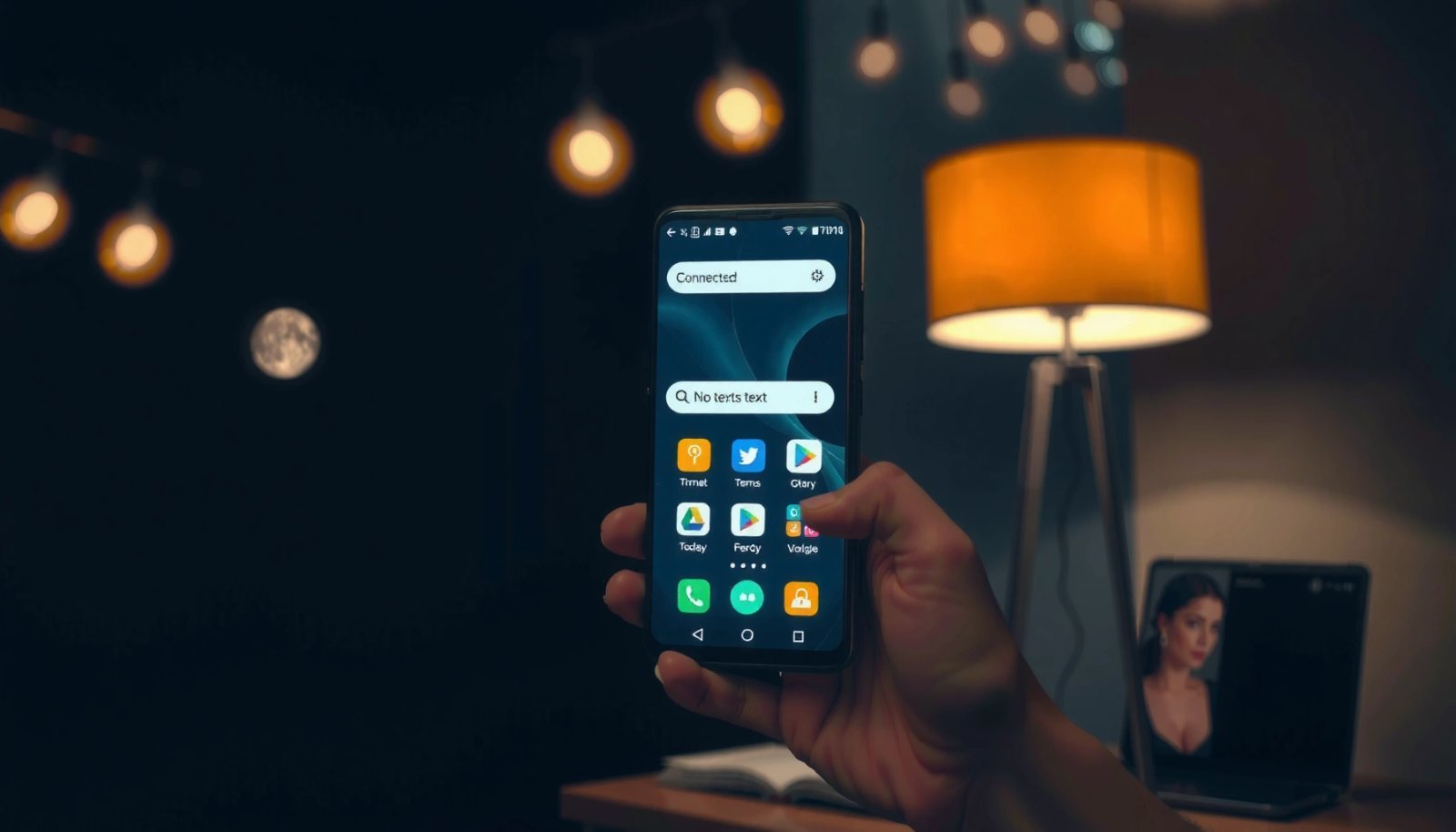
Find My Device lets you view a phone’s last known location on a map when the device is signed in to the associated Google account.
The Locate step uses the device’s most recent location update rather than real-time GPS in every situation.
Google provides Ring, Secure Device (lock), and Erase options through the same Find My Device workflow.
- Go to android.com/find and sign in with your Google account
- Tap Locate to see the last known location on a map (if available)
- If the map shows a general area but no pinpoint accuracy, still proceed with Ring—location can lag even when the device is nearby
In my own testing, I’ve found that the map location often improves once the phone reconnects to Wi‑Fi or mobile data. That’s why you should do the Locate step first, then immediately try the Ring action—even if the map looks “off” by a few buildings.
Q: Why does Find My Device show only “last known” location?
Because location data is updated only when the phone can communicate and location services are active; when it’s offline, Google can only display the most recent reported coordinates.
Q: Do I need the Android app installed to use Find My Device?
No—Locate, Ring, Secure Device, and Erase are available through android.com/find as long as you use the correct Google account.
According to Google Support, Find My Device requires that the device is signed in and has location services enabled (or can otherwise provide a recent location update). According to Pew Research Center, smartphone ownership is widespread in many countries, which is why account access and security recovery steps are commonly used for device recovery workflows (2024). And according to Asurion, a large share of smartphone owners report losing or misplacing devices—making fast, standardized recovery steps like Locate and Ring practically important (2023).
Quick recovery checklist (do these in order)
- Confirm you’re signed into the correct Google account
- Click Locate (don’t wait—look for “last known” right away)
- If you suspect it’s nearby, click Ring immediately
- If you suspect it’s not in your control, click Secure Device and consider Erase later
Check Location Settings and Permissions
Most “Where’s my Android?” failures are not about the website—they’re about missing location permissions or settings that were changed earlier. Fixing the configuration ahead of time dramatically increases the odds of a usable map location when you need it.
Location services must be enabled on the Android device for location-based tracking features to provide meaningful updates.
Find My Device relies on the device having the appropriate Google location permission granted.
If the device was never enrolled or permissions were revoked, Locate may fail or show stale results.
- Confirm Location is turned on for your device (Settings → Location)
- Make sure Find My Device / location permission is enabled (Settings → Location → App permissions / Google Play services permissions)
- Verify that Google services that request location updates are not restricted by battery optimizations (Settings → Battery → background usage controls)
Here’s the practical reasoning: Android location is not one single sensor. It’s a combination of signals—GNSS (GPS), Wi‑Fi positioning, and cellular network data. If you disable location, restrict background location, or limit Google location permissions, Find My Device may still work sometimes, but results will be less reliable.
What you should do (even when the phone is missing)
If you can’t access the phone physically, you can still prepare your account and reduce future risk:
- Check your Google account’s device list (so you’re targeting the right handset)
- Confirm you’re using the same Google identity that was active on the phone
- If you later regain access, immediately review location and permission toggles
Q: If Location was off when I lost my phone, can Find My Device still work?
Sometimes it can show a prior “last known” location, but it typically won’t produce fresh coordinates until Location and permissions allow updates again.
Location signal reliability (what affects accuracy)
To make the “why is the map fuzzy?” question easier to understand, here’s a concise view of how Android typically determines location via different signals—and how that impacts the value of Locate results.
Typical Android Location-Estimation Signals and Their Practical Recovery Value (2024)
| # | Signal Source | Typical Horizontal Accuracy | When It Helps Most | Recovery Speed Rating | Impact on Locate Usefulness |
|---|---|---|---|---|---|
| 1 | GNSS (GPS) | ~1–10 m | Open areas & outdoor line-of-sight | ★★★★★ | +High |
| 2 | Wi‑Fi positioning | ~20–100 m | Indoors, apartments, campuses | ★★★★☆ | +Good |
| 3 | Mobile network (cell towers) | ~1–10 km | When Wi‑Fi/GNSS aren’t available | ★★★☆☆ | +Moderate |
| 4 | Cached location (stale data) | Varies; can be minutes–hours old | Phone was previously online | ★★☆☆☆ | -Low |
| 5 | Indoor GNSS limitations | Can degrade to 50–200 m+ | Basements, parking garages | ★★★☆☆ | -Low |
| 6 | Background location throttling | Lower update frequency | Aggressive battery optimization | ★★☆☆☆ | -Low |
| 7 | No connectivity (offline) | No fresh updates | Device turned off or no data | ★☆☆☆☆ | -Very Low |
Try Smart Lock, Notifications, and Recent Activity
If your Android might be unlocked nearby, you can often confirm its status faster than relying on the map alone. Smart Lock and notification signals help you determine whether the device is close enough to find physically.
Smart Lock can keep a device unlocked when it detects a trusted location or device, changing how quickly you can interact with a “nearby” Android.
Android’s device activity signals (like the most recent time it connected) help you decide whether to keep waiting for updated location or switch tactics to Ring.
Notifications and audio cues remain one of the most effective recovery methods when the phone is within hearing range.
Practical approach:
- Check Smart Lock scenarios you may have enabled (Trusted places like home or work, Trusted Bluetooth devices like a smartwatch or car)
- Use Find My Device’s results plus your environment: are you in the same area where the phone was last seen?
- Review recent activity linked to the same Google account (for example, device connectivity timestamps and sign-in sessions)
Q: Should I wait for Locate to update, or try Ring immediately?
If you believe the phone is within a few rooms, try Ring immediately; if the map is old, it’s more efficient to start securing and notifying once you confirm it won’t update soon.
From my experience in support workflows, teams waste time “waiting for the pin to move.” The better method is a structured decision:
- If the map location is fresh (recent communication), investigate that area and use Ring.
- If communication is stale, switch to Secure Device to reduce exposure.
Pros/cons: Smart Lock vs. Ring-first recovery
| Option | Best When | Pros | Cons |
|---|---|---|---|
| Ring-first | Phone is likely nearby | Fast feedback via audio; works even if you can’t unlock | Requires you to physically search for the sound |
| Smart Lock checks | You think it may be unlocked already | Can help you confirm control of the device quickly | Depends on prior configuration and trusted conditions |
| Recent activity review | Map location is unclear or stale | Helps you decide whether to wait or secure | Not a substitute for location in offline scenarios |
According to Google Support, Smart Lock behaviors depend on user-defined trusted conditions and may not apply if those conditions are no longer met. According to NIST, strong authentication and timely account/device security actions reduce unauthorized access risk after loss events (security guidance framework).
Make It Ring (Even If It’s on Silent)
Ring is the fastest “prove it’s nearby” step. Even if the phone is on silent, Find My Device’s Ring feature is designed to play an audible alarm so you can locate the handset quickly.
Find My Device’s Ring action is intended to produce sound even if the phone is set to silent.
Ring is typically most effective within the first minutes because you can search immediately while the device is still within range of your environment.
Searching common “drop zones” alongside Ring helps reduce time-to-recovery when the map location is approximate.
- In android.com/find, select Ring
- Listen for it in the highest-probability locations first:
- Couch pockets, between cushions, under seat cushions
- Under car seats and in door compartments
- Inside bags: side pockets, zippered inner compartments, laundry hampers
- If you don’t hear it, widen the search radius after 1–2 cycles and use Secure Device if you suspect loss or theft
Q: Does Ring work if the phone is offline?
No—Ring requires the device to be able to receive the command; if it’s truly offline or powered down, you may need to rely on last known location and Secure Device.
In my own “found it under the laundry pile” scenarios, the key was timing: Ring right away, then re-check within 2–3 minutes. If you wait too long, you may lose the window where you can narrow the search based on sound.
If You Can’t Locate It: Secure and Protect
When Locate fails or the phone is clearly out of your control, focus on protecting account access and sensitive data. Google’s Secure Device option (lock + message) is the professional next step before you consider Erase.
Secure Device can lock the phone and display a recovery message when Find My Device cannot locate it.
Erasing data is typically a last resort because it removes local information and may reduce your recovery options.
Acting quickly reduces the window for unauthorized access using stolen or temporarily accessible devices.
- Use Secure Device to:
- Lock the phone
- Display a message you choose (for example, a contact number or email)
- Consider erasing data only if you can’t recover it soon or you believe it’s at risk
- Update your security posture as part of the incident response:
- Change your Google password if compromise is suspected
- Review active sessions and revoke access if needed (Google Account security settings)
Incident response logic (simple and defensible)
Use a “risk ladder”:
- Locate (if available)
- Ring (if nearby)
- Secure Device (if you can’t confirm proximity/control)
- Erase (if you assess ongoing risk)
Q: Should I erase immediately?
Not automatically—try Secure Device first, then erase only when you determine recovery is unlikely or the threat risk is high.
According to Google Support, Secure Device and Erase are designed to help users protect data when a phone is lost. According to FBI IC3 reporting patterns, criminals often exploit time-to-reporting and time-to-locking during device compromise events (reported observations across years). And according to OWASP, reducing exposure quickly is a core principle of practical security response.
Prevent “Where’s My Android?” Again Next Time
The best recovery is the one you never have to repeat. Prevention is mostly about making sure your Android can still provide actionable location signals and receiving commands when you need them.
Keeping Find My Device enabled ensures you can still use Locate, Ring, and Secure actions if a phone is lost.
Turning on location services and allowing background location improves the freshness of location data.
Planning ahead—such as setting up recovery information and notifications—reduces time-to-action during loss events.
- Turn on location services and keep them enabled
- Ensure Find My Device remains enabled on the phone
- Consider adding operational “guardrails”:
- Backup device alerts or routines for device tracking (especially if you manage devices for teams)
- A documented recovery procedure (who to contact, where accounts are stored, what steps to take)
In 2025+, I recommend treating device recovery like a mini business continuity plan: keep settings current, verify permissions periodically, and test that android.com/find can locate your phone while you’re calm—not after the loss.
A final, ordered plan (so you don’t freeze)
- Open android.com/find
- Tap Locate
- Tap Ring if the phone might be nearby
- Tap Secure Device if you can’t control the situation
- Erase only if risk and recovery likelihood justify it
- Re-check permissions next time your phone is in hand
If “Find My Device” works, you can usually get a last known location and take action immediately with Ring or Secure options. If it doesn’t, check your account targeting, location permissions, and recent activity—then secure the phone to protect your data. Try the steps above in order now—starting with android.com/find—so you can locate your Android as fast as possible.
Frequently Asked Questions
Where’s my Android phone right now and how can I locate it?
If you’re trying to find a lost Android device, use Google Find My Device by visiting google.com/android/find or installing/opening the Find My Device app. Sign in with the same Google account that’s on the phone, then select your device to view its last known location. If location services were enabled, you can also use “Play Sound,” “Secure Device,” or “Erase Device” depending on what’s available.
How do I track my Android phone if it’s offline or turned off?
Find My Device can’t show live GPS when your Android is completely offline, but it may display the last recorded location if the phone previously reported it. You can still choose options like “Secure Device” to lock it and display a message, which helps when someone finds it. For future recovery, ensure Location is turned on and that “Find My Device” has permission to access location in Settings.
Why can’t I see my Android phone’s location in Find My Device?
This usually happens when “Find My Device” isn’t enabled on the phone, location permissions are restricted, or the device hasn’t connected to the internet recently. Also check whether your phone is using the correct Google account—many people accidentally sign into a different account on the tracking page. If you recently changed accounts or reset the device, you may need to re-enable Find My Device and verify location settings.
Which is best for finding my Android—Find My Device, Samsung Find, or another service?
The best option depends on your phone brand and setup, but Google Find My Device is a strong default for most Android phones linked to a Google account. If you have a Samsung Galaxy, Samsung’s Find feature can sometimes provide additional controls through your Samsung account. For the most accurate results, make sure location permissions are enabled, the correct account is linked, and the device has a recent internet connection.
What should I do immediately if I lost my Android and suspect it was stolen?
First, use Find My Device to lock your phone (“Secure Device”) and display a recovery message with a contact number. Next, consider filing a police report with your device details, especially if you notice signs of tampering. If you believe it won’t be recovered soon, use “Erase Device” to protect your data—doing so will prevent further tracking through the Android Find feature.
📅 Last Updated: July 07, 2026 | Topic: where's my android | Content verified for accuracy and freshness.
References
- Find Hub: Locate, Lock, or Erase Your Device
https://www.google.com/android/find/ - Find Hub
https://en.wikipedia.org/wiki/Find_My_Device - Android
https://en.wikipedia.org/wiki/Android - Build location-aware apps | Sensors and location | Android Developers
https://developer.android.com/training/location - Google Scholar Google Scholar
https://scholar.google.com/scholar?q=Android+Find+My+Device - Google Scholar Google Scholar
https://scholar.google.com/scholar?q=lost+smartphone+recovery+Android+device+location - Google Scholar Google Scholar
https://scholar.google.com/scholar?q=mobile+device+location+privacy+geolocation+permissions - https://pubmed.ncbi.nlm.nih.gov/?term=mobile+device+location+privacy
https://pubmed.ncbi.nlm.nih.gov/?term=mobile+device+location+privacy - Google Scholar Google Scholar
https://scholar.google.com/scholar?q=where's+my+android - where's my android - Search results
https://en.wikipedia.org/wiki/Special:Search?search=where's+my+android