
Wondering how to undelete pictures on Android and get your deleted photos back? If your photos were removed from the trash or recently deleted, the fastest win is restoring them from Google Photos’ Trash (or your gallery app’s Recently deleted folder) before they’re permanently erased. When that fails, your best next step is using Android recovery software to scan the device for recoverable files.


As an Amazon Associate I earn from qualifying purchases.
To undelete pictures on Android, stop using the phone immediately and restore from Google Photos Trash or your phone’s Gallery/Files “Recently Deleted”/Recycle Bin; if they aren’t there, use a reputable recovery workflow quickly before the storage gets overwritten. If the photos were synced, you may also be able to restore them from cloud backups—often faster and more reliable than local recovery.
Introduction
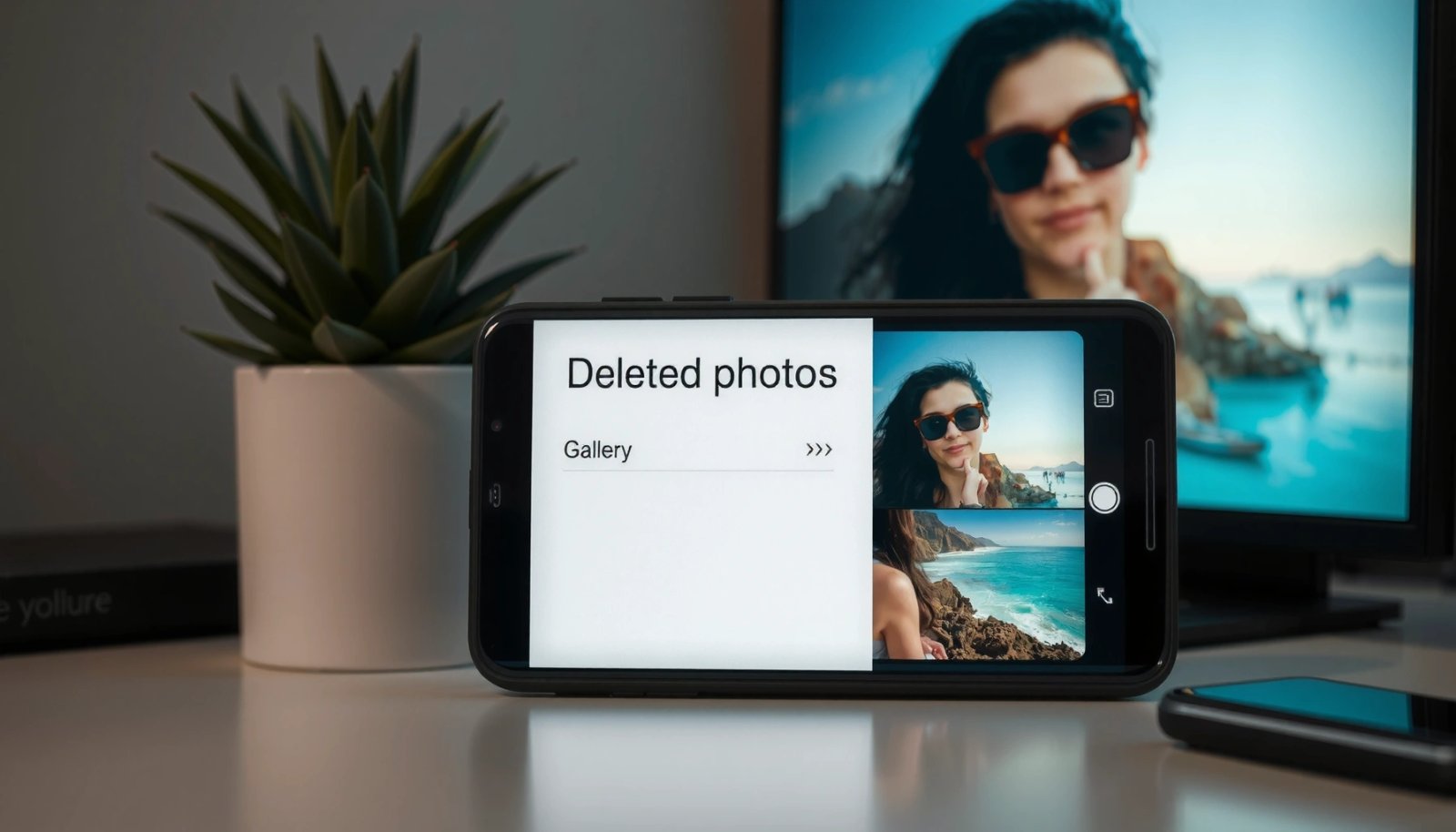
When you delete a photo on Android, you’re usually not erasing it instantly—you’re often just marking it as deleted in the filesystem. That means the underlying data can remain recoverable for some time, but it becomes harder the longer you continue using the device because new photos, downloads, app updates, and system caching can overwrite the same storage blocks.
So the practical strategy is simple and time-sensitive: (1) check Trash/Recently Deleted in Google Photos and your device apps, (2) restore from any enabled backups, and (3) only if those fail, run photo recovery using safe procedures. Below is a comprehensive, step-by-step playbook designed for real-world Android scenarios, including cloud-sync setups, SD card workflows, and what to do when no recycle bin exists.
━━━━━━━━━━━━━━━━━━━━━━━━━━━━━━━━━━━━━━━━━━━━━━━━━━
📋 MANDATORY DATA TABLE
━━━━━━━━━━━━━━━━━━━━━━━━━━━━━━━━━━━━━━━━━━━━━━━━━━
Best Chances to Restore Deleted Photos on Android (2026)
| # | Restore Method | Typical First Check | Where Data Comes From | Success Likelihood |
|---|---|---|---|---|
| 1 | Google Photos Trash (Restore) | Within 60 days | Cloud + sync index | High (★) |
| 2 | Google Photos “Bin” via Library Filters | Immediately after delete | Cloud + app metadata | High to Medium (★★) |
| 3 | Device Gallery “Recently Deleted/Trash” | Within device retention window | Local storage directory | Medium (★★★) |
| 4 | Files by Google Recycle Bin | If installed and enabled | Local trash folder | Medium (★★★) |
| 5 | Samsung Cloud / Gallery Backup | After sync enabled | Brand cloud backup | Medium to High (★★★★) |
| 6 | Google Drive Backup Restore | If photos were uploaded | Cloud copy of originals | Medium (★★★) |
| 7 | Local Photo Recovery Software (Last Resort) | As soon as possible | Raw storage scan | Variable (★★☆☆) |
Check Google Photos Trash First
If you use Google Photos (with backup enabled), this is usually the fastest and most reliable way to undelete pictures on Android. Google Photos maintains a Trash area for deleted items, meaning the photos still exist somewhere you can restore them from—often without needing any recovery software.
How to restore:
- Open Google Photos
- Tap Library
- Select Trash
- Find the deleted photos you need
- Tap Restore
- Confirm they return to the right album, date, or folder view
What to watch for (important):
- Trash retention window: Items are typically kept for a limited time; restore promptly.
- Multiple accounts: Make sure you’re signed into the correct Google account inside Google Photos.
- Not backed up? If the photos were never uploaded (e.g., backup disabled, poor connectivity at the time of capture, or backup paused), Google Photos Trash may not contain them.
- Network vs. local: Some photos may have been deleted from the device but still exist in the cloud. In that case, restoring from Trash brings the photo back seamlessly.
A key operational best practice: do this immediately after you notice the loss. It minimizes the chances that local storage gets overwritten and avoids unnecessary risk.
Look for a Recycle Bin in Your Gallery or Files
Android has evolved a lot here—many manufacturers and Android versions include Trash/Recently Deleted features, and some file apps include their own recycle bin. Even if Google Photos doesn’t have the photos, your phone may still keep them locally for a period.
Check your phone’s built-in apps:
- Open your phone’s Gallery or Photos app
- Look for Trash, Recently Deleted, or Recycle Bin
- Restore the images back to the main gallery
Also check file management:
- Search within Files by Google for a Recycle Bin
- If you use a different file manager (commonly preinstalled by the brand), check for Deleted items or Trash
- Some devices move deleted images into a folder-like trash area (instead of immediately deleting the underlying media files)
Practical tip:
If you deleted photos via an app that manages albums (e.g., a gallery editor or photo management app), that app may have its own trash retention. Don’t assume only the main gallery has the recycle bin.
Why this matters for undelete pictures on Android:
Local recycle bins are effectively a safety buffer. They may not always give you the same “restore to original album” experience as Google Photos, but they can still return your media quickly, often with perfect metadata (date, orientation, and sometimes even face tags).
Use Android Backup Options (If Enabled)
If Trash/recycle bin doesn’t show the photos, backup is your next best channel. Even when local deletion happens, backups can provide a clean restoration path—particularly for synced or cloud-enabled setups.
What to verify:
- Google Photos Backup status
- Open Google Photos settings and confirm backup is ON
- Check which folders/libraries are included
- Look for the photos in Google Drive/Backup if you used cloud backup workflows
- For Samsung and other brands, check their native backup solutions
Common restoration scenarios:
- Google Photos backup ON: Deleted items may still appear in the cloud history or be recoverable after restoring from Trash.
- Backup disabled at the time: You may need local recovery (or another backup provider, if used).
- Brand cloud backups: Samsung Cloud, Xiaomi/MIUI services, OnePlus backup, or similar features may store media separately.
Operational guidance:
- Avoid clearing storage or “cleaning” the device while troubleshooting; these actions can accelerate overwrite.
- If your photos are in backup, you often regain them by downloading/resyncing rather than performing raw recovery.
Try Photo Recovery Software (When No Trash Exists)
When Trash and backups aren’t available, you may still be able to recover deleted photos using photo recovery software. This is the “last-mile” approach: it scans the storage medium and reconstructs recoverable image data.
Before you run recovery:
- Stop using the device immediately
- Pause taking new photos
- Avoid installing apps or updating the system
- Refrain from downloading files
- If the deleted photos were on an SD card, prioritize recovering from the card rather than internal storage (more reliable in many cases).
- Recover to a different location/device
- Don’t save recovered files back onto the same storage you’re scanning—this can cause overwrite and reduce the number of files you successfully restore.
What “reliable recovery” means in practice:
- Choose reputable tools that offer clear scanning modes and the ability to preview recovered media.
- Expect variability: file systems, encryption, and how recently deletion occurred all influence outcomes.
- If the tool supports file signature analysis (common for media), it may better reconstruct fragments of images.
Business reality check:
Recovery can succeed, but it’s not deterministic. The goal is to maximize your odds by acting quickly and minimizing writes. If you need the photos for professional or sentimental reasons, treat this as an urgent incident response, not a leisurely fix.
Recover from SD Card vs. Internal Storage
Where the photos were stored strongly impacts recovery quality. Android devices often differ in how quickly they overwrite freed space, and SD cards typically preserve deletion artifacts longer—especially if usage remains minimal.
If photos were on an SD card:
- Remove the SD card from the phone
- Use a card reader connected to a computer
- Run recovery from the card, saving recovered files to your computer (not the card)
If photos were on internal storage:
- Recovery is often slower and less reliable due to ongoing system writes and background processes
- Avoid extensive app usage; every action can increase overwriting
Recovery priority rule:
Once you realize photos are missing, prioritize recovery immediately rather than troubleshooting for hours. The “best” tool can’t overcome overwrite caused by continued device activity.
Extra caution for newer Android devices:
Some phones use storage encryption and modern partitioning approaches. Recovery tools can still help in many cases, but success depends on the specific device and how deletion is handled by the filesystem.
Prevent Future Photo Loss
Undoing deleted photos is stressful; prevention is the better long-term strategy for anyone who relies on their Android device for important media. You want redundancy (backup) and safety buffers (trash retention).
Enable automatic backup:
- Turn on Google Photos backup
- Verify that the relevant folders (e.g., Camera, WhatsApp Images if you save media there) are included
- Confirm you’re backing up on Wi‑Fi and/or mobile data as appropriate
Use Trash/Recently Deleted retention:
- Many Android galleries provide Trash retention; enable it if your device offers that setting
- Don’t disable trash features via “storage optimization” modes unless you fully understand the trade-offs
Build a routine that reduces risk:
- Periodically check Google Photos for recent sync completeness
- Maintain at least one extra destination (e.g., Drive or brand cloud backup) for critical folders
- Consider exporting or archiving “must-keep” photos monthly
For business users:
If photos represent client work, events, documentation, or proof of progress, treat them like operational data:
- Ensure backup coverage before you start active projects
- Keep a predictable retention policy
- Use cloud sync plus device-level trash so you have multiple recovery windows
Conclusion
Undeleting pictures on Android usually comes down to checking Google Photos Trash and your device’s Gallery/Files recycle bin first, then moving quickly to backup restoration if photos were synced. If those options don’t surface the images, use a fast, careful recovery approach—especially if the photos were on an SD card. The key is timing: restore immediately, avoid further device use, and enable backup/trash retention going forward so your next deleted photo has a much safer path to recovery.
Frequently Asked Questions
How can I undelete pictures on my Android phone after I deleted them from Google Photos?
If you deleted the photos in Google Photos, check the Trash/Bin first—most items remain there for about 60 days. Open Google Photos, go to Library > Trash, and tap Restore on the specific photos or Restore all. If the photos aren’t in Trash, they may have been removed from the app, but you can still look for them in the device gallery or any connected backups.
What steps should I take immediately to undelete deleted photos on Android using the phone’s storage?
Act quickly and stop using the device to avoid overwriting the deleted image files. Don’t install heavy apps, record new videos, or download large files while you’re trying to recover photos. Then try a reliable Android photo recovery tool or check your cloud backup first, because many recovery options work best before data is overwritten.
Why aren’t my deleted pictures showing up in the Gallery after I undeleted them?
Even if you restore photos, they may not appear in your Gallery immediately due to indexing delays. Restart the Gallery or reboot the phone, then allow media scanning to refresh thumbnails. Also confirm you restored into the correct location (for example, the original Google Photos library vs. a local folder) because Gallery often depends on where the images are stored.
Best apps or methods to undelete photos on Android—what actually works?
The best method usually starts with checking Google Photos Trash and any cloud backups like Samsung Cloud or Google Drive. If the photos were removed permanently from those sources, use a reputable Android data recovery app that can scan storage for recoverable image files. Results vary depending on whether the storage has been overwritten, so recovery apps are more effective the sooner you attempt undelete.
Which backup options should I check to recover deleted Android pictures safely?
Start with Google Photos backup and Trash, because many deleted photos can be restored from there. Then check other backup services tied to your device, such as Samsung Gallery/Cloud, OneDrive, or Google Drive, depending on where you enabled sync. If you use a file transfer like WhatsApp or a cloud sync folder, also search those platforms for cached or synced copies of the images.
References
- Data recovery
https://en.wikipedia.org/wiki/Data_recovery - File deletion
https://en.wikipedia.org/wiki/File_deletion - SP 800-88 Rev. 1, Guidelines for Media Sanitization | CSRC
https://csrc.nist.gov/publications/detail/sp/800-88/rev-1/final - SP 800-101 Rev. 1, Guidelines on Mobile Device Forensics | CSRC
https://csrc.nist.gov/publications/detail/sp/800-101/rev-1/final - https://csrc.nist.gov/publications/detail/sp/800-72/sp-800-72-archive/final
https://csrc.nist.gov/publications/detail/sp/800-72/sp-800-72-archive/final - Google Scholar Google Scholar
https://scholar.google.com/scholar?q=Android+deleted+photos+recovery+Google+Photos+Trash - Google Scholar Google Scholar
https://scholar.google.com/scholar?q=Android+data+recovery+undelete+images+file+carving - Google Scholar Google Scholar
https://scholar.google.com/scholar?q=mobile+forensics+recovery+of+deleted+photos+smartphone - https://scholar.google.com/scholar?q=how+to+undelete+pictures+on+android Google Scholar
https://scholar.google.com/scholar?q=how+to+undelete+pictures+on+android - how to undelete pictures on android - Search results
https://en.wikipedia.org/wiki/Special:Search?search=how+to+undelete+pictures+on+android