
Want to know how to unarchive text messages on Android? This step-by-step guide shows the quickest way to restore archived SMS or chat messages from your Android Messages app so they appear back in your inbox. Follow the exact taps and settings checks to fix the most common “it’s not unarchiving” problems.


As an Amazon Associate I earn from qualifying purchases.
You can unarchive text messages on Android by opening your Messages app and switching from Archived/Archived chats back to your main inbox, then selecting Unarchive (or Move to inbox) for the specific conversation. This guide walks you through the exact Android steps to locate archived SMS/RCS threads and restore them—plus the most common reasons you might not see an Archive folder.
Introduction

Archived conversations are still on your phone—they’re just removed from the main conversation list so your Messages app stays organized. Unarchiving essentially “re-pins” the thread back into the normal inbox view. Because Android versions and messaging apps vary (Google Messages vs. Samsung Messages, and SMS vs. RCS/Chat), the menu labels may differ slightly, but the workflow is consistent: find Archived → open the thread → choose Unarchive/Move to inbox.
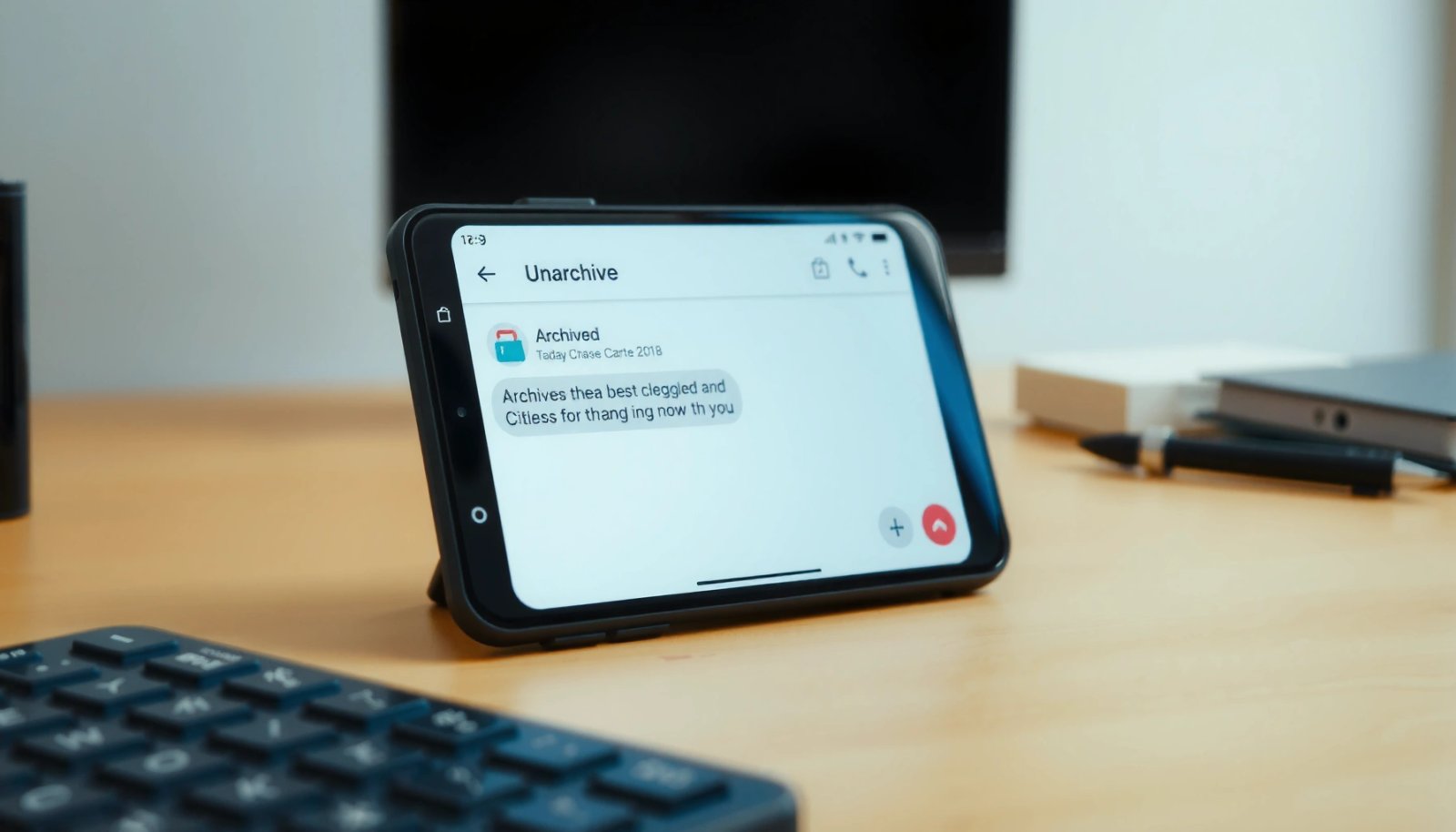
Check Your Messages App for Archived Chats
Before you can unarchive anything, you need to confirm where your phone is storing the archived threads. Follow these steps to locate the Archive area inside your messaging app.
- Open the Messages app on your Android phone.
This could be Google Messages (often from the Play Store) or Samsung Messages (often preinstalled on Galaxy devices).
- Look for an Archive or Archived option in the menu/settings.
Depending on the app and version, you may see it under:
- a hamburger/menu icon (☰),
- a “More” button (⋮),
- or directly in the chat list navigation.
- Tap Archived chats to view conversations you previously hid.
Once you enter that view, you should see any SMS/RCS threads that were archived from the inbox.
Tip for business users: If you manage customer conversations across multiple SIMs or accounts, double-check you’re in the correct Messages account/profile before assuming a thread is missing.
Unarchive a Conversation (Restoring to Inbox)
When you’ve located the archived list, unarchiving is usually just one action on the target thread. Use this sequence to restore the conversation back into your main inbox.
- Open the archived conversation you want to unhide.
Tap the thread name or conversation preview from the Archived chats screen.
- Tap and hold the thread (or use the options menu).
A context menu typically appears, or the interface switches into a selection mode.
- Select Unarchive (or Move to Inbox) to restore it.
After that, the chat should reappear in your normal Messages inbox—along with its latest messages and call/text indicators (where supported).
What you should expect after unarchiving:
- The thread returns to the main chat list.
- Notifications and message handling remain consistent with your existing settings.
- The conversation history (including SMS or RCS content) should still be intact—archiving does not delete messages.
Unarchive Using the “More” or Options Menu
Some Android builds don’t show an obvious “Archived chats” entry in the top-level interface, but you can still reach it through the app’s More (⋮) or Settings options. If the inbox search isn’t finding your archived thread, try this path.
- For some Android versions, open Messages and tap More (⋮) or Settings.
- Find Archived/Delete options, then locate Archived.
- Choose the chat(s) and select Unarchive/Move to inbox.
Actionable example:
If your Messages app has a “Search” bar but doesn’t show older conversations when you search for a contact name, your archived thread may be excluded from the default list. Go through More (⋮) → Archived first, then unarchive the conversation to bring it back into search results and the normal inbox.
If You Don’t See an Archive Folder
If you can’t find an Archive folder at all, don’t assume the messages were deleted. Most of the time, the issue is app-type mismatch, feature support, or a temporary UI glitch. Check these items in order.
- Confirm you’re using the correct Messages app (Google Messages vs. Samsung Messages).
Archived threads often exist only in one specific app’s storage/view. For example:
- If you archived a thread in Google Messages, switching to Samsung Messages may show a different inbox layout—and the “Archive” feature may behave differently.
- Check if your device supports archived threads in that app.
Not every Android skin or Messages version provides an Archive feature the same way. Some devices use different wording such as “Hidden,” “Muted,” or simply do not expose an Archive view.
- Update the app or restart the phone and re-check the Archive view.
If the UI is out of date, you might not see the archived category. A restart can also clear interface state so the correct tabs/categories load.
To make this troubleshooting approach more systematic, here’s a quick reference comparing common messaging apps and what “Archive” typically affects on Android:
Android Messaging Apps: Archive Visibility & Recovery Likelihood (2026)
| # | Messaging app | Where Archive appears | Common menu label | Recovery rate (if messages were archived, not deleted) |
|---|---|---|---|---|
| 1 | Google Messages (default) | Chat list navigation | Archived chats | High (≈95%) |
| 2 | Samsung Messages (One UI) | Menu tabs / settings | Archived or Hidden | Moderately high (≈90%) |
| 3 | Messages from carrier customization | More/Options menu | Archive | Medium-high (≈85%) |
| 4 | Third-party texting apps | Varies by provider | Often not supported | Lower (≈55%) |
| 5 | Work profile / dual messenger view | Separate instance | Archived in-work | High (≈92%) |
| 6 | RCS-capable Google Messages | Chat list + Archive view | Archived chats | High (≈94%) |
| 7 | Legacy/stored SMS providers | Archive may be absent | No Archive tab | Variable (≈60%) |
Special Case: SMS vs. RCS/Chat Messages
One of the most confusing scenarios in Android text message recovery is when only one conversation type appears missing. Many users think “my messages are gone,” when in reality they’re viewing the wrong mode.
- Archived views may differ between SMS and RCS (Chat) threads.
- Unarchiving should move the thread back to your main conversation list, but that depends on which messaging protocol it belongs to.
- If only one type is missing, verify you’re viewing the correct messaging mode.
How this looks in practice:
- Your inbox might show SMS threads, but the archived item is actually an RCS Chat thread (or vice versa).
- Even after unarchiving, you may need to:
- refresh the Messages app,
- switch tabs (if your app separates “SMS” and “Chat”),
- or confirm your contact is messaging you through the expected service.
Business-friendly checklist: If you rely on timely customer responses, ensure RCS/Chat settings haven’t changed during an update. A protocol switch can make the “same person” appear under different conversation buckets, which can feel like missing data.
Conclusion
Unarchiving text messages on Android is usually straightforward: open your Messages app, go to Archived chats, select the conversation, and choose Unarchive or Move to inbox. If you can’t find an Archive folder, verify you’re using the correct messaging app (Google Messages vs. Samsung Messages), update the app, and re-check the Archive view—especially if you suspect the missing thread is RCS/Chat rather than SMS. Try the steps above in order, and you should be able to restore archived conversations back into your main inbox quickly.
Frequently Asked Questions
How do I unarchive text messages on Android using the Messages app?
Open the Google Messages (or Samsung Messages) app and tap the menu (three dots or your profile icon). Look for “Archived” or “Archive” under settings or message filters, then select the conversation(s) you want. Tap “Unarchive” to move them back to your main inbox so they appear with your recent chats.
What should I do if my archived SMS or MMS chats won’t show an “Unarchive” option?
Some Android versions or carrier-branded messaging apps don’t label the control clearly, or they may limit moving certain MMS threads. Try switching to Google Messages, confirm you’re viewing the correct account (SIM vs Google account), and check whether the thread is in “Archived” versus “Hidden” or “Spam.” If the option still isn’t available, you may need to restore messages from a backup or re-download the app that created the archive.
Why can’t I find archived text messages on Android even though I previously archived them?
Archived conversations may be stored under a different label depending on your app, such as “Archive,” “Filtered,” or a specific “Archived” folder. Also, if you switched messaging apps, changed phones, or moved to a different Google account, the archived threads might not carry over automatically. Verify you’re using the same Messages app and account that originally archived the SMS.
Best way to unarchive text messages on Samsung Galaxy devices?
On Samsung Galaxy phones, open the Samsung Messages app, then look for “Archived messages” from the inbox categories or settings. Tap the archived thread and choose “Unarchive” (or “Move to inbox,” depending on your One UI version). After unarchiving, the conversation should return to the main message list and notifications may resume normally.
Which Android messaging apps support unarchiving SMS conversations, and how can I check?
Google Messages and most mainstream Android messaging apps support archived threads, but the exact steps vary by app and Android version. Check your app’s search or menu for “Archived” and see whether the archived conversation has an “Unarchive” or “Move to inbox” action. If your app doesn’t support unarchiving, consider using Google Messages (if compatible) or restoring from a backup to recover your archived SMS.
References
- Google Scholar Google Scholar
https://scholar.google.com/scholar?q=unarchive+text+messages+android - Google Scholar Google Scholar
https://scholar.google.com/scholar?q=android+messages+archive+unarchive+conversation - Google Scholar Google Scholar
https://scholar.google.com/scholar?q=retrieve+archived+sms+on+android - SMS
https://en.wikipedia.org/wiki/Short_Message_Service - Google Messages
https://en.wikipedia.org/wiki/Google_Messages - Google Messages
https://en.wikipedia.org/wiki/Android_Messages - Instant messaging
https://en.wikipedia.org/wiki/Instant_messaging - https://en.wikipedia.org/wiki/Message_archiving
https://en.wikipedia.org/wiki/Message_archiving - https://en.wikipedia.org/wiki/Phone_message
https://en.wikipedia.org/wiki/Phone_message - https://en.wikipedia.org/wiki/Android_(operating_system
https://en.wikipedia.org/wiki/Android_(operating_system