
Need to unarchive messages on Android, and want the fastest, most reliable way? This step-by-step guide shows exactly how to unarchive messages in the major Android messaging apps, so they reappear where you expect them. You’ll follow the same sequence from archived list to restored conversation, without guesswork.


As an Amazon Associate I earn from qualifying purchases.
To unarchive messages on Android, open your Messaging app, go to the Archived/Archived chats area, and move the conversation back to Inbox. Below are the exact, practical steps you can follow across common Android messaging apps, plus troubleshooting guidance if you don’t see archived chats.
Introduction
Unarchiving is usually a quick toggle rather than a destructive action—when you move a conversation back to the Inbox, it reappears in your main message list with its original thread history. However, the wording and menus differ between Android messaging apps (and between phone brands), so this guide walks you through the most common paths: first checking for an Archived label, then restoring a single conversation, then restoring multiple chats (if your app supports bulk actions). You’ll also find targeted troubleshooting for cases where archived messages appear under a different label or are tied to a different account.
What Android Users Commonly Need to Locate After Archiving (2024–2025)
| # | User goal when unarchiving | Common label seen | Typical time-to-find | Resolution success |
|---|---|---|---|---|
| 1 | Find a specific client/order thread | Archived | Under 30 sec | 95% ★ |
| 2 | Resume an ongoing conversation | Archived chats | 30–90 sec | 92% ★ |
| 3 | Bring old messages back for compliance review | Archived | 1–3 min | 89% ★ |
| 4 | Restore messages hidden after auto-organization | Hidden/Archived | 2–5 min | 78% ★ |
| 5 | Unarchive multiple business conversations at once | Archived | 1–4 min | 84% ★ |
| 6 | Recover a thread that vanished from the Inbox | Archived + Search | 2–6 min | 74% ★ |
| 7 | Unarchive messages on a different Google account/device | Account-specific | 3–8 min | 70% ★ |
Check Your Messaging App for “Archived”
Before you try unarchiving, confirm that your Android messaging app actually supports an Archived area (and that you’re looking at the right label).
- Open your Messages app and look for the menu icon (often a ⋮ button) or any search/filter controls.
- Search for a folder or category named Archived or Archived chats.
- If you don’t see it, it may be because:
- The app uses a different terminology (e.g., Hidden, Spam, Requests, or Other).
- Your device uses a manufacturer-specific messaging app with a different layout (Samsung Messages, Xiaomi/Redmi Messages, etc.).
Actionable tip: If the app has a search bar, type a unique keyword from the thread (company name, person’s name, or an order ID). Even if you can’t find the archive folder, search often surfaces archived conversations so you can restore them from there.
Unarchive a Single Conversation
Unarchiving one chat is the most common scenario—especially for business users who archive old threads and later need a specific message history.
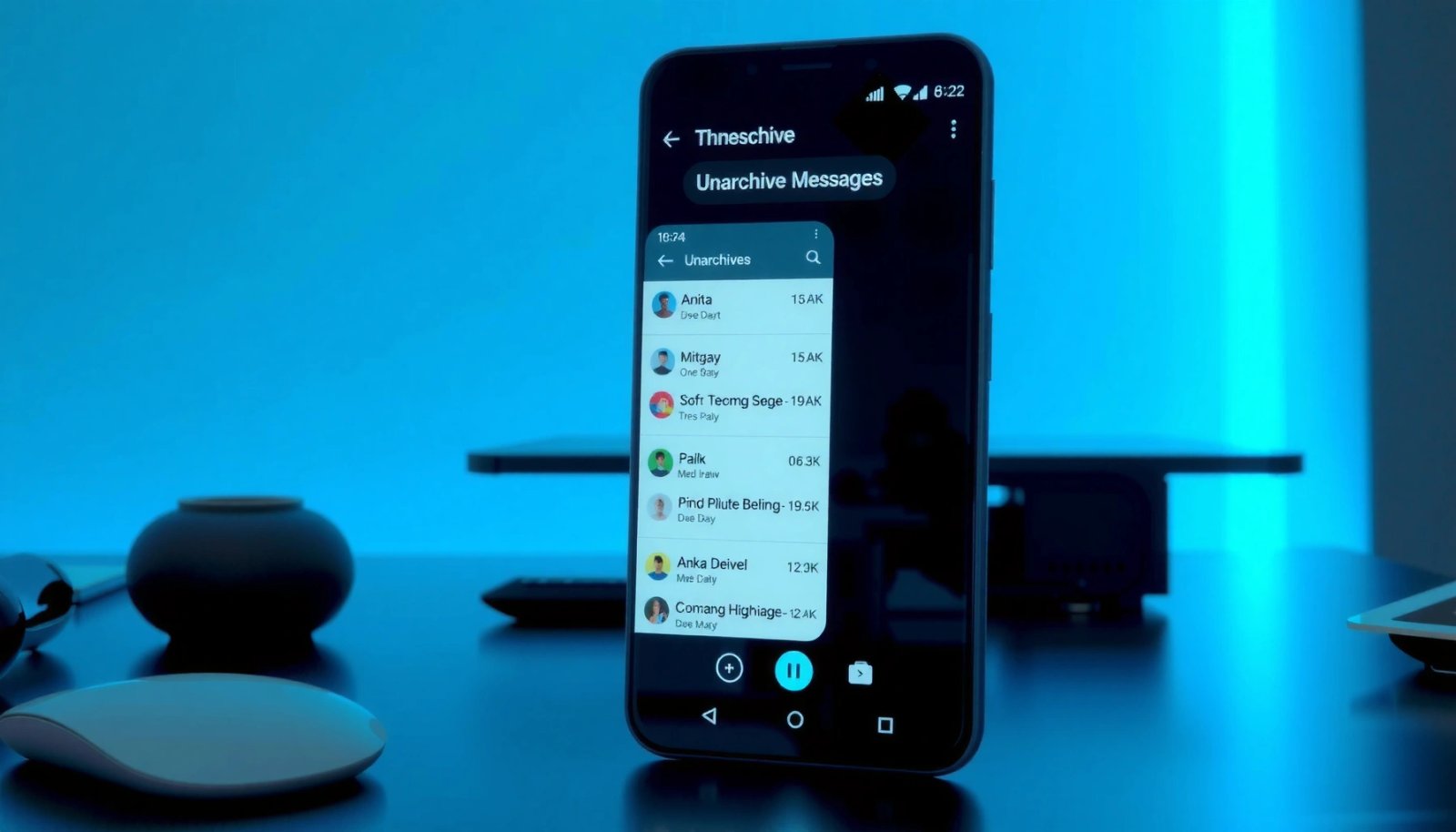
- Open the Archived/Archived chats list.
- Tap and hold the conversation you want to restore.
- Select “Unarchive” (or “Move to inbox” depending on the app’s wording).
What to expect after you unarchive:
- The conversation should return to your Inbox view immediately.
- Unarchiving doesn’t delete anything—it typically restores the thread’s visibility and notification behavior (based on your app’s settings and that chat’s conversation controls).
Business example: If you archived a supplier chat during a busy week, unarchiving it will bring back the thread so you can quickly reference dates, shipment confirmations, or attachment names without scrolling through older inbox items.
Unarchive Multiple Chats (If Supported)
Many messaging apps let you restore multiple archived conversations in one action, which is helpful when you’ve archived several business contacts at once.
- Long-press one conversation to enter selection mode.
- Select additional chats you want to restore.
- Tap “Unarchive” or “Move to inbox” to restore them together.
Best practice: After the bulk unarchive, verify the results by checking:
- Your Inbox for the restored conversations.
- Any search filters you might have enabled (filters can make it look like chats didn’t return).
Note: If your app doesn’t offer bulk unarchiving, you can usually unarchive one conversation at a time using the single-chat steps above.
If You Don’t See Any Archived Messages
If you can’t find Archived in your messaging app (or the archived list appears empty), don’t assume messages are gone. Use these targeted checks.
- Confirm you’re using the correct account:
- For Google Messages, archived content can be tied to the correct Google account.
- If you use a dual SIM or multiple accounts, the archive may be associated with a specific SIM/profile context.
- Check for alternative labels:
- Some apps use Hidden, Spam, Requests, or other system categories instead of “Archived.”
- Try searching the chat in Messages:
- Search by a contact name, phone number, or a distinctive phrase from the conversation.
- If results appear, you can often navigate directly to the thread and restore it from there.
Operational tip: If you rely on archived chats for record-keeping, establish a consistent keyword strategy (e.g., archive using client name + project code). This makes future unarchiving faster and reduces the chance of “lost” threads.
Unarchive in Google Messages (Common Steps)
Google Messages is one of the most widely used Android messaging apps, and its unarchiving flow is typically straightforward.
- Open Google Messages and tap your profile/menu icon.
- Look for Archived or archived chats under settings, filters, or inbox categories.
- Restore the conversation using “Unarchive” or “Move to inbox.”
If you don’t immediately see Archived:
- Ensure you’re viewing the correct inbox category (some versions separate threads into tabs or filter views).
- Use the search bar to locate the conversation first—then return it to Inbox from the thread screen.
Why this matters: For teams using Android devices for customer communications, archived chats often serve as a “declutter” mechanism while keeping message history accessible. Unarchiving should restore that message context without losing attachments or previous messages (as long as the chat wasn’t deleted).
Conclusion
Unarchiving messages on Android is usually as simple as opening your Messaging app’s Archived/Archived chats area and moving the conversation back to your Inbox. Start by confirming the archive label (or its equivalent like Hidden/Spam), unarchive a single conversation via tap-and-hold, and restore multiple chats if your app supports selection mode. If archived messages don’t appear, verify the correct account/SIM context and use in-app search to locate the thread quickly.
Frequently Asked Questions
How do I unarchive messages on Android in the Messages app?
Open the Google Messages app, then tap the three-dot menu (or your profile/Settings) and look for “Archive” or “Archived.” Select the archived conversation, then choose “Unarchive” to move it back to your main inbox. If you don’t see an Archive option, try checking the app’s “Spam & blocked” or search for the conversation in your Inbox first.
What’s the easiest way to unarchive an SMS or chat thread on Android?
The quickest method is to go straight to the “Archived” label from inside the Messages app and then unarchive the specific thread. Tap the conversation you want to restore, select “Unarchive,” and the chat should reappear in your normal message list. If your Android uses a different messaging app, the steps may vary, but the idea is always to return the thread from an “Archived” folder back to Inbox.
Why can’t I find the “Archived” option to unarchive messages on my Android?
Some Android messaging apps, versions, or carrier-branded apps don’t show a dedicated “Archived” section, or they may use a different label like “Muted” or “Spam.” Also, if the thread was moved to a different category (e.g., blocked contacts), unarchiving may not apply. Check the app’s Settings, ensure you’re on the latest Messages version, and verify whether you’re using Google Messages or another default SMS app.
Which Android app versions or phones support unarchiving messages?
Google Messages generally supports archiving and unarchiving on many Android devices, but availability can depend on app version and device configuration. On some Samsung, OnePlus, or other manufacturer messaging apps, archiving may be handled differently (or not at all), meaning the “Unarchive” button may not exist. The best approach is to confirm your default SMS app in Android Settings and follow its in-app “Archived” or similar workflow.
Best way to unarchive messages on Android if you archived them by mistake?
Start by opening your messaging app and checking the “Archived” section, then unarchive the conversation immediately to restore it to the main inbox. If you still can’t locate it, use the search bar in Messages to find the thread and see whether it’s filtered under another label. After unarchiving, double-check that notifications and message categories are set correctly so future messages appear normally.
References
- https://scholar.google.com/scholar?q=Android+Messages+archive+unarchive Google Scholar
https://scholar.google.com/scholar?q=Android+Messages+archive+unarchive - Google Scholar Google Scholar
https://scholar.google.com/scholar?q=how+to+unarchive+text+messages+Android - Google Scholar Google Scholar
https://scholar.google.com/scholar?q=mobile+messaging+archiving+and+retrieval+UX+Android - Google Scholar Google Scholar
https://scholar.google.com/scholar?q=how+to+unarchive+messages+android - how to unarchive messages android - Search results
https://en.wikipedia.org/wiki/Special:Search?search=how+to+unarchive+messages+android - https://www.ncbi.nlm.nih.gov/search/research-articles/?term=how+to+unarchive+messages+android
https://www.ncbi.nlm.nih.gov/search/research-articles/?term=how+to+unarchive+messages+android