Tag

android messages

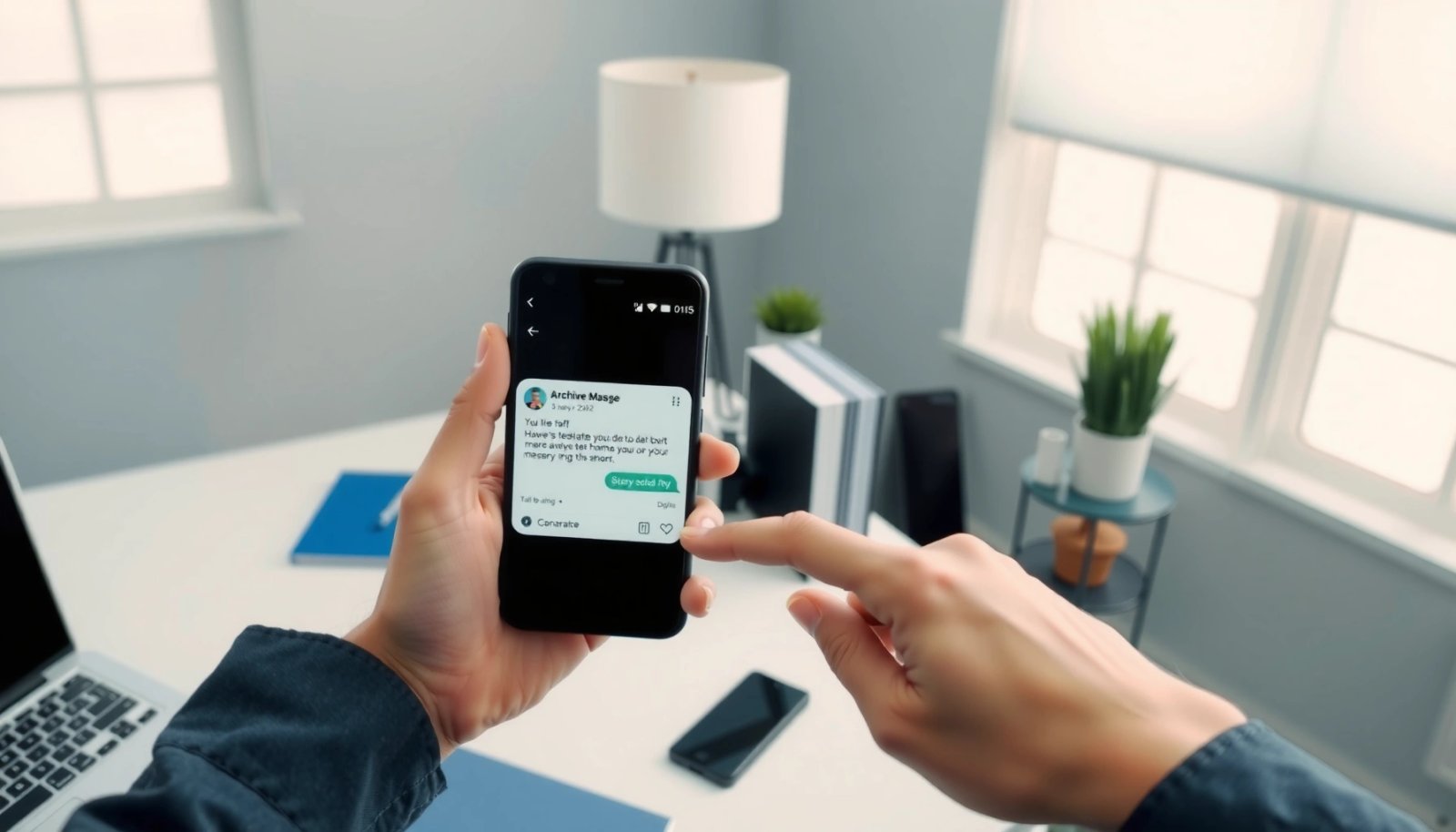
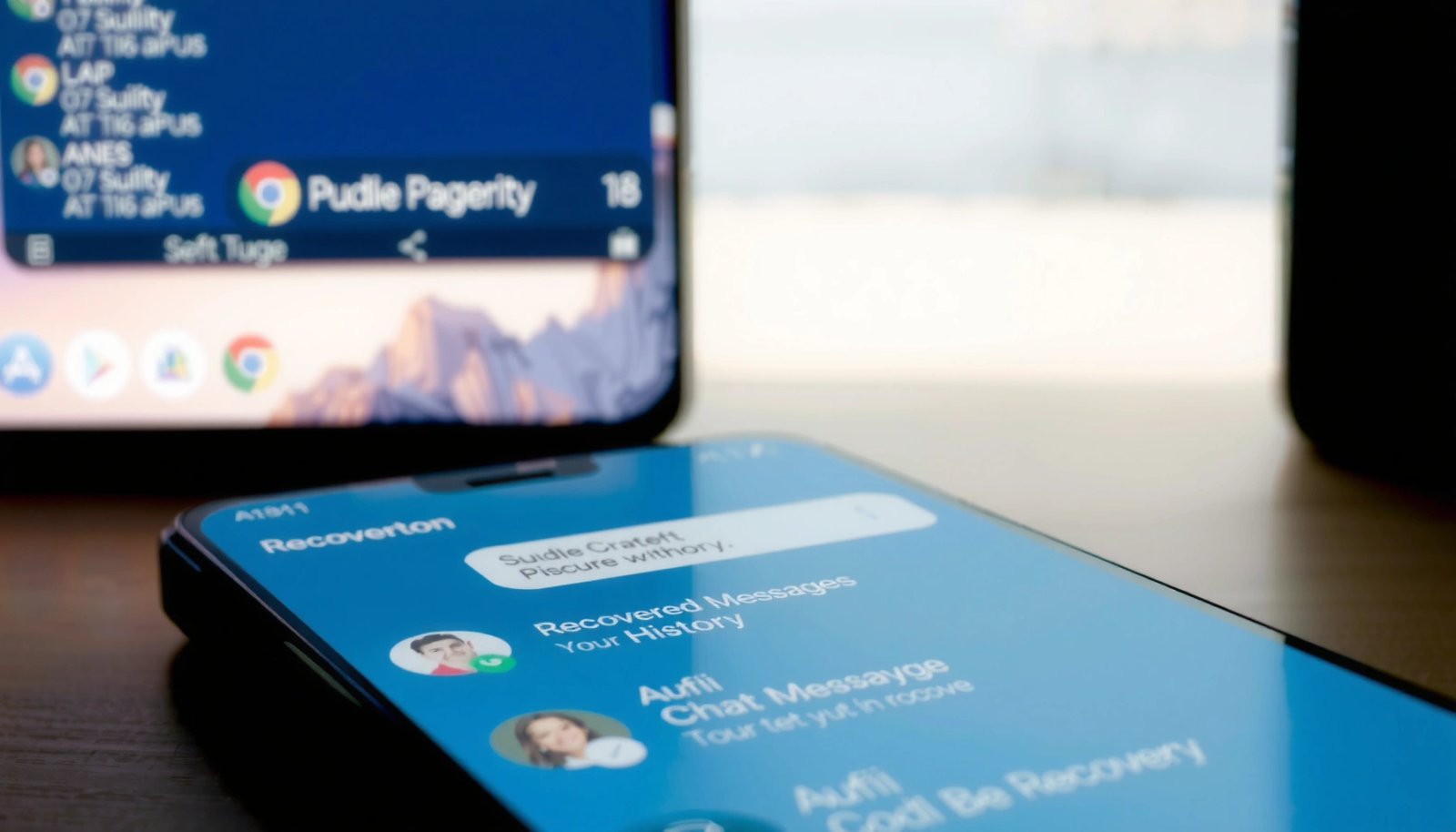
How to Unarchive Messages on Android

Want to unarchive messages on Android? The fastest way is to open your Messages app, switch to the archived conversation view, and restore the chat back to your main inbox. If you use Google Messages, this works in a few taps; if you’re on Samsung Messages, the restore option appears under the archive folder. Follow...

How to Unarchive Messages on Android: Step-by-Step

Need to unarchive messages on Android, and want the fastest, most reliable way? This step-by-step guide shows exactly how to unarchive messages in the major Android messaging apps, so they reappear where you expect them. You’ll follow the same sequence from archived list to restored conversation, without guesswork. To unarchive messages on Android, open your...

How to Turn Read Receipts Off on Android

Need to turn read receipts off on Android? This guide gives you the fastest path to stop message read notifications on the apps that actually support them. Follow the exact steps for your messaging service, and you’ll regain control over whether others can see when you’ve read their messages. You can turn read receipts off...

How to Turn Off Read Messages on Android

You can turn off read messages on Android, and the fix depends on the app you’re using. If you’re on Google Messages or Android Messages, read receipts are typically controlled in the app’s chat or privacy settings—toggle them off to stop “seen” updates. For apps like WhatsApp, Messenger, or Telegram, you’ll need to disable read...

How to Turn Off RCS Message on Android

Want to turn off RCS Message on Android? This guide shows the fastest working way to disable RCS chat features in Google Messages so your texts fall back to standard SMS/MMS. If you’re still seeing RCS indicators, follow these exact steps to fully turn off RCS and stop the feature from reactivating. To turn off...

What Does the Double Check Mark Mean on Android Messages?

The double check mark in Android Messages means your message was delivered to the recipient’s device and the app has received it. If you’re asking what the double check specifically indicates (versus a single check), the double indicates delivery has happened, not just sending. You’ll see it when the message leaves your phone and reaches...

What Does One Check Mark Mean on Android?

One check mark on Android means your message has been sent from your phone, but it hasn’t been delivered to the recipient yet. If you see it stay as one check, your message is still working its way through the network or the other person’s device isn’t reachable. Learn what changes—and what it implies—when that...

How to Change Text Message Color on Android

Want to change the text message color on Android? You’ll get a clear, step-by-step path that shows the fastest way to update the message bubble color—either by using your default Messages app’s theme options or by switching to a compatible third-party SMS app. If your phone’s Android version or carrier locks down customization, the guide...

How to See Android Messages on Mac

Want to see Android Messages on Mac without guesswork? The fastest, most reliable route is using Google Messages for Web or an Android-to-browser workflow that mirrors your conversations right in Safari or Chrome. If you need deeper access—like message history beyond what your device can sync to the web—your best bet is pairing with a...

What Does the Double Check Mean on Android Messages?

The double check on Android Messages means your text has been sent and delivered to the recipient’s phone—showing that it reached their device, not just your carrier. If you also see a second check that turns from empty to filled, delivery is confirmed; if it stays as a single check, it hasn’t been delivered yet....