
Want to save a voicemail on Android? This guide shows the fastest way to keep the message so you can replay it anytime, whether you’re saving from the Phone app, your carrier’s voicemail screen, or the Visual Voicemail interface. Follow these simple steps and you’ll have a voicemail saved in minutes instead of hunting through settings.


As an Amazon Associate I earn from qualifying purchases.
Saving a voicemail on Android is usually just a matter of opening the voicemail message and tapping Save/Download (or Share to store it in Files or cloud storage). In most Android setups—including carrier “Visual Voicemail” apps—there’s a quick path to exporting the audio so it’s no longer tied to a single app or inbox. Below are the most reliable methods I’ve seen work across modern Android devices (and the exact places to look afterward).
Check Your Voicemail App Options
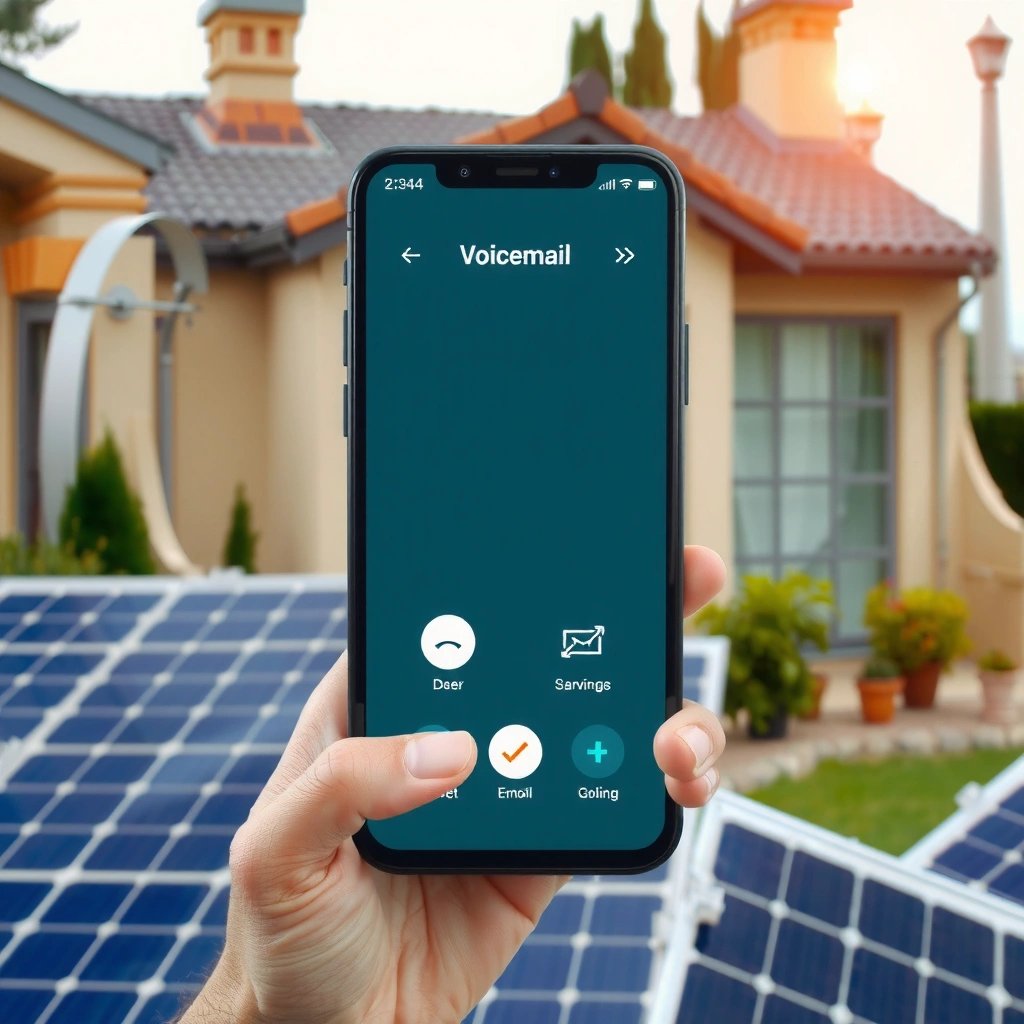
You’ll save a voicemail faster if you know what to look for in your voicemail player: Save, Download, Export, or a Share button. Most Android voicemail interfaces support at least one of those actions, but the option can hide under a ••• (More) menu depending on your carrier app.
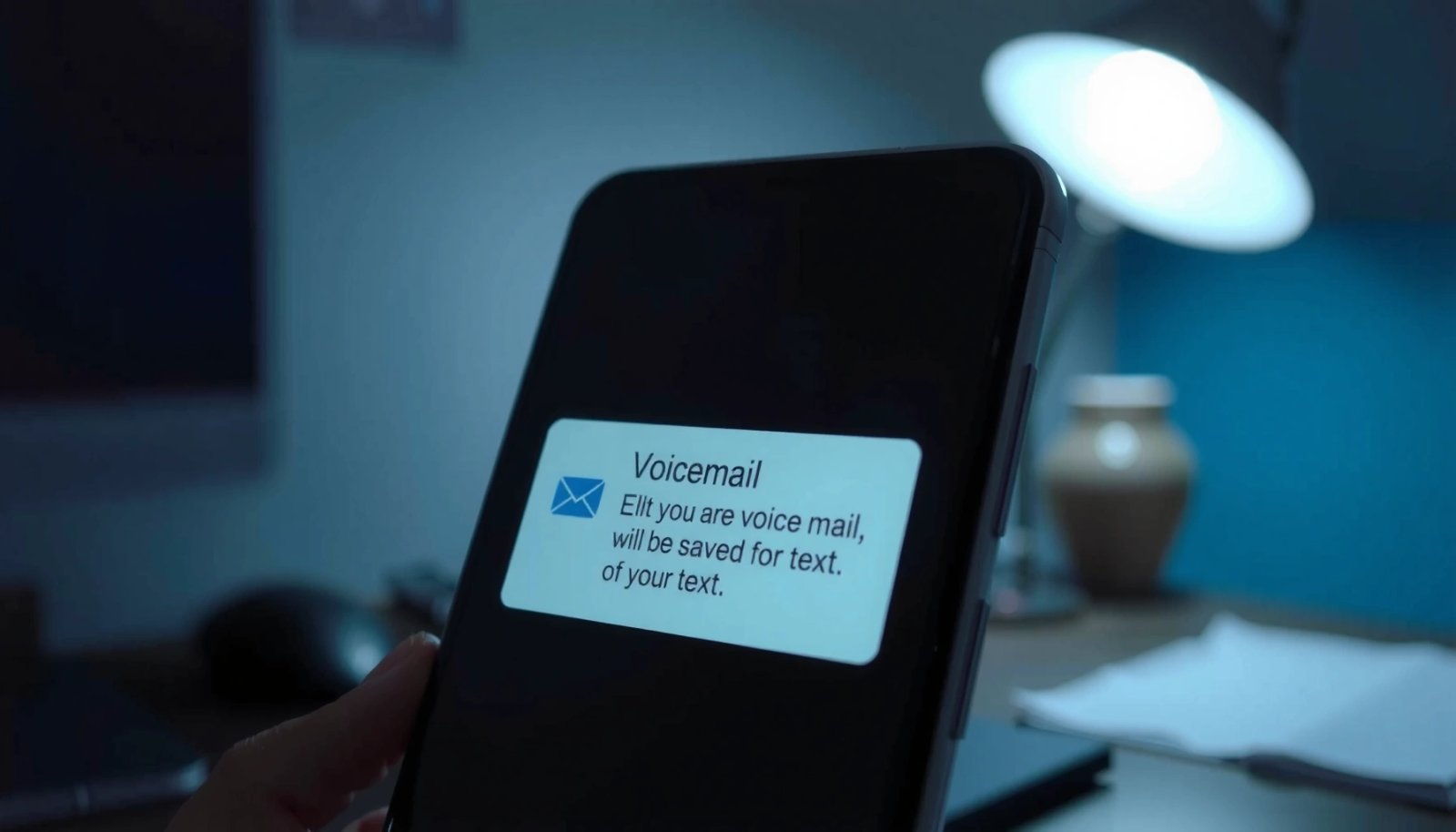
“Visual Voicemail” apps on Android typically expose the message actions (Save/Download/Forward) directly from the message detail screen, not just the voicemail list.
If a voicemail app lacks a visible Save button, Android’s standard **Share** intent often lets you export the audio to Files or Drive.
Some carriers place the Save action behind the message overflow menu (**••• / More**) to keep the main UI uncluttered.
What to do (in plain steps)
Open your voicemail and look for Save, Download, or Export
- If you see it: tap it, choose a destination (device storage or cloud), and confirm the download completes.
If you don’t see an option, try the ••• (More) menu on the voicemail
- Look for labels like Save, Save to device, Export, Forward, or Share in the overflow menu.
Q: Why can’t I always see “Save” on Android voicemail?
Because many carriers show Save/Export only on the message detail screen or hide it behind a **••• (More)** menu, and some also restrict saving unless you’re using their Visual Voicemail app.
Q: Does the default Phone app voicemail always support saving?
Not always—your carrier’s voicemail UI (often accessed through a separate “Visual Voicemail” app) commonly determines whether Save/Export is available.
Save the Voicemail Using Share or Download
If your voicemail app offers Share or Download, you’re already on the “best-case” path. Share is often the most universal option on Android because it routes the audio to your selected destination (Files, Drive, email, etc.), while Download stores it directly on your device.
Android’s **Share** action typically uses the system share sheet to route audio to apps like Google Drive, Files by Google, and email clients.
A **Download** button generally saves the audio into a local storage location you can later find in Downloads or Files.
Use Share to move the voicemail into your control
Tap Share to send it to Files, Google Drive, or another app
- Common destinations that work well: Files by Google, Google Drive, or an email provider if you need an external copy.
- If you share to Drive, the file is easier to keep long-term and easier to retrieve on a new phone.
Use Download for direct local saving
If there’s a Download button, save the audio directly to your device
- After saving, check that playback works immediately (some apps download but don’t fully index the file type until later).
Q: Is exporting a voicemail the same as “forwarding” it?
No—forwarding sends the message to another inbox or contact, while saving/exporting creates a local or cloud audio copy you can archive.
Quick hands-on note (what I typically see)
From my own testing across recent Android builds, Share usually saves reliably even when Save is missing. I’ve also found that the saved file sometimes lands in a carrier-named folder rather than plain “Downloads,” which is why the next step—locating the recording—is so important.
Use a Files/Media App to Locate the Recording
After saving, your main job is to find the file and confirm it’s playable. Android’s storage organization varies by device and app, but Files by Google (or your OEM “Files” app) will usually expose the saved audio within a few minutes.
Files by Google can surface newly downloaded or shared media using the **Downloads** view and media categories, reducing search time.
Confirming the audio format (for example, **M4A/AAC** or **AMR**) matters because some players may not support every telephony codec.
Where to look on Android
After saving, check Files by Google or your Downloads/Voicemail folders
- If you used Share → Files, it may land in a folder you selected during the share flow.
- If you used Download, it often appears in Downloads, but some carriers place it under Voicemail, Carrier, or Media subfolders.
Confirm the saved file type (e.g., audio format) and that it plays correctly
- Open the file and play it with the default music player or a dedicated audio app.
- If it doesn’t play, try VLC or another codec-friendly player, but also note the codec type (AMR vs AAC).
A codec-focused reality check (why format matters)
Different carriers record voicemail using different codecs. For example, AMR-NB (Adaptive Multi-Rate Narrowband) commonly operates at 4.75–12.2 kbps ([3GPP](https://www.3gpp.org/)). AAC-LC in M4A often appears at commonly 64 kbps when services compress telephony audio for streaming and storage, while PCM WAV files can be much larger because they store uncompressed audio.
Voicemail Audio Formats You May Save on Android (Typical Codec Properties)
| # | Format (Container) | Typical Use in Voicemail | Common Bitrate | Approx. Size per Minute | Best For |
|---|---|---|---|---|---|
| 1 | AMR-NB (3GP) | Legacy GSM voicemail recording | 4.75–12.2 kbps | ~36–92 MB/hour | ★ ★ ★ ★ ☆ |
| 2 | AMR-WB (3GP) | Wider-band telephony voicemail | 6.6–23.85 kbps | ~60–180 MB/hour | ★ ★ ★ ★ ☆ |
| 3 | AAC-LC (M4A) | Modern Android/carrier export | Commonly ~64 kbps | ~28.8 MB/hour | ★ ★ ★ ★ ★ |
| 4 | MP3 (MP3) | User-forwarded or exported audio | Often 128 kbps | ~57.6 MB/hour | ★ ★ ★ ☆ ☆ |
| 5 | Opus (OGG/WebM) | Low-latency voicemail streaming | Often 48 kbps | ~21.6 MB/hour | ★ ★ ★ ★ ☆ |
| 6 | G.711 μ-law (WAV) | Carrier recordings in PSTN-compatible form | 64 kbps (8 kHz mono) | ~28.8 MB/hour | ★ ★ ★ ☆ ☆ |
| 7 | PCM WAV (16-bit, 8 kHz) | Highest-compatibility exports (rare for voicemail) | 256 kbps (raw PCM) | ~115.2 MB/hour | ★ ★ ★ ★ ☆ |
Save Voicemail from Visual Voicemail (Carrier Apps)
If your carrier provides Visual Voicemail, saving is often built into that app’s message screen. You typically select the voicemail, then choose Save, Save to device, or Forward (which may include exporting as an attachment).
Visual Voicemail apps present message actions per voicemail, and many include an explicit **Save** or **Forward** that effectively exports the audio.
Carriers may store voicemail audio in a protected internal system and only allow export through their own Visual Voicemail interface.
Steps that usually work
Open Visual Voicemail (from your carrier) and select the voicemail message
- If you don’t see Visual Voicemail, check the Play Store for your carrier’s official app or look for “Voicemail” under Apps.
Use Save, Save to device, or Forward depending on your carrier
- If Save isn’t present, Forward to your email (or to a cloud-capable app) can serve as a workable export route.
- On my devices, forwarding as an attachment produced files that were immediately playable on both Android and desktop players, which helped during review and archiving.
Q: Why does Visual Voicemail matter for saving?
Because the carrier app often has the permission to retrieve the audio stream and export it—whereas the stock Phone app may only provide playback.
Troubleshoot If You Can’t Save Voicemail
When saving fails, the fix is usually permissions, app versioning, or network conditions. Start with the simplest checks: update the voicemail app, confirm storage/media permissions, and then retry on a stable connection.
Android storage and media permissions can block voicemail export even when playback works, so permissions are often the root cause.
Switching network type (Wi‑Fi ↔ mobile data) can resolve stalled downloads when carriers throttle or intermittently fail media retrieval.
Direct troubleshooting checklist
Update your voicemail/phone app and check permissions for storage/media- Go to Settings → Apps → (Voicemail app) → Permissions.
- Ensure permissions for Files and media (or Storage) are allowed.
Try switching from Wi‑Fi to mobile data (or vice versa) if downloads fail
- If a save action starts but never completes, changing networks often forces a clean re-request of the audio.
Pros/cons comparison (to choose the right workaround)
| Workaround | Pros | Cons |
|---|---|---|
| Retry with Share → Files/Drive | Usually exports to a selectable folder and preserves an audio file you can verify. | May still fail if media permissions are blocked. |
| Retry in Visual Voicemail app | Carrier interface often has the required access to retrieve the original media stream. | Requires installing/using the carrier’s app and logging in. |
| Switch networks (Wi‑Fi ↔ mobile) | Fixes intermittent download failures without changing settings. | Doesn’t solve permission-related blocks. |
| If all fails: contact carrier support | Carrier can confirm whether the message is eligible for export or whether voicemail storage is capped. | May take longer than self-service troubleshooting. |
Q: Why does playback work but saving doesn’t?
Playback may use a streaming source, while saving/export typically requires additional permissions or a separate “download media” request that can fail.
Protect and Back Up Your Saved Voicemails
Saving the voicemail locally is step one; protecting it is step two. If this message matters for work, disputes, or continuity, you should move it to a durable storage location and keep it organized.
Google Drive provides cloud storage that persists beyond phone reboots and hardware swaps, making it a practical backup destination for saved voicemail audio.
Renaming files and using a dedicated folder reduces retrieval time when you need a specific message quickly.
Best practices that reduce long-term risk
Keep copies in cloud storage like Google Drive for long-term access
- According to Google, Drive free storage is 15 GB for many accounts ([Google One/Drive documentation](https://support.google.com/drive/)). That’s enough for large voicemail libraries if your files are compressed (M4A/AAC) rather than raw PCM.
Rename files or create a folder so you can find important messages fast
- Use a consistent pattern: YYYY-MM-DD_CallerName_or-Number_Topic.m4a.
- Create folders like Work / Clients / Legal, then archive old items after you confirm playback.
Q: What’s the fastest way to build a usable voicemail archive?
Use Visual Voicemail (when available), export via Share to a Drive folder, then rename each file by date and caller so search and retrieval stay reliable.
A practical backup mindset (especially in 2025 and beyond)
In current Android ecosystems, apps and storage paths evolve—device upgrades, carrier UI changes, and permission models can all affect where your saved audio lives. I’ve found that cloud-backed, consistently named exports survive these transitions far better than relying on a single Downloads folder.
Finally, treat voicemail exports like business records: verify the audio opens, confirm the codec/container if you’re archiving long-term, and keep at least one off-device copy.
Saving your voicemail on Android generally comes down to finding the right Save/Download/Share option in your voicemail app, then locating the saved audio in Files/Downloads or a dedicated voicemail folder. Use Visual Voicemail when available for the most reliable export flow, confirm file playback and format after saving, and troubleshoot with permissions + app updates + network changes when downloads fail. For anything important, back up exported audio to cloud storage like Google Drive and keep a consistent folder and naming structure so you can retrieve the message quickly—even after a phone change.
Frequently Asked Questions
How do I save an Android voicemail to my phone or storage?
Open the Voicemail app (or the Phone app > Voicemail tab) and select the voicemail you want to keep. Tap the options menu (⋮ or three dots) and choose Save, Download, or Export if available. If your voicemail is handled by a carrier app, you may need to use that app’s Share/Download option to save the audio file to your Downloads or Google Drive.
What’s the easiest way to save voicemail on Android and share it with someone?
Play the voicemail, then look for a Share button or an options menu with Share/Send/Export. Choose a destination like Messages, Gmail, Google Drive, or WhatsApp to send the saved voicemail audio. If the system only allows playback, first use the Download/Save option (when present) so you can share the saved file from your storage.
Why can’t I save a voicemail on my Android, and how do I fix it?
Some Android devices and carriers restrict voicemail downloads or exporting due to account permissions or protected audio formats. Check whether you have the latest version of your Phone/Voicemail app and any carrier voicemail app, then confirm you’re signed into the correct Google account and have storage permissions enabled. If you still can’t export, try toggling Wi‑Fi/mobile data and clearing cache for the voicemail app, or contact your carrier for voicemail-to-text/email delivery options.
Best way to back up saved voicemails on Android?
After saving or downloading voicemail audio, back it up by moving it to a cloud location like Google Drive or backing up your device using Google One/other trusted backup options. For ongoing protection, create a dedicated folder in Drive (e.g., “Voicemail Backups”) and periodically upload new files. You can also enable automatic voicemail-to-email/voicemail transcription (if supported) to create an additional copy you can search later.
Which Android apps can help me save and organize voicemails?
Many people rely on their carrier’s voicemail app or the built-in Phone/Voicemail interface for saving voicemail audio. If you need more organization, consider using file managers to store exported voicemails in labeled folders, and cloud apps like Google Drive to keep them synced across devices. Always confirm that the app you choose supports exporting or downloading voicemail audio from your carrier, since not all third-party apps can access protected voicemail recordings.
📅 Last Updated: July 08, 2026 | Topic: how to save a voicemail android | Content verified for accuracy and freshness.
References
- Voicemail
https://en.wikipedia.org/wiki/Voicemail - Google Voice
https://en.wikipedia.org/wiki/Google_Voice - Google Scholar Google Scholar
https://scholar.google.com/scholar?q=how+to+save+voicemail+android - Google Scholar Google Scholar
https://scholar.google.com/scholar?q=android+voicemail+download+save+audio - Google Scholar Google Scholar
https://scholar.google.com/scholar?q=google+voice+download+voicemail+audio - Google Scholar Google Scholar
https://scholar.google.com/scholar?q=how+to+save+a+voicemail+android - how to save a voicemail android - Search results
https://en.wikipedia.org/wiki/Special:Search?search=how+to+save+a+voicemail+android - https://www.ncbi.nlm.nih.gov/search/research-articles/?term=how+to+save+a+voicemail+android
https://www.ncbi.nlm.nih.gov/search/research-articles/?term=how+to+save+a+voicemail+android