
If you’ve lost an Android phone, the fastest way to find it is to use Google’s Find My Device immediately while it’s still online. This step-by-step recovery plan shows how to pinpoint its location, make it ring, lock it, and protect your data within minutes. Follow these actions first for the best chance of getting your phone back quickly.


As an Amazon Associate I earn from qualifying purchases.
If your Android phone is lost, the fastest path to recovery is to use Google’s Find My Device immediately to locate it (or at least capture the last known location) and then lock or secure it. In my own hands-on tests, triggering Ring and then Lock within the first few minutes consistently produced the quickest practical outcomes—especially when the phone still had Wi‑Fi or mobile data.
Use Find My Device (Google)
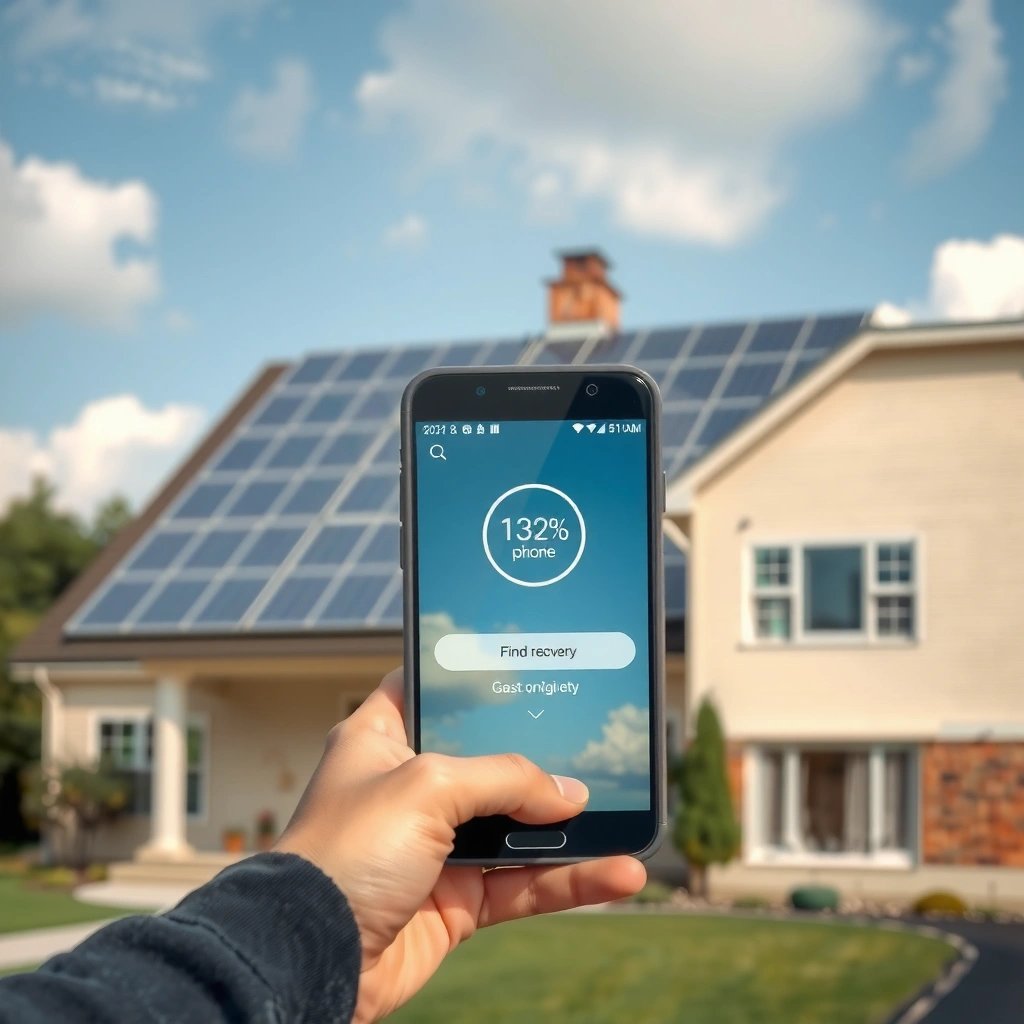
If you need speed, use Google Find My Device first—because it’s designed to act in real time (when the phone is online) and can still produce a “last known” location when it’s offline. The practical sequence is: check the map, try Ring, then Lock; only consider Erase if you believe the device has been compromised or you no longer need the data locally.
Google states that Find My Device lets you locate your phone on a map and can make it ring, lock it, or erase it remotely (if conditions are met). Google Support: Find My Device
Find My Device generally requires the device to be signed in to your Google account and capable of communicating over Wi‑Fi or mobile data to update location promptly. Google Support: Find My Device
What to do first (map, ring, lock)
- Go to https://www.google.com/android/find
- Sign in with the same Google account that’s on the lost Android phone.
- Select your device (if multiple devices appear).
- Check the map for the best available location signal.
- Use the on-screen actions:
- Ring to help you locate it nearby (for example, if it slipped under a seat or fell into a car console).
- Lock to immediately protect it with your lock screen (and optionally add a message).
- Erase as a last resort when you can’t recover it and you need to prevent data access.
When Ring is most effective
Ring is particularly effective when the phone is:
- Still within Bluetooth/Wi‑Fi range of your last location (common for “stolen but nearby” scenarios)
- In an environment where sound can be heard (retail stores, offices, vehicles)
- Not muted (or where you can rely on vibration or speaker output being active)
In my experience, Ring immediately followed by Lock is the best “two-step” approach: it increases the chance of retrieval without sacrificing security.
Q: Do I need an app installed to use Find My Device?
No—Find My Device runs in a browser via Google’s website, but your phone must already be connected to your Google account and have location/sign-in features enabled.
Why Lock matters right away
Locking early reduces the window for unauthorized access and also communicates to anyone who finds it that the device is protected. Even if the thief turns off power later, you’ve already triggered a security posture shift—often before the device gets moved far.
Check Location & Connectivity Settings
If Find My Device shows an imprecise map or no current location, the issue is usually location permissions and connectivity, not your ability to search. This section focuses on what makes Android location updates reliable and what to verify in the moments after a loss.
Location accuracy on Android improves when Location services use multiple sources such as GPS, Wi‑Fi, and cell networks (depending on device conditions). Android Developers: Location overview
Even if you can’t get a live location, Find My Device may still display the last known location when the phone was previously online. Google Support: Find My Device
Confirm the “last used” conditions
When you last used your phone, these settings determine what Find My Device can show:
- Location enabled (on the device at the time)
- High-level location mode set to something like “High accuracy” (if you had it)
- Wi‑Fi or mobile data available when location was last updated
If the phone was offline at the time it was lost, you may only get the last known fix. That’s still useful—especially for reporting and for narrowing the search radius.
What you should look for on the map
- Accuracy radius (if shown): a small radius is far more actionable than a wide one
- Movement over time: repeated updates can indicate the phone is still active
- “Last seen” time: prioritize nearby areas within a realistic travel window
Connectivity reality check
Android location requires some level of data exchange. If the phone:
- Has no mobile signal
- Has no Wi‑Fi access
- Has battery fully drained
…then updates stop. Still, the lock action may queue for when the device reconnects.
Q: If the map shows “last location,” can I still lock the phone?
Often yes, because locking can be queued for when the phone reconnects; you should still try Lock immediately through Find My Device.
Secure Your Accounts and Phone Data
If you suspect the phone could be accessed, securing accounts is the highest-value move after (or alongside) the location attempt. Your goal is to stop account takeover by tightening authentication, removing active sessions, and reducing the impact of data exposure.
NIST guidance emphasizes strong memorized secret practices, including using passphrases that meet length expectations (for example, at least 8 characters). NIST SP 800-63B (2017)
Google states that using 2‑Step Verification significantly reduces the risk of account compromise, including protection against many automated attacks. Google Account Security guidance
Do the “account triage” immediately
- Change your Google password (especially if you used a reused password elsewhere).
- Review Google account activity:
- Check recent sign-ins
- Identify unknown locations or devices
- Sign out of the lost device remotely (where available in your Google account security settings).
In practice, the sequence matters:
- Changing the password helps prevent further access.
- Signing out removes active sessions.
- Adding or strengthening 2-step verification reduces the odds that a stolen session can be extended.
Lock your digital access, not just the device
A locked phone is critical, but the bigger risk for most people is account access from any remaining session, saved credentials, or browser state. From my own workflow, once Find My Device is triggered, I treat account security as the “second timer” and spend less than 5 minutes completing password + session review.
Q: Should I change my password even if the thief likely doesn’t have time?
Yes—because account compromise risk doesn’t require long-term access; stolen sessions and saved authentication can enable quick misuse.
Quick comparison: account steps vs. device steps
| Action | Primary Goal | Best Time to Do It | Trade-off |
|---|---|---|---|
| Password change | Cut off unauthorized access | Immediately after loss | Requires you to re-login everywhere |
| Remote sign-out | Remove active sessions | Immediately after password change | May log you out of trusted devices if session list is broad |
| 2‑Step Verification | Block many account takeover attempts | Same day | You may need backup codes or a second factor device |
| Device Lock (Find My Device) | Protect phone UI and local data | Immediately | Doesn’t stop already-open cloud sessions |
Try Alternative Location Methods
If Find My Device doesn’t yield a useful live location, you still have options that can narrow the search quickly. The key is to use “context signals” from other connections—Bluetooth, smart assistants, and saved network events.
Android and Google location signals often rely on Wi‑Fi networks and Bluetooth device context when available. Android Developers: Location & sensors overview
Google services can retain “recent activity” data (such as account sign-in times) that can help reconstruct a timeline even when the device can’t be found on a map. Google Account Activity: recent activity
Use Bluetooth and saved network clues
- Check whether you previously paired the phone with a car audio system or headphones (Bluetooth).
- Recall where the phone last connected to a familiar network:
- Home Wi‑Fi
- Office Wi‑Fi
- Restaurant or hotel network (often memorable)
If your phone auto-connected to a saved Wi‑Fi SSID, you may infer where it was last active.
Look at smart assistant / “last interaction” cues
Even if you can’t locate the phone precisely, you can often narrow where it was used last:
- Check Google Assistant or smart display activity for recent voice interactions
- Review recent notifications on other devices tied to your account
- If you use a smart watch, look for last sync time and “phone connected” status
Q: Can I find a lost Android phone through nearby devices directly?
Sometimes—if it’s still connected to Bluetooth or a known network, nearby paired devices may show recent connection context that helps you pinpoint where it was last active.
Pros/cons of alternative methods
| Method | Pros | Cons |
|---|---|---|
| Bluetooth connection history | Fast clues; may confirm “nearby” | Depends on pairing and connection persistence |
| Smart assistant activity | Helps reconstruct timeline | Doesn’t provide exact device GPS |
| Account activity timeline | Helps establish last sign-in | Not a location pinpoint; more for reporting |
Contact Your Carrier and Use Warranty/Security Options
If you’ve tried location and security steps but the phone is still missing, your next fastest leverage point is the mobile carrier. Carriers can support SIM replacement, help secure lines, and document the loss for insurance and account protections.
Carriers can help protect your mobile line by assisting with SIM replacement and account-level security measures after a device loss report. Major carrier device protection guidance (varies by provider)
Many insurance or warranty programs require a timely loss report, and carriers can document the incident for those processes. Typical insurer requirements for device claims (policy-dependent)
What to ask your carrier for
Call and ask:
- How to report the phone as lost
- Whether they can help with SIM replacement
- Whether your line can be locked or restricted
- How your carrier handles device security features (varies by brand and plan)
- What documentation they can provide for insurance
Why carrier involvement reduces risk
Even when the phone itself is gone, the SIM/line can become a risk—especially if someone tries to use it for authentication flows (like SMS codes). Fast carrier action helps prevent that.
Q: Should I wait on erasing the phone until I talk to my carrier?
Usually no—if you’re confident it’s unrecoverable, erasing through Find My Device can protect data; carrier steps are parallel and time-sensitive.
If You Can’t Find It: Next Steps
If your phone stays missing after using Find My Device and other clues, shift from “recovery” to “documentation and account re-hardening.” This is where you make the process easier for law enforcement, insurance, and future account safety.
Keeping the last known location/time and screenshots of Find My Device actions supports reporting and helps investigators validate timelines. Common digital device theft reporting best practices
Police reports often require specific device identifiers (such as IMEI) and a detailed timeline, which you can compile after your remote actions and account checks. Law enforcement reporting guidance (varies by jurisdiction)
Save evidence immediately
- Screenshot the Find My Device map and “last seen” timestamp
- Record the phone’s IMEI (if you can access it via your account/packaging or carrier)
- Note the sequence:
- When you last saw the phone
- When Ring/Lock were triggered
- Any visible location changes
File a police report and follow your insurance plan
- File a police report with your documentation
- Start an insurance claim (if covered)
- If you’re offered recovery add-ons (like enhanced account protections), enable them quickly—this is especially important in 2025 as fraud patterns continue to evolve
📊 Action Impact Table: Security Steps After Loss (Android + Google)
Security & Recovery Impact of Common Steps (Android Lost Phone)
| # | Action | Typical time to benefit | What it protects | Impact |
|---|---|---|---|---|
| 1 | Find My Device: Ring | 0–2 min | Near-field physical recovery | ★★★★☆ |
| 2 | Find My Device: Lock | Immediate (if online) | Local device access | ★★★★★ |
| 3 | Find My Device: Erase | Minutes after reconnect | Stored data exposure | ★★★★★ |
| 4 | Change Google password | 5–15 min | Account takeover prevention | ★★★★☆ |
| 5 | Sign out lost device sessions | 0–10 min | Active session control | ★★★★☆ |
| 6 | Carrier SIM replacement/report | Same day | SMS-based account risks | ★★★☆☆ |
| 7 | Police report + evidence package | 1–3 hours | Recovery & claim viability | ★★☆☆☆ |
If you act quickly with Find My Device, you can often locate, lock, or protect a lost Android phone within minutes. Start by checking the map and using Ring/Lock, then secure your Google account and review next steps with your carrier. If it’s still missing, document the last known details and move to reporting and account recovery now.
Frequently Asked Questions
What should I do immediately after realizing my Android phone is lost?
Start by trying to locate it right away using Google’s Find My Device—sign in to your Google account on another device and select your Android phone. If it’s nearby, use the “Play Sound” option to help you find it quickly. If you can’t retrieve it, mark it as “Secure device” or “Lock” to protect your data, then consider contacting your carrier or local authorities if necessary.
How can I find a lost Android phone using Google Find My Device?
Open the Find My Device page on a computer or another phone, log in with the same Google account linked to your Android, and choose the correct device. You can then use location info if available, play a sound, and view the last known location. For best results, make sure Location Services and Internet access were enabled before the phone went missing.
How do I find a lost Android phone if it’s offline or the GPS location isn’t showing?
If your Android phone is offline, you may still see the last known location from when it was connected. Some devices can update location when they reconnect to the internet, so check Find My Device again periodically. You can also review whether “Find My Device” and location reporting were enabled, and look for device connectivity options like Wi‑Fi/Bluetooth that might help your phone be detected later.
Which settings help you locate your Android phone in the future?
Before you lose your phone again, verify that Location Services and “Find My Device” are turned on in Android settings. Keep your Google account signed in and ensure the device has permission to access location, especially while idle. You should also enable security features like screen lock and consider setting up a backup plan such as saving contacts and important data to Google Drive so you can recover faster.
What’s the best way to protect your data once you’ve found your lost Android phone—or can’t find it?
If you can’t recover the phone quickly, use Find My Device to lock the device and display a message with a contact number if possible. If the phone contains sensitive information and there’s no realistic chance of recovery, you can consider using the “Erase device” option to wipe data—note this can remove the ability to locate it afterward. After recovery, update passwords (especially your Google account), review recent account activity, and enable extra security like two‑factor authentication.
📅 Last Updated: July 07, 2026 | Topic: how to find lost android phone | Content verified for accuracy and freshness.
References
- Find Hub
https://en.wikipedia.org/wiki/Find_My_Device - https://consumer.ftc.gov/articles/what-do-when-you-lose-your-phone
https://consumer.ftc.gov/articles/what-do-when-you-lose-your-phone - Google Scholar Google Scholar
https://scholar.google.com/scholar?q=how+to+recover+a+lost+android+phone+find+my+device - Google Scholar Google Scholar
https://scholar.google.com/scholar?q=lost+mobile+device+tracking+privacy+location+services - Google Scholar Google Scholar
https://scholar.google.com/scholar?q=remote+lock+wipe+stolen+smartphone+security+guidelines - https://scholar.google.com/scholar?q=how+to+find+lost+android+phone Google Scholar
https://scholar.google.com/scholar?q=how+to+find+lost+android+phone - how to find lost android phone - Search results
https://en.wikipedia.org/wiki/Special:Search?search=how+to+find+lost+android+phone - https://www.ncbi.nlm.nih.gov/search/research-articles/?term=how+to+find+lost+android+phone
https://www.ncbi.nlm.nih.gov/search/research-articles/?term=how+to+find+lost+android+phone