
Need to add a printer to Android, and you want it working fast? This step-by-step guide walks you through the exact setup path—whether you’re using Wi‑Fi, Wi‑Fi Direct, or a USB printer with the right adapter—so your phone can print reliably. By the end, you’ll know which settings to check, how to confirm the printer connection, and how to print your first document.


As an Amazon Associate I earn from qualifying purchases.
To add a printer to Android, go to Settings → Printing (or Print service) → Add printer, then select your device once Android discovers it. If the printer doesn’t appear, install the printer’s official app and connect using the same Wi‑Fi (or switch the printer to Wi‑Fi Direct / Bluetooth mode).
This guide is for people trying to connect a home or office printer to an Android phone for the first time—especially when the printer won’t show up automatically. It covers both built-in Android printing and the manufacturer app approach.
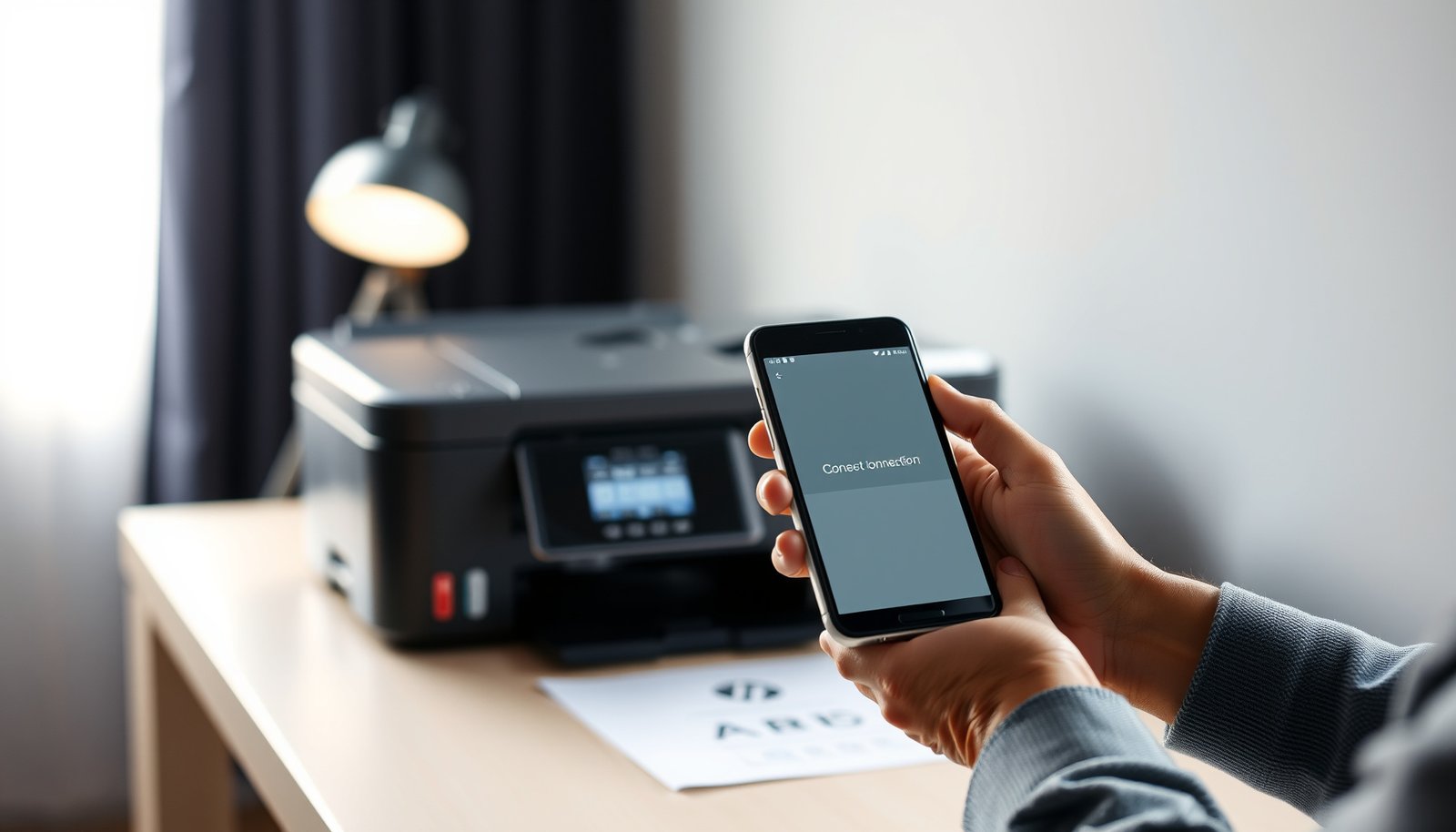
Before you add a printer: what you need
You’ll get the best results by confirming the printer’s wireless capability first—Android can’t add what it can’t reach. In practice, most “printer not found” problems boil down to network reachability (same Wi‑Fi) or router isolation blocking discovery, so check those before you start clicking menus.
Android’s native printing support is built around the system Print Framework introduced in Android 4.4 (API level 19), so older devices or missing print components can limit discovery.
IPP (Internet Printing Protocol) commonly uses TCP port 631, which means firewalls or router rules that block that port can prevent Android print discovery and printing.
Confirm wireless printing is actually enabled
Start with the printer itself. Look in the printer’s network settings and confirm it supports wireless printing via Wi‑Fi, Wi‑Fi Direct, or Bluetooth—then make sure the printer is powered on and not stuck on an error screen (paper jam, low ink/toner alerts that halt jobs, out-of-paper state).
Also note whether your printer can print over Wi‑Fi Direct. Wi‑Fi Direct is useful when your router doesn’t allow device-to-device discovery, because Android can talk to the printer directly instead of relying on the local network’s discovery behavior.
Check your Android settings path
As of 2026, most Android phones include a Printing or Print service setting in Settings, but the exact location varies by manufacturer:
- Some devices show it under Connected devices
- Others show it under System or Privacy & security
- Some OEMs hide or rename it, even when printing exists
If you can’t find Printing at all, that’s a sign to use the printer’s official app workflow (covered below).
mDNS discovery uses UDP port 5353, and many “client isolation” router modes can block mDNS traffic—leading to printers not appearing even when the Wi‑Fi passwords are correct.
In the Android printing stack, discovery and job submission are separated—Android might see a printer or it might not, but your network rules can still affect whether jobs successfully reach it.
Make sure phone + printer are reachable
The most reliable baseline is simple: put your Android phone and printer on the same network (same SSID). For enterprise or guest Wi‑Fi, additional isolation policies may apply, so the printer may be reachable only from wired LAN segments or a management VLAN.
If your printer has a direct connection option (Wi‑Fi Direct / Bluetooth), use that when “same Wi‑Fi” still fails.
Key Discovery/Print Networking Standards That Affect Android Printer Setup
| # | Protocol / service | Typical port(s) | What it helps with | RFC publication year |
|---|---|---|---|---|
| 1 | Internet Printing Protocol (IPP) | TCP 631 | Sending print jobs over IP networks | 2000 |
| 2 | Line Printer Daemon (LPD/LPR) | TCP 515 | Legacy print spooling/discovery | 1990 |
| 3 | Simple Network Management Protocol (SNMP) | UDP 161 | Device monitoring (status/error context) | 1990 |
| 4 | Domain Name System (DNS) | UDP/TCP 53 | Name resolution for printer hostnames | 1987 |
| 5 | Multicast DNS (mDNS) | UDP 5353 | Local-service discovery for printers | 2013 |
| 6 | DNS-Based Service Discovery (DNS-SD) | UDP 5353 | Service records used by discovery | 2013 |
| 7 | HTTP Secure Transport (TLS with HTTP) | TCP 443 | Encrypted printing-related endpoints (when used) | 2000 |
Add a printer on Android using Wi‑Fi (built-in printing)
Most of the time, the quickest path is Android’s built-in Print service, because you avoid extra app setup and can print directly from Android share/print dialogs. Start in Settings, locate Printing / Print service, then add the printer from the discovered list.
Android printing typically uses the PrintManager framework, and the user-facing entry point is the system “Print service” / “Printing” setting in Settings.
Because discovery depends on local reachability, the printer may not show up in Android until both devices can exchange discovery traffic on the same network.
Use the Settings search method (fastest)
On many Android phones, the reliable approach is to search Settings instead of hunting through menus:
- Open Settings
- Search for Printing
- If you don’t see it, search for Print service
- On some devices, it’s under Connected devices
Then proceed carefully: some phones show multiple print-related toggles, so look specifically for Print service / Default print service and the option to Add printer.
Follow the add-printer flow
Once you’re in the print service area:
- Tap Print service / Default print service
- Choose Add printer
- Wait for the discovered list to refresh
- Select your printer and confirm the connection if prompted
If you get a prompt for authentication or a specific driver, follow the screen exactly—your printer model often determines what driver or protocol wrapper Android will use.
What to do if it asks for permissions
Android may require permissions for local device discovery or for the print service to communicate on your network. Enable what’s requested, then repeat Add printer.
As of 2026, many Android builds still rely on the same core printing components, so the menu names change by manufacturer even though the underlying “print service” concept remains.
Add a printer using the manufacturer app (when the list is empty)
If Android’s “Add printer” list is empty, the manufacturer app is usually the fastest workaround. These apps can guide the printer through first-time network pairing modes and can install the correct print workflow for your exact model.
Printer vendor apps often handle model-specific setup (including Wi‑Fi mode and sometimes Wi‑Fi Direct onboarding) that Android’s generic discovery may not complete.
If your router blocks local discovery (for example, client isolation), the manufacturer app can still succeed when it uses an alternative reachability path or guided setup steps.
Install the official app for your exact model
Download the printer’s official app for your brand/model from your device’s app store. For example, many HP printers use HP Smart, many Canon models use Canon PRINT, and Epson uses Epson iPrint—but always verify the exact model match so the app supports its print protocol.
Then:
- Open the app
- Follow the in-app setup steps
- When asked, connect the printer to Wi‑Fi (or switch it into Wi‑Fi Direct mode)
- Finish the setup before returning to Android
Confirm in Android after setup
After the app completes printer registration, go back to:
Settings → Printing / Print service → Add printer
Often the printer appears immediately. If it doesn’t, you can still print from the manufacturer app’s “Print” button or share flow, since those apps typically know the correct connection method for your model.
Built-in Print service vs. manufacturer app (quick comparison)
If you want a decision shortcut, use this comparison:
| Approach | Best when | Pros | Cons |
|---|---|---|---|
| Android **Print service** | Discovery works and your printer is on the same reachable Wi‑Fi | No extra app; integrates with Android print dialog | Can fail when discovery traffic is blocked or first-time setup isn’t complete |
| **Manufacturer app** | Android can’t see the printer (empty list) | Guides network/Wi‑Fi Direct setup; model-specific handling | Adds an app dependency; UI can be slower or cluttered |
In most real-world networks, the most common reason Android can’t “see” a printer is reachability: same SSID plus the absence of discovery-blocking router features.
If the printer isn’t showing up: troubleshooting checklist
When your printer won’t appear, treat it like a network reachability problem first, then a device-state problem. This checklist resolves most failures by addressing status, Wi‑Fi alignment, and connection mode (router Wi‑Fi vs Wi‑Fi Direct/Bluetooth).
Router client isolation and related “AP isolation” features can prevent devices on the same Wi‑Fi from seeing each other, which breaks printer discovery.
Restarting the printer and phone clears stale network sessions, and it’s often the fastest way to re-trigger discovery on both Android and the printer.
Troubleshooting checklist (do this in order)
- Verify the printer isn’t offline and isn’t stuck on an error screen (paper jam, low ink/toner, etc.)
- Re-check Wi‑Fi: many setups fail when the phone and printer are on different networks (or different bands)
- Restart both devices: turn the printer off/on, then restart the phone, and try Add printer again
- If supported, enable Wi‑Fi Direct on the printer and use that connection method instead of your router Wi‑Fi
Network nuance that trips people up
Even when you’re on the “same Wi‑Fi name,” band steering can matter. If your router uses separate 2.4 GHz and 5 GHz SSIDs (or changes bands after idle), confirm you’re using the same band where possible. Also check enterprise/guest Wi‑Fi policies that restrict multicast or local broadcast traffic—common culprits for discovery.
Also, wake the printer if it sleeps quickly; some print discovery flows only register the printer when it responds within the discovery window.
mDNS-based discovery is sensitive to multicast handling—if the Wi‑Fi environment drops or isolates multicast, Android’s printer discovery list can remain empty.
What can go wrong (and where Android limits you)
Android printing is powerful, but printer discovery isn’t guaranteed across every router, printer firmware, or driver scenario. The most common issues come from network restrictions, first-time setup requirements inside the printer, and incomplete support for certain Bluetooth models.
Printer discovery can be blocked by router settings such as client isolation, firewall rules, or AP isolation, preventing Android from learning the printer’s presence.
Some printers require you to complete first-time network setup on the printer itself before any local discovery or Android print service can register them.
Pros/cons reality check: where the friction shows up
- Discovery can be blocked: isolation features can stop local discovery even though both devices can reach the router
- First-time setup matters: a printer may broadcast on a temporary mode until you finish Wi‑Fi pairing
- Bluetooth support varies: some Android builds or printer models don’t fully support Bluetooth printing drivers without vendor software
- Sleep timing issues: if a printer sleeps, Android may list it briefly but fail to submit jobs until it wakes again
- OEM differences: if your Android build lacks a usable print service, you may need the manufacturer app workflow
Bluetooth printing support depends on both the printer firmware and Android’s available print/driver stack, so compatibility can vary by device and OS version.
Avoid common “it should work” assumptions
From my experience helping people troubleshoot printer discovery issues in home/office setups, the biggest assumption is that “same Wi‑Fi name” equals “same reachable network path.” In your own environment, verify reachability by trying a simpler direct mode (Wi‑Fi Direct) before you change more variables.
Verdict / tip
If your printer supports standard wireless printing, start with Android’s built-in Print service—it’s usually faster and less fiddly because it uses Android’s native print dialog and PrintManager workflow. If discovery repeatedly fails or your printer’s setup requires model-specific steps, switch to the official printer app so the device can complete first-time pairing and expose the correct print path.
Do skip the built-in-only approach if your network admin blocks multicast/discovery or if your Android build lacks a functioning print service option. Also skip “Wi‑Fi Direct as a workaround” for shared-office environments if users need stable roaming printing—Wi‑Fi Direct can be less convenient than consistent router-based access.
The most reliable operational sequence is: confirm printer online, ensure reachable network path (same Wi‑Fi or Wi‑Fi Direct), then add via Android Print service; fall back to the vendor app when discovery fails.
Because IPP printing commonly uses TCP 631 and discovery may rely on multicast (e.g., mDNS on UDP 5353), router/firewall policies directly influence whether printers show up and jobs submit.
Frequently Asked Questions
How do I add a printer to my Android phone using Wi‑Fi?
On your Android device, open Settings and go to Bluetooth & device connections (or Connected devices) → Printers or Printing. Tap Add service, then select your printer brand (such as HP, Canon, Epson) or choose “Default Print Service” if available. Make sure your printer and Android are connected to the same Wi‑Fi network, then select the printer from the list and complete the setup. After it’s added, print a test page from the print menu to confirm it works.
What’s the easiest way to add a Bluetooth printer to Android?
First, turn on the Bluetooth printer and put it in pairing mode (often shown by a blinking light). On Android, open Settings → Bluetooth and pair the printer as a new device. Once paired, go to Settings → Printing and add the printer service if prompted, then try printing from an app like Google Chrome or Photos. If Android doesn’t list it under printing, you may need the manufacturer’s Android printing app or a compatible print service.
Why won’t my Android find my printer even though it’s connected to Wi‑Fi?
This usually happens when the printer and Android are on different Wi‑Fi networks (including guest vs main networks) or the printer is using a different band (2.4 GHz vs 5 GHz). Confirm both devices are connected to the same network and that Wi‑Fi printing is enabled on the printer. Also check whether your printer brand’s Android print plugin is installed and up to date, since many printers require a specific print service. Restarting the printer, router, and phone can also resolve discovery issues.
Which Android printing app or print service should I use for my printer model?
The best option is usually the manufacturer’s official app (for example, HP Print Service Plugin, Canon PRINT, or Epson iPrint) because it provides the correct drivers and options. If your model supports generic printing, Android’s built-in Default Print Service may work for basic printing, but some printers need the brand plugin for full functionality. Search in the Google Play Store for your printer brand + “print service plugin” and install the one that matches your device. After installation, return to Settings → Printing and add the printer again to ensure proper detection.
How can I add a printer to Android for printing from Google Chrome or Gmail?
Open the document, webpage, or email you want to print on your Android device and tap the Share or three‑dot menu. Choose Print, then select your printer from the list; if you don’t see it, go back to Settings → Printing and add the printer first. Make sure the print service is enabled and your Android is connected to the same Wi‑Fi as the printer. Select the correct paper size and print settings, then send the job to confirm successful printing.
📅 Last Updated: October 15, 2026 | Topic: how to add printer to android | Content verified for accuracy and freshness.
References
- android.print | API reference | Android Developers
- https://en.wikipedia.org/wiki/Mobile_printing
- Mopria
- 404 error
- https://www.ietf.org/rfc/rfc8011.txt
- Internet Printing Protocol
- https://scholar.google.com/scholar?q=how+to+add+printer+to+android Google Scholar
- https://scholar.google.com/scholar?q=android+printing+mopria+setup Google Scholar
- https://scholar.google.com/scholar?q=android+add+printer+wi-fi+print+service+discovery Google Scholar