
Multicontrol on Android is a feature that lets you use a single control setup to manage multiple devices at once—most commonly for faster, coordinated screen and input control. If you’re trying to understand what it does and whether it’s worth using, this guide gives you the straight answer, plus the practical limits you need to know. By the end, you’ll know exactly when Multicontrol is the right choice and when standard device-by-device control is the better option.
Multicontrol on Android is a feature that lets you manage multiple compatible devices from one control point—most often using your phone—without repeatedly switching apps or remotes. In practice, it coordinates actions (like media playback or device commands) across devices that support the same underlying protocol, settings, and permissions.
Introduction

Multicontrol on Android is designed to make everyday device management feel seamless. Instead of running separate controls for each gadget, you can link compatible devices so one interface—usually your Android smartphone—can orchestrate actions across the ecosystem. Depending on your device brand and Android version, multicontrol may appear under different names, but the core idea stays the same: reduce friction, centralize control, and improve coordination between devices.
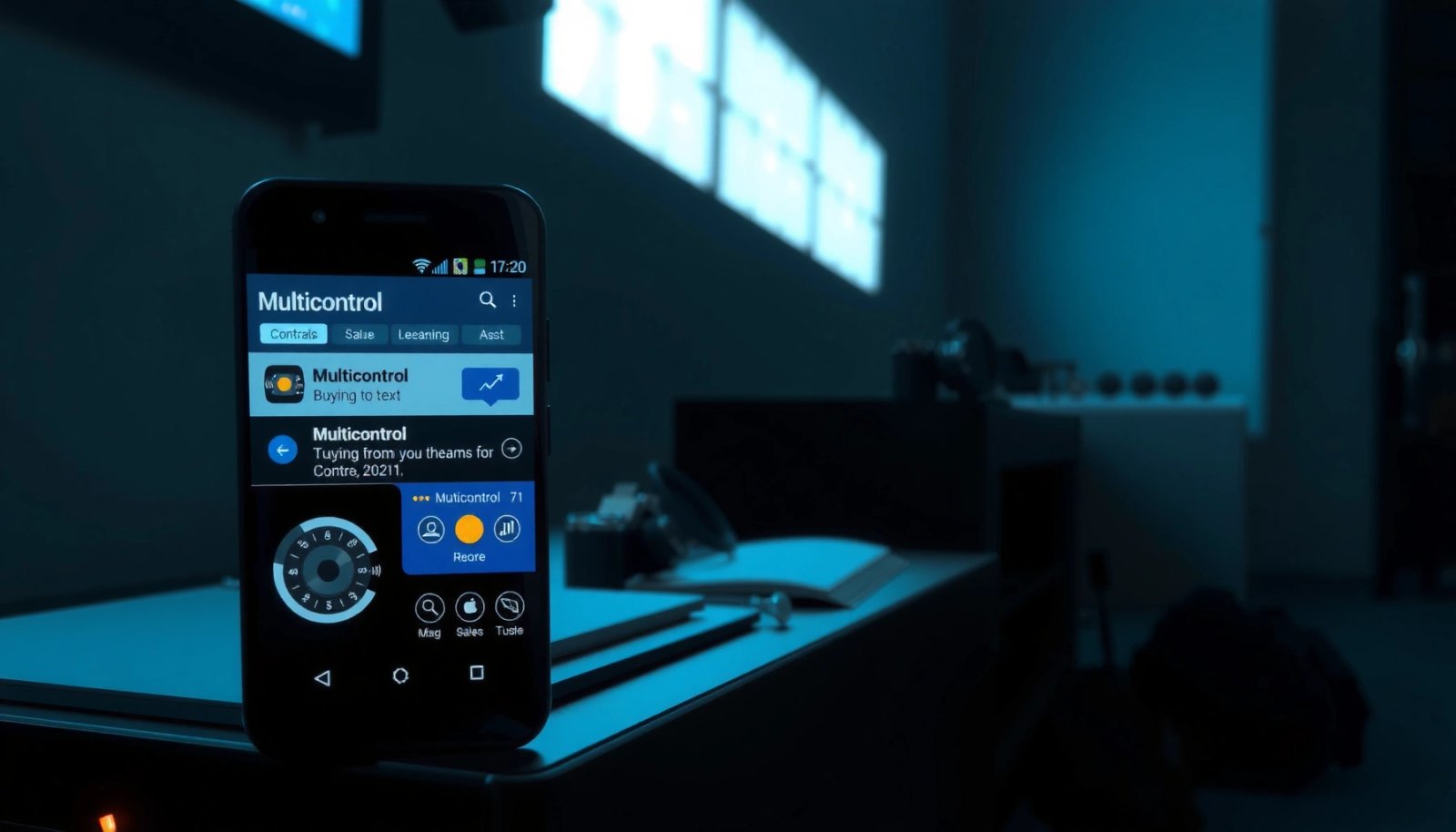
This guide breaks down what multicontrol means, how it works behind the scenes, what you can typically do with it, and what to check when it doesn’t show up or won’t sync. If you’re evaluating smart home workflows, multi-device productivity setups, or simply want easier media and device control, you’ll find practical, Android-focused answers here.
What Multicontrol on Android Means
At its core, multicontrol is about linking control across compatible devices. Here’s what that means in real terms:
- It’s designed to link control across compatible devices
Multicontrol typically relies on two devices being able to communicate using supported Android services or vendor-specific integrations.
- It reduces the need to switch apps or devices manually
Instead of toggling between different device apps/remotes, multicontrol aims to keep you “in one place,” often using a single controller UI and shared permissions.
From a business perspective, think of multicontrol as an “interaction layer.” It simplifies user workflows across devices (consumer electronics, smart home hardware, and media systems) by minimizing context switching—something that directly improves usability and reduces operational errors (like controlling the wrong device).
How Multicontrol Works
Multicontrol isn’t magic; it’s coordination. The devices must first establish trust and interoperability, then actions flow through a controller-to-device control path.
- Devices are paired or connected through supported settings
Pairing can occur via Bluetooth, Wi‑Fi, or through a vendor account ecosystem (for example, where both devices are signed into the same services). Many implementations use discovery and permission steps to ensure you’re authorized to control the other device.
- You use one controller (like your phone) to manage actions elsewhere
Once connected, your phone can send commands such as play/pause, volume changes, switching output targets, or toggling device functions—depending on what the connected hardware supports.
A useful way to understand it is to separate control discovery (finding compatible devices) from command execution (actually issuing and confirming actions). Most “it doesn’t work” issues come from discovery failing (devices can’t be found), or execution failing (permissions, pairing state, or service compatibility).
Multicontrol readiness: quick device compatibility indicators
While support varies by brand and Android model, you can often infer readiness by checking these signals:
- The other device appears in your phone’s “Connected devices” or “Device control” area.
- The feature name includes terms like multicontrol, device control, shared control, or multi-device control.
- You can see the other device in media output routing (common for TV speakers, soundbars, and casting targets).
To make the “readiness” decision practical, the table below summarizes typical multicontrol-adjacent support categories across device types and ecosystems.
Multicontrol Support Signals by Device Type (2024–2025)
| # | Device Category | Typical Multicontrol Output | Most Common Control Path | Support Confidence |
|---|---|---|---|---|
| 1 | Smart TVs | Play/Pause, volume, source | Vendor account + Wi‑Fi | High ★★★★☆ |
| 2 | Soundbars | Playback + audio routing | Wi‑Fi + media session | High ★★★★☆ |
| 3 | Smart speakers | Volume, playback controls | Local discovery + account | Medium-High ★★★☆☆ |
| 4 | Wearables | Notifications + limited remote actions | Bluetooth LE + permissions | Medium ★★☆☆☆ |
| 5 | Smart lights & switches | On/Off, scenes, brightness | App-to-hub integration | Low-Med ★★☆☆☆ |
| 6 | Streaming boxes (Android/TV OS) | Playback + navigation | Local network pairing | Medium ★★★☆☆ |
| 7 | Cross-brand devices | Often partial or inconsistent | Bridged protocols (varies) | Uncertain ★☆☆☆☆ |
Use this as a practical guide: multicontrol is most reliable for media and display devices (TVs, soundbars, speakers) within compatible ecosystems, while home automation devices may require additional hub support or may not support true multicontrol at all.
Common Uses of Multicontrol
Multicontrol is commonly used where coordinated control reduces time and errors. The most frequent real-world use cases include:
- Controlling media playback or device functions across devices
You might start playback on one device, switch output to another (e.g., phone-to-TV audio or TV-to-soundbar), and manage volume without juggling multiple remotes. In corporate environments—like lobbies or meeting rooms—this can simplify daily operations and reduce training overhead.
- Coordinating tasks between your phone and supported hardware
Some ecosystems allow “follow-the-device” behavior: when your phone is connected, relevant actions appear in the same control surface. This can include controlling a TV while navigating from your phone, or coordinating playback across multiple rooms (depending on device support).
Other practical scenarios:
- Household convenience: One person controls music for the entire home entertainment setup.
- Accessibility: Centralizing controls can help users who prefer a single interface over multiple remotes.
- Routine automation: In supported ecosystems, multicontrol can reduce steps in repeat tasks (turn on TV, start playback, set volume).
Requirements and Compatibility
Not every Android device supports multicontrol, and even when it does, compatibility depends on both sides behaving as expected.
- Not all Android devices or brands support multicontrol
Some features are built into specific Android versions, while others are vendor-specific (implemented through manufacturer services). If your phone doesn’t offer the multicontrol toggle, the feature may not be available on your device.
- Both devices usually need matching settings and compatible software
Typical requirements include:
- Signed-in accounts on both devices (when the ecosystem uses accounts for authorization).
- Updated firmware on the controlled device (and often updates on the phone).
- Shared network context (same Wi‑Fi network, or Bluetooth discovery enabled).
- Permissions granted for device control.
Business-critical takeaway: before rolling multicontrol into a workflow (e.g., shared rooms, retail displays), validate compatibility with a pilot set of devices. Multicontrol failures are rarely “random”—they usually trace back to ecosystem mismatch, permissions, or stale pairing state.
How to Enable Multicontrol
The exact path can vary, but enabling multicontrol usually follows a consistent pattern: open connected-device settings, locate the feature, then pair with confirmation.
- Find it in device Settings or a connected-devices menu
Look for entries such as Connected devices, Device control, Multi-device, Cast/media controls, or a brand-specific feature name. If you don’t see anything related, use the Settings search bar and try keywords like “control,” “multicontrol,” “connected devices,” or “device pairing.”
- Follow on-screen pairing prompts and confirm permissions
Once you open the multicontrol menu, your phone typically discovers the target device and asks you to:
- confirm you want to link the devices,
- allow permissions for control,
- verify access using a PIN/code or on-device prompt (depending on the manufacturer).
Actionable enabling checklist:
- Ensure both devices are powered on and awake.
- Turn on Wi‑Fi and Bluetooth (many setups use both).
- Sign into the same account/economy on both devices (when applicable).
- Check that both devices have Bluetooth/Wi‑Fi discovery enabled.
- Start pairing from the phone—avoid initiating from the controlled device unless the product documentation recommends it.
Troubleshooting Multicontrol Issues
When multicontrol won’t sync, the goal is to isolate whether the problem is connectivity, pairing/authorization, or support mismatch.
- Check Bluetooth/Wi‑Fi connection and device pairing status
If devices can’t be discovered, multicontrol often fails early. Verify:
- both devices are on the same Wi‑Fi network (when your setup requires it),
- the Bluetooth connection is active enough for discovery/control,
- the controlled device still shows as “paired” in your phone’s connected devices list.
- Re-enable the feature and restart both devices if it won’t sync
A common fix is to toggle multicontrol off/on, then reboot both devices to clear stale service states. If the feature connects using a media session service, restart can also refresh the media routing layer.
Structured troubleshooting approach:
- Confirm the controlled device appears in connected-device lists
If it doesn’t, pairing/discovery is the root issue.
- Update firmware and Android system components
Incompatible versions can prevent control capabilities from activating.
- Re-authorize permissions
If you previously denied a control permission, multicontrol may not appear as available.
- Test with a simple control action
Start with play/pause or volume changes—if those work, deeper functionality may still be intact even if advanced features aren’t.
If multicontrol still doesn’t work, consider compatibility limitations. Some brands implement “multi-device control” only within their own device line or require specific apps to bridge control.
Conclusion
Multicontrol on Android lets you manage compatible devices from one controller—typically your phone—so you can coordinate actions without constant switching between apps or remotes. The key to using it successfully is understanding its dependency on device compatibility, pairing/permissions, and supported control surfaces. Enable it through your phone’s connected-device or Settings menu, verify ecosystem match, and troubleshoot by checking connectivity and re-authorizing pairing if it doesn’t sync—then test with a simple workflow like media control to confirm it’s working as intended.
Frequently Asked Questions
What is MultiControl on Android, and how does it work?
MultiControl on Android refers to a feature or app-based functionality that lets you control multiple devices or screens from one Android phone or tablet. Depending on the manufacturer or app, it may work through Bluetooth, Wi‑Fi, or a local network connection, enabling actions like switching devices, mirroring, or remote command control. In most cases, you pair the devices first, then use a single interface to manage them.
How do I enable MultiControl on my Android phone?
To enable MultiControl, open your device’s Settings or the specific MultiControl app, then look for options like “MultiControl,” “Device connection,” or “Remote control.” You may need to activate Bluetooth/Wi‑Fi, sign in to the same account as the target device, and complete pairing. Once connected, follow any on-screen prompts to allow permissions for controlling or sharing screen features.
Why isn’t MultiControl working on my Android device?
The most common reasons MultiControl fails are missing permissions, devices not being on the same network (or not properly paired), or outdated software on one of the devices. Check whether Bluetooth and location permissions are allowed (if required), and restart both the Android device and the target device. You can also try disabling and re-enabling the MultiControl feature, then re-pairing to refresh the connection.
Which Android devices support MultiControl and what are the requirements?
Support for MultiControl varies by brand and model, so not every Android device or version includes the feature natively. Typically, you’ll need a compatible Android version, a target device that supports MultiControl or a companion app, and network capabilities (Wi‑Fi or Bluetooth) for stable communication. Review the manufacturer’s support page or the app’s requirements to confirm compatibility.
What is the best way to use MultiControl safely and avoid connection issues?
For safer MultiControl usage, only pair devices you trust, keep your Android system and apps updated, and review permissions granted to the MultiControl feature. To reduce connection problems, ensure both devices are near each other, use a reliable Wi‑Fi network (when applicable), and avoid switching networks during control sessions. If you experience lag or disconnections, restart the feature and re-run pairing rather than repeatedly tapping connect.
References
- Build accessible apps | App quality | Android Developers
https://developer.android.com/guide/topics/ui/accessibility - Google Scholar Google Scholar
https://scholar.google.com/scholar?q=android+multicontrol+accessibility - Google Scholar Google Scholar
https://scholar.google.com/scholar?q=multicontrol+android+switch+access - Google Scholar Google Scholar
https://scholar.google.com/scholar?q=android+accessibility+switch+control+multiple+switches - https://pubmed.ncbi.nlm.nih.gov/?term=android+switch+accessibility+controller
https://pubmed.ncbi.nlm.nih.gov/?term=android+switch+accessibility+controller - Google Scholar Google Scholar
https://scholar.google.com/scholar?q=what+is+multicontrol+on+android - what is multicontrol on android - Search results
https://en.wikipedia.org/wiki/Special:Search?search=what+is+multicontrol+on+android - https://www.ncbi.nlm.nih.gov/search/research-articles/?term=what+is+multicontrol+on+android
https://www.ncbi.nlm.nih.gov/search/research-articles/?term=what+is+multicontrol+on+android