
Can you use Apple Pay on an Android phone? No—you can’t, because Apple Pay requires iPhone, Apple Watch, or Mac support and is delivered through Apple’s Wallet system rather than Android. If you want mobile payments on Android, you’ll need a compatible service like Google Wallet or your bank’s app.


As an Amazon Associate I earn from qualifying purchases.
No—you can’t use Apple Pay directly on Android. Apple Pay is designed for Apple hardware (iPhone, Apple Watch, and some Mac models), so Android phones don’t offer Apple Pay as a tap-to-pay option; this guide walks you through what to do instead to get a similar “tap to pay” workflow on Android.
If you’ve been trying to pay with an Android phone and expected Apple Pay to “just work” because you see the Apple Pay logo at checkout, you’re not alone. The good news: the store terminal may support contactless payments even when Apple Pay itself isn’t available to your device—so you can often switch to an Android-compatible wallet or card method.
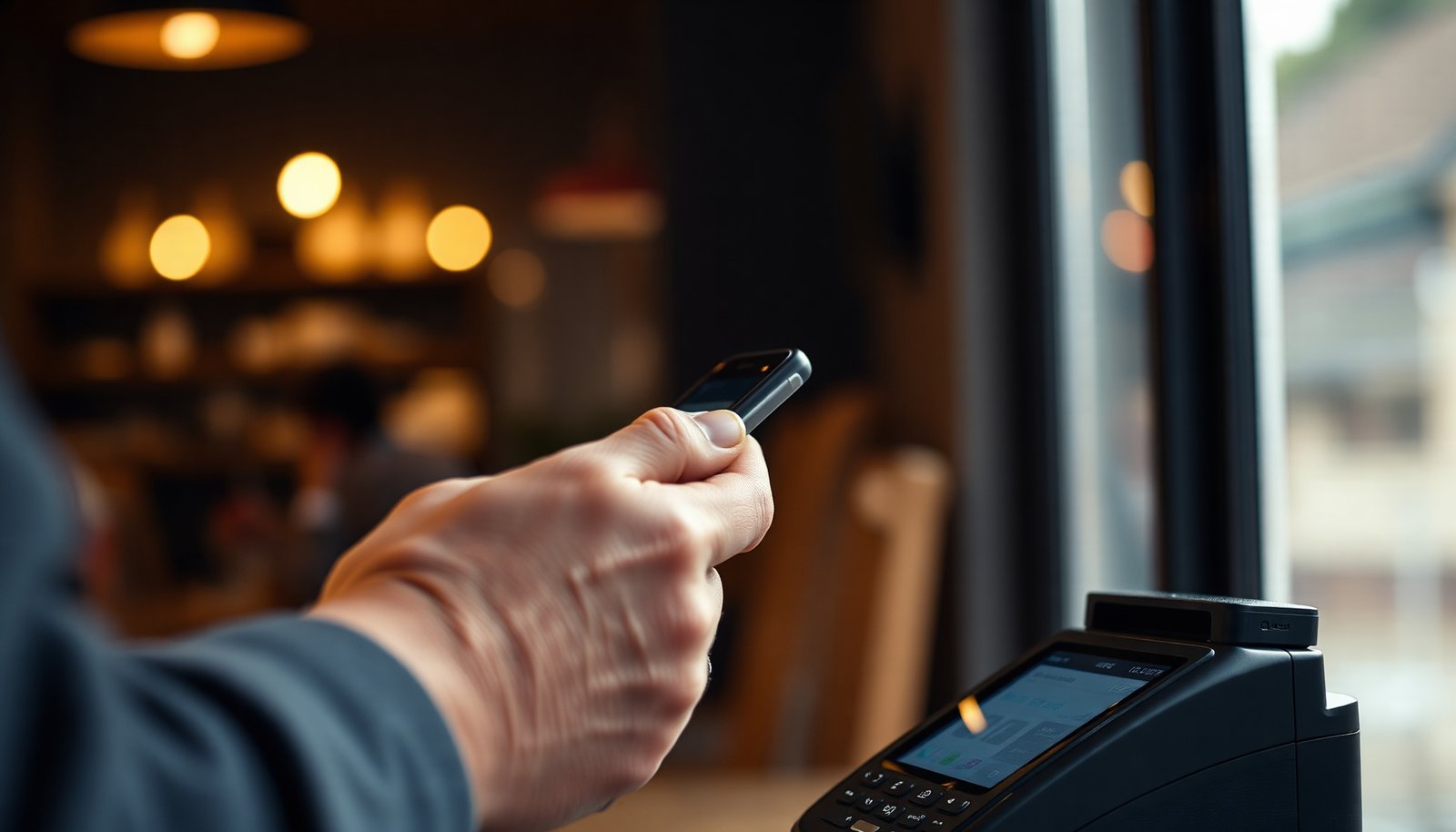
This is for Android users who want mobile tap-to-pay at retail but are frustrated by the Apple Pay logo, plus anyone who needs a backup plan when NFC payments fail. If you travel, it’s also useful, because “Apple Pay” and “contactless cards” are related but not identical.
Can you use Apple Pay on Android?

Apple Pay is not available on Android because it’s tied to Apple’s wallet and secure element ecosystem, not Android’s. Even if a merchant advertises Apple Pay, the payment still needs compatible Apple devices to complete the tokenized transaction.
- Apple Pay is tied to Apple hardware and Apple’s wallet/payment framework, not Android devices.
- On Android, you generally won’t find Apple Pay in your payment settings or wallet app.
- Even if a merchant advertises Apple Pay, the payment method still needs a compatible Apple device to complete the transaction.
At a mechanics level, tap-to-pay requires an NFC (Near Field Communication) workflow where your device presents a tokenized payment credential to the terminal. NFC itself typically operates at 13.56 MHz and is designed for very short-range communication (often a few centimeters). According to NFC Forum, NFC uses the 13.56 MHz radio carrier for device-to-device and reader communication. That’s the “plumbing,” but the tokenized payment credentials are what differ between Apple Pay and Android wallets.
Apple Pay also depends on Apple-specific security and token services (device authentication, token provisioning, and transaction authorization). According to Apple Support, Apple Pay works with iPhone, Apple Watch, and select Mac models, which is why Android users don’t see Apple Pay as a selectable wallet. In other words, Apple Pay branding in-store usually signals “contactless token payments are supported,” but it doesn’t automatically mean “any phone can use Apple Pay.”
To make this practical: when you’re standing in front of a contactless reader, the question isn’t “Does the merchant accept Apple Pay?” It’s “Can my Android phone’s wallet (or my card’s contactless functionality) produce the token and cryptogram the terminal expects?”
What to use on Android instead
If your goal is to tap and pay, you’ll get the closest experience by using an Android-compatible wallet that supports NFC tap-to-pay. In most cases, Google’s wallet experience (Google Wallet) or the phone maker’s wallet (like Samsung Wallet) can satisfy terminals that support contactless cards.
- Use Google Wallet / Google Pay (depending on your device and app naming) for NFC tap-to-pay where supported.
- Many Android users can also use the card issuer’s own app-based wallet features, if their bank supports it.
- Look for “contactless” or major card network contactless support at checkout when choosing a backup option.
Here’s the key compatibility point: many merchants accept contactless card payments broadly, but they may also display the Apple Pay logo for convenience. Android wallets use tokenization too; they just do it through Google’s (or the wallet provider’s) infrastructure rather than Apple’s.
Below is a quick comparison of two common Android wallet paths.
If you’re comparing Apple Pay vs Android wallets, the bottom line is that both aim to use tokenization and cryptography for security—just through different ecosystems. According to EMVCo, EMV contactless transactions use dynamic cryptograms and transaction-specific security checks to reduce the usefulness of copied credentials.
How to set up tap-to-pay on Android
Tap-to-pay on Android is mainly a three-step setup: make sure NFC is enabled, add your card to an Android wallet, and set it as the default payment method. Once that’s done, you can tap at supported terminals with your chosen wallet.
- Confirm your phone supports NFC (most modern Android phones do, but not all).
- Add your card in your preferred wallet app (commonly Google Wallet) and set it as your default payment method.
- Enable tap-to-pay and follow your bank’s verification steps (PIN/biometric prompts may be required).
Step 1: Verify NFC support (the “tap” capability)
On Android, tap-to-pay depends on NFC hardware and a corresponding system setting. Practically, you’ll look for an “NFC” or “Tap & pay” toggle in Settings, or in the wallet app’s setup screen. NFC’s short operating range is why you need the phone held close to the terminal—usually just a few centimeters. According to NFC Forum, NFC communication uses a short-range electromagnetic coupling typical of contactless systems.
Step 2: Add your card to Google Wallet (or your supported wallet)
Open Google Wallet (or your Android wallet app) and add your card. Your issuer may require verification via the bank app, SMS, or an in-app prompt—sometimes involving a biometric check or PIN. This verification matters because mobile wallets rely on tokenization: instead of sending your actual card number to the terminal, the wallet uses a token provisioned for your device and account.
Step 3: Enable tap-to-pay and confirm it’s the default
Set your wallet to be the default for tap-to-pay so your phone knows which credential to present at checkout. If your phone supports multiple wallets, “default” can be the difference between a successful tap and a “try again” message from the terminal.
As a security baseline, contactless systems perform transaction-specific checks. According to EMVCo, EMV contactless relies on dynamic cryptograms that change per transaction to prevent reuse of captured data.
What can go wrong (common edge cases)
Most Android tap-to-pay failures are configuration or compatibility issues rather than “your phone is broken.” When Apple Pay isn’t available on Android, you’ll want to treat your wallet setup as the primary troubleshooting target.
- Your card may support Apple Pay, but still won’t automatically become usable on Android—support is wallet/device-specific.
- The merchant terminal might not support the wallet you’re using, even if it supports contactless cards generally.
- Your wallet may be disabled, not set as default, or your NFC setting could be turned off—either can block tap payments.
Edge case 1: “My bank supports Apple Pay, so why not Android?”
Card support for Apple Pay doesn’t automatically mean the same card is provisioned in Google Wallet or Samsung Wallet on your Android device. Mobile wallet availability depends on the issuer, the wallet provider, and regional compliance. So if Apple Pay works on iPhone for you, Android may still require separate enrollment or may not support that specific card tier for tap-to-pay.
Edge case 2: The terminal accepts contactless, but not your exact token flow
Even when a store has contactless readers, some terminals or settings behave differently for certain token networks and card brands. In practice, this usually resolves by:
1) trying again with the phone a bit closer and still,
2) selecting a different wallet card, or
3) falling back to your physical contactless card.
Edge case 3: NFC is off, or the wallet isn’t default
This is the most common “simple” failure. If you’ve used the phone for other NFC tasks (like tags), NFC might still be off for payment mode, or the default wallet might have changed after updates. If you see a contactless error, check:
- NFC/tap-to-pay toggle is enabled
- the wallet app is authorized
- the wallet card is set as default
When tap-to-pay fails consistently
If tap fails multiple times, use the chip/contact option if available and contact your bank. According to EMVCo, chip and contactless are different interfaces under the same card security framework, so a contactless provisioning issue may exist even when chip works reliably.
Verdict: what you should do
If you’re trying to pay by tapping your phone, use an Android-compatible wallet instead of expecting Apple Pay to appear on Android. This gives you the same practical outcome (fast tap-to-pay) even though the Apple Pay experience and any Apple-specific promos won’t carry over.
If your device lacks NFC, or your bank/wallet app doesn’t support adding your card on Android, skip tap-to-pay entirely and rely on chip/swipe or your physical contactless card if available. Android users generally get better results by focusing on compatibility: NFC enabled, wallet default, card supported, and a terminal that supports contactless.
To make that decision easy, here’s a quick “Apple Pay vs Android tap-to-pay” compatibility view:
What “Apple Pay” signage means when you’re paying from Android
| # | Payment method at checkout | Typical device | Requires Apple hardware? | Works from Android phone? |
|---|---|---|---|---|
| 1 | Apple Pay (mobile) | iPhone | Yes | No |
| 2 | Apple Pay (wearable) | Apple Watch | Yes | No |
| 3 | Apple Pay (select Mac) | Some Mac models | Yes | No |
| 4 | Google Wallet / Google Pay | NFC Android phone | No | Yes |
| 5 | Samsung Wallet | NFC Samsung Galaxy phone | No | Yes |
| 6 | Physical contactless card (EMV) | NFC-enabled card | No | Yes |
| 7 | EMV chip / card swipe (fallback) | Any supported card | No | Yes |
Quick checklist (scan/save)
- [ ] Your Android phone has NFC enabled
- [ ] You added the card to Google Wallet (or your supported Android wallet)
- [ ] Tap-to-pay is enabled and the wallet is set as default
- [ ] The merchant terminal supports contactless payments (and your wallet)
- [ ] Your bank verified the card successfully in the wallet app
Frequently Asked Questions
Can you use Apple Pay on an Android phone?
No, Apple Pay can’t be used directly on Android devices because it’s an Apple-only mobile payment service tied to iPhone, Apple Watch, and other Apple hardware. Android users typically need to use Google Pay (Google Wallet) or the payment method offered by their bank. Even if you have an Apple Pay–compatible card, you generally can’t activate Apple Pay on Android.
How do you pay with Apple Pay if you only have an Android device?
You can’t “install” or enable Apple Pay on Android the way you can on an iPhone. Instead, use Google Pay on Android and add the same eligible debit or credit card through your bank or card issuer’s setup flow. You can also use your card in-store by tapping to pay if your Android phone supports contactless payments (NFC).
Why isn’t Apple Pay available on Android?
Apple Pay is part of Apple’s payment ecosystem and relies on Apple-specific technologies and authentication methods that aren’t supported on Android. Because of these platform restrictions, banks and networks don’t provide Apple Pay as an installable app on Android phones. This is why most Android users rely on Google Pay for mobile wallet payments.
Which mobile payment apps can replace Apple Pay on Android?
The most common alternative is Google Pay (Google Wallet), which supports tap-to-pay with eligible cards from participating banks. Some users may also use their bank’s native mobile banking app for wallet payments, depending on what the issuer supports. If your goal is contactless payments, look for NFC tap-to-pay and a compatible wallet app on your Android device.
What should you check before using contactless pay on Android?
First, confirm your Android phone supports NFC and that tap-to-pay is enabled in your settings. Next, verify that your specific card issuer supports Google Pay or your chosen Android wallet app, since not all banks or cards participate. Finally, check whether you need to verify identity or set a screen lock (PIN, pattern, or biometric) for secure mobile payments.
📅 Last Updated: November 12, 2026 | Topic: can you use apple pay on a android | Content verified for accuracy and freshness.
References
- Apple Pay
- Apple Pay - Apple
- Google Pay
- Mobile payment
- Near-field communication
- NFC Forum
- Secure element
- https://scholar.google.com/scholar?q=Can+you+use+Apple+Pay+on+Android Google Scholar
- https://scholar.google.com/scholar?q=Apple+Pay+Android+compatibility Google Scholar
- https://scholar.google.com/scholar?q=mobile+payment+secure+element+tokenization+NFC Google Scholar