Want to share location on Android fast and correctly? This step-by-step guide shows you the exact best method to send your live location (or a one-time location) using built-in Android options. You’ll get clear taps from start to finish—so your location reaches the right person every time without guesswork.


As an Amazon Associate I earn from qualifying purchases.
You can share your live location on Android in just a few minutes by enabling Location permissions first and then using a trusted app like Google Maps or Messages to send your live or pinned location to specific people for a set time. Below is a practical, end-to-end guide that covers the fastest built-in options, privacy controls, and what to do when location sharing doesn’t work.
Check Location Permissions
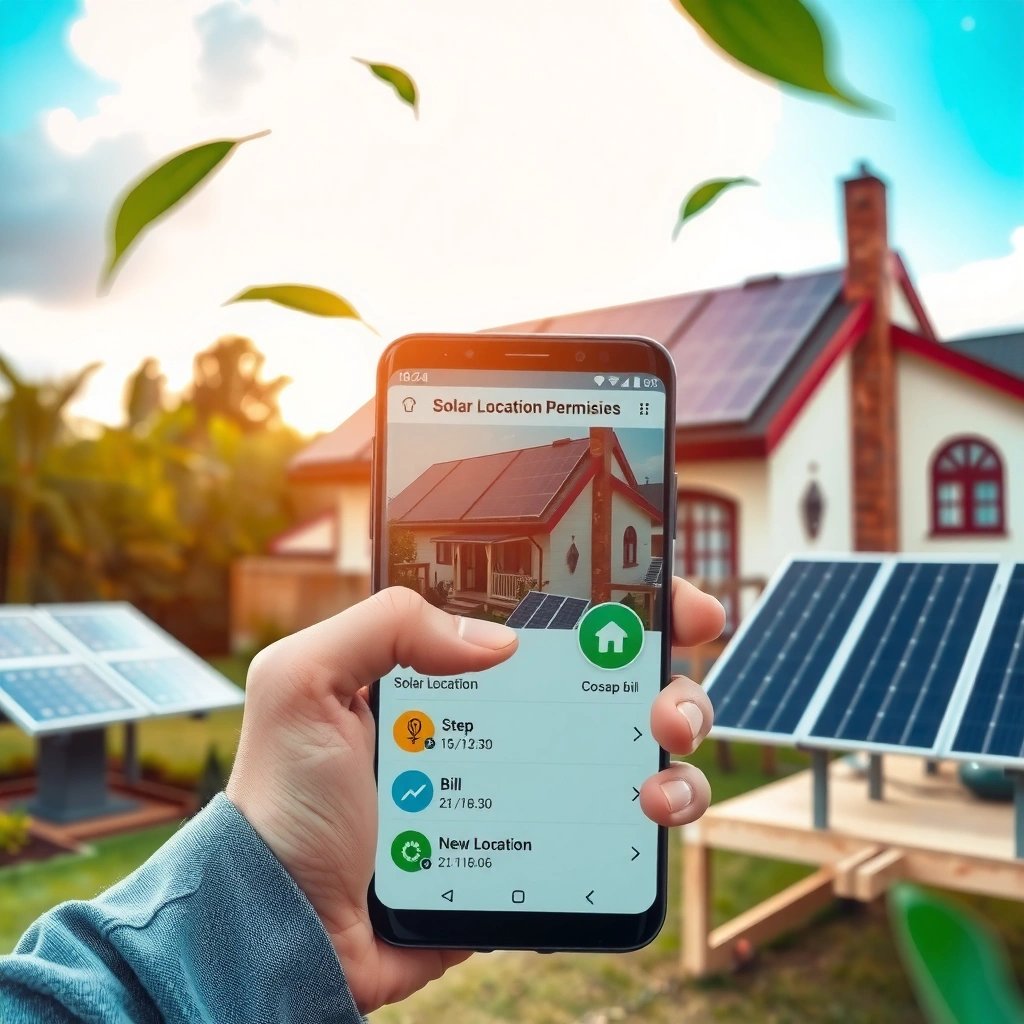
Before you attempt to share location on Android, confirm that your device and the specific app you’re using are allowed to access location data. Most “it won’t share” issues come from permission mismatches (e.g., the app set to “Only while using” but you’re trying to share in the background, or Location turned off at system level).
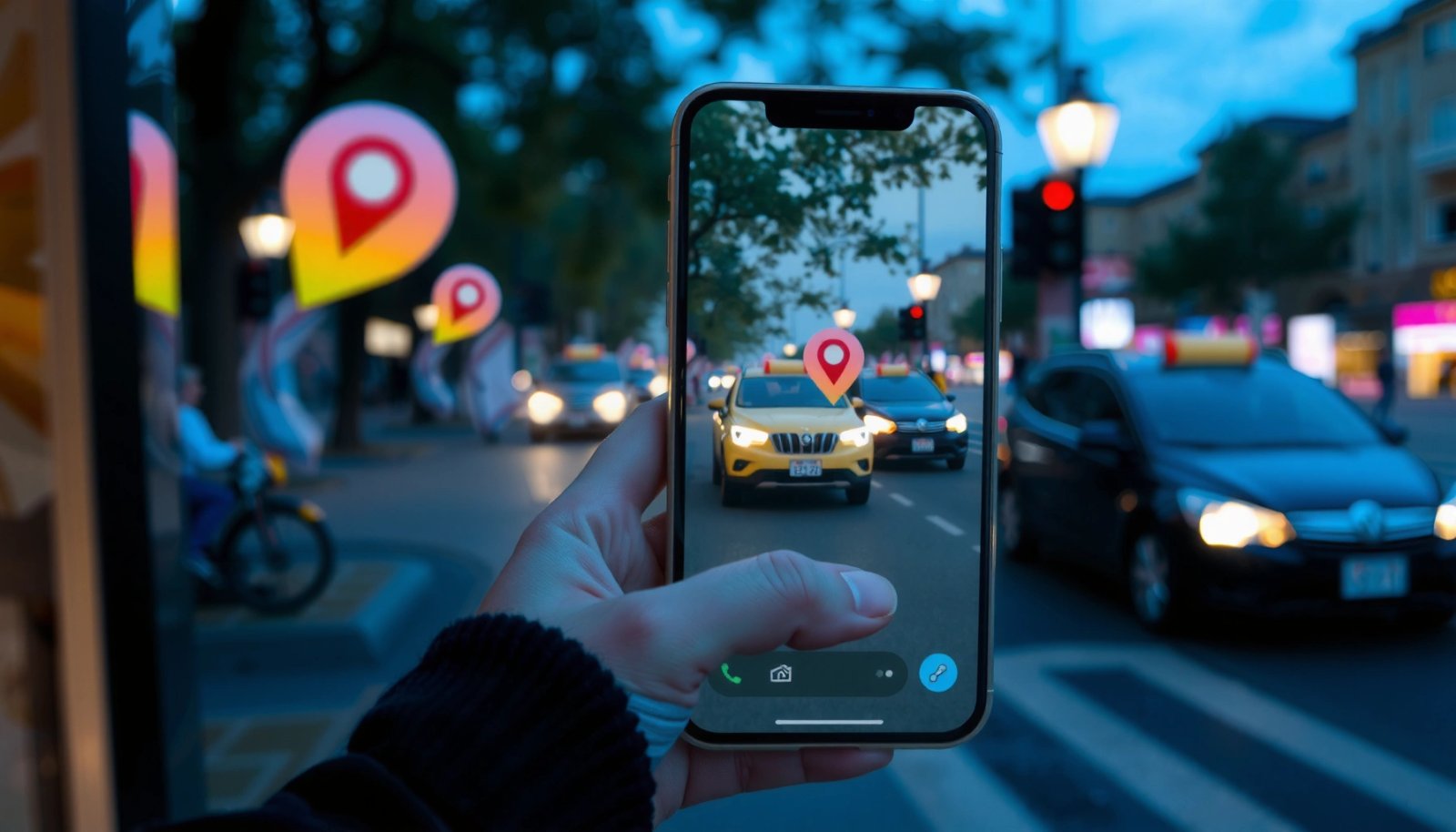
- Enable Location in Android Settings
On Android, location sharing depends on both system-level Location services and app-level permissions. Go to Settings → Location (wording may vary by brand) and turn Location ON. If you see options like Improve accuracy (often based on Wi‑Fi/Bluetooth scanning), consider enabling it—accuracy matters when you share live location with someone who needs to meet you.
- Allow your chosen app to access “While in use” or “Allow only while using”
Next, open Settings → Apps → (your app) → Permissions → Location and set the permission to While in use (or Allow only while using).
- Use While in use for most sharing workflows because it’s secure and aligns with how Google Maps and Messages request location.
- If you need continuous live tracking while you’re using a navigation/share screen, “While in use” is usually sufficient.
- Avoid “Don’t allow” or disabling permission entirely—without it, Android can’t provide GPS coordinates to share.
At this point, you should be able to see your location properly in the app you plan to use (especially in Google Maps). If your blue dot doesn’t appear or is inaccurate, fix GPS/Wi‑Fi accuracy before sharing.
Android Location Sharing Methods Compared (Real-World Use Cases)
| # | Method | Best for | Typical share style | Setup time | Ease score |
|---|---|---|---|---|---|
| 1 | Google Maps “Share location” | Meeting up live | Live or pinned | < 1 minute | ★★★★★ |
| 2 | Messages (SMS/RCS) attachment | Quick one-off sending | Pinned location | ~ 30 seconds | ★★★★☆ |
| 3 | Google Maps “Live location” via share screen | Trips & transit | Live tracking | 1–2 minutes | ★★★★★ |
| 4 | Google Find My Device (share for recovery) | Phone safety scenarios | Device location | 2–3 minutes | ★★★★☆ |
| 5 | Sharing through navigation apps (route context) | “Follow my route” | Route + current spot | 1–2 minutes | ★★★☆☆ |
| 6 | Device-level location share (app-specific) | Enterprise/teams use | App-defined sharing | Varies | ★★☆☆☆ |
| 7 | Location sharing via third-party family apps | Longer-term check-ins | Live + history | 5–10 minutes | ★★★☆☆ |
Use Google Maps to Share Your Location

Google Maps is the most straightforward way to share live location on Android. It’s designed for real-time tracking, includes time limits, and works reliably because it uses standard Android location services.
- Open Google Maps and tap your profile/initials or the location sharing option
In Google Maps, tap your profile picture/initials (or look for Location sharing depending on your app version). This is the entry point where Maps shows sharing controls rather than just navigation.
- Select “Share location,” choose a person, and set the time duration
After you tap Share location, you’ll be prompted to:
- Choose who to share with (contacts or a share link, depending on your setup).
- Select how long to share (commonly options like 15 minutes, 1 hour, or until you turn it off).
- Choose live vs pinned (if available in your version).
Practical tip: For commuting or walking meetings, choose live for 30 minutes to 2 hours rather than “until you turn off.” This reduces risk if plans change or you forget to stop sharing. Also, if you’re indoors or in a dense area, wait a few seconds for GPS accuracy to stabilize before sharing.
Share Location in Messages (SMS/Chat Apps)
If you don’t need continuous tracking and just want someone to find you at a specific spot, Messages (SMS/RCS) and many chat apps support sharing a location attachment.
- Look for the “Location” or “Share location” attachment option
Open a conversation and tap the attachment (paperclip/plus) or the location icon. Many apps label it simply as Location.
- Pick your location mode (live or pinned) and send to the contact
You’ll typically get two options:
- Pinned (a fixed address/point on a map) — ideal for “I’m here” situations.
- Live (if the app supports it) — useful when your position changes while you move.
Example scenario (highly common): You arrive near an office building, and you want security or a colleague to meet you at the entrance. Sending a pinned location via Messages is faster and safer than live tracking for the entire duration of your trip.
Share Location via Find My Device (If Needed)
Find My Device is designed for safety and recovery—not casual meeting plans. Still, it can be invaluable when you need to locate a lost phone or verify where it’s been.
- Use Google’s Find My Device to locate your phone
On another device (or a web browser), go to Find My Device using your Google account. If Location services and sign-in were set up previously, it can provide the device location and last known details.
- Share location details when the feature prompts for sharing or sign-in access
Depending on your setup, Find My Device may require Google account access and may provide options to share the device’s location details with authorized parties.
Important: This is not the same as “sharing my live location with a friend.” It’s primarily about locating your own device for recovery and security.
Business use case: If your company-issued phone is missing during a trip, Find My Device can help IT/security teams confirm whether the device is still active and roughly where it is, supporting incident response procedures.
Troubleshoot When Location Won’t Share
Location sharing issues tend to be technical rather than account-related. Use this checklist to systematically isolate the cause.
- Confirm GPS/Wi‑Fi/location services are turned on
- Verify Location services are ON in system settings.
- In a low-signal area, GPS may take longer; enabling Wi‑Fi scanning can improve accuracy.
- Check whether Airplane mode or battery optimizations are interfering with sensors.
- Restart the app and re-check location permission settings
If permissions were updated but the app still fails:
- Close the app completely and reopen it.
- Go back to Settings → Apps → (app) → Permissions → Location and confirm it’s set to While in use.
- Confirm there isn’t a “denied” prompt you skipped earlier.
Additional diagnostic steps (if needed):
- Ensure the phone can determine your location in the app (e.g., look for the blue dot in Google Maps).
- If you’re using live sharing, start the share again after the phone has found your location—live sharing usually improves once the GPS fix is stable.
Control Privacy and Sharing Duration
Location sharing is powerful, which is why Android’s permission model and in-app time controls matter. Good privacy practice is not just “turn it on/off,” but “share with intent.”
- Share for a set time instead of indefinitely when possible
When Google Maps offers durations, prefer a limited window that matches the task:
- Short meeting: 15–30 minutes
- Commute or pick-up: 1–2 hours
- Ongoing work session: use a longer duration, but still review the status periodically rather than assuming it’s safe forever.
- Revoke sharing after use by stopping live location sharing in the app
Once you arrive or your purpose is complete, stop sharing in the same app where you started it. This typically means returning to the Location sharing screen and tapping Stop or disabling the live toggle.
Security mindset: If you frequently share your live location in professional settings (field work, deliveries, events), treat sharing like sending an email attachment—only send it when needed, and stop it when done. This also helps you avoid accidental over-sharing that can happen when plans change mid-route.
Key Takeaways: What to Do First, Then Next
When you share location on Android, the key is enabling permissions first, then using a trusted app like Google Maps or Messages to send your live or pinned location. Follow the steps above, test sharing with a trusted contact, and adjust privacy settings and duration so you stay in control—try it now and confirm it works end-to-end.
If you want, tell me your Android phone brand (Samsung/Pixel/Xiaomi, etc.) and which app you’re using (Google Maps, Messages, WhatsApp, etc.), and I’ll tailor the exact menu path for your device.
Frequently Asked Questions
How do I share my location on Android in real time?
Open Google Maps and tap your profile picture, then select “Location sharing.” Choose how long to share (for example, 1 hour) and pick a contact or copy a share link. Make sure Location is enabled in Android Settings and that Google Maps has permission to access location for real-time updates.
What’s the easiest way to share location with someone on Android using Messages or WhatsApp?
In Google Messages, open a conversation and tap the plus (+) or attachment icon, then select “Location” or “Share location.” In WhatsApp, open the chat, tap the attachment (paperclip) or “+,” then choose “Location,” followed by sending a live location. If you don’t see the option, confirm the app has location permission in Settings > Apps > (App Name) > Permissions.
Why can’t my Android phone share location, and how do I fix it?
Common causes include Location Services being turned off, missing app permissions, or inaccurate location settings (like battery saver restricting GPS). Go to Settings > Location and enable it, then check Settings > Apps > (Your app) > Permissions to ensure “Location” is allowed. Also try turning off and back on location, restarting the app, and verifying your accuracy mode (High accuracy) for better results.
Which Android phones and apps support live location sharing?
Most Android devices support live location sharing through Google Maps, Google’s location-sharing feature, and popular messaging apps like WhatsApp and Telegram. Many carriers and manufacturer-specific skins (Samsung, Pixel, Xiaomi, etc.) don’t block it, but the feature availability depends on the app version and location permissions. If live sharing isn’t available, your app may offer only “Share location” (a static map pin) instead of real-time updates.
Best ways to share location safely on Android without oversharing?
Use time-limited sharing in Google Maps and stop sharing when you’re done to reduce exposure. Avoid sharing location with unknown contacts and check the recipient before sending via Messages or WhatsApp. Consider using a “pin drop” (static location) when you don’t need live updates, and review location history or background access settings to keep your Android location privacy controlled.