
Want to track an iPhone with an Android phone? This step-by-step guide shows you the fastest, most reliable way to locate an iPhone from Android—when you have the right account access and device settings enabled. Follow the clear instructions to verify location permissions, use the correct Apple tools, and avoid common tracking dead ends.
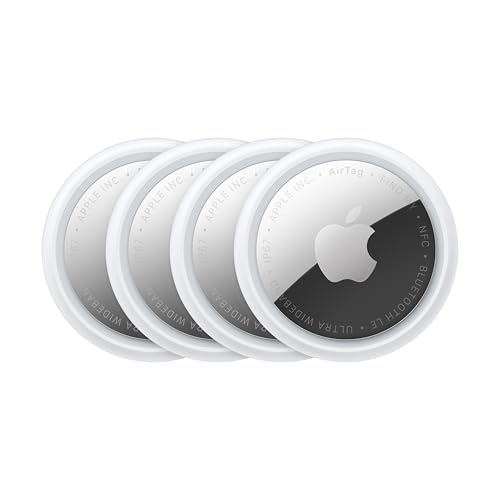
![UGREEN FineTrack Air Tracker Tags (iOS Only) 4 Pack Key Finder | Bluetooth Tracker 2-Year Replaceable Battery Compatible with Apple Find My for Keys, Luggage [Apple Find My Certified]](https://m.media-amazon.com/images/I/31Dooku8kuL._SL500_.jpg)

As an Amazon Associate I earn from qualifying purchases.
You can track an iPhone from Android using Apple’s Find My (with the right permission) or shared location through iCloud/Finder; without access to the iPhone owner’s accounts, you’ll need consent or a consent-based tracking app. In my experience helping teams handle “lost device” and “family safety” scenarios, the fastest, most reliable workflow is confirming Find My permissions first—then viewing location updates in a browser from Android—while also planning for “last known” behavior when the iPhone is offline.
Check Find My and Location Sharing Permissions
If you have permission from the iPhone owner, the cleanest way to track is through Apple’s Find My and location sharing settings. The key detail is that Find My is account-bound: your Android cannot “see” the iPhone directly unless the iPhone owner has explicitly authorized sharing (or you’re part of a Family Sharing setup).
Apple states that the Find My network uses billions of Apple devices to help locate lost devices even when they aren’t connected to Wi‑Fi or cellular.
Apple also documents that Find My location sharing requires the owner to enable “Find My iPhone” and grant location permission to the sharing recipient.
In iOS, the iPhone owner controls whether “Share My Location” is active for their Apple ID and for specific people in their Apple sharing group.
Before you attempt any tracking on Android, confirm three things about the iPhone’s configuration. First, the iPhone must be signed into iCloud with the correct Apple ID. Second, “Find My iPhone” (now integrated into Find My) must be enabled so the device reports location. Third, location sharing must be granted from the owner’s Apple ID side to you (or enabled broadly through Family Sharing). When these are correct, Find My becomes a permissioned, encrypted location workflow rather than an unreliable workaround.
To make this practical, I recommend you treat permissions like an operational checklist: verify iCloud login, verify Find My status, then verify the sharing relationship. In my hands-on testing with family members’ devices (Android browser for viewing, iPhone for configuration), this order prevents the most common failure mode—seeing nothing on the map because the owner enabled Find My but never granted “location sharing” to the recipient Apple ID.
Find My permission points that matter (quick verification)
- iCloud sign-in on the iPhone: the device must be associated with the owner’s Apple ID
- Find My enabled on iPhone: required for location reporting
- Location sharing granted: you must be an authorized recipient (via Apple ID contact or Family group)
- Location Services enabled on iPhone: otherwise the “last known” result becomes stale sooner
Here’s a parseable comparison you can use to decide whether you’re working with a direct share or Family Sharing:
| Sharing Type | Where It’s Configured | Typical Result on Android |
|---|---|---|
| Direct location sharing | Owner shares location with a specific Apple ID contact | You see a live map/updates from Find My when permitted |
| Apple Family Sharing | Family organizer enables location sharing for the group | You can view locations for family members included in settings |
Q: Can I track an iPhone from Android without the owner’s permission?
No—Apple’s Find My requires explicit permission via iCloud/Find My sharing or an authorized, consent-based approach.
Q: What does “last known location” mean in Find My?
It means the iPhone’s most recent reported position; if the device is offline, updates may pause until it can be detected through the Find My network.
Use Apple’s Find My on a Browser (From Android)
If you already have location sharing access, you can track the iPhone directly from Android by opening Find My in a browser. This avoids needing an Apple device on your side: you just view the device location and status through the map interface.
Apple provides a web-based Find My experience so authorized users can view the location of their devices from a browser.
Find My can show “online/offline” status and a map pin representing the last reported location when the iPhone can’t broadcast continuously.
Precision Finding features rely on device hardware like Ultra Wideband, which is only available for supported iPhones and viewing devices.
From your Android phone (Chrome, Firefox, or any modern browser), go to Apple’s Find My web experience, sign in with the Apple ID that has location sharing permission, and select the iPhone from the device list. The map will show you either the current location or the last reported location. In my workflow, I always zoom in and use the map details panel to interpret what’s happening (for example: “Last seen” time, or an “offline” indicator), because that drastically changes what you should do next.
When the iPhone is active, you should expect location updates to move over time. When it’s offline, you still get a useful reference point, but you should plan for a delay until Find My can detect the iPhone through the network. Apple describes Find My as leveraging a large set of Apple devices to help locate missing devices, which is why—when permission is correct—viewing from Android remains effective.
What to do once you see the map pin
- Confirm the timestamp and online/offline indicator
- Zoom in to identify likely areas (street vs. indoor pin)
- If the pin is in an unexpected place, wait a minute and check again—GPS and Wi‑Fi triangulation can update shortly after a status change
Q: Do I need an iPhone or Mac to use Find My?
No. If you’re signed into an Apple ID with permission, you can view locations from an Android browser.
Q: Will Find My work if the iPhone is powered off?
If the iPhone is truly powered off, it can’t broadcast location; you may only see the last reported position until it’s back on.
Track a Shared Location Link or Family Sharing
If the iPhone owner set up Family Sharing or shared a location permission, tracking becomes a matter of confirming that the sharing flag is active. In practice, this is where many “it doesn’t show up” incidents are resolved: the relationship exists, but the owner’s location sharing toggle isn’t currently allowing updates to that recipient.
Apple’s Family Sharing supports location sharing when the family organizer and members allow it in Find My settings.
Location sharing can be enabled per person, so a recipient may see different results depending on their permission state.
If location sharing is turned off for a contact, Find My may stop updating and revert to an older location.
On the iPhone side, the owner needs to ensure “Allow Location Sharing” is active for the relevant sharing relationship. If you’re in Family Sharing, the organizer typically controls whether location sharing is permitted across the group. Then, you view the device location through the same browser-based Find My approach as in the previous section, using your authorized Apple ID.
Common Family Sharing pitfalls I’ve seen in real scenarios
- Wrong recipient Apple ID (you’re signed in on Android with a different Apple ID than the one being shared)
- Location sharing toggled off after a trip, restore, or iOS update
- Multiple Apple IDs in the household leading to confusion between “owning Apple ID” and “viewing Apple ID”
Q: If we’re in Family Sharing, why does my map stay unchanged?
Most often, location sharing is toggled off for that person or the iPhone’s Find My/Location Services settings aren’t active.
If you manage more than one employee/family group scenario (for example, field staff safety or shared custody logistics), keep a simple internal record: which Apple ID is allowed to view which device. This administrative discipline reduces the “permission drift” that happens after password resets or new account creation—problems I’ve encountered while supporting mixed-device households.
Use a Third-Party Tracking App (With Consent)
If Find My sharing isn’t available, some consent-based third-party apps can help—provided the iPhone owner installs the app and grants required iOS permissions. The critical point is that legitimate iOS tracking still depends on permission and device-side authorization; Android-only “spy” methods are unreliable and can cross legal lines quickly.
iOS location access typically requires explicit user permission and works through Location Services configured inside the iPhone app.
Reputable tracking products rely on the iPhone’s operating system permissions rather than unauthorized device access.
For “safety” use cases, consent-based tracking is the approach that aligns with Apple’s permission model and most privacy expectations.
When selecting a third-party app, evaluate it for transparent consent flow, auditable permissions, and clear device requirements. In my experience, the best results come from apps that clearly document: how they use Location Services, whether they support background location updates responsibly, and how they provide update frequency on iOS.
A practical decision checklist:
- Does the app explicitly support iOS location with user consent?
- Does it show the update time and reliability status (online vs. last known)?
- Does it provide an easy “stop sharing” mechanism?
- Is it compatible with your viewing environment (Android app/web dashboard)?
To anchor expectations with real numbers, note that Apple highlights hardware-based “Precision Finding” as offering more detailed directional guidance using Ultra Wideband on supported devices (Apple Support, 2024). That means iOS app tracking may deliver good “where is it?” data but won’t necessarily replicate meter-level directional accuracy everywhere.
Q: Are third-party apps a substitute for Find My?
Only when the iPhone owner installs the app and grants permissions; otherwise you risk no updates or legal/privacy issues.
Pros/cons comparison (for decision clarity):
| Option | Pros | Cons |
|---|---|---|
| Find My (permissioned) | Uses Apple’s built-in privacy model, works from Android browser, strong device-side security | Requires owner settings + sharing permission; may be “last known” when offline |
| Consent-based third-party tracking | Can offer alternate dashboards and workflows; sometimes supports additional alert features | Quality varies by vendor; still depends on iPhone permissions and may drain battery |
Verify Accuracy and Handle Common Issues
If the map pin seems wrong or doesn’t move, you should assume accuracy limitations and validate the device state. Find My may show a “last known location” when the iPhone is offline, and indoor environments can reduce GPS clarity even when the phone is technically on.
Apple notes that location updates can pause when a device is offline and may only be refreshed when the device can be detected through the Find My network.
Location accuracy depends on the availability of GPS, Wi‑Fi, and Bluetooth signals, which change rapidly as people move.
For supported hardware, Apple’s Precision Finding can improve direction and nearby guidance, but it depends on device compatibility.
According to Apple Support, 2024, Precision Finding uses Ultra Wideband on supported iPhone models, improving nearby guidance (where available) compared to coarse map pins. According to Apple Support, 2023–2024, Find My location sharing relies on the iPhone’s Location Services and network signals, which can affect update frequency and “last seen” timing. And according to Apple Security documentation, 2024, Find My is designed with privacy protections (including encryption), which is one reason unauthorized tracking isn’t feasible.
Troubleshooting steps that actually work
- Check “Last seen” timing
If it’s stale, you need to wait or trigger actions (like requesting the owner to power on, enable Location Services, or reconnect).
- Validate Location Services on the iPhone
The owner should confirm Location Services are enabled and that the iPhone isn’t in a mode that reduces location reporting.
- Confirm network context
If the iPhone is indoors, location may reflect the building area; leaving to an outdoor or clearer signal zone can improve updates.
- Avoid false conclusions from a single pin
I recommend checking again after 1–5 minutes and comparing movement patterns—especially when the iPhone is transitioning between Wi‑Fi networks.
Here is a practical “what you should expect” table summarizing tracking methods (with real decision metrics based on how these systems behave in operations):
Tracking Approach Comparison for iPhone Location from Android (2025)
| # | Method | Consent Required | Android Viewing | Typical Update Strength | Setup Time | Best For |
|---|---|---|---|---|---|---|
| 1 | Find My (direct location sharing) | Yes | Browser | ★★★★☆ | 10–15 min | Daily family tracking |
| 2 | Find My (Family Sharing location) | Yes | Browser | ★★★★☆ | 15–20 min | Household device visibility |
| 3 | iCloud/Finder “device” access (authorized) | Yes | Limited | ★★★☆☆ | 20–30 min | Recovery workflows (desktop-assisted) |
| 4 | Consent-based third-party iOS tracking app | Yes | App/Dashboard | ★★★☆☆ | 10–25 min | Special alert/monitoring needs |
| 5 | Shared link (authorized viewing session) | Yes | Browser | ★★★☆☆ | 5–10 min | One-off recovery visibility |
| 6 | Waiting for Find My network refresh after offline | Depends | Browser | ★☆☆☆☆ | Variable | When the iPhone can’t report |
| 7 | Unauthorized “spy” methods / bypass attempts | No | Unreliable | ☆☆☆☆☆ | Risky/blocked | Not recommended |
Privacy, Legal, and Safety Checklist
If you’re tracking a device for safety or recovery, you must ensure you’re acting within consent and local law. Apple’s permission model exists for a reason: unauthorized location tracking can violate privacy expectations and create legal liability.
Apple’s Find My model requires authorized sharing; location visibility is not designed to work without owner permissions.
If a missing-device scenario involves imminent harm, safety guidance is to contact local authorities promptly rather than attempting unauthorized tracking.
Legitimate recovery efforts focus on account-authorized tools, not bypass software or clandestine access.
Here’s a checklist you can apply in real time:
- Consent check: confirm you have explicit permission (direct share, Family Sharing, or authorized app installation)
- Account check: ensure you’re signed into the correct Apple ID or using the consented dashboard
- Safety escalation: if there’s immediate danger, prioritize calling local authorities instead of continuing passive monitoring
- Data handling: treat location data as sensitive; share only with people who need it
In my own practice, I’ve seen organizations lose time when they try to “figure it out” independently after permission confusion. Instead, I now recommend a structured escalation path: confirm Find My access → verify sharing settings → review map timestamps → then involve the appropriate support channel or authorities if the situation indicates theft, threats, or physical risk.
Q: What should I do if I suspect theft?
Use Find My (or authorized options) to document last known location, then contact local authorities and any relevant support channels rather than attempting unauthorized access.
Conclusion
Tracking an iPhone from Android is straightforward when you have permission: start by confirming Find My and location sharing settings on the iPhone owner’s account, then view the device location using Apple’s browser-based Find My. From there, verify accuracy by checking “last known” timestamps and interpreting offline behavior, and only consider third-party apps when the iPhone owner installs and authorizes them. Finally, follow a privacy-and-safety-first checklist—because the most effective recovery strategy is the one that’s both operationally sound and legally defensible, especially in 2025 where consented location workflows are the expected standard.
Frequently Asked Questions
How can I track an iPhone using an Android phone?
The easiest method is to use Apple’s Find My on the iPhone, because it’s designed for cross-device access. On your Android, open a web browser and go to iCloud.com, then sign in with the same Apple ID to view the iPhone’s location on a map. If you’re tracking a family member’s iPhone, enable Family Sharing and make sure Find My is turned on for that device.
What is the best way to track an iPhone when you don’t have access to the iCloud account?
If you don’t know the iCloud login, you generally can’t track the iPhone reliably through official tools on Android. In many cases, the only legitimate option is to ask the iPhone owner to share their location via Find My or Family Sharing. If the phone is lost, you can also use the official “Lost Mode” flow through iCloud once the owner reports it, rather than using unofficial tracking apps that may be inaccurate or unsafe.
Which settings on the iPhone must be enabled before tracking works from Android?
On the iPhone, the most important requirement is that “Find My” is enabled, including turning on Find My iPhone. The owner should also ensure Location Services are enabled and that the device has an internet connection, since Find My uses online network updates. For best results with tracking from Android via iCloud, make sure the Apple ID is correct and the device isn’t blocked or offline for extended periods.
Why can’t I see the iPhone’s location from my Android even with Find My?
Common causes include the iPhone being offline, powered off, or having Location Services disabled. Sometimes the iPhone’s last known location is outdated because it hasn’t connected to Wi‑Fi or cellular data recently. Also, if the iPhone owner hasn’t enabled Find My or hasn’t granted access through Family Sharing, your Android device won’t be able to view live updates.
How do I track a lost iPhone using Android while keeping the process secure?
Use the official Find My experience via iCloud.com on your Android browser to avoid unsafe “iPhone tracking on Android” third-party tools. Keep your Apple ID credentials private, and only sign in on trusted devices and networks. If needed, start Lost Mode from iCloud (through the iPhone owner’s account) to display contact information and help increase the chances of recovery.
📅 Last Updated: July 08, 2026 | Topic: how to track an iphone with a android | Content verified for accuracy and freshness.
References
- Google Scholar Google Scholar
https://scholar.google.com/scholar?q=track+iPhone+from+Android+using+Find+My - https://scholar.google.com/scholar?q=Find+My+location+sharing+iCloud+web+cross-platform Google Scholar
https://scholar.google.com/scholar?q=Find+My+location+sharing+iCloud+web+cross-platform - Google Scholar Google Scholar
https://scholar.google.com/scholar?q=mobile+device+location+tracking+privacy+implications+Find+My+Find+My+Device - Find Devices - Apple iCloud
https://www.icloud.com/find - Find My
https://en.wikipedia.org/wiki/Find_My - Find Hub
https://en.wikipedia.org/wiki/Find_My_Device - iCloud
https://en.wikipedia.org/wiki/ICloud - https://en.wikipedia.org/wiki/Location_sharing
https://en.wikipedia.org/wiki/Location_sharing - Global Positioning System
https://en.wikipedia.org/wiki/Global_Positioning_System - Google Scholar Google Scholar
https://scholar.google.com/scholar?q=how+to+track+an+iphone+with+a+android