
Want to add a language keyboard on Android and start typing in a new language today? You’ll get the fastest, no-nonsense steps to enable the keyboard for your chosen language, whether you’re using Gboard or your device’s built-in keyboard. Follow the guide closely and you’ll have the correct keyboard available in minutes, with troubleshooting if it doesn’t show up.

As an Amazon Associate I earn from qualifying purchases.
Add a language keyboard on Android by enabling the language-specific input method under Settings → Languages & input → Manage keyboards. Once it’s enabled, you can switch keyboards instantly from the typing area (typically via a keyboard/language icon).
If you only want to type in another language (not change your phone’s system language), this approach is usually the fastest and least disruptive—especially on Samsung, Google Pixel, and other Android skins where the menu wording may differ slightly.

Who this is for / when it applies: This guide is for anyone who needs multilingual typing on Android—students drafting messages in another language, travelers using transliteration, and professionals typing bilingual emails—without permanently switching the entire device language. As of 2026, Android still treats keyboard input methods separately from system language in most setups, which is why the “keyboard-only” method works well.
Add a language keyboard from Android Settings
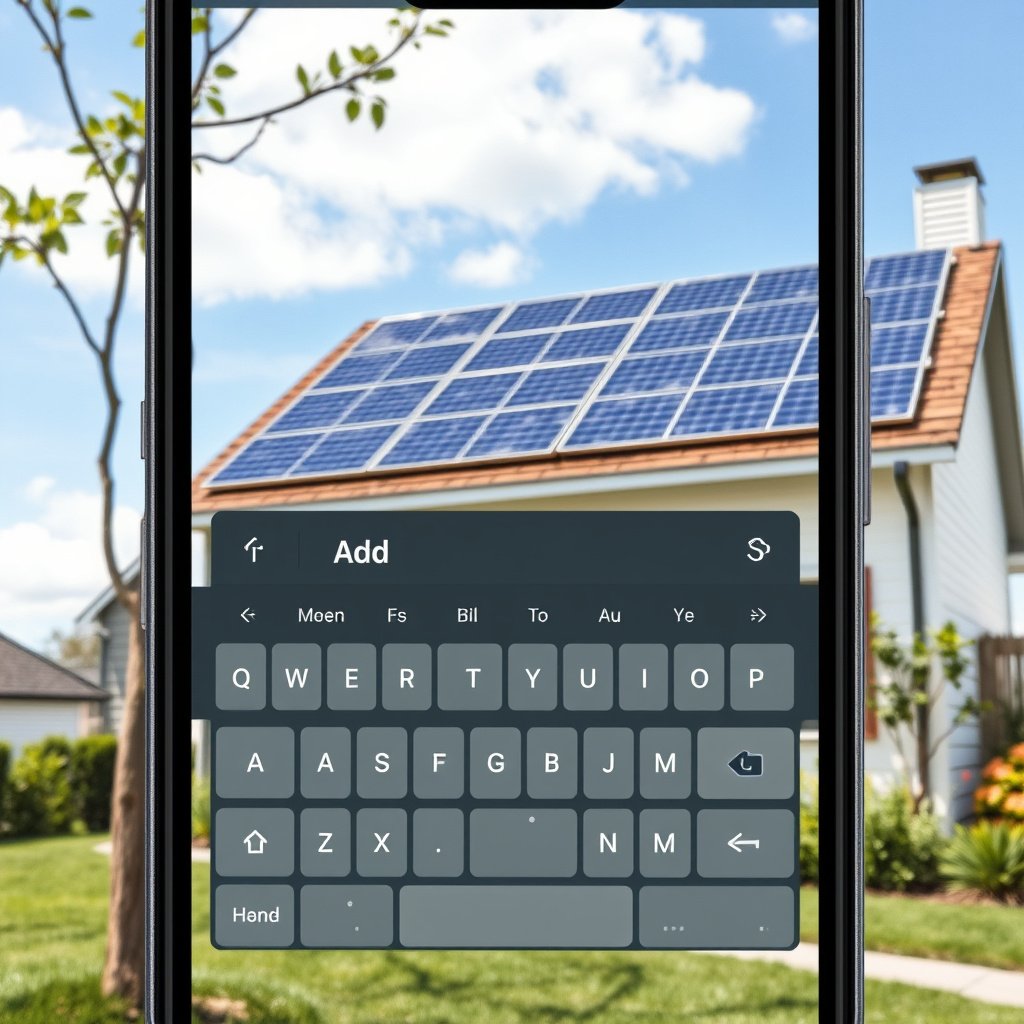
You can add a language keyboard by turning on a language input method in Android’s Languages & input settings. Then you’ll see that language available from the keyboard while typing.
Google’s Android guidance describes adding/enabling keyboards through the **Languages & input** area and the keyboard-management list (Google Support, 2026).
On-screen keyboards are typically enabled using a **Manage keyboards** (or **Virtual keyboard**) toggle, without requiring a device-wide language change (Google Support, 2026).
Gboard’s documentation confirms you can switch languages while typing after installing the language pack(s) (Gboard Help, 2026).
Step-by-step: turn on the keyboard for your language
1. Open Settings on your Android phone.
2. Go to System → Languages & input (wording varies by brand—some devices use General management or Keyboard & input methods).
3. Find On-screen keyboard → Manage keyboards (or Virtual keyboard).
4. Turn on the keyboard option for your target language:
- If you use Gboard, enable the relevant Gboard language pack.
- If you use a manufacturer keyboard (e.g., Samsung Keyboard), enable the language keyboard listed for that app.
Important: If you don’t see the language you expect, it usually means that keyboard app doesn’t include that language pack for your device/region—or it’s not installed yet within that keyboard’s language settings.
What to verify if the menu names don’t match
Android settings labels vary by manufacturer, but the “shape” of the flow is usually the same:
- Languages & input / Keyboard & input methods (where input methods live)
- On-screen keyboard / Virtual keyboard
- Manage keyboards (where you enable the language-specific keyboard)
If you’re using a custom Android skin, menus might be nested one level deeper. When in doubt, use the Settings search box and search for “keyboard” or “languages & input.”
Choose the right language and keyboard layout

The fastest way to avoid “wrong letters” is selecting the exact language (and often region or script/layout) that matches how you write. After enabling it, return to the keyboard list to confirm the language is active.
Android language packs may include multiple variants (such as region-specific layouts), so selecting the correct option is part of the standard setup (Google Support, 2026).
When a keyboard supports different scripts/layouts, the layout choice affects what characters appear for the same key taps (Gboard Help, 2026).
Turning on a keyboard in **Manage keyboards** is what makes it available for switching from the typing UI (Google Support, 2026).
Pick the exact language (and variant)
In Manage keyboards, you’ll typically choose:
- Language (e.g., Spanish vs. Latin American Spanish where available)
- Region (if the keyboard offers it)
- Sometimes script/layout (especially for languages with multiple writing systems or orthographic standards)
If the list shows multiple entries that look similar, treat them as “layout choices,” not just names. For example:
- Some keyboards offer different styles for the same language depending on region.
- Some scripts require different tapping behavior (especially when switching between Latin and non-Latin scripts).
Confirm it’s actually enabled
After you enable the keyboard language pack:
- Go back to your Manage keyboards list and confirm the language keyboard shows as enabled/on.
- Then start typing in any app and verify that the switch option appears (an icon or language key).
A practical reference: common language script patterns on mobile keyboards
Language script complexity often influences what you’ll see when you type (e.g., Latin vs. Cyrillic vs. Japanese multi-script input). Here’s a simple, reality-based view of common scripts used in everyday writing for frequently enabled Android keyboard languages:
Script Coverage for Common Android Keyboard Languages (Everyday Usage)
| # | Language | Common everyday script(s) | Script count | Typing-switch complexity |
|---|---|---|---|---|
| 1 | Arabic | Arabic script | 1 | ★ |
| 2 | Hindi | Devanagari | 1 | ★ |
| 3 | Russian | Cyrillic | 1 | ★ |
| 4 | Japanese | Hiragana, Katakana, Kanji | 3 | ★★★ |
| 5 | Korean | Hangul | 1 | ★ |
| 6 | Spanish | Latin script | 1 | ★ |
| 7 | Thai | Thai script | 1 | ★ |
Switch between keyboards while typing

You can switch to a language keyboard while typing by tapping the keyboard/language icon on the on-screen keyboard. If that doesn’t work, you likely enabled the keyboard pack incorrectly—or multiple keyboards are competing.
Android’s on-screen keyboard UI typically includes a keyboard/language switch key once more than one keyboard is enabled (Google Support, 2026).
Gboard supports switching languages during typing after language packs are installed/enabled (Gboard Help, 2026).
If the switch key doesn’t appear, disabling extra keyboards in **Manage keyboards** is a standard troubleshooting step (Google Support, 2026).
Use the language/keyboard icon
When you’re in a text field (messages, email, notes):
- Look near the keyboard for a globe, keyboard icon, or language indicator.
- Tap it to switch to the enabled language keyboard.
Try long-press on common keys
Depending on the keyboard app:
- A long-press on the spacebar may open a language chooser.
- Some keyboards also offer a switch option via long-press on comma or enter.
If switching isn’t visible, re-check enabled keyboards
Go back to:
- Settings → Languages & input → On-screen keyboard → Manage keyboards
- Ensure only the keyboard/language packs you need are enabled (at least temporarily).
Tune keyboard options for the new language

Once your Android language keyboard is enabled, you’ll usually get better results by adjusting the keyboard’s language-specific correction and prediction settings. This is especially important when moving between Latin and non-Latin scripts.
Gboard provides language-aware options like text correction and spell checking that can be enabled per language (Gboard Help, 2026).
Multilingual typing relies on the keyboard being configured to consider multiple languages in predictions/suggestions (Gboard Help, 2026).
Keyboard layout indicators matter: expecting Latin behavior on a non-Latin script layout will produce apparent “wrong letters” (Gboard Help, 2026).
Verify correction and spelling for the language keyboard
Open your keyboard app settings (commonly Gboard settings):
- Text correction
- Autocorrect
- Spell check
Then confirm the new language is included so the Android language keyboard applies the right rules.
Confirm multilingual typing / language switching behavior
If your keyboard app offers multilingual typing:
- Enable it so the Android language keyboard can make suggestions in the correct language more consistently.
- If multilingual typing is disabled, predictions may lag or stick to the previously used language.
Watch for script-specific layout expectations
For non-Latin scripts:
- Don’t assume letter-by-letter mapping matches the Latin keyboard.
- If your Android language keyboard includes a layout indicator, verify it shows the script you intend.
What can go wrong (and how to fix it)
Most problems come from one of three issues: the language pack isn’t installed, multiple keyboards are enabled at once, or the layout variant doesn’t match what you expect. Each fix is a quick settings adjustment back in Manage keyboards or inside the keyboard app.
Google’s Android keyboard settings flow emphasizes enabling the specific keyboard pack in **Manage keyboards** so the switch key becomes available (Google Support, 2026).
Gboard language packs and correction behavior are controlled inside keyboard settings, so incorrect predictions usually require keyboard-level changes (Gboard Help, 2026).
Device manufacturers may rename the menu path, so missing options typically come down to where the setting is nested in your system UI (Samsung Support, 2026).
Language isn’t listed
Symptom: You can’t find your language keyboard in Manage keyboards.
Fix: Confirm the keyboard app you enabled actually supports that language pack for your device/region. Then:
- Re-open Manage keyboards
- Enable the keyboard app (e.g., Gboard)
- Re-check language packs in the keyboard app’s own language list
Keyboard shows but won’t switch
Symptom: The icon doesn’t cycle languages, or it’s stuck.
Fix: Temporarily disable extra keyboards so only the ones you need remain enabled, then try switching again from the typing area.
Letters don’t match expectations
Symptom: You’re typing but characters appear “wrong” or in the wrong script.
Fix: Revisit Manage keyboards and ensure you selected the correct language/region/layout variant for the Android language keyboard.
No option under Languages & input
Symptom: Menus are missing or renamed.
Fix: Use Settings search for:
- Keyboard
- Input methods
- Languages & input
- Virtual keyboard
Verdict: Do this setup, but know the downsides
Enabling an Android language keyboard is the quickest way to type in another language without changing your phone’s system language. Here’s why it works well: Android treats keyboard input methods separately from device language, and once the keyboard is enabled, switching is immediate from the typing UI.
The downsides are real, though: keyboard switching can become annoying if you frequently alternate languages mid-sentence, and predictive text/autocorrect may feel less accurate until the keyboard’s language correction settings are configured correctly. Also, non-Latin scripts often require you to learn a new layout mapping (even when the keyboard is working as intended).
Quick comparison: keyboard-only vs changing system language
| Feature | Keyboard-only (recommended here) | Change system language |
|---|---|---|
| Impact on menus/apps | Minimal | Significant |
| Typing language switching | Instant from keyboard UI | Requires device-level change |
| Setup effort | Few settings toggles | More configuration impact |
| Risk of breaking app language | Low | Higher (app/UI may change) |
| Autocorrect accuracy | Can improve after language tuning | Often better globally |
| Support for multilingual sentences | Yes, when multilingual typing is enabled | Less convenient mid-sentence |
| User experience consistency | More consistent UI language | UI language changes can be distracting |
| Best for travel use-cases | Strong fit | Usually inconvenient day-to-day |
| Long-term maintenance | Manage a few keyboard packs | Track translations and preferences globally |
| Best for | Occasional or regular typing in another language | People who want the whole phone in a new language |
- Recommended if: you need occasional or regular typing in another language.
- Skip this if: you only need one language and don’t want any keyboard switching complexity.
Quick downsides to expect (and how to minimize them)
- Switching friction: If you frequently bounce between languages, consider enabling only the exact keyboard packs you need.
- Prediction mismatch: Tune autocorrect/spell check in your keyboard app so the Android language keyboard learns the new language behavior more quickly.
- Script confusion: Non-Latin scripts may require a layout learning period even when keyboard switching works perfectly.
Quick checklist (scan/save)
| Step | What to verify |
|---|---|
| 1 | Settings → **Languages & input** (or similar) |
| 2 | **Manage keyboards** → target language keyboard is **enabled** |
| 3 | Switch icon/language key appears while typing |
| 4 | Keyboard app settings match the new language (autocorrect/spell check) |
Frequently Asked Questions
How do I add a new language keyboard on Android?
Open your Android Settings and go to System or General management, then select Keyboard settings (or Languages and input). Tap On-screen keyboard and choose Manage keyboards, then select Add keyboard and pick the language you want. Turn on the keyboard, and you’ll be able to switch to it in any typing app from the keyboard language icon or spacebar (depending on your model).
What should I do if I can’t find the language keyboard I need on Android?
First confirm your Android version and region, because some languages may appear only after updating the system or Google Keyboard components. In Keyboard settings, check whether you’re viewing the correct keyboard type (Gboard vs Samsung Keyboard) and try adding the language from the appropriate menu. If it’s still missing, install the relevant keyboard app (for example, Gboard) from the Play Store and then add the language again.
Why does the language keyboard keep changing or not switching on Android?
This usually happens when multiple keyboards are enabled or the keyboard app’s language settings are set to “auto” or “system default.” Check your current keyboard settings in Languages and input, then ensure the desired language keyboard is enabled and remove any unwanted ones. Also verify whether “Auto switch language” or similar options are turned on in your keyboard settings. Restarting the phone or updating the keyboard app can also resolve stubborn language-switching issues.
Which is the best way to switch between language keyboards while typing on Android?
For most Android devices, the fastest method is to use the keyboard language key on Gboard or Samsung Keyboard—often shown as a globe icon or language abbreviation. You can also use the spacebar swipe gesture (if enabled) to switch languages quickly. If you want a consistent workflow, set the keyboards you use most frequently as “active,” and disable extra languages you don’t need to reduce accidental switching.
How can I add and enable multiple language keyboards for texting and typing on Android?
Go to Settings → Languages and input → On-screen keyboard, then open Manage keyboards (or Virtual keyboard settings). Add each language keyboard you want, then make sure each one is enabled under your active keyboard list. After that, you can switch languages anytime in messaging apps, and your Android keyboard should remember your preferred layout and suggestions for each language.
📅 Last Updated: October 15, 2026 | Topic: how to add language keyboard on android | Content verified for accuracy and freshness.
References
- Input method
- Gboard
- Create an input method | Views | Android Developers
- InputMethodService | API reference | Android Developers
- Keyboard layout
- https://scholar.google.com/scholar?q=Android+add+language+keyboard Google Scholar
- https://scholar.google.com/scholar?q=Android+input+method+editor+locales Google Scholar
- https://scholar.google.com/scholar?q=Gboard+change+keyboard+language Google Scholar