
If you want to turn off auto download in WhatsApp on Android, the fastest route is to disable Media auto-download for Wi‑Fi and mobile data in WhatsApp’s Data and storage settings. This stops photos, videos, and documents from downloading automatically when chats arrive. You’ll also see exactly which toggle to change for each network type so your phone only downloads what you choose.


As an Amazon Associate I earn from qualifying purchases.
To turn off auto download in WhatsApp on Android, go to WhatsApp Settings > Storage and data > Media auto-download and switch off downloads for Wi‑Fi and Mobile data—optionally also Roaming. This stops WhatsApp from automatically downloading photos, videos, and documents in the background, reducing both data usage and storage pressure while improving control over what loads inside your chats.
Introduction
WhatsApp’s Media auto-download feature is convenient—until you realize it’s quietly consuming your mobile data, filling device storage, and triggering unexpected downloads when you’re on a limited plan. If you’re trying to manage bandwidth for work communication, avoid large file usage, or simply prevent media from appearing immediately when someone sends it, the solution is straightforward: disable auto-download for the network types you don’t want.
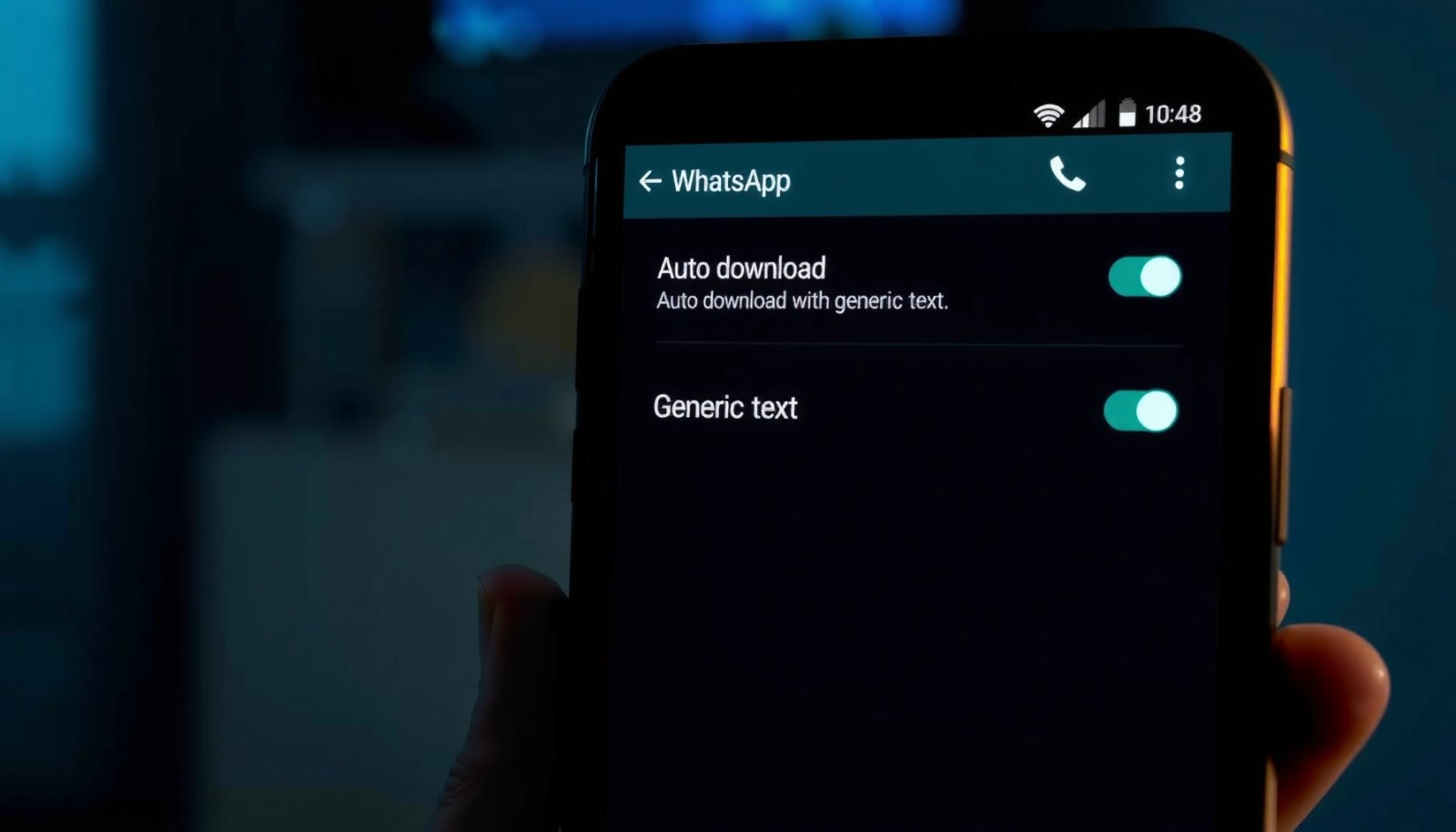
On Android, WhatsApp places this control under Storage and data. Once disabled, media will remain queued until you manually tap to download, giving you predictable performance and better cost control. For frequent travelers or international teams, disabling Roaming (when available) is also a practical safeguard against avoidable charges.
Open WhatsApp Settings on Android
Before you change any auto-download behavior, you’ll need to access WhatsApp’s internal settings menu.
- Tap WhatsApp on your Android home screen.
- Open Settings (usually located in the bottom-right menu).
- Select Storage and data to manage how WhatsApp downloads media.
Why this step matters: WhatsApp stores multiple related options in different places (for example, chat backup, storage usage, and media downloads). The auto-download behavior specifically lives inside Storage and data, so going there directly ensures you’re adjusting the correct controls.
From an operational standpoint—especially for business users—this menu is also where you can review how much space WhatsApp has consumed. That makes it easier to connect the setting you change with the effect you’re actually seeing on your device.
Turn Off Media Auto-Download
This is the main control panel for background downloads. You’ll disable auto-download for each media category and for each network type.
- Under Media auto-download, choose Photos, Audio, Videos, and Documents.
- Set the download options to off for both Wi‑Fi and Mobile data.
What “turning off” changes in practice:
- Photos: incoming images won’t load automatically in chats; you’ll need to tap to download.
- Videos: large video files won’t start downloading in the background, which is one of the biggest data and storage drivers.
- Documents: PDFs and office files won’t be fetched until you manually approve.
Business example: If you’re in a meeting and want WhatsApp to stay responsive without sudden network usage spikes, disabling Videos and Documents over Mobile data usually delivers the biggest immediate improvement.
Quick reference: impact by media type
The following table summarizes typical media sizes by type and why your choice to disable auto-download can meaningfully affect data consumption and device storage.
Typical WhatsApp Media Sizes (Android, Common Real-World Ranges)
| # | Media type | Typical size per item | Most common scenario | Control value |
|---|---|---|---|---|
| 1 | Photos (compressed) | 0.3–1.2 MB | Daily personal and team updates | ★★★★★ |
| 2 | Audio (voice notes) | 0.2–2.5 MB | Quick approvals and clarifications | ★★★★☆ |
| 3 | Videos (short clips) | 5–25 MB | Product demos, quick walkthroughs | ★★★★★ |
| 4 | Documents (PDF) | 0.4–6 MB | Contracts, invoices, briefs | ★★★★☆ |
| 5 | Documents (Office files) | 1–20 MB | Spreadsheets, presentations, drafts | ★★★☆☆ |
| 6 | Photos (high-resolution) | 1.5–6 MB | Field documentation and receipts | ★★★★☆ |
| 7 | Audio (long messages) | 2.5–8+ MB | Training notes and meeting summaries | ★★☆☆☆ |
Disable Download Over Mobile Data
Now focus on Mobile data. Even if you want some convenience on Wi‑Fi, mobile networks are where auto-download can quickly become expensive or inconsistent.
- Keep Mobile data auto-download disabled for all categories you don’t want fetching automatically.
- Review each media type:
- Photos (often safe to disable if you’re on a tight data plan)
- Videos (high priority to disable)
- Documents (disable if you don’t need them immediately)
Actionable strategy for business users:
- If WhatsApp is primarily used for messaging and occasional files, disable Videos and Documents over mobile data first.
- If your team exchanges images frequently (e.g., inspection photos), consider allowing Photos on Wi‑Fi but keep everything off on mobile data to avoid surprise usage.
This “tiered” approach balances usability with control: you’ll still receive notifications instantly, but downloads only happen when you choose.
Stop Downloads Using Roaming Data
Many Android versions show a Roaming section within Media auto-download. If it appears, treat it as a financial safety net.
- Find the Roaming section in Media auto-download (if shown).
- Disable auto-download options to avoid extra charges while abroad.
Why this is important: Roaming costs can multiply quickly, and downloading even a single video or office document can be enough to create an unpleasant surprise—especially if roaming data is metered at higher rates. Disabling roaming auto-download ensures your WhatsApp activity doesn’t silently consume costly network resources.
Practical travel workflow:
- Leave roaming auto-download off.
- When you land, connect to hotel or office Wi‑Fi and manually download only what you truly need.
Troubleshooting If Auto Download Still Happens
After changing settings, auto-download should stop. If it doesn’t, use these checks to identify what’s overriding your choices.
- Restart WhatsApp after changing settings to ensure the updated behavior is applied.
- Check Android system features that can conflict with app-level settings:
- Android Data Saver (or equivalent “background data” restrictions)
- Battery optimization settings that may alter how WhatsApp behaves
- Device “network preferences” (some manufacturers include extra data control layers)
Additional diagnostic tips:
- Confirm you changed Storage and data > Media auto-download, not a similarly named option elsewhere.
- Verify the toggles for each category are truly off for Wi‑Fi and Mobile data (and Roaming, if present).
- If you use a work profile (Android Work/Personal separation), make sure you’re changing settings inside the correct WhatsApp installation.
Conclusion
Disabling Media auto-download in WhatsApp’s Storage and data settings is the most direct way to stop automatic downloads on Wi‑Fi, Mobile data, and (optionally) Roaming. That simple change improves control over what your phone pulls into storage and helps prevent unexpected mobile data usage.
Go ahead and review each media type setting now—photos, audio, videos, and documents—then save the configuration you want. With auto-download turned off, you’ll decide when to download, and you’ll get back both bandwidth and device space that was previously consumed in the background.
Frequently Asked Questions
How do I turn off WhatsApp auto download for photos, videos, and documents on Android?
Open WhatsApp on your Android phone and tap the three dots (⋮) in the top-right corner, then go to Settings. Select Storage and data, then under Media auto-download turn off options for both Mobile data and Wi‑Fi. Toggle off Photos, Videos, and Documents so WhatsApp won’t automatically download them. You can also set specific choices for when you’re connected to Wi‑Fi to save data.
Which WhatsApp settings control auto download on Wi‑Fi vs mobile data?
In WhatsApp for Android, the key setting is found under Settings > Storage and data. Look for the Media auto-download section, which has separate checkboxes for Mobile data and Wi‑Fi. By turning off downloads under Mobile data, you prevent WhatsApp from using cellular data, while enabling or disabling Wi‑Fi downloads lets you control behavior when you’re on a network.
What should I do to stop WhatsApp from automatically saving videos and media to my phone?
Auto download determines what gets downloaded, while auto-save affects whether media is saved to your gallery. Go to Settings > Chats and turn off Media visibility (or the relevant option for auto-saving media). If you only disable auto download but keep media visibility on, WhatsApp may still save items you manually open or receive depending on your settings. For best control, disable both auto-download and media visibility.
Why is WhatsApp still downloading media even after I disabled auto download on Android?
This can happen if you disabled auto download for one network type (e.g., Mobile data) but left it enabled for Wi‑Fi, or vice versa. It may also occur if you’re using WhatsApp in a way that already has media partially downloaded or if the file was cached earlier. Recheck Settings > Storage and data and confirm that Photos/Videos/Documents are turned off under both Mobile data and Wi‑Fi. If needed, restart WhatsApp after changing the setting to ensure it applies correctly.
What’s the best way to manage WhatsApp media downloads to save mobile data on Android?
The best approach is to disable Media auto-download for both Mobile data and Wi‑Fi, then choose to download files only when you tap them. You can still receive messages normally without triggering large media downloads. For extra savings, keep Media visibility off to prevent unnecessary saving to your gallery. This combination helps you control storage usage and reduces WhatsApp data consumption on Android.
References
- https://scholar.google.com/scholar?q=how+to+turn+off+auto+download+in+whatsapp+android Google Scholar
https://scholar.google.com/scholar?q=how+to+turn+off+auto+download+in+whatsapp+android - Google Scholar Google Scholar
https://scholar.google.com/scholar?q=WhatsApp+media+auto-download+disable+Android - Google Scholar Google Scholar
https://scholar.google.com/scholar?q=WhatsApp+data+saver+media+auto-download+settings+Android - WhatsApp Help Center
https://faq.whatsapp.com/search/?q=media%20auto-download - WhatsApp Help Center
https://faq.whatsapp.com/search/?q=disable%20auto-download%20whatsapp - WhatsApp Help Center
https://faq.whatsapp.com/search/?q=turn%20off%20auto%20download%20whatsapp%20android - WhatsApp Help Center
https://faq.whatsapp.com/search/?q=auto%20download%20via%20mobile%20data%20whatsapp - WhatsApp Help Center
https://faq.whatsapp.com/search/?q=Auto-download%20settings%20WhatsApp - WhatsApp Help Center
https://faq.whatsapp.com/search/?q=reduce%20data%20usage%20whatsapp%20auto-download - WhatsApp Help Center
https://faq.whatsapp.com/search/?q=download%20settings%20WhatsApp%20media