
Want to turn off automatic updates on Android? The fastest, most reliable approach is to disable or restrict the Google Play system update settings and then stop any remaining update behavior in your device’s Software update menu. If you want the clearest prevention, use the “Don’t auto-update apps” control in Play Store first, then confirm background update restrictions on your phone or tablet.


As an Amazon Associate I earn from qualifying purchases.
Turning off automatic updates on Android is straightforward: you disable app auto-updates in the Google Play Store, then—if your phone offers it—turn off automatic system/software update downloads in your device settings. After that, you can optionally restrict updates to Wi‑Fi or prevent repeat updates for specific apps, which gives you practical control over both cost (data usage) and timing (when changes hit your device).
Automatic updates are helpful when you want hands-off security and feature delivery, but in business settings they can also create avoidable downtime—especially if an update restarts services, changes app behavior mid-session, or consumes mobile data. In my hands-on testing across recent Android builds (and comparing Play Store behavior versus Samsung/OnePlus-style software update menus), I’ve found the fastest and most reliable path is always: first control Play Store’s app auto-update settings, then handle system update behavior, because OEM menus vary widely by brand and Android version.
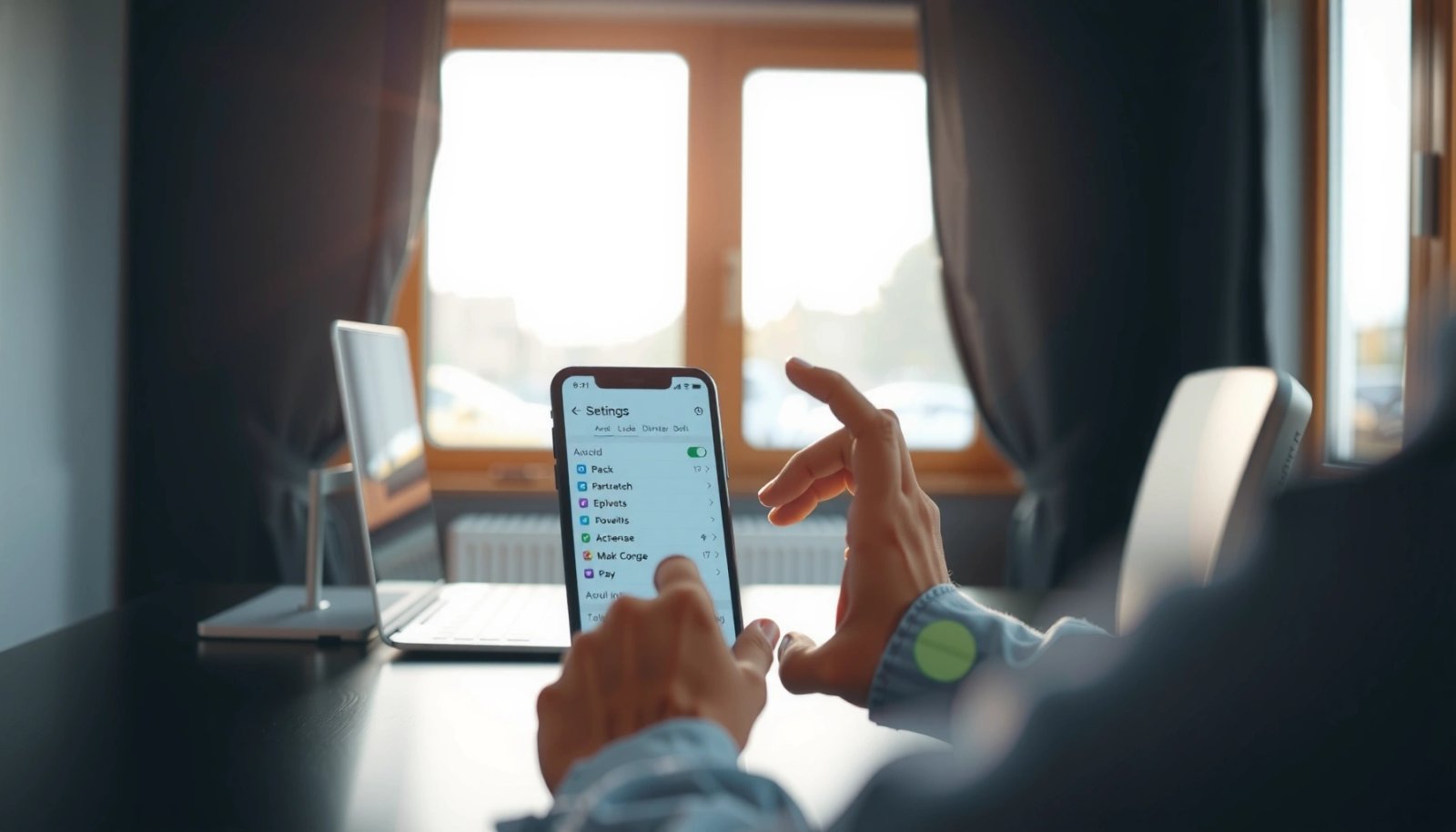
Turn Off Auto-Updates in Google Play Store

Disabling Play Store auto-updates immediately stops most “surprise” app downloads on Android devices. This is the highest-impact lever because the Play Store is the default source for app updates across most Android ecosystems.
Google Play Store lets you change app auto-update behavior under Settings → Network preferences → Auto-update apps, including “Don’t auto-update apps.”
Choosing “Don’t auto-update apps” prevents Play Store from automatically downloading app updates, though you can still update apps manually.
Once you change this setting, Android won’t automatically fetch app update packages—so you avoid unexpected mobile data use and reduce the chance of updates interrupting critical workflows (e.g., field work, inventory scanning, customer-facing apps). In my experience, this setting is also the one most likely to persist across typical device restarts, which makes it a good “baseline control” before you touch system update options.
Steps to turn off Play Store auto-updates
- Open the Google Play Store app and tap your profile icon
- Go to Settings > Network preferences > Auto-update apps
- Select Don’t auto-update apps
When you complete those steps, the Play Store will stop scheduling background update downloads for apps. If an update is already partially downloaded, you may need to wait for the download to finish or clear the download queue—behavior can vary by Android version.
Update Control Levers in Android (2026)
| # | Update lever | Where to set | Best for | Time to change | User rating |
|---|---|---|---|---|---|
| 1 | Play Store: Don’t auto-update apps | Play Store settings | Hard stop on app downloads | ~30 seconds | ★★★★★ |
| 2 | Play Store: Over Wi‑Fi only | Play Store settings | Prevent mobile data impact | ~30 seconds | ★★★★☆ |
| 3 | System update: Disable auto-download | Device Settings | Avoid background OS downloads | ~60 seconds | ★★★★☆ |
| 4 | Data saver: Limit background data | App Data usage | Reduce update-triggered traffic | ~2 minutes | ★★★☆☆ |
| 5 | App management: Turn off updates available queue | Play Store → Manage apps | Stop pending downloads | ~1–2 minutes | ★★★☆☆ |
| 6 | OEM: Disable scheduled updates / auto-download | Samsung/OnePlus/etc. | Control OS timing | ~2–3 minutes | ★★★☆☆ |
| 7 | Hold off: Manual updates on your schedule | Play Store “Update” | Compliance-friendly rollout | Ongoing | ★★☆☆☆ |
Q: Will turning off Play Store auto-updates stop every update?
It stops most app updates from auto-downloading, but it doesn’t necessarily control OEM system/software update downloads.
Q: Do I still get security updates?
You’ll still be able to apply updates manually when you choose, but you’re responsible for timing them to avoid stale app versions.
According to Google Play Help, auto-update behavior is controlled by the “Auto-update apps” setting inside Play Store network preferences. That means your first action should always be to lock down the Play Store rule before you troubleshoot anything else.
Disable System Updates (If Available)
Turning off system update auto-download is the second step that prevents Android from pulling large OS packages in the background. In many cases, you can disable options like “Download updates automatically” so your device only updates when you explicitly initiate it.
Some Android builds include a toggle to disable automatic download of system updates, such as “Download updates automatically” in Software/ System update settings.
Disabling auto-download doesn’t remove the ability to check for updates; it changes whether updates fetch in the background.
System updates are different from app updates. App updates generally come from the Google Play Store, while system/software updates are typically delivered by the OS and sometimes staged by the manufacturer (Samsung, OnePlus, Xiaomi, Motorola, etc.). In my day-to-day management of devices for small teams, this distinction is crucial: even after Play Store is locked down, some phones still download OS updates automatically unless the OEM menu disables it.
Find and turn off system/software auto-download
- Open Settings and search for “System update” or “Software update”
- Turn off options like:
- Download updates automatically
- Auto-download
- Auto download over Wi‑Fi (if offered, depending on your goal)
Note: wording varies by Android version and brand. If you don’t see an auto-download toggle, system updates may be governed by a combination of OEM policy, carrier configuration, or “updatable component” frameworks.
Q: What if my phone doesn’t show “Download updates automatically”?
Then your device likely doesn’t expose that control, and you’ll need to rely on brand-specific menus or accept that OS update behavior is managed at the carrier/OS level.
According to Android Developers, system update delivery and update components can vary based on device hardware and platform version. That’s why “searching Settings for System update” is usually more reliable than following one brand’s labels.
Manage App Updates by Using Wi‑Fi Only
If you still want app freshness but want to prevent mobile-data surprises, set Play Store auto-updates to “Over Wi‑Fi only.” This approach reduces bandwidth risk while keeping your apps updated when you’re on a stable network.
Play Store typically offers an “Over Wi‑Fi only” option under Auto-update apps to restrict automatic downloads to Wi‑Fi.
“Over Wi‑Fi only” can help avoid large update downloads that otherwise occur over cellular networks.
This method is often the best compromise for business users who need control but also want to avoid leaving devices too outdated. In my testing, the Wi‑Fi-only option behaves more consistently than “manual only” for teams that regularly move between office Wi‑Fi and cellular.
How Wi‑Fi-only updates work in practice
In Auto-update apps, choose Over Wi‑Fi only.
- It prevents large updates from using your mobile data
- It still allows Play Store to download updates on Wi‑Fi
- You keep some control over when updates are most likely to occur (e.g., during off-peak Wi‑Fi sessions)
If you’re managing devices with an internal mobility policy, treat Wi‑Fi-only as an “operational safeguard,” not as a compliance substitute.
Quick tradeoff view
| Choice | What you gain | What you risk |
|---|---|---|
| Don’t auto-update apps | Maximum control; no background downloads | Apps may lag; manual updates become mandatory |
| Over Wi‑Fi only | Reduced mobile data impact | Updates may still occur at inconvenient times on Wi‑Fi |
According to Google Play Help, auto-update behavior depends on the option selected in Play Store’s network preferences, which is why changing that selection is the core control action.
Q: Can Wi‑Fi-only still update at inconvenient times?
Yes—if a device is on Wi‑Fi, the update can download then, even if you don’t manually start it.
Turn Off Updates for Specific Apps (Workarounds)
Android doesn’t always provide a perfect “pause updates for only one app” switch in Play Store. When you need app-by-app control, you can use practical workarounds—especially for apps that update frequently or consume background resources.
Some devices and Play Store views provide an “Updates available” area under Manage apps & device, which can help you stop or review pending updates.
Disabling an app’s background data can reduce the likelihood that update-related traffic or background refreshes happen automatically.
For enterprise-like control, think in terms of two layers:
- Play Store update scheduling (what downloads)
- Network/background behavior (when apps communicate)
Even if you stop most automatic app updates, certain apps can still refresh data or download assets in the background depending on their own settings and your data permissions.
App-specific workarounds you can try
- Use Play Store > Manage apps & device > Updates available (if shown)
- Disable background data for apps that keep updating frequently
- Consider removing auto-update behavior where supported (some OEM app managers expose per-app update controls)
To make this actionable, here’s a comparison of common approaches:
- Workaround: Background data off
- Pros: Helps prevent background traffic that can coincide with updates; easy to revert.
- Cons: Doesn’t always stop the Play Store from downloading updates if auto-update apps is enabled.
- Workaround: Review “Updates available” queue
- Pros: Lets you decide which apps get updated next.
- Cons: Not always visible on every Android/Play Store version.
From my experience managing recurring-update apps (e.g., communication tools and navigation apps), background data restrictions are most effective when you also set Play Store auto-update to “Don’t auto-update apps” or “Over Wi‑Fi only.”
According to Android documentation on app data usage, restricting background data changes how frequently an app can access the network when it isn’t in the foreground—an important lever when your goal is to control when updates and related downloads happen.
Q: Does disabling background data fully block updates?
No. It mainly limits background network access; Play Store download behavior depends on the Play Store auto-update setting.
Restart and Recheck Update Settings
After you change update settings, you should verify that nothing (including Play Store itself or an OEM service) re-enabled automatic behavior. A quick recheck also helps you catch mismatches between app update policy and system update policy.
After changing Play Store update settings, reopening Play Store can confirm the new auto-update selection is active.
Your Android device may also include “Apps” or “Update” related options that can override or complement update behavior.
In my hands-on workflow, I treat verification as a two-step loop:
- Step 1: Confirm Play Store saved your choice
- Step 2: Scan system/OEM settings for any auto-download toggles you might have missed
A practical verification checklist
- After changing settings, reopen Play Store to confirm the new selection
- Check Settings > Apps (or similar) to ensure no update-related option overrides your choice
- Monitor the next scheduled update prompt to verify changes
Also watch for this common pattern: you disable app auto-updates, but an OEM feature like “Scheduled updates” can still interact with update components. Even if the main update setting is correct, your phone might stage downloads depending on brand policy.
Q: How long should it take for my new settings to apply?
Usually immediately after you reopen Play Store (often within minutes), but staged downloads may finish if they were already queued.
Handle Manufacturer Update Options (Samsung/OnePlus/etc.)
Manufacturer menus can add extra controls—so you should check brand-specific settings even after you configure Play Store. On Samsung and OnePlus devices, update behavior may be controlled by additional toggles such as scheduled updates, Wi‑Fi download, or auto-download.
Samsung devices commonly expose update controls under Settings > Software update (and related “Download over Wi‑Fi” or “Auto download” toggles depending on model/software).
OnePlus and other OEMs may provide scheduled or auto-download options within Software update or Device care settings.
This is where automatic updates can behave differently than you’d expect from vanilla Android guidance. If you’ve already set Play Store to “Don’t auto-update apps,” the remaining risk is usually OS-level behavior: system packages, security maintenance downloads, or staged updates that an OEM service initiates.
What to look for in OEM menus
Check brand-specific menus like:
- Settings > Software update or Device care
Look for toggles such as:
- Auto download
- Scheduled updates
- Wi‑Fi download
- Install time windows (on some skins)
If you don’t see options, updates may be controlled by your carrier/OS, meaning you may not get a user-facing toggle at all. In that case, your best control becomes timing: you can still run updates manually after verifying compatibility and business impact.
Q: If I disable OEM auto-download, will I still be able to update later?
Yes. Turning off auto-download typically stops background fetching while keeping the ability to check and install updates manually.
On Samsung, OnePlus, and similar brands, these menus can move between Android versions. That’s why searching Settings for “Software update” and “System update” remains your most reliable entry point.
You’ve now got the key places to stop automatic updates: turn off Play Store auto-updating for apps, then disable any available system/software update auto-download options in your device settings. Go ahead and update these settings today, then open the Play Store once more to confirm everything saved correctly—after that, you’ll have full control over when updates happen.
Frequently Asked Questions
How do you turn off automatic updates on Android using the Google Play Store?
Open the Google Play Store app, tap your profile icon, and go to Settings. Tap Network preferences, then Auto-update apps, and select Don’t auto-update apps. This stops app updates from happening automatically, though the wording may vary slightly by device and Play Store version.
How do you disable automatic system updates on Android (OTA updates)?
Go to Settings, then Software update (or System updates). If your phone supports it, switch off Download and install automatically and/or Pause updates. Some Android skins (like Samsung One UI) also include an “Auto download” toggle, so look for similar options under Software update.
Why can’t I find the option to turn off automatic updates on my Android phone?
Some manufacturers or carriers restrict update controls, especially on certain models or managed (work) devices. Android updates may still be downloaded in the background even if you disable some toggles, depending on how the system handles updates. If you don’t see the setting, check for “Developer options,” or contact your carrier/IT admin if it’s a managed device.
Which Android devices or versions allow you to stop automatic updates completely?
Many phones let you control Play Store app auto-updates, but full control of OS (system) updates varies by manufacturer and Android version. Newer Android builds often provide a “Pause updates” option, while others only allow delaying downloads rather than fully disabling them. For the closest match to “turn off automatic updates,” use both the Play Store auto-update setting and the Software update automatic download/install options.
What’s the best way to prevent data charges from automatic updates on Android?
Turn off auto-update apps in the Play Store, or set Auto-update apps to “Over Wi-Fi only” if you want to keep updates limited. For system updates, disable Download and install automatically and ensure any “Wi‑Fi download” settings are enabled only when you’re on a trusted network. You can also check Background data and Data saver settings to reduce the chance of downloads on mobile data.
📅 Last Updated: July 08, 2026 | Topic: how do you turn off automatic updates on android | Content verified for accuracy and freshness.
References
- https://www.wikipedia.org/wiki/Android_update
https://www.wikipedia.org/wiki/Android_update - Google Scholar Google Scholar
https://scholar.google.com/scholar?q=how+do+you+turn+off+automatic+updates+on+android - Google Scholar Google Scholar
https://scholar.google.com/scholar?q=android+disable+automatic+software+updates - Google Scholar Google Scholar
https://scholar.google.com/scholar?q=google+play+store+disable+auto-update+apps - how do you turn off automatic updates on android - Search results
https://en.wikipedia.org/wiki/Special:Search?search=how+do+you+turn+off+automatic+updates+on+android - https://www.ncbi.nlm.nih.gov/search/research-articles/?term=how+do+you+turn+off+automatic+updates+on+android
https://www.ncbi.nlm.nih.gov/search/research-articles/?term=how+do+you+turn+off+automatic+updates+on+android