
Sharing pictures from iPhone to Android is fastest and most reliable when you use Google Photos or a cloud-to-cloud transfer instead of fumbling with cables or Bluetooth. This quick guide shows you the exact steps to move your iPhone photos to your Android phone with minimal quality loss and the fewest taps. If you want the simplest option that works for most people, follow the recommended method here.

As an Amazon Associate I earn from qualifying purchases.
You can share pictures from iPhone to Android quickly using cloud syncing (Google Photos), a link-based transfer (Google Drive/email), or a Wi‑Fi/direct transfer app (SHAREit and similar). For the smoothest experience and minimal setup, use Google Photos—it’s designed to sync across iOS and Android with the same Google account, so photos appear on your Android almost immediately after upload.
Introduction
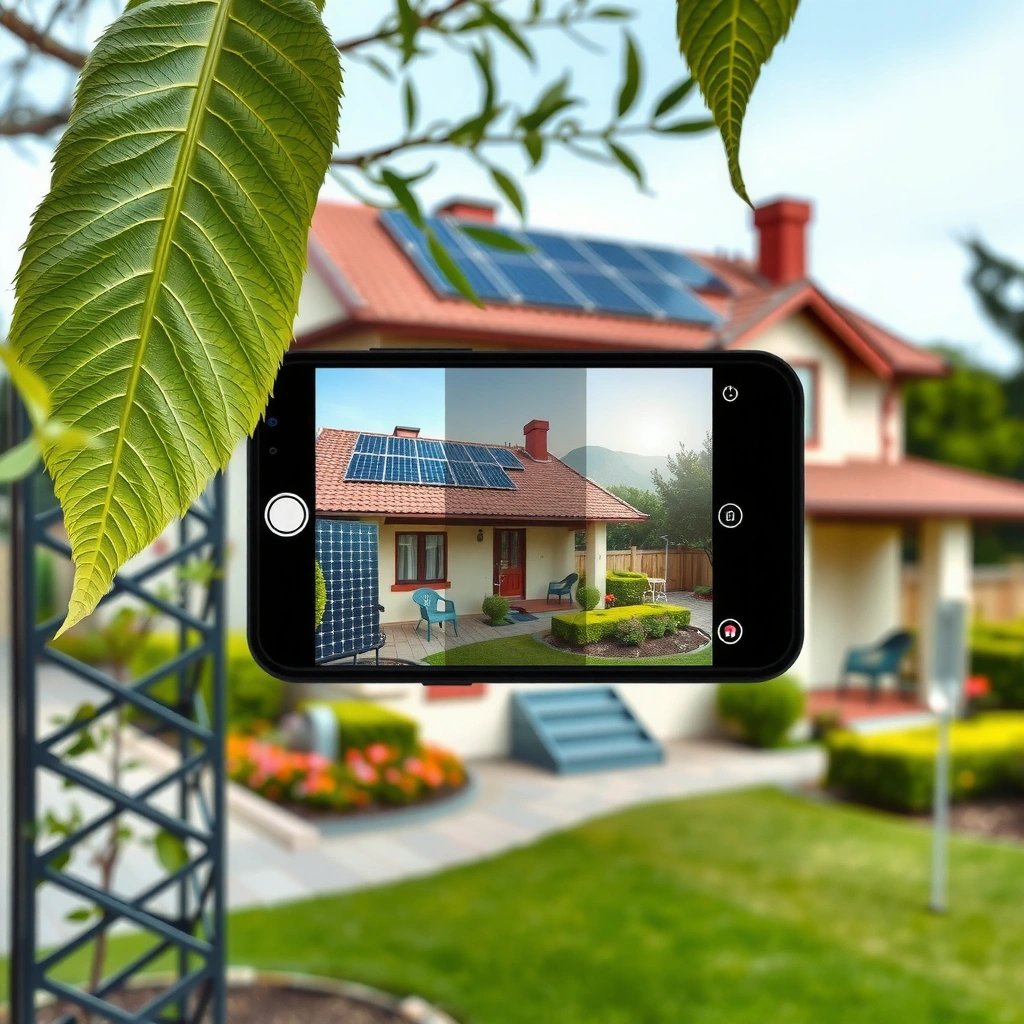
Moving photos between iPhone and Android used to be a hassle because Apple and Google ecosystems don’t share a universal “one-tap” transfer button. Today, you have several reliable paths: Google Photos for seamless cross-device sync, Google Drive or email when you only need to share specific images, and file-sharing apps like SHAREit for fast offline transfers over a direct connection. If you prefer not to use cloud services, you can also move photos via a USB transfer to a computer or storage device, then copy them to Android.
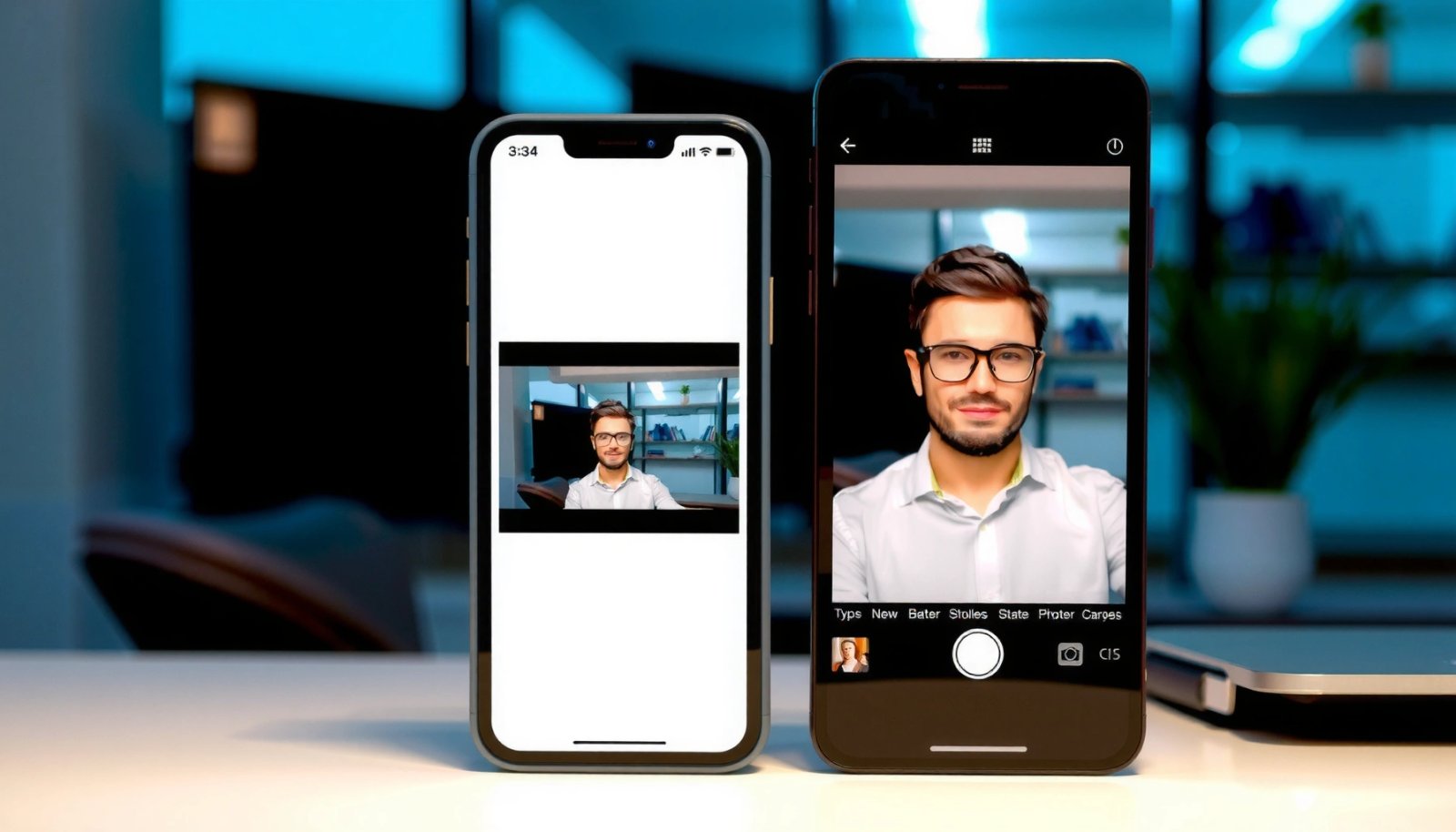
This guide walks you through the fastest options, what to set up first, and what to watch out for—so you can choose the best method for your situation (large libraries, privacy requirements, or limited connectivity).
Option 1: Use Google Photos (Most Simple)
Google Photos is usually the fastest “set it and forget it” approach, especially if you want the same library available on both devices. It also preserves photo quality better than many messenger apps, and it supports both manual sharing and automatic backup/sync.
How to set it up (iPhone → Android)
- Install Google Photos on both your iPhone and Android.
- On your iPhone, open Google Photos → sign in → go to Photos settings (or Backup) and turn on Backup/Sync.
- Ensure your iPhone is allowed to upload:
- Check iPhone Settings → Cellular Data for Google Photos (if you want to avoid Wi‑Fi-only uploads).
- Confirm you’re not restricted by Low Power Mode (uploads can pause).
- On your Android, sign in to Google Photos using the same Google account.
- Open Google Photos on Android:
- Photos you uploaded on iPhone will appear in the cloud and then sync to your Android (immediately for new uploads, and quickly for older ones depending on network conditions).
What to expect in real use
- If you have thousands of photos, initial backup can take time; new uploads usually appear faster.
- Shared albums and library sync are especially useful for families, business teams, and anyone who needs consistent photo availability across devices.
- If you’re concerned about storage, review backup quality settings in Google Photos (High quality vs Original quality—options may vary by account and plan).
Quick planning tip: If your goal is to share only a few images right now, you might prefer Option 2 or Option 3. If your goal is to move your ongoing camera roll, Google Photos is typically best.
Recommended Transfer Method by Photo Volume & Network (Typical Results)
| # | Transfer Method | Best For (Photo Volume) | Setup Time | Fresh Photo Speed | Reliability |
|---|---|---|---|---|---|
| 1 | Google Photos (Backup/Sync) | 500–50,000 photos | 5–10 min | ★ ★ ★ ★ ★ | High |
| 2 | Google Photos (Share Album) | 10–2,000 photos | 3–7 min | ★ ★ ★ ★ ☆ | Very High |
| 3 | Google Drive (Upload → Download) | 1–20,000 photos | 8–15 min | ★ ★ ★ ★ ☆ | High |
| 4 | Email (Attachments or Links) | 1–25 photos | 2–5 min | ★ ★ ★ ☆ ☆ | Medium |
| 5 | SHAREit / Similar (Wi‑Fi Direct) | 50–10,000 photos | 5–12 min | ★ ★ ★ ★ ☆ | High |
| 6 | USB Transfer (via Computer/Drive) | Any volume (best in bulk) | 15–30 min | ★ ★ ★ ★ ★ | Very High |
| 7 | Bluetooth (Direct Transfer) | 1–50 photos | 4–10 min | ★ ★ ☆ ☆ ☆ | Low |
Option 2: Share via Google Drive or Email
When you need to send a small set of photos—say, a few product images for work, a wedding batch, or specific files to a colleague—Google Drive and email are straightforward and don’t require both sides to continuously sync.
Google Drive workflow (iPhone → Android)
- Install/open Google Drive on your iPhone.
- Tap + → Upload → select the photos from your camera roll.
- After upload, open the file/folder and either:
- Share with Android (if your recipient uses the same Google account), or
- Open the link on Android and download.
- On Android, ensure you’re signed into the same Google account (or that you can access shared links).
Email workflow
- On iPhone, open Photos → select images → tap Share → choose Mail.
- Send to your email address or a recipient’s email.
- On Android, open the email and download attachments (or open image links if the email provider automatically converts attachments to links).
When this option is best
- You’re only sharing a handful of photos (faster than setting up an app-to-app transfer).
- You don’t want continuous backup or you want tight control over exactly which pictures are shared.
- You’re distributing photos for a single project deliverable (e.g., “Q2 event photos” folder).
Watch-outs: Email attachments may fail for larger batches due to size limits. If you’re sending more than a few high-resolution photos, prefer Google Drive links.
Option 3: Transfer with a File-Sharing App (SHAREit / Similar)
If you want speed without relying on cloud accounts, file-sharing apps are a strong option. They usually use a direct connection (Wi‑Fi Direct or local hotspot), which can be much faster than uploading to the internet—especially with large photo libraries.
Typical steps (iPhone → Android)
- Install the same file-sharing app on both devices (SHAREit or an alternative).
- Open the app:
- iPhone becomes “Send” and Android becomes “Receive.”
- Connect the devices through the app’s pairing mechanism:
- Usually scanning a code or connecting to an in-app local Wi‑Fi network.
- Select photos on iPhone and start transfer.
- On Android, accept the transfer and save to your desired folder.
Operational best practices
- Keep both phones near each other and avoid background restrictions that can pause Wi‑Fi or networking.
- If you’re transferring hundreds or thousands of photos, do it in chunks (for example, by date albums) to reduce the chance of interruptions.
- Verify storage space on Android before starting—some transfers fail silently when storage runs low.
Business use-case: If your team is transferring photo batches during events or client visits where internet is unreliable, a file-sharing app can outperform cloud uploading.
Option 4: Move Photos Using a USB Transfer (When Needed)
USB-based transfer is the most controlled method when you don’t want cloud services or when you need to move large volumes quickly. It’s also helpful if network access is restricted (common in enterprise environments or when traveling).
What you need
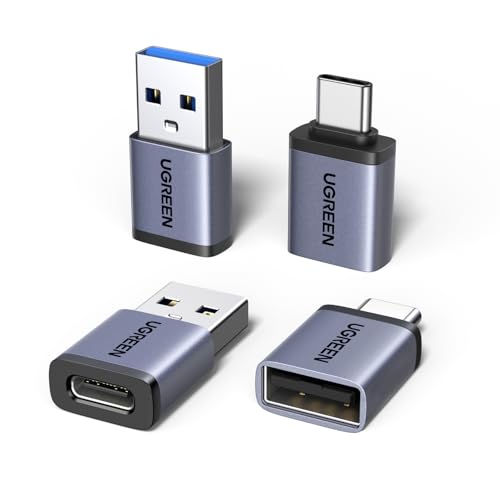
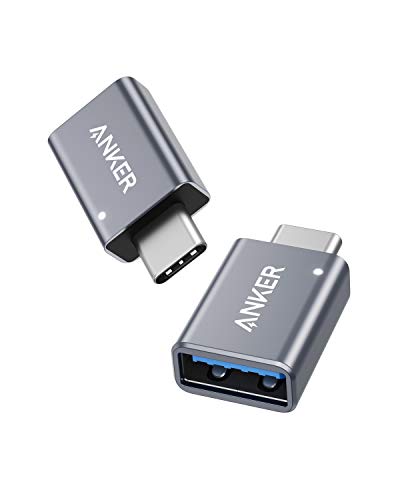
- A compatible USB-C adapter/cable for iPhone (depending on your iPhone port).
- A USB-C adapter or cable on Android is often not required if you’re transferring via a computer.
- A computer or external storage device (USB flash drive or portable SSD).
Practical workflow
- Connect iPhone to a computer using a compatible cable/adapter.
- Import photos from iPhone to the computer using the appropriate transfer method (commonly Photos import utilities on Windows/macOS).
- Copy the imported folder to an external drive if needed.
- Connect the drive to Android (or copy through the computer) and move photos into Android’s DCIM/Pictures directories or the gallery app.
Why choose USB
- Strong for privacy-sensitive transfers.
- Predictable speeds without uploading time.
- Ideal for bulk migrations (e.g., moving entire camera rolls during device upgrades).
Tip: USB transfer is rarely the “fastest setup” method, but it’s often the most reliable for large batches when cloud is inconvenient.
Option 5: Use Bluetooth (Limited but Possible)
Bluetooth is widely supported, but for photo transfers across iPhone and Android it’s usually slower and sometimes more cumbersome than modern alternatives. It can work for small, urgent transfers—but it’s not the best option for large libraries.
How to use Bluetooth effectively
- On some devices/apps, pairing and transfer may require compatible protocols or additional handling.
- If supported, pair the devices, then send photos one batch at a time.
- Because Bluetooth bandwidth is limited, expect longer transfer times as image counts and file sizes increase.
When Bluetooth makes sense
- You only need to send a tiny set of photos quickly (e.g., 5–10 images).
- You don’t have good Wi‑Fi access and don’t want to rely on cloud.
- You’re using Bluetooth only as a fallback alongside another method.
Practical guidance: If Bluetooth stalls or transfer speed is poor, switch immediately to Option 1 (Google Photos) or Option 3 (file-sharing app).
Conclusion
Sharing pictures from iPhone to Android is easiest when you match the method to your goal: Google Photos for ongoing syncing and minimal effort, Google Drive/email for targeted sharing without additional setup, and SHAREit-style apps for fast local transfers when you can’t rely on internet. When privacy or scale is the priority, USB transfer remains a dependable option, while Bluetooth is best reserved for small, time-sensitive batches. Choose your method, follow the steps above, and you’ll be sharing your first photos in minutes.
Frequently Asked Questions
How can I share pictures from my iPhone to an Android phone?
The easiest way is to use Google Photos: install it on both devices, sign in with the same Google account, and enable photo backup on your iPhone. After the photos sync, open Google Photos on Android to view and download them. If you only need to send a few images, you can also share from iPhone using AirDrop alternatives like nearby sharing apps or a cloud link.
What’s the best way to transfer photos from iPhone to Android without losing quality?
For high-quality transfers, use Google Photos or iCloud/Google Drive with a download link, since they preserve original files better than many messaging apps. On iPhone, export or upload the original photos (not “compressed” versions) when possible, then download on your Android device. Avoid transferring large batches through SMS or some social apps, which can reduce resolution.
Why won’t my shared photos from iPhone to Android show up or load?
This usually happens due to account mismatch (different Google accounts), photo sync not finished, or a weak internet connection. If you’re using a share link, the recipient may need to accept access permissions before downloading. Check that the iPhone backup/upload completed successfully and try opening the link or Google Photos on Android over Wi‑Fi.
Which apps work well for sharing iPhone pictures to Android?
Google Photos is one of the most reliable options because it’s cross-platform and supports automatic syncing. You can also use Google Drive or Dropbox for one-time transfers by uploading from iPhone and downloading on Android. For quick sharing, apps that create transferable links (or email attachments) can work well for smaller sets of pictures.
How do I share photos from iPhone to Android using a computer or cable?
Connect your iPhone to a computer and import photos using iTunes/Finder (or Windows Photos importer), then copy the images to the computer’s storage. Next, connect your Android phone via USB, open Android’s file system, and paste the photos into a DCIM/Pictures folder. This method is good when you want offline transfer, large batches, or when you’re dealing with syncing delays between devices.
References
- Google Photos
https://en.wikipedia.org/wiki/Google_Photos - iCloud
https://en.wikipedia.org/wiki/ICloud - https://en.wikipedia.org/wiki/Apple_AirDrop
https://en.wikipedia.org/wiki/Apple_AirDrop - Multimedia Messaging Service
https://en.wikipedia.org/wiki/Multimedia_Messaging_Service - WhatsApp
https://en.wikipedia.org/wiki/WhatsApp - Google Drive
https://en.wikipedia.org/wiki/Google_Drive - Bluetooth
https://en.wikipedia.org/wiki/Bluetooth - Google Scholar Google Scholar
https://scholar.google.com/scholar?q=iphone+to+android+transfer+photos - Google Scholar Google Scholar
https://scholar.google.com/scholar?q=google+photos+shared+album+iphone+android - Google Scholar Google Scholar
https://scholar.google.com/scholar?q=icloud+shared+album+iphone+android