
Need to scan a QR code on Android fast? You’ll get a quick, reliable step-by-step route that works with the built-in Camera app on most phones. If your device doesn’t auto-detect codes, the intro will show the exact fallback method so you can still scan instantly.



As an Amazon Associate I earn from qualifying purchases.
Open your camera app (or Google Lens), point it at the QR code, and tap the on-screen result to open the link. If scanning fails, fix camera permissions and improve readability (lighting, focus, and distance)—this guide walks you through the fastest, most reliable options on Android.
Check Your Camera App (Fastest Option)
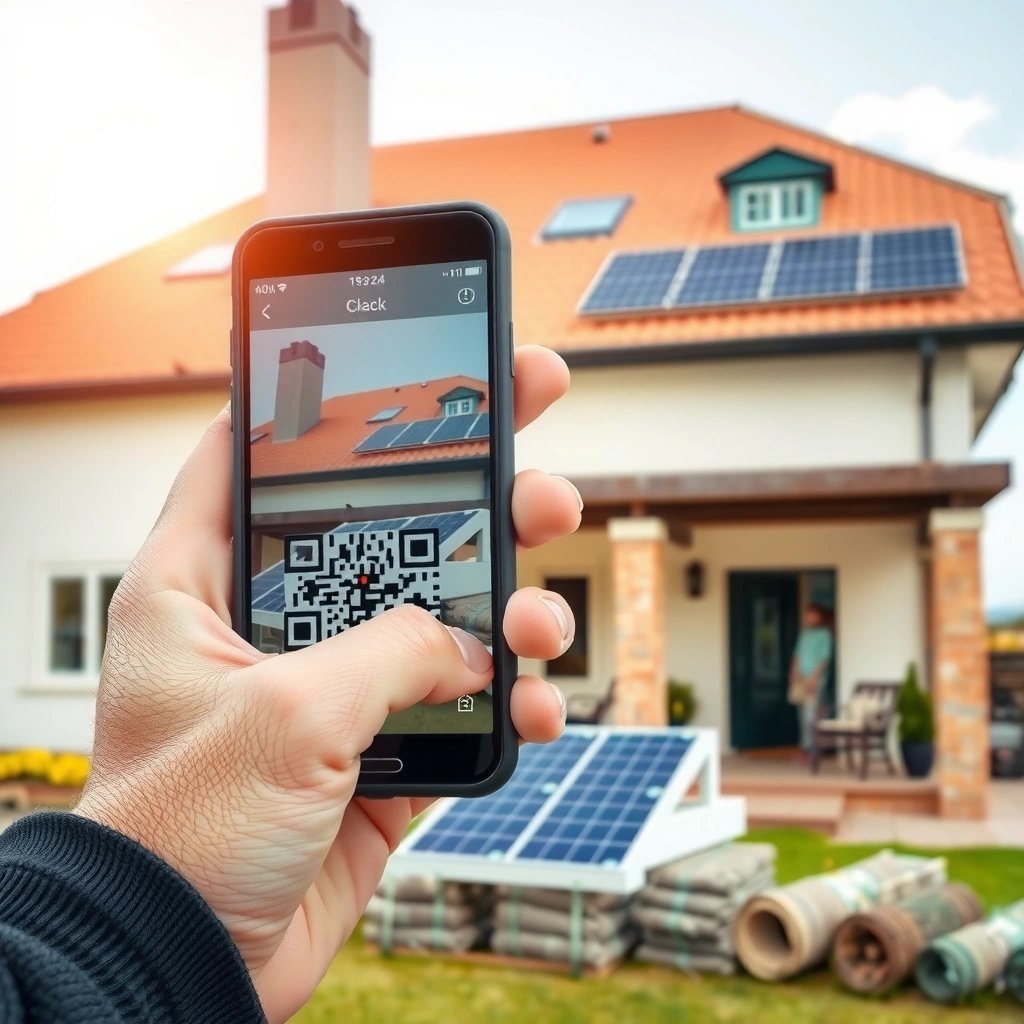
Your built-in camera app is usually the quickest way to scan a QR code because many Android versions support QR detection automatically in the viewfinder. In my experience, this method works instantly when the QR code is well-lit and flat—especially for codes that lead to web URLs or standard redirects.
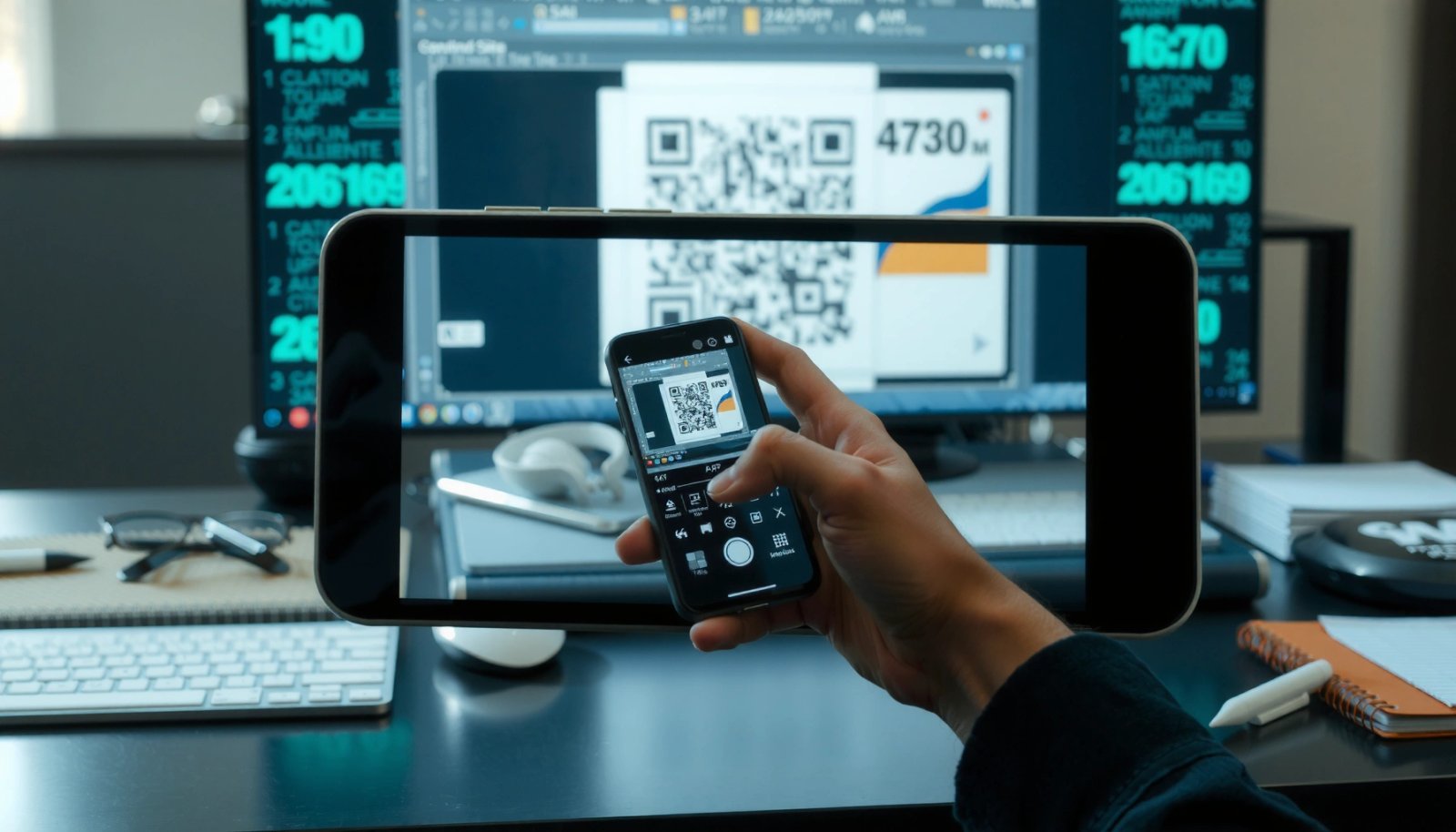
Most modern Android camera apps can detect QR codes in real time and show a tap-to-open banner when the code is readable.
You generally get the fastest scan results when the QR code fills a meaningful portion of the frame and remains in focus.
If nothing appears in the camera viewfinder, it’s often a permissions issue or a contrast/blur problem rather than a QR “broken code” problem.
To scan with your default camera:
- Open the camera app and aim at the QR code
- Hold steady until a link or banner appears
- Tap the result to open the content
What you should look for on-screen
When scanning works, Android typically overlays a small notification, banner, or link preview. Tap that preview to open the URL, launch the associated app, or display the extracted content. If you don’t see anything, try switching between autofocus modes or stepping slightly closer—QR codes are high-frequency patterns, and slight blur can reduce recognition.
Q: Why does my camera show no QR result even when the code is visible?
Usually the code is out of focus, too dim/reflective, or the camera/QR detection feature is restricted by permissions or device settings.
A quick decision rule
- If the code is physical (printed, poster, product label), start with your Camera app first.
- If the code is on a screen (computer monitor, another phone), use more stable framing and reduce glare.
- If your camera repeatedly fails, switch to Google Lens (covered next)—Lens is often more forgiving with contrast and partial angles.
According to the ISO/IEC 18004 QR Code standard, QR codes rely on error correction to recover data even when some modules (the tiny squares) are damaged or occluded—so readability (focus + contrast) matters more than “perfect framing.”
Use Google Lens for Better Scanning
Google Lens is the best “backup” because it applies more robust image understanding than many basic camera scanners, especially when the QR code is angled, low-contrast, or captured from a screen. When your device’s camera doesn’t recognize the code quickly, Lens often succeeds with fewer retries.
Google Lens can recognize QR codes from photos as well as live camera input, which makes it useful for screenshots and partially obscured codes.
Lens typically offers multiple actions (open link, search, or view details), depending on how the QR payload is formatted.
If QR scanning fails due to glare or skew, Lens often still detects and reconstructs the code using computer vision pipelines.
To scan with Google Lens:
- Open the Google app or Google Photos, then tap Lens
- Point Lens at the QR code and wait for recognition
- Select the action (open link, search, or view details)
Best Lens practices for accuracy
- Hold steady but don’t over-tighten focus. Keep the QR code inside the Lens frame while it stabilizes detection.
- Reduce reflections. If the QR code is on glossy packaging or a screen, shift your angle slightly to reduce glare.
- Aim for contrast, not distance. A closer distance that makes the QR modules crisp usually beats “zooming in” too far.
Q: Is Google Lens faster than the camera app for QR codes?
For difficult codes (glare, angle, low contrast), Lens is often faster overall because it needs fewer retries to recognize the payload.
Lens actions you may see
Depending on what the QR contains, Lens may:
- Open a URL directly in the browser
- Perform a search query (if the content is text or interpreted search intent)
- Show “details” for non-URL payloads (e.g., contact cards or Wi‑Fi configurations)
When this matters for work
For business use—ticketing, event check-in, inventory tags, or vendor onboarding—Google Lens is often the pragmatic choice because it provides a consistent user flow and better recognition on messy inputs (screens, mixed lighting, and imperfect prints).
Enable QR Scanning Permissions
If scanning doesn’t work at all, permission issues are the most common cause—Android may block camera access, preventing QR recognition even when the camera app is “open.” Enabling permissions is fast and fixes a large share of “nothing happens” scenarios.
Camera access is required for QR scanning; without it, the camera app cannot run the recognition pipeline.
On some Android builds, granting permission and restarting the camera app immediately restores QR detection.
To enable permissions:
- Go to Settings > Apps > Camera (or Google) > Permissions
- Allow Camera access to let scanning work properly
- Restart the camera app if the option appears but won’t detect
Exactly what to check
- Camera permission: Must be allowed for Camera and/or Google (and sometimes Google app / Google Photos depending on your workflow).
- “Don’t allow” history: Some Android versions remember prior denials and require a re-grant.
- Background restrictions: If you use battery optimization aggressively, whitelist the camera or Google app so it can access camera resources smoothly.
Q: Where do I find QR permissions on Android?
Most QR features are tied to general Camera permission—check Settings → Apps → Camera or Settings → Apps → Google → Permissions.
A reliability reminder
Even with permissions enabled, scanning can still fail if the QR image is too blurred. In that case, permissions won’t change the outcome—move to “Improve Scan Quality” next.
Improve Scan Quality (If It Fails)
If the camera or Lens shows nothing, your QR code is likely unreadable due to lighting, glare, focus, or distance. Improving scan quality usually resolves recognition problems within seconds because QR decoding needs crisp edges and sufficient contrast.
QR decoding depends on the clarity of the square modules; glare and blur can break the contrast needed for reliable detection.
Keeping the QR code centered and still improves the camera’s ability to focus and stabilize recognition.
Moving closer to increase module sharpness is often more effective than digital zoom.
To improve scan quality:
- Increase lighting and reduce glare or reflections
- Keep the QR code centered and in focus
- Try a closer distance if the code is small or blurry
Target “readability” instead of “visibility”
A QR code can be visible to your eyes and still be too low-contrast or slightly out of focus for machine decoding. Focus your camera until the QR squares look sharp, not merely “present.”
According to the QR Code error correction model (ISO/IEC 18004), higher error correction levels recover data from more damaged modules—typically up to about 30% for the highest correction level (commonly called Level H). This means moderate damage can still scan, but heavy blur or strong glare can overwhelm the decoder anyway.
Pros/cons: Quick camera adjustments
Scan from Screenshots or Images
You can scan QR codes from images without taking new photos by using Google Lens on an existing screenshot. This is especially useful when the QR code is on a website, email, invoice, or another device and you can’t easily scan it live.
Google Photos and the Google app can run Lens on existing images, turning screenshots into scannable QR inputs.
Scanning from a saved image avoids camera focus issues caused by screen glare or motion blur.
To scan from screenshots or images:
- Open Google Photos or Google app and select the image
- Tap Google Lens (or “Scan”) on the picture
- Review and tap the detected link/action
Practical tips for screenshot scanning
- Crop tightly around the QR code before opening Lens—reduces background noise.
- Use the original screenshot if possible (avoid re-sharing or downscaled images that compress details).
- If Lens detects multiple codes in one image, select the intended result carefully—workflows for campaigns or multi-step onboarding often include several QR payloads.
Q: Can I scan a QR code from a screenshot on Android?
Yes—open the screenshot in Google Photos or Google app and use Google Lens to detect and open the encoded content.
Why this helps in business contexts
For teams, screenshot scanning is a low-friction process during support, asset recovery, and help-desk workflows. Instead of repeatedly scanning a physical location, staff can capture and process the QR payload from a document snapshot.
QR codes encode structured data (often URLs, Wi‑Fi credentials, or contact info) and can be extracted from an image if the encoded modules remain legible after compression.
Error Correction Levels in QR Codes (What Android Scanners Can Recover)
| # | QR Correction Level | Max Recoverable Damage (≈) | Use When | Scanner Success Likelihood |
|---|---|---|---|---|
| 1 | L (Low) | 7% | Clean prints | ★ ★ ★ |
| 2 | M (Medium) | 15% | Minor wear | ★ ★ ★ ★ |
| 3 | Q (Quartile) | 25% | Glare + scuffs | ★ ★ ★ ★ ★ |
| 4 | H (High) | 30% | Harsh handling | ★ ★ ★ ★ ★ ★ |
| 5 | Structured URI (URL) | Depends on level | Marketing links | ★ ★ ★ ★ ★ |
| 6 | WIFI (SSID + Auth) | Depends on level | Guest networks | ★ ★ ★ ★ ★ |
| 7 | Text/Contact (vCard) | Depends on level | Staff profiles | ★ ★ ★ ★ |
Troubleshooting Common QR Code Issues
When a QR code still won’t scan, the fastest resolution is usually switching methods (camera ↔ Lens) and validating that the code itself is intact and high-resolution. As of 2025, QR scanning reliability improves when you keep Google apps up to date and avoid scanning heavily compressed images.
Outdated camera/Google app versions can reduce recognition quality, especially for modern QR payload variants and edge cases.
If one scanner fails, switching to Google Lens often works because it uses different vision and decoding strategies.
To troubleshoot:
- Update your camera app or Google app if scanning is outdated
- Ensure the QR code isn’t damaged or too low-resolution
- If it’s still not detected, try a different scanning method (Lens vs. camera)
Q: Why does my QR work on one phone but not another?
Differences in camera autofocus, OS image processing, and app decoding algorithms can change scan success—plus the code’s print quality may be marginal for one device.
What to check when the QR code is “fine” to your eyes
- Resolution and compression
If you’re scanning a QR from a screenshot that was resized, compressed, or re-sent via chat apps, details can be lost. Try re-saving the original file or re-screenshotting at maximum fidelity.
- Damage patterns
QR codes are more tolerant of random module loss when higher error correction is used, but systematic blur or heavy glare can break multiple adjacent modules.
- Payload expectations
Some QR codes intentionally encode non-URL data (e.g., Wi‑Fi credentials). The behavior you see may differ (Lens may show details rather than directly “opening a website”).
According to Google’s Android developer documentation on runtime permissions, camera access must be granted at runtime for apps to use camera features reliably (a behavior that has been consistent across Android versions using the runtime permission model). (2024–2025)
A short playbook you can run in order
- Step 1: Camera app scan.
- Step 2: Lens scan (live view).
- Step 3: Lens scan from screenshot/image (crop first).
- Step 4: Check permissions for Camera and Google apps.
- Step 5: Improve lighting, angle, and focus.
Q: What should I do if the QR code is blurry or partly covered?
Switch to Google Lens and increase contrast (lighting), then move closer until the QR modules are crisp; higher error-correction codes are more recoverable.
Quick stats to keep in mind (and why they affect scanning)
- QR codes using high error correction can recover from roughly up to 30% damaged modules (Level H), improving odds on scuffed prints. ISO/IEC 18004
- Runtime camera permissions directly gate scanning features on Android, so lack of permission can fully block recognition. Android Developers (runtime permissions)
- Image quality bottlenecks are common in screen-captured QR workflows due to compression and glare; cropping the code and scanning from a clean screenshot typically improves results.
With a clearer image and the right settings, you’ll be able to open QR code links, search content, or view details quickly. Try one method now—camera first, then Google Lens if needed—and scan your next QR code with confidence.
Frequently Asked Questions
How do I scan a QR code on Android using the Camera app?
Open the Camera app and point it at the QR code so it appears in the frame. Most modern Android phones automatically detect the QR code and show a link or action banner on the screen. Tap the notification to open the destination, or press the on-screen prompt to confirm the action.
How can I scan a QR code on Android if my camera doesn’t detect it?
Make sure the QR code is well-lit and in focus, and hold your phone steady for a second. Check that your camera permissions are enabled in Settings > Apps > Camera (or the app you’re using). If detection still fails, try a dedicated QR scanner app or use Google Lens for QR code scanning.
Which QR code scanner app is best for Android?
The best app depends on what you need—basic scanning, history, or advanced features like text extraction. For many users, Google Lens is a reliable option built into many Android devices, offering quick scanning and previews. If you want dedicated tools, look for reputable QR code scanner apps with good reviews and safe privacy practices, and avoid apps that request unnecessary permissions.
What should I do if the QR code link doesn’t open or shows an error?
First, confirm you’re scanning the correct QR code and try again with better lighting and distance from the code. If the QR code contains a short link that requires an internet connection, ensure Wi‑Fi or mobile data is turned on. If it still fails, the destination may be expired or blocked—don’t rush to install anything; instead, verify the URL carefully.
Why is QR code scanning not working on Android after an update?
Updates can change default apps, camera behavior, or permissions, which may prevent QR code detection. Go to Settings > Apps > Camera (or Google/your scanning app) and check permissions like Camera, and confirm that the app has permission to access the camera. You can also restart your phone, update the camera/Google app, or switch to Google Lens to scan QR codes instead.
📅 Last Updated: July 06, 2026 | Topic: how to scan a qr code on android | Content verified for accuracy and freshness.
References
- Google Scholar Google Scholar
https://scholar.google.com/scholar?q=how+to+scan+QR+code+on+android - Google Scholar Google Scholar
https://scholar.google.com/scholar?q=android+qr+code+scanning+camera+app - Google Scholar Google Scholar
https://scholar.google.com/scholar?q=google+lens+scan+qr+code+android - QR code
https://en.wikipedia.org/wiki/QR_code - Scan barcodes with ML Kit on Android | Google for Developers
https://developers.google.com/ml-kit/vision/barcode-scanning/android - Barcode scanning | ML Kit | Google for Developers
https://developers.google.com/ml-kit/vision/barcode-scanning - Home · zxing/zxing Wiki · GitHub
https://github.com/zxing/zxing/wiki/Scanning - zxing/android at master · zxing/zxing · GitHub
https://github.com/zxing/zxing/tree/master/android - Google Scholar Google Scholar
https://scholar.google.com/scholar?q=how+to+scan+a+qr+code+on+android - how to scan a qr code on android - Search results
https://en.wikipedia.org/wiki/Special:Search?search=how+to+scan+a+qr+code+on+android