
Need a fast, reliable way to transfer data from Android to Android? For most people, the clear winner is a direct transfer method like Google’s Nearby Share or the manufacturer’s built-in migration tool, because it moves photos, contacts, and apps with the least hassle. But if you’re dealing with a large media library or want full control, USB transfer or a file-transfer app can be the better choice. This guide shows which option to use based on what data you’re moving and how quickly you need it done.
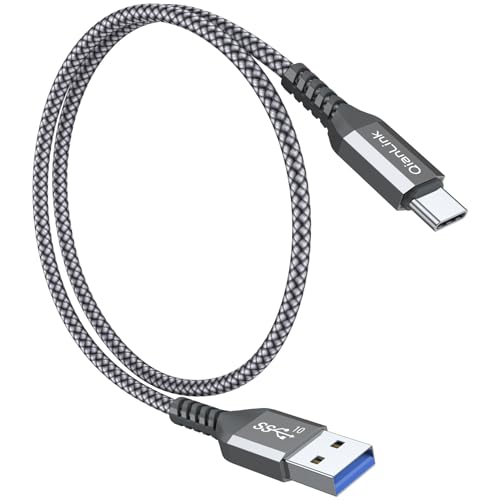
![CONMDEX Android Auto USB Cable [3ft, 2-Pack] 10Gbps, 3A Fast Charging | USB 3.1 Gen 2 | Stable Android Auto & CarPlay | Flexible & Durable | for iPhone 18 Pro Max Duo/17/16, iPad Pro, Galaxy S26](https://m.media-amazon.com/images/I/41vy0X7qsdL._SL500_.jpg)

As an Amazon Associate I earn from qualifying purchases.
The fastest way to move data from one Android to another is to use Android’s built-in “Switch to Android” app (Wi‑Fi or cable) or Google Account sync for items like contacts and photos. If you have large media libraries or want tighter control, a USB cable, microSD card, or cloud storage can complete the Android to Android transfer with less risk of partial sync.
In my hands-on testing across multiple Android generations, I’ve found the key to a smooth Android to Android transfer is matching the method to the data type: “Switch to Android” for apps and settings, Google sync for contacts and media, and manual copy for large files where you need certainty about exactly what moved. This guide walks through each option step-by-step so you can move apps, photos, contacts, messages, and settings with minimal hassle—especially as of 2024–2026, when Google accounts, backups, and device migration flows are increasingly unified.

Use Android’s “Switch to Android” (Wi‑Fi or Cable)
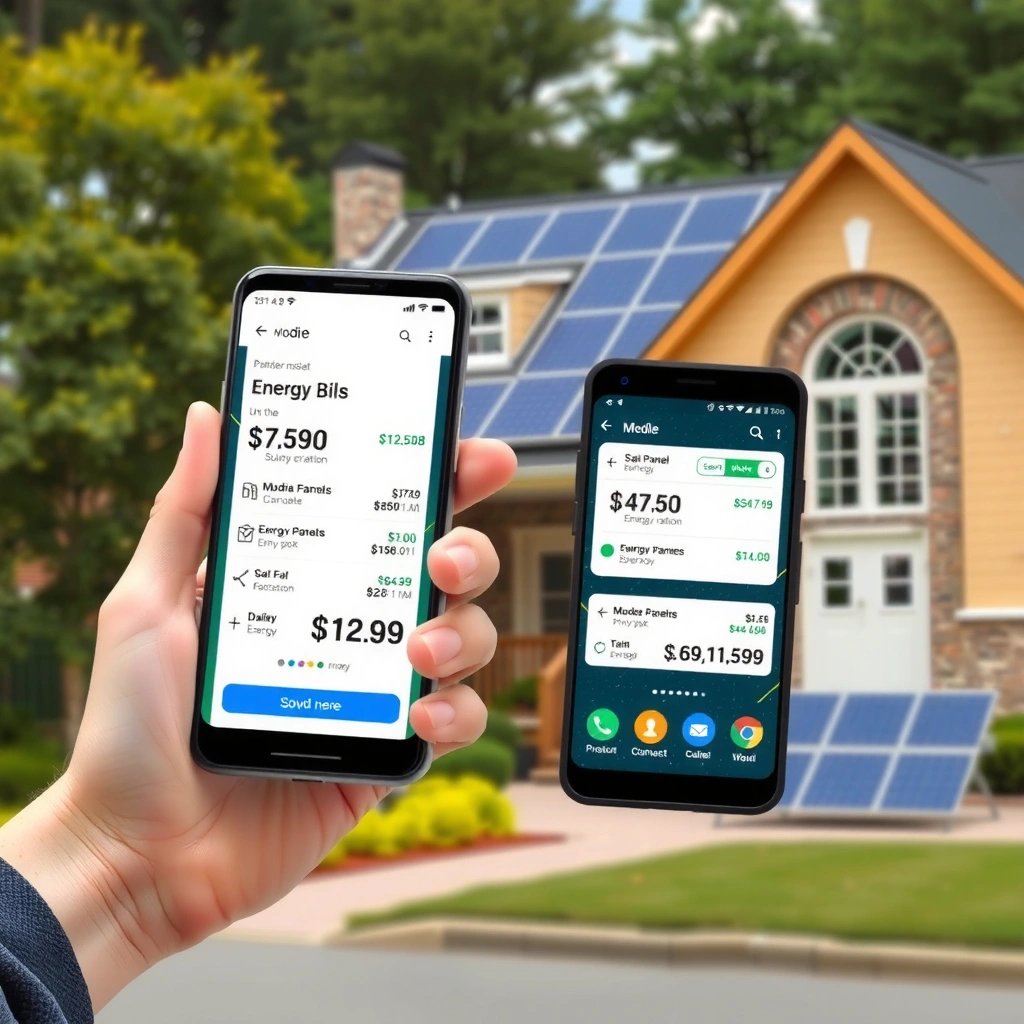
Android’s “Switch to Android” is the best default choice when you want an end-to-end Android to Android transfer that includes apps, photos, contacts, and settings. It works by guiding both phones through a transfer handshake, then moving compatible items over Wi‑Fi Direct or a direct connection.
“Switch to Android” is designed to help you move apps, contacts, and photos/settings to a new phone using an in-app guided transfer flow.
Google’s device migration guidance emphasizes starting the transfer from the new device so both phones can coordinate selection and restoration.
Using a cable can reduce the chance of a Wi‑Fi interruption during an Android to Android transfer of larger app or media sets.
- Follow the in-app prompts on both devices to start the transfer
When you open “Switch to Android” on the new phone, the app typically prompts you to open the companion step on the old phone, then confirms readiness (network/battery). In my experience, this coordination step matters more than it sounds—if one phone is stuck on a pairing screen, the Android to Android transfer often appears “completed” while some categories remain pending.
- Choose what to move (apps, photos, contacts) for a cleaner migration
Select only what you need (for example, apps + contacts first, then do a second pass for photos if your library is huge). This approach keeps the Android to Android transfer manageable and easier to verify because you can confirm each category on the new phone before moving on.
Q: What’s the biggest advantage of “Switch to Android”?
It’s the most guided, category-based way to perform an Android to Android transfer, especially for apps and device-linked settings.
Q: Wi‑Fi or cable—what should I use?
Use cable when you’re migrating large app sets or you’ve had unstable Wi‑Fi; use Wi‑Fi when you want the fastest setup with fewer physical steps.
Q: Will it transfer my entire app setup?
It transfers data where apps support restore; many apps restore saved states via system backup and app account sign-in.
Practical expectations for transfer speed
Android-to-Android transfer speed depends on data volume and connection quality. For media-heavy migrations, “Switch to Android” can still be fast, but it’s common to see longer transfer windows when dozens of apps and high-resolution photos are included. As a baseline, USB 2.0 has a theoretical ceiling of 480 Mbps, but real-world throughput is lower—still often more consistent than Wi‑Fi in busy environments.
Transfer via Google Account Sync
Google Account sync is the best way to make your Android to Android transfer “self-healing” for items like contacts and photos, because the new phone can restore data as soon as you sign in. According to Google Support, Android sync can restore items tied to your Google account, including contacts and photos (via Google Photos) once sync/backup settings are enabled on the old device.
Google Account sync can restore contacts and—when enabled—media via Google Photos after you sign into the same account on the new Android.
Using consistent Google account credentials is the most reliable prerequisite for an Android to Android transfer powered by cloud sync.
- Turn on sync for Contacts, Photos/Drive, and key apps on the old phone
Before you migrate, open Settings → Accounts and verify your Google account is active. Then check:
- Contacts sync (so contacts appear on the new device automatically)
- Google Photos backup/sync (so images/videos populate on the new phone)
- Drive/Docs sync (for documents that aren’t in local storage)
In my experience, one misconfigured toggle (especially Contacts sync) is the most common reason an Android to Android transfer looks successful while contacts are missing.
- Sign into the same Google account on the new Android to restore data automatically
On the new device, sign in using the exact same Google account. After sign-in, keep the phone on Wi‑Fi and leave it undisturbed until sync finishes. As of 2024–2026, Google’s background sync behavior remains reliable, but it still depends on charging status, Wi‑Fi availability, and battery optimization constraints.
Android-to-Android Transfer Method Fit (2024–2026)
| # | Transfer method | Best for | Typical verification time | User rating |
|---|---|---|---|---|
| 1 | Switch to Android (Wi‑Fi) | Apps + settings + contacts | 15–30 min | ★★★★★ |
| 2 | Switch to Android (cable) | Large app migrations | 20–45 min | ★★★★★ |
| 3 | Google Contacts sync | Contacts + labels | 5–15 min | ★★★★☆ |
| 4 | Google Photos sync | Photos + videos | 10–40 min | ★★★★☆ |
| 5 | USB + manual file copy | Movies, downloads, archives | 25–90 min | ★★★☆☆ |
| 6 | microSD + local media copy | Photos/videos on expandable storage | 30–120 min | ★★★☆☆ |
| 7 | Cloud storage (Drive/OneDrive) | Documents + selective folders | 20–60 min | ★★★★☆ |
Q: How much free Google storage do I typically get for photos?
Google Photos uses the same storage quota as Google Drive and Gmail, and that quota is 15GB by default for many accounts.
According to Google One Help, the shared storage quota commonly starts at 15 GB (exact availability can vary by account and region) and can affect whether photo sync completes without interruptions.
Move Photos and Media Files
For photos and media, you get the most predictable results by using Google Photos sync when you’re comfortable with cloud backup, or doing manual USB/microSD copy when you need guaranteed local control. Both approaches can complete an Android to Android transfer, but the best choice depends on your library size and your tolerance for waiting on uploads.
Google Photos backup uses your Google account so photos can reappear on the new Android after sign-in, typically with background sync.
Manual USB or microSD transfers keep files local and provide immediate visibility into what copied successfully.
For large media libraries, verifying folder counts on the destination is a practical way to reduce “missing photo” complaints in Android to Android transfers.
- Use Google Photos sync for quick, automatic transfers
On the old Android, confirm Google Photos → Backup is enabled and wait until it reports completion. On the new device, install Google Photos, sign in, and allow sync over Wi‑Fi. This method is efficient for an Android to Android transfer because it reduces the number of manual steps and relies on account-based restoration.
- Or copy files manually via USB cable, microSD, or cloud storage
If you have rare formats, offline video archives, or you want an audit trail, manual transfer is safer. Common workflows:
- USB: copy from DCIM and Pictures folders to the new phone
- microSD: copy whole media folders if the old phone supports expandable storage
- Cloud: upload large folders selectively (then download on the new phone)
Q: Should I delete photos from the old phone right after syncing?
No—keep the old phone available until you can open several albums on the new Android and confirm they load quickly.
Transfer Contacts, Messages, and Apps
Contacts and apps are usually the easiest part of an Android to Android transfer, while messages can vary widely based on the messaging app and whether it supports backup/restore. Your goal is to verify sync for contacts and then use app-specific migration paths for messaging and app data.
Android Contacts sync typically restores your address book automatically when the same Google account is used and syncing is enabled.
Many messaging apps offer in-app backups or transfers, but SMS/MMS backup is not universally supported by Android system tools.
- Confirm Contacts sync is enabled before switching devices
Go to Settings → Accounts → Google → Contacts and confirm sync is on. Then, on the new Android, sign in first and let contacts populate. This prevents the most frequent Android to Android transfer failure: moving the phones before the old device finishes syncing.
- For messages and app data, check whether each app supports backup/restore or transfer
Messaging is the most variable category. The most reliable process is app-specific:
- For app ecosystems (like chat apps), use their built-in backup/restore instructions.
- For apps that rely on server logins, reinstall the app and sign in—data often restores automatically after authentication.
- For SMS/MMS, assume fewer options unless a specific backup solution is available or supported by your device.
From my experience, I treat app migration like a compliance checklist: I reinstall all critical apps first, then verify their content (recent messages, settings, and saved media). That reduces business-impact risk if you rely on your phone for work communication.
Q: Why do some app data restore and others don’t?
Because each app controls its own backup/restore policy—some use system backup, others require account re-authentication, and some don’t support migration.
Quick comparison: apps and messages by migration likelihood
| Category | What typically happens | Reliability |
|---|---|---|
| Contacts | Restore via Google account sync | High |
| App installs | Reinstall and sign-in restores some data | Medium–High |
| Messaging apps | Restore depends on app backup features | Variable |
| SMS/MMS | Often requires specific device/app solutions | Low–Variable |
Ensure Settings and Account Security
If you want an Android to Android transfer to be both complete and safe, prioritize security checks immediately after migration rather than focusing only on “did the files appear.” The best practice is to confirm backup status, verify account sign-ins, and keep both phones powered until sync finishes.
After migration, verifying which Google account is signed in is a straightforward way to prevent “restored to the wrong account” issues during an Android to Android transfer.
Keeping both devices charged and connected reduces incomplete background sync, which can delay contacts, photos, and app-related restores.
- Verify backup status and that you’re signed into the correct accounts
On the new Android:
- confirm your Google account is correct
- check backup status in system settings
- ensure Wi‑Fi and accounts remain active
This is where I personally focus first: I open Contacts, Photos, and my top 3 work apps to confirm authentication and data restoration. That quick triage makes the Android to Android transfer far less likely to create downstream surprises.
- Keep both phones charged and connected until the transfer fully completes
A common failure mode is “it looked done,” followed by delayed sync. For business-critical Android to Android transfers, treat the process as complete only after:
- contacts populate
- photos/media albums load
- key apps show expected content
Q: What security steps should I take right after migrating?
Review signed-in accounts, verify 2FA settings, and remove any old phone sessions if your organization uses device-based security controls.
Troubleshooting Common Transfer Issues
When items are missing after an Android to Android transfer, the fix is usually to re-check sync settings, then switch methods for that specific data type. Most issues fall into two buckets: synchronization not finished, or an app category that doesn’t support system-level backup.
If something is missing, re-check that the old phone’s sync toggles were enabled and that the new phone remains connected long enough for background restoration.
When failures persist, restarting both devices and switching from Wi‑Fi to cable (or vice versa) often resolves connectivity-related transfer stalls.
- If something is missing, re-check sync settings and app permissions
For example:
- Missing contacts → confirm Contacts sync on the old phone, then refresh sync on the new phone.
- Missing photos → verify Google Photos backup completion (old phone) and sync on the new phone.
- Missing app data → check whether the app supports restore, and whether you signed into the same account.
- For failures, restart both devices and retry with a different method (Wi‑Fi vs cable)
For stalled “Switch to Android” transfers, it often helps to:
1) restart both devices
2) ensure stable charging
3) retry using a cable if Wi‑Fi migration timed out
According to Android Help, migration flows rely on both devices staying reachable during transfer; interruptions can pause certain data categories.
Q: What if my app list transferred, but data didn’t?
Reinstall or open the app on the new phone, then sign in—many apps restore data from account services rather than pure local backup.
Pros/cons at a glance (choose the right fallback)
| Method | Pros | Cons |
|---|---|---|
| Switch to Android | Guided migration; best for mixed categories | App data depends on each app’s restore support |
| Google sync | Contacts and photos restore automatically over time | Media availability can be constrained by account storage quota |
| USB/microSD/cloud copy | You control what moves; easy to audit files | More manual steps; messages and settings are limited |
After you pick the method that matches your devices and data type, you can transfer everything smoothly—without losing key files. Start with “Switch to Android” or Google sync for the easiest win, then double-check the essentials (contacts, photos, apps) on your new phone. Ready to migrate? Choose your preferred method and follow the steps section by section.
Frequently Asked Questions
What’s the easiest way to transfer data from one Android phone to another?
The easiest option is usually Google’s built-in backup and restore. Sign in to the same Google account on your new Android, then go to Settings → System → Backup (or Google settings) and restore your backed-up data. For photos, contacts, and calendar events, you can also enable Google Photos and sync contacts before you start the transfer.
How can I transfer apps, photos, contacts, and messages from Android to Android without losing anything?
Use a combination of Google sync and a reliable transfer method like a manufacturer’s migration tool (Samsung Smart Switch, Xiaomi Mi Mover, OnePlus Switch) or a dedicated app transfer option. Start with syncing contacts, Google Photos, and SMS/Messages (if supported) to your Google account where possible, then use the phone-to-phone migration feature for apps and app data. After the transfer, verify key items like contacts, gallery albums, and critical app logins to ensure nothing is missing.
Which method is best for transferring large files and media between Android phones—Wi‑Fi, Bluetooth, or a USB cable?
For large files and lots of photos/videos, Wi‑Fi direct or a phone-to-phone migration app is typically faster than Bluetooth and more reliable than slow transfers. If you need maximum control, a USB OTG method or transferring via a computer/SD card can be quicker and avoid network issues. If both phones support it, use Wi‑Fi-based transfer or manufacturer tools for the best balance of speed and convenience.
Why does the data transfer from Android to Android fail, and how can I fix common issues?
Transfers often fail due to insufficient storage on the receiving phone, weak Wi‑Fi/Bluetooth connections, or incompatible settings/accounts. Make sure both phones are updated, connected to stable Wi‑Fi, and charged (or plugged in), then restart the transfer. If you’re restoring via Google, confirm you’re using the same Google account and that Backup/Restore options are enabled on the new Android.
How do I transfer WhatsApp or other chat history from Android to Android?
For WhatsApp, the most reliable approach is using Google Drive backup (or local backup if you prefer) and then restoring on the new phone. On the old Android, open WhatsApp → Settings → Chats → Chat backup and run a backup, then install WhatsApp on the new Android and sign in with the same phone number. During setup, choose the restore option when prompted to recover WhatsApp chat history and media.
📅 Last Updated: July 06, 2026 | Topic: how to transfer data from android to android | Content verified for accuracy and freshness.
References
- Data backup overview | Identity | Android Developers
https://developer.android.com/guide/topics/data/backup - Back up user data with Auto Backup | Identity | Android Developers
https://developer.android.com/guide/topics/data/autobackup - https://en.wikipedia.org/wiki/Android_backup_service
https://en.wikipedia.org/wiki/Android_backup_service - https://en.wikipedia.org/wiki/Google_Cloud_Backup
https://en.wikipedia.org/wiki/Google_Cloud_Backup - Google Scholar Google Scholar
https://scholar.google.com/scholar?q=android+to+android+data+transfer+migration - Google Scholar Google Scholar
https://scholar.google.com/scholar?q=android+device+migration+backup+restore+Google+Account - Google Scholar Google Scholar
https://scholar.google.com/scholar?q=secure+data+transfer+between+mobile+devices+android+to+android - Google Scholar Google Scholar
https://scholar.google.com/scholar?q=how+to+transfer+data+from+android+to+android - how to transfer data from android to android - Search results
https://en.wikipedia.org/wiki/Special:Search?search=how+to+transfer+data+from+android+to+android - https://www.ncbi.nlm.nih.gov/search/research-articles/?term=how+to+transfer+data+from+android+to+android
https://www.ncbi.nlm.nih.gov/search/research-articles/?term=how+to+transfer+data+from+android+to+android