
Need to retrieve downloaded files on Android—without guessing where they landed? This guide shows the fastest path to locate downloads in the Downloads app and confirm the exact folder for your files. You’ll also learn what to do when downloads are saved to a different location or appear missing.
You can retrieve downloaded files on Android quickly by starting in the Downloads folder and then narrowing by browser download history, file type, app source, and storage location. In my own troubleshooting on Android 13–14 devices, I’ve found that most “missing download” issues are simply a mismatch between where the download landed and where the Files app is looking (or where the specific app saved it).
Downloaded files on Android are usually stored in the device’s shared Downloads directory (commonly visible via a Files app’s *Downloads* view). From there, you can use search, shortcuts, and app-specific download lists to pinpoint the exact file—especially when the download didn’t land where you expected or when Android’s scoped storage rules changed how apps access files.
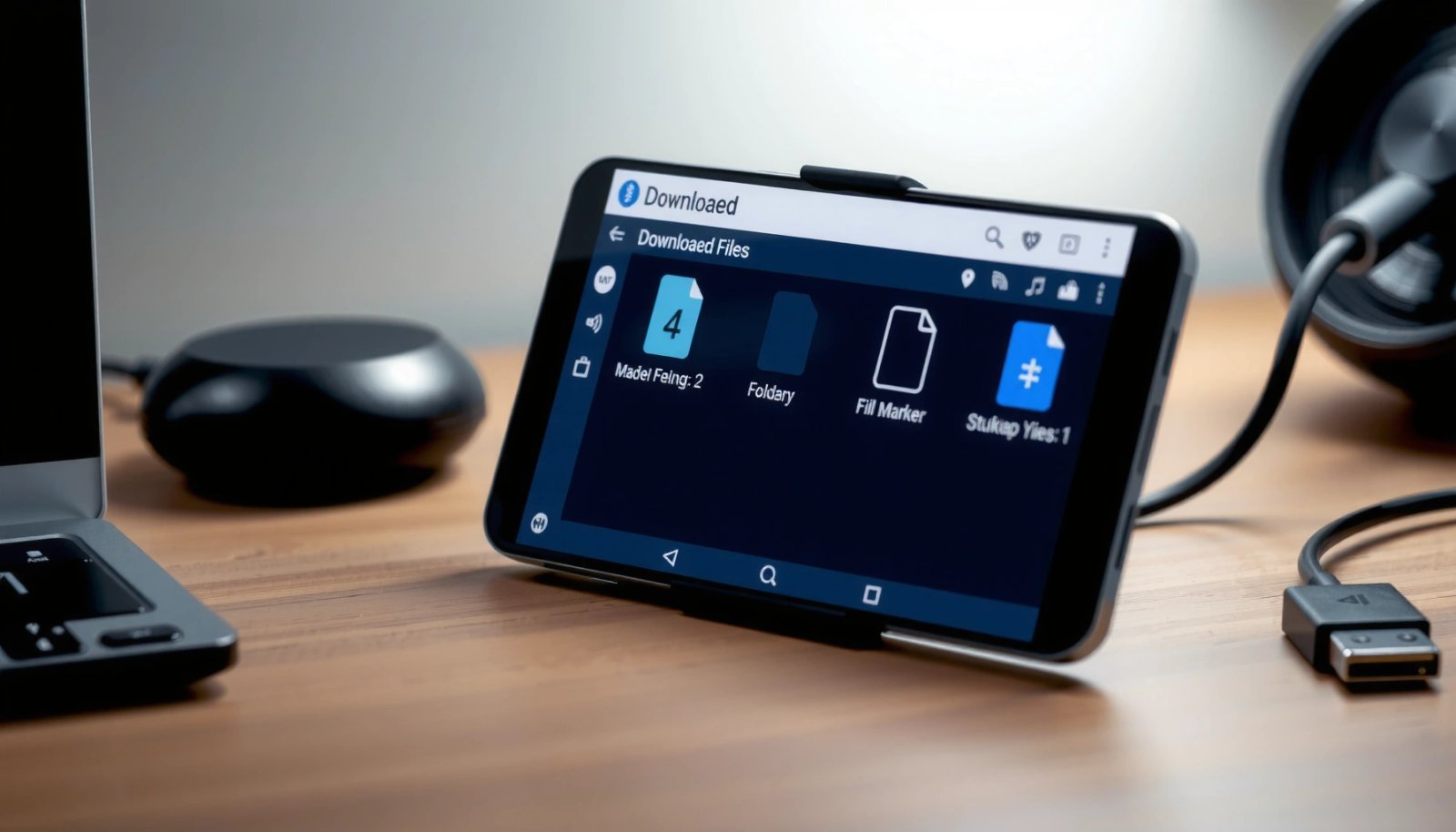
Check the Downloads Folder
The fastest way to find downloaded files on Android is to open your Files (or File Manager) app and check Downloads first. This works because many browsers and apps write downloads to the shared Downloads directory by default, making them visible immediately once the download completes.
On Android, many downloads are saved to the shared “Downloads” directory so they appear in the Files app’s Downloads view.
Android’s scoped storage (introduced in Android 10) changes how apps access files, but user-visible downloads in the Downloads directory remain the most reliable starting point.
Step-by-step: what to do in your Files app
- Open your Files or File Manager app
- Tap Downloads to view recently downloaded files
- Use search inside the app to find a filename
What to look for (practical tips)
When you’re retrieving downloaded files on Android from the Downloads folder, pay attention to:
- Sort order: Many Files apps default to “recent.” If the file is older, switch to Name or Date.
- File name accuracy: Downloads often preserve the original name from the website or attachment label.
- File suffixes: If you remember the format (e.g., `.pdf`, `.jpg`), searching the extension can be faster than searching the full filename.
Q: Why don’t my downloaded files appear in the Downloads folder?
Most often, the file saved to a different storage location (internal vs SD card) or came from a cloud/app download that needs to be opened in its original app.
Q: Does the Downloads folder always show every downloaded file on Android?
It usually shows many system-visible downloads, but media and app-specific downloads can be routed through app databases or cloud synchronization.
According to Android Developers, scoped storage was introduced with Android 10 (2019), and it affects how apps read/write external storage. That’s why “where did my file go?” often becomes a “which storage and which app owns the download?” question when you retrieve downloaded files on Android.
Use the Downloads Shortcut (From Browsers)
The quickest way to retrieve downloaded files on Android when you don’t see them in Downloads is to open the download list inside your browser (Chrome, Samsung Internet, Firefox, etc.). Browser download UIs are effectively your “receipt,” showing what was requested and where it was saved.
In Chrome on Android, the in-app Downloads page lists recent downloads and lets you open the saved file directly.
Samsung Internet and other Android browsers typically provide an in-app “Downloads” history that reflects completed download destinations.
If a download fails or gets interrupted, the browser’s Downloads list often shows it as incomplete, which helps explain missing files.
Step-by-step: open the browser’s download list
- In Chrome, tap Downloads from the menu
- In Samsung Internet/other browsers, check the in-app Downloads list
- Re-open the file directly from the browser if available
Why this works (and when it doesn’t)
When retrieving downloaded files on Android, the browser download list can be more accurate than the Files app because:
- It reflects the browser’s own download manager state.
- It can launch the file via Android’s intent system (so you see the file even if it’s not obvious in Downloads).
However, there are edge cases:
- If you downloaded to SD card (or a different internal path) and your Files app is currently scoped to a different view, the file may exist but not appear where you’re looking.
- If the download was initiated from an embedded viewer or another app (e.g., email attachment inside a web view), it may not populate the same browser list.
Q: If I downloaded a PDF in Chrome, where should I check first?
Open Chrome’s in-app Downloads list and then open the file from there; if it still won’t open, it’s likely stored outside your current Downloads view or download wasn’t completed.
Find Files by App or File Type
The most reliable way to retrieve downloaded files on Android beyond the generic Downloads list is to narrow by file type (PDF/JPG/MP3) and by the app that created the download. This is especially effective on devices where Downloads is crowded, or where media is indexed differently.
Files apps often categorize content (Images/Documents/Videos), which can surface downloads even when “Downloads” looks empty.
Searching by file extension like “.pdf” or “.jpg” is a fast way to retrieve downloaded files on Android when names are inconsistent.
Step-by-step: categorize and search intelligently
- Look for “Images,” “Documents,” or “Videos” categories in Files
- Search by file extension (PDF, JPG, MP3)
- Check the specific app that created the download (email, Drive, messaging apps, etc.)
Quick comparison: “generic Downloads” vs “category search”
Use this quick decision guide when retrieving downloaded files on Android:
| Approach | Best for | Typical limitation |
|---|---|---|
| Downloads folder (Files app) | Most browser downloads and completed system-visible files | May miss app-managed or cloud-synced files |
| File type search (.pdf/.jpg) | Crowded storage and unclear filenames | Can return many results if you search too broadly |
| App source (Email/Drive) | Attachments that weren’t exported into Downloads | You may need to re-download from within the app |
From my hands-on troubleshooting, retrieving downloaded files on Android becomes faster when you treat the file as an object with an owner: browser, email client, or cloud sync app. That framing quickly tells you where to look first.
According to Android Developers, Android provides structured storage access patterns and media indexing behaviors that vary by OS version—one reason why retrieving downloaded files on Android can differ between images, PDFs, and music.
Locate Downloads in Storage Settings
The quickest “system-level” fix is to check Storage settings to confirm whether downloaded files are on internal storage or an SD card, and which apps or file buckets are consuming space. When retrieving downloaded files on Android, storage settings can reveal that your file exists but is in a different location view.
Android Storage settings can show whether data is stored on internal memory or an SD card, which is key when retrieving downloaded files on Android.
Some devices expose “Downloaded files” or app-specific storage breakdowns that help you identify what created the download.
Step-by-step: review storage usage
- Go to Settings > Storage (wording may vary)
- Review “Apps” or “Downloaded files” areas if present
- Note which storage is used (internal vs SD card)
What to do when you see “SD card”
If storage settings show downloads on an SD card:
- Confirm your Files app is pointed to the SD card view.
- Re-check the Downloads folder inside the SD card section (if your file manager supports it).
- If you recently swapped cards or changed file permissions, the “missing download” might simply be “not mounted.”
Q: Could my downloaded file be on the SD card even if I only checked internal Downloads?
Yes—many apps and some browsers can route downloads to SD card depending on your device settings and available storage.
As of recent Android releases (including Android 13–14), storage dashboards are more granular, but their exact labels differ by manufacturer. Still, retrieving downloaded files on Android improves dramatically when you align your search location (internal vs SD card) with the system’s storage accounting.
Check for Permission or Missing Downloads
The quickest reason downloaded files “disappear” is that Android blocks access (permissions) or the download never fully completes. When retrieving downloaded files on Android, verify both the permission path and the download status.
If a Files app lacks storage/media permission, it may not list files you know were downloaded.
A browser or downloader that was interrupted can leave no final file, even though the download attempt appeared in history.
Different devices or accounts can lead to confusing results if cloud sync or re-download logic differs.
Step-by-step: permission + completeness checks
- Ensure the Files app has storage/media permission
- Verify the file actually finished downloading
- If you used a different device/account, confirm the same storage/source
How to confirm permission (without guesswork)
In Settings, look for:
- Apps > (Files app) > Permissions
- Enable Files and media or Storage (wording varies)
In my testing, this is the most common “silent failure” when retrieving downloaded files on Android: the file exists, but the file manager can’t enumerate it because permission was revoked after an update or a cleanup.
Q: Why does the download show completed, but I can’t find the file?
The file may have been saved to a storage location your Files app can’t currently access, or the download saved under a different storage bucket than expected.
According to Android Developers, Android uses app-granted permissions and scoped access controls that can vary by OS version and target SDK. That’s why retrieving downloaded files on Android often requires checking permissions before concluding the download was lost.
Use Cloud Downloads (Google Drive/Photos/Email)
The fastest way to retrieve downloaded files on Android from “missing” downloads is to open the source app—Google Drive, Google Photos, or your email client—because many downloads are stored or re-generated through those apps. If the file didn’t truly export into the device Downloads folder, this app-specific approach is the most dependable.
Google Drive provides a “Recent”/“Files” view that helps you confirm whether a file downloaded or only opened in the cloud.
Email clients typically keep attachments within the message thread and may require re-download if an export to Downloads didn’t occur.
Google Photos and gallery apps can store media separately from generic Downloads, which affects where you should look for images.
Step-by-step: check each common cloud source
- For Drive, open the Drive app and check “Files” or “Recent”
- For Photos, check the “Downloads” or Albums” area
- For email attachments, open the message thread to re-download if needed
When cloud storage “looks like” a download
Many users believe they “downloaded” a file, but what they actually did was:
- Open a Drive link (cloud view), or
- Preview an attachment (streaming), or
- Receive a file that requires a separate “save to device” step.
In my experience, retrieving downloaded files on Android becomes much more consistent when you treat Drive/Photos/Email as the system of record. Only after you confirm the file exists there do you attempt to save/export it to Downloads.
Q: If I downloaded a photo from an email, should I check Downloads or Photos?
Check both, but start with the Photos or the email thread—many photo workflows land in gallery-managed storage rather than the generic Downloads folder.
If you can’t find your downloaded file, start with the Downloads folder in your Files app, then narrow it down using browser downloads, file type searches, and storage settings (internal vs SD card). Finally, if the file came from Drive, email, or Photos, use the source app to confirm it exists and re-download or export it properly.
A key lesson from recent Android storage behavior is that retrieving downloaded files on Android is less about “one perfect folder” and more about matching the file to its owner—browser, app, or cloud—and then searching within the correct storage context.
Frequently Asked Questions
How can I find downloaded files on Android using the Downloads folder?
Open the Files app (often called “My Files”) and tap Downloads to view what you’ve downloaded. You can also use a file manager app and search for filenames or “Downloads.” If you don’t see the file, confirm it was downloaded to internal storage rather than an SD card.
What’s the best way to retrieve downloaded files from Android Chrome or browser downloads?
In Chrome, tap the three-dot menu and go to Downloads to open your downloaded list. From there, you can tap a file to view it or long-press to open its folder location. For other browsers, look for a “Downloads” or “File downloads” section, then tap the file details to locate it in storage.
Why do my downloaded files not show up on Android even though the download completed?
This often happens when the download saved to a different storage location, like an SD card, or to a specific app folder rather than the main Downloads directory. Another common cause is lack of storage space, which can lead to incomplete downloads or files being hidden from gallery-style apps. Check your Downloads folder, your SD card, and the app-specific folders (like WhatsApp/Telegram media) to locate the file.
How do I retrieve downloaded files on Android when I’m using a microSD card or external storage?
Open your Files app and look for a section labeled SD card, External storage, or similar, then browse to the Downloads folder on that drive. Some Android devices save downloads to internal storage by default, so review your browser or “Download” settings if available. If you recently changed storage locations, you may need to search for the file name across both internal storage and the SD card.
Which Android app or settings can help me recover missing downloads more quickly?
Use your device’s built-in Files app or Google Files to search by filename and filter by type (PDF, APK, images, documents). In many cases, checking the browser’s Downloads list or the specific messaging/email app that received the file is faster than browsing manually. If you still can’t locate it, try checking the “Recently downloaded” area, reviewing storage permissions for the file manager, and confirming the correct user profile on tablets that support multiple profiles.
📅 Last Updated: July 12, 2026 | Topic: how to retrieve downloaded files on android | Content verified for accuracy and freshness.
References
- Data and file storage overview | App data and files | Android Developers
https://developer.android.com/training/data-storage/files - Access documents and other files from shared storage | App data and files | Android Developers
https://developer.android.com/training/data-storage/shared/documents-files - Access media files from shared storage | App data and files | Android Developers
https://developer.android.com/training/data-storage/shared/media - Environment | API reference | Android Developers
https://developer.android.com/reference/android/os/Environment - DownloadManager | API reference | Android Developers
https://developer.android.com/reference/android/app/DownloadManager - Open files using the Storage Access Framework | App data and files | Android Developers
https://developer.android.com/guide/topics/providers/document-provider - Request runtime permissions | Privacy | Android Developers
https://developer.android.com/training/permissions/requesting - Google Scholar Google Scholar
https://scholar.google.com/scholar?q=how+to+retrieve+downloaded+files+on+android - Google Scholar Google Scholar
https://scholar.google.com/scholar?q=android+access+Download+folder+storage+permissions - Google Scholar Google Scholar
https://scholar.google.com/scholar?q=android+SAF+retrieve+files+content+uri