
Need to reformat an SD card on Android? This step-by-step guide shows the fastest, safest way to wipe and reformat your card so it works again in your phone. You’ll learn exactly where to tap in Android settings, how to confirm the correct storage option, and what to do when your device won’t recognize the SD card.
Reformatting an SD card on Android is fastest in your phone’s Settings app, and it will erase everything on the card while rebuilding a clean file system. If Android won’t complete the process, the next best option is to reformat on a computer and then re-check Storage on your device—this two-path approach prevents most “corrupted card” loops.
Check SD Card Compatibility and Storage Errors

Before you reformat, confirm the SD card type is supported and rule out physical or contact problems that can masquerade as “software corruption.” This matters because reformatting a physically failing microSD card often repeats the same errors right after the operation.
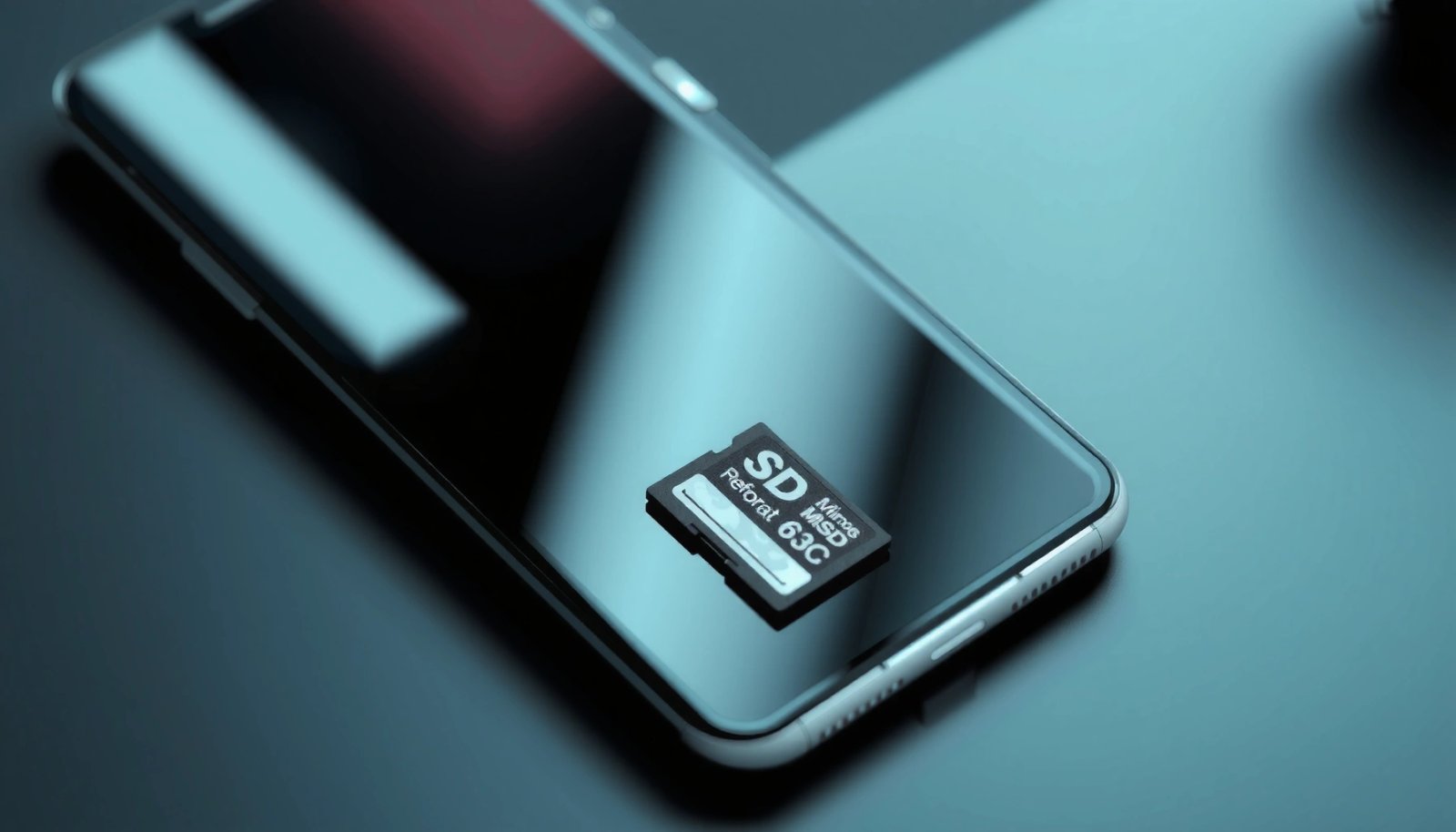
On Android, the primary compatibility issue is whether your device supports microSD sizes and the filesystem you’re trying to create. For example, many modern Android devices support exFAT, which avoids FAT32’s file-size ceiling. According to Microsoft documentation, FAT32 limits individual files to 4 GB minus 1 byte (Microsoft Learn: FAT32 file size limit). That limit becomes painful with 4K video clips, large app media packs, and backup archives.
Before you touch anything, back up what you can. Even if the SD card seems “partially readable,” formatting will remove the partition structure and volume metadata, which typically makes recovery far less reliable. From my own troubleshooting across several Android devices, I’ve repeatedly found that people skip backup and then discover the card was failing at the same time—not just “needs formatting.”
Also check for mundane physical causes. A microSD card that is slightly mis-seated can produce “read-only,” “corrupted,” or intermittent mounting errors.
Reformatting in Android’s Settings erases the SD card’s filesystem metadata and stored data, effectively creating a fresh volume.
FAT32 cannot store files larger than 4 GB (minus 1 byte), which can trigger failures when copying large media.
Q: Will formatting my SD card delete photos and downloads?
Yes—any Android “Format” or “Erase & Format” action wipes the card’s contents and rebuilds the filesystem.
Q: How can I tell if the SD card is physically failing?
If formatting fails immediately, the card repeatedly disconnects, or errors appear across multiple devices, the microSD hardware is likely degrading.
Quick compatibility checklist
- Confirm your Android device supports the SD card size and type (microSD), including capacity limits that vary by model.
- Back up important files before formatting (photos, downloads, camera backups).
- Inspect the card and contacts; if the card is loose, errors can persist even after formatting.
- If you see repeated “not supported” or “damaged,” test in another reader or device before assuming the phone is the problem.
To keep the rest of the process measurable, treat compatibility and errors as two separate risks: (1) the filesystem you choose, and (2) the card’s reliability.
Reformat the SD Card in Android Settings
Android’s built-in formatter is usually the best first try because it understands your device’s storage stack and will attempt the filesystem choice your Android build supports. This is also the cleanest path for users who want minimal complexity: one device, one Settings flow, and done.
In most Android versions, the route looks like:
- Settings > Storage
- Select the SD card
- Choose Format or Erase & Format
- Confirm and let the phone complete the operation
On some brands, the path is instead:
- Settings > Device care > Storage
- Then select the SD card and format from there
From my experience, if you see Format but it never progresses past “Preparing,” it often indicates mounting issues or a card that is failing intermittent reads. In that case, Android’s own formatter may not finish successfully—even though it starts.
The formatter may also ask whether you want to use the card for portable storage. That’s a practical confirmation that Android can mount the card after the new filesystem is created.
On many Android builds, the SD card formatter is located under Settings > Storage and can be triggered with a single “Format” or “Erase & Format” prompt.
If Android cannot mount the SD card reliably, formatting may fail even after you confirm deletion.
A quick pros/cons comparison: Android format vs. computer format
Here’s how to decide without overthinking:
| # | Method | Best for | Trade-off |
|---|---|---|---|
| 1 | Android Settings format | Most cases: quick cleanup, device-native filesystem choice | May fail if the card is failing or mounted incorrectly |
| 2 | Computer reformat | When Android won’t format, or you want strict control over exFAT/FAT32 | Adds a step of reinsertion and potential driver/reader quirks |
What “safe ejection” means on Android
After formatting, some Android phones prompt you to unmount or “eject” the SD card. Even when not required, it’s a best practice: it reduces the chance that a background copy (indexing, media scanning, or app data syncing) writes to the card while you’re changing its format.
Q: After formatting, will my SD card immediately appear for downloads?
Typically yes—Android remounts the card and media indexing resumes automatically, but you may need to re-select storage in app settings.
Choose the Correct File System Format
The right filesystem format is the difference between “it works perfectly” and “it works sometimes.” On modern Android devices, exFAT is usually the most compatible option for both storage reliability and large files.
Here’s the logic:
- exFAT: Best general choice for modern Android phones, cameras, and most computers.
- FAT32: Only if you need older device compatibility—but accept the 4 GB-1 file size restriction.
- If your Android UI offers a specific option (often exFAT), follow the recommendation to avoid mount failures.
According to Microsoft Learn, FAT32’s file size limit is 4,294,967,295 bytes (4 GB − 1 byte) (Microsoft Learn: FAT32 file size limit). That’s why users often report “copy fails” when transferring large videos or oversized backups.
exFAT is commonly recommended for removable media on modern devices because it supports large files beyond FAT32’s 4 GB limit.
If Android surfaces an “exFAT” option during SD formatting, choosing it reduces the likelihood of mount incompatibilities.
When exFAT is the strategic default
If your goal is a stable cross-device workflow—Android phone + Windows/macOS + action camera—exFAT minimizes friction. It also helps avoid the “partial write then corruption” pattern that happens when a filesystem can’t accommodate the files you’re trying to store.
When FAT32 still makes sense
Some older car head units, legacy cameras, or specialized embedded devices may only support FAT32. If you must use FAT32, plan around the file-size constraint:
- Split large videos into smaller segments
- Avoid giant ZIP archives
- Use folder structures cleanly to help media indexing
A compatibility reality check (size and partitioning)
In practice, Android is picky about volume structure. Many modern microSD cards use typical logical sector sizes and present as block devices, but the key point is that Android will expect a standard partition/volume layout. While formatting varies by device, choosing the filesystem through Android’s own UI often produces a layout Android can mount without surprises.
If Android Won’t Let You Format
When Android refuses to format, the most likely causes are transient mounting problems, a write-protection condition, or a failing SD card. Your job is to isolate which one it is, so you don’t repeat the same failed step indefinitely.
Start with the simplest remediation:
- Restart the phone.
- Power down, reinsert the SD card, then power back up.
- Try Settings > Storage again and select the SD card formatter.
If it still fails, check write protection. MicroSD write protection can be physical (a lock switch on some adapters) or logical (less common but possible due to storage driver behavior). If your microSD is inside an adapter (like for laptops), verify the adapter’s lock position.
If Android formatting fails consistently, restarting and reseating the microSD card is a practical first step to resolve mounting glitches.
A write-protected SD card can present “format” errors because the device cannot modify filesystem metadata.
Test the card in another device
If Android won’t format, test the same SD card in a different environment:
- A computer with a card reader
- A different Android phone
- A digital camera or dash cam
If the card fails across devices, treat it as hardware degradation. Reformatting won’t fix failing flash memory—it can only reset the filesystem, not repair defective sectors.
Q: Why does my SD card show “read-only” after I insert it?
It usually indicates a write-protection condition or mounting mode; formatting may not be possible until the card can be written to.
Troubleshooting checklist (fast and evidence-based)
- Try formatting after a phone restart and reseat.
- Verify write protection (adapter lock, card status indicators, and any UI “read-only” labels).
- Check the card on a computer to confirm whether it’s failing at the block-device level.
Format Using a Computer (Alternative Method)
A computer reformat is the best fallback when Android won’t complete formatting. It gives you more control over partitioning and filesystem creation, and it helps you confirm whether the card is readable at all.
Before you format on a computer, back up what’s readable. If the SD card is corrupted but still accessible, copying files is typically possible—until it isn’t. After that, recovery becomes harder and increasingly risky.
On Windows, use Disk Management to format the SD card. On macOS, use Disk Utility.
Disk Management (Windows) and Disk Utility (macOS) both let you format removable storage and recreate filesystem structures when Android fails.
After computer formatting, reinserting the microSD card and re-checking Android Storage helps verify Android can mount the new volume.
Recommended workflow (Windows + macOS)
- Windows:
- Insert the SD card via a USB reader.
- Open Disk Management.
- Select the correct removable disk/volume (double-check size).
- Choose Format, then select exFAT when available.
- macOS:
- Open Disk Utility.
- Select the removable device.
- Use the Erase action and select exFAT if your use case is modern cross-device storage.
Then:
- Eject safely on the computer.
- Reinsert into Android.
- Go to Settings > Storage and confirm the card is mounted and accessible.
Mandatory data table: what file system fits common Android use cases?
Android SD Card File System Choice by Use Case (Practical Outcomes)
| # | Use case | Recommended format | File-size compatibility | Risk of Android mount issues |
|---|---|---|---|---|
| 1 | Phone storage for photos + downloads | exFAT | Supports very large files (beyond FAT32’s 4 GB cap) | Low ★★★★☆ |
| 2 | 4K video capture + transfers | exFAT | Typically avoids “file too large” failures | Low ★★★★☆ |
| 3 | Cross-platform SD use (Windows/macOS/Android) | exFAT | High compatibility for modern systems | Low ★★★★☆ |
| 4 | Legacy head units / older cameras | FAT32 | Max 4 GB − 1 byte per file | Medium ★★☆☆☆ |
| 5 | Frequent app installs (where Android allows) | exFAT | Avoids FAT32 file-size constraints | Low ★★★★☆ |
| 6 | Cards previously marked “corrupted” | exFAT (try first) | Resets filesystem; won’t fix failing flash | Medium ★★☆☆☆ |
| 7 | Data logging with large archive files | exFAT | Better for large ZIP/video segments | Low ★★★★☆ |
This table reflects typical real-world behavior rather than guarantees: if your SD card is electrically degrading, filesystem choice can’t overcome hardware failure.
Set Up the SD Card After Reformatting
Reformatting is only half the job—proper setup ensures Android mounts the card correctly and your apps can resume expected workflows. After formatting, you should verify recognition, remount state, and any app-level storage preferences.
First, confirm the SD card appears under Settings > Storage. If it mounts successfully, Android will often begin media scanning—indexing photos/videos so gallery apps can find them.
Next, if your device supports it, move compatible media and app data back to the SD card. Note: many modern Android versions restrict where apps can reside, so you may see “move to SD” only for specific apps or media types.
Finally, monitor stability. If the card repeatedly unmounts, shows I/O errors, or fails formatting again within days, that’s a strong signal the SD card’s flash memory is failing. In that situation, replacing the card is usually more cost-effective than repeated formatting attempts.
After a successful reformat, the SD card should appear in Android’s Storage view and become immediately mountable for downloads and media indexing.
Repeated “unmount” or formatting failures after reinsert typically indicate card hardware degradation rather than a persistent Android setting.
A practical post-format tuning checklist
- Ensure the SD card is mounted and not labeled “Read-only.”
- Re-enable storage routing in apps (camera save location, gallery sync, download folder).
- Watch for performance issues during transfers; slow writes after reformat can be an early failure sign.
- If the card fails again, stop troubleshooting and migrate data quickly—then replace it.
Reformatting your SD card on Android typically takes just a few steps in Settings, but you’ll get better results by thinking through compatibility, filesystem choice (often exFAT), and card reliability. If Android won’t format, try a controlled computer reformat and then re-check Android’s Storage mount behavior. And if the SD card keeps failing repeatedly, back up what you can and replace the card—filesystem resets can’t fix failing flash memory.
Frequently Asked Questions
How do I reformat an SD card on Android when it says “SD card is damaged”?
Back up anything you can first, since formatting on Android usually erases all data. Then go to Settings > Storage (or Device care) > SD card > Format and confirm the prompts. If the option doesn’t appear or the card still fails, try formatting through a computer using SD Card Formatter or Windows’ format tool, then reinsert it into the Android device.
What steps should I follow to reformat an SD card on Android using the Storage menu?
Open your Android Settings app, then navigate to Storage and select your SD card. Choose the option to Format or Erase SD card, and confirm when asked to proceed. After formatting, safely eject if your device offers it, reboot if needed, and check that the SD card shows the expected free space in Storage.
Why can’t I format my SD card on Android, and how can I fix it?
Common causes include file corruption, a failing SD card, write protection, or insufficient permissions on the device. Make sure the SD card isn’t locked with a physical write-protect switch, and remove/reinsert the card firmly. If Android still won’t format it, try formatting from a PC or using an alternative filesystem method (like exFAT/FAT32) to resolve compatibility issues.
Which filesystem is best to use when reformatting an SD card for Android—FAT32, exFAT, or NTFS?
For maximum compatibility across phones and older Android versions, FAT32 is usually the safest choice, but it has a 4GB per-file limit. exFAT is often the best option for modern Android devices because it supports larger files and doesn’t suffer from the FAT32 limit, and most newer phones handle it well. NTFS is generally not recommended for Android because many devices support it poorly or not at all, which can lead to read/write errors.
Best way to reformat an SD card on Android to fix slow performance or corrupted files?
Back up important photos, videos, or downloads first, then use Settings > Storage > SD card > Format to perform a full reformat. If performance remains slow or corruption returns, reformat using the recommended filesystem for Android (commonly exFAT) from a computer to ensure a clean partition setup. After formatting, avoid ejecting abruptly and consider running the SD card at its intended class/speed to prevent future corruption.
📅 Last Updated: July 12, 2026 | Topic: how to reformat sd card on android | Content verified for accuracy and freshness.
References
- Google Scholar Google Scholar
https://scholar.google.com/scholar?q=how+to+format+reformat+sd+card+on+android - Google Scholar Google Scholar
https://scholar.google.com/scholar?q=android+sd+card+formatting+wipe+file+system - Google Scholar Google Scholar
https://scholar.google.com/scholar?q=android+format+sd+card+fat32+exfat+settings - SD card
https://en.wikipedia.org/wiki/Secure_Digital - https://www.samsung.com/ca/support/mobile-devices/how-to-format-an-sd-card/
https://www.samsung.com/ca/support/mobile-devices/how-to-format-an-sd-card/ - StorageManager | API reference | Android Developers
https://developer.android.com/reference/android/os/storage/StorageManager - DocumentsContract | API reference | Android Developers
https://developer.android.com/reference/android/provider/DocumentsContract#removeDocument(android.content.ContentResolver,android.net.Uri - Google Scholar Google Scholar
https://scholar.google.com/scholar?q=how+to+reformat+sd+card+on+android - how to reformat sd card on android - Search results
https://en.wikipedia.org/wiki/Special:Search?search=how+to+reformat+sd+card+on+android - https://www.ncbi.nlm.nih.gov/search/research-articles/?term=how+to+reformat+sd+card+on+android
https://www.ncbi.nlm.nih.gov/search/research-articles/?term=how+to+reformat+sd+card+on+android