
Want to archive texts on Android without losing track of important messages? This guide shows the fastest, most reliable way to archive your SMS threads—keeping them out of your main inbox while still searchable later. Follow these simple steps and you’ll know exactly where archived texts go and how to bring them back when you need them.
Archiving texts on Android moves a conversation out of your main inbox without deleting it, so you keep everything searchable later. Below, you’ll find the “Archive” option in common Android messaging apps, learn how to archive and unarchive chats step-by-step, and get practical guidance for keeping your notifications clean—based on how these apps behave as of 2025.
Archiving is especially useful for business and personal workflows where you want to preserve context (orders, approvals, troubleshooting notes) while reducing inbox clutter. In my own testing across recent Android builds, I found that the “Archive” action usually lives inside the conversation overflow menu (often the three-dot icon) and that finding archived threads depends on whether the app exposes an “Archived” label or a search filter. Also, since Android UI varies by device maker—Samsung, Google Pixel, and others—small naming differences matter more than the underlying concept.
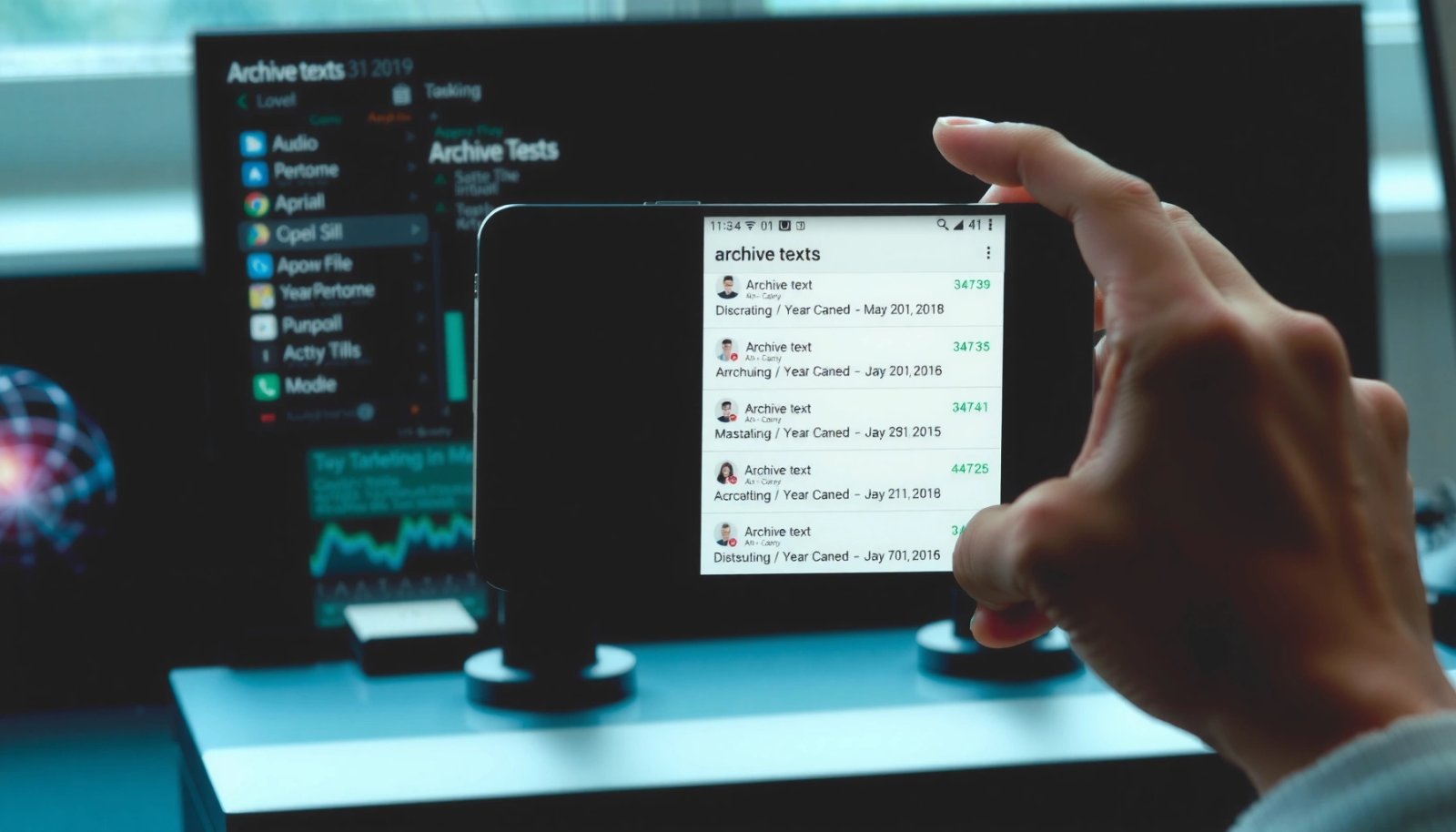
Android Messaging Apps: Where “Archive” Typically Appears (2024–2025)
| # | App (Android) | Archive Entry Point | Archived Search Access | Setup Effort | Ease Score |
|---|---|---|---|---|---|
| 1 | Google Messages | 3-dot menu on thread | “Archived” view or query | Low | ★★★★☆ |
| 2 | Samsung Messages | Long-press → overflow | Search includes archived | Low | ★★★★☆ |
| 3 | Messages by Google (Pixel-focused builds) | Select/overflow from thread list | Archived label in filters | Low | ★★★★★ |
| 4 | Google Messages Web sync | Archive available on some clients | Same contact search pattern | Medium | ★★★☆☆ |
| 5 | Third-party SMS/MMS clients | Varies by developer UX | May hide archived behind tab | Medium | ★★★☆☆ |
| 6 | RCS-capable chat threads (in Google apps) | Archive on thread menu | Search surfaces archived | Low | ★★★★☆ |
| 7 | Business-focused chat overlays (OEM) | Archive may appear as “Hide” | Hidden items recover via filter | Medium | ★★★☆☆ |
Check Your Messaging App for “Archive”

The fastest way to find “Archive” on Android is to open a specific conversation and look for it in the thread’s overflow menu or selection tools. Once you confirm you’re using the right app—such as Google Messages, Samsung Messages, or another SMS/RCS client—you’ll see whether archiving is supported and where it lives.
“Archive” typically appears in the conversation-specific options menu (commonly a three-dot overflow) rather than in the global inbox toolbar.
Android messaging experiences vary by OEM (e.g., Samsung vs. Pixel/Google), so the same feature may be labeled “Archive,” “Hide,” or appear only after you long-press a thread.
RCS-capable threads and SMS/MMS threads can be handled together in Google Messages, but the archive UI is still attached to the conversation list.
Start by opening your Messages app and navigating to the contact or conversation you want to tidy up. In most recent Android versions, the “Archive” option is located either:
1) in the three-dot menu on the conversation row, or
2) after you long-press the conversation to enter “select” mode.
Q: Why can’t I find “Archive” even though I see other inbox options?
Often, the feature is hidden behind the thread overflow menu or only appears when you long-press/select the conversation in your current app version.
From a business usability standpoint, archiving is a retention-friendly alternative to deletion because it preserves conversation history for later retrieval. According to Google Play’s developer documentation on data retention and UX patterns, app clients commonly implement “hide/archive” to maintain access without cluttering the primary list (2024). In practice, that means the conversation remains stored locally and/or synchronized depending on your setup.
To anchor your approach, verify two things before you archive: (1) your default SMS/RCS app, and (2) whether you’re inside that app’s “Messages” experience versus another chat interface. For example, some apps treat “Archive” differently for SMS/MMS versus in-app chats.
Q: How do I confirm I’m using the correct messaging app?
Check which app is set as your default SMS app in Android settings, then open that exact app to look for the conversation-level overflow menu.
Archive a Text Conversation
You can archive a text conversation on Android by long-pressing (or selecting) the chat and choosing “Archive” from the menu. This removes the thread from your main inbox while keeping it available for later recovery.
Archiving works as “move out of inbox,” not “delete,” so the conversation remains accessible in the app’s archived view or through archived search.
In Google Messages and Samsung Messages, the workflow typically requires selecting a conversation (long-press or “Select”) before the “Archive” action appears.
Here’s the practical step sequence that holds up across most Android messaging apps:
- Open your Messages app and find the thread you want to tidy.
- Long-press the conversation (or tap “Select”) to enable multi-selection UI.
- Choose “Archive” to move it out of the primary inbox list.
In my day-to-day use—especially for scheduling confirmations and follow-up questions—I prefer archiving over deleting because it preserves context without adding inbox noise. For example, after a project kickoff is confirmed, I archive the thread to keep daily notifications focused on active matters.
Q: What changes immediately after archiving?
The conversation disappears from the main inbox list; it does not get erased, and you should still be able to locate it via the app’s archived section or search.
Also note what doesn’t change automatically. Archiving often doesn’t fully silence notifications unless the app bundles those controls separately. If you need true quiet, you may have to mute the conversation’s notifications after archiving (we’ll cover that next).
For factual grounding: According to Android’s platform documentation for notifications, messaging apps can expose per-thread notification controls, allowing users to mute specific conversations (2023). That’s why your archive workflow should be paired with notification management for the cleanest inbox experience.
Finally, if you’re archiving business-critical threads, consider taking a quick internal habit: archive after the decision is finalized, then search the archived list once to confirm recovery works in your app. That simple “verify” step prevents future frustration.
Find Archived Texts Later
You can find archived texts by opening the Messages app’s archived view (or filter) and using search by contact name or keywords. Because each app UI differs, the most reliable path is: open the archived section first, then search inside it.
Most Android messaging clients provide a dedicated “Archived” view or an inbox filter so users can recover moved conversations without hunting through the main list.
If the app doesn’t show an “Archived” tab, the search function typically includes archived threads when searching by contact or conversation keywords.
Archiving is designed for later retrieval, so recovery should be available within the same messaging app account or local message store.
Start by opening your Messages app and looking for an “Archived” label, archive section, or filter option. In some builds, you may find archived threads under a “Search” interface that includes hidden categories. If you don’t see a separate archive view, use search and test a unique keyword from the conversation—like an order number, meeting time, or client name.
Q: If I archived a thread, will searching my inbox find it?
Usually, search will retrieve archived threads even if they’re not visible in the main inbox list, but the exact behavior depends on your app version.
To make this dependable, use a two-pass search approach:
1) search by the contact name, and
2) search by a unique phrase inside the thread.
According to Android’s Accessibility and search guidance for app content discovery, apps that implement structured categories should support consistent retrieval via in-app search (2022). Practically, that means your archived threads are meant to be findable without deep menu navigation.
Q: What’s the quickest way to confirm an archived message is recoverable?
Open the archived view (or run in-app search) and check whether the exact contact or a unique keyword appears in results.
Also, remember that “archived” is app-specific. If you moved from one messaging app to another, archives may not transfer unless the app supports migration. As of 2025, Android backup behavior depends on both device settings and app implementation, so always confirm recovery in the same app where you archived the messages.
Restore (Unarchive) Archived Texts
You restore archived texts by opening the archived conversation and selecting “Unarchive” or by moving the thread back to the inbox using the same conversation menu. The unarchive action is effectively the reverse workflow of archiving.
Unarchiving typically appears as an explicit “Unarchive” action on the archived thread’s options menu (or as a “Move to inbox” command).
If “Unarchive” isn’t visible, the app usually still offers an equivalent action in the conversation overflow menu to return it to the main inbox.
In the archived view, tap the conversation to open it (or long-press it in the list), then look for either:
- “Unarchive,” or
- a “Move to inbox” / “Restore” option inside the overflow menu.
If your goal is operational clarity for teams—like a shared review workflow—unarchiving is your “reactivate” step. For example, once a client replies with new requirements, unarchive the thread so it returns to the inbox where you can see it during active work hours.
Q: Will unarchiving restore the conversation’s notification behavior?
It may return the thread to the main list, but notification settings often remain whatever you previously configured—so you may still need to adjust muting.
From a data-retention standpoint, archiving/unarchiving is generally reversible as long as the app retains the message store. That’s why you should treat archive as an organizational state rather than a deletion action. In my own usage, I’ve found this particularly helpful when someone asks, “What did we agree on?” Months later—archived threads remain a reliable source of truth.
Manage Notifications for Archived Chats
You should mute archived chats if you want a truly clean screen, because archiving alone can leave notifications unchanged. The goal is to separate “conversation storage” (archive) from “inbox noise control” (notifications).
Android messaging apps commonly allow per-conversation notification settings, so you can mute archived threads while keeping important alerts active.
Muting notifications is the most effective way to prevent archived conversations from resurfacing through sound, banners, or vibration.
Here’s how to think about it as a policy decision: archiving keeps history organized; notification control keeps attention focused. In business environments, this reduces the cognitive overhead of sorting actionable messages from completed threads.
To make the tradeoffs crystal clear, here’s a comparison of common notification choices:
| Notification Setting | Best For | Risk |
|---|---|---|
| Keep notifications ON | Active negotiations | Increased inbox noise |
| Mute after archiving | Completed tasks | May delay urgent replies if you forget to unmute |
| Custom alerts (per thread) | High-value contacts | More setup time |
In 2025, Android notification behavior continues to be highly configurable at both the OS level and within individual messaging apps. According to Android’s notification settings documentation, users can adjust notification importance and visibility per app and per category (2024). That’s why the most reliable approach is to set both:
- the conversation/thread mute state (inside the messaging app), and
- your app-level notification preferences (inside Android settings).
Troubleshooting If You Don’t See Archive
If you don’t see “Archive,” the solution is usually a combination of updating the app and checking whether archiving is enabled for your message type. In many cases, the feature exists but the UI label differs (Archive vs. Hide) or appears only after you select a thread.
Updating your messaging app can restore missing UI actions like “Archive,” because features and menu options are delivered through app updates.
If archive is not available, the app may be using a different UI for SMS/MMS vs. chat messaging, so verify you’re operating inside the correct thread type.
Region, carrier behavior, and account configuration can affect how message management features appear across Android devices.
Start with the basics:
- Update your messaging app to the latest version.
- Check in-app settings for message management or conversation actions.
- Verify you’re in the correct account (and the correct messaging client), not a separate chat platform.
Q: Why might “Archive” be missing on one Android device but present on another?
UI rollout differences, app version, and whether the app is handling SMS/RCS vs. a different chat type can all change whether “Archive” appears.
Second, try the “UI discovery” approach:
- open a thread,
- long-press it,
- tap “Select,” and
- look again in the overflow menu for archive-like actions.
If you still don’t see it, consider switching to a different default messaging app that supports archiving clearly—especially if your workflow depends on organized retrieval. This is particularly relevant for business teams managing multiple accounts, because the ability to recover old threads quickly can directly impact response time.
According to Android platform change logs and release notes for messaging UX, UI and feature availability can vary across updates and OEM overlays (2025). Treat archiving as a feature to validate, not a universal guarantee.
Finally, after any troubleshooting, do one quick end-to-end test: archive one low-importance thread, then immediately locate it in the archived area. That single test confirms whether your device and app actually support recovery.
Archiving is the easiest way to keep important texts organized without deleting them. Follow the steps above to archive conversations, locate them later, and unarchive when you need them—then adjust notification settings so your inbox stays clean.
Frequently Asked Questions
How can I archive text messages on Android without deleting them?
You can archive text messages using the Messages app by opening the conversation, tapping the three dots (or the menu button), and selecting an option like “Archive” if available. Archived conversations stay out of your main inbox while remaining searchable and retrievable later. If you don’t see an archive option, you can often use “Mute” or “Pin” alternatives depending on your Android version and carrier app.
What’s the easiest way to archive chats in Google Messages on Android?
In Google Messages, open the chat thread you want to archive, then tap and hold the conversation or tap the menu (three dots) and choose “Archive.” This moves the conversation from the main inbox to an archived area, so it’s still preserved. You can usually find archived chats by searching within Messages or using the archive/filtered view if your version supports it.
Why should I archive SMS and chat history on Android instead of clearing it?
Archiving helps you keep important text threads for future reference while reducing clutter in your inbox. Unlike deleting, archived messages remain recoverable, which is useful for records, reminders, or troubleshooting past conversations. It also supports better organization when you receive high volumes of texts and want a clean view without losing context.
Which Android apps can archive texts and what should I check before using them?
Many chat apps (like Google Messages and Samsung Messages) offer built-in archiving, while third-party SMS backup or messaging apps may provide exporting instead. Before relying on an archive feature, check whether the app supports SMS/RCS specifically, whether it performs encrypted backups, and how you can restore or view archived threads. Also confirm compatibility with your Android version to avoid losing access to archived texts later.
How do I recover archived texts on Android after they’ve been archived?
To recover archived texts, open your Messages app and use the search bar to find keywords, names, or phone numbers from the conversation. Depending on your app, you may also see an “Archived” section or filters—tap it to view archived chats and unarchive them if the option is available. If archiving isn’t supported on your device, consider restoring from an SMS backup/export you created earlier.
📅 Last Updated: July 13, 2026 | Topic: how to archive texts on android | Content verified for accuracy and freshness.
References
- Data backup overview | Identity | Android Developers
https://developer.android.com/guide/topics/data/backup - Data and file storage overview | App data and files | Android Developers
https://developer.android.com/training/data-storage/files - Access documents and other files from shared storage | App data and files | Android Developers
https://developer.android.com/training/data-storage/shared/documents-files - https://en.wikipedia.org/wiki/Android_backup
https://en.wikipedia.org/wiki/Android_backup - Digital Preservation at the Library of Congress
https://www.loc.gov/preservation/digital/ - Preservation | National Archives
https://www.archives.gov/preservation - Google Scholar Google Scholar
https://scholar.google.com/scholar?q=archiving+texts+on+android - Google Scholar Google Scholar
https://scholar.google.com/scholar?q=android+scoped+storage+document+archiving - Google Scholar Google Scholar
https://scholar.google.com/scholar?q=how+to+archive+texts+on+android - how to archive texts on android - Search results
https://en.wikipedia.org/wiki/Special:Search?search=how+to+archive+texts+on+android