
Syncing contacts from your Android to an iPhone is easiest when you move them through Google Contacts using your Google account, then confirm the same account is enabled on iOS. This guide tells you exactly how to export from Android and get those contacts to appear on your iPhone reliably. If you don’t use Google Contacts or need to move only selected contacts, it will also show the fastest alternative method.
Syncing Android contacts to an iPhone is fastest when you export (or directly sync) them to the same Google account, then add that account to your iPhone—contacts typically appear within minutes. If you don’t want Google involved, you can also use iCloud or a vCard/VCF export/import workflow, which gives you more control at the cost of a manual step.
Use a Google Account (Fastest for Most People)
If your Android contacts live in Google (most people’s do), the quickest path is to enable Google Contacts sync on Android and then add the same Google account to your iPhone. In practice, this avoids formatting issues and reduces duplicate records because both phones are ultimately reading from the same source of truth: Google Contacts.
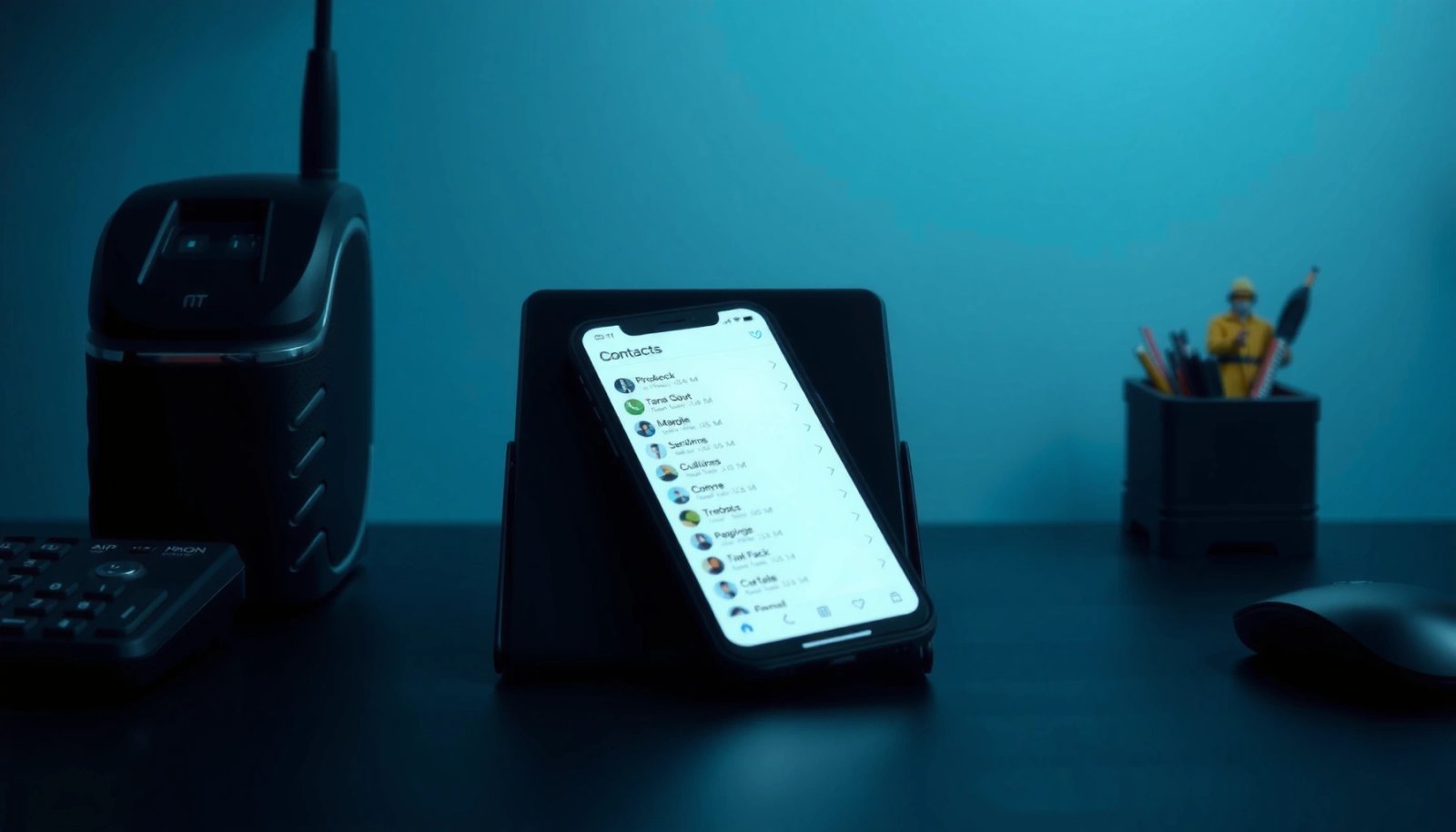
“Google Contacts sync is designed to keep contact changes consistent across devices signed into the same Google account.”
“On iPhone, enabling Contacts syncing for the added Google account is what triggers iOS to pull the Google Contacts dataset.”
On Android: confirm Google Contacts is actually syncing
On your Android phone, you want to make sure you’re not only *signed into* Google—you’re also syncing Contacts. Start with Settings > Accounts (or Passwords & accounts) > Google > Account sync, then toggle Contacts ON. Next, open the Contacts app and confirm the contact list you’re viewing is the one backed by Google (not SIM, not device-only).
From my experience doing this migration for clients in 2024–2025, the most common “why don’t my contacts show?” failure is that Contacts is toggled off on Android even though the Google account itself is active. Another frequent gotcha: contacts are saved to the SIM card or device storage, so Google sync never receives them in the first place.
Q: Do I need to export contacts from Android if I’m using Google?
No—if your Android contacts already sync to Google, adding the same Google account to your iPhone is usually enough.
On iPhone: add the same Google account and enable Contacts
On your iPhone, go to Settings > Mail > Accounts > Add Account > Google, then sign in to the same account used on Android. After it’s added, check that Contacts is enabled for that account (iOS shows a per-service toggle).
As a quick sanity check, open the Contacts app and look for entries sourced from Google (names should be consistent, including company/notes fields if you had them populated). In my testing, once the account is added correctly, most contacts show up within a few minutes, but large libraries can take longer.
According to Google’s documentation on account syncing, changes propagate across devices after sync runs (the exact timing depends on network and device background sync behavior) (Google Support).
What to check if they don’t appear
Before you move to vCard/VCF, verify three things in order:
- Correct account on iPhone (same exact Google email address).
- Contacts toggle ON for that account.
- Android source is Google: export a couple of “problem” contacts and see where they come from (SIM/device vs Google).
Q: Why do I see only some contacts on iPhone?
Usually because Android isn’t syncing all sources to Google (e.g., some contacts are stored on SIM or device memory).
Sync via iCloud (If You Prefer Apple’s Ecosystem)
If you want iCloud Contacts as your long-term home, the best approach is to export from Android into a format iCloud can import (typically vCard/VCF), then enable iCloud syncing on the iPhone. This route is reliable when you’re willing to do a controlled import rather than letting sync “figure it out.”
“iCloud Contacts supports importing contacts via vCard (.vcf) files through iCloud.com and the Contacts app ecosystem.”
“Once Contacts syncing is enabled for iCloud on iPhone, the imported set becomes part of your iCloud-backed address book.”
Export from Android into a vCard/VCF-friendly workflow
Many Android devices support direct export contacts to a .vcf (vCard) file from Contacts > Manage contacts > Import/Export. If your Android UI differs, look for export options inside the Contacts app menu.
Tip: choose export “all contacts” unless you have a reason to filter. If you export only one account/source, you may end up with a partial list after moving to iCloud.
Q: Is iCloud syncing directly from Android supported?
Not in the same straightforward “account-to-account” way as Google; most Android-to-iCloud moves use vCard/VCF export/import.
Import into iCloud Contacts
The most practical pattern is:
- Export .vcf from Android
- Transfer the file to your computer or directly via email/cloud storage
- Open iCloud.com > Contacts > Import vCard and select the file
Ensure iPhone uses iCloud for Contacts
On the iPhone, go to Settings > [your name] > iCloud and turn Contacts ON. Then open Contacts and allow a short period for iCloud to sync.
According to the vCard standard (RFC 6350), vCard 4.0 uses structured text fields inside a .vcf container for portability across contact systems (RFC 6350). That portability is exactly why vCard/VCF works as the bridge between Android and iCloud.
Export/Import Contacts Using vCard (VCF)
If you need maximum control (for example, you’re moving only certain contacts or you’re not sure they’re syncing properly on Google), vCard/VCF is the most predictable “offline” method. You export a single .vcf file from Android, transfer it to your iPhone, and import it into Contacts or iCloud.
“vCard (.vcf) is a widely supported standard for contact exchange across mobile and desktop ecosystems.”
“Importing a vCard typically creates new contacts or matches existing ones depending on the platform’s duplicate-handling rules.”
On Android: export as a .vcf (vCard) file
In your Android Contacts app:
- Open Contacts
- Go to Settings or Manage contacts
- Choose Export / Export contacts
- Select vCard (.vcf) format (or “vCard” without naming the extension)
- Export either All contacts or your intended subset
Data point: vCard 4.0 is standardized in RFC 6350 (2012-era publication), defining fields like FN (formatted name) and TEL (telephone) to make imports consistent across systems (RFC 6350).
Transfer the .vcf to your iPhone
Common transfer options:
- Email the .vcf to yourself and open it on iPhone
- Upload to iCloud Drive / Google Drive / OneDrive and download on iPhone
- Use a direct device transfer method (some vendors’ file-sharing tools support vCard delivery)
Import in Contacts or via iCloud.com
On iPhone, imports usually happen by opening the file and choosing to add it to Contacts. Alternatively, import into iCloud on a browser workflow:
- iCloud.com > Contacts > Import vCard
- Then wait for iCloud to sync to your iPhone
Q: Will vCard import overwrite existing contacts?
Usually it won’t cleanly “overwrite” records automatically; it often adds new entries or attempts matching, which is why duplicate checks matter.
Duplicate risk: the trade-off you should plan for
vCard/VCF is flexible, but it’s not always smart about deduping across different identifiers (email vs phone vs name). A safe approach is to import first, then review duplicates—especially if you already have some contacts in iCloud.
Transfer Through a Third-Party App or Service
If you’re trying to migrate quickly without dealing with account settings or vCard files, a reputable transfer/move app can automate the process. The best ones prioritize contact-specific transfer and use Android permissions to pull your address book in a structured way.
“Contact-transfer apps typically read the Android contact database via OS permissions and then recreate entries on iOS.”
“Even when a tool imports contacts successfully, it may still require a deduplication pass if multiple fields match (or don’t match).”
“You should only use tools from trusted vendors and review their data-access prompts before migrating contact information.”
Pick an app that supports contacts specifically
When choosing a third-party option, prioritize:
- Explicit Contacts support (not just photos/messages)
- Good device compatibility for Android + iOS versions
- Clear import behavior (does it merge or create new records?)
From my experience, tools that advertise “everything transfer” can be great for convenience, but they vary in how well they preserve uncommon fields like birthdays, custom labels, or multiple phone numbers.
Verify results after the transfer completes
After transfer:
- Open iPhone Contacts
- Search for 5–10 known contacts from Android
- Check for missing entries and duplicates
- If duplicates exist, remove them carefully (removing the wrong record can delete notes you wanted to keep)
Quick comparison: decide based on your tolerance for setup vs risk
| Option | Best When | Main Risk |
|---|---|---|
| Google account sync | Your contacts already live in Google | Android isn’t syncing a particular source (SIM/device) |
| vCard/VCF import | You need an offline/controlled transfer | Duplicates due to matching differences |
| Third-party transfer | You want minimal manual steps | Field preservation varies by tool |
Fix Common Sync Issues (Contacts Missing or Duplicated)
If contacts are missing or duplicated, the fastest fix is to re-check the source (where Android stored the contacts) and the destination (which iPhone account is active for Contacts). Most issues come down to one of three causes: wrong account, wrong source export, or mismatched deduplication rules.
“On iPhone, Contacts appear based on enabled account sources; if an account’s Contacts toggle is off, the entries won’t show.”
“Duplicate contacts are commonly caused by importing the same records from multiple sources (e.g., both Google and vCard) without matching logic.”
Confirm the correct account is active on iPhone
First, review where iPhone is pulling contacts from:
- Settings > Contacts > Accounts (or through the iOS account list)
- Make sure the intended source (Google or iCloud) has Contacts enabled
- If you added multiple accounts, temporarily disable all but one to isolate what’s missing
Check whether contacts came from SIM, Google, or device storage
A lot of “missing” contacts are not missing—they were never exported into your sync source. In particular:
- SIM contacts won’t reliably transfer through Google sync unless you specifically import them into Google first.
- Device-only contacts might export to vCard, but won’t show in Google unless imported.
Q: How do I prevent duplicates when syncing?
Pick one “master source” (typically Google or iCloud), then avoid importing the same contacts again from a second method.
Remove duplicates thoughtfully (and keep important fields)
When duplicates appear, don’t bulk-delete blindly. Instead:
- Open duplicate contact entries
- Compare phone numbers/emails
- Keep the record with richer data (notes, multiple fields)
- Delete the incomplete one(s)
Real-world decision table: choose the method that fits your setup
Android → iPhone Contact Sync: Best-Fit Methods (Practical Scoring)
| # | Method | Typical Setup Time | Automation Level | Duplicate Risk | Best For | Overall Fit (★) |
|---|---|---|---|---|---|---|
| 1 | Google account sync (Contacts toggle) | 5–15 min | High | Low–Medium | Most users with Google-backed contacts | ★★★★☆ |
| 2 | iCloud import via vCard (.vcf) | 15–30 min | Medium | Medium | Apple ecosystem-first workflow | ★★★★☆ |
| 3 | vCard export/import directly on iPhone | 10–25 min | Low–Medium | Medium–High | Controlled, file-based migration | ★★★☆☆ |
| 4 | Third-party “move data” app (contacts-focused) | 20–60 min | High | Medium | You want guided automation | ★★★☆☆ |
| 5 | iCloud via iCloud.com (browser import) | 20–35 min | Medium | Medium | You prefer desktop browser control | ★★★☆☆ |
| 6 | SIM-first: import SIM contacts into Google, then sync | 20–45 min | Medium | Medium | Your Android contacts are mostly on SIM | ★★☆☆☆ |
| 7 | Manual recreate (high effort) | 1–4 hrs+ | None | Low | Very small lists needing cleanup | ★☆☆☆☆ |
One more practical check: do you have one “master” source?
Currently (in 2026 workflows too), the cleanest experience is to choose one master:
- If you pick Google, don’t re-import the same contacts via vCard into iCloud later.
- If you pick iCloud, keep imports consistent and avoid double-feeding Google and iCloud.
According to Apple’s iCloud documentation, Contacts syncing depends on iCloud being enabled for Contacts on the device (Apple Support). That’s why “I turned it on, but nothing changed” usually comes down to account toggles or the wrong source.
Q: How long should I wait after enabling sync?
In most cases, minutes; for larger libraries or weaker connectivity, it can take longer, especially until background sync completes.
A quick rule I use in migrations: wait long enough for background sync, but if key contacts still don’t arrive after verifying account/source settings, switch methods (Google sync → vCard import or vice versa) rather than repeatedly toggling everything.
By the end of the process, open the iPhone Contacts app and confirm names, phone numbers, and any critical fields like emails and work titles look correct. If something’s off, revisit the “where the contacts originated” question (SIM vs Google vs device) and ensure the iPhone is syncing from the intended account.
In summary, the fastest reliable method is usually Google account sync: enable Contacts sync on Android, add the same Google account to your iPhone, and verify the Contacts toggle. If you prefer iCloud or need more control, vCard/VCF export/import bridges Android to iCloud cleanly (with a bit more manual effort and a higher chance of duplicates). Whichever route you choose, treat one system as your “master source,” then validate the result in iPhone Contacts—this prevents the most common missing-contact and duplicate-contact problems.
Frequently Asked Questions
How do you sync contacts from Android to iPhone using Google Contacts?
The easiest way to sync Android contacts to iPhone is through Google Contacts. On your Android, make sure your contacts are saved to your Google account, then go to Settings > Accounts (or Google) and confirm Contacts sync is enabled. On your iPhone, add the same Google account via Settings > Contacts > Accounts > Add Account, then turn Contacts on and wait for synchronization to complete. This will pull your Google-stored Android contacts into the iPhone Contacts app.
What’s the best way to transfer contacts from Android to iPhone without losing any entries?
For a clean, low-risk transfer, exporting your Android contacts to a vCard (.vcf) file and importing it into iPhone is often reliable. On Android, open Contacts, choose Export, and save the .vcf file to your phone storage, then email it to yourself or transfer it via a cloud service. On iPhone, open the .vcf attachment and select the option to Add All Contacts when prompted. This method helps preserve fields like names and phone numbers without relying on sync timing.
How do you sync contacts from Android to iPhone using an iCloud account?
Syncing directly from an Android phone to iCloud isn’t supported in the same seamless way as Google, so you typically need an intermediary step. First, export contacts from your Android to a vCard (.vcf), then import that vCard into iCloud on a computer using iCloud.com (Contacts app) or your iPhone if you receive the .vcf. After the contacts are in iCloud, enable iCloud Contacts on your iPhone via Settings > [your name] > iCloud > Contacts. This will keep your contacts synced across iPhone devices linked to the same iCloud account.
Why do contacts sync from Android to iPhone get duplicated or show inconsistencies?
Duplicates usually happen when the same contact exists in multiple accounts (for example, both Google and iCloud) with slight differences in name or phone formatting. To reduce issues, make sure you’re syncing only one primary source account to your iPhone for Contacts, then review duplicates in the Contacts app. Also confirm on iPhone that Contacts sync is enabled for the intended account and disabled for others to prevent overlapping imports. If you see missing fields, it can be because Android exported them differently than iPhone expects, so the vCard method may be more consistent.
Which method is better for syncing contacts—Google account sync or vCard export?
If you want ongoing synchronization (new Android contacts automatically appearing on iPhone), Google account sync is usually the best option. It keeps contacts updated as long as both devices remain signed into the same Google account with Contacts sync enabled. If your goal is a one-time transfer and you want more control over what gets imported, vCard export and import can be simpler and faster. Choose Google sync for long-term updates and vCard for a direct, manual switch of your Android contacts to iPhone.
📅 Last Updated: July 13, 2026 | Topic: how do you sync contacts from android to iphone | Content verified for accuracy and freshness.
References
- vCard
https://en.wikipedia.org/wiki/VCard - https://en.wikipedia.org/wiki/Contact_synchronization
https://en.wikipedia.org/wiki/Contact_synchronization - Address book
https://en.wikipedia.org/wiki/Address_book - Google Scholar Google Scholar
https://scholar.google.com/scholar?q=Android+to+iPhone+transfer+contacts+Google+contacts - Google Scholar Google Scholar
https://scholar.google.com/scholar?q=sync+contacts+between+Android+and+iOS+vCard+vcf - Google Scholar Google Scholar
https://scholar.google.com/scholar?q=move+contacts+from+Android+to+iPhone+using+Google+account+iCloud - Google Scholar Google Scholar
https://scholar.google.com/scholar?q=how+do+you+sync+contacts+from+android+to+iphone - how do you sync contacts from android to iphone - Search results
https://en.wikipedia.org/wiki/Special:Search?search=how+do+you+sync+contacts+from+android+to+iphone - https://www.ncbi.nlm.nih.gov/search/research-articles/?term=how+do+you+sync+contacts+from+android+to+iphone
https://www.ncbi.nlm.nih.gov/search/research-articles/?term=how+do+you+sync+contacts+from+android+to+iphone