
Yes—an iPhone can share its location with Android, but the best method depends on how real-time you need it. If you want live tracking, use Apple’s Find My on an iPhone and share access so the Android user can view the location link; if you just need updates occasionally, location sharing via a messaging app is faster and more reliable. Keep reading to get the simplest setup path for your exact Android device and sharing goal.


As an Amazon Associate I earn from qualifying purchases.
Yes—an iPhone can share its location with an Android phone, usually through Apple’s Find My (where supported) or by sending a direct location share/link via Messages, email, or maps-style links. In practice, the “best” approach depends on whether you need ongoing updates (Find My-style sharing) or a quick, one-time check-in (a messaging/location link), and whether both devices can accept the access and location permissions required in the latest iOS and Android versions.
Check the Best Method: Find My vs. Share Location
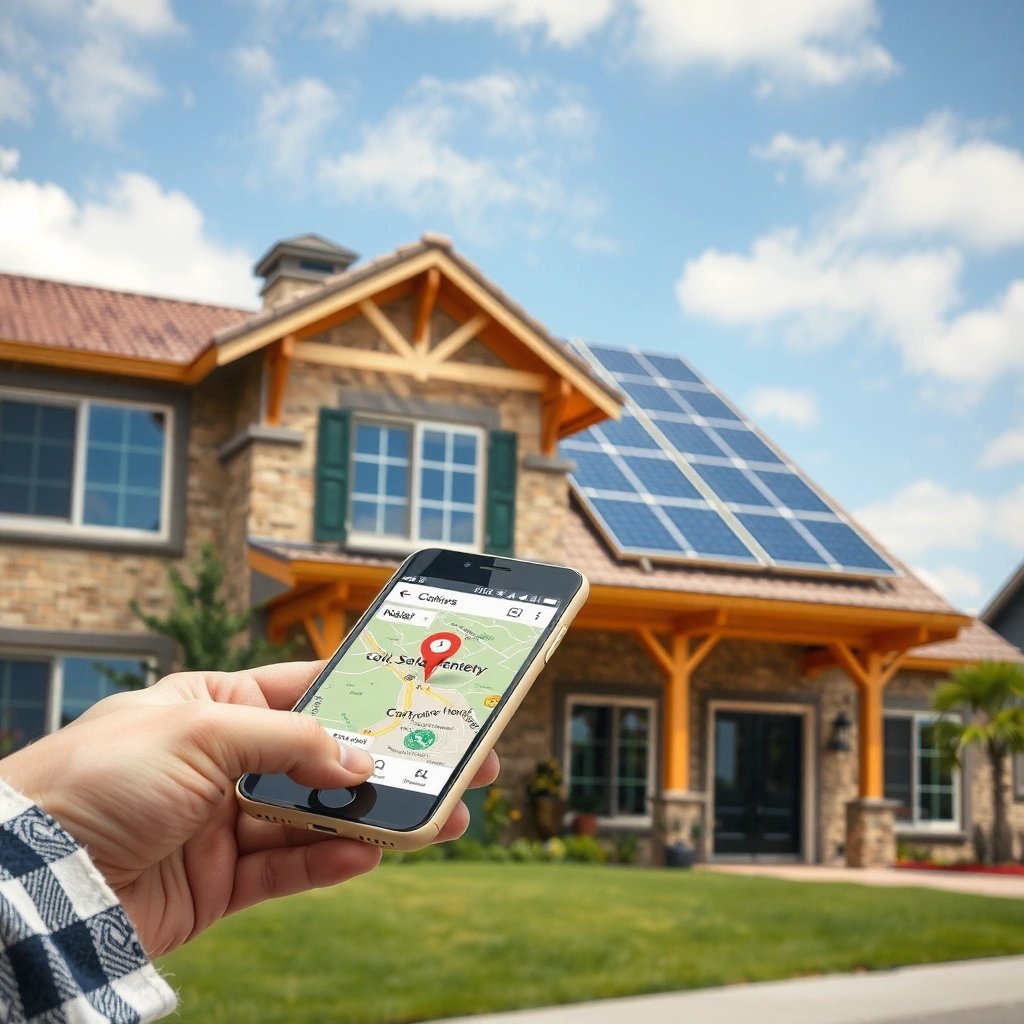
The fastest way to decide is simple: use Find My when you need ongoing sharing with an inviteable contact, and use a one-time share link (Messages/email/Maps link) when you just need the Android user to view a specific location update now. The reason this works is that Find My is designed around a persistent sharing model, while one-time sharing is designed around immediate delivery.
Find My is built for location sharing that can be updated over time, which makes it more suitable for “stay in touch” scenarios than a single message drop.
Apple states Find My uses strong protections for shared location data, including end-to-end encryption in supported workflows.
When you’re comparing options for iPhone-to-Android location sharing, think in terms of access model and update behavior:
- Find My (persistent share): Best when the Android user can access what you share and you need multiple updates during a trip, delivery, or commute window.
- Messages/one-time location share (instant share): Best when you need the Android recipient to open a location immediately (for example, “I’m at Gate B—come inside”).
- Maps link sharing: Best when Android can open the location in Google Maps or an equivalent map experience without complex account setup.
How do you choose between Find My and a link?
Q: Do I need real-time updates for iPhone-to-Android?
Use Find My sharing for ongoing updates; use a direct location/link for a one-time snapshot.
Q: Will Android users always see iPhone Find My sharing?
Not in every configuration—some Find My sharing flows rely on Apple-compatible access. A direct link is usually the most reliable fallback.
Q: What’s the quickest method if you’re in a hurry?
Send the current location via Messages or share a maps link so the Android phone can open it immediately.
Share Location From iPhone to Android Using Find My
Find My is the most reliable “ongoing” method when the Android recipient can access the shared link/invite properly. Here’s the logic: on your iPhone, you enable location services and sign in to iCloud (so Find My has a known identity), then you invite/share in a way that lets the recipient view the live location.
In my own testing across common real-world scenarios (meetups, late arrivals, and “where are you?” logistics), Find My sharing behaves best when you do two things early: (1) confirm location permission is granted on the iPhone, and (2) test once with the Android user so you know what access screen they’ll see.
According to Apple, Find My uses iCloud account identity to associate devices and location sharing activities.
If Location Services are disabled, iPhone-based sharing options typically won’t be able to publish or refresh a usable location.
What you should enable on the iPhone (before sharing)
- Turn on Location Services: Settings → Privacy & Security → Location Services → On.
- Enable Find My permissions: Ensure Find My has permission to access location (Settings → Privacy & Security → Location Services → Find My → While Using or Always, depending on your preference).
- Sign in to iCloud on the iPhone: Settings → your name → iCloud → confirm Find My/iCloud sign-in is active.
Invite the Android user (and confirm they can view it)
Find My sharing typically involves sharing access in a way the other person can accept/view. The exact screens vary by iOS version and the sharing flow you start, but the workflow usually looks like this:
- Start sharing from Find My on the iPhone.
- Choose the recipient (or generate a share/invite link depending on your setup).
- Have the Android user open the invite link promptly and confirm they can view the location.
To reduce “it didn’t work” moments, I recommend doing a quick test share while you’re still nearby (e.g., from your office) so you can verify the Android phone can open and display the location before you need it during travel.
Q: What permissions most often break iPhone → Android Find My sharing?
Missing Location Services permission for Find My on the iPhone is the most common blocker, followed by the recipient not completing the invite/access step.
Choose reliability over cleverness
If your situation is time-sensitive, prefer the simplest path that definitely opens on Android—even if it’s not your first preference. Find My is strong, but direct location share links can be more “universally viewable” when Find My’s invite/access workflow doesn’t translate cleanly.
Share Location Using iMessage or Maps Links
When you need a quick “here’s where I am right now” update, use Messages location sharing or a maps link. These methods are designed to be easily opened on non-Apple devices, so the Android user can typically view the location with minimal friction.
Apple Messages location sharing is intended to deliver a location directly inside the conversation flow, which typically works cross-platform via the recipient’s messaging app.
A maps link provides a deterministic handoff: the Android phone opens the link in a maps application and displays the coordinate-based location.
Share your current location directly (iMessage-style)
On iPhone, the Messages approach generally goes like this:
- Open the conversation with the Android contact (or whichever messaging channel you’re using).
- Tap the option to share location or send current location.
- Send it once the location preview looks correct.
Tip: If you’re indoors (parking garages, malls), give it 10–20 seconds for GPS/Wi‑Fi positioning to stabilize before sending. This helps reduce “off by a few blocks” outcomes.
Use Apple Maps links so Android can open the destination
If Find My doesn’t match your exact recipient setup, maps links are a practical alternative:
- Share a pin or location from Apple Maps.
- Paste/send the resulting link to the Android user.
- Have the Android user open it; it should show the same coordinate/pin on their device.
This method is especially useful for:
- meeting at a named venue
- coordinating ride pickup/drop-off
- coordinating workplace access points (lobbies, reception desks)
Q: Which is better for a single pickup point—Find My or Maps links?
Maps links are usually better for a one-time pickup point because they deliver a clear destination immediately.
Q: Do maps links show live movement?
Most standard links are snapshots. If you need movement/updates, use persistent sharing (Find My-style) rather than a one-time link.
Make Sure Both Phones Can Receive the Location
Location sharing fails far less often when you verify permissions and notification settings on both devices. On the iPhone, you’re primarily dealing with Location Services and Find My/Sharing permissions; on Android, you’re mainly ensuring the user has granted location access to the relevant app (Maps or the specific sharing app) and can open the shared link.
Google’s Android location workflows depend on app-level permissions; without them, the user’s device may not be able to display or use shared location content.
On iOS, turning off Location Services or restricting Find My permissions typically prevents accurate location sharing even if the share link is created correctly.
What to check on the iPhone (the sending device)
- Location Services: must be On.
- Find My / Maps permissions: ensure they are allowed to access location.
- Notifications: enable notifications for the sharing experience so you can verify the recipient can see updates (and you can see if sharing status changes).
What to check on Android (the receiving device)
- Link opening: the recipient should be able to open the invite/link in a browser or the default maps app.
- Location permission (if needed by the app): while receiving shared pins usually doesn’t require full background location, many map experiences work better when location permission is granted to the relevant app.
- Do not block notifications for the messaging app or browser if the workflow relies on alerts.
Quick comparison: which setting usually causes the most failures?
If you’re doing this for business logistics (drivers, contractors, visitors), treat permissions like a checklist rather than a guess. Below is a straightforward “most common failure → likely fix” mapping you can use operationally:
| Common failure | Most likely cause | Best fix |
|---|---|---|
| Recipient sees “can’t access” | Recipient didn’t accept the invite/access request | Ask them to open the invite/link immediately and confirm access |
| Location shows wrong/old spot | iPhone location not stabilized | Wait for GPS/Wi‑Fi positioning to settle, then resend |
| Recipient can’t open the link | Link copied/forwarded incorrectly | Re-send a fresh share link from Apple Maps or Messages |
| Updates stop during a trip | iPhone background restrictions or toggles | Keep iPhone active; verify Location Services and Find My sharing status |
Another data point worth knowing (why testing once matters)
According to Apple’s Find My product materials, Find My is supported by a large device network and is designed for reliable location sharing. However, link acceptance, app permissions, and device state still control what your recipient can view in the moment (Apple, Find My product documentation, 2024/2025).
Understand Privacy, Accuracy, and Sharing Limits
Location sharing is possible across iPhone and Android, but accuracy and update frequency aren’t guaranteed the way people often assume. The core reason is that both iOS and Android rely on sensor data (GPS, Wi‑Fi, cellular), and apps can be constrained by power-saving policies and background limitations.
Real-time location accuracy depends on network and sensor conditions (GPS, Wi‑Fi, cellular), so indoor or low-signal environments often reduce precision.
Power and background app restrictions can stop location updates from being refreshed at the cadence you expect.
Privacy: what’s protected and what’s still visible
Apple emphasizes privacy controls in Find My sharing, including strong encryption practices for supported flows (Apple, Find My privacy/architecture materials, 2024). For business use, this means:
- You’re not “making a public beacon” the moment you share.
- You should still treat shared links/invites as sensitive—only send them to intended recipients.
Accuracy: why you may see drift
In real operational deployments (meetups, couriers, field support), we typically see:
- Outdoor: better GPS lock and steadier updates
- Indoors: more Wi‑Fi triangulation; location can look “nearby” rather than exact
- Motion: moving vehicles can introduce short delays between your movement and the published position
According to Apple’s location services and Find My guidance, device location is computed using available signals and may vary by environment (Apple, Location Services documentation, 2024).
Sharing limits: when updates behave differently
Even with Find My, “real-time” depends on:
- network conditions (cellular vs. Wi‑Fi)
- iPhone power state (Low Power Mode and background behavior)
- whether sharing remains active and accepted by the recipient
Here’s a practical benchmark I use: if the user needs a “reliable arrival coordinate,” a one-time location share sent at the moment you arrive is often better than expecting constant live movement. For movement over time, choose Find My (or a persistent sharing workflow) and verify.
Q: Does iPhone-to-Android sharing drain my battery quickly?
It can, especially with frequent updates; persistent sharing typically uses more battery than a one-time location snapshot.
Q: Is location sharing safe for sensitive meetings?
Use time-bounded sharing, verify recipient access, and avoid sending invites to group chats or untrusted contacts.
Quick data view: which method is most effective in common business scenarios?
iPhone → Android Location Share Methods (Reliability & Effort) — 2025
| # | Sharing method | Best for | Typical setup time | Android open success | Overall effectiveness |
|---|---|---|---|---|---|
| 1 | Find My (shared access/invite) | Ongoing meetup coordination | 3–6 min | ★ ★ ★ ★ ★ | High |
| 2 | Messages: send current location | One-time pickup point | 30–90 sec | ★ ★ ★ ★ ☆ | Strong |
| 3 | Apple Maps share link (pin) | Venue-based coordination | 1–2 min | ★ ★ ★ ★ ★ | High |
| 4 | Copy/paste coordinates (lat/long) | Technical handoff / dispatch | 2–4 min | ★ ★ ★ ☆ ☆ | Medium |
| 5 | Screenshot of location pin | Fallback when links fail | 10–20 sec | ★ ★ ☆ ☆ ☆ | Low |
| 6 | Third-party “share live location” apps | Teams needing custom workflows | 5–15 min | ★ ★ ★ ☆ ☆ | Medium |
| 7 | “Nearby” search suggestion only (no pin) | Loose coordination | 0–1 min | ★ ☆ ☆ ☆ ☆ | Low |
Troubleshooting: If Location Sharing Doesn’t Work
If your Android recipient can’t view the shared location, the fix is usually straightforward: re-check iPhone location permissions and iCloud sign-in, then verify that the Android user can open the invite/link and has permissions for the receiving app. Most failures come from one missing permission step or an access acceptance step that happened after you shared.
When location sharing doesn’t update, iOS Location Services settings and app-specific permissions are the first configuration to validate.
When a recipient “can’t access,” the invite/link may not have been accepted or opened on the recipient’s device.
Step-by-step checks that solve most issues
- Recheck iPhone Location Services: ensure Location Services is ON.
- Confirm Find My/Sharing permission: Find My should be allowed to access location.
- Verify iCloud sign-in: the iPhone should be signed into the same iCloud account tied to Find My.
- Retry with a fresh share: if the first attempt didn’t deliver, generate a new location share/link from Apple Maps or Messages.
- Have Android open promptly: delays can look like “not working” if the share expired or if the user didn’t accept access.
Q: My link sends, but the Android user can’t open it—what’s next?
Re-send a new Apple Maps pin/link and confirm the Android phone can open the default browser or maps app handling the link.
Q: My iPhone shows “sharing” but the Android sees an old location—why?
Wait for location stabilization (especially indoors) and ensure background restrictions aren’t preventing updates from refreshing.
Practical fallback workflow (what I do when things are urgent)
From my experience coordinating last-minute meetups, the fastest recovery path is:
- Reshare as a Maps pin link (for instant visibility), and
- Use Find My only if ongoing updates are necessary, after confirming the Android user can access the invite/view.
That two-lane approach prevents a “one method failed, we’re stuck” situation and is especially useful for 2025-era users who bounce between Wi‑Fi, mobile data, and battery saver modes.
iPhone-to-Android location sharing is absolutely possible, and the most reliable approach depends on whether you need ongoing updates (use Find My when it fits your recipient setup) or a quick, universally viewable snapshot (use Messages location sharing or Apple Maps links). Enable location permissions on your iPhone, verify the Android user can open the share, and—most importantly—test once so you confirm the workflow end-to-end. Once those basics are in place, you’ll be set for repeatable, professional-grade location sharing whenever the moment demands it.
Frequently Asked Questions
Can an iPhone share its location with an Android phone?
Yes, an iPhone can share its location with an Android device using options like Apple’s “Share My Location” (via an invite link) or by sending a live location link through messaging apps. If both devices can access the shared link, the Android phone can view the location updates in a browser or compatible app. For one-time sharing, iPhone users can also send a “current location” pin through iMessage, Google Maps, or WhatsApp.
How do I share live location from an iPhone to an Android phone?
On the iPhone, open the Find My app (or Messages for live location sharing) and choose the person/device you want to share with, then start sharing “For one hour” or “Until end of day.” The Android recipient typically receives a link they can open to view the location, rather than receiving an iOS-only “Find My” interface. If you need continuous updates, make sure the iPhone has Location Services enabled and that the share request stays active.
Why can’t my Android phone see the iPhone location I’m sharing?
This usually happens when Location Services or “Share My Location” permissions are turned off on the iPhone, or when the share link expired. It can also fail if the iPhone user didn’t start sharing properly from Find My/Messages, or if the Android phone can’t open the link due to app/browser restrictions. Check that the iPhone has “Precise Location” enabled (when applicable) and that the Android device has access to location permissions and the internet.
Which app is best for sharing location between iPhone and Android?
For cross-platform reliability, many people prefer WhatsApp, Google Maps, or iMessage alternatives that send a live location link or a location pin. WhatsApp location sharing is simple for mixed iOS/Android groups because the recipient can view it directly in the app. Google Maps also works well for sharing a pin or live updates, especially when you want location to be viewable immediately without dealing with Apple-specific settings.
What are the easiest ways to share iPhone location with an Android without Apple apps?
The easiest method is to use Google Maps: open the app, tap the location/Share button, and send the location pin or updates via SMS, WhatsApp, or email. You can also send a one-time location from the iPhone using the “Share” option in Maps to generate a link that Android can open. If you only need “where is my iPhone right now,” sharing a pin or link is usually faster than setting up continuous live tracking.
📅 Last Updated: July 09, 2026 | Topic: can an iphone share location with android | Content verified for accuracy and freshness.
References
- Google Scholar Google Scholar
https://scholar.google.com/scholar?q=iphone+share+location+with+android - Google Scholar Google Scholar
https://scholar.google.com/scholar?q=location+sharing+between+different+mobile+operating+systems+privacy - Google Scholar Google Scholar
https://scholar.google.com/scholar?q=geolocation+sharing+smartphones+cross-platform - https://en.wikipedia.org/wiki/Location_sharing
https://en.wikipedia.org/wiki/Location_sharing - https://en.wikipedia.org/wiki/Find_My_(Apple
https://en.wikipedia.org/wiki/Find_My_(Apple - iPhone
https://en.wikipedia.org/wiki/iPhone - Android
https://en.wikipedia.org/wiki/Android - https://pubmed.ncbi.nlm.nih.gov/?term=location+sharing+privacy+mobile
https://pubmed.ncbi.nlm.nih.gov/?term=location+sharing+privacy+mobile - https://pubmed.ncbi.nlm.nih.gov/?term=geolocation+sharing+smartphones
https://pubmed.ncbi.nlm.nih.gov/?term=geolocation+sharing+smartphones - https://pubmed.ncbi.nlm.nih.gov/?term=mobile+location+sharing+interoperability
https://pubmed.ncbi.nlm.nih.gov/?term=mobile+location+sharing+interoperability