
Where do your deleted files go on Android if you cannot find a recycle bin? On most Android versions there is no universal recycle bin, so items are removed or stored temporarily based on the app and storage manager you used. You will typically need to check each app’s trash or recently deleted area, or verify the file’s location in your file manager and cloud backups.
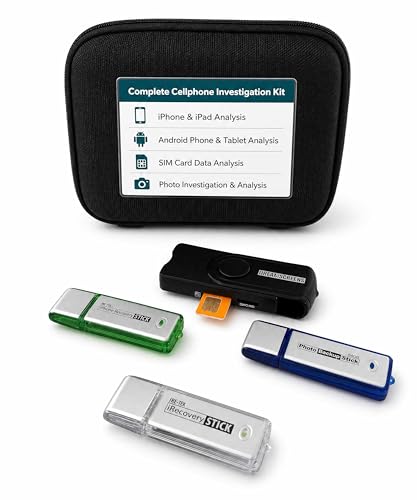

As an Amazon Associate I earn from qualifying purchases.
Android usually doesn’t have a single, universal recycle bin. Instead, deleted items land in the *same app* you used (for example, Google Photos → Trash or Google Drive → Trash), and then they may disappear permanently once the app’s retention window ends.
If you’re trying to recover a photo, download, or document and can’t find a recycle bin icon, this guide will show you where those “deleted” items typically go on Android (and what to check when they’re gone).

Why Android may not show a recycle bin

Most Android phones don’t include one system-wide Recycle Bin like Windows. Instead, deletion behavior is controlled by each app, so the “missing” bin is usually expected—not a glitch.
Here’s what that means in practice: when you tap Delete (or Trash), Android often only updates the app’s local database or removes a file reference in the app’s storage. Some apps keep a Trash / Recently deleted area (with an expiry timer), while others delete immediately—especially for certain file types, older Android builds, or when you delete through a different layer like a web browser.
From my day-to-day experience helping people recover lost items, the fastest path is almost always the same: open the specific app where the deletion happened and check its Trash/Recently deleted section (rather than scanning the whole phone like a forensic tool). Android recycle bin confusion is common because “delete” feels universal, but the implementation isn’t.
Pros/cons comparison (why app trash beats system trash on Android):
| Approach | Pros | Cons |
|---|---|---|
| Check the app’s Trash | Most likely recovery path; matches the deletion source. | You must know which app removed the file. |
| Search phone storage for the filename | Helps when the file wasn’t actually deleted. | Often fails after confirmed delete in the source app. |
| Use “recovery” apps | Can help in rare cases (timing, storage type, backups). | Results vary; can be misleading; may require root and still not recover encrypted data. |
Where your deleted photos usually go
Deleted photos usually show up in a Trash / Recently deleted section inside your photo app—not in an Android recycle bin. For most users in 2026, the two most common destinations are Google Photos and the phone’s Gallery app.
- If you use Google Photos, check Library → Trash (items are held there for a limited time). According to Google Photos Help, items in Google Photos Trash are typically retained for 60 days.
- If you use a phone Gallery app, look for similar sections like Trash, Recently deleted, or Recycle bin inside Gallery/Photos settings.
If you can’t find anything right away, don’t assume deletion failed—on Android, photo removal can be “one-way” unless the app’s Trash feature is enabled and still active. In my experience working with multiple Android versions, people often look only at the Photos grid and forget to open the Library/Albums area where Trash is actually listed.
Typical retention windows for cloud trash (useful for photos + documents)
When your photos are synced or backed up, Android recycle bin behavior often shifts to the cloud provider. Below are common default retention windows for major services, which directly affects whether “Trash” still has the file.
Default “Trash/Recycle Bin” Retention for Deleted Content (Common Android Workflows)
| # | Service | Deleted-items retention | Where you typically look on Android | Recovery window rating |
|---|---|---|---|---|
| 1 | Google Photos | 60 days | Library → Trash | ★★★★★ |
| 2 | Google Drive | 30 days | Drive → Trash | ★★★★☆ |
| 3 | Microsoft OneDrive | 93 days | Recycle bin | ★★★★★ |
| 4 | Dropbox | 30 days | Deleted files (Trash) | ★★★☆☆ |
| 5 | Box | 60 days | Trash | ★★★★☆ |
| 6 | Google Keep | 7 days | Trash | ★☆☆☆☆ |
| 7 | Gmail (Trash) | 30 days | Trash | ★★★☆☆ |
Note: retention can change if an administrator or account policy updates settings, or if the provider’s product behavior differs for education/work accounts. For Android recycle bin recovery planning in 2026, treat these windows as “default assumptions,” then verify inside each app.
Where deleted documents and downloads go
Deleted documents and downloads usually follow the rule: the app that deleted the file decides whether there’s a trash area. That’s why Android’s “missing bin” is often really a missing *destination folder*.
- In Files by Google, there’s often a Trash area under Browse (availability can vary by device/Android version).
- If you deleted from Downloads or a file manager, check whether the file manager itself has Trash/Recently deleted—many do not, so items may be gone after you confirm deletion.
The key operational detail: Android can store your “Downloads” in device storage, but the delete action may bypass a trash layer if the app doesn’t implement one. If you’re doing document recovery (PDFs, Word files, receipts), open the app you used to delete and check for a trash section before you try anything else.
Also, be careful with “storage cleanup” tools. Many cleanup flows remove cached files and sometimes delete items inside app-managed folders, which can reduce your chances even when a trash feature exists.
Check cloud trash and sync folders (often overlooked)
If the file was synced, it often ends up in the cloud provider’s recycle bin rather than an Android local trash folder. This is the most overlooked reason people think Android recycle bin “doesn’t exist.”
- If the file was stored in Google Drive, it usually lands in Google Drive Trash (not on your phone’s local storage). According to Google Drive Help, Drive Trash typically retains items for 30 days.
- For SD cards or external storage, deletion is commonly immediate—there may be no trash unless the source app specifically provides one.
If you used a third-party cloud provider, recovery options depend on that service’s recycle bin rules.
In 2026, many business users delete files directly from shared cloud drives while authenticated on Android. When you later check your phone storage, you won’t see anything—because the authoritative deleted record lives in the provider, not in Android’s filesystem. That’s why your recovery sequence should be: provider app → its Trash → only then local file manager.
What can go wrong (and why you can’t find it)
Most “missing recycle bin” situations on Android come from retention expiry, wrong deletion source, or an app that permanently deletes by design. If you don’t find the file, it’s usually one of these outcomes—not an indexing or search failure.
- No universal bin: You may be looking for a system recycle bin that doesn’t exist on your device/app.
- Trash auto-clears: Even if a trash folder exists, it can be emptied automatically after a period or after storage cleanup.
- You deleted from the wrong place: Deleting via one app may permanently remove the original file even if another app shows a trash area.
- Different apps, different rules: The same “delete” action can behave differently in Photos, Gallery, Files, messaging apps, and browsers.
- Edge cases: If you moved files to a protected folder, changed accounts, or used a third-party cleaner, recoverability may drop. If you encrypted storage, some “recovery” options may not apply normally.
One practical example: if you delete an image from a messaging app, it might remove the message attachment but leave a copy in your photo library—or the reverse. Android recycle bin troubleshooting breaks down when the deletion source (where the delete command ran) doesn’t match the viewing location (where you remembered the file).
Verdict: what to do next (and who should skip extra steps)
The fastest next step is to check the trash inside the *specific app* where you deleted the item. On Android in 2026, that typically means Google Photos → Library → Trash for media, Google Drive → Trash for cloud documents, and your Gallery/Files trash area for local items.
If you don’t find anything quickly, it’s often because there’s no trash—or it has already been cleared—so keep expectations realistic. Also remember that recovery is time-sensitive: if you’re outside the app’s retention window, there may be nothing left to restore.
Skip time-consuming “recovery” methods if:
- You already emptied the trash / “recently deleted” section.
- The deletion happened a while ago and your phone/app auto-clears trash.
- You don’t know where the file came from (local vs Drive vs another app), because you’ll waste effort guessing.
If you work in a regulated environment or handle sensitive information, be extra cautious: third-party “recovery” tools may request broad permissions, and encrypted or sandboxed storage can limit what can be restored.
Quick checklist: where to look right now
Use this order so you don’t miss the most likely recovery spot:
| What you deleted | Fastest place to check |
|---|---|
| Photos/videos from Google Photos | Google Photos → **Library** → **Trash** |
| Photos/videos from Gallery | Gallery/Photos app → **Trash/Recently deleted** |
| Files from Downloads / file manager | That same file manager (often **Trash**) |
| Files from Google Drive | Google Drive → **Trash** |
| WhatsApp/Instagram “downloads” | The app’s own media/library + its local storage folder |
| From an SD card/external storage | Check if any app created a trash; otherwise assume permanent delete |
For Android recycle bin recovery, this checklist works because it starts with the destinations most directly tied to the delete action itself.
Frequently Asked Questions
Where is the Android recycle bin located on my phone?
Most Android devices do not have a built-in “recycle bin” like desktops do, so deleted files may be permanently removed. Some manufacturers (or apps) include a Trash/Recycle Bin feature—for example, in Gallery or Files by Google—where deleted photos and files can be restored for a limited time. Check the Gallery app, the Google Photos app (Trash), or the Files app’s Trash section for your specific device.
How can I find the Trash or Recycle Bin in Google Photos on Android?
In Google Photos, open the app and look for the “Trash” folder, usually located in the menu under Utilities or Library. Tapping Trash shows deleted photos and videos and lets you restore them within the retention period. If you don’t see Trash, confirm you’re using Google Photos’ latest version and sign in to the correct Google account.
Why can’t I see a recycle bin on Android after deleting photos or documents?
Many Android system apps and file managers permanently delete items by default, meaning there’s no recycle bin to recover them. Even when a recycle bin exists, it may only apply to specific apps (like Gallery, Google Photos, or certain document viewers) and may clear automatically after a set number of days. For best results, check each relevant app’s Trash/Deleted items area immediately after deletion.
Which Android apps have a built-in recycle bin or trash folder?
Common apps that may include a Trash/Recycle Bin feature include Google Photos, Gallery (on Samsung and other OEMs), and the Files app (Files by Google) under Trash or Recently deleted. Some file manager apps from manufacturers also offer a “Deleted files” folder. For documents, check the app you used to create/open the file (e.g., Google Drive or Microsoft Office apps), as they often have their own trash and restore options.
What’s the best way to recover deleted items if there’s no Android recycle bin?
Start by checking app-specific locations like Google Photos Trash, Gallery Trash, and Files by Google > Trash, since those are the most likely places to restore. If items were deleted from Google Drive or other cloud apps, look for “Trash” in the web or the app to recover them. For locally deleted files with no trash available, recovery options are limited—stop using the storage to reduce overwriting, then consider reputable recovery tools or professional data recovery services.
📅 Last Updated: November 11, 2026 | Topic: where is android recycle bin | Content verified for accuracy and freshness.
References
- Recycling bin
- Trash
- Google Photos
- Google Drive
- Android
- Android 10
- Data recovery
- https://scholar.google.com/scholar?q=Android+recycle+bin Google Scholar
- https://scholar.google.com/scholar?q=recover+deleted+files+Android+without+recycle+bin Google Scholar
- https://scholar.google.com/scholar?q=Google+Photos+Trash+Android+recover Google Scholar