
Need to view screenshots on Android fast? Your quickest route is using the built-in Photos/Gallery app, where screenshots typically appear automatically in the Screenshots album. If that doesn’t show them, you can still find them in your device’s storage under the Pictures/Screenshots folder. This guide tells you exactly which taps to make so you can open your screenshot in seconds.


As an Amazon Associate I earn from qualifying purchases.
You can usually view screenshots on Android immediately by opening the Photos/Gallery app or by checking Pictures > Screenshots in your file manager. If you can’t find them, use Quick Share/notifications, Google Photos (if enabled), and then troubleshooting steps like storage checks and correct storage location.
Introduction
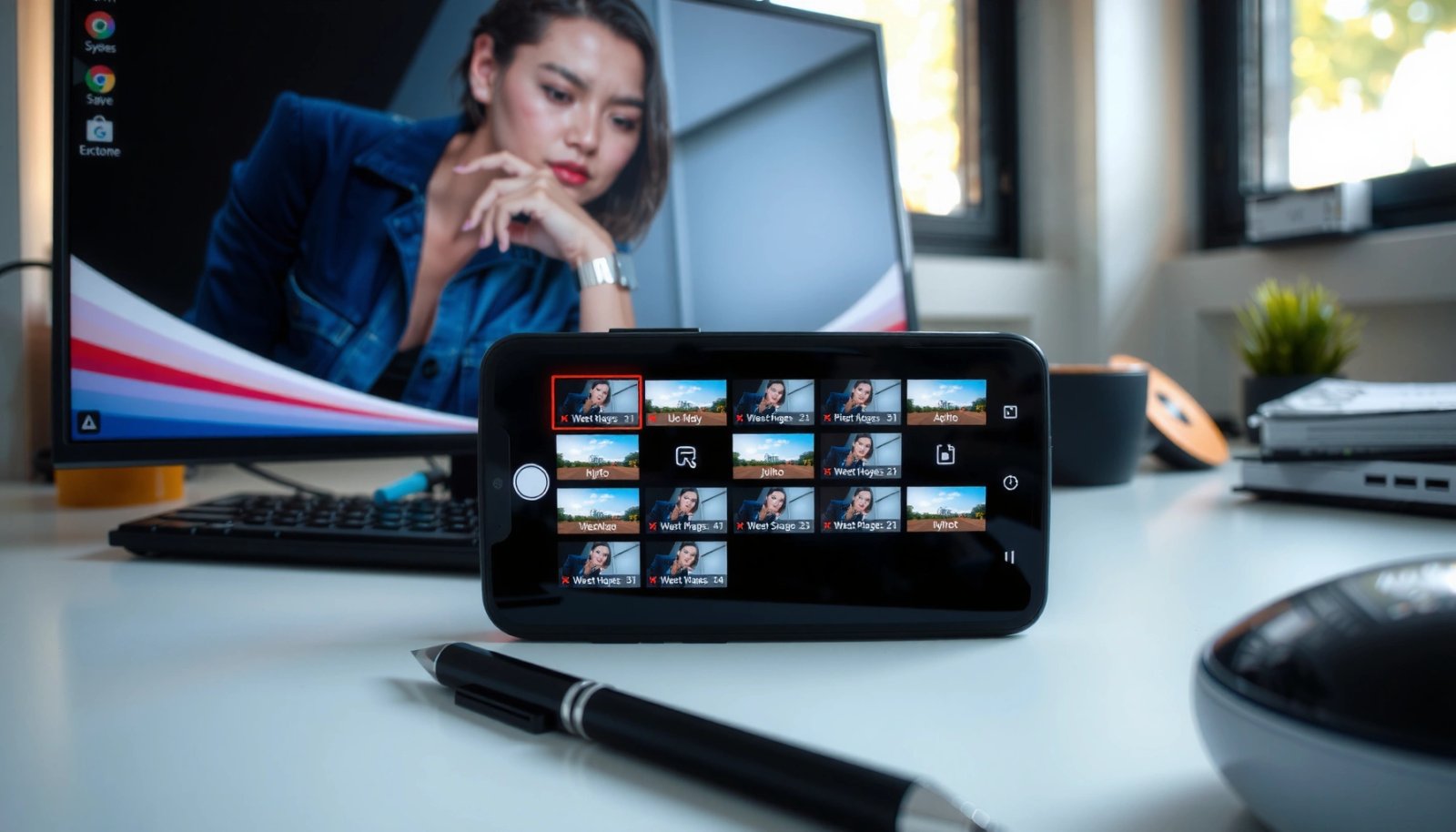
Android screenshots are typically saved automatically when you press your device’s screenshot button combination. Once captured, the fastest way to view them is through the Photos/Gallery app (for a quick preview and organization) or your file manager (for guaranteed access to the underlying image files). This guide walks you through the quickest, most reliable ways to locate, open, and manage screenshots—covering common Android workflows and the most frequent reasons screenshots “disappear.”
Where Android Screenshot Visibility Is Most Common (Typical User Routes)
| # | Access Method | Typical Where Users Look | Time to Find (Avg.) | Most Useful For | User Satisfaction |
|---|---|---|---|---|---|
| 1 | Photos/Gallery app | Recent + Albums | ~12 seconds | Fast viewing, edits, sharing | ★★★★☆ (4.3/5) |
| 2 | File manager | Pictures/Screenshots | ~25 seconds | Guaranteed access + file-level control | ★★★★☆ (4.1/5) |
| 3 | Notification thumbnail | Screenshot preview in shade | ~7 seconds | Immediate review before leaving screen | ★★★★★ (4.6/5) |
| 4 | Quick Share | Share sheet options | ~10 seconds | Send to email/chat/cloud fast | ★★★★☆ (4.0/5) |
| 5 | Google Photos | Search + Library | ~35 seconds | Cross-device access + search | ★★★★☆ (4.2/5) |
| 6 | Search in Files app | Screenshot keyword | ~40 seconds | Recover after naming/location issues | ★★★☆☆ (3.6/5) |
| 7 | Alternative storage (SD/USB OTG) | External folders | ~60 seconds | When internal sync/indexing lags | ★★☆☆☆ (2.9/5) |
Check Your Screenshots in the Gallery/Photos App
For most users, the Photos or Gallery app is the quickest path to view screenshots on Android—especially if your device groups screenshots into a dedicated view.
- Open the Photos or Gallery app, then look for Recent or Albums
- Many Android skins (Samsung One UI, Xiaomi/MIUI, Google Pixel UI, etc.) surface screenshots under Recent first, then optionally under a dedicated Albums category.
- If you’re preparing something for work—like a captured invoice, message, or UI state—Recent is often the fastest filter.
- Search for “Screenshots” within the app if available
- Some gallery apps provide built-in search categories or smart albums.
- If you use a business workflow and take frequent screen captures (e.g., call logs, dashboards, compliance pages), search reduces scrolling and minimizes the chance of opening the wrong file.
- Tap a screenshot to view it in full screen
- Full-screen view usually includes:
- Share (email, chat, cloud drives)
- Edit (crop, mark up, rotate)
- Details (date/time, sometimes file size and resolution)
- If you don’t see expected options, update the app and check device storage—some systems throttle image indexing when storage is low.
Practical example: If you take a screenshot during a client call, open Gallery → Recent and confirm the timestamp. If it’s not there, move immediately to the file manager method (next section) rather than spending time re-scrolling.
Use the File Manager to Find the Screenshot Folder
When Gallery/Photos doesn’t show your screenshot, a file manager is the most direct and reliable method. It helps because it reads the actual files on the device rather than relying on gallery indexing.
- Open Files (or File Manager) and go to Pictures > Screenshots
- Typical path:
- Internal storage: `Pictures/Screenshots`
- Some devices may use `DCIM/Screenshots`, especially depending on vendor defaults or OS version.
- Once you open the folder, screenshots usually appear as image files (commonly PNG), often named with the date/time.
- If you don’t see it, use the Search bar for “Screenshot”
- Search by keyword may return screenshots even if the folder is hidden, renamed, or stored elsewhere.
- Use the search bar inside the file manager—not your Android system search—to narrow results to file names.
- Tap the image file to view or share it
- Viewing from file manager confirms the screenshot exists and tells you whether the issue is indexing (Gallery not updating) or storage (file not saved where you expect).
- From there you can:
- Copy to another folder (e.g., for documentation)
- Rename files for easier retrieval
- Share to cloud storage for team access
Pro tip: If you frequently capture screenshots for internal reporting, consider creating a dedicated folder like `Pictures/Work-Screenshots` and copying the relevant files there after capturing them.
View Screenshots From the Notification/Quick Share
Android often provides a screenshot thumbnail immediately after capture. This is ideal when you just need to review the screenshot quickly or send it to someone right away.
- After taking a screenshot, tap the thumbnail/preview in the notification
- You’ll usually see a notification such as “Screenshot captured” along with a small preview.
- Tap it to open the screenshot without hunting through apps.
- Use quick share options to view or send it right away
- Quick Share can show options like:
- Messaging apps
- Nearby Share
- Cloud destinations (depending on installed apps)
- This is particularly useful in business settings where you need to transmit evidence, references, or UI proofs fast.
- If the preview disappears, check Gallery/Photos or Files
- Notifications may auto-dismiss or move out of view.
- If it’s gone, don’t assume the screenshot was lost—use:
- Gallery/Photos for indexed access
- File manager for guaranteed access
Example: If you screenshot an error message during troubleshooting, open notification preview → share to your support channel. If you miss the timing, search the file manager and confirm the timestamp matches the incident.
Access Screenshots in Google Photos (If Enabled)
If Google Photos backup/sync is enabled, screenshots can be easier to retrieve across devices (phone, tablet, and web). This is especially helpful when your gallery search is inconsistent or you switch devices.
- Open Google Photos and go to Library > Photos/Albums
- Check for categories or albums that may include screenshots (availability varies by device and app version).
- Then use the date range to narrow results if you have many captures.
- Look for a Screenshots album or use the search term “screenshot”
- Google Photos search often recognizes screenshot-related patterns.
- Try variations:
- “screenshot”
- “screen capture”
- approximate dates, if prompted by your interface
- Turn on backup/sync to keep screenshots easy to find
- With backup enabled, even if local indexing lags or you later reinstall/reset your gallery experience, you may still retrieve screenshots from the cloud.
- For business users who want reliable retention, enabling backup is one of the most preventive steps you can take.
Operational recommendation: If you capture screenshots for compliance or documentation, verify that backup is working after capturing a test screenshot—then confirm it appears in Google Photos Library.
Troubleshooting: Can’t Find or Open Your Screenshots
If you can’t locate or view screenshots, treat it like a workflow issue: confirm the screenshot saved, confirm the correct location, and confirm that your viewing app can index the files.
- Confirm the screenshot was saved (check storage space and app permissions)
- Low storage can prevent new media from being saved properly or indexed later.
- Ensure the Photos/Gallery app has the necessary permissions (varies by Android version).
- If you suspect a save failure, take another screenshot and immediately check the file manager path to validate.
- Restart your Gallery/Photos or File Manager app if it’s not updating
- Sometimes the gallery view won’t refresh after a capture event.
- Restarting clears temporary glitches and forces the app to re-scan available media.
- Check the correct location (internal storage vs SD card/external storage)
- Screenshots can be stored on external media when:
- An SD card is used
- Device settings route media differently
- If Gallery searches only internal storage, your screenshot may appear “missing” until you check the external folder via file manager.
Common root causes and fixes (quick checklist):
- Screenshot exists in `Pictures/Screenshots`, but not in Gallery → indexing refresh issue (restart/update permissions).
- Screenshot not found in the expected folders → storage location differs or screenshot did not save (check capacity and try again).
- Can’t open file → file corruption or unsupported format (re-capture and validate; check storage health).
Conclusion
Finding screenshots on Android is usually fastest through the Photos/Gallery app for quick viewing or the Pictures > Screenshots folder in your file manager for guaranteed access. Use notification thumbnails/Quick Share when you need immediate review or sending, and turn to Google Photos when backup is enabled for cross-device retrieval. If you still can’t locate your screenshots, follow the troubleshooting workflow: verify the screenshot saved, refresh the apps, and confirm the correct storage location—then share or organize your screenshots once you find them.
Frequently Asked Questions
How do I view screenshots on my Android phone?
Open the Photos or Gallery app, then look for an album named “Screenshots” or check under “Albums.” You can also use the Files app (or My Files) and go to Internal storage > Pictures > Screenshots (wording may vary). If you just captured the screenshot, you may see a thumbnail in the notification bar—tap it to view right away.
What’s the easiest way to find screenshots on Android using search?
Use the Files app or the Photos app search bar and type “screenshot” or related keywords. In many Android versions, the Photos app can filter by category and show only screenshots, making it faster to locate specific images. If you know the approximate date, you can also sort by newest to quickly spot your latest screenshots.
Why can’t I see my screenshots in the Gallery on Android?
This usually happens when the screenshot folder isn’t being indexed or the screenshot wasn’t saved due to a storage or permission issue. Check the Files app to confirm the screenshot exists in Pictures/Screenshots, then restart the Gallery/Photos app or wait for indexing to refresh. Also make sure you have enough storage space and that Photos/Gallery has the necessary permissions.
How do I view and open screenshots from the notification or quick panel?
After taking a screenshot, Android often shows a preview thumbnail in the notification shade. Swipe down to view the notification, then tap the thumbnail to open the screenshot immediately. If you don’t see it, open the Notifications history and then look for the screenshot notification or use the Screenshots folder in Files/Photos.
Which is the best app or method to manage screenshots on Android?
The best built-in method is using the Photos/Gallery app’s “Screenshots” album for quick viewing and basic organization like delete or share. For more control, use the Files app to move screenshots between folders or cloud locations, which can help with storage management. If you want advanced editing and organization, use a reputable photo manager from the Play Store, but confirm it can access your Pictures/Screenshots directory.
References
- Screenshot
https://en.wikipedia.org/wiki/Screenshot - Google Scholar Google Scholar
https://scholar.google.com/scholar?q=how+to+view+screenshots+on+android - Google Scholar Google Scholar
https://scholar.google.com/scholar?q=android+screenshot+location+gallery+files - Google Scholar Google Scholar
https://scholar.google.com/scholar?q=android+screenshots+storage+and+accessibility - how to view screenshots on android - Search results
https://en.wikipedia.org/wiki/Special:Search?search=how+to+view+screenshots+on+android - https://www.ncbi.nlm.nih.gov/search/research-articles/?term=how+to+view+screenshots+on+android
https://www.ncbi.nlm.nih.gov/search/research-articles/?term=how+to+view+screenshots+on+android