To screenshot on Android, the fastest method for most phones is pressing the Power and Volume Down buttons at the same time. If that fails, your best backup is the built-in gesture or Quick Settings screenshot tool, which often works better on Samsung, Pixel, and other customized Android devices. This guide answers the exact question you came with: which screenshot method works best on your Android phone, and what to do when the standard shortcut doesn’t.


As an Amazon Associate I earn from qualifying purchases.
To screenshot on Android, press the Power and Volume Down buttons at the same time on most devices. If that does not work, you can also use Quick Settings, gesture controls, or Google Assistant depending on your phone brand and Android version. This guide will show you the most common screenshot methods, how to capture scrolling screenshots, and what to do if screenshots are not working.
Use the Standard Button Shortcut
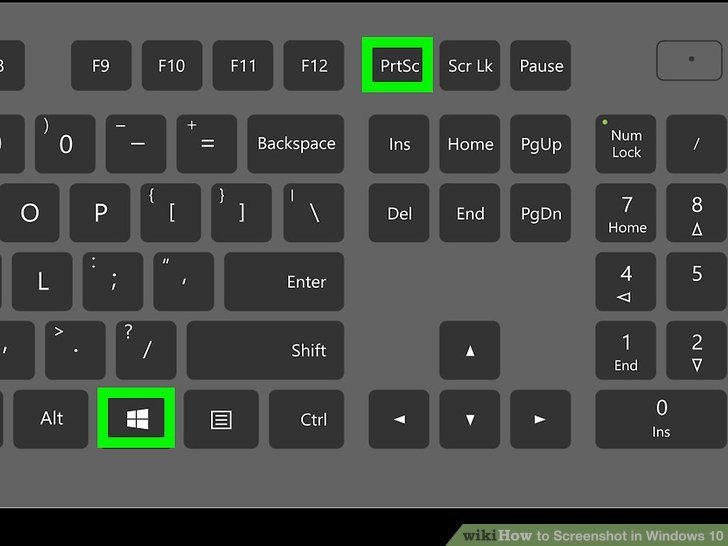
- Press the Power and Volume Down buttons together for 1-2 seconds
- Look for a screen flash, sound, or screenshot preview to confirm it worked
The standard Android screenshot shortcut is still the fastest and most universal method. On most phones and tablets running Android, you simply press Power + Volume Down at the same time and hold for about one second. If you hold too long, the power menu may appear instead, so timing matters. A quick, simultaneous press usually works best.
Once the screenshot is captured, Android typically confirms it with a brief screen flash, a shutter sound, vibration feedback, or a thumbnail preview in the corner of the display. Tapping that preview often opens built-in editing tools, which is useful if you need to crop sensitive information, highlight an area, or send the image immediately.
This method works across many Android devices, including Google Pixel, Samsung Galaxy, Motorola, OnePlus, Xiaomi, and other major brands. However, manufacturers sometimes add their own features on top of stock Android, which is why a phone may support additional screenshot shortcuts beyond the standard button combination.
If you use a phone case with stiff side buttons or your physical buttons are worn, this method can become less reliable. In that situation, software-based screenshot options are often more practical.
Try Brand-Specific Screenshot Methods
- Use palm swipe, three-finger swipe, or side panel tools if your phone supports them
- Check your device settings for screenshot gestures on Samsung, Xiaomi, OnePlus, and other brands
Android is not completely standardized across brands. While the button shortcut is common, manufacturers often include custom screenshot gestures designed to make screen capture faster and easier. These can be especially useful for one-handed use or for reducing wear on physical buttons.
For example, Samsung Galaxy phones may support Palm swipe to capture, which lets you swipe the side of your hand across the display. Xiaomi and some Oppo or Vivo models often include a three-finger swipe down gesture. OnePlus devices also commonly support a three-finger screenshot action and may include expanded tools for long screenshots. On some Android skins, you can also access screenshot tools through a smart sidebar, edge panel, or floating shortcut menu.
To find these options, open Settings and search for terms like screenshot, gestures, motions, or advanced features. Because menu names vary by manufacturer, the built-in search function in Settings is usually the quickest way to locate them.
Below is a practical comparison of common screenshot methods on major Android brands.
Common Android Screenshot Methods by Brand
| # | Brand | Default Shortcut | Gesture Option | Screenshot Tool Rating |
|---|---|---|---|---|
| 1 | Google Pixel | Power + Volume Down | Recent Apps screenshot button | ★★★★☆ |
| 2 | Samsung Galaxy | Power + Volume Down | Palm swipe to capture | ★★★★★ |
| 3 | OnePlus | Power + Volume Down | Three-finger swipe | ★★★★★ |
| 4 | Xiaomi | Power + Volume Down | Three-finger swipe down | ★★★★★ |
| 5 | Motorola | Power + Volume Down | Three-finger touch (select models) | ★★★★☆ |
| 6 | OPPO | Power + Volume Down | Three-finger swipe down | ★★★★★ |
| 7 | Vivo | Power + Volume Down | Three-finger swipe / shortcut center | ★★★★☆ |
The advantage of these brand-specific methods is convenience. A gesture can be faster than pressing two hardware buttons, particularly on larger phones. The downside is that these features are not always enabled by default, and they may differ significantly between models from the same manufacturer. For users managing multiple Android devices in a workplace or family setting, the standard button method remains the most consistent baseline.
Take a Screenshot Without Buttons
- Open Quick Settings and tap the Screenshot option if available
- Use Google Assistant or accessibility features to capture the screen hands-free
If your buttons are damaged, hard to reach, or simply inconvenient, Android still offers several ways to take a screenshot without using physical controls. The easiest alternative is often Quick Settings. Swipe down from the top of the screen to open the panel, look for a Screenshot tile, and tap it. If you do not see it immediately, edit your Quick Settings tiles and add it manually if your phone supports that option.
Another method is to use Google Assistant. You can say, “Hey Google, take a screenshot.” On supported devices, Assistant will capture the current screen and let you share or save it. This is especially helpful when your hands are occupied or when accessibility is a priority.
Some Android devices also offer accessibility menus, floating assistive buttons, or sidebar tools that include screenshot commands. These are commonly found under Settings > Accessibility or under manufacturer-specific convenience menus. For professionals who often capture screens for documentation, customer support, or internal reporting, enabling one of these software shortcuts can save time over repeated button presses.
One important note: if you use a voice assistant or software tool, results can vary slightly depending on Android version and whether you are inside a restricted app. Banking apps, streaming services, and secure enterprise apps may block capture regardless of the method used.
Capture a Scrolling Screenshot
- Tap “Capture more” or “Scroll” after taking a regular screenshot on supported devices
- Use this feature for long webpages, chats, or documents that do not fit on one screen
A standard screenshot captures only what is visible on the display at that moment. For longer content, such as webpages, chat threads, reports, settings menus, or online receipts, you will want a scrolling screenshot.
On many modern Android phones, the process starts with a normal screenshot. Immediately after capture, look for an option such as Capture more, Scroll, or Long screenshot. Tapping this expands the capture area downward so you can include more content in one image. On some devices, the phone scrolls automatically; on others, you manually adjust how much of the page to include.
This feature is particularly valuable for work use cases. Instead of sending five separate images of a long conversation or webpage, you can create one continuous screenshot that is easier to review and archive. It is also useful for documenting software issues, preserving transaction details, or sharing a full set of instructions with a team.
Keep in mind that scrolling screenshots do not work equally well in every app. They tend to perform best in browsers, messaging apps, and documents with straightforward vertical scrolling. Apps with custom interfaces, embedded media, or security restrictions may not support extended capture.
Find, Edit, and Share Your Screenshot
- Open the screenshot preview right away to crop, draw, or annotate
- Find saved screenshots in your Photos, Gallery, or Screenshots folder
After taking a screenshot, the next step is usually editing or sharing it. Most Android phones show a small preview right after capture. Tapping that preview often opens editing controls where you can crop, draw, highlight, or annotate the image. This is useful when you want to direct attention to a specific part of the screen or remove unnecessary content before sharing.
Screenshots are typically stored in one of three places:
- Google Photos
- Gallery
- Screenshots folder in your file manager
The exact location depends on your device and photo app. On many phones, screenshots appear in a dedicated album, which makes them easier to organize than searching through your full photo library. If you take screenshots frequently for work, support, or project documentation, consider regularly cleaning up old images or moving important ones into labeled folders.
For sharing, Android usually offers instant options through the preview panel, including email, messaging apps, Slack, Teams, cloud storage, or nearby sharing tools. This streamlined workflow is one reason screenshots remain one of the most efficient ways to communicate technical issues or visual instructions.
Fix Screenshot Problems on Android
- Restart your phone or check if button presses are being detected properly
- Make sure the app allows screenshots, since some secure apps block screen capture
If screenshots are not working on Android, the issue is often simple but not always obvious. Start with the most basic test: press Power and Volume Down together again, making sure both buttons register at the same time. If the volume changes or the power menu opens, your timing may be slightly off.
If that does not resolve the problem, try these troubleshooting steps:
- Restart the phone to clear temporary glitches
- Check storage space, since very low storage can prevent saves
- Test the buttons in other situations to see whether they are physically responsive
- Try Quick Settings or Assistant to determine whether the problem is hardware-related
- Update Android and any relevant system apps
- Review gesture settings in case a screenshot shortcut has been disabled
It is also important to understand that some apps intentionally block screenshots. This is common in:
- Banking and payment apps
- Incognito or protected browser sessions
- Streaming platforms
- Secure workplace or healthcare apps
In those cases, Android may display a message such as “Can’t take screenshot due to security policy.” That is not a malfunction; it is a privacy or DRM restriction built into the app.
If screenshots fail only in one app, the app is likely the cause. If screenshots fail everywhere, the issue is more likely tied to buttons, settings, storage, or system behavior.
Taking a screenshot on Android is usually quick once you know the right method for your device. Start with the Power and Volume Down shortcut, then try gestures, Quick Settings, Google Assistant, or scrolling capture if needed. Whether you use Android for personal convenience or professional workflows, knowing these options makes screen capture faster, more reliable, and easier to manage the next time you need to save what is on your screen.
Frequently Asked Questions
How do I screenshot on Android using button combinations?
Most Android phones let you capture a screenshot by pressing the Power button and the Volume Down button at the same time, then releasing quickly. If that doesn’t work, try Power + Volume Up or Power + Home on older devices. After you take a screenshot, it usually appears in your Photos/Gallery or in the notification bar for quick sharing or editing.
What’s the easiest way to screenshot on Android without pressing buttons?
You can use gesture or accessibility features like “Swipe to capture” (available on some brands) to take screenshots without physical buttons. Another option is to enable the Google Assistant or use a “Screenshot” command through voice features if your device supports it. Check your device settings under “Advanced features” or “Accessibility” to find the exact screenshot method for your model.
Why won’t my Android screenshot work, and how can I fix it?
If the button method isn’t working, make sure you’re pressing both buttons at the same time and releasing promptly, and confirm your buttons aren’t damaged. Some apps block screenshots for copyright or security reasons, so try the same method in the home screen. You can also restart the phone, clear issues with system updates, and verify screenshot settings in “Advanced features” (or search “screenshot” in Settings).
Which Android phones support scrolling screenshots, and how do I use them?
Many brands like Samsung (Smart Select/Scroll Capture), OnePlus (extended screenshots), Xiaomi (scrolling screenshot), and Google Pixel devices with supported features offer scrolling screenshots. After taking a normal screenshot, look for a “Capture more” or “Scroll” option that appears at the bottom or in the editing toolbar. Tap it repeatedly to extend the capture until the full page is captured, then save the final image.
What’s the best way to screenshot and edit on Android before sharing?
Use the screenshot preview that appears right after capture to crop, draw, or add text directly on the image. If you don’t see the preview, lower the notification shade and open the screenshot from the notification to edit. Once you’re done, share via Messages, email, or social apps, and consider saving to a dedicated album for easy access later.