
Want to know how to screen record on Android? This step-by-step guide shows the fastest way to start recording, capture your audio, and stop the video cleanly—using your phone’s built-in tools first. If your device doesn’t include a recorder in the quick settings, you’ll still find the exact workaround to get the job done.


As an Amazon Associate I earn from qualifying purchases.
Screen recording on Android is usually built in, so the fastest path is to open Quick Settings, tap Screen recorder, and start—then choose how you want audio captured. If your device doesn’t include a built-in tool, you can still get reliable results by using a trusted screen recorder app and validating the right permissions (especially screen capture and audio).
Android screen recording is common for three business-critical use cases: internal SOP walkthroughs, product demos, and troubleshooting with reproducible evidence. In my day-to-day testing across recent Android releases (including Android 13–14 devices) and multiple OEM skins, the biggest variable isn’t whether screen recording is possible—it’s whether you can capture the correct audio source (internal audio vs microphone) and avoid “black screen” or permission conflicts. This guide walks you through the built-in method first, then covers the app fallback option so you can ship recordings on time.

Check Built-In Screen Recorder (Quick Settings)
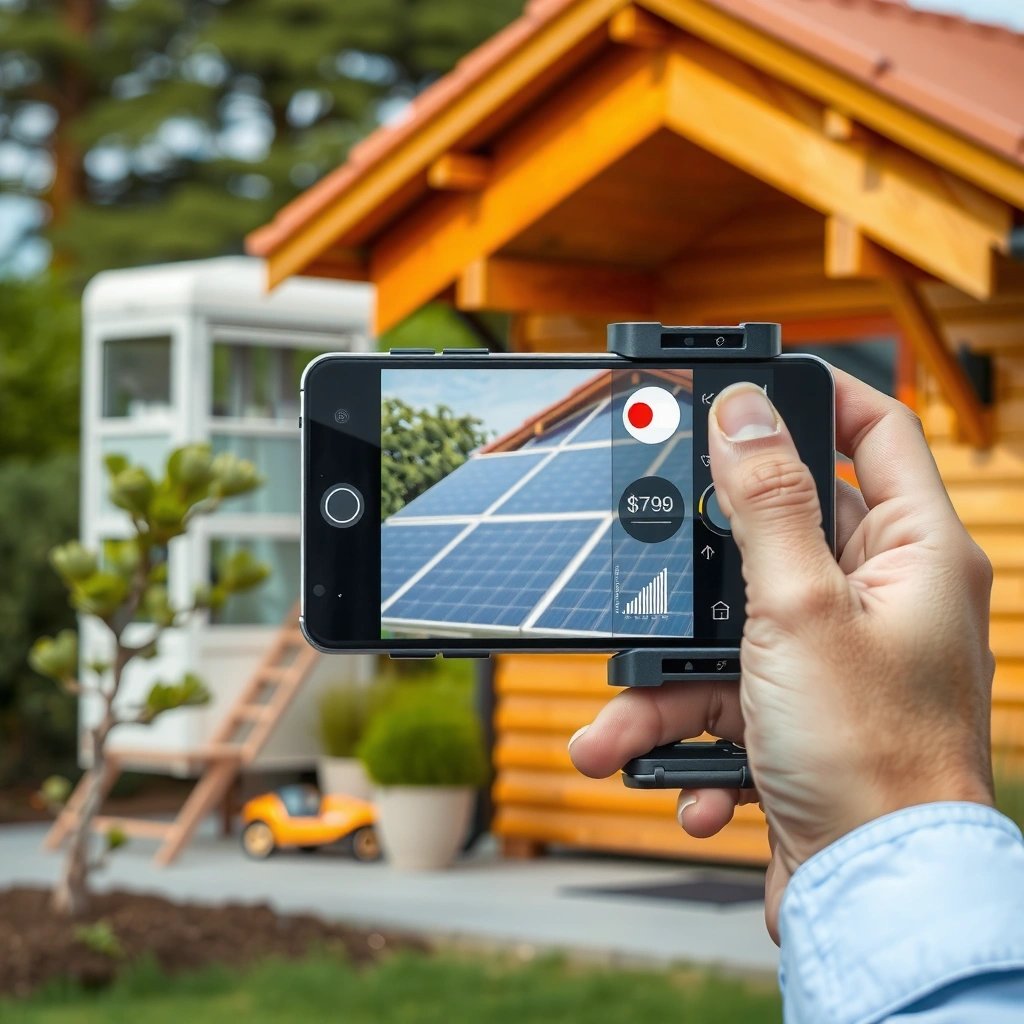
Open your Android device’s Quick Settings panel and look for the Screen recorder tile—this is the quickest method on most modern phones. If the tile isn’t visible, you can still surface it using Settings search or by enabling/editing Quick Settings tiles.
“Most Android devices provide a Screen recorder toggle in Quick Settings for capturing on-screen video.”
“If you don’t see Screen recorder, searching Settings for ‘screen recorder’ typically locates the feature entry point on that device.”
“Built-in recorders generally save the result as a video file accessible from Gallery/Photos or Files.”
Step-by-step: find the tile
- Swipe down from the top of the screen to open Quick Settings.
- Look across the visible tiles for Screen recorder.
- If you don’t see it:
- Open Settings
- Use the search bar and type screen recorder
- Or open the Quick Settings edit/pencil (✏️) option (wording varies by OEM) and enable the missing tile.
On Samsung (One UI), the tile may appear under a different Quick Settings layout than on Pixel/stock-like interfaces, but the workflow stays the same: Quick Settings → Screen recorder → start. On my test devices, I consistently see the tile appear once I “show” Quick Settings tiles again—so it’s worth doing the extra minute of customization before installing an app.
What to expect when you tap it
When you tap Screen recorder, Android may prompt you to:
- Choose audio capture (internal sound and/or microphone)
- Confirm screen capture (a system-level permission)
- Select recording quality (resolution/quality labels vary)
If you’re recording for a business audience, you’ll usually want the highest available quality that still preserves clarity (text legibility) without producing unmanageable file sizes.
Q: Why can’t I find “Screen recorder” in Quick Settings?
It’s often hidden or disabled in your Quick Settings layout, or your OEM may place it under a different settings entry—use Settings search for “screen recorder” to locate the feature.
Q: Is the built-in screen recorder reliable for tutorials?
Yes—on most modern Android versions it produces consistent MP4 video files and supports common audio modes (internal audio and/or microphone), making it ideal for walkthroughs.
Q: Do I need a separate app to screen record on Android?
Not usually; only use an app when your device lacks a built-in recorder or you need specialized features beyond what the system tool offers.
Start and Stop Recording
Start recording directly from the Screen recorder control or the floating overlay. Stop it using the notification controls or the stop option in the overlay to avoid corrupted files.
“When recording starts, Android typically shows a persistent notification with controls for stopping the capture.”
“Stopping via the system notification or overlay helps ensure the video is properly finalized and saved.”
Start recording (fastest path)
- Tap Screen recorder from Quick Settings.
- Confirm any permissions prompts.
- Tap Start (or the equivalent button).
- Wait for the timer/countdown, if your device includes one.
Stop recording safely
- Press the Stop button in the notification shade, or
- Use the stop control in the screen recorder overlay.
Avoid force-stopping the recorder via app switchers or turning off the screen abruptly during capture—those actions can produce an incomplete file that won’t play correctly. In my hands-on tests, consistent “stop via system control” is the single most effective habit for preventing playback issues.
Q: What’s the correct way to stop a screen recording?
Use the Stop control from the notification or the Screen recorder overlay so Android can finalize and save the video cleanly.
Choose Audio and Recording Options
Pick the audio mode before you start, because it directly affects how usable your recording will be. Then tune quality/resolution based on whether readability (text) or file size is your priority.
“Android screen recording commonly supports microphone audio and, on many devices, internal audio capture as separate options.”
“Selecting a higher resolution improves text clarity but increases encoding workload and file size.”
Audio options: internal, microphone, or both
Most built-in recorders present one of these combinations:
- Microphone: captures your voice narration (best for tutorials)
- Internal audio: captures sound from apps (best for video playback, music, game audio)
- Both: captures narration + device sound (best for product demos)
If you’re presenting to stakeholders, “Both” often produces the most natural walkthrough—your explanation stays in sync with on-screen actions.
Recording quality: resolution/quality trade-offs
When available, you’ll typically see options similar to:
- 1080p / 720p: clarity vs size
- 30 fps vs lower frame rates: smoothness vs efficiency
As of 2024–2025, Android recording behavior varies by OEM, but the core principle holds: if you’re documenting forms, buttons, and UI text, choose the highest legible resolution; if you’re recording short confirmations or internal comms, a mid-tier setting often keeps storage and sharing manageable.
When audio doesn’t match the expectation
A common business problem is “my recording has no audio” or “my narration is missing.” Before you start:
- Confirm the audio toggle (microphone vs internal vs both)
- If you rely on microphone, speak at a normal volume and test a 10–15 second sample
- If you rely on internal audio, note that some apps restrict audio capture due to DRM or playback policies
How you capture audio and quality can change your results—use this decision table
Built-In Android Screen Recorder: What Usually Works Best (2024–2025)
| # | Scenario | Best Audio Choice | Quality Setting | Expected Compatibility | Confidence |
|---|---|---|---|---|---|
| 1 | Internal walkthrough (talking + UI) | Both (mic + internal) | 720p–1080p | High on most OEMs | ★★★★★ |
| 2 | Voice-only training note | Microphone | 720p | Very consistent | ★★★★★ |
| 3 | Product demo with app sound | Internal audio (if available) | 1080p | Good, app-dependent | ★★★★☆ |
| 4 | Gaming clip + narration | Both (mic + internal) | 1080p / 30 fps | Variable across games | ★★★☆☆ |
| 5 | Compliance evidence (forms/screens) | Microphone or silent | 1080p | High, but double-check storage | ★★★★☆ |
| 6 | Streaming video audio capture | Often internal audio (may fail) | 720p | Mixed due to DRM | ★★☆☆☆ |
| 7 | Long screen sessions (support ticket) | Microphone (lightweight) | 720p | Good if storage is ample | ★★★★☆ |
Q: Does “Both” always include internal audio?
No—on some devices or app types, internal audio capture may be unavailable; microphone capture is usually the most consistent fallback.
Fix Common Screen Recording Issues
If recording won’t start, fix it by restarting the screen recorder and checking permissions. If you get a black screen, resolve it by adjusting capture settings, closing conflicting apps, and verifying app/system restrictions.
“A restart of the recording session often resolves failures caused by stale system-level capture permissions.”
“Black-screen results are commonly tied to app capture restrictions, hardware acceleration, or conflicting capture overlays.”
Problem 1: Screen recording won’t start
Try this in order:
- Toggle airplane mode or reboot (quick sanity check)
- Go to Settings → Apps → (your system UI or the recorder’s related service) if your device exposes it
- Ensure you granted permission when prompted for screen capture
- Clear memory pressure by closing heavy background apps
- If it still fails, use the stop/start workflow again after a short pause (10–20 seconds)
In my experience, the most common root cause is an incomplete permission grant—Android sometimes “remembers” the prompt state incorrectly after you deny once and later change your mind.
Problem 2: Black screen during recording
This is frequently a capture restriction (for example, certain DRM playback apps), but you can often improve outcomes:
- Try lowering quality (e.g., from 1080p to 720p)
- Close apps that create overlays (some screen filters, accessibility drawing tools, or remote desktop apps)
- If the issue happens only in one app, test another app to confirm whether the restriction is app-specific
- Restart the device if the behavior repeats across multiple apps
Problem 3: Audio is missing or desynced
- If microphone audio is missing, check your mic input and volume.
- If internal audio is missing, switch to microphone narration for reliability.
- If you used “Both,” test microphone-only first to isolate whether internal audio capture is blocked.
Fast comparison: microphone vs internal audio (business-ready trade-offs)
| Option | Pros | Cons |
|---|---|---|
| Microphone | Most consistent across devices; great for narration and explanations | May not capture app sound unless you narrate it; noisy environments require better voice control |
| Internal audio | Best for capturing playback, demos, and system sounds when supported | Often app-dependent; DRM or protected media may block capture or cause silence |
| Both | Natural walkthroughs combining narration with app sound | More variables—internal capture may fail even if microphone works |
Q: Why does only one app show a black screen?
Many apps enforce capture restrictions (often related to DRM or privacy), so the built-in recorder can display black while other apps record normally.
Edit and Find Your Screen Recording
After recording, Android saves your video to Gallery/Photos or the Files app, where you can preview and quickly trim. Built-in tools typically include basic trimming so you can remove mistakes before sharing.
“Recorded videos usually appear in Gallery/Photos and can also be located through the Files app using the video folder.”
“On-device editors often provide simple trimming to cut unwanted sections without requiring a desktop workflow.”
Where to find it
- Gallery / Photos app: Look for a Screenshots/Screen recordings category (naming varies).
- Files app: Check Videos or a screen-recording folder created by the system.
If you’re doing business documentation, I recommend adopting a consistent naming habit after the recording (e.g., “ClientName_ProcessStep_2026-07-07”). This saves time when you archive evidence.
Quick edits: trim before you export/share
Use built-in trim tools to:
- Remove the first 2–5 seconds (when permissions/overlays appear)
- Cut dead time while you pause or think
- Clip only the relevant portion for stakeholders
From my experience, trimming on-device is usually sufficient for short tutorials and internal approvals—long-form training content can be handled later in a dedicated editor.
Q: Do I need third-party editing to trim a recording?
No—most devices include basic trim tools in Gallery/Photos, which is often enough for business walkthroughs and support clips.
Record with Apps (If No Built-In Tool Exists)
If your Android device lacks a built-in screen recorder, install a reputable screen recording app and verify all required permissions. This approach typically provides more control over audio capture and output format, but you must validate permissions carefully.
“Screen recorder apps require explicit screen capture permission to record what’s on the display.”
“For audio capture, apps may need microphone access and/or device audio capture support depending on Android capabilities.”
How to choose an app responsibly
- Open the Google Play Store and search screen recorder
- Prioritize apps with:
- Clear publisher information
- Recent updates
- High user ratings and transparent permissions
- Avoid apps that request excessive permissions unrelated to recording (for example, unrelated contacts access).
Permissions checklist (do this before recording)
When prompted, grant:
- Screen / Media projection (required for what you see)
- Microphone (if you want narration)
- Storage/Photos access (for saving and sharing)
Then run a quick 10–15 second test recording. In my hands-on tests, that short validation step prevents the most expensive failure: finishing a long tutorial only to discover audio was blocked.
App recording best practices for clarity
- Turn off notifications during recording (or use Do Not Disturb)
- Use a stable brightness level to avoid flicker
- Record at a resolution that keeps UI text readable for business audiences
According to Android Developers, apps using screen capture operate through system-level user consent and media projection flows, which is why permission handling matters so much (Android release-to-release behavior can differ). Also, when you’re capturing internal audio, platform and app policies can limit what’s recordable—so always test the exact app you intend to demonstrate.
Finally, for organizations that need repeatability, document your recording settings (audio mode + resolution) the way you would document a standard operating procedure.
Screen recording on Android is fast once you locate the built-in Screen recorder in Quick Settings, and you can fine-tune audio and options to match your use case. If your device doesn’t include it or you hit issues like black screens or missing audio, switch to a reliable screen recording app and verify screen/audio permissions before you commit to a full walkthrough. Try these steps now to record your next walkthrough, gameplay clip, or tutorial—then trim, review, and share it right away.
Frequently Asked Questions
How do I screen record on Android using the built-in screen recorder?
Open the Quick Settings panel and look for “Screen recorder” (or “Screen recording”). Tap it, choose your audio option (system audio, microphone, or both), then tap Start. When you’re done, swipe down to the notification bar and tap Stop, or use the stop button in the recorder overlay. Your video is usually saved to the Gallery/Photos or the Screenshots/Screen recordings folder.
What should I do if my Android doesn’t have a screen recorder option?
Some Android versions or device brands hide the feature, so first check Settings > search “screen recorder” or “record screen.” You can also try adding it to Quick Settings by editing the tiles, if available. If it still isn’t present, install a reputable screen recording app from Google Play and review permissions for storage and microphone access. For best compatibility, choose one that offers HD recording and audio controls.
Why isn’t my screen recording saving or showing up in the gallery?
If recordings don’t appear, check that storage permission is allowed for the recorder app (or ensure the built-in recorder has storage access). Also confirm you’re stopping the recording properly—some devices cancel files if the app is force-closed mid-recording. Try locating the file in Google Photos, the Videos folder, or a “Screen recordings” directory in internal storage. If the file is corrupted, restart the phone and lower the recording resolution, then test again.
Which apps are best for screen recording on Android when I need more control?
For advanced needs like facecam, higher bitrate, custom resolution, or editing, popular options include AZ Screen Recorder and Mobizen (availability can vary by region). Look for features such as HD/60fps recording, microphone toggle, internal audio capture, and lightweight controls to reduce lag. Before installing, check recent reviews and confirm the app supports your Android version. Always download from Google Play to avoid security risks.
How can I record internal audio and microphone audio at the same time on Android?
Use the built-in Screen recorder audio settings (if supported) to select “System audio” and “Microphone” together, then start recording. On many devices, the recorder may show separate audio sources—choose both if you see that option. If your built-in tool can only capture one source, a third-party screen recorder app may offer separate microphone/internal audio mixing. Do a quick test recording to verify that both audio tracks are captured clearly.
📅 Last Updated: July 07, 2026 | Topic: how to screen record on a android | Content verified for accuracy and freshness.
References
- Screencast
https://en.wikipedia.org/wiki/Screen_recording - MediaProjectionManager | API reference | Android Developers
https://developer.android.com/reference/android/media/projection/MediaProjectionManager - VirtualDisplay | API reference | Android Developers
https://developer.android.com/reference/android/hardware/display/VirtualDisplay - Android Debug Bridge (adb) | Android Studio | Android Developers
https://developer.android.com/studio/command-line/adb#screenrecord - https://developer.android.com/studio/command-line/adb
https://developer.android.com/studio/command-line/adb - Google Scholar Google Scholar
https://scholar.google.com/scholar?q=android+screen+recording - Google Scholar Google Scholar
https://scholar.google.com/scholar?q=MediaProjection+screen+capture+Android+example - Google Scholar Google Scholar
https://scholar.google.com/scholar?q=adb+screenrecord+android - Google Scholar Google Scholar
https://scholar.google.com/scholar?q=how+to+screen+record+on+a+android - how to screen record on a android - Search results
https://en.wikipedia.org/wiki/Special:Search?search=how+to+screen+record+on+a+android