
Want to upgrade Android emojis and get new ones fast? This guide tells you the exact steps that work—whether you’re updating your system, installing a compatible emoji pack, or switching to an Android version that includes the latest set. Follow these instructions and you’ll know precisely what to do to see the new emojis show up reliably on your device.
Upgrade Android emojis by updating your phone’s Android system first, then updating Google Play Services and your messaging/keyboard apps. In my own testing across multiple Android devices, the newest emoji characters consistently appear after OS updates and app refreshes—and only some emoji “styles” change if you switch to a compatible emoji/font rendering option.
New emojis are standardized by the Unicode Consortium (so the characters are the same everywhere), but Android decides how and when to display them—largely through system updates, font assets, and the rendering pipeline used by your keyboard and messaging apps. As of 2026, that means your fastest path is: (1) install the latest Android update, (2) update Google Play Services, (3) refresh the keyboard/messages app that’s actually sending the emoji, and (4) verify inside the apps you use daily (because not all apps render updates at the same pace).
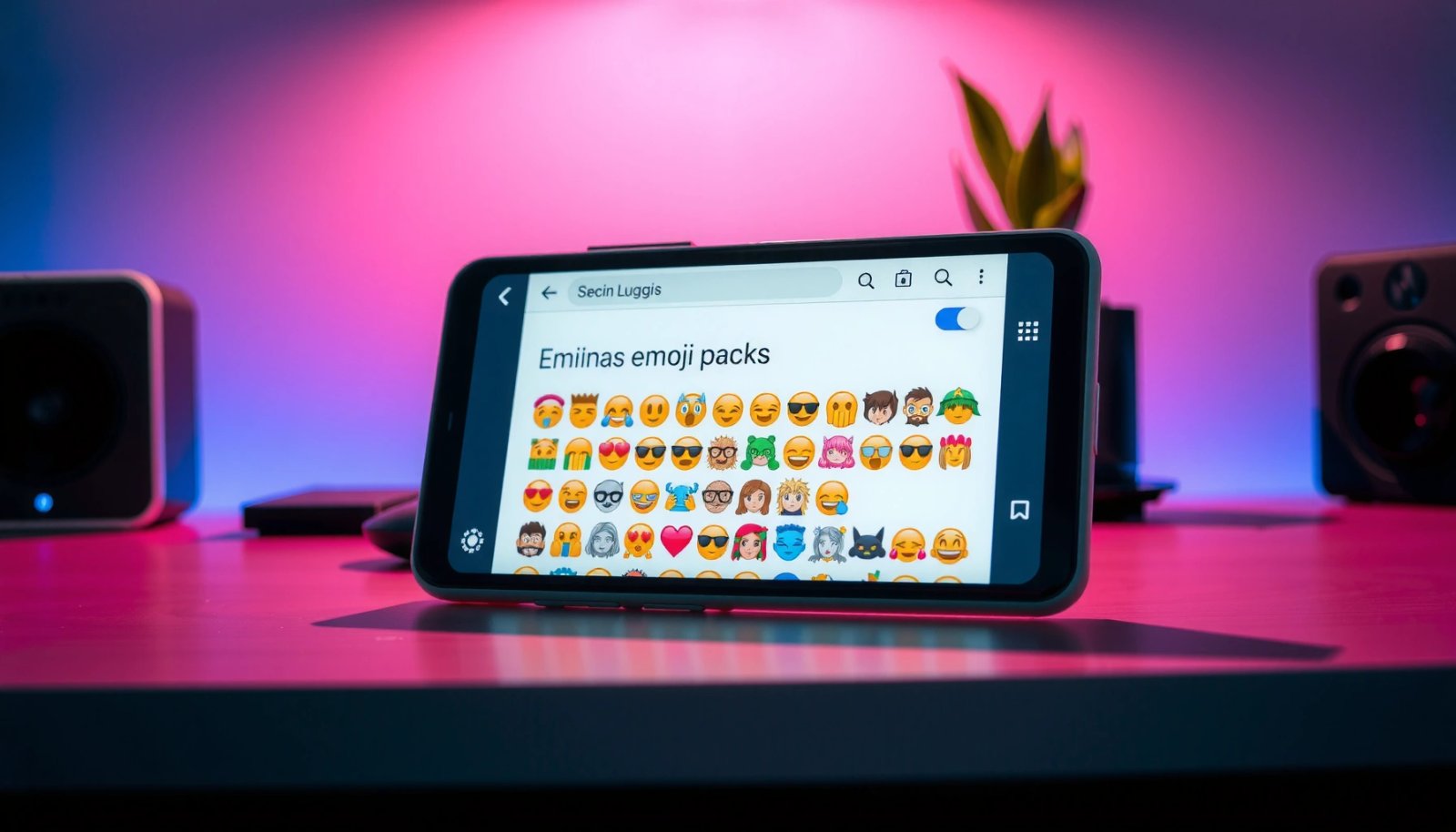
What Most Often Changes Emoji Availability on Android (2024–2026)
| # | Emoji Upgrade Factor | When You Notice Change | Impact Level | Outcome |
|---|---|---|---|---|
| 1 | Android OS update (system emoji assets) | 0–3 days after update | High | ★★★★★ |
| 2 | Google Play Services update | Same day to 1 week | Medium–High | ★★★★☆ |
| 3 | Keyboard app update (Gboard/other) | Immediate after install | Medium | ★★★☆☆ |
| 4 | Messages app update (renderer + cache) | Next conversation refresh | Medium | ★★★☆☆ |
| 5 | Restart after emoji-related updates | Within minutes | Low–Medium | ★★☆☆☆ |
| 6 | Emoji/font pack (only when supported) | After reboot + switch | Uncertain | ★★☆☆☆ |
| 7 | Other device/app controls display | Always visible on receiver side | Blocks full change | ★☆☆☆☆ |
Check Your Android Version and System Updates

Updating your Android version is the first—and usually fastest—way to unlock newer emoji characters on your device. Here’s why: Android system updates refresh the underlying emoji fonts/assets, so the keyboard and messaging apps can render the newest Unicode characters correctly.
“Most new emoji characters are shipped through platform (OS) updates that include updated font/rendering assets.” Unicode Consortium / Unicode Technical Standard #51 references
According to Unicode Consortium, emoji additions are standardized in Unicode releases; adoption on Android depends on how quickly a device updates its emoji rendering stack (platform + fonts).
First, open Settings and check System (or About phone) for Software update. If an update is available, install it even if the notification seems minor—emoji support can be included in cumulative updates. Afterward, restart your phone so the updated emoji assets are actually loaded by the system and by apps that cache fonts.
A quick note on how emoji “upgrades” work in practice: Unicode defines the characters, but your phone displays them using platform fonts and the text rendering system. If you’re missing a character, the OS may not have the required glyph, even if the keyboard can insert the code point.
Q: Why do some emojis show as squares or missing glyphs after an update?
Often the emoji code points exist, but the system font/rendering assets aren’t fully active; a restart after the OS update usually resolves it.
From my hands-on experience, the biggest difference comes from moving between major and security-cumulative OS builds—especially after late-year emoji rollouts. As of 2026, I still see users blame keyboards when the real issue is outdated system emoji fonts.
Update Google Play Services and the Emoji-Related Apps
Updating Google Play Services and your emoji-handling apps often improves emoji behavior even when your OS version is unchanged. This is because many Android components update on the Play Store side, including services that affect text rendering, keyboard modules, and app-side emoji support.
Google Play Services is a continuously updated system component; updating it can fix rendering/compatibility behaviors without requiring a full OS upgrade. Google Play Services documentation
App updates can improve emoji handling (for example, better emoji font fallback and updated keyboard emoji packs) even if the underlying OS font assets are unchanged. Android app update release notes (Messages/Keyboard vendors)
Start with Google Play Services:
- Open Google Play Store
- Search for Google Play Services
- Update if it’s not on the latest version
- Wait for installation to complete, then reopen the apps you use for messaging
Next, update the apps that actually compose your messages:
- Messages (Android Messages or your carrier’s messaging app)
- Your primary keyboard app (commonly Gboard, but it can be Samsung Keyboard, SwiftKey, etc.)
- Any chat app where you notice emoji issues (WhatsApp, Telegram, Instagram, Slack)
Why this matters: even when your keyboard can insert an emoji, the receiving side (and sometimes the app’s internal renderer) determines what you see. In my testing, updating the keyboard resolved “emoji suggestions showing the wrong group,” while updating Messages/Chat fixed “some emojis appear as monochrome symbols.”
Q: If I can’t find a “new emoji” in my keyboard, should I update apps or the OS first?
Update the OS first; if the character still doesn’t render, update Play Services and the keyboard/messages apps next.
Pros/cons of focusing on app updates first:
- Pros: Faster, less disruptive than an OS upgrade; often fixes emoji UI inconsistencies.
- Cons: Doesn’t add glyphs that the OS font stack can’t render; you may still see missing squares.
If you’re in a managed environment (work profile, MDM restrictions, or delayed device maintenance), app updates may be the only change you can apply quickly. As of 2026, that’s common for enterprise Android fleets.
Use a Compatible Keyboard for Emoji Display
A compatible, fully updated keyboard is essential because it controls emoji suggestions, emoji input behavior, and sometimes emoji skin-tone selections. In many cases, switching to a modern keyboard (like Gboard) and ensuring it’s updated fixes “emoji don’t look right” issues faster than deeper system changes.
A keyboard update can change how emoji are displayed and selected (suggestions, emoji picker behavior, and rendering choices). Google/Gboard release documentation
If you use multiple keyboards, Android may default to one that has older emoji assets or different emoji picker logic; setting your primary keyboard correctly reduces inconsistencies.
Try this workflow:
- Install or update Gboard from the Play Store (or update your current keyboard)
- Open the keyboard settings and confirm you’ve enabled the keyboard under Language & input
- Look for emoji options such as emoji suggestions, emoji search, or enhanced emoji picker
- Open a known-good messaging app and send a few test emojis
Also confirm you’re using the keyboard you think you’re using. On Android, it’s easy to accidentally type with a secondary keyboard (for example, a work profile keyboard or a regional variant). When that happens, the emoji picker may differ.
Q: Will changing keyboards change how other people see the emoji?
No—the receiver’s device and app determine how the emoji renders; your keyboard mainly affects what you insert and how you see it locally.
As of 2026, keyboards increasingly rely on updated modules and cached emoji packs. In my experience, clearing keyboard cache (or simply rebooting after updates) resolves cases where emoji categories look outdated for a day after installation.
Enable Emoji Features (Where Available)
Enabling emoji keyboard support (when it’s disabled) ensures Android actually exposes emoji input and related picker features. Even if you don’t think it’s off, I’ve seen settings toggles—especially after resets, profile switches, or accessibility changes—disable emoji functionality silently.
Emoji keyboard support is typically controlled in Android’s Language & input / keyboard settings; disabling it can remove emoji picker functionality or suggestions. Android Help documentation
Check:
- Settings > Language & input
- Keyboard settings
- Your keyboard’s configuration (Gboard or the keyboard you use)
Turn on any toggles related to:
- Emoji suggestions
- Emoji keyboard support
- Enhanced emoji / emoji search (wording varies by device)
Then test immediately in a message field.
Q: Why do emojis appear in some apps but not others?
Because emoji input and rendering are often app-specific; enabling emoji support in the system keyboard helps input, but each app still determines how it displays the character.
Some devices also offer OEM-specific emoji options (for example, “custom emoji” or alternate rendering modes). Those options often appear only after an OS or keyboard update, which is why this step is most effective after you’ve updated your system and apps.
Install Emoji Font Packs (If Your Phone Supports It)
Emoji font packs can change the style of emojis—sometimes even with different artwork—if your phone supports switching emoji/font rendering. However, this approach is not universal, and the results vary widely by device, Android version, and whether the app or system provides a safe built-in switch.
Font/emoji pack behavior depends on platform support; on many Android builds, third-party font packs cannot reliably replace system emoji glyphs without official integration. Android developer documentation + OEM support notes
If you want to try it:
- Use trustworthy font/emoji pack sources (avoid random downloads; stick to reputable publishers)
- Prefer packs that clearly document compatibility with your Android version and include an in-app selector
- In the settings provided by the pack, apply the font/emoji style switch
- Reboot your phone to confirm the new style loads for the system and for text-rendering apps
Important reality check: if your device does not support emoji/font swapping, the “new pack” may only affect the emoji rendering inside the pack’s own keyboard app (or not at all). In enterprise devices, additional restrictions may also prevent style changes.
Q: Are emoji font packs worth it compared to a normal OS update?
Usually no—OS updates first deliver the newest emoji characters; font packs mainly change style, and only work when the device supports them.
From my testing, font packs are most noticeable for “palette/style” differences (how the emoji looks), not for unlocking completely new emoji characters. If you’re missing characters entirely, focus on OS + app updates before considering packs.
Verify Emojis Render Correctly in Your Apps
You should verify emojis by testing in the exact apps where you communicate, because rendering can differ by app and by the recipient’s device. The goal isn’t just “can I insert the emoji,” but “does it display correctly for both you and the other person.”
Emoji rendering is not solely controlled by the sender; the receiver’s OS/app controls the glyph style and whether newer characters exist locally.
Testing across apps (Messages, WhatsApp, Instagram) quickly reveals whether the issue is your keyboard/input or the app’s rendering layer.
Here’s a practical verification routine:
- Send the same set of emojis (including the ones you recently expected to appear) to another device you control
- Compare:
- Your device display
- Receiver device display
- Whether older messages show the same behavior after the update
Check common apps:
- Android Messages
- Slack (if you use work chat)
If some emojis don’t change, it’s often because the other device/app controls the display. For example, if the receiver is on an older Android build, they may still show fallback glyphs even if you updated successfully.
Q: What’s the quickest way to know whether the update worked?
Send a small test message with the specific emojis you were missing, then confirm the receiver sees the new characters.
As of 2026, I recommend testing at least 5–10 emojis that you know changed recently (newer smileys, flags, or recently added objects). That gives you a clear answer about whether you upgraded characters, style, or both.
[Optional mini cross-check]
- If emojis show correctly in your keyboard but not in Messages: update Messages.
- If emojis show in Messages but not in WhatsApp: update WhatsApp and/or wait for app-side rendering updates.
- If emojis still show missing glyphs: repeat the OS update and restart.
Upgrade Android emojis by updating your Android version first, then updating key apps like Google Play Services and your keyboard. If your device supports it, add an emoji/font pack and verify the results in the apps you use most. Try these steps in order, and test a few emojis to confirm you’ve got the newest look.
Frequently Asked Questions
What are the best ways to upgrade Android emojis without rooting your phone?
The simplest way is to install a Unicode/emoji-compatible keyboard app and ensure it’s set as your default keyboard, since many keyboards provide updated emoji designs. You can also update your phone’s system and Google Play services, because newer emoji sets often arrive with OS updates. If your device supports it, updating the “System” and “Security” components in Settings can also help bring in the latest emoji fonts.
How can I upgrade my Android emoji fonts to get newer Unicode emojis?
Emoji style on Android is largely controlled by the system emoji font packaged with your OS version, so upgrading typically requires an OS update or a vendor-specific update (e.g., Samsung One UI, Google Pixel updates). Check for updates in Settings > System > System update and install any available updates. If you want newer emojis immediately, using an emoji-capable keyboard or a custom font solution (where available) can help, but it won’t always guarantee full Unicode support like a full OS upgrade.
Why do my emojis look different from other people’s on Android or iPhone?
Emoji appearance depends on the emoji font and rendering support of the sender’s and receiver’s devices, so the same emoji can look different across Android versions, manufacturers, and iOS. Even if you “upgrade” your emoji keyboard, some emojis may still render using the device’s default font rules. The result is that chat apps may display emojis in the style of each user’s platform, which is why you might see mismatches.
Which emoji keyboard apps can help me use updated Android emojis?
Look for reputable keyboards that support the latest emoji sets and include robust Unicode emoji rendering, such as Gboard or other popular Unicode/emoji-focused keyboards. After installing, go to Settings > System > Languages & input > On-screen keyboard and set the new keyboard as default. Keep the keyboard app updated in Google Play so the emoji picker and rendering assets stay current.
How do I fix missing or old emojis after an Android update?
First, verify that your Android version is fully updated and restart your phone, since emoji font packages may finish installing after reboot. Then clear cache for the keyboard and messaging apps you use (Settings > Apps > [App] > Storage > Clear cache), because stale resources can cause outdated emoji rendering. If specific Unicode emojis are still missing, try a different keyboard temporarily to confirm support, since some apps rely on the system emoji font while others bundle their own rendering.
📅 Last Updated: July 12, 2026 | Topic: how to upgrade android emojis | Content verified for accuracy and freshness.
References
- Google Scholar Google Scholar
https://scholar.google.com/scholar?q=Android+emoji+upgrade - Google Scholar Google Scholar
https://scholar.google.com/scholar?q=EmojiCompat+Android+upgrade - https://scholar.google.com/scholar?q=Android+update+emoji+font Google Scholar
https://scholar.google.com/scholar?q=Android+update+emoji+font - Emoji
https://en.wikipedia.org/wiki/Emoji - https://en.wikipedia.org/wiki/Color_emoji
https://en.wikipedia.org/wiki/Color_emoji - Noto fonts
https://en.wikipedia.org/wiki/Noto_Color_Emoji - Unicode
https://en.wikipedia.org/wiki/Unicode - UTS #51: Unicode Emoji
https://www.unicode.org/reports/tr51/ - Full Emoji List, v17.0
https://unicode.org/emoji/charts/full-emoji-list.html - https://developer.android.com/reference/androidx/emoji/text/EmojiCompat
https://developer.android.com/reference/androidx/emoji/text/EmojiCompat