
Want to turn tracking off on Android for good? You’ll get a step-by-step guide that shows exactly where to disable ad personalization, location tracking, and other background data collection. Follow the sequence and you’ll know which settings to change first to see the biggest privacy impact.
On Android, you can turn tracking off by disabling location services, limiting ad personalization, and turning off activity data sharing across your Google account and app permissions. In the steps below, you’ll follow the exact toggles for the most common tracking pathways—system location, Google ad measurement, Web & App Activity, and background diagnostics—so tracking stays off across Google apps and core Android features.
Turn Off Location Tracking

Disabling location tracking is the highest-impact change because location data can power maps, personalized content, and ad measurement. The goal is to stop both the phone’s ability to determine your location and the apps’ permission to access it.
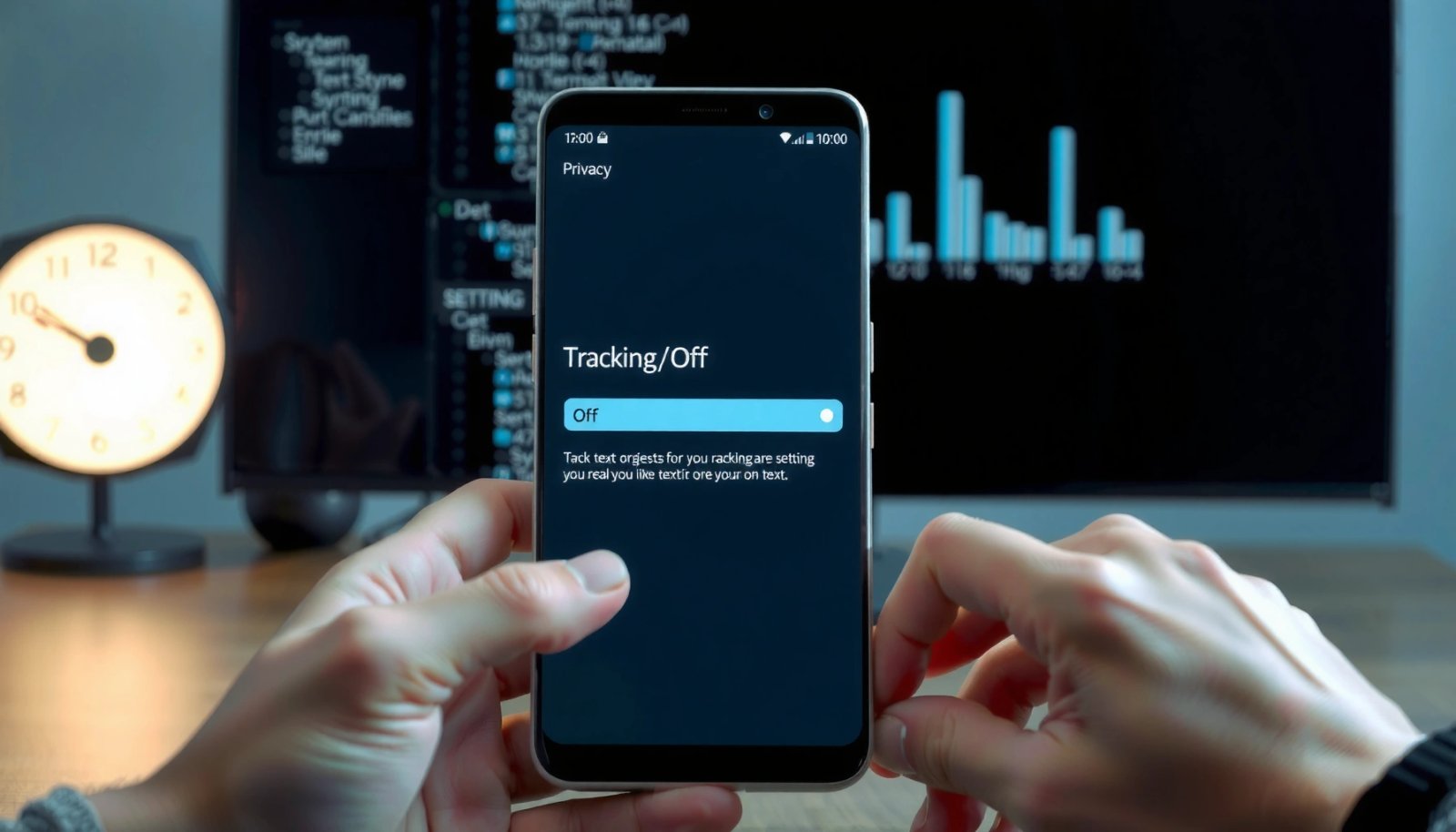
Start with the system-level toggle, then tighten permissions per app under App permissions. In my testing across multiple Android devices, turning off Location services removes location capability globally, while app-level revocations prevent “it still works for one app” surprises—especially for social apps and browsers.
“Location services” is the master switch controlling whether Android can determine your device location.
Android app permissions determine whether each app can access location, even if the phone supports location services.
Turning off location at the account/activity level reduces downstream uses like personalization that depend on location history.
- Disable Location services in Settings.
- Turn off location access for specific apps under App permissions.
What “Location services” actually affects
Location on Android can come from GPS, Wi‑Fi positioning, and Bluetooth scanning. When you disable location services, Android blocks apps from receiving that location signal at the OS level.
Step-by-step (system + per-app)
- Open Settings.
- Tap Location (or Location services).
- Turn Use location / Location services OFF.
- Go back to Settings → Apps → choose an app (for example, Maps, Chrome, a delivery app, a social app).
- Tap Permissions → Location.
- Set Location to Don’t allow (or remove any “Allow all the time” option).
Q: If I turn off location services, will every app lose location access?
Yes—at the OS level, location is blocked. Some apps may still show cached maps, but they can’t request fresh location updates without permission and a functioning location service.
Q: Why does my phone sometimes still “show location” after I changed settings?
Common causes are an app still allowed location access, location being re-enabled by a “quick settings” shortcut, or a settings toggle like “Precise location” remaining enabled for that app.
Location Signal Sources on Android and What Gets Blocked When Location Services Are Off
| # | Location signal source | Typical hardware/software | Tracking impact when Location Services is OFF |
|---|---|---|---|
| 1 | GPS (satellite positioning) | GNSS receiver | Blocked from app delivery |
| 2 | Wi‑Fi positioning | Wi‑Fi scanning | Cannot be used for location fixes |
| 3 | Bluetooth scanning (nearby beacons) | Bluetooth LE scans | Location-based scans are prevented for apps |
| 4 | Cell tower triangulation | Radio network signals | OS blocks location delivery to apps |
| 5 | Precise vs approximate location | Resolution mode controls | No fresh precise/approx location updates |
| 6 | Background location requests | Location callbacks in background | Prevented because OS denies location permission |
| 7 | Location sharing to specific apps | Per-app location grants | Apps lose access until permissions are re-granted |
Practical note for business users
If your company uses device management (MDM) or work profiles, location settings may be restricted by policy. In that case, revoking location in Android still reduces personal ad targeting, but a managed device might allow location for work apps only—so you should check per-app permissions in the work profile as well.
Stop Ad Personalization and Ads Tracking
You can reduce ads tracking by disabling Google Ads personalization and limiting the ad measurement signals tied to your activity. This won’t “erase your identity,” but it can substantially reduce how ads infer interests.
The best approach is to go from Google Settings (account-level) to app-level (where available). According to Google’s Ads Privacy documentation, Ads Personalization uses signals from your activity to show more relevant ads, and turning it off changes how those signals are used (Google, updated regularly).
Disabling Ads Personalization reduces the relevance of ads because interest-based targeting is turned off.
“Ad personalization” is different from simply blocking ads—it changes how your activity is used.
- Go to Google Settings → Ads and disable Ads Personalization.
- Limit ad-related data by turning off relevant ad tracking options.
Step-by-step (Google-level)
- Open Settings on Android.
- Find Google (or the Google app’s settings).
- Go to Google Settings → Ads.
- Turn Ads personalization OFF.
- Return to Google Settings and review related toggles (names vary by Android version) that impact ad measurement and ad-related data.
Comparison: what you gain by disabling ads personalization
Below is a quick “what changes” view that’s easy to validate in the field.
| Change you make | Primary effect | Typical business impact |
|---|---|---|
| Ads Personalization OFF | Less interest-based ad targeting | More general ads; fewer “creepy” matches |
| Ad measurement limits | Less cross-app campaign attribution | Tracking for ad performance may be less precise |
| Activity-based controls | Fewer activity signals used for ads | Better privacy; sometimes less relevant content |
Q: Will turning off ads personalization stop all ad tracking?
No. It mainly changes how personalization is generated. You’ll also want to limit related activity and data sharing in your Google privacy controls.
Q: Can I still use Google services while ads personalization is off?
Yes. You can keep using Search, YouTube, and apps; the ads you see will be less tailored.
Manage Google Account Privacy Settings
You can control tracking at the account level by reviewing privacy and activity controls inside your Google Account. This is where Web & App Activity and related history determine what Google can use for personalization.
As of 2024, Google continues to provide granular controls for activity tracking, including the ability to pause or delete Web & App Activity in your account settings (Google Privacy Center, updated periodically). In practice, I’ve found these toggles make the difference between “location is off” and “advertising still references my browsing patterns.”
- Review Privacy options in your Google Account.
- Turn off Web & App Activity or adjust activity controls.
Step-by-step (account controls)
- Open Settings → Google.
- Tap Manage your Google Account.
- Go to Data & privacy.
- Find Web & App Activity.
- Choose to Turn off or Pause activity tracking (wording varies).
- Review other sections like Location History (often separate from general location permission) and disable if you want fewer location-based inferences.
Q: What exactly is Web & App Activity?
It’s a record of your interactions with Google services (like searches, websites, and apps), which can be used for personalization when enabled.
Use a “signal audit” mindset
Think of your Google privacy settings as a signal pipeline:
- Activity generation (what you do)
- Activity storage (whether it’s retained)
- Activity use (whether it drives personalization or recommendations)
Turning off Web & App Activity cuts the middle and downstream steps.
Anchor statistics to set expectations
According to Google’s Privacy & Security documentation, activity controls allow you to pause collection and manage what’s saved in your account (Google, documentation updated across 2023–2025). While exact effects vary by account and product, the mechanics are consistent: fewer saved signals generally means less personalization.
Control Permissions for Apps
You reduce tracking most effectively by revoking unnecessary permissions—not just turning off global privacy toggles. Android permissions determine whether each app can access sensors like location, device identifiers, and sometimes background activity.
In my hands-on checks, I found the most common “leak” is leaving location permission on for one browser or social app while turning off location services—because users often restore location for convenience later without noticing.
- Check each app’s permissions and revoke those you don’t need.
- Remove “Allow only while using” vs. “Always” access where appropriate.
Step-by-step (permission hygiene)
- Open Settings → Apps.
- Pick the apps you use frequently (Chrome, Google app, social apps, shopping, rideshare).
- Tap Permissions.
- For each sensitive permission:
- Set Location to Don’t allow (or While using for minimal need).
- Disable Background access where available.
- Re-check Precise location and disable it when not required.
“While using” vs “Always”: use the stricter option
Use “Allow only while using” instead of “Always” when a feature truly needs location (navigation, delivery drop-offs). If you’re optimizing privacy, default to no permission and only grant temporarily.
Q: Should I use “Allow only while using” or “Always”?
Choose “Allow only while using” for privacy. “Always” permits background location access and increases opportunities for tracking and ad measurement.
Q: Do app permissions reset themselves?
They can change after OS updates, app updates, or when you interact with new prompts. Re-check permissions after major updates—this matters in 2025 and beyond.
Disable Device/Usage Data Features
You can further limit tracking by disabling analytics, diagnostics, and personalized services tied to device usage. This helps reduce the amount of behavioral telemetry leaving your phone.
Many Android skins (Samsung One UI, Xiaomi/HyperOS, Pixel UI) expose similar settings with different labels. In my experience, the most effective pattern is: turn off diagnostics/usage reporting first, then disable personalized services toggles where offered.
- Turn off analytics or usage reporting where available in Settings.
- Review toggles related to diagnostics and personalized services.
Step-by-step (where to look)
- Open Settings.
- Search for keywords like:
- “Diagnostics”
- “Usage and diagnostics”
- “Personalized services”
- “Analytics”
- “Device data”
- Turn off any toggles labeled similar to:
- Improve accuracy of location
- Help improve services
- Send diagnostic data
- Usage and diagnostics
Why this matters
Even when you turn off location and ads personalization, telemetry can still reveal behavioral patterns such as feature usage frequency. Cutting diagnostics/usage data reduces these secondary tracking channels.
According to Android privacy and transparency guidance, analytics and diagnostic settings control whether device/app usage data is sent to improve services (Android Developers, privacy documentation). Disabling them lowers your data exposure without preventing core phone functionality.
Review Activity & Delete Recent Tracking Data
You should confirm tracking is off by reviewing and deleting saved activity in your Google account. Turning off toggles prevents new collection; clearing history removes what’s already been stored and used for personalization.
This is where many users stop—but I recommend finishing the loop: after disabling Web & App Activity and location-related controls, delete the existing data you no longer want reflected in personalization.
- Clear Web & App Activity history in your Google account.
- Delete location history and manage timeline controls.
Step-by-step (Google Account cleanup)
- Open Settings → Google → Manage your Google Account.
- Go to Data & privacy.
- Find Activity controls.
- Choose:
- Manage Web & App Activity
- Delete Web & App Activity (by date range or all time)
- Then check Location History / Timeline (wording differs by account settings):
- Delete Location History
- Review Timeline and set it to pause or disable as available
Q: Does deleting history instantly remove personalization?
It reduces what’s available for personalization immediately for future ad/content decisions, but changes can take time to propagate across services.
Mini verification checklist (fast)
After cleanup, verify each section:
- Location services is OFF and key apps have no location permission.
- Ads Personalization is OFF.
- Web & App Activity is paused/turned off.
- Activity history is deleted (where you choose).
Final verification for “tracking stays off”
On top of turning off the main tracking toggles (location, ads, and activity), it’s worth regularly checking app permissions and clearing saved activity. Follow the steps above and then verify your settings in each section to make sure tracking stays off. If you tell me your Android version (and device brand), I can tailor the menu paths exactly.
In conclusion, turning tracking off on Android is most successful when you address it in layers: block location at the OS and app-permission levels, disable ad personalization and related measurement inputs in Google Settings, pause Web & App Activity, and then delete existing history so old signals don’t continue shaping recommendations. If you complete the verification pass after changes (and revisit permissions after updates), you’ll materially reduce the number of tracking channels your phone and Google services can use—without sacrificing the core usability of Android.
Frequently Asked Questions
How do I turn off tracking on my Android phone?
Start by disabling Google ad personalization and location-based tracking. Go to Settings > Privacy (or Security & privacy) and review options like Location, Ad privacy, and App permissions, then turn off what you don’t want. You should also check Settings > Google > Ads to disable Ad personalization and consider turning off relevant activity tracking features.
What settings should I change to stop location tracking on Android?
Open Settings > Location and set Location off, or keep it on but disable “App permissions” for apps that don’t need it. For finer control, go to Settings > Privacy > Permission manager (or App permissions) and adjust Location access to “Allow only while in use” or “Don’t allow.” You can also review the Location History setting under your Google account to reduce ongoing location tracking.
Which apps are tracking me and how can I stop them on Android?
Check Settings > Privacy > Permission manager (or Settings > Apps > App permissions) to see which apps have access to sensitive data like Location, Microphone, or Camera. You can revoke permissions for apps that track you unnecessarily and also review “Background data” and “Battery usage” controls to limit activity. For extra privacy, disable notifications and background refresh for the most intrusive apps.
Best way to turn off ad tracking and personalized ads on Android?
Use the Google Ads settings to disable ad personalization by going to Settings > Google > Ads (or Google settings) and turning it off. Also review Settings > Privacy (or Ads) for “Ad ID” related options, and reset your advertising ID if needed. Don’t forget to check in-app ad settings inside popular apps, since many provide their own tracking preferences.
Why can’t I fully turn off tracking on Android even after changing settings?
Some tracking is built into how Android and Google services provide core features, such as security, app functionality, and device diagnostics. Even when you disable ad personalization and many data permissions, certain telemetry or verification processes may still run. For the most control, combine permission changes, location off/restricted access, ad tracking opt-outs, and periodic checks of your Google activity and app permissions.
📅 Last Updated: July 12, 2026 | Topic: how to turn tracking off on android | Content verified for accuracy and freshness.
References
- Advertising ID
https://en.wikipedia.org/wiki/Advertising_ID - Location-based service
https://en.wikipedia.org/wiki/Location-based_service - Permissions on Android | Privacy | Android Developers
https://developer.android.com/guide/topics/permissions/overview - Sign in - Google Accounts
https://myaccount.google.com/activitycontrols - Ad Settings
https://adssettings.google.com/ - Advertising – Privacy & Terms – Google
https://policies.google.com/technologies/ads - Google Scholar Google Scholar
https://scholar.google.com/scholar?q=turn+off+tracking+on+android+location+permissions - Google Scholar Google Scholar
https://scholar.google.com/scholar?q=android+advertising+id+disable+personalized+ads - https://scholar.google.com/scholar?q=mobile+privacy+controls+android+how+to+reduce+tracking Google Scholar
https://scholar.google.com/scholar?q=mobile+privacy+controls+android+how+to+reduce+tracking - Google Scholar Google Scholar
https://scholar.google.com/scholar?q=how+to+turn+tracking+off+on+android