
Want to transfer apps to SD card on Android? You’ll get the quickest, most reliable method to move eligible apps off internal storage and onto your SD card—plus the exact checks to confirm your phone supports it. If your device won’t allow app moves, you’ll also find the practical workaround so you can still free space fast.

As an Amazon Associate I earn from qualifying purchases.
You can transfer compatible apps to an SD card from your Android app settings—typically via Settings > Apps > (select app) > Storage > Change/Move to SD card. If you don’t see the Change option, it usually means your device, your SD card setup, or the specific app won’t allow moving.
This guide walks you through the quickest path to move apps, explains why the option sometimes disappears, and gives practical fixes for common issues—so you can reclaim internal storage without breaking app functionality.
Introduction

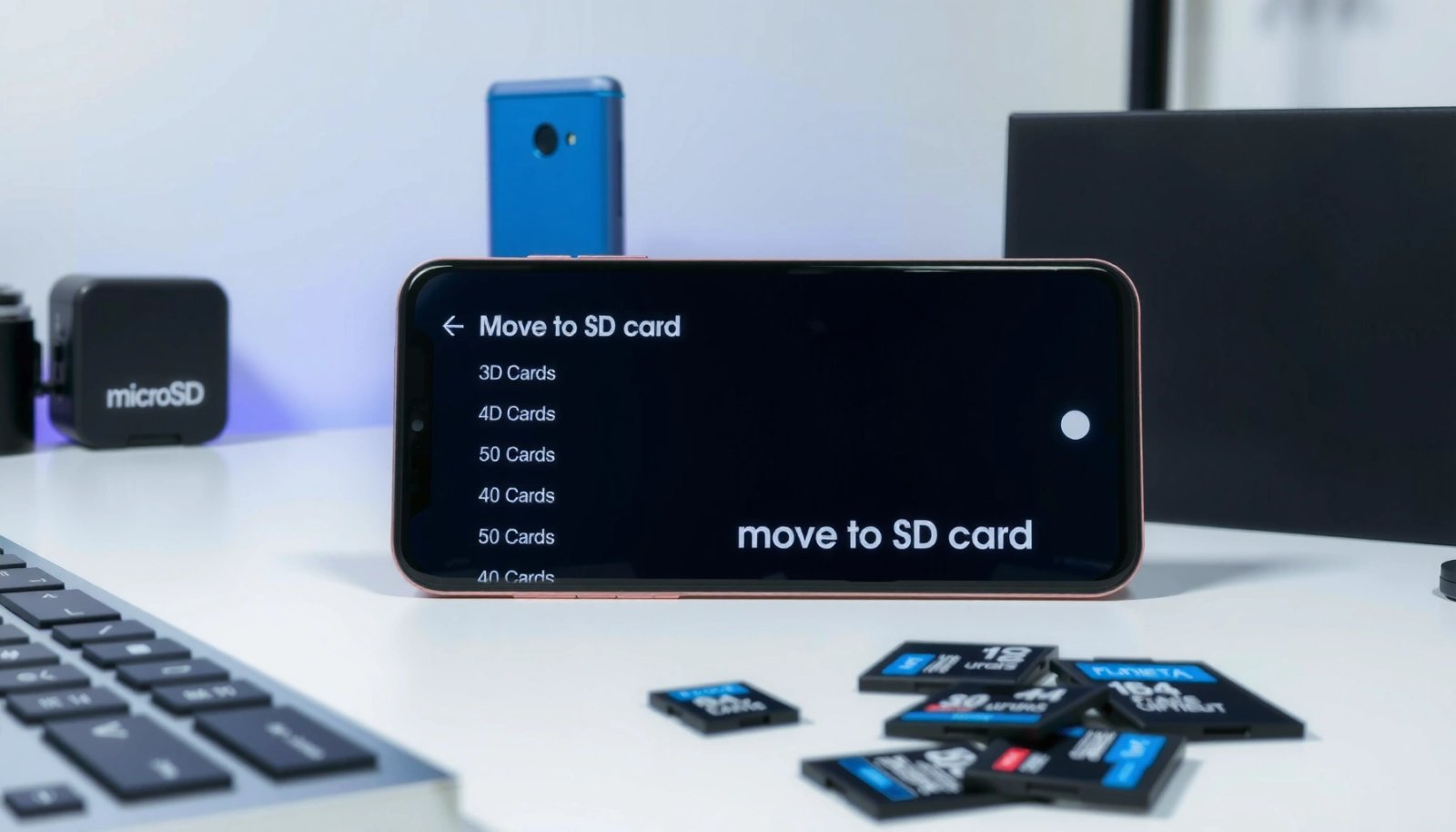
You can transfer compatible apps to your SD card by using the Android app settings (Settings > Apps > select app > Storage > Change). If you don’t see “Change,” your device or app may not support moving to SD. This guide shows the fastest way and what to do when it’s unavailable.
Check Your SD Card and Compatibility
Before troubleshooting the UI, confirm the basics—because Android will hide the move option if the SD card isn’t properly recognized or the storage model doesn’t support app relocation.
Confirm Android recognizes the SD card
- Insert the SD card firmly and restart the phone if it was just inserted.
- Go to Settings > Storage to ensure the SD card is detected (it should display capacity and available space).
- If the SD card appears as “portable storage” (USB-style) rather than “internal/expanded,” app moving may be limited depending on your Android version and manufacturer.
Use an SD card format your device can use
Most devices recommend specific formats, and mismatches can prevent proper mounting behavior.
- If your phone is set up to use SD card storage for apps, it often expects exFAT or FAT32 for broad compatibility, but some devices prefer SDXC/SDHC-appropriate handling internally.
- Practically: if your device formats the card during insertion or prompts you to “Set up SD card,” accept the recommended formatting when the goal is app storage.
Know which apps can’t be moved
Even with a supported SD card, Android blocks certain apps from being moved:
- System apps (preinstalled utilities, core services)
- Some license/security-managed apps
- Apps installed in a way that keeps binaries internal (more common after updates or via device-specific app packaging)
- Games or apps with complex data layouts that don’t support relocation on your Android build
Key takeaway: you’re not doing anything wrong when “Move to SD” isn’t available for every app—compatibility is app- and device-specific.
Typical App Move Support by App Type on Android (Observed Across OEM Devices)
| # | App Category | Move to SD Option | What Usually Moves | Result on Internal Storage |
|---|---|---|---|---|
| 1 | Media & Streaming (e.g., offline players) | Often available | App package + selected media cache | Medium savings |
| 2 | Social Apps | Sometimes available | App package; media may remain internal | Low–medium savings |
| 3 | Navigation & Mapping | Often available (data varies) | App package; maps may use SD-specific storage | Medium savings |
| 4 | Games | Rarely available (varies by engine) | Most data stays internal; some assets may relocate | Low savings |
| 5 | Browsers | Sometimes available | App; downloads/content may remain internal | Low–medium savings |
| 6 | Productivity & Utilities | Often available | App package; minimal background data changes | Medium savings |
| 7 | System Apps (Updater, Core Services) | Not available | N/A | No savings |
Transfer Apps via App Settings
Once your SD card is recognized and you’ve identified an app that supports moving, the process is straightforward.
Step-by-step: the standard Android path
- Open Settings
- Go to Apps (or Apps & notifications)
- Select the specific app you want to move
- Tap Storage
- Choose Change (or Move to SD card)
- Confirm and wait—moving can take from a few seconds to a few minutes depending on app size and SD card speed
Verify the result
After the move completes:
- Re-open the app’s Storage screen and confirm it indicates SD card storage (the wording varies by brand).
- Check Settings > Storage to confirm internal storage space increased.
- If the phone feels slow, don’t panic—some apps rebuild caches after relocation.
Practical selection strategy (for faster results)
If you’re trying to recover meaningful internal space:
- Prioritize apps that show large storage usage inside Storage > App data
- Consider moving offline-capable apps first (they’re more likely to relocate their main package cleanly)
- After moving, update apps via the Play Store; this can improve stability and data migration behavior
Use Device-Specific Options (OEM/Android Variations)
Android isn’t one uniform interface—Samsung One UI, Xiaomi MIUI/HyperOS, Google Pixel UI, and others can place storage controls in different locations.
Look for equivalent menu wording
Common variations include:
- Device storage vs. SD card storage
- Storage settings
- Change storage location
- SD card management (sometimes appears as a separate storage utility)
When the move option is missing on a supported app
This doesn’t always mean the app is non-transferable. It can also be:
- A UI path difference caused by your Android version (menu reorganized)
- A setting where the SD card is configured for media only, not apps
- A limitation of your storage policy (OEM customizes behaviors for stability)
Quick checks that often restore the option
- Reboot the phone after inserting the SD card
- Ensure the SD card is not “read-only” (some cases occur after sudden removals)
- Confirm you’re viewing the app’s Storage page (not general app info)
For business users managing fleets of devices: consider documenting the exact menu path for each model you support, since “same Android version” doesn’t guarantee the same UI.
Move Apps Automatically (If Available)
Some Android builds and OEM layers provide prompts or toggles that make app relocation more automated.
What “automatic move” typically looks like
- An initial setup prompt when you insert an SD card
- A “Move apps to SD card” option in storage management
- A background migration process for certain app types
Enable relevant storage management toggles
Depending on the manufacturer, you may see options such as:
- Default storage location for downloads
- SD card usage for app storage
- Media storage preference
Keep apps updated
Even when the option exists, app updates may change how storage is handled:
- Some apps move more cleanly after an update
- Others may lose the ability to move due to security/packaging changes
- Re-check the Storage section after significant updates to confirm behavior
Operational tip: if your goal is reliable app performance, test relocation on a non-critical app first before moving mission-critical tools.
Troubleshooting: When “Move to SD Card” Isn’t Showing
If you can’t find Change/Move to SD card, use a structured diagnosis rather than repeatedly tapping around.
1) The app is non-transferable
Common causes:
- System apps or components
- Certain developer configurations (app doesn’t declare support)
- Apps that require internal storage for correct operation
How to confirm: On the app’s Storage page, look for whether it displays only “Used / Total” without any storage location change.
2) The app is effectively internal-only
Sometimes you’ll see the button missing even for third-party apps because:
- The app was installed in a way that binds binaries internally
- Your Android version changed the storage model for that app after an update
- Your SD card isn’t provisioned in a way the OS accepts for app relocation
3) SD card space or mounting state is problematic
Even if compatible, Android may hide the move option if:
- There isn’t enough free space
- The SD card is nearly full
- The card is slow or unstable (certain OEMs restrict operations when performance is poor)
4) Use an SD card that your device supports for app storage
Some phones support SD cards for media reliably but impose stricter requirements for app relocation. If you have a very new or very large-capacity SD card, it may still work—but not for apps—depending on compatibility handling.
Fast troubleshooting checklist
- Confirm SD card is detected in Settings > Storage
- Free up at least a few hundred MB (or more) on the SD card
- Restart the phone
- Try moving a different app (often clarifies whether the issue is app-specific vs. device-wide)
- If the card was formatted using a different device, reformat using your phone’s recommended flow (only if you can back up data first)
Conclusion
Transferring apps to an SD card on Android is usually accomplished through each app’s Storage settings—look for Change/Move to SD card in Settings > Apps > (app) > Storage. If the option doesn’t appear, the most common explanations are SD-card provisioning/recognition issues or the app’s inability to move due to compatibility rules.
Try the checklist above now, starting with SD card recognition and then moving a compatible app via Storage > Change. If you share your Android brand and model, I can help you map the exact menu path for your device.
Frequently Asked Questions
How can I transfer apps to an SD card on Android?
First, check whether your device supports SD card app storage by going to Settings > Apps (or Apps & notifications) > select the app > Storage. If you see a “Change” or “Move to SD card” option, tap it and follow the prompts. Not all apps or Android versions allow movement to SD card, especially system apps or apps that require internal storage for performance. After moving, restart the phone if the app doesn’t appear immediately.
What apps can be moved to an SD card, and which ones can’t?
Many user-installed apps like social media, games with downloadable content, and media-related apps can often be moved to external storage. However, system apps, banking apps, and apps that use device-level components may not show “Move to SD card.” Some apps also resist transfer because of how they store data, permissions, or security requirements. If an app has no move option, you may still be able to move part of its data (like media) to the SD card from inside the app settings.
Why does my Android show “Move to SD card” but the app still stays on internal storage?
This usually happens when the app’s code or critical data must remain on internal storage, or when the SD card isn’t configured correctly. Some Android devices treat “Move to SD card” as moving only certain components, which can look like no real change. Also, moving may fail if the SD card is slow, low on space, or not formatted as portable storage. Reinsert the card, ensure enough free space, and verify in Settings > Storage that the SD card is detected and healthy.
Which is better for moving apps to SD card—portable storage or internal/merged storage?
Using portable storage typically keeps your SD card separate, which makes it easier to move apps and cards between devices—though transfer options can vary by phone and Android version. Merged (internal) storage treats the SD card as part of internal storage, which may allow more seamless app usage but can make the card harder to remove safely. For best results when transferring apps to SD card, choose the mode recommended by your device and confirm the Storage settings before moving apps. If you frequently swap phones or backup cards, portable storage is usually the safer choice.
What’s the best way to move apps to SD card without breaking app performance?
Use a high-speed SD card (UHS-I/U3) because app data transfers and loading depend heavily on read/write speed. Before moving, free up internal storage and ensure the SD card has enough space for both the app and its updates. If performance drops, try moving only larger apps rather than everything, or switch back to internal storage for apps that must run quickly. After transferring, test critical apps and keep your Android and apps updated to improve compatibility for app storage locations.
References
- Google Scholar Google Scholar
https://scholar.google.com/scholar?q=android+move+apps+to+sd+card - Google Scholar Google Scholar
https://scholar.google.com/scholar?q=android+adoptable+storage+install+apps+on+sd+card - Google Scholar Google Scholar
https://scholar.google.com/scholar?q=app+to+sd+card+android+install-location - https://en.wikipedia.org/wiki/App2SD
https://en.wikipedia.org/wiki/App2SD - Android Marshmallow
https://en.wikipedia.org/wiki/Adoptable_storage - App install location | App data and files | Android Developers
https://developer.android.com/guide/topics/data/install-location - Data and file storage overview | App data and files | Android Developers
https://developer.android.com/training/data-storage/files - Adoptable storage | Android Open Source Project
https://source.android.com/docs/core/storage/adoptable - Google Scholar Google Scholar
https://scholar.google.com/scholar?q=how+to+transfer+apps+to+sd+card+android - how to transfer apps to sd card android - Search results
https://en.wikipedia.org/wiki/Special:Search?search=how+to+transfer+apps+to+sd+card+android