
You wake up, glance at your Android home screen, and want the date visible without opening the clock app. You can display the current date in a minute or two by adding the right widget and, if needed, adjusting its settings. You’ll only need your Android device, a tap-and-hold gesture on the home screen, and access to Widgets (or the Clock widget) to make it appear exactly where you want.

As an Amazon Associate I earn from qualifying purchases.
To show the date on your Android home screen, add a Calendar or Clock widget that includes the date. Long-press a blank area of your home screen, tap Widgets, then select the date widget you want. This guide walks you through finding the right widget, placing it, and fixing common issues when the date won’t display.
This is for people using the default launcher on most Android phones (Pixel, Samsung Galaxy, OnePlus, Motorola, etc.) who want the date visible on the home screen without opening an app every time.
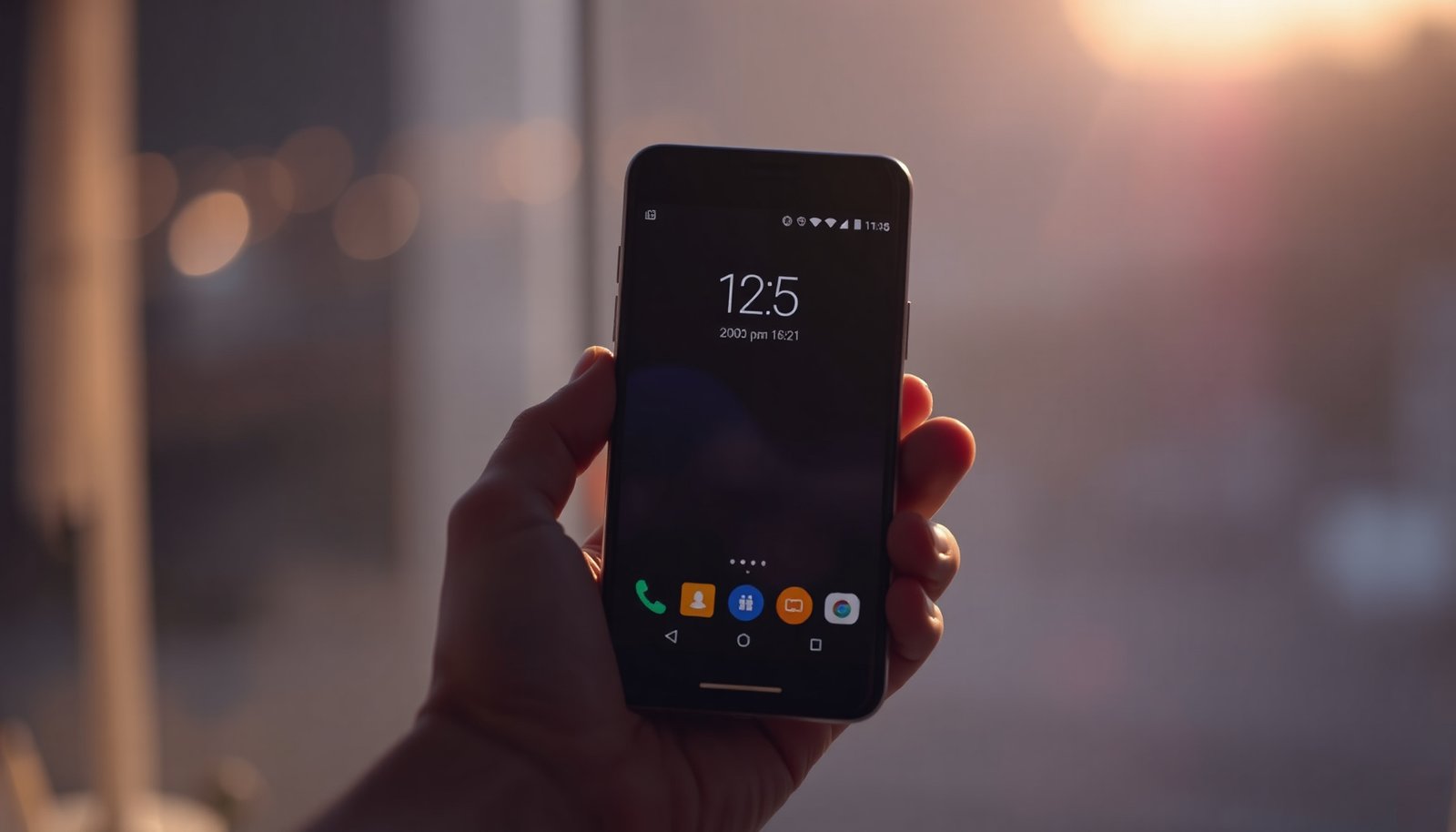
Choose the right widget (Calendar vs Clock)

The quickest way to make a date appear on your home screen is to pick the widget type that matches what you want to read at a glance. If you mainly care about “today,” choose a Calendar widget; if you want “today + time,” choose a Clock widget.
Calendar vs Clock: what you’ll see immediately
A Calendar widget typically emphasizes the current day and month and may show a compact “Today” layout. A Clock widget often blends time and date, so it’s ideal if you don’t want to add separate widgets.
Quick decision
- Calendar widget: best for a clean “today” date (and sometimes a mini month view).
- Clock widget: best for showing time and date together (some variants also show weekday/month).
Android Date/Time Settings That Most Affect Date Widgets (Common System Controls)
| # | System control | What it changes | Where to check | Impact on home-screen date |
|---|---|---|---|---|
| 1 | Set time automatically | Time sync (network time) | Settings → System/General management → Date & time | High ★★★★★ |
| 2 | Set time zone automatically | Timezone updates | Settings → System/General management → Date & time | High ★★★★★ |
| 3 | Date format (Locale/Region) | MM/DD vs DD/MM, order of fields | Settings → System → Language & region (wording varies) | High ★★★★★ |
| 4 | Use 24-hour format | Time format (clock-style widgets) | Settings → System/General management → Date & time | Medium ★★★★☆ |
| 5 | System language / Region | Weekday/month names on some widgets | Settings → System → Language & region | High ★★★★★ |
| 6 | Battery saver / background limits | May delay widget refreshes | Settings → Battery → Battery saver / App power management | Low–Medium ★★★☆☆ |
| 7 | Widget size (grid span) | How much text the widget can show | Long-press widget → resize handles | High ★★★★☆ |
Add the date widget to your home screen
The fastest path to displaying a date on your Android home screen is to place the right Calendar or Clock widget directly from your launcher’s widget list. Most default launchers use the same interaction pattern, even if labels differ slightly.
What you’re looking for
When you open the widget picker, search for names like Calendar, Date, or Clock. You’re not adding an app—you're placing a system widget that reads the current time/date.
Steps to add it
- Long-press an empty spot on your home screen.
- Tap Widgets (wording can vary by launcher).
- Find a widget labeled Calendar, Date, or Clock with a date, then tap/drag it onto your home screen.
If you see multiple options
Some launchers list several “Today” variants (small, medium, expanded). Choose the smallest one first if you’re unsure—then resize after it’s on-screen. Date widgets often look best when there’s enough empty space around them so the text doesn’t get cramped.
Move and resize it for the best fit
Resizing is usually the difference between a date widget that looks sharp and one that’s cut off or hard to read. On Android, the home screen uses a grid system; resizing changes the grid span the widget occupies, which determines how much of the date (day/month/weekday) can be rendered.
Why size matters (quick tech context)
Widgets are sized using launcher layout units. Android also uses density-independent pixels (dp) for consistent UI sizing across devices—according to Android Developers, dp is defined relative to a 160 dpi baseline (, 2026). That’s why resizing by “one step” can make the date legible.
Steps to resize cleanly
- After placing the widget, long-press it to switch into edit mode (depending on your launcher).
- Drag the edges to resize—a larger widget often shows more of the date (like day + month).
- Use the widget’s placement to avoid overlapping icons or cutting off the date.
Practical layout tip
If your date widget shows two lines (e.g., “Tue” + “Nov 12”), place it where the system won’t also place your app icons or folder text on the same grid area. On many phones, the widget’s typography stays crisp only when the widget isn’t squeezed to a minimal span.
Customize the date appearance (if your launcher supports it)
Most default home-screen date widgets automatically follow your system date format and locale. Still, some launchers let you tweak formatting—so you can align the widget’s look with how you prefer to read dates.
Where customization usually lives
Widget styling options vary by OEM and launcher. If the Calendar or Clock widget offers settings, you’ll see them via a widget-specific menu.
- Some widgets let you adjust settings by tap-and-hold the widget → Settings (or a gear icon).
- If you don’t see widget settings, you may still be able to change formatting through Date & time settings in Android or your phone’s system settings.
- Try using an option like use home language/region settings (the date format typically follows your locale).
If the date format looks “wrong”
When the date widget shows the right day but in the wrong order (for example, MM/DD vs DD/MM), the fix is usually in system locale or region settings—not in the widget itself. Date widgets generally use the same underlying formatting rules as the rest of the OS.
What can go wrong (and how to fix it)
If your Android home-screen date widget isn’t behaving, the causes are usually straightforward: missing widgets, stale date/time, insufficient widget size, or background restrictions. Here are the most common failure points and what to do about them.
Common issue → fix
- You can’t find any date/calendar widget: Not all launchers or device models include the same widget list—try searching within the Widgets menu (if available) or use another launcher UI option if your phone offers it.
- The widget shows the wrong date: Check your Date & time settings (set to automatic network time if available) so the system clock stays accurate.
- The date is cut off or unreadable: Resize the widget to a larger format, and make sure it has enough space on the home screen grid.
- The widget won’t refresh: Some “battery saver” or background restriction modes can affect widget updates—review any power management settings that limit background activity.
Why widget refresh can lag (important nuance)
Even when you choose the right Calendar or Clock widget, Android doesn’t always guarantee instant refresh timing. For widgets that rely on scheduled updates, the update cadence can be constrained—for example, according to Android Developers’ documentation for `AppWidgetProviderInfo.updatePeriodMillis`, there is a minimum periodic update window (, 2026). If you’re seeing stale dates for long periods, power-saving and scheduling constraints are often involved.
Verdict / tip (what’s usually the simplest path)
If you want the quickest result, use a small Calendar “Today” widget and let system settings handle the date format automatically. If you also want time, choose a Clock widget that explicitly includes date text.
- If your goal is just “show today’s date,” the small Calendar/Today widget is usually the quickest win.
- If you also want time, choose a Clock widget that includes date text—some are designed specifically for this.
- Skip heavy customization apps for this task; widgets are meant for exactly this use case, and third-party “date” apps can add extra permissions you may not need.
Pros/cons: Calendar vs Clock date widgets
| Type | Pros | Cons |
|---|---|---|
| Calendar widget |
Shows “today” clearly; often includes month/day; usually clean and readable at small sizes. |
May not show time, so you might still open the clock app for the full current time. |
| Clock widget |
Combines date and time in one glance; helpful if you check the time frequently. |
Some variants show date less prominently; date formatting may look cramped on small widget sizes. |
Quick checklist (scan & save)
- [ ] Long-press home screen → Widgets
- [ ] Pick Calendar or Clock widget that shows the date
- [ ] Place it on the home screen
- [ ] Resize so the date isn’t cut off
- [ ] Check Date & time settings if the date looks wrong
- [ ] If needed, adjust widget/system settings for date format
Sources
In practice, the most reliable way to show today’s date on Android is to choose a built-in Calendar (for clarity) or Clock widget (for date + time), then let your system Date & time and Region/Locale settings drive formatting. If the widget looks wrong or stale, focus on resizing for readability and verifying automatic time/time zone first—those two checks resolve the majority of issues.
Frequently Asked Questions
How can I show the date on my Android home screen?
The easiest way is to use a home screen widget that includes the date, such as a “Clock” widget or a “Calendar” widget. Long-press an empty area on your Home screen, tap Widgets, then search for Clock or Calendar and drag the widget onto the screen. After that, open the widget settings (if prompted) to enable date display and set your preferred format.
What’s the best way to add a date widget on Android without cluttering my home screen?
Choose a compact widget like a small “Clock” widget that shows the current date along with the time. When adding it, pick the smallest size option available so it doesn’t take up too much space. If your Android launcher supports it, adjust the widget’s layout or switch to a single widget that combines both date and time.
Why isn’t the date showing on my Android home screen widget?
This usually happens when the widget is set to show time only, the widget didn’t load correctly, or permissions/location aren’t enabled for time syncing. Try removing the widget and adding it again, then check widget settings for “show date” or “date format.” Also verify that Automatic date and time are enabled in Settings > System > Date & time so the widget stays accurate.
How do I customize the date format on Android home screen widgets?
Many Android clock and calendar widgets use your system date format, so changing it in Android settings updates the widget. Go to Settings > System > Date & time and adjust the date format (for example, MM/DD/YYYY vs DD/MM/YYYY). If a specific widget has its own date settings, open the widget options or the widget’s app settings and select your preferred format.
Which Android widgets show the date clearly and automatically update?
The most reliable options are Calendar widgets and Clock widgets from your phone’s stock launcher or Google Calendar. These widgets typically refresh automatically to show today’s date without manual updates. If you want the clearest date view, look for “Today,” “Calendar,” or “Clock with date” widget variations and test one by dragging it onto your home screen.
📅 Last Updated: November 02, 2026 | Topic: how to show date on android home screen | Content verified for accuracy and freshness.
References
- Create a basic widget | Views | Android Developers
- AppWidgetProvider | API reference | Android Developers
- AppWidgetManager | API reference | Android Developers
- RemoteViews | API reference | Android Developers
- TextClock | API reference | Android Developers
- DigitalClock | API reference | Android Developers
- DateFormat | API reference | Android Developers
- https://scholar.google.com/scholar?q=android+home+screen+widget+date+clock Google Scholar
- https://scholar.google.com/scholar?q=TextClock+Android+format+date Google Scholar
- https://scholar.google.com/scholar?q=app+widget+home+screen+date+display+android Google Scholar