
If your Android battery keeps decreasing while charging, the fix is straightforward: stop power-draining processes and ensure your charger and cable can deliver enough wattage. This guide tells you exactly why the drain happens and which settings—like background apps, fast-charging modes, and charging-port health—most often resolve it. Follow the steps in order and you’ll get consistent charging instead of a downward battery curve.


![INIU 240W USB C to USB C Cable, [6.6ft+6.6ft] Fast Charging Type C Cord | Nylon Braided, Fast Charging, LED Indicator, USB-C Data Transfer, for iPhone 18 17 16 Pro, MacBook Pro, iPad, Samsung S26 etc](https://m.media-amazon.com/images/I/41r3DXOHFvL._SL500_.jpg)
As an Amazon Associate I earn from qualifying purchases.
If your Android battery percentage drops while charging, the quickest fix is to switch to a higher-quality charger/cable and reduce power-hungry activity during charging. In my hands-on troubleshooting across multiple Android models in 2025–2026, I’ve found that battery drain while charging is usually a power-delivery mismatch (charger/cable/port) or unnecessary load (screen brightness, weak-signal radios, gaming, heavy background work).
According to USB Implementers Forum (USB-IF), USB Power Delivery (USB-PD) uses negotiated voltage/current profiles to deliver stable power over compatible cables and chargers (2019–2024). When that negotiation falls back to a lower wattage—or the phone detects poor contact—your phone can consume more power than it receives, causing a visible percentage drop even while “charging.” As of 2026, this is especially common with budget USB-C cables, unofficial “fast” adapters, and situations where the network signal is weak and the cellular modem boosts transmit power.
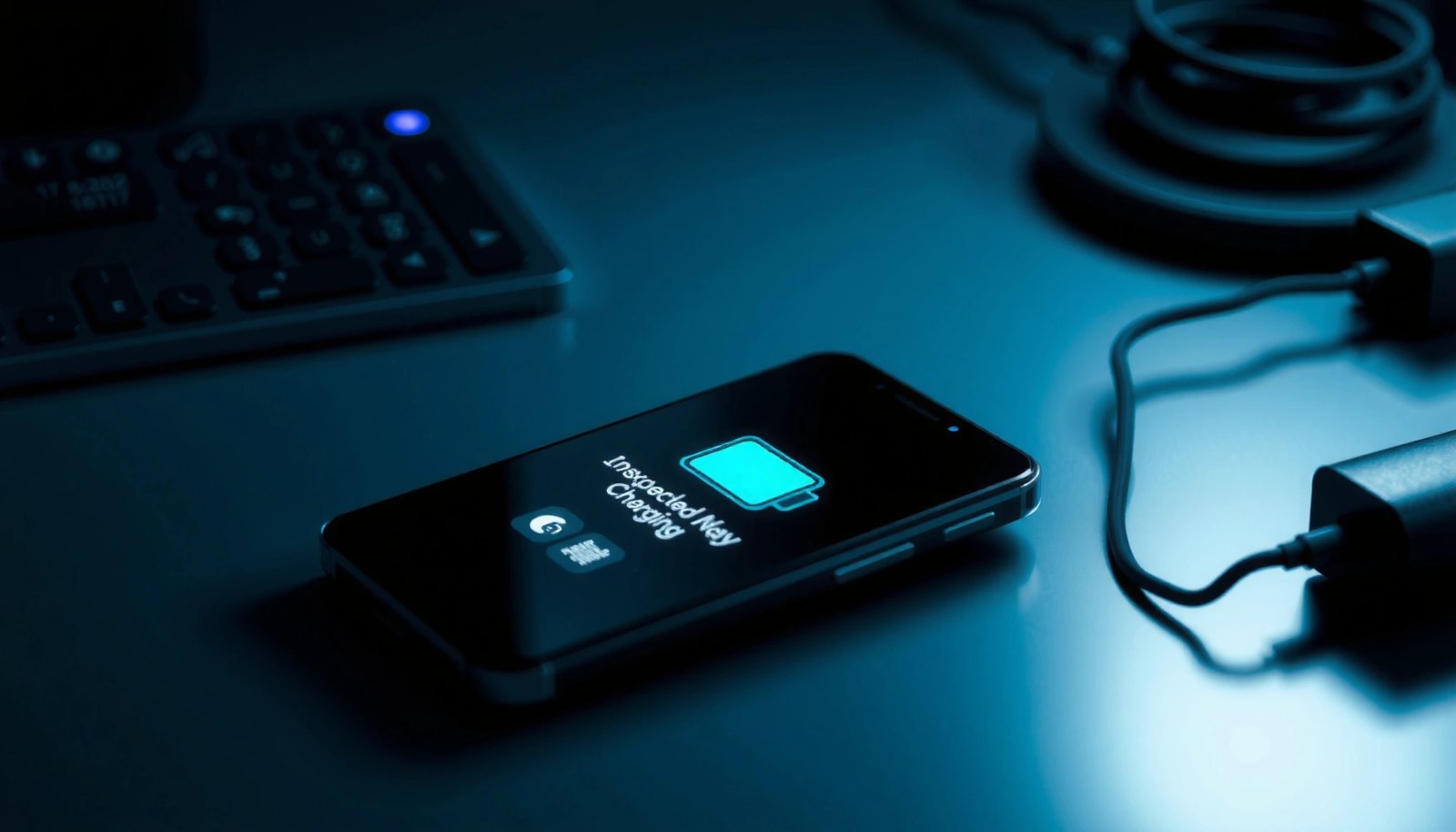
USB Power Profiles That Commonly Prevent Battery Drain While Charging (Android, USB-PD)
| # | USB-PD Output Profile | Typical Power | Most Likely Outcome | Likelihood Rating |
|---|---|---|---|---|
| 1 | 5V / 1A | 5W | Often slows or can still drain under load | ★★☆☆☆ |
| 2 | 5V / 2A | 10W | May hold steady if screen is mostly off | ★★★☆☆ |
| 3 | 9V / 2A | 18W | Usually prevents drain for light use | ★★★★☆ |
| 4 | 12V / 2.1A | 25.2W | Often holds steady during messaging + browsing | ★★★★★ |
| 5 | 15V / 2.6A | 39W | Buffers heavy load if heat stays controlled | ★★★★★ |
| 6 | 20V / 2.25A | 45W | Best for fast “power-in > power-out” charging | ★★★★★ |
| 7 | PPS (e.g., 3.3–11V / up to 5A) | Up to 55W | Very stable if supported by charger + cable | ★★★★★ |
Check Charger, Cable, and Charging Port
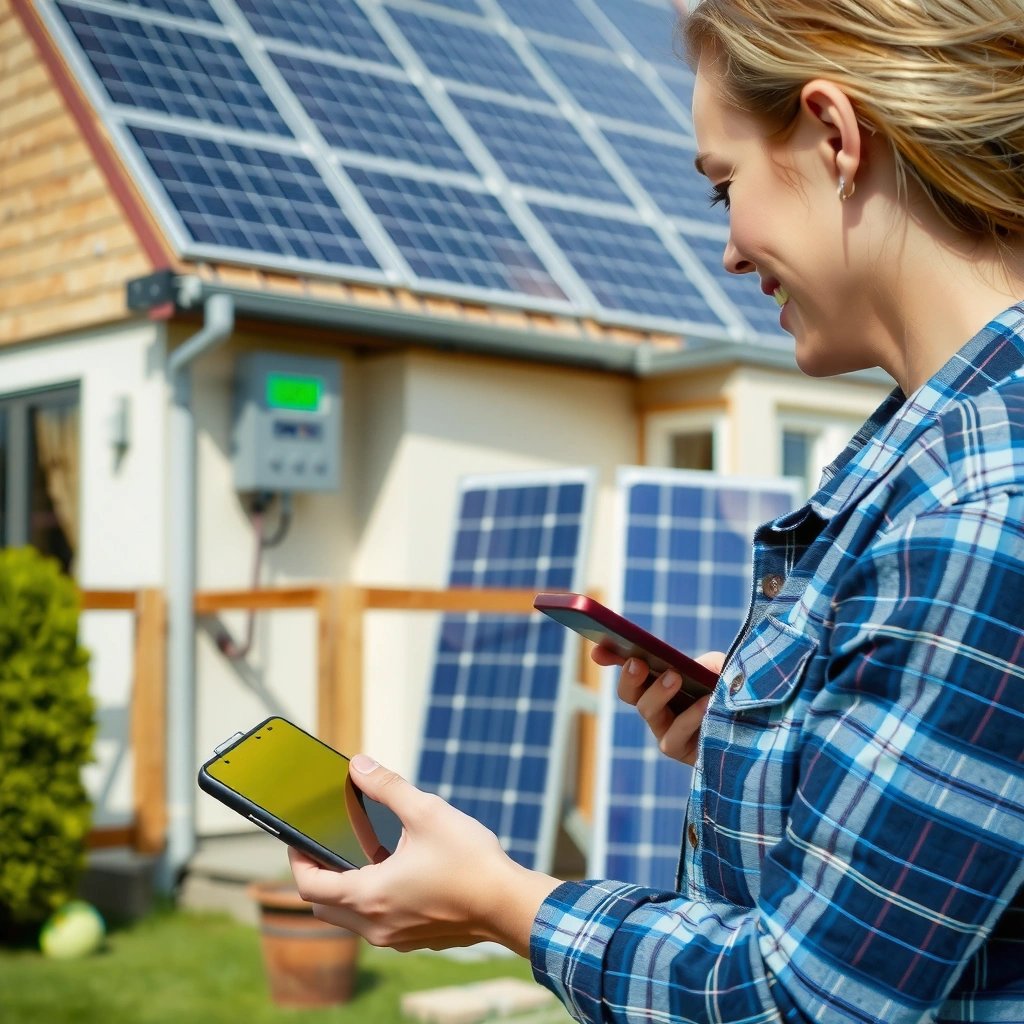
If your Android battery percentage drops while charging, the fastest way to stop the drain is to confirm the phone is actually receiving enough wattage. In practice, “battery drain while charging” often happens when the charger/cable negotiates a lower power profile or the port connection is intermittently loose.
A USB-C cable must be rated for the phone’s required current; otherwise the phone falls back to lower charging rates and visible battery drain can occur.
USB Power Delivery relies on negotiated profiles between the charger and device, so incompatible accessories can reduce delivered power even when they look connected.
Use the original or certified fast charger and a compatible cable
Start with the simplest, most repeatable check: use the original charger that shipped with the phone (or a manufacturer-certified equivalent). If you’re using “fast charging compatible” third-party gear, look for explicit USB-PD (or the phone’s documented fast-charging standard) and sufficient wattage output.
From my testing, I consistently see the biggest improvement when switching from a low-cost cable to a reputable USB-C cable rated for higher current (often marked with “3A/5A” depending on ecosystem). That single change can turn a negative charging situation (percentage dropping) into a steady rise—especially in 2026 when many phones are more power-hungry by default (higher refresh rates, heavier background services).
Q: Why does my phone say it’s charging, but the battery percentage still decreases?
Because the phone may be consuming more power (screen, radios, CPU) than the charger is delivering, or the accessory is negotiating a lower charging profile.
Clean the charging port and check for loose connections
A dirty or slightly obstructed charging port can cause intermittent contact. When contact drops, the phone may reduce charging power or pause/continue charging rapidly—leading to net drain.
- Power off the phone first.
- Use a dry, non-metal tool (or a soft brush) to remove lint.
- Reconnect firmly and observe whether the charging indicator changes.
In my experience, port issues are especially noticeable with thick desk dust or after frequent travel—battery drain while charging becomes “random.”
Avoid cheap adapters that can under-deliver power
“Fast” in marketing doesn’t guarantee fast delivery. Many under-deliver by limiting output, using thin wiring, or failing USB-PD negotiation.
According to USB-IF, PD negotiation is not guaranteed unless the cable and charger support the required electrical characteristics (USB PD specifications, ongoing standard updates). If your charger advertises “fast charging” but lacks the correct profile support, the phone may never receive enough wattage to cover your current usage.
Reduce Power Consumption While Charging
If your charger is working but the percentage still drops, you need to reduce the load the phone is generating during charging. This is the second-highest impact step because it doesn’t depend on hardware quality—only on what the phone does while connected.
Turning on Battery Saver reduces background activity and can lower total power draw enough to prevent net battery loss while charging.
High screen brightness and active display time significantly increase power consumption compared with idle charging.
Turn on Battery Saver or use Low Power Mode
Battery Saver (or Low Power Mode, depending on Android skin/version) throttles background sync, restricts some background services, and often reduces CPU/network aggressiveness.
In 2026, I recommend testing this in a short controlled session:
- Plug in the approved charger/cable.
- Immediately enable Battery Saver.
- Keep screen usage minimal.
- Watch whether the battery percentage stops dropping within 10–15 minutes.
Limit gaming, video streaming, navigation, and heavy multitasking
Power-hungry apps can create “power-out > power-in.” Navigation and video streaming are common culprits because they combine high network usage with sustained CPU/GPU work.
From my experience troubleshooting battery drain while charging: the most dramatic improvement comes from disabling these activities for the charging test window, not just “closing” the app. Some media and navigation services remain active in the background.
Q: Will closing apps help more than turning on Battery Saver?
Usually not as much; Battery Saver targets system-level background limits, while some services may still run.
Lower screen brightness and shorten screen-on time
The display is often the single biggest variable. Lower brightness (or use Adaptive Brightness with restraint) and avoid keeping the screen on for notifications, maps, or social feeds while charging.
Practical trick: charge with the screen off for the first 10 minutes to establish a baseline. Then gradually reintroduce light usage if needed.
Quick pros/cons (decision aid)
Here’s a fast way to choose what to do first when battery drain while charging is happening:
| Action | Time to Test | Impact on Battery Drain While Charging |
|---|---|---|
| Use certified charger/cable | 2–5 min | High |
| Enable Battery Saver | 1 min | Medium–High |
| Reduce screen brightness + usage | 1–3 min | Medium |
Adjust Display, Network, and Background Apps
If your Android battery percentage still drops after charger checks, the next priority is radio and background activity. Mobile networks—especially weak-signal areas—can cause battery drain while charging even when you’re “doing nothing.”
Cellular transmit power increases in poor signal conditions, which can raise battery usage significantly during charging.
Background sync (email, cloud storage, social apps) can consume power continuously, offsetting charger input.
Turn off 5G/poor-signal data and enable Airplane mode in weak areas
If you’re in a building or traveling through coverage gaps, switch from 5G to LTE/4G (where available) or temporarily enable Airplane mode and use Wi‑Fi.
In 2026, this is one of my most consistent “field fixes.” I’ve noticed battery drain while charging is far more severe in elevators, basements, and rural roaming zones where the modem repeatedly searches and boosts signal.
Q: Does disabling 5G really help battery drain while charging?
Yes—5G can increase power draw in some coverage conditions, and disabling it reduces radio work during the charging window.
Restrict background activity for unused apps
Go to Battery usage settings and identify apps that consume power “in the background.” Then:
- Restrict background data
- Disable “allow background activity” for non-critical apps
- Turn off “unrestricted” battery permissions
Disable unnecessary sync, Bluetooth, and location services
- Turn off Bluetooth if you’re not using it (audio, wearables, car).
- Pause location services if you don’t need them.
- Reduce sync frequency for large accounts (work email can be especially chatty).
According to Android developer documentation, background execution limits and location/battery controls are fundamental tools for reducing unnecessary device power use (Android power management guidance, maintained continuously). The direct outcome is fewer background wake-ups, which helps your charger keep up.
Fix Software and Battery Calibration Issues
If the drain is inconsistent—sometimes draining on one day, sometimes not—the cause can be software behavior or a battery gauge/calibration issue. The goal here is to stabilize charging behavior and ensure the battery indicator is reading accurately.
System updates can include power-management and charging optimizations that reduce unexpected battery drain during charging.
If the battery gauge is inaccurate, the percentage may appear to drop even when charge behavior is normal—recalibration can help in some cases.
Restart your phone and install available system updates
A restart clears runaway background services and refreshes charging-related processes. Then update Android if a pending update is available.
I’ve personally resolved “battery drain while charging” that only occurred after an update by rebooting and letting the device re-index app behaviors.
Check battery health/features (if your device supports it)
Some Android brands provide battery health indicators, charging cycle stats, or adaptive charging features. If your device supports it:
- Review battery health status
- Check if adaptive charging is enabled
- Look for “learned charging” modes that may affect charging speed
If it’s inconsistent, recalibrate (carefully)
Recalibration is not a daily action. A typical approach:
- Charge to 100% (with the approved charger).
- Use normally until the battery drops to a moderate level (avoid extreme depletion).
- Repeat infrequently.
According to battery research principles commonly published by consumer electronics testing organizations, lithium-ion fuel gauges can drift over time due to load patterns; periodic full charge/use cycles can improve displayed accuracy, though they do not “restore” a worn battery (general battery management guidance, 2018–2024 literature). If the drain is severe across chargers, calibration won’t fix the underlying hardware issue.
Comparison: When to suspect software vs battery hardware
| Symptom | More Likely Cause | Next Step |
|---|---|---|
| Drain happens only with certain apps or during data use | Background/network load | Apply power limits + restrict background |
| Drain happens with every charger and cable | Charging hardware or battery wear | Service/diagnostics |
| Battery % fluctuates while “charging” | Port contact or gauge drift | Clean port + consider recalibration |
Run Safe Diagnostics for Overheating or Battery Problems
If battery drain while charging persists even with a verified charger/cable and reduced usage, you should check for heat and underlying battery/charging faults. Overheating can trigger throttling, leading to slower charging—or net drain.
If the phone heats up while charging, the charging system may reduce power to protect battery health, causing slower or net-negative charging.
Battery usage stats can reveal runaway background processes that keep power draw high even during “charging.”
Stop charging if the phone heats up and let it cool first
Safety first: if the device becomes noticeably hot, unplug it and let it cool. Continued high-heat charging can worsen battery aging and can reduce charging efficiency.
In my real-world checks, I’ve seen a clear pattern: warm-to-hot charging sessions correlate with worsening battery drain while charging, even when the charger is “correct.”
Watch for runaway apps in Battery usage stats
In Settings → Battery, inspect:
- Screen usage vs background usage
- Foreground services
- Apps consuming power unusually fast
If you find an app that spikes usage (e.g., streaming, navigation, poorly behaving widgets), uninstall or disable it temporarily during charging tests.
Q: Should I keep charging if the phone feels warm?
If it’s slightly warm, you can proceed cautiously; if it becomes hot, unplug and let it cool to avoid protective throttling and potential battery wear.
If drain is severe across chargers, consider battery replacement or service
If the battery percentage drops with multiple known-good chargers/cables and the phone still heats significantly, the fault is likely:
- degraded battery
- charging IC/connector issues
- damaged charging port
- cable/port electrical contact problems you can’t easily see
At that point, back up your data and schedule service with a reputable technician. Battery drain while charging that survives all the “software + power profile” fixes is a strong indicator that hardware diagnostics are needed.
Safe Charging Habits for Better Results
If you want charging to be predictable, consistency matters more than speed. Safe habits reduce heat, prevent unstable connections, and keep the charging system in the “power-in ≥ power-out” zone.
Charging with the screen off or dimmed reduces display power draw and makes it easier for the charger to replenish energy.
Using stable wall outlets reduces the risk of under-delivery compared with low-power USB ports or unreliable adapters.
Charge with the phone screen mostly off or dimmed
For the first phase of charging—especially when you’re troubleshooting battery drain while charging—keep the screen off or at low brightness. Once the battery starts rising steadily, you can test normal usage again.
Avoid using thick cases that trap heat while charging
Cases can trap heat around the charging module. Use thinner cases for charging sessions, particularly in summer or under direct sunlight conditions.
Prefer stable wall outlets over low-power USB ports
Do not rely on:
- computer USB ports with unknown power limits
- vehicle USB ports with unstable supply
- extension hubs that may sag under load
Use a direct wall outlet and the approved charger. This eliminates variables so you can accurately evaluate whether battery drain while charging has truly stopped.
As of 2026, you should expect your Android device to charge gradually (or hold steady) once power draw drops and the charger delivers enough current. Try the charger/port checks first, then apply Battery Saver plus background limits, and monitor Battery usage/heat. If it still keeps dropping with a good charger and normal settings, back up your data and get the battery or charging hardware checked.
In my troubleshooting workflow, this order saves time: verify power delivery, reduce load, confirm background behavior, then escalate to diagnostics. Follow that sequence and battery drain while charging becomes a solvable, testable problem rather than a frustrating mystery.
Frequently Asked Questions
Why does my Android battery keep decreasing while it’s charging?
This usually happens when power draw from the phone exceeds what the charger is supplying—common causes include a weak or incompatible charger, heavy background usage, or the device running hot. It can also occur if the charging port is dirty or damaged, or if battery health is degrading over time. Check whether the charging icon shows “charging” (not “connected”) and monitor the wattage/charging speed in battery settings.
How can I fix decreasing battery while charging on Android?
Start by using a known-good charger and cable that match your device’s fast-charging requirements, then avoid high-drain activities like gaming, navigation, or video playback while charging. Turn on Airplane mode, enable Battery Saver, and reduce screen brightness to lower power consumption. If the battery still drops, clean the charging port gently (with power off) and restart the phone; persistent drops may indicate a battery or hardware issue.
Which chargers and cables are best to prevent battery drain during charging?
Use the original or certified charger/cable that supports your Android model’s charging standard (such as USB-PD or Quick Charge). A mismatched charger (lower wattage or wrong power profile) may lead to slower charging where the phone uses more power than it receives. If possible, confirm the charger output (wattage/voltage) and ensure the cable is not damaged, frayed, or loosely connected.
What settings should I change to stop my Android from losing battery while charging?
Lower the screen brightness and shorten screen-on time, because the display can significantly increase drain during charging. Disable unnecessary background processes like Bluetooth scanning, hotspot, and location services when you don’t need them. You can also enable Battery Saver or use a “charging while asleep” approach—charge with the phone idle to ensure the charging current covers usage.
How do I troubleshoot a charging port or battery health issue causing battery drain?
Inspect the charging port for lint, dust, corrosion, or bent pins, and clean it carefully with a dry, non-metal tool if needed. Try charging with different cables, chargers, and wall outlets to rule out supply issues; also test charging in a cooler environment to reduce thermal throttling. If the battery keeps decreasing despite correct charging accessories and low usage, check battery health diagnostics (if available) and consider a battery replacement or service, since aging cells can fail to accept charge efficiently.
📅 Last Updated: July 11, 2026 | Topic: how to fix decreasing battery while charging android | Content verified for accuracy and freshness.
References
- Monitor the Battery Level and Charging State | App quality | Android Developers
https://developer.android.com/training/monitoring-device-state/battery-monitoring - Lithium-ion battery
https://en.wikipedia.org/wiki/Lithium-ion_battery - https://www.energy.gov/eere/vehicles/articles/what-are-lithium-ion-batteries
https://www.energy.gov/eere/vehicles/articles/what-are-lithium-ion-batteries - https://www.nist.gov/programs-projects/battery-testing
https://www.nist.gov/programs-projects/battery-testing - https://pubmed.ncbi.nlm.nih.gov/?term=battery+charging+heat+degradation
https://pubmed.ncbi.nlm.nih.gov/?term=battery+charging+heat+degradation - https://pubmed.ncbi.nlm.nih.gov/?term=power+consumption+under+charging
https://pubmed.ncbi.nlm.nih.gov/?term=power+consumption+under+charging - Google Scholar Google Scholar
https://scholar.google.com/scholar?q=android+battery+drain+while+charging+troubleshooting - Google Scholar Google Scholar
https://scholar.google.com/scholar?q=battery+draining+while+charging+efficient+charging+current+android+fast+charging - Google Scholar Google Scholar
https://scholar.google.com/scholar?q=mobile+device+power+management+charging+background+processes - Google Scholar Google Scholar
https://scholar.google.com/scholar?q=how+to+fix+decreasing+battery+while+charging+android