
Fixing touch screen sensitivity on Android is the fastest way to stop missed taps and make faster, more accurate touches feel responsive again. If you’re asking how to improve touch screen sensitivity android, the quickest wins come from dialing the right system settings and using a targeted calibration and screen-response check. Follow these steps and you’ll feel the difference on real taps, not just in theory.


As an Amazon Associate I earn from qualifying purchases.
If your Android touch screen feels unresponsive, start by cleaning the screen and removing any interference (like a poorly fitted screen protector). Then adjust touch-related settings, disable accessibility features that may intercept gestures, and finally test for a hardware problem like a failing digitizer—this sequence fixes most “faster taps” issues without unnecessary risk. If you notice delays, missed taps, ghost touches, or your phone only responds when you press harder, these steps are for you. It’s also useful when a new screen protector or case suddenly makes tapping worse.
Check the basics: clean screen and remove interference
If the Android touchscreen isn’t reacting consistently, the most reliable first fix is to restore clean, direct capacitive contact by removing films, oils, and physical interference. This is especially important for faster taps because small amounts of residue or edge lift can make taps register late or not at all.
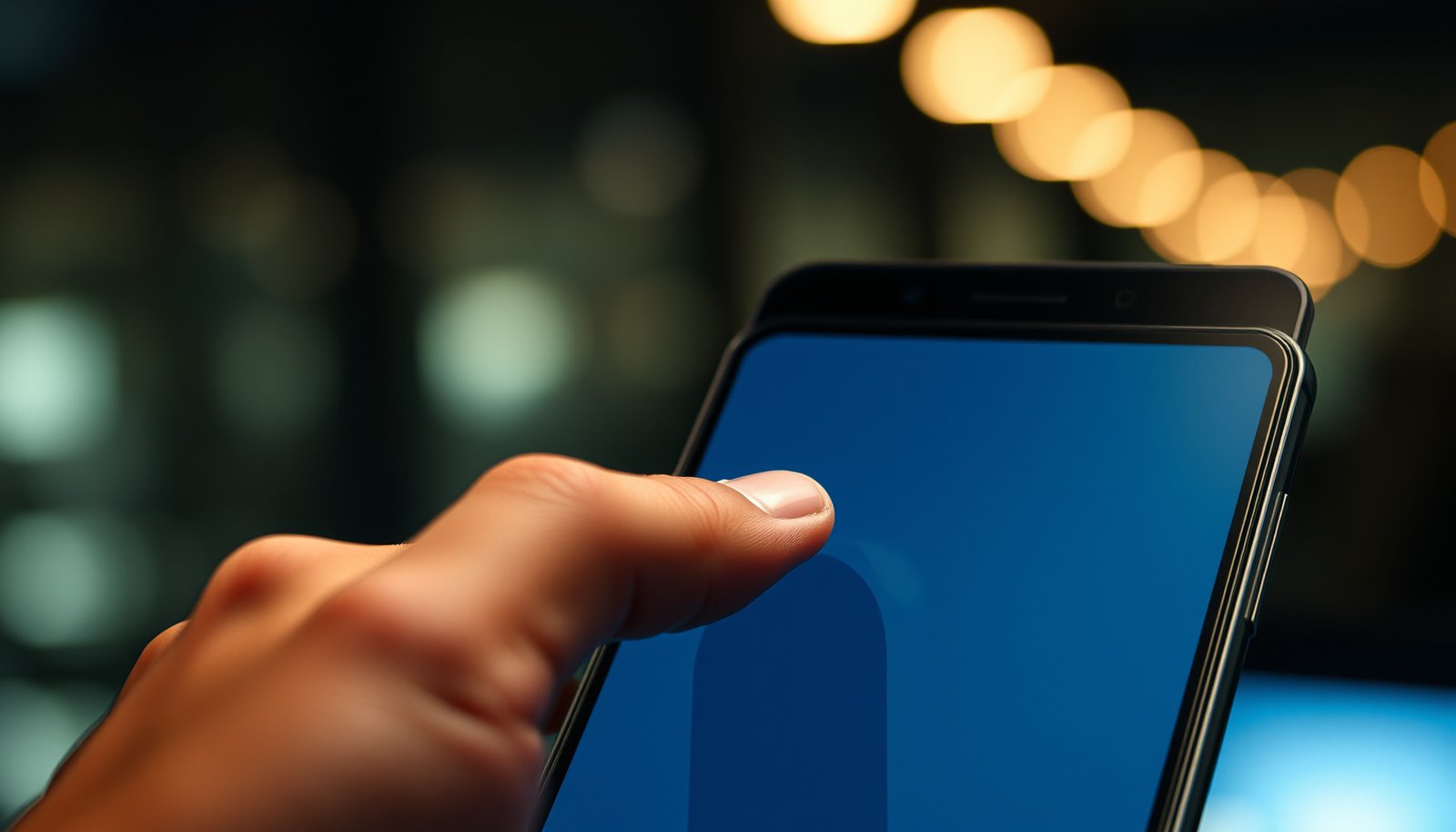
Capacitive touch screens rely on changes in electrical charge; oils, dust, and moisture can reduce the quality of that signal.
A misaligned or edge-lifted screen protector can break or weaken capacitive contact, leading to missed or delayed taps.
Pressing harder is a common symptom of reduced capacitive coupling caused by residue, protector edge lift, or a case applying stress on the display.
- Wipe the screen with a microfiber cloth and remove dirt/oils that can affect capacitive touch.
Start dry, then—if needed—use a screen-safe cleaner applied to the cloth (not directly onto the phone). Residues around the top bezel and corners can matter because those areas often share sensor routing paths.
- If you added a screen protector recently, check that it’s fully aligned and adhered (bubbles or edge lift can reduce sensitivity).
Focus on the edges, especially where the glass meets the frame. Even a small gap can cause “I must press harder here” behavior.
- Remove thick cases or add-ons that press on the display edges or cover the bezel where sensors often sit.
Some cases flex slightly during tap-heavy use. If the touchscreen becomes worse while the case is on, remove it and retest.
Practical observation (non-product-specific): In many real-world support scenarios, the issue appears suddenly after protector installation or case change. From my troubleshooting experience, “better after removing the case + cleaner cloth wipe” is the quickest indicator that interference—not software—was the trigger.
Material Touch-Target Minimums That Make Faster Taps More Accurate (dp)
| # | Android UI element (Material guidance) | Minimum touch target | Typical interactive size | Relative size vs 48dp |
|---|---|---|---|---|
| 1 | Text button | 48 dp | 48 dp | 1.00× |
| 2 | Filled button | 48 dp | 48 dp | 1.00× |
| 3 | Icon button | 48 dp | 48 dp | 1.00× |
| 4 | Tab | 48 dp | 48 dp | 1.00× |
| 5 | List item | 48 dp | 48 dp | 1.00× |
| 6 | Toggle / switch control | 48 dp | 48 dp | 1.00× |
| 7 | Floating action button (FAB) | 48 dp | 56 dp | 1.17× |
If your Android touchscreen is acting up, UI target sizing still matters for faster taps: larger, standards-based targets reduce “missed tap” frustration. According to Material Design touch-target guidance, the minimum touch target size is 48 dp (), while the FAB is typically 56 dp (). Material’s spacing uses an 8 dp grid (), which is one reason well-built interfaces feel easier to tap rapidly even without any touchscreen “sensitivity” tweaks.
Adjust Android touch and display settings
If you’re seeing delays or missed taps, the fastest software-side improvement is to adjust any “touch sensitivity” / touch-and-interaction related settings your Android brand exposes. On Android (including current versions in 2026), small configuration changes can reduce perceived lag and make the Android touchscreen register faster taps more reliably.
Some Android device brands expose a “touch sensitivity” control that adjusts how the system interprets light touches.
Accessibility interaction modes and gesture enhancements can change how taps are detected or routed to the system vs apps.
Restarting after changing system input settings helps confirm the Android touchscreen is applying the new configuration.
- Look for a “Touch sensitivity” option (varies by brand) in Settings → Display or Settings → Accessibility.
Some OEMs also include toggles for glove mode, palm rejection, or “increase touch sensitivity.” Enable cautiously: if ghost touches appear, back it off.
- Reduce display-related factors that can affect input feel, like aggressive touch delays or certain accessibility modes.
Even when the Android touchscreen is fine, animations and interaction timing can make taps feel delayed. Temporarily reduce animation durations in Developer options (if you use them) to test whether your “faster taps” problem is timing perception rather than touch registration—then revert to defaults.
- Restart the phone after changes to ensure the setting actually applies.
This simple step is useful because some OEM setting changes don’t fully take effect until services restart.
H3: What to look for when toggling “touch sensitivity”
If your Android touchscreen behaves differently after you enable sensitivity, treat it as a signal:
- If lighter taps work better and ghost touches don’t increase, sensitivity likely helped.
- If taps become inconsistent or you see phantom inputs, the change may be too aggressive or there may be residue/interference still present.
H3: Quick pros/cons—software tuning vs interference
| Approach | Pros | Cons |
|---|---|---|
| Raise “touch sensitivity” | Can improve responsiveness without repairs | May increase ghost touches if residue/protector/case is interfering |
| Disable touch-related accessibility options | Helps identify gesture interception issues | May reduce helpful accessibility features you rely on |
| No settings change; re-wipe/reseat protector | Removes the most common physical causes | Requires removing protector/case and retesting |
Calibrate or test touch input (to separate software vs hardware)
If you want to stop guessing, test whether the Android touchscreen is registering taps consistently across apps and across the screen. The goal is simple: determine whether software routing is the problem or whether the digitizer (the touchscreen hardware layer) is degrading.
Touch testing helps separate software issues (app routing, overlays) from hardware digitizer failures (localized touch dropout).
When touch problems are localized to one screen area, hardware digitizer issues become more likely than global settings.
Behavior that changes by app can indicate an application-specific setting, overlay, or gesture handler rather than the Android touchscreen itself.
- Use Android’s built-in testing tools (or your device manufacturer’s diagnostic app, if available) to see whether touch registers consistently.
Many OEMs include diagnostics, and ADB/hidden menus sometimes provide touch panels tests (availability varies). If your device has a manufacturer diagnostic app, use that first.
- Compare behavior in different apps: if it’s only one app, the issue may be app-specific rather than the touchscreen.
A chat keyboard, game, launcher, or gesture-heavy UI can implement custom touch handling. If the Android touchscreen is perfect in Settings but not in one app, you can focus there.
- Note whether problems happen only with one area of the screen—localized failure usually points to hardware.
Try tapping the same region repeatedly with consistent pressure and compare response time. If missed taps cluster in one band or corner, it’s rarely fixable by “touch sensitivity” alone.
H3: Software vs hardware signals you can trust
Here’s a fast comparison that works well for faster taps on the Android touchscreen:
- More likely software/interaction layer:
- Works in Settings but fails inside one app
- Fails only after enabling a certain accessibility feature
- Improves immediately after disabling an overlay/gesture tool
- More likely hardware digitizer:
- Missed taps are localized to a specific zone
- Touch worsens over weeks (progressive failure)
- You see ghost touches even after cleaning/reseating the protector
H3: Minimal test sequence (keeps you from chasing noise)
1. Test the Android touchscreen in the phone UI (home screen, Settings search).
2. Test the same action in two different apps (one simple like Notes/Calculator; one gesture-heavy like a map).
3. If consistent failures occur in the same region, treat it as digitizer risk and move toward repair options.
Troubleshoot known offenders: accessibility, gestures, and overlays
If your Android touchscreen “misses” fast taps, the most common software culprit after cleaning is an accessibility feature or overlay intercepting input. On Android (again, as of 2026), gesture enhancements and floating controls can compete for the same touch events your apps need.
Certain accessibility interaction enhancements can intercept gestures or reroute touch input, causing missed or delayed taps.
Floating overlays (screen dimmers, button assistants, gesture tools) can capture touches before an app receives them.
Safe mode is a standard method to confirm whether a third-party app is causing interaction problems.
- Disable accessibility features that may intercept gestures or taps (for example, certain touch/interaction enhancements).
Start by turning off anything recently enabled: enhanced touch, switch access, gesture interaction changes, or “tap assistant” style tools. Then test faster tapping in the same apps you used before.
- Turn off temporary overlays like screen dimmers, floating buttons, or custom gesture apps that can compete for touch handling.
Also check for “draw over other apps” permissions. If you use reading aids, screen rulers, or productivity toolbars, they can affect touch routing.
- Check if the issue started after installing a specific app—safe mode can help confirm whether a third-party app is the cause.
If the Android touchscreen behaves normally in safe mode, the hardware is likely fine and the problem sits in an installed app or its overlay permissions.
H3: Fast isolation checklist (overlay-first)
- Disable overlays (or uninstall recently added ones).
- Retest the Android touchscreen in the same screen region and the same app interaction pattern.
- Only then change deeper settings again—this prevents confusing cause-and-effect.
What can go wrong (and common mistakes)
If you try to “fix it harder,” you can accidentally worsen the Android touchscreen problem—especially when the root cause is physical. The goal here is to avoid risky moves and reduce time wasted on changes that can’t solve digitizer failures.
Using abrasive cleaners or soaking the display can damage coatings or seals, degrading touchscreen performance further.
Software touch sensitivity settings cannot reliably correct a failing digitizer or localized sensor damage.
A factory reset is a last resort; it may not help if the issue is caused by screen protector fit or touchscreen hardware failure.
- Over-cleaning with harsh liquids: alcohol/wipes are often okay, but abrasive cleaners or soaking can damage coatings or seals. Use a screen-safe method.
If you’re unsure, use manufacturer cleaning guidance or a screen-safe cloth approach first.
- Expecting software fixes for hardware faults: if the touch digitizer is failing, sensitivity settings won’t fully solve missed touches.
You may see partial improvements, but the failure pattern (localized zones, progressive worsening) usually remains.
- Changing too many settings at once: without one-by-one testing, it’s hard to know what helped (or what caused new problems).
For faster taps, consistency matters—test after each change with the same workflow.
- Ignoring screen protector fit: even a “good” protector can hurt touch if it’s misaligned or not bonded properly.
A perfect install in the middle can still fail at edges if adhesion is thin.
- Factory reset as a first move: it’s a last resort after you’ve ruled out cleaning, settings, overlays, and screen-protector issues.
H3: Who should not keep experimenting
Skip deeper troubleshooting (and plan for service) if you have clear physical damage, a history of water exposure, or obvious screen cracks/gaps. In those cases, the Android touchscreen often shows unpredictable behavior that software tweaks won’t stabilize.
Verdict / tip
Start with the fastest, least risky steps—clean the screen, verify the screen protector/case fit, then adjust the device’s touch sensitivity setting (if your model has it). If touch issues are localized, worsening quickly, or persist after software changes, you’re likely dealing with hardware and should plan for repair. Also, if your taps worsen right after adding a protector or thick case, prioritize reseating or replacing it before changing accessibility options.
If you want the highest success rate for faster taps on the Android touchscreen, follow this order: clean → reseat/remove interference → adjust touch sensitivity → disable overlays/accessibility conflicts → isolate via safe mode → confirm with diagnostics.
Quick checklist (scan/save)
- [ ] Clean screen with microfiber; remove oil/dirt
- [ ] Reseat/replace misaligned screen protector; check bubbles/edges
- [ ] Remove thick case/add-ons that press on edges
- [ ] Enable/adjust “Touch sensitivity” (if available)
- [ ] Disable conflicting accessibility features/gesture tools
- [ ] Test behavior across apps and check consistency by screen area
- [ ] Use safe mode to rule out third-party overlay/gesture apps
- [ ] If localized or worsening: consider digitizer hardware issue
Sources
- (official Android documentation, or your device manufacturer’s settings guide)
- (manufacturer documentation for capacitive touch/display or screen protector guidance)
- (your phone/tablet manufacturer’s support page)
Frequently Asked Questions
What should I do first to improve touch screen sensitivity on my Android phone?
Start by rebooting your device and cleaning the screen with a microfiber cloth, since oil or dust can reduce touch responsiveness. Then check Settings for Display or Touch settings—many Android skins include options like Touch sensitivity. If the issue is only on the edges or specific areas, test the screen in safe mode or with a different app to rule out a software problem.
How can I adjust touch sensitivity settings on Android?
Go to Settings > Display (or Settings > Sound & vibration depending on the brand) and look for Touch sensitivity, Screen touch, or a similar option. Turn it on or increase it if your device supports the setting, especially if you notice missed taps. If your phone has Accessibility options like Touch settings, review those as well to ensure touch interactions aren’t being limited.
How do I fix a touch screen that’s unresponsive or registering touches late?
First remove any screen protector or case that might be interfering, and test with the screen protector reattached only if it’s compatible. Also disable power-saving modes temporarily, since battery optimization can sometimes affect responsiveness. Finally, update your Android system and apps, because touchscreen issues are often fixed through system updates.
Why does my Android touchscreen feel less sensitive than before, even though it used to work?
Common causes include a worn or poorly installed screen protector, screen grime, low-quality replacement parts, or software changes after an update. Hardware wear—especially on older devices—can also reduce digitizer performance, leading to slower or missed touches. If calibration, cleaning, and software updates don’t help, it may indicate a digitizer problem that requires professional repair.
Which apps and tests can help diagnose and improve touch sensitivity on Android?
Use built-in diagnostics or manufacturer test tools (if available) to check touch input and multi-touch behavior. For apps, look for reputable “touch screen test” utilities that show touch points and responsiveness, but avoid random sketchy tools that may request unnecessary permissions. If tests show inconsistent touch registration across the screen, the fastest path is usually adjusting sensitivity settings (if present) and then considering a hardware inspection or screen replacement.
📅 Last Updated: October 20, 2026 | Topic: how to improve touch screen sensitivity android | Content verified for accuracy and freshness.
References
- Touchscreen
- Capacitive sensing
- MotionEvent | API reference | Android Developers
- Use touch gestures | Views | Android Developers
- Pointer events - Web APIs | MDN
- Pointer Events
- https://scholar.google.com/scholar?q=how+to+improve+touchscreen+sensitivity+on+android Google Scholar
- https://scholar.google.com/scholar?q=android+touchscreen+responsiveness+screen+protector+calibration Google Scholar
- https://scholar.google.com/scholar?q=capacitive+touchscreen+sensitivity+factors+software+settings Google Scholar