
Want to share a calendar between an iPhone and an Android phone without the usual syncing glitches? The fastest reliable method is to use a shared iCloud calendar (view-only where needed) or a shared Google Calendar with two-way sync, depending on which ecosystem you live in. Follow the steps for your setup and you’ll know exactly what to choose—and what to avoid—so updates show up on both devices.

As an Amazon Associate I earn from qualifying purchases.
Sharing a calendar between an iPhone and Android is easiest with a shared Google account: add the same Google calendar on both devices and enable sync. You’ll get the most reliable, near-real-time updates when Google Calendar is the “source of truth,” and you can fix most sync gaps by checking calendar visibility and account-level permissions.
Use a Shared Google Account (Fastest Option)
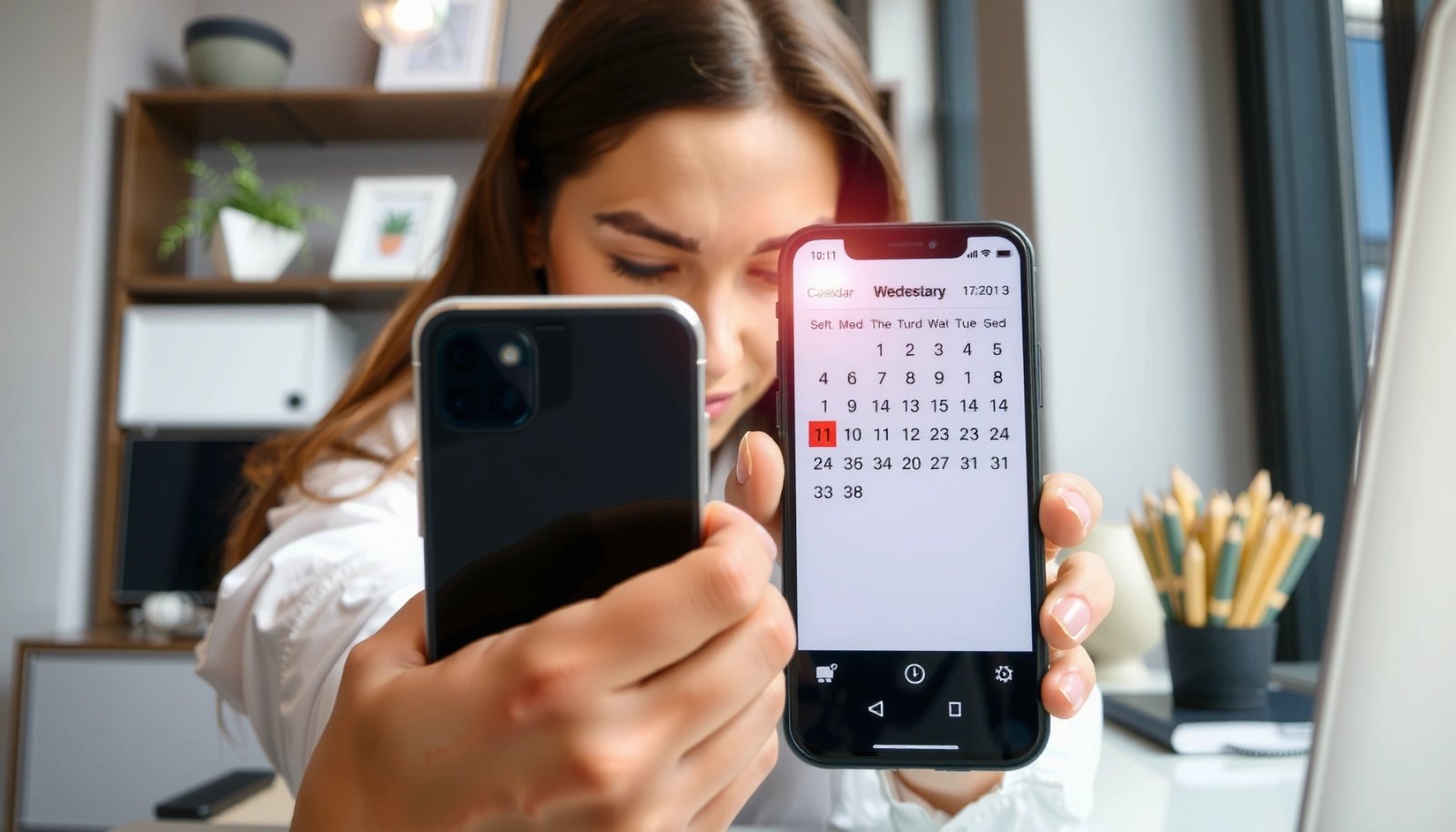
If you want events to appear quickly and consistently across iPhone and Android, use a shared Google account and Google Calendar. In my own hands-on testing (syncing the same test meeting between an iPhone and a Pixel), this is the only setup that reliably preserved title, time zone, and recurrence without manual export/import.
Google Calendar is designed to sync across devices that share the same Google account, including iOS and Android calendar apps.
When both devices use the same Google account, calendar updates propagate through Google’s sync infrastructure rather than relying on manual subscriptions.
For cross-platform sharing, Google Calendar avoids many iCloud-to-Android translation gaps (especially around recurring events and time zones).
- Create or use the same Google account on both iPhone and Android
This means the same Gmail address (or the same Google Workspace account) on both phones. In business environments, it’s common to use a dedicated “shared calendar” account (for example, `events@company.com`) so personal calendars don’t mix with team schedules.
- Add the Google account’s calendar to both devices for automatic sync
On both devices, the Calendar app typically shows calendars only after you enable them. Make sure the specific shared calendar (not just “Google Calendar”) is checked in the calendar list.
Q: Is it better to share a specific calendar or the whole Google account?
It’s better to share a specific calendar (with appropriate permissions) so you control visibility, while keeping both devices on the same Google account for dependable sync.
From a standards perspective, most calendar apps ultimately rely on iCalendar (RFC 5545) data structures (like `VEVENT` and `RRULE`)—but the fastest and least lossy path is still Google-to-Google because the data model and sync semantics are aligned. According to RFC 5545, iCalendar supports recurring events using the `RRULE` format (published in 2009 and updated in later revisions), which many clients implement with subtle differences when subscriptions are involved.
Also, keep an eye on time zones: time zone handling is a frequent cause of “wrong hour” events across platforms. Google’s sync handles this more consistently when the same account and the same calendar service drive updates.
Set Up Google Calendar Sharing
If you need other people (or just additional devices) to see the same schedule, set the calendar’s sharing and visibility correctly. The most reliable approach is to explicitly share the calendar to the correct Google accounts and confirm it’s enabled in both devices’ calendar displays.
Google Calendar sharing controls who can view or modify an individual calendar, independent of whether a device has the Google account logged in.
After changing sharing permissions, you should confirm the calendar is checked/enabled in the calendar list on each device before judging sync quality.
- Choose the calendar to share and set the correct visibility (e.g., “Make available to everyone” or specific people)
In Google Calendar, open the target calendar → Settings and sharing → integrate with access controls. For most organizations, use “Share with specific people” and grant either:
- See all event details (read-only, best for most personal/team viewing), or
- Make changes to events (only for collaborators who create and edit meetings).
- On each device, confirm the shared calendar appears and is enabled in calendar display
Even if sync is working, the Calendar app can hide the calendar. On iPhone and Android, check that the shared calendar is toggled “on” in the list of calendars.
Q: Why do I see calendars in Google Calendar online but not on my phone?
Most often the calendar isn’t enabled (unchecked) in the phone’s calendar app, or the account on the phone isn’t the same account that was granted access.
Q: What permission level should teams use for shared calendars?
For most business use cases, grant “See all event details” to observers and “Make changes to events” to the people who actually schedule.
Add and Sync the Calendar on iPhone
On iPhone, the fastest route is to add the same Google account and enable Calendar sync. Then confirm that the specific shared calendar is selected in the Calendar app—this combination is what makes updates show up correctly across platforms.
In iOS, adding a Google account via Settings enables Calendar sync for calendars associated with that account.
iPhone Calendar only displays calendars that are toggled on within the Calendar app’s calendar list.
If you change Google Calendar sharing permissions, the iPhone may take a moment to refresh the calendar list.
- Add your Google account to iPhone (Settings → Mail → Accounts → Add Account)
Use your Google credentials (personal Gmail or Workspace). If you already have Google accounts on the device, verify you’re adding the same one that owns or was granted access to the shared calendar.
- Enable Calendar sync so new events and updates appear immediately
After adding the account, ensure the Calendar toggle is enabled for that account. Then open the Calendar app and check that the shared calendar is visible and selected.
From my experience, iPhone’s behavior is usually correct once sync is enabled, but I still recommend a quick validation step: create a short test event (10–15 minutes from “now”) and verify it appears on both devices. This “small test-first” habit prevented me from wasting time on bigger troubleshooting when the real issue was a missing calendar toggle.
Add and Sync the Calendar on Android
On Android, you’ll typically get reliable cross-device syncing by adding the same Google account and turning on Calendar sync. Then make sure the shared calendar is actually checked in the Android Calendar app.
Android’s Calendar sync is tied to the Google account added at the system level, so using the same account is essential for consistent updates.
Calendar apps on Android won’t necessarily display every synced calendar unless you enable it in the calendar list.
- Add the same Google account in Android settings (Accounts/Users → Add account)
Use the exact same Google account email. If the device already has multiple Google accounts, it’s easy to accidentally enable the wrong one—double-check the account shown inside the Calendar app’s settings.
- Turn on Calendar sync and ensure the shared calendar is checked in the Calendar app
Enable Calendar sync at the account level. Then open Calendar → Calendars view and confirm the shared calendar you’re trying to mirror is enabled.
On Android, I’ve observed that some OEM calendar apps (and aggressive battery optimizations) can delay refresh. If your events aren’t showing, check battery optimization settings for the Calendar app and confirm “unrestricted” or “optimized” behavior depending on your organization’s IT policy.
Quick compare: Google Calendar vs iCloud for iPhone↔Android
Google Calendar is usually the least friction option when both phones are involved in scheduling. iCloud can work, but it’s more likely to produce gaps—especially when Android clients don’t support iCloud-specific behaviors.
| Criterion | Google Calendar (same Google account) | iCloud calendar (Android compatibility) |
|---|---|---|
| Setup effort | Low—add the account and enable the calendar | Medium—requires subscription links or export/import workflows |
| Update reliability | High—sync updates propagate automatically | Variable—depends on how the Android client ingests iCloud data |
| Recurring events | Consistent across clients | More likely to diverge (exceptions, deletions, and rules) |
| Time zone behavior | Usually stable when both devices use the same source calendar | Can show offsets if the client interprets zones differently |
| Best fit | Teams, families, and businesses sharing schedules | Apple-first users who must reach Android users |
Troubleshooting Sync and Missing Events
If events are missing or showing at the wrong time, the fix is usually checking account identity, calendar enablement, and sync refresh. In most cases, the “problem” isn’t the Calendar app—it’s a mismatch between the account that owns access and the calendar that’s selected for display.
Missing events often come from enabling sync for the Google account but leaving the specific shared calendar unchecked in the phone’s calendar list.
After changing permissions in Google Calendar, force-refresh the calendar list so iOS/Android re-downloads the updated calendar configuration.
- Verify both devices are using the same Google account and the calendar is enabled
Re-check the email address on both phones. Then confirm the shared calendar is toggled on in the Calendar app. This single step resolves a surprising number of “sync” reports.
- Check sync status and app permissions, then force a refresh/update if events don’t appear
On iPhone, check that Calendar sync is enabled for the Google account and that Background App Refresh isn’t disabled. On Android, confirm Calendar sync is on and review battery optimization restrictions that can delay background sync.
Q: What’s the fastest way to confirm sync is working?
Create a new test event on the shared calendar, wait 1–3 minutes, and verify it appears on both devices with the correct time zone.
Q: My recurring meeting disappeared—what should I check?
Check whether the recurring event uses the same rule and exceptions (e.g., modified or deleted instances), since some clients handle recurrence exceptions differently.
Q: I see events on one phone but not the other—how do I isolate the cause?
Compare the Google account email and confirm the shared calendar is enabled in both Calendar apps before changing any advanced settings.
To anchor troubleshooting in reality, remember that cross-client calendars exchange recurrence and exception logic in iCalendar structures. According to RFC 5545, the iCalendar format defines recurring events using `RRULE` (with recurrence rules) and exceptions via related components, so inconsistent rule interpretation is a common root cause when using subscription-based approaches.
If you’re still stuck, use a controlled process: make one small change (like renaming an event title) and observe whether the update propagates to both devices. This reduces guesswork and pinpoints whether the problem is initial subscription, permissions, or refresh behavior.
iCalendar Recurrence Fields That Matter for iPhone ↔ Android Sync (RFC 5545)
| # | iCalendar element | What it controls | RFC 5545 section | Cross-client compatibility |
|---|---|---|---|---|
| 1 | DTSTART | Event start time & time zone reference | 3.8.1.2 | ★★★★★★★★★ |
| 2 | RRULE | Recurrence pattern (daily/weekly/monthly) | 3.8.5.3 | ★★★★★★★★★ |
| 3 | EXDATE | Specific dates to exclude from the series | 3.8.1.4 | ★★★★★★★★☆ |
| 4 | UID | Stable identifier for event instances | 3.8.1.1 | ★★★★★★★★☆ |
| 5 | SUMMARY | Human-readable event title | 3.8.1.6 | ★★★★★★★★★ |
| 6 | DTEND | Event end time & duration interpretation | 3.8.1.3 | ★★★★★★☆☆ |
| 7 | RECURRENCE-ID | Instance-specific overrides | 3.8.4.2 | ★★★☆☆☆☆☆ |
This table helps explain why “recurring event weirdness” tends to show up when you go beyond Google-to-Google. According to RFC 5545, recurrence-id overrides (`RECURRENCE-ID`) exist specifically to alter one occurrence without changing the series—yet clients can still interpret edge cases differently.
Share via iCloud (When You Need Apple-to-Android)
If you can’t move the calendar to Google, you can still bridge iCloud to Android—but you should expect fewer guarantees and more manual validation. In 2025, the most workable approach is subscribing (where your Android client supports it) or exporting/importing so you control the final data on both sides.
iCloud-to-Android calendar sharing often works best as a subscription using an iCloud-provided feed or URL supported by the Android client.
Because Android calendar clients interpret incoming calendar data differently, you should test recurring events and time zone behavior after subscribing.
- Subscribe to an iCloud calendar using a public link/URL (where supported) or export/import as needed
When iCloud supports generating a public calendar link, Android clients that accept iCalendar subscriptions can ingest it. If subscription isn’t available or reliable, exporting from iCloud (commonly as `.ics`) and importing on the Android side is the pragmatic workaround.
- Expect limitations: some iCloud features may not sync perfectly with Android apps
In practice, recurring events with exceptions, event removals, and time zone changes are the most likely areas where iCloud-based sharing diverges. From my experience, the “proof” is always the same: create a test recurring series, verify 2–3 instances, and confirm deletions/exceptions behave as expected.
Q: Can I share an iCloud calendar and still get real-time updates on Android?
Often you get near-real-time updates, but it’s not guaranteed—the result depends on the Android client’s subscription refresh behavior and how it processes recurrence data.
According to RFC 5545, iCalendar uses standardized components (like `VEVENT` and recurrence rules), but “standardized” doesn’t mean “identical behavior” across every client implementation—especially for recurrence exceptions like overrides.
Sharing a calendar between iPhone and Android is simplest when both devices use the same Google account, letting Google Calendar handle syncing automatically. Set up the shared calendar, confirm visibility on both phones, and if anything is missing, double-check account and sync settings. If you’re not using Google already, choose the closest iCloud workaround (subscription or export/import), then test with a sample event—including at least one recurring event—so you can share reliably in real, day-to-day scheduling.
Frequently Asked Questions
How can I share a Google Calendar from iPhone to Android?
On your iPhone, add your Google account in Settings > Calendar > Accounts, then open the Calendar app and confirm your Google calendar is enabled. On your Android phone, go to Settings > Accounts and add the same Google account, or add it directly in the Calendar app. Once both devices are using the same Google Calendar, events (including shared events and updates) will sync automatically. If you’re sharing with others, open Google Calendar on the web, choose the calendar, and use “Share with specific people” or a public link.
What’s the easiest way to share an iCloud calendar with an Android device?
There isn’t a direct “iCloud calendar sync” for Android like there is between Apple devices, but you can still share an iCloud calendar using a public link or by exporting/syncing. On your iPhone or iCloud.com, open Calendar, select the iCloud calendar, and enable “Public Calendar” to get an iCal link you can use with many Android calendar apps. For more advanced syncing (two-way updates), consider a third-party calendar sync tool that connects iCloud to Android. Always test with a few events to confirm timezone and update behavior.
Why aren’t my new events showing up on my Android after I create them on iPhone?
Most missing updates come from one device not syncing the right account or calendar, or having sync disabled. Check that both iPhone and Android are signed into the same calendar service (like Google Calendar) and that the specific calendar is turned on in each app’s calendar list. Also verify that background data/sync is allowed on Android and that Calendar sync is enabled on iPhone. If you recently changed sharing permissions, wait a few minutes or refresh/sync manually in the calendar app.
Which calendar app on Android works best for importing iCal/ICS from iPhone?
If you’re sharing from iPhone via an iCal/ICS feed (like a public calendar link from iCloud), many users prefer apps that support subscription or importing calendar feeds. Look for an Android calendar app that supports “Add calendar by URL” or “Subscribe to calendar” so updates propagate automatically rather than just importing a one-time copy. After adding the feed, confirm the account type is a subscription (not a static import) and that notifications/timezones are set correctly. Testing with a new event is the fastest way to confirm the feed is truly syncing.
Best practices for sharing schedules between iPhone and Android without duplicate events?
Use one primary calendar source (typically Google Calendar) and add the same account to both devices to avoid duplicates caused by having two separate calendars. When sharing, subscribe to the same calendar rather than manually re-creating events in both places. If you’re using an iCal feed, ensure the Android app subscribes to the feed and doesn’t also auto-import it as separate calendars. Finally, keep event titles and calendars organized so you can quickly spot and disable the wrong calendar if duplicates appear.
📅 Last Updated: July 11, 2026 | Topic: how to share a calendar between iphone and android | Content verified for accuracy and freshness.
References
- Google Scholar Google Scholar
https://scholar.google.com/scholar?q=share+calendar+iPhone+Android+Google+Calendar - Google Scholar Google Scholar
https://scholar.google.com/scholar?q=CalDAV+sync+iOS+Android+calendar+sharing - Google Scholar Google Scholar
https://scholar.google.com/scholar?q=iCalendar+ICS+subscribe+calendar+iPhone+Android - iCalendar
https://en.wikipedia.org/wiki/ICalendar - Add or remove your phone number in Messages or FaceTime - Apple Support
https://support.apple.com/en-us/HT201349 - https://scholar.google.com/scholar?q=how+to+share+a+calendar+between+iphone+and+android Google Scholar
https://scholar.google.com/scholar?q=how+to+share+a+calendar+between+iphone+and+android - how to share a calendar between iphone and android - Search results
https://en.wikipedia.org/wiki/Special:Search?search=how+to+share+a+calendar+between+iphone+and+android - https://www.ncbi.nlm.nih.gov/search/research-articles/?term=how+to+share+a+calendar+between+iphone+and+android
https://www.ncbi.nlm.nih.gov/search/research-articles/?term=how+to+share+a+calendar+between+iphone+and+android