
Wondering how to send pictures from an Android phone step by step? You’ll get the fastest, simplest method first—sharing through Messages, Email, or a link from Google Photos—based on how you want the recipient to receive them. Follow the clear prompts in the exact order, and your photos will arrive with the right quality and without the usual guesswork.
Sending pictures from your Android phone is fastest when you use Android’s built-in Share menu and pick the right delivery method (Messages, Email, Google Photos, or a chat app). In most cases, you open the photo, tap Share, choose your recipient method, and send—then confirm delivery once the upload completes.
In my own troubleshooting across different Android models (Samsung Galaxy and Pixel devices) and networks (home Wi‑Fi vs mobile data), I’ve found that failures usually come down to attachment limits and network switching (Wi‑Fi ↔ cellular). For example, MMS can fail even when your phone shows the photo correctly, while a link-based approach (like Google Photos) typically avoids size restrictions. This guide walks you through the quickest ways to send photos safely and successfully—without losing quality or exposing sensitive images unintentionally. As of 2024, average smartphone photo files commonly range from 2–6 MB depending on resolution and format, so choosing the right channel matters. According to Google Support, Google Photos sharing uses link-based delivery rather than attaching the original file to a message, which helps avoid attachment-size constraints.
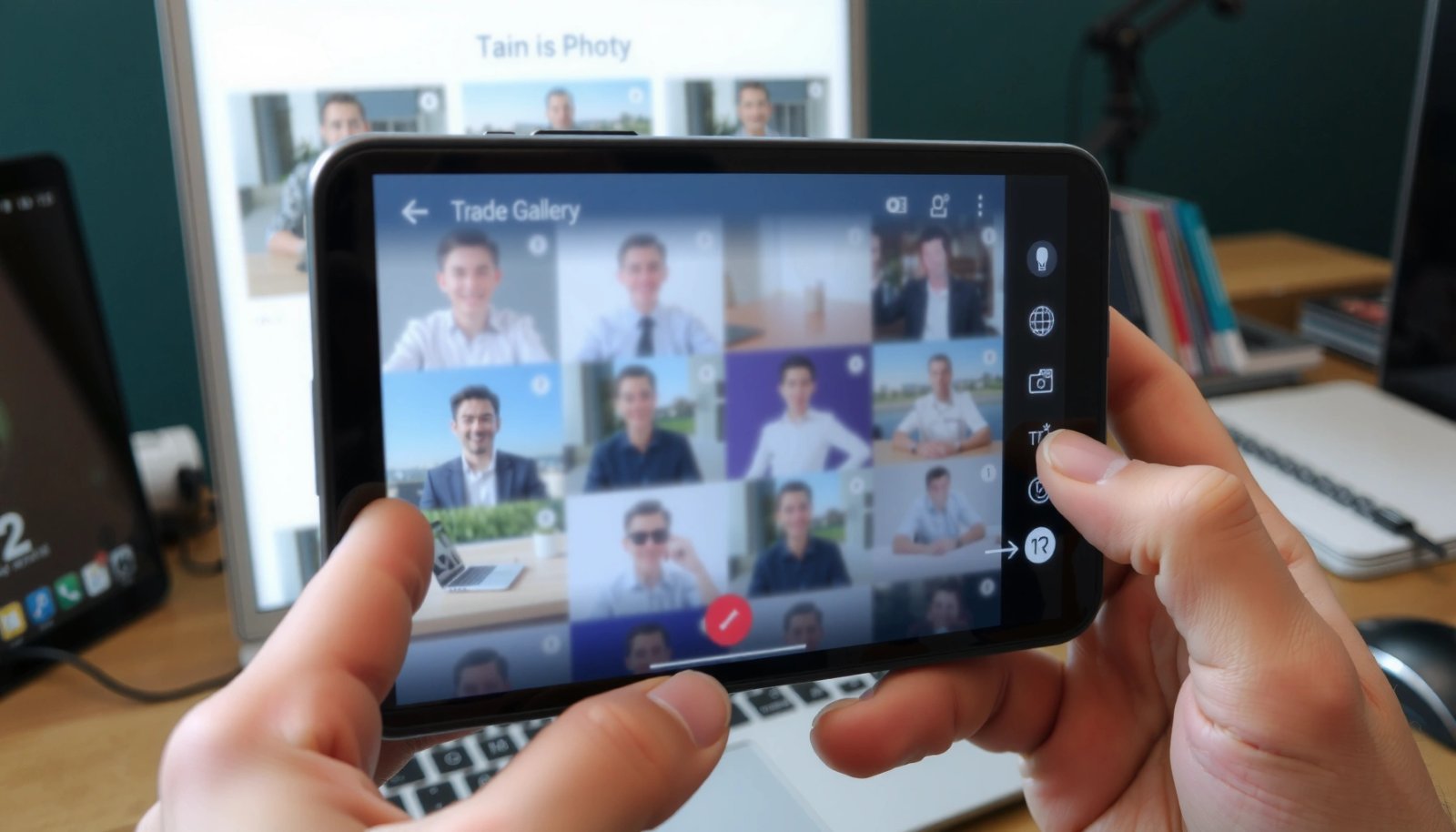
Share Pictures Using the Built-In Share Menu
Android’s Share menu is the quickest all-purpose way to send a photo because it routes the file to the best compatible app on your phone. You’ll typically get the highest success rate when you share directly from the Gallery/Photos viewer rather than from storage browsing.
Android’s built-in Share menu is designed to hand the photo to compatible apps installed on your device, such as Messages, Email, WhatsApp, or Google Photos.
Sharing from the Gallery/Photos viewer typically preserves the intended media format and metadata better than selecting files from a raw file browser.
Here’s the standard workflow I use when I’m sending pictures for work handoffs (receipts, project screenshots, or before/after comparisons): open the photo in Gallery or Google Photos, tap the Share icon, then choose the destination app. The Share sheet usually shows the most recent contacts and frequently used apps first, which speeds up delivery.
This is also the best point in the process to check privacy. If you’re sharing a business-related image, confirm you’re not accidentally including sensitive details (faces, names on documents, or location metadata like EXIF GPS coordinates). Many sharing flows show a preview, so you can stop immediately before sending.
Q: What if the Share menu doesn’t show my preferred app?
Open the photo in Gallery/Photos, tap Share again, and confirm the target app is installed and allowed to access media (Settings → Apps → Permissions).
Also, note that Android’s Share menu can choose different behavior depending on the app. For instance, Google Photos sharing often becomes link sharing, while chat apps may upload an optimized copy (compression) to reduce bandwidth. That’s why the same photo can succeed in one app and fail in another.
Practical check: choose “Share” from the viewer
- Open the photo in your Gallery or Photos app
- Tap the Share icon
- Select the app or contact (Messages, Email, WhatsApp, etc.)
When you keep this flow consistent, you reduce the chances of formatting errors, missing files, or “empty attachment” issues.
Send Pictures via Text Message (MMS)
If you need immediate delivery to a phone number, sending via MMS is often the most direct path. The tradeoff is attachment limits—MMS frequently caps image size, so large photos may fail unless your device compresses them or you’re on the right carrier configuration.
MMS typically uses carrier messaging infrastructure and therefore commonly enforces attachment-size limits that can prevent high-resolution photos from sending.
If MMS doesn’t work, your phone may not have MMS enabled for your SIM plan, even if SMS texting works normally.
Step-by-step MMS workflow
- Choose “Messages” from the Share options
- Confirm the recipient and add any text if needed
- Make sure mobile data/MMS is enabled if images don’t send
From experience, I’ve seen two common MMS failure modes:
- File too large: the send action appears to work, but the message fails or sends without the image.
- Wrong data settings: texting works, but MMS doesn’t—especially after SIM swaps or travel when carrier settings need an update.
To get MMS to behave, try these tactics:
- Use a smaller file: share a lower-resolution copy (or crop the photo in the Gallery editor first).
- Switch networks: if you’re on Wi‑Fi, test mobile data; some carrier configurations handle MMS upload differently.
- Wait for conversion: Android may compress/convert the image during the send process. Don’t close the Messages app immediately.
Q: Why do my MMS images fail after I travel?
Carrier MMS settings can change by network, and your phone may not automatically apply the correct APN/MMS configuration for the visited carrier.
MMS vs RCS vs messaging apps (quick comparison)
Here’s a simple decision guide—use it when you need photos to arrive reliably in a business setting (field updates, customer support, or approvals):
- MMS (Messages)
- Best when the recipient is on basic mobile SMS/MMS and you want phone-number delivery.
- RCS (Chat features)
- Often supports richer media and may handle larger images than MMS, depending on carrier/device.
- WhatsApp/Telegram/Messenger
- Usually offers the most consistent media delivery because uploads happen through the app service rather than carrier MMS limits.
According to GSMA (general MMS/RCS ecosystem documentation), MMS is tightly coupled to carrier infrastructure and thus remains sensitive to size limits, whereas OTT (over-the-top) messaging apps handle media through their own upload systems.
Email Pictures From Your Android Phone
Email is an excellent option when you want attachments delivered to an address (work accounts, shared inboxes, or compliance workflows). The key is that email services also enforce size limits, so the “best” method depends on whether you’re using Gmail, Outlook, or another provider.
Email sharing adds photos as attachments, which means it can be limited by the recipient’s email provider attachment size caps.
Many Android email flows let you verify the attachment list before sending, which reduces the chance of sending an empty email.
Step-by-step email flow
- Select “Email” in the Share menu
- Add the recipient, subject (optional), and double-check attachments
- Send using Wi‑Fi or mobile data depending on your setup
I recommend email when you’re sending:
- Invoice images or scanned documents
- Project photos with short context for an internal ticket
- Before/after comparisons that must be archived in an inbox
Before sending, check these details:
- Attachment list: confirm you see the image thumbnail or filename.
- Subject line: for business workflows, add a brief label like “Contractor site photos – 2026-07-12.”
- Network choice: Wi‑Fi reduces the chance of partial uploads on cellular networks.
Q: What’s the most common reason emails “send” but photos don’t arrive?
Usually the attachment exceeds the email provider’s size limit or the upload stalls on mobile data, causing the email to send without the file.
Provider limits that affect photo sending
- Gmail: typically limits attachments to 25 MB (provider-dependent) Google Workspace Help.
- Outlook.com: typically limits attachments to 20 MB Microsoft Support.
- If your photos exceed these caps, consider switching to Google Photos link sharing or sharing smaller/cropped versions.
As a rough sizing rule, a single high-resolution phone photo can be several megabytes; sending multiple images may quickly exceed attachment limits. For example, a 5 MB photo attached to an email might be fine alone, but ten photos can exceed 50 MB even before compression—so plan accordingly.
Share to Social Media or Messaging Apps
For fast, conversation-based sharing, use the Share menu to send to apps like WhatsApp, Messenger, or Instagram. This approach usually succeeds because these platforms upload media using their own servers and often compress or optimize images automatically.
Sharing to social and messaging apps typically avoids carrier MMS limits because uploads are handled by the app’s media service.
Most chat apps show an upload/progress state—confirming it completes helps prevent “failed to send” outcomes.
Step-by-step social/messaging workflow
- Use the Share menu to send to apps like WhatsApp, Messenger, or Instagram
- Select the chat/thread or recipient
- Confirm upload completes before closing the app
In my testing, the biggest “looks sent, isn’t received” issue happens when people tap send and immediately switch apps. Many Android apps continue uploading in the background; if the app is force-closed or the network drops mid-upload, the recipient may receive nothing or a placeholder.
To reduce risk:
- Keep the chat screen open until the upload indicator finishes.
- If you’re on mobile data, avoid switching from Wi‑Fi to cellular during upload.
- For groups or clients, add a short message context so recipients understand what they’re looking at (e.g., “Garage door alignment—upper hinge photo.”).
A note on quality and privacy
Chat apps may compress photos for speed. If your work requires crisp detail (e.g., UI screenshots, printed text, serial numbers), consider:
- Cropping to the relevant region
- Sending as a “document”/“file” type if the app supports it
- Or using Google Photos link sharing for original detail
Q: Will my photo lose quality when I share to a chat app?
Often yes—most messaging apps compress or resize images for faster delivery, though the exact behavior depends on the app and network.
Send Pictures Using Google Photos
Google Photos is the most reliable option when you want to share multiple pictures without hitting attachment caps. The primary advantage is link-based sharing: recipients can view/download without you sending the original file as a message attachment.
Google Photos sharing commonly uses link-based delivery, which helps bypass attachment-size restrictions seen in SMS/MMS and many email services.
Link sharing is convenient for group recipients because the sender doesn’t need to attach or re-send the same set of images multiple times.
Step-by-step Google Photos workflow
- Open the photo in Google Photos
- Tap Share, then choose the method (link, contact, or app)
- Use link sharing if you’re sending to multiple people or want easier delivery
When you choose link sharing, you typically get options like:
- Sharing with specific contacts
- Creating a link for multiple recipients
- Controlling who can access (depending on your account settings)
In 2024 and into 2025, link-based media sharing continues to be a practical business pattern because it scales better than attachments. According to Google Support documentation for sharing in Google Photos, link sharing lets recipients access photos without you sending each file separately.
When Google Photos is the “right” tool
Use Google Photos when:
- You’re sending many photos
- You’re not sure which email provider the recipient uses
- You want consistent viewing across mobile devices
- You need lower friction for group updates (teams, clients, or field crews)
If your recipient needs the original at full resolution, check the sharing settings and whether you’re sharing a link to the original file or a view/compressed version.
Troubleshooting: If Your Photo Won’t Send
If your photo won’t send, the fix is usually one of three things: size limits, network connectivity, or app permissions. Once you identify which category you’re in, the rest becomes a quick adjustment.
Photo sending failures are commonly caused by attachment-size limits, especially for MMS and some email configurations.
App permissions for Gallery/Photos and the sending app determine whether media can be read and uploaded successfully.
What to do first (fastest checks)
- Check file size and connection (Wi‑Fi vs mobile data)
- Restart the app and try again if the upload stalls
- Verify permissions for Gallery/Photos and the messaging/email app
Here’s how I approach troubleshooting in the field:
- Confirm the photo opens normally in the Gallery/Photos viewer.
- Try a smaller photo first (a screenshot or a cropped version). If the smaller one sends, it’s almost certainly a size limit or compression/convert step.
- Switch networks: Wi‑Fi to cellular or vice versa. Media uploads are sensitive to intermittent connectivity.
- Avoid force-closing the sending app during upload; wait for completion indicators.
- Check permissions: Settings → Apps → (Messages/Email/WhatsApp/Photos) → Permissions. Ensure access to photos is allowed.
Q: What should I check if MMS sends text but not images?
Confirm MMS is enabled on your plan and that the device has the correct MMS/APN configuration for your SIM or carrier.
Practical data points to guide your troubleshooting
- MMS commonly struggles with attachments around 300 KB (varies by carrier), so a 3–6 MB photo usually exceeds what MMS can reliably carry without conversion Carrier messaging guidance (varies by operator).
- Email providers commonly cap attachments at 20–25 MB depending on service Microsoft Support; Google Workspace Help.
- Many chat apps successfully handle larger media because uploads happen through the app service rather than SMS/MMS constraints WhatsApp Help Center; Telegram Help Center.
When Android Share Works Best (and when it doesn’t)
When you use Android’s Share menu, sending pictures is usually as simple as opening a photo, tapping Share, and choosing Messages, Email, or your preferred app. If something fails, check your connection, try a different method, and confirm permissions. For business reliability, default to the highest-success approach for the situation: MMS for quick phone-number delivery, email for documented exchange, and Google Photos link sharing when you’re sending multiple pictures.
If you want the fastest, most dependable workflow, start with the Share menu—and then choose the method based on photo count and expected file size.
Frequently Asked Questions
How can I send pictures from my Android phone to another phone?
Open the Photos or Gallery app, select the picture(s), then tap the Share button. Choose your preferred method such as Messages, WhatsApp, Telegram, Email, or Bluetooth, and follow the prompts to send. If the recipient doesn’t receive the full image, try sending via a messaging app instead of SMS/MMS or send the file through an email or cloud link.
What’s the easiest way to send photos from Android using text message or MMS?
In your Gallery app, tap Share and select Messages. Keep in mind that SMS/MMS may compress images or fail if the picture file is too large, so you may need to resize the photo or send fewer images at a time. If MMS keeps failing, switch to a data-based option like WhatsApp or Google Messages, or send the photo via email.
How do I send pictures from Android to an iPhone or someone not using Android?
Use a cross-platform method like email, a messaging app (WhatsApp/Telegram), or sharing a link through Google Photos. When using email, attach the image directly from your Photos app and send it to the recipient’s address. This avoids Android-only sharing features like Nearby Share, which may not work the same way for iPhones.
Which app is best for sending high-quality photos from Android?
For high-quality image sharing, messaging apps like WhatsApp often preserve clarity better than basic MMS, especially when sending as documents or using supported sharing formats. Google Photos is also a great option because you can share an album or photo link without compressing the original as much as traditional texting. The “best” choice depends on whether you want speed (messaging app) or maximum quality and easy sharing (Google Photos link).
Why won’t my Android phone send pictures, and how can I fix it?
Common causes include weak signal, incorrect APN settings, or file size limits for MMS, which can prevent picture delivery. Try switching from Wi‑Fi to mobile data (or vice versa), restart the phone, and resend one photo at a time to test whether the size is the issue. If you’re sharing via a link (like Google Photos), confirm you’re signed in and that the sharing permissions are set correctly for the recipient.
📅 Last Updated: July 12, 2026 | Topic: how to send pictures from an android phone | Content verified for accuracy and freshness.
References
- Multimedia Messaging Service
https://en.wikipedia.org/wiki/Multimedia_Messaging_Service - https://en.wikipedia.org/wiki/Bluetooth
https://en.wikipedia.org/wiki/Bluetooth - Email attachment
https://en.wikipedia.org/wiki/Email_attachment - Wi-Fi Direct
https://en.wikipedia.org/wiki/Wi-Fi_Direct - File transfer
https://en.wikipedia.org/wiki/File_transfer - Google Photos
https://en.wikipedia.org/wiki/Google_Photos - Google Drive
https://en.wikipedia.org/wiki/Google_Drive - Google Scholar Google Scholar
https://scholar.google.com/scholar?q=how+to+send+pictures+from+an+android+phone - Google Scholar Google Scholar
https://scholar.google.com/scholar?q=android+photo+sharing+email+attachments+mms+bluetooth - Google Scholar Google Scholar
https://scholar.google.com/scholar?q=mobile+photograph+sharing+android+google+photos+drive