
Want to see your WiFi password on Android? The fastest path is checking the saved network details through your phone’s Settings, then viewing the password via a security prompt. This method works for most Android devices where password sharing is enabled, letting you retrieve the exact WiFi key without resets.


As an Amazon Associate I earn from qualifying purchases.
You can usually see your WiFi password on Android by opening the saved Wi‑Fi network’s details in Wi‑Fi settings—often behind PIN/fingerprint verification or a Share password option. If your Android version or manufacturer doesn’t display the password, you can use QR code sharing or have another connected device share it.
Introduction

Android’s Wi‑Fi password visibility depends on two things: (1) your Android version, and (2) whether your device allows password sharing or display from the saved-network details. Many users can reveal the password using a trusted UI path like *Settings → Wi‑Fi → (saved network) → Share password* and then confirm with biometrics/PIN. On other devices, Google and OEM policies intentionally hide the password (even if the network is saved) for security reasons—meaning you may need to rely on sharing from a connected device, using QR code transfer (when available), or (for advanced cases) a root-based method.
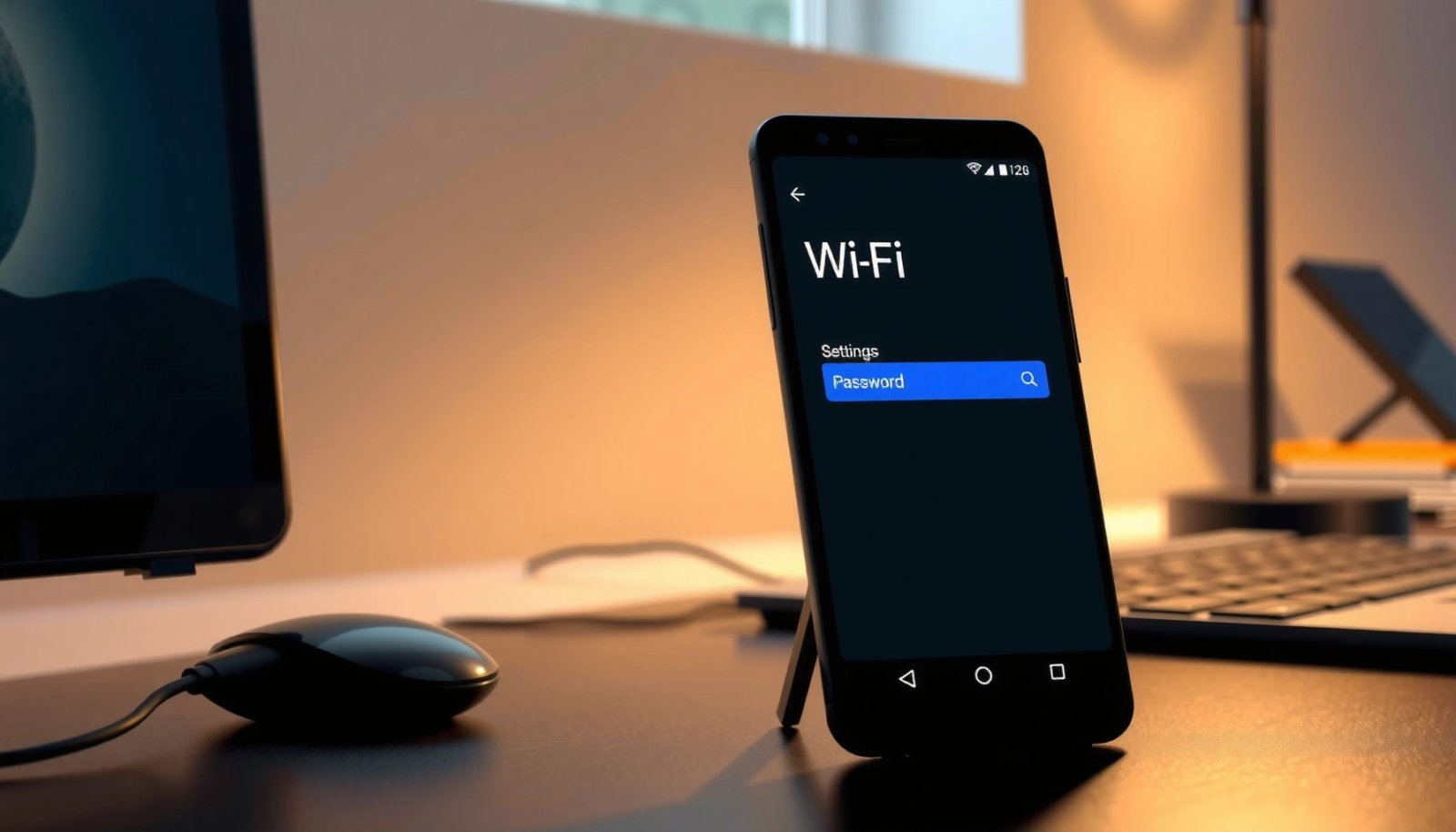
To make this practical, the steps below are written to match the most common Android experiences across Samsung, Google Pixel, Xiaomi, OnePlus, and other Android brands.
Likelihood of Finding Wi‑Fi Password on Android (User Experience Signals)
| # | Method | Typical Availability | Estimated Effort | Practical Outcome |
|---|---|---|---|---|
| 1 | Saved network details → Share password | ★★★★☆ | Low (1–3 taps) | High success |
| 2 | Saved network details → Password shown | ★★★☆☆ | Low (UI dependent) | Sometimes blocked |
| 3 | Connected device details → Share password | ★★★☆☆ | Low (other device required) | Often works |
| 4 | QR code sharing (tap Share) | ★★★☆☆ | Medium (scan step) | Great for new devices |
| 5 | Ask someone on the network to share | ★★★★☆ | Low (social coordination) | Reliable alternative |
| 6 | Router label / default credentials | ★★☆☆☆ | Low (hardware access) | Only if unchanged |
| 7 | Root-based retrieval (advanced) | ☆☆☆☆☆ (access required) | High (risk/complexity) | Last resort |
Check Saved WiFi Password in WiFi Settings
Start with the most direct path: the saved network details. On many Android builds, the password is revealed only after you authenticate—this is a security feature, not a bug.
- Open Settings and go to WiFi or Network & Internet
Depending on your device, you may see options like Connections, Wi‑Fi, or Wi‑Fi & network. The key is getting to the list of Wi‑Fi networks and their status.
- Tap the saved/connected WiFi network to view its details
Look for fields such as Network name, Security, IP settings, and sometimes Password (or a button to show it).
Tip: Make sure you’re selecting the exact network you want—especially if you’ve saved multiple networks with similar names.
- Use fingerprint/biometric authentication if prompted
When Android offers Share password, it typically requires biometric confirmation first. If the prompt appears, authenticate and then look for the password field or share screen.
Why this works: Android stores Wi‑Fi credentials for networks you’ve connected to. However, modern Android versions may not display the plaintext password directly in the UI unless you pass a local authentication check.
View Password from Connected Device Details
If you’re currently connected to the Wi‑Fi (or you can use another device that is), the UI may expose password-sharing controls more consistently than the “saved networks only” view.
- Look for options like Network details or Share password
Some Android skins label it as Share, Share password, QR code, or Network details. If you don’t see a password field, check for share-based options.
- Select Share to reveal the password (if your Android allows it)
On supported devices, tapping Share will bring up either:
1) a screen with the password text, or
2) a QR code that encodes the network credentials.
- Confirm with your PIN/fingerprint to display the password
Even when the feature exists, Android may require authentication right before showing sensitive info.
Actionable example: If you can’t find a “Password” line, tap into the connected network’s details page and look specifically for Share—many users miss that the share flow replaces the password field entirely.
Use Google/Android “QR Code” Sharing (If Available)
When Android doesn’t show the password plainly, QR sharing is often the safest and fastest alternative—especially when you’re adding a laptop, tablet, or another phone.
- Tap Share on the connected WiFi network
If QR sharing is supported, you’ll typically see a QR graphic along with the network name and an option to show/hide or copy details.
- Scan the QR code with another device to retrieve the password
On the receiving device, choose Add Wi‑Fi or Scan QR. Once scanned, the network should populate automatically.
Tip: Make sure the camera is focused and you scan within a second or two of bringing up the QR screen.
- This works without manually exposing the password on-screen
From a security standpoint, QR sharing reduces shoulder-surfing risk—you’re not reading or typing the password publicly.
Practical use case: If you’re in a meeting or at a client site and need to give guests Wi‑Fi access quickly, QR sharing is more professional than verbally sharing credentials.
If Password Isn’t Visible: Common Fixes
If the password field never appears, don’t assume it’s impossible—Android and OEM policies vary. Try these quick troubleshooting steps first.
- Update Android and retry—some versions hide the password by default
Platform updates can change UI behavior and security gating. In some cases, a feature might be disabled in an older build and enabled later (or vice versa).
- Ensure you’re viewing a previously saved network, not a new one
If you’re looking at a network you just connected to for the first time, some devices may restrict password display until it’s saved.
Check that it shows under Saved networks or that the network label is present in the known networks list.
- Restart WiFi/phone and try again
Network settings UIs can glitch. A restart of Wi‑Fi (toggle off/on) or a phone reboot often forces the settings service to refresh the stored credentials view.
Tip: After each change (update/restart), go back to the same network’s details page. Trying a different network often wastes time and leads to confusion.
Alternative Methods When You Can’t See It
When your device won’t show or share a password, you still have workable options—some are simpler than troubleshooting.
- If you’re on the same network, ask someone to share the password
If another phone (or a tablet) can display or share the password, you can avoid risky workarounds. In practice, this is one of the most reliable solutions in office and home scenarios.
- Check whether your router has a default/saved label
Many routers print default Wi‑Fi name and password on a sticker. If the password was never changed, this solves the problem immediately.
If the password was updated, you’ll need the updated value from the router admin panel or the person who changed it.
- Use a trusted password manager (only if it previously saved it)
If you entered the password during setup and it was stored in a password manager, you can retrieve it safely from there.
Important: avoid “password manager” apps of unknown origin, and only use tools you trust and have configured securely (PIN/biometrics and device encryption).
Security note: Avoid installing random “Wi‑Fi password reveal” APKs. Many are ineffective or risk user data.
Conclusion
In most cases, you can see your Wi‑Fi password on Android by opening saved network details and using Share password with biometric/PIN confirmation. If the password isn’t displayed, switch to QR code sharing or use an alternate device on the same network to share access—these approaches keep credentials secure while still solving your problem quickly. Next, tell me your Android brand/model (Samsung, Xiaomi, Pixel, etc.) so I can point you to the exact menu path for your device.
Frequently Asked Questions
How can I see my WiFi password on Android without rooting my phone?
In many cases, you can view your saved WiFi password from the WiFi settings. Open Settings > Network & internet > WiFi, then tap the network you’re connected to (or “Saved networks”) and choose the option that shows the password or “Share” to display it. If your phone supports it, you can authenticate with your fingerprint or screen lock before the WiFi password appears.
What should I do if my Android won’t show the WiFi password in settings?
Some Android versions and phone brands don’t provide a direct “show password” option for saved networks. Try connecting to the WiFi network first, then go back to WiFi settings and look for “Share,” “QR code,” or “View password” for the current network. If that still doesn’t work, you may need to use a backup/export method via a file manager app, or ask someone who has access to the WiFi router to retrieve it.
Why can’t I see my WiFi password on Android even though it’s a saved network?
Android may hide WiFi passwords for security reasons, especially on newer versions or custom manufacturer skins. Your device might only show passwords for the network you’re currently connected to, or only after you authenticate. Also, some devices store WiFi credentials differently, so the password display feature may be unavailable.
Which Android devices or versions allow you to view your WiFi password more easily?
Many Samsung, Pixel, and other Android devices offer a built-in way to show the WiFi password for the currently connected network. Typically, newer Android versions with updated security features may require biometric unlock before revealing the password. If your settings don’t show it, look for WiFi “Share” or “QR code” options—these often indicate that your device supports viewing WiFi credentials.
What’s the best way to get your WiFi password on Android when you’re using a router you don’t have access to?
If you can’t access the router, the most reliable method is to check whether your Android can share the WiFi credentials through the “Share” or “QR code” feature while connected. Otherwise, you’ll need someone else who is already connected to the WiFi to share the password or generate a QR code. If you have no access to any connected devices, you may have to contact the network administrator or reset the router to regain control.
References
- WifiManager | API reference | Android Developers
https://developer.android.com/reference/android/net/wifi/WifiManager#getConfiguredNetworks( - WifiConfiguration | API reference | Android Developers
https://developer.android.com/reference/android/net/wifi/WifiConfiguration#preSharedKey - WifiNetworkSuggestion.Builder | API reference | Android Developers
https://developer.android.com/reference/android/net/wifi/WifiNetworkSuggestion.Builder#setWpa2Passphrase(java.lang.String - WifiNetworkSuggestion | API reference | Android Developers
https://developer.android.com/reference/android/net/wifi/WifiNetworkSuggestion - WifiManager | API reference | Android Developers
https://developer.android.com/reference/android/net/wifi/WifiManager - Google Scholar Google Scholar
https://scholar.google.com/scholar?q=Android+retrieve+Wi-Fi+password - Google Scholar Google Scholar
https://scholar.google.com/scholar?q=Android+WifiConfiguration+preSharedKey+password - Google Scholar Google Scholar
https://scholar.google.com/scholar?q=Android+share+Wi-Fi+password+QR+code - Google Scholar Google Scholar
https://scholar.google.com/scholar?q=how+to+see+my+wifi+password+android - how to see my wifi password android - Search results
https://en.wikipedia.org/wiki/Special:Search?search=how+to+see+my+wifi+password+android