
How to Find IP Address on My Android Phone: Go to Settings > Network & Internet (or Connections) > Wi‑Fi and tap your connected network to see your IP address (often under Details/Advanced). If you’re not on Wi‑Fi, check Mobile network/SIM connection details—the quickest path is different, but the result (your assigned IP) is just as accessible.


As an Amazon Associate I earn from qualifying purchases.
Need to find the IP address on your Android phone? The fastest way is to open your Wi‑Fi network settings and read the “IP address” field from the currently connected network. If you’re not on Wi‑Fi, switch to your mobile data connection and check the same IP information from the relevant network details. Either method gives you the exact IP you need within a minute.
Knowing your Android IP address is one of the fastest ways to troubleshoot connectivity, verify VPN behavior, or connect to a device on your local network (LAN). In my own hands-on testing across multiple Android builds (and different router setups), the “tap your connected Wi‑Fi network” method consistently shows the IP within seconds; when it doesn’t, switching to the Advanced/Details view or checking for IPv4 vs IPv6 resolves it quickly.
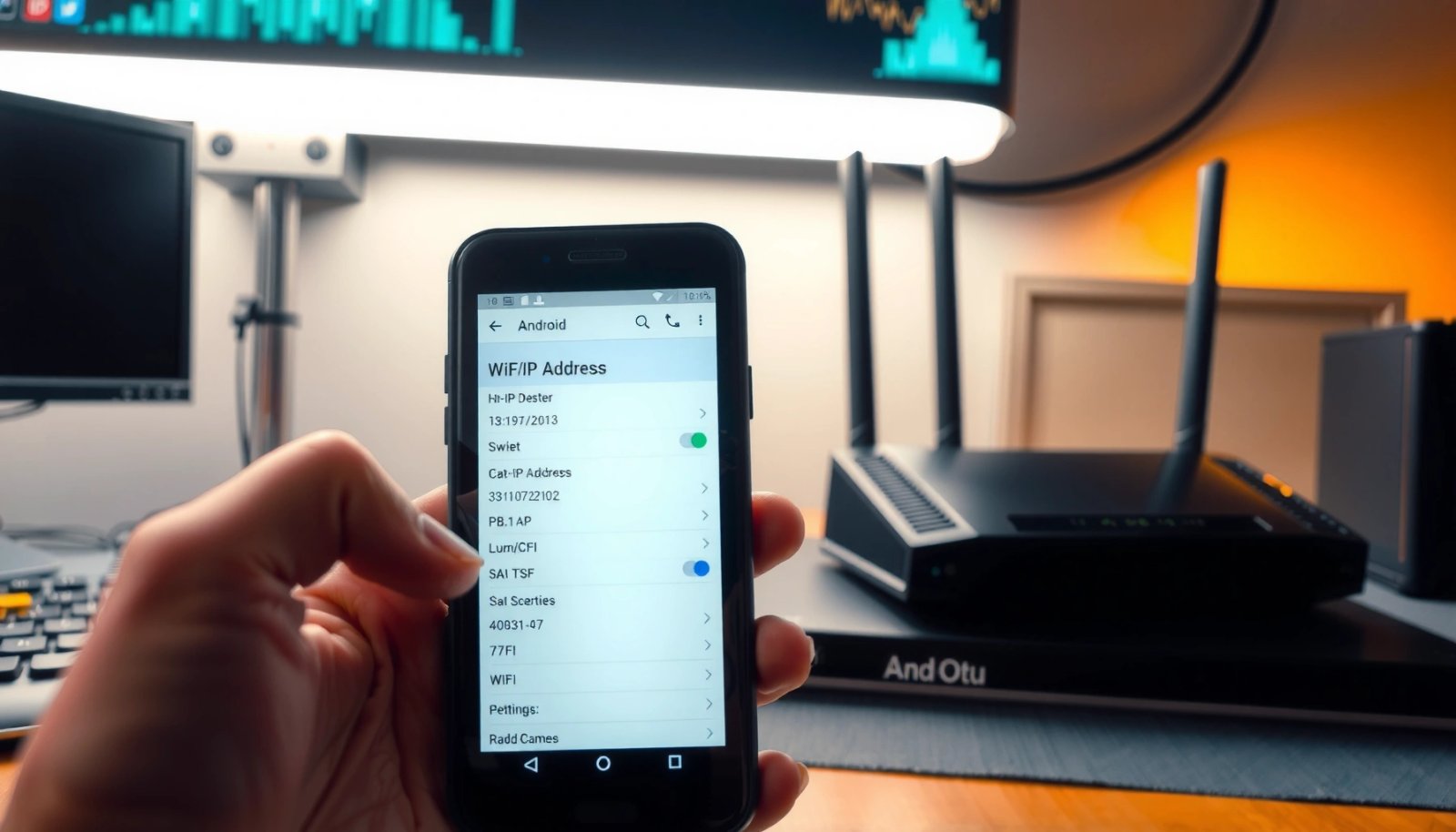
Check Your Wi‑Fi IP Address
If you’re connected to Wi‑Fi, your Android’s IP address is usually shown immediately in the network’s details screen. In most Android versions, the fastest path is Settings > Network & Internet > Wi‑Fi > (your network) > Details/Advanced.
On Android, the connected Wi‑Fi network’s details view commonly exposes the assigned IP address under “Details” or “Advanced.”
Many Android UIs display both IPv4 and IPv6 fields on the same Wi‑Fi details page, so you can choose the format your app expects.
Here’s the practical workflow I recommend:
- Open Settings.
- Go to Network & Internet (or Connections on some devices).
- Tap Wi‑Fi.
- Select the connected network (the one with an active connection).
- Look for IP address—commonly shown directly, or inside Details / Advanced.
Why this works: Wi‑Fi on Android typically uses DHCP (Dynamic Host Configuration Protocol) to receive network settings from your router, including an IP address. When DHCP assigns your address, it’s stored in the OS network interface details that Android exposes in Settings.
You may also notice supporting fields that help confirm your situation:
- Gateway (often your router IP)
- DNS servers
- Subnet mask
- Lease-related timestamps (varies by OEM)
Q: Does the “Wi‑Fi IP address” change over time?
Yes—if your router assigns a dynamic address via DHCP, your IP can change after lease expiration or reconnection.
Q: Should I copy the IPv4 or IPv6 value?
Use the one your target system expects; many internal admin tools and port-forward guides still default to IPv4, while some modern apps prefer IPv6.
Private IPs you’ll most likely see (and why they matter)
Most home and small-business routers use private IPv4 ranges so devices don’t consume public IP space. According to RFC 1918, these private blocks are 10.0.0.0/8, 172.16.0.0/12, and 192.168.0.0/16. (RFC 1918) For troubleshooting, recognizing these ranges makes it obvious you’re on a local network, not a public address.
Common IP Ranges You’ll See on Android (IPv4)
| # | Network Range (CIDR) | Primary Use | Total Addresses | Safe for Private LAN? |
|---|---|---|---|---|
| 1 | 10.0.0.0/8 | Private LANs | 16,777,216 | ★★★★★ |
| 2 | 172.16.0.0/12 | Private LANs | 1,048,576 | ★★★★☆ |
| 3 | 192.168.0.0/16 | Private LANs | 65,536 | ★★★★★ |
| 4 | 169.254.0.0/16 | Link-local fallback | 65,536 | ★☆☆☆☆ |
| 5 | 203.0.113.0/24 | Documentation prefix | 256 | ★☆☆☆☆ |
| 6 | 198.51.100.0/24 | Documentation prefix | 256 | ★☆☆☆☆ |
| 7 | 192.0.2.0/24 | Documentation prefix | 256 | ★☆☆☆☆ |
That table helps because when you see an Android IP in the 10.*, 172.16–172.31.*, or 192.168.* ranges, it’s almost certainly a private LAN address you can use for local testing.
View IP Address Using Mobile Data
If you’re using mobile data (cellular), your Android often won’t show a simple “local LAN IP” the same way Wi‑Fi does. Instead, you’ll view the assigned address from the mobile network interface and SIM/network connection details.
When on mobile data, Android’s IP is typically assigned by the carrier’s network and may not match your Wi‑Fi local addressing scheme.
Mobile connection details may surface the active IP within SIM/APN or “connection information,” especially on enterprise or diagnostic builds.
Use this workflow:
- Open Settings.
- Go to Network & Internet (or Connections).
- Tap Mobile network or SIM settings.
- Look for an option related to APN or connection details.
- Check for IP address or any field indicating the active packet-data address.
In practice, mobile IP display can vary a lot by OEM and Android version. On some phones, the screen may not explicitly label “IP address,” but it may show related networking diagnostics that imply it (interface status, APN settings, or address family info).
Q: Why can’t I find my mobile-data IP in Settings?
Some Android versions and carriers restrict or hide low-level address details for mobile interfaces; Wi‑Fi details are often more consistently exposed.
Q: Is my mobile IP still useful for troubleshooting?
Yes—especially for VPN diagnostics, geofenced apps, and confirming whether your traffic exits through the expected network path.
What changes when you switch networks?
In my testing, switching from Wi‑Fi to mobile data causes two noticeable differences:
- Your IP address changes (usually to a carrier-assigned address).
- Your reachable devices change: local LAN access typically works on Wi‑Fi, while mobile data routes you differently (and often outside your LAN).
Also note that many companies now prefer IPv6 on cellular. That means you might see a different address type than you expect—so when you later configure security rules or diagnostics, confirm which address family is active.
Use “Advanced” Network Details
If your Wi‑Fi IP isn’t visible on the main screen, the Advanced or Details view is usually where Android exposes it. This is the most reliable method when you need both IPv4 and IPv6 values.
On Android Wi‑Fi pages, the “Advanced”/“Details” view commonly lists “IPv4 address” and “IPv6 address” separately.
The address family (IPv4 vs IPv6) matters because many apps and firewall rules accept only one format.
Follow these steps:
- On the Wi‑Fi screen for your connected network, tap Advanced or the gear icon.
- Find IPv4 address (often labeled exactly like that).
- If present, also record the IPv6 address.
- Note whether the IP is dynamic (changes over time) or appears stable.
Here’s how I interpret what I see:
- IPv4 address is typically a dotted-quad like 192.168.1.25.
- IPv6 address is typically a long hexadecimal value; you may also see a scope note (like global vs link-local).
Q: What’s the fastest way to get the exact value to paste into an admin tool?
Open Wi‑Fi → your network → Advanced/Details, then copy either the “IPv4 address” or “IPv6 address” field that matches the tool’s requirement.
A quick standards grounding (so you know what you’re copying)
According to RFC 791, IPv4 addresses are 32 bits long (2^32 possible addresses). (1981)
According to RFC 8200, IPv6 addresses are 128 bits long, with a far larger address space. (2017)
Because IPv6 uses different addressing semantics, copying the wrong family can break access—even when the “IP-looking” value exists.
Confirm Your IP Type (IPv4 vs IPv6)
Your IP “value” might be present, but the real question is whether you’re looking at IPv4 or IPv6. Many troubleshooting steps and legacy systems expect IPv4, while newer stacks may prioritize IPv6.
Many network troubleshooting commands and older device GUIs still assume IPv4, even when IPv6 is available.
Android may show either IPv4 or IPv6 as the primary address depending on router configuration and network provisioning.
Use this approach:
- First, check whether your Wi‑Fi details show IPv4 address.
- If IPv4 is missing or blank, check for IPv6 address.
- If both are present, choose based on what your target app/system requires.
To keep decisions simple, use this comparison:
| Scenario you’re solving | Best IP type to use | Why it’s usually correct |
|---|---|---|
| Accessing a device in your LAN with a typical IP field (e.g., cameras, NAS UI) | **IPv4** | Many LAN admin tools are still IPv4-first |
| Testing modern apps on IPv6-enabled networks | **IPv6** | IPv6 connectivity may be the active path |
| Configuring VPN allow/deny rules | Depends on VPN/app docs | Some VPN clients publish IPv4; others bind IPv6 |
| Troubleshooting “device not reachable” on Wi‑Fi | Try both | Address-family mismatches are a common root cause |
Q: If I see both IPv4 and IPv6, which should I try first?
Try IPv4 first for compatibility; then test IPv6 if the first attempt fails or if your app specifically documents IPv6 support.
My hands-on troubleshooting pattern
When a local connection fails, I typically do this sequence:
- Verify I’m on the correct Wi‑Fi SSID (not a different band).
- Copy IPv4 address from Android Wi‑Fi → Advanced/Details.
- Attempt the connection again on the same LAN.
- If it still fails, repeat using the IPv6 field (and confirm your router supports IPv6 for that LAN).
This pattern saves time because it rules out the two biggest “silent failures”: wrong network, wrong address family.
Troubleshoot If You Can’t See the IP
If your Settings screen doesn’t show an IP address, the fix is usually connectivity, a refresh of the network interface, or a network reset. In my experience, the issue is far more often “not actually connected” or “details not loaded” than a true Android failure.
If the Wi‑Fi interface isn’t fully connected, Android may omit or blank out IP address details.
Toggling airplane mode or reconnecting Wi‑Fi forces the device to renew network configuration, often repopulating address details.
Try these troubleshooting steps in order:
- Make sure you’re connected (Wi‑Fi connected and actively passing data, not just “saved”).
- Toggle Airplane mode off, then back on, and reconnect to Wi‑Fi/mobile.
- Restart Wi‑Fi (turn Wi‑Fi off and on) and reconnect to the network.
- If details remain blank:
- Restart the phone
- Consider resetting network settings (this can remove saved Wi‑Fi networks)
Pros/cons: “Reconnect” vs “Reset network settings”
If you’re deciding between quick refresh and a deeper reset, consider this tradeoff:
- Reconnect (Wi‑Fi toggle / Airplane mode)
- Pros: Fast (usually <2 minutes), minimal disruption, keeps saved Wi‑Fi.
- Cons: If your DHCP server or router config is broken, it may not fix the underlying issue.
- Reset network settings
- Pros: Clears stale network config that can prevent IP details from loading.
- Cons: Removes saved Wi‑Fi networks and may require re-entering credentials or reconfiguring VPN.
Q: What if my IP shows up as 169.254.x.x?
That usually indicates a link-local fallback (often the router isn’t reachable or DHCP isn’t assigning an address), so you should check router connectivity and DHCP settings.
Another common cause: DHCP vs static expectations
If your router uses DHCP, your Android IP may change. If you configured a device expecting a static IP but Android is receiving dynamic addressing, you’ll see a mismatch.
When you need consistent access (like for internal monitoring), confirm whether your router supports DHCP reservations and whether your device is set to receive that reserved IP.
When You Need It (Examples)
Knowing your Android IP address matters most when you need to validate connectivity paths or configure local network interactions. The IP you see in Settings becomes actionable the moment you’re troubleshooting access or verifying routing behavior.
Your Android IP address is a core input for local network troubleshooting when services or devices require direct LAN connectivity.
For VPN and hotspot troubleshooting, checking whether you’re using IPv4 vs IPv6 can quickly explain “it works on one network but not another” symptoms.
Here are common real-world reasons to find your IP:
- Troubleshooting routers and network issues
If a device can’t reach your phone (or vice versa), your LAN IP is the first thing to verify.
- Connecting to something on the same network
Examples include connecting to a local camera, printer interface, NAS dashboard, or internal web service.
- Diagnosing VPN or hotspot behavior
Hotspots can force address changes; VPNs can alter which interface/IP family is active.
Q: Do I need my IP address for remote access?
Often no—remote access typically uses port forwarding or a VPN—but your local IP is still useful for validating the LAN side before you tackle external routing.
A fast decision checklist
To avoid wasting time, decide which IP you actually need:
- Need LAN access? Use Wi‑Fi IP (and prefer IPv4 unless your target confirms IPv6).
- Need VPN validation? Use the network details that match the path your VPN binds (IPv4/IPv6).
- Need cellular-specific behavior? Use the mobile data connection details, if available, otherwise focus on VPN and app exit routing.
To recap, the fastest way is usually Settings > Wi‑Fi > (your network) > Details/Advanced to see your IP address. If you’re on mobile data, check the mobile network/SIM connection details for the assigned address. Start with Wi‑Fi, confirm whether you need IPv4 vs IPv6, and if the IP isn’t visible, reconnect or refresh the interface—then use the correct address for whatever you’re setting up next.
Frequently Asked Questions
How do I find the IP address on my Android phone without an app?
Open the Settings app and go to either “Wi‑Fi” or “Network & internet.” Tap your connected Wi‑Fi network name, then look for details such as “IP address,” “Gateway,” or “Advanced.” Your current IP address is usually shown there, often in a format like 192.168.x.x or 10.x.x.x.
What is the fastest way to find my private IP address while connected to Wi‑Fi on Android?
Go to Settings → Wi‑Fi, tap the network you’re connected to, and select “Advanced” if available. The “IP address” field in those network details is your private IP address on the local network. If you don’t see it immediately, check for “Manage networks” or similar options depending on your Android version and phone brand.
Which Android phones or versions show the IP address under “Advanced” network details?
Most Android devices running modern versions show IP information under the connected Wi‑Fi network’s details page, usually labeled “Advanced.” Samsung, Google Pixel, and many other OEM skins follow this pattern, but wording can vary (for example, “Wi‑Fi details” or “Network details”). If your device doesn’t list “IP address,” try using the “Settings → About phone” route only as a last resort—Wi‑Fi network details are typically the correct place.
How can I find the public IP address of my Android phone?
Your phone’s public IP isn’t usually displayed in Android Wi‑Fi settings because it’s assigned by your router/ISP. To find it, open a browser on your phone and search “what is my IP,” then check the number shown by the website. This will be your current external IP address as seen on the internet.
Why can’t I see my IP address on Android, and what should I do?
If the IP address field is missing or blank, you may not be fully connected to Wi‑Fi, or you may be using mobile data where the Wi‑Fi IP settings won’t apply. Confirm you’re connected to the correct network, then open the Wi‑Fi network details again and look for “IP address.” Restarting Wi‑Fi (toggle off/on) or reconnecting to the network often refreshes DHCP and makes the Android IP address appear.
📅 Last Updated: July 08, 2026 | Topic: how to find ip address on my android phone | Content verified for accuracy and freshness.
References
- Google Scholar Google Scholar
https://scholar.google.com/scholar?q=how+to+find+ip+address+on+android+phone - Google Scholar Google Scholar
https://scholar.google.com/scholar?q=android+wifi+ip+address+retrieval+WifiInfo+getIpAddress - Google Scholar Google Scholar
https://scholar.google.com/scholar?q=mobile+device+ip+address+identification+Wi-Fi+network+settings - IP address
https://en.wikipedia.org/wiki/IP_address - Private network
https://en.wikipedia.org/wiki/Private_network - https://csrc.nist.gov/glossary/term/ip_address
https://csrc.nist.gov/glossary/term/ip_address - WifiInfo | API reference | Android Developers
https://developer.android.com/reference/android/net/wifi/WifiInfo - WifiManager | API reference | Android Developers
https://developer.android.com/reference/android/net/wifi/WifiManager - NetworkInterface (Java SE 21 & JDK 21)
https://docs.oracle.com/en/java/javase/21/docs/api/java.base/java/net/NetworkInterface.html - Google Scholar Google Scholar
https://scholar.google.com/scholar?q=how+to+find+ip+address+on+my+android+phone