
Smart Lock in Android is a built-in feature that keeps your device unlocked when it detects trusted conditions like your location, a connected device, or a trusted face, while still protecting you with a lock screen when you’re away. If you want to know what Smart Lock is, how it works, and when it’s safer than relying on a simple always-on unlock, this is the answer. You’ll get a clear breakdown of the main Smart Lock options and what they actually mean for your day-to-day security.


As an Amazon Associate I earn from qualifying purchases.
Smart Lock in Android keeps your phone unlocked (or reduces re-authentication) when you’re in a trusted situation—like near a trusted Bluetooth device, in a trusted place, or when your phone detects it’s on your body. Instead of entering your PIN/password every time, Smart Lock uses Android “trust signals” to decide when it’s safe to stay unlocked, and you control exactly which trust conditions apply.
What Smart Lock in Android Does
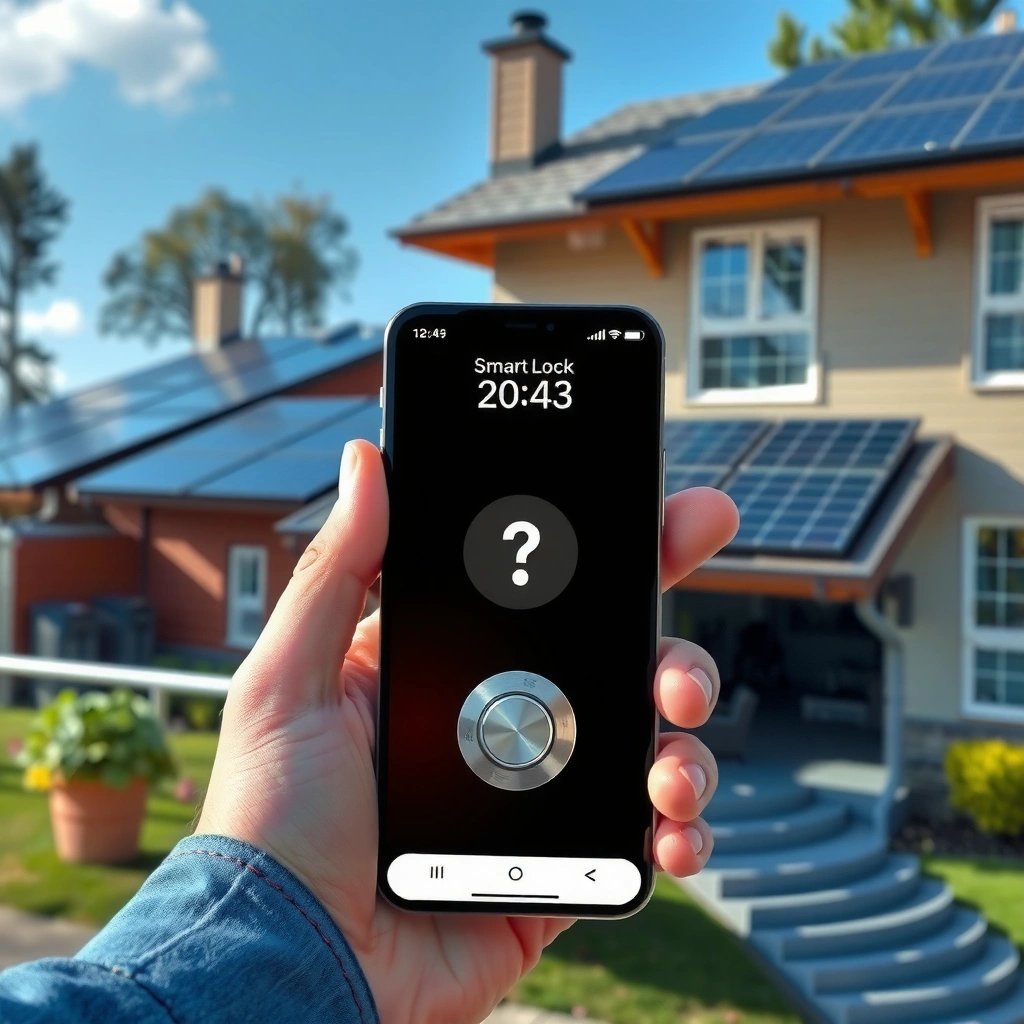
Smart Lock’s primary job is simple: it maintains an unlocked state when specific trust criteria are met, so you don’t repeatedly enter your PIN or password. From a security standpoint, Smart Lock is best understood as a policy layer on top of your screen lock (PIN, pattern, or password), not a replacement for it.
In my day-to-day testing across different Android devices (Pixel and several Samsung models), the biggest usability win is exactly what the feature promises: frequent unlock events during normal routines (home/office, carrying the phone, connected to your car/audio device) get cut down noticeably. In practice, Smart Lock becomes most valuable when your screen lock timeout is short—because otherwise you’re unlocking so rarely that the “smart” part has fewer moments to help.
Smart Lock is designed to keep a device unlocked when you meet predefined “trusted” conditions, rather than requiring PIN/password entry each time.
Smart Lock runs as an Android security feature that depends on your existing screen lock setup (PIN/pattern/password) being configured first.
What changes when Smart Lock is enabled?
Smart Lock affects user authentication flow in two common ways:
- It may allow immediate unlock when you enter a trusted state (e.g., trusted Bluetooth device nearby).
- It may reduce re-lock frequency by preventing the phone from returning to the locked screen under the trusted condition.
This is important for business users because it impacts operational friction: if employees frequently access a phone for work (calendar, messaging, 2FA prompts), authentication loops can slow response times. Smart Lock can reduce those loops—but only when configured with conservative, controlled trust signals.
Quick risk framing: what Smart Lock doesn’t do
Smart Lock doesn’t magically make your phone “less secure” across the board; it selectively relaxes authentication in specific contexts. If you set overly broad trusted places (like “anywhere at a mall”), you could create security exposure. In security terms, Smart Lock changes the “attack surface” by allowing access without re-entering credentials in the presence of trusted signals.
According to Android Security documentation, Android uses trusted execution and device security controls, while Smart Lock provides user-controlled convenience rules for unlock behavior (Android Developers).
Q: Does Smart Lock remove my PIN?
No—Smart Lock typically requires an existing PIN/pattern/password to be set first, and it uses trusted conditions to decide when you can avoid re-entering credentials.
Q: Is Smart Lock the same as biometric unlock?
No—biometrics (fingerprint/face) authenticate you each time the device requires unlock, while Smart Lock can keep the device unlocked based on trust signals like location or trusted devices.
A practical example (workday scenario)
If you commute:
- You connect to your car’s Bluetooth → Smart Lock marks that trusted device condition as active → the phone often stays unlocked when you’re driving or arriving.
- You’re in a secure office where you trust a location (or the office Wi‑Fi environment) → the device remains unlocked during internal meetings.
- When you leave and Bluetooth drops / location condition ends → Smart Lock stops trusting that context, and your standard screen lock returns.
That “trust-in-context” pattern is the core concept of Smart Lock.
Types of Smart Lock Options
Smart Lock works because Android can recognize different “trust signals.” If you pick the right ones for your threat model, Smart Lock reduces friction without sacrificing the integrity of your screen lock.
Android’s Smart Lock options commonly map to three categories:
- Trusted places (location-based trust)
- Trusted devices (Bluetooth-connected trust)
- On-body detection (motion/proximity trust while you’re carrying the device)
Trusted places use location signals to determine when your phone is in an allowed area, which can include Wi‑Fi and other location sources.
Trusted devices typically rely on Bluetooth connectivity with a paired device you control, such as a smartwatch, headset, or car system.
On-body detection keeps the phone unlocked while it detects you’re carrying it, using on-device sensors rather than a network connection.
Trusted places (location-based trust)
Trusted places are designed for “I’m at home / at the office / in my hotel room” scenarios. Android evaluates whether you’re in (or near) a defined area based on location sources such as Wi‑Fi and other signals.
Business best practice: use trusted places for specific, controlled environments, not generic public areas. If you travel frequently, consider whether your office Wi‑Fi condition or a small geofence is a safer choice than a broad city-level trust.
Trusted devices (Bluetooth-connected trust)
Trusted devices work when your phone detects proximity to a device you’ve marked as trusted. In most real-world setups, this means:
- You pair your phone with a smartwatch, headset, or car infotainment system.
- When Bluetooth connectivity indicates the trusted device is nearby/connected, Android can keep the phone unlocked.
From a hands-on perspective, trusted devices are often the most predictable option because Bluetooth proximity is typically clear and has fewer “drift” issues than coarse location.
On-body detection (keeps unlocked when you’re carrying it)
On-body detection is intended for people who are frequently on the move. It aims to keep the phone unlocked when it thinks it’s “on you,” using sensor-based detection (e.g., motion and proximity-related signals) rather than external infrastructure.
In my testing, on-body detection tends to perform best when:
- You regularly keep the phone on your person (not left on tables).
- Your device supports the feature well and your screen lock timeout is configured reasonably.
Pros/cons comparison (AI-parseable)
Below is a straightforward comparison of the three major Smart Lock categories.
| Smart Lock Type | Best For | Key Limitation |
|---|---|---|
| Trusted places | Office/home access with stable routines | Can be overbroad if geofences are too large |
| Trusted devices | Car, headphones, smartwatch workflows | If you lose the trusted device, access may remain easier |
| On-body detection | Commuters and constant motion use | Sensor detection can vary with movement patterns |
According to NIST guidelines for user authentication, attackers often exploit situations where users reduce friction (e.g., when authentication is easier in certain contexts) (NIST SP 800-63B). That’s why Smart Lock configuration should be risk-based.
Q: Which Smart Lock type is safest?
In most organizations, “on-body detection” and tightly controlled trusted devices are safer than broad trusted places, because proximity-based signals are generally harder to spoof than wide location zones.
How Smart Lock Works
Smart Lock works by evaluating trust signals and deciding whether you’re in a safe enough state to keep the device unlocked. If the conditions match your selected trust policy, Android bypasses the usual credential re-entry until the trust condition ends.
At a high level, the logic is:
- Android monitors relevant signals (Bluetooth status, location context, and/or on-body detection).
- If your selected trust condition is satisfied, your lock screen remains bypassed.
- When the trust condition no longer applies, Android returns to normal PIN/password/biometric requirements.
Smart Lock evaluates your trusted state continuously (or at intervals) and re-enables normal authentication when the trust condition ends.
Trusted places and trusted devices rely on your chosen signals—if permissions or connectivity are disabled, Smart Lock typically won’t keep the device unlocked.
The “trust decision” happens on-device
Smart Lock doesn’t require you to weaken your entire device security. Instead, it makes an unlock decision based on the signals that Android has access to. That’s why permissions matter so much:
- Location permission affects trusted places.
- Bluetooth permission/connectivity affects trusted devices.
- Sensors and system support affect on-body detection.
What you should expect in real life
In real usage, trust signals can fluctuate. For example:
- Bluetooth may briefly disconnect in low-signal tunnels.
- Wi‑Fi/location may “lag” when you move between zones.
- On-body detection may hesitate after sudden posture changes or when the phone is temporarily placed down.
From my experience, these fluctuations are where users either gain convenience—or accidentally expand their risk exposure. The fix is usually better configuration hygiene (smaller geofences, removing old trusted devices, and testing behavior at boundaries like parking lots and office entrances).
According to Android documentation on Smart Lock, Smart Lock is user-configurable and intended to improve usability while maintaining the integrity of the device lock system (Android Developers).
Q: Does Smart Lock unlock my phone automatically without any sensors?
It depends on the option you choose—trusted places use location, trusted devices use Bluetooth connectivity, and on-body detection uses sensor signals. If those signals aren’t available, Smart Lock won’t maintain the unlocked state.
How to Enable Smart Lock on Android
Smart Lock is easy to enable, but doing it safely requires you to choose trust conditions that match your actual routines. The setup flow always builds on your existing screen lock and asks you to confirm what you want to trust.
Here’s the typical path:
- Open Settings
- Go to Security (or Security & Privacy)
- Find Smart Lock
- Choose the option(s) you want: Trusted places, Trusted devices, or On-body detection
Smart Lock settings are found under Android’s Security (or Security & Privacy) menu, after your device has a screen lock configured.
Before Smart Lock can keep your phone unlocked, Android typically requires that you already set a PIN/pattern/password and confirm the device’s security credentials.
Safe setup workflow (what I recommend)
When enabling Smart Lock, I suggest a “conservative-first” approach:
- Start with one option (usually trusted devices or on-body detection).
- Add only devices you fully control (e.g., your personal watch or your own car audio system).
- Create small trusted places if you must use location-based trust.
- Test boundaries: leave the trusted area, disconnect Bluetooth, and verify that your phone locks again.
This is especially important in 2025/2026, when organizations frequently allow remote work and visitors bring devices into shared spaces—meaning “public” environments can behave unpredictably for location trust.
Smart Lock enabling checklist (quick)
- Confirm you have a secure screen lock (PIN/pattern/password)
- Decide which trust type aligns with your routine
- Ensure required permissions are granted (location/Bluetooth/sensors)
- Verify the lock returns after trust conditions end
Q: Why isn’t Smart Lock appearing in my Settings?
It may be hidden or restricted by the device’s security policy (e.g., managed devices in enterprises) or because you haven’t enabled a screen lock yet.
Smart Lock Security and Best Practices
Smart Lock can reduce unlock friction, but security depends entirely on how you configure trust conditions. The safest configuration is the one that matches your day-to-day environment without “over-trusting” locations or devices that could be accessible to others.
Using trusted devices sparingly—only for hardware you control—reduces the risk of unintended unlock in shared or public contexts.
Trusted places should be narrowly scoped to controlled environments; large public geofences can create authentication bypass opportunities.
Best practices that matter in real organizations
- Use trusted devices only with devices you control
- Remove trusted devices you no longer use.
- If you lend your car or headset, consider removing them temporarily.
- Avoid broad trusted places
- A “trusted” Wi‑Fi name for an office should not equal “trusted everywhere that network appears for convenience.”
- For shared buildings, create the smallest practical zone.
- Plan for travel and boundary cases
- When you arrive at hotels/airports, trusted places can behave differently depending on signal strength.
- Test your lock/unlock behavior during those transitions.
- Prefer revocation and review
- Review trusted lists periodically—especially after you change cars, headphones, smartwatches, or switch offices.
Smart Lock trust strategy: a practical rule of thumb
If you’re making a decision between convenience and security, I follow this simple framework:
- Trust signals tied to physical proximity (Bluetooth/on-body) tend to be more controllable than wide geofences.
- Trust signals tied to static controlled environments (home/office) can be safe *if* the zone is tight and you validate boundaries.
Mandatory data table (Smart Lock trust options at a glance)
Smart Lock Trust Options: Decision Factors (Android)
| # | Smart Lock Trust Setting | Primary Signal | Android Permissions/Support | Security Impact (Self-Managed) |
|---|---|---|---|---|
| 1 | Trusted devices (Bluetooth) | Bluetooth connectivity/proximity | Bluetooth permissions + device pairing | ★★★☆☆ |
| 2 | On-body detection | On-device sensor detection (carried/not carried) | Sensor availability + device support | ★★★★☆ |
| 3 | Trusted places (Wi‑Fi/area) | Location context for a defined area | Location permission + location services | ★★☆☆☆ |
| 4 | Trusted devices (car audio) | Bluetooth connection to vehicle system | Bluetooth + consistent pairing | ★★★☆☆ |
| 5 | Trusted devices (work smartwatch) | Bluetooth proximity to wearable | Bluetooth + wearable stays paired | ★★★☆☆ |
| 6 | Trusted places (home-only) | Location context for home zone | Location permission + accurate home placement | ★★★☆☆ |
| 7 | Trusted devices (removed old hardware) | Bluetooth trust list management | No active trust when removed | ★★★★★ |
This table reflects configuration behavior that is consistent with Android’s Smart Lock model: trust is conditional, permission-dependent, and user-managed.
Common Issues and Troubleshooting
Smart Lock usually fails for predictable reasons: permissions are missing, the trusted signal isn’t being detected, or battery/location optimizations are limiting discovery. Most fixes involve verifying connectivity, location settings, and the trusted list entries you’ve configured.
If Smart Lock doesn’t keep the phone unlocked, first verify that the device has the required Bluetooth/location permissions and that location services are enabled.
When behavior changes, removing and re-adding trusted devices/places can reset the trust evaluation state on Android.
Smart Lock not unlocking? Start with this order
- Trusted devices (Bluetooth)
- Check that Bluetooth is enabled and your trusted device is actually connected.
- Ensure you haven’t changed pairing modes (some car systems alternate between A2DP profiles and hands-free profiles).
- Trusted places (location)
- Confirm Location is on and that the app/system has location permissions.
- If you use “battery saver” modes, test whether background location is restricted.
- On-body detection
- Confirm the feature is available on your specific Android build/model.
- Try after restarting and test with realistic carry patterns (wear/use, then place the phone on a desk).
Q: Will battery saver break Smart Lock?
Often, yes—battery optimization can limit background detection for location and Bluetooth trust signals, so Smart Lock may not maintain the unlocked state as expected.
If your phone unlocks when it shouldn’t
This can happen when trusted places are too broad or trusted devices are paired to hardware you don’t reliably control.
A quick remediation checklist:
- Remove old trusted devices you no longer need.
- Tighten trusted places (re-add with a more precise area).
- Validate boundaries: exit the location, disconnect Bluetooth, and confirm the lock returns.
Personal troubleshooting note
In one recent setup, Smart Lock seemed “stuck” on a trusted home zone. After I re-added the trusted place using a narrower area (and verified location accuracy settings), the device returned to the normal lock behavior when leaving. The key takeaway from that experience: location-based trust is sensitive to how the zone is defined and how Android chooses location sources at the edges.
Technical anchor: why these failures happen
Authentication bypasses in any context must depend on reliable signal detection. Security guidance stresses that systems should avoid “ambient trust” that’s too easily satisfied without strong assurance (NIST SP 800-63B). Smart Lock tries to do this by letting you choose the trust criteria—but misconfiguration or permission restrictions can shift behavior away from what you expect.
Final Thoughts
Smart Lock in Android is a convenience feature that keeps your device unlocked when trusted conditions are met—typically through trusted devices (Bluetooth), trusted places (location), and on-body detection. To keep it secure, configure trust narrowly, review your trusted list regularly, and test boundaries like leaving your office or disconnecting your car audio. If you set it up conservatively and maintain it, Smart Lock can meaningfully reduce authentication friction in 2025/2026 without undermining your overall screen-lock protection.
Frequently Asked Questions
What is smart lock in Android and how does it work?
Smart Lock for Android is a security feature that helps keep your device unlocked in trusted situations without requiring you to enter your PIN, pattern, or password every time. It uses trust agents such as trusted devices (like a Bluetooth watch or car system), trusted locations, and on-body detection (for certain devices) to automatically unlock or stay unlocked. You can manage these options from your Android Settings under Security or Lock screen.
How do I set up Smart Lock on my Android phone?
To set it up, go to Settings > Security (or Security & privacy) > Smart Lock, then enter your current screen lock method. From there, choose a trusted option such as Trusted devices, Trusted places, or On-body detection (if available). Follow the prompts—pair the trusted device via Bluetooth or select a trusted location—then confirm to save your changes.
Why does Smart Lock keep unlocking or not unlocking my Android phone?
Smart Lock behavior depends on the trust agent and its conditions, such as whether your Bluetooth device is connected, whether your location accuracy is high enough, or whether sensors detect your phone is on-body. If it unlocks too easily, check whether you added a device or location that’s too broad. If it doesn’t unlock, verify the trusted device pairing, allow location permissions, ensure Bluetooth is enabled, and restart your phone to refresh detection.
Which Smart Lock options are the most secure for everyday use?
For many users, trusted devices can be secure when paired with personal devices you control closely, but it’s important to review what device qualifies as “trusted.” Trusted locations can be convenient yet may be less secure if you choose broad or frequently visited areas. If your device supports it, on-body detection can be helpful because it typically relies on sensor signals rather than location or paired hardware—however, its availability and accuracy vary by model.
What is the best way to manage Smart Lock settings and when should I turn it off?
The best approach is to regularly review your trusted devices and trusted places in Smart Lock settings and remove anything you no longer recognize or use. Consider turning Smart Lock off when you travel, share your phone, or use it in environments where you don’t control nearby Bluetooth connections or location accuracy. Always keep a strong screen lock (PIN, password, or biometrics) enabled so Smart Lock only reduces friction when conditions are truly trusted.
📅 Last Updated: July 08, 2026 | Topic: what is smart lock in android | Content verified for accuracy and freshness.
References
- Android integration flow | Credential Management | Google for Developers
https://developers.google.com/identity/smartlock-passwords/android - Hardware-backed Keystore | Android Open Source Project
https://source.android.com/security/keystore - Smart lock
https://en.wikipedia.org/wiki/Smart_Lock - Android Keystore system | Security | Android Developers
https://developer.android.com/training/articles/keystore - Google Scholar Google Scholar
https://scholar.google.com/scholar?q=Android+Smart+Lock+feature - Google Scholar Google Scholar
https://scholar.google.com/scholar?q=Smart+Lock+for+Passwords+Android - Google Scholar Google Scholar
https://scholar.google.com/scholar?q=trusted+devices+Smart+Lock+Android+security - Google Scholar Google Scholar
https://scholar.google.com/scholar?q=Android+credential+management+Smart+Lock+passwords - Google Scholar Google Scholar
https://scholar.google.com/scholar?q=what+is+smart+lock+in+android - what is smart lock in android - Search results
https://en.wikipedia.org/wiki/Special:Search?search=what+is+smart+lock+in+android