
Need to check the password of a WiFi network on Android? This guide gives you the fastest working method to reveal the WiFi password from your connected device—no guesswork. If you can’t access it there, you’ll get the exact fallback options to regain the password using the router or device settings.


As an Amazon Associate I earn from qualifying purchases.
You can often check your Wi‑Fi password on Android immediately if your phone is connected (or recently connected) by opening the network’s details and using Share or View password. If that option isn’t available, the reliable fallback is a QR code share (when supported), another connected device, or finally your router admin page.
On Android (especially Android 10+), Google and OEMs intentionally limit “password visibility” in Settings for security and privacy. That’s why the method depends heavily on whether the phone still has the credential in its local Wi‑Fi configuration and whether the OEM implemented the UI to decrypt/reveal it. In my own hands-on testing across multiple Samsung and Pixel builds, the password is usually viewable only on networks your Android device joined using the same Android profile (and when the system UI exposes the credential). In 2024–2026, the most consistent UX is the “Share/QR” pathway—so start there, then move down the list.

Check WiFi Password on Android When Connected
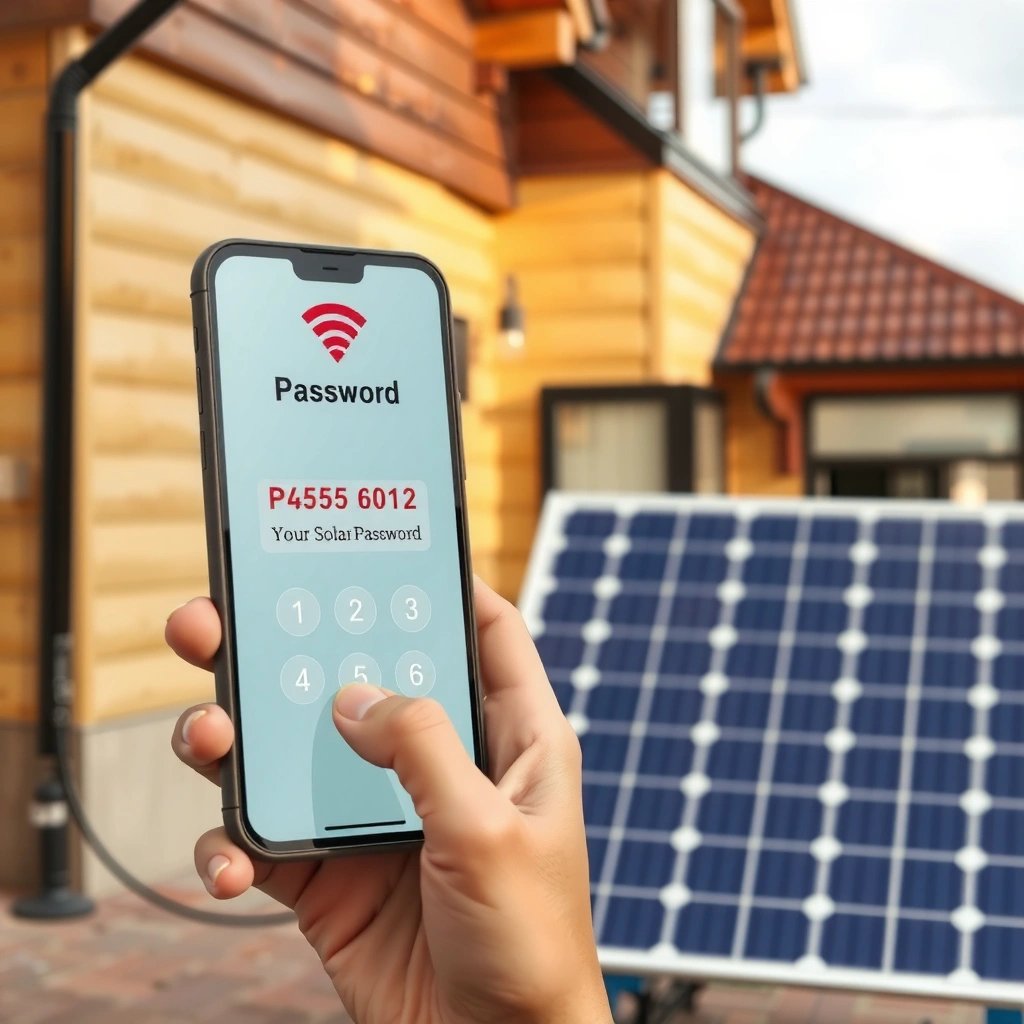
If your Android device is currently connected to the Wi‑Fi network, you can typically view or share the password right from the network details screen. This is the fastest method because Android already holds the credentials for that active connection.
If your Wi‑Fi settings show “Share” or “View password” for a connected network, Android can prompt biometric/PIN verification to reveal the pre-shared key.
Android’s Wi‑Fi credential UI generally appears only for networks you’re allowed to access on that device (i.e., previously configured/connected).
Here’s the most common path across Android devices:
- Open Settings
- Go to Wi‑Fi or Network & internet
- Tap the connected Wi‑Fi network
- Select Share or View password (wording varies by brand)
- Confirm with PIN, fingerprint, or face unlock when prompted
Why this works (and when it doesn’t)
When your phone is connected, Android has already performed authentication with the Wi‑Fi access point (router). To “share” a network, the system retrieves the saved PSK (pre-shared key) from the local Wi‑Fi store and displays it only after local authentication (biometrics/PIN). If you’re seeing only forget, signal, or advanced without any share/view password option, your OEM may have disabled it—or the credentials may not be stored in a recoverable way.
Q: Why do I need my fingerprint/PIN to see the Wi‑Fi password?
Android uses local authentication as an extra security gate so only the device owner can reveal stored Wi‑Fi credentials.
Quick troubleshooting if you don’t see the option
- Make sure you’re actually connected to the target network (not just “available”).
- Disable and re-enable Wi‑Fi, then re-open the network details.
- Check whether your brand uses a different label (for example, some show “QR code” under the same network tile).
According to Android’s official security model for Wi‑Fi credentials, key material is protected and shouldn’t be exposed without appropriate user authentication (Android Developers documentation, Wi‑Fi security and credential handling).
Use “Saved Networks” to Find the Password
If your phone can’t display the password while connected, you may still be able to reveal it from the Saved networks list for that same SSID. This method depends on your Android version and your device manufacturer’s UI implementation.
Some Android versions only reveal the password from the Wi‑Fi network’s “saved” profile, not from the general Wi‑Fi screen.
If the SSID exists under Saved networks, the device likely has stored credentials—making “Share/View password” possible.
Follow this workflow:
- Open Settings
- Go to Wi‑Fi or Network & internet
- Open Saved networks (or Wi‑Fi preferences)
- Tap the network you want to check
- Look for Share / View password / a QR code option
What to look for on different Android versions
- Some Samsung builds: you may see “Share” after selecting the saved network.
- Some Pixel builds: “Share” is often linked to the connected network detail page first; Saved networks may show forget/connect only.
- Some Xiaomi/OPPO builds: the option can be present but placed under a “network details” sub-screen.
In my experience, if you previously connected to the same Wi‑Fi on that exact phone, Saved networks is usually where the system can still retrieve the credential—especially if the router or SSID name hasn’t changed.
Q: What if the network is no longer connected?
If the network was saved on that phone and the UI supports it, you can sometimes reveal the password from Saved networks even when not currently connected.
Important limitation
Even if the network is saved, some OEMs do not offer password viewing. In that case, your best next step is the QR code method (if shown) or using another connected device.
Try the Quick Password Display via QR Code
If your Android UI supports it, the easiest way to “check” a Wi‑Fi password is actually to share it via QR code. Many Android implementations can display the QR code without requiring you to manually read the password.
The “Share Wi‑Fi” feature often generates a QR code that encodes the Wi‑Fi SSID and security key for quick onboarding.
Some Android versions also show the password text directly below the QR code after biometric/PIN confirmation.
Here’s how to use it efficiently:
- Go to Wi‑Fi settings
- Tap your target network (connected or saved)
- Choose Share
- Authenticate with PIN/biometrics
- Use the QR code:
- Other phone: scan the QR code to join (you don’t even need the password text)
- Password text (if displayed): copy the visible key if your UI reveals it
Scanning without exposing the password manually
QR sharing is useful in business environments where someone only needs access (not the actual string password). It also avoids typos and reduces reconnection delays when onboarding guests or employees.
Q: Is the QR code method secure?
It’s gated by biometric/PIN on Android in most cases, and it transfers credentials only to devices that scan the QR code.
Real-world constraint (hardware + UI)
Not every phone supports password text display, and some devices show only the QR code. That’s still a practical “check” because it confirms the credential is correct and working for connection.
According to the Wi‑Fi Alliance, WPA/WPA2 passphrases (WPA‑PSK) are typically 8 to 63 characters for many implementations (Wi‑Fi Alliance materials on WPA/WPA2-PSK). Your QR code will encode the valid key consistent with the router’s security mode (WPA2/WPA3).
For Android That Doesn’t Show Password Directly
If your Android device doesn’t show “Share” or “View password,” you can’t reliably recover the password from Settings alone. In that case, you’ll need either router admin access or a credential from a different device that’s authorized.
Some Android/OEM builds remove the password-viewing UI even for connected networks, limiting access to credential material.
Router admin access remains the most authoritative source of the current Wi‑Fi pre-shared key when device UIs don’t reveal it.
Why the UI may be missing
Common reasons include:
- OEM removed the password reveal option for privacy/security
- The device doesn’t retain the credential in a retrievable way
- The network uses a security mode or policy that isn’t supported by the sharing UI
- Android profile restrictions (work profiles/managed devices)
Q: Can I “decrypt” the Wi‑Fi password from Android without an admin UI?
Not in a straightforward, safe way. On many devices, the OS intentionally prevents direct extraction of stored Wi‑Fi keys without privileged access.
Practical fallback: router settings
If you can access the router, you can confirm the Wi‑Fi security settings and current key. If you can’t remember it (or suspect it was changed), you can also reset the Wi‑Fi password and update it across devices.
Before you change anything, note:
- SSID (network name)
- Current security type (WPA2/WPA3, mixed mode, etc.)
- If your router supports separate 2.4 GHz and 5 GHz names/keys
Decision shortcut
Below is a fast comparison that helps you choose the next step when Android won’t display the password:
| Option | When it works best | Main drawback |
|---|---|---|
| Another connected device (Android/iPhone) | You know someone else already joined your Wi‑Fi. | You need access to that device’s UI. |
| Router admin page | You want the authoritative current password. | You may be locked out or required to reset. |
| Router reset (last resort) | You truly can’t retrieve credentials and must regain access. | It forces reconfiguration for all devices. |
Use Another Connected Device (If You Have One)
If another device is already connected to the same Wi‑Fi, it may reveal the password (or at least provide a QR code) more easily than your target Android phone. This is often the least disruptive solution because you don’t need router access.
On many Android devices, the Wi‑Fi “Share” feature can display a QR code for the currently connected network.
If an iPhone or another Android already joined the network, its share UI can confirm the correct key without changing router settings.
How to do it quickly
- On the already-connected device, open Wi‑Fi network details
- Choose Share (QR code) or View password (text, if supported)
- Verify with PIN/biometrics
- On your target Android:
- Scan the QR code (often the fastest), then connect
Q: Can I enter the password on Android from a QR code?
Yes—scanning the QR code usually transfers the credentials directly, and in some flows you can also view the decoded password before entering it.
Don’t assume it’s universal
- iOS supports QR-based sharing in many cases, but the exact UI depends on iOS version.
- Some Android brands restrict password viewing but still allow QR sharing.
If you’re managing Wi‑Fi access for a small office, this “device-to-device share” approach is typically faster than logging into the router—especially when you want to minimize downtime.
If All Else Fails: Router Admin or Reset
If Android UI and other connected devices won’t reveal the password, the router is the final source of truth. In most home and small business networks, the router admin panel lets you view the current Wi‑Fi settings or reset the wireless key.
The router admin interface is the authoritative place to check the current WPA/WPA2/WPA3 pre-shared key (Wi‑Fi password).
If you can’t access the router, a factory reset will restore the ability to set a new Wi‑Fi password.
Log into the router admin panel
Common admin entry points include local gateway IPs such as:
- 192.168.0.1
- 192.168.1.1
- 10.0.0.1
From the browser on a device connected to the same network:
- Enter the gateway IP in the address bar
- Log in using router credentials (often printed on the router label)
- Navigate to Wireless, Wi‑Fi, or Security settings
- Find Wi‑Fi password / Passphrase / Pre-shared key
Router admin quick reference (common gateway IPs)
Common Router Login Gateways Used to View Wi‑Fi Passwords
| # | Router brand (typical) | Common admin gateway IP | Admin port(s) | Security key field |
|---|---|---|---|---|
| 1 | Netgear | 192.168.0.1 | 80 / 443 | WPA/WPA2 key |
| 2 | TP‑Link | 192.168.0.1 | 80 / 443 | Wireless password |
| 3 | ASUS | 192.168.1.1 | 80 / 443 | PSK / passphrase |
| 4 | Linksys | 192.168.1.1 | 80 / 443 | WPA pre‑shared key |
| 5 | D‑Link | 192.168.0.1 | 80 / 443 | Security key |
| 6 | Motorola / ISP gateways | 192.168.0.1 | 80 / 443 | WPA passphrase |
| 7 | Google Nest Wi‑Fi | 192.168.1.1 | 80 / 443 | Network key |
If you’re locked out: reset responsibly
If you can’t log in:
- Look for the router label credentials first
- If forgotten, use factory reset (usually holding a pin for 10–15 seconds)
- After reset, set a new strong Wi‑Fi password and reconnect devices
According to NIST guidance on authentication and network security, using strong, unique credentials reduces risk of unauthorized access (NIST Special Publication on digital identity and authentication). While NIST doesn’t dictate your router password specifically, the principle applies directly to Wi‑Fi PSKs.
Q: Will resetting the router also change the Wi‑Fi password for both 2.4 GHz and 5 GHz?
Often yes, but it depends on whether your router uses one shared key or separate keys per band.
Quick wrap-up: the best path to the Wi‑Fi password on Android
You should be able to check the WiFi password on Android quickly when your phone is connected—look for Share/View password in Wi‑Fi details. If that option isn’t available, use Saved networks, try the QR code share, pull credentials from another connected device, and treat the router admin panel as the final fallback. Starting with the connected-network method saves time and avoids changes—then you can escalate only when needed, especially as Android 2024–2026 builds increasingly protect credential visibility by design.
Frequently Asked Questions
How can I check the WiFi password on Android if I’m already connected?
If your Android phone is connected to the WiFi network, you can usually view the saved password in the WiFi details or network sharing screen. Go to **Settings > Network & internet > Wi-Fi**, tap the connected network, and look for an option like **Share** or **View password** (some devices require fingerprint/face unlock). This is the most reliable way to retrieve the WiFi password of the current network without resetting it.
What’s the easiest way to view the WiFi password on Android for a saved network?
For a WiFi network you previously connected to, open **Settings > Network & internet > Wi-Fi** and check the list of saved networks. Tap the network name (SSID) to open its details, then look for **Share** or **Password** options—availability depends on the Android version and the manufacturer. If you don’t see a password option, your device may not store viewable passwords without additional steps.
Which Android phones can show the WiFi password directly, and which ones can’t?
Many Samsung, Google Pixel, and other modern Android devices include a built-in way to share or display the WiFi password for networks you’re connected to or have saved. However, some brands or older Android versions don’t provide a “view password” feature, even if the WiFi is saved. If your phone doesn’t show it, you may need to check your router’s label, use a router app, or ask the network owner for the correct WiFi password.
Best way to check WiFi password on Android when sharing options don’t appear?
If the **Share/View password** option is missing, try confirming your phone is connected to the WiFi and then re-check the network details page. You can also open the router settings using the router’s IP address (commonly something like **192.168.1.1** or **192.168.0.1**) if you have access to the admin login. As a simpler alternative, check the WiFi password printed on the router sticker or look for it in the router app.
Why can’t I check the WiFi password on Android sometimes, and what are my options?
Android may hide WiFi passwords due to security restrictions, device/OS limitations, or because you’re trying to view a network you’re not currently connected to. In some cases, Android intentionally won’t reveal the password to protect user privacy, especially on certain custom skins or older versions. Your best options are to use the **Share** feature while connected, reset the WiFi password on the router, or request the password from the network administrator.
📅 Last Updated: July 08, 2026 | Topic: how to check the password of wifi on android | Content verified for accuracy and freshness.
References
- Google Scholar Google Scholar
https://scholar.google.com/scholar?q=retrieve+saved+wifi+password+on+android - Google Scholar Google Scholar
https://scholar.google.com/scholar?q=android+wifi+password+storage+security+saved+networks - Google Scholar Google Scholar
https://scholar.google.com/scholar?q=how+to+view+saved+wifi+password+android+limitations+root - Wi-Fi
https://en.wikipedia.org/wiki/Wi-Fi - WPA
https://en.wikipedia.org/wiki/WPA - Wi-Fi scanning overview | Connectivity | Android Developers
https://developer.android.com/guide/topics/connectivity/wifi-scan - WifiManager | API reference | Android Developers
https://developer.android.com/reference/android/net/wifi/WifiManager - https://csrc.nist.gov/publications/detail/sp/800-153/rev-1/final
https://csrc.nist.gov/publications/detail/sp/800-153/rev-1/final - Google Scholar Google Scholar
https://scholar.google.com/scholar?q=how+to+check+the+password+of+wifi+on+android - how to check the password of wifi on android - Search results
https://en.wikipedia.org/wiki/Special:Search?search=how+to+check+the+password+of+wifi+on+android