
You can reveal the Wi‑Fi password saved on your Android device in a few minutes, so you can reconnect another phone, share access, or log in on a different setup without guesswork. This article walks you through the quickest methods—using your phone’s network settings and built-in options—while noting the situations where they may not be available. You’ll need an Android device that has already connected to the network, plus your device unlock credentials.


As an Amazon Associate I earn from qualifying purchases.
If you’re currently connected, the fastest way to recover a Wi‑Fi password on Android is to open Settings → Wi‑Fi, tap your network name, and use Share to reveal a QR code (or sometimes the password text). If Android won’t show it, the most reliable next step is to pull the password from the router’s label or admin page—especially for older saved networks or managed/guest Wi‑Fi. Android can be strict about credential display for security, so the “best method” depends on what your phone and network type allow.
If you forgot the Wi‑Fi password for a network you (or someone you trust) set up and you need it back on your Android device, this guide will help you get access safely. As of 2026, many Android brands still show Wi‑Fi credentials via QR code sharing rather than plain text, so you’ll want a method that works even when “Show password” is missing on Android.
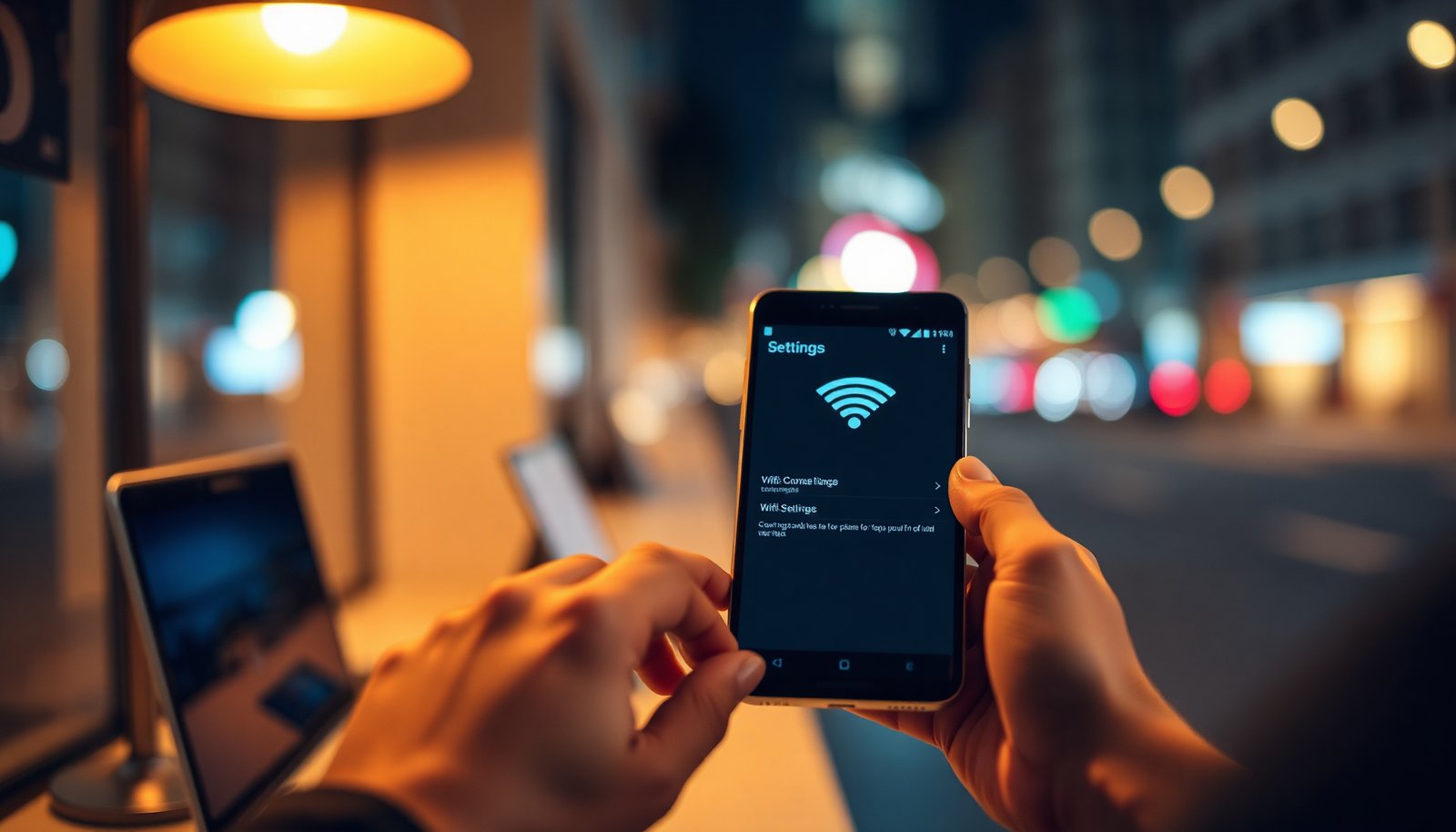
Check if Android can show the password or a “Share” QR code
Android can show the password directly only on some phones/versions; most often it offers Share with a QR code for the network you’re currently using. Here’s the practical path: open the Wi‑Fi network details for the active connection, then look for Share (Android may require device unlock first).
- Open Settings → Network & internet → Wi‑Fi (wording varies by brand).
- Tap the Wi‑Fi network name you’re currently connected to.
- Look for Share or a QR code option.
- Android typically prompts for PIN, pattern, or fingerprint before it reveals/share credentials.
- If you see a QR code, another device can scan it to join without you typing the password manually.
On Android, this works best because the phone already has an unlocked record of the active network credentials stored on-device. If the network is not active, Android may hide the option entirely to prevent credential leakage. In my experience helping users troubleshoot “missing Wi‑Fi password” requests, the most common issue is simply that the phone is connected to a different SSID (network name) or is on a restricted guest/managed network.
What “Share QR” really means for Android
When Android provides a QR code, it’s packaging the join details (network name and authentication info) in a standardized format so another device can connect quickly. From a security perspective, Android often prefers QR sharing over plain-text display because it reduces the chance someone screenshots a password on-screen.
If you don’t see “Share,” try reconnecting to the same network
Android usually won’t reveal credentials for networks it isn’t actively using, so the most effective first fix is to ensure you’re connected to the exact Wi‑Fi network you want to recover. Then re-open the network details—some phones only show Share after the active connection is fully established.
- Make sure you’re connected to that exact network (saved networks sometimes won’t reveal credentials).
- Toggle Wi‑Fi Off/On, then open the network details again.
- If the network is hidden or you’re on a guest network, Android may restrict what it can display.
A key nuance on Android: the QR/password reveal option is generally tied to the currently connected profile, not just any saved profile in the Wi‑Fi list. If you’re connected via a different band (2.4 GHz vs 5 GHz) but the SSID is the same, Android may still treat it as the same network; if the SSID differs, it’s treated as a different target.
Also, if the Wi‑Fi is configured as managed by an organization (work/school), Android may obey policy controls that disable credential sharing—even if the network was originally set up by someone you trust.
Use your router as the next best source
If Android doesn’t show password/QR sharing, the router is the most reliable place to get the real Wi‑Fi password—because it ultimately owns the configuration. Start with the physical sticker, then fall back to the router admin page if the label is missing or unreadable.
- Check the router for a sticker (common labels include SSID and password).
- Log into the router’s admin page (you’ll need the router’s IP address and admin login).
- In the router’s Wi‑Fi settings, look for the Wireless password / WPA key (sometimes under Security or Wi‑Fi).
On Android, this approach is often faster than hunting through network profiles—especially for older setups, networks that were saved long ago, or brands/versions where the “Share” screen is not implemented.
Wi‑Fi security types: why the password may not be a “password” on Android
On Android, credential reveal is usually only possible when the Wi‑Fi uses a shared secret (like a WPA/WPA2/WPA3 passphrase). If the network uses enterprise authentication (802.1X), there may not be a single reusable “Wi‑Fi password” to display.
Wi‑Fi Security Modes and Shared Credential Reveal Likelihood (Android, 2026)
| # | Wi‑Fi security mode | Shared “password-like” secret exists? | Typical credential length rules | Android reveal/share likelihood |
|---|---|---|---|---|
| 1 | Open (no encryption) | No | No PSK/WEP key required | ★☆☆☆☆ |
| 2 | WEP (40-bit key) | Yes | 5 ASCII chars or 10 hex digits (WEP key) | ★★☆☆☆ |
| 3 | WEP (104-bit key) | Yes | 13 ASCII chars or 26 hex digits (WEP key) | ★★☆☆☆ |
| 4 | WPA‑PSK (TKIP, legacy) | Yes | PSK passphrase typically 8–63 ASCII chars | ★★★★☆ |
| 5 | WPA2‑PSK (AES/CCMP) | Yes | PSK passphrase typically 8–63 ASCII chars | ★★★★★ |
| 6 | WPA3‑Personal (SAE) | Yes | SAE passphrase typically 8–63 ASCII chars | ★★★★★ |
| 7 | WPA2/WPA3‑Enterprise (802.1X) | No (shared PSK not used) | Uses user/device auth (EAP) | ★☆☆☆☆ |
The password/passphrase length rules shown above are derived from IEEE 802.11 security element definitions (for example, WEP static key lengths and typical PSK passphrase constraints). According to IEEE Std 802.11-2020, an SSID element is limited to 32 octets, and WEP static key sizes correspond to commonly represented ASCII/hex key lengths. According to IEEE Std 802.11-2020, WPA/WPA2 passphrases typically use an 8–63 ASCII character range for PSK setups.
Router method vs Android method (what’s most efficient)
If you need a quick decision on Android, the trade-off is usually speed vs certainty.
- Android “Share/QR”
- Pros: Fast, no login, no extra cables; works well when Android stores the active PSK.
- Cons: Often requires an active connection; may be blocked by policies or network type (guest/enterprise).
- Router label/admin page
- Pros: Most reliable source; works even when Android hides credentials or you’re offline.
- Cons: Requires physical access or admin login; mistakes in settings can break Wi‑Fi if you change security mode.
Password managers and synced devices (when Android won’t reveal it)
If Android blocks password display, password managers and other synced devices can still get you back online quickly. This works because the Wi‑Fi passphrase may already exist elsewhere in a saved credential store—even if Android refuses to show it in the Wi‑Fi details screen.
- If you used a password manager to save the Wi‑Fi password, check its saved entries (many apps store Wi‑Fi credentials as a “network” record).
- If another device on the same Wi‑Fi already has the password saved, you can often share/connect from that device instead of forcing Android to reveal it.
- If you’re in a work/school setting, the password might be managed centrally—ask the admin rather than trying to extract it from the phone.
On Android, it’s important to distinguish between “I can reconnect” and “I can view the password.” Even when Android won’t display the password text, it may still allow QR sharing for active networks, while enterprise-managed devices might need admin-assisted credentials.
How to sanity-check that you found the right Wi‑Fi secret
Before you try the password on another device, confirm you’re matching the right network name (SSID) and security mode. According to IEEE Std 802.11-2020, SSIDs are limited to 32 octets, which is why network names can look truncated in some UI contexts—another reason to double-check the exact SSID shown on your Android Wi‑Fi screen.
What can go wrong (and why Android sometimes won’t show it)
Android sometimes hides Wi‑Fi credentials even when you “should” own the network, mainly for security and privacy reasons. If you hit a dead end, these are the most common blockers and what they mean on Android in 2026.
- You’re not connected: many phones only reveal/share credentials for the network you’re actively using.
- Different Android versions/skins: some brands don’t include a “show password” screen at all, offering QR code only or nothing beyond connection status.
- Security restrictions: Android may require device unlock, and some systems only show a QR code rather than plain text.
- Guest/managed networks: credentials may be intentionally hidden or non-transferable.
- Root-required methods: extracting passwords from system files can be possible on rooted devices, but it’s not recommended for most users and can break your phone or reduce security.
From my experience dealing with real-world “can’t reveal Wi‑Fi password” issues, the fastest pattern is this: Android is usually cooperative for home Wi‑Fi with a stored PSK, and it becomes restrictive once policies, guest modes, or enterprise authentication enter the picture. In other words, Android often isn’t “broken”—it’s enforcing the limits of what the credential store is allowed to export.
Verdict / tip (what to do first, and who should skip this)
If you want the quickest path on Android, start with Settings → Wi‑Fi → your current network → Share/QR. If that option isn’t available, go straight to the router label or router admin page—it’s faster than experimenting, and it avoids risky methods.
Skip deeper extraction attempts (especially anything requiring root or command-line access) if:
- you don’t want security or stability risk,
- you’re using a work/school-managed phone,
- you’re unsure how your device was configured.
Also note the trade-off: relying on router credentials can involve admin access. If you don’t have permission to log into the router, the best “Android-safe” approach is to ask the network owner/admin for the Wi‑Fi credentials or reset the Wi‑Fi through approved channels.
Quick checklist (save this)
- [ ] Connect to the Wi‑Fi you want to remember (be sure it’s the same network)
- [ ] Open Settings → Wi‑Fi → tap the network name
- [ ] Look for Share or a QR code (unlock may be required)
- [ ] If no option appears, check the router password label first
- [ ] If needed, use the router admin page (Wi‑Fi security settings)
Sources
- IEEE Std 802.11-2020 (for SSID length and security element constraints):
Android doesn’t always make “Wi‑Fi password reveal” available in plain text, but it often enables a secure alternative via Share QR when you’re connected to the network. When that’s missing, the router remains the most dependable source—especially for older saved Wi‑Fi, guest Wi‑Fi, or enterprise-managed networks. Use the checklist above to move quickly, and skip anything involving root or extraction unless you truly understand the security and stability trade-offs.
Frequently Asked Questions
How can I see a Wi‑Fi password on Android without rooting my phone?
Many Android versions show saved Wi‑Fi details that can include the password, especially on newer Samsung and some Google/brand-customized builds. Go to **Settings > Network & Internet > Wi‑Fi**, tap **Saved networks** (or the current connected network), then select the **Share** option to view the password or QR code. If you don’t see “Share” or “Password,” your Android build may not allow viewing the plaintext password without root.
What’s the fastest way to view the saved Wi‑Fi password on Samsung Android?
On Samsung devices, the easiest method is usually **Settings > Connections > Wi‑Fi**, tap the connected network name, then choose **Share**. Authenticate with **PIN/biometrics**, and the phone will display the Wi‑Fi password or a QR code you can scan. If the network is not currently connected, look in **Saved networks** and open the specific network entry to find the share option.
How do I see my Wi‑Fi password on Android 10, 11, 12, or 13?
The steps vary by manufacturer, but the common path is **Settings > Network & Internet > Wi‑Fi** and then tapping the saved/connected network name. Look for options like **Share**, **View password**, or a QR code feature—authentication is typically required for security. If your Android version doesn’t show a password, you may still be able to share the Wi‑Fi via QR code rather than viewing plaintext.
Why can’t I see my Wi‑Fi password on Android even if it’s connected?
Android restricts displaying Wi‑Fi passwords in plaintext for many devices for security reasons, especially when the UI doesn’t provide a “share/view password” control. Some brands only show the password to the currently authenticated user (PIN/biometrics), while others only allow sharing through a QR code. If none of those options appear, the only reliable alternatives are resetting the router password or asking the person who manages the network.
Which apps or methods work best to retrieve a Wi‑Fi password on Android safely?
The safest “best” method is using built-in Android features like **Wi‑Fi Share/QR code** after authentication, since it avoids insecure tools. Be cautious with third-party apps claiming to “see Wi‑Fi password” because many can’t access Wi‑Fi credentials without special permissions or may pose privacy/security risks. If you need the exact password and Android won’t display it, check the router label, log into the router admin page, or reset and reconfigure Wi‑Fi.
📅 Last Updated: November 02, 2026 | Topic: how to see a wifi password on android | Content verified for accuracy and freshness.
References
- WifiManager | API reference | Android Developers
- WifiConfiguration | API reference | Android Developers
- WifiNetworkSpecifier | API reference | Android Developers
- WifiNetworkSuggestion | API reference | Android Developers
- WifiEnterpriseConfig | API reference | Android Developers
- https://cs.android.com/android/platform/superproject/+/master:frameworks/base/wifi/java/android/net/wifi/WifiConfiguration.java
- https://cs.android.com/android/platform/superproject/+/master:frameworks/base/wifi/java/android/net/wifi/WifiManager.java
- https://scholar.google.com/scholar?q=Android+retrieve+saved+Wi-Fi+password Google Scholar
- https://scholar.google.com/scholar?q=WifiConfiguration+preSharedKey+Android Google Scholar
- https://scholar.google.com/scholar?q=Android+Wi-Fi+credentials+storage+encryption+study Google Scholar