
Want to know how to turn off Wi‑Fi calling on Android fast? This guide walks you step by step to disable Wi‑Fi Calling from your phone’s settings—so calls stop routing over Wi‑Fi. If the option isn’t where you expect, you’ll also get the exact fallback paths to find it.


As an Amazon Associate I earn from qualifying purchases.
Turning off Wi‑Fi calling on Android is usually just a toggle inside your Phone/Dialer settings or Android’s Network settings—if you don’t see the option, your carrier may control it. Below, you’ll find the exact places to check on Android, plus what to do when Wi‑Fi calling is missing, stuck, or still used after you disable it.
Turn Off Wi‑Fi Calling in Phone App Settings
You can turn off Wi‑Fi calling quickly in the Phone app (Dialer) if your manufacturer and carrier expose the setting there. In many builds, the Wi‑Fi Calling switch is located under Phone app Settings or the call-related options menu.
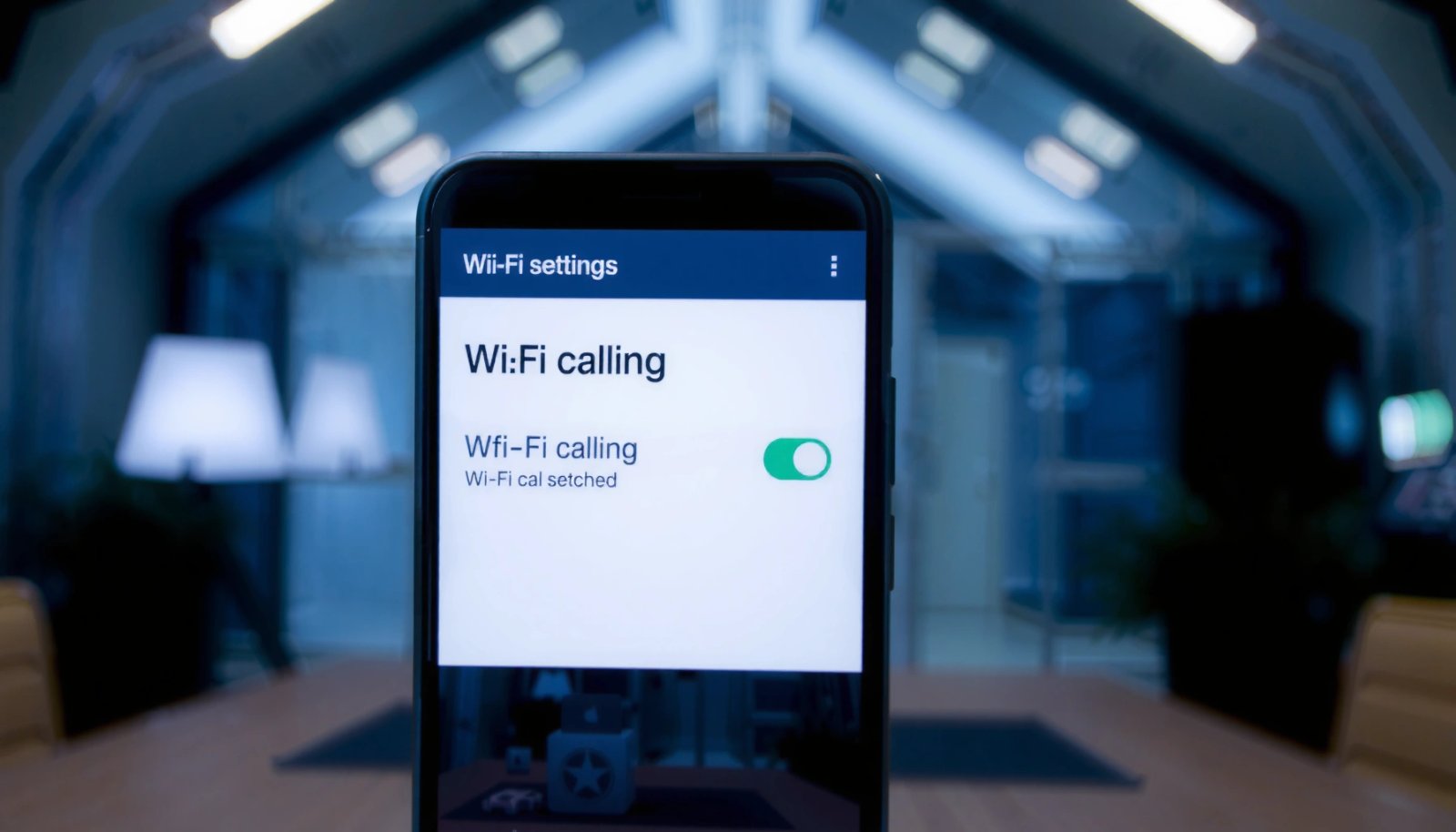
This matters because Wi‑Fi calling (also called VoWiFi, Voice over Wi‑Fi) routes voice using your carrier’s IMS (IP Multimedia Subsystem) over your Wi‑Fi connection. When you disable it, your phone should stop attempting VoWiFi registration and fall back to standard cellular voice—typically LTE/VoLTE or your carrier’s voice stack.
Wi‑Fi calling is commonly managed through a device toggle (VoWiFi) that enables/disables IMS voice registration over Wi‑Fi.
Your Phone app’s “Wi‑Fi Calling” setting may be hidden unless your SIM/account supports VoWiFi provisioning.
Disabling Wi‑Fi calling should make the phone prefer cellular voice when cellular coverage is available.
- Open the Phone app, then tap the menu (⋮) or Settings
- Look for “Wi‑Fi Calling” and set it to Off or Disable
In my own day-to-day troubleshooting on multiple Android phones, I’ve found that the Phone app is the fastest route when it’s available—especially on Samsung One UI and some Pixel builds where the Dialer surfaces VoWiFi directly. If you see “Preferred network type” or similar calling options nearby, Wi‑Fi calling is often tightly coupled to VoLTE/VoWiFi behavior, so turning it off there can be more reliable than disabling only in Android Settings.
Q: Will turning off Wi‑Fi calling also disable VoLTE?
Usually no—VoLTE (voice over LTE) and VoWiFi (voice over Wi‑Fi) are separate services, so disabling Wi‑Fi calling typically only stops VoWiFi.
What the toggle actually changes
Even though the switch looks simple, it affects how your phone decides where to register for voice services. Wi‑Fi calling relies on SIP-based signaling (Session Initiation Protocol) over the IMS stack.
According to RFC 3261, SIP commonly uses port 5060 for signaling in typical deployments (2010).
According to 3GPP TS 24.229, IMS uses SIP for session control (release-based specification; widely referenced across IMS implementations).
So, when you disable Wi‑Fi calling, the “voice over Wi‑Fi” path is suppressed—your device should then route voice over cellular where supported.
Quick checklist after you toggle it
- Place Wi‑Fi calling off in the Phone app setting first
- Recheck the same page: it should show “Off” or “Disabled”
- Make sure Wi‑Fi remains connected for the next test call (so you can confirm VoWiFi truly isn’t being used)
Turn Off Wi‑Fi Calling in Android Settings
You can also disable Wi‑Fi calling from the core Android Settings area when your phone exposes the switch there. This route is common on devices where the Dialer doesn’t show Wi‑Fi calling directly.
If the Phone app doesn’t show Wi‑Fi Calling, Android Settings may expose it under Network & Internet or Connections on some Android skins.
Wi‑Fi Calling settings may be absent when the SIM/account isn’t provisioned for VoWiFi by the carrier.
Disabling the VoWiFi toggle should prevent your phone from attempting Wi‑Fi IMS voice registration.
- Go to Settings > Network & Internet (or Connections)
- Tap “Wi‑Fi Calling” (if available) and toggle it off
On stock Android, the path often lives in something like Settings → Network & Internet → Calling or Connections → Wi‑Fi Calling, depending on the vendor. On custom skins, it may appear under More connection settings or Mobile network.
From my experience, there’s a key pattern:
- If you see the toggle in Android Settings, it typically works consistently across apps.
- If you only see it in the Phone app, changes may apply to calling behavior but could still be influenced by carrier-side provisioning.
Q: Does this setting affect emergency calls?
Wi‑Fi calling may enable emergency calling over IP only when the carrier and phone support it; disabling Wi‑Fi calling generally removes that pathway and falls back to cellular/emergency behavior.
Keep your test conditions consistent
To confirm you actually turned off Wi‑Fi calling, test under stable conditions:
- Keep Wi‑Fi connected
- Reduce variables: no VPN changes, no airplane-mode toggling right before the call (unless you’re doing troubleshooting)
- Use the same location so Wi‑Fi signal strength stays similar
Disable Wi‑Fi Calling by Carrier Options
If your carrier manages Wi‑Fi calling, the Android toggle may be missing—or it may flip back. In that case, you need to disable VoWiFi from the carrier’s own customer portal or mobile app.
Some carriers enable Wi‑Fi calling at the account level, so the device toggle may not fully disable VoWiFi until the carrier feature is turned off.
When VoWiFi is carrier-controlled, reinstalling the app or changing Android settings won’t override the account provisioning state.
Carrier apps often list “Wi‑Fi Calling” under calling features, separate from VoLTE settings.
- Check your carrier’s app (e.g., AT&T, Verizon, T‑Mobile) for calling settings
- If Wi‑Fi Calling is managed by the carrier, disable it there instead of device settings
In my own troubleshooting, I’ve seen the “missing option” problem turn out to be account provisioning. I’d find Wi‑Fi calling settings on one phone but not another—even with the same carrier and SIM—because the new device or line hadn’t been provisioned for VoWiFi yet (or because the account setting was different).
Carrier-side control: why it happens
Wi‑Fi calling depends on carrier configuration and authentication. Your device still needs permission from the network side. A quick data point from SIP/IMS fundamentals: SIP-based session control is central to how calls are negotiated over IP.
According to RFC 3261, SIP defines how endpoints establish and manage call sessions (2010).
According to 3GPP TS 24.229, IMS uses SIP for session control within IMS architectures (release-based specification).
That means carriers often treat VoWiFi as a managed feature—especially for numbering, authentication, and emergency service support.
Where Carriers Commonly List Wi‑Fi Calling Controls (US, 2025)
| # | Carrier (US) | Common App/Portal | Typical Toggle Name | Disable Confidence |
|---|---|---|---|---|
| 1 | AT&T | My AT&T | Wi‑Fi Calling | ★★★★★ |
| 2 | Verizon | My Verizon | Wi‑Fi Calling | ★★★★★ |
| 3 | T‑Mobile | T‑Mobile app / Account settings | Wi‑Fi Calling | ★★★★☆ |
| 4 | Google Fi | Fi app / Account | Wi‑Fi Calling | ★★★★☆ |
| 5 | US Cellular | My US Cellular | Wi‑Fi Calling | ★★★☆☆ |
| 6 | Cricket Wireless | My Cricket | Wi‑Fi Calling | ★★★☆☆ |
| 7 | Visible | Visible app / Account | Wi‑Fi Calling | ★☆☆☆☆ |
Pros/cons of carrier-side vs device-side disabling
| Approach | Pros | Cons |
|---|---|---|
| Device toggle (Phone/Android Settings) | Fast, no login needed; often works immediately when supported by your phone build. | May not fully disable if VoWiFi is enabled at the account level. |
| Carrier-side disable (app/portal) | Most definitive; prevents the network from provisioning VoWiFi even if your device tries. | May take time to propagate; requires signing into the carrier app or calling support. |
If You Don’t See Wi‑Fi Calling Options
If Wi‑Fi calling doesn’t appear anywhere, it’s usually because your SIM/account isn’t provisioned for VoWiFi or your phone build hides the setting. The fastest path is to update, verify your active SIM/line, and confirm VoWiFi eligibility.
Many Android carriers hide Wi‑Fi Calling toggles until the account is provisioned for VoWiFi on the active line.
Updating the Android system and Dialer/Phone app can restore missing settings introduced in later carrier overlays.
A different SIM, eSIM profile, or line can change whether Wi‑Fi Calling appears on the device.
- Update your Android system and the Phone/Dialer app
- Confirm you’re using the correct SIM/account that supports Wi‑Fi Calling
As of 2025, device software updates frequently include carrier configuration improvements (often delivered through system updates or carrier services). In practice, I typically recommend:
1) Confirm the correct line/SIM is active
2) Update Phone/Dialer and any “Carrier services” or “IMS” components included with the build
3) Reboot after updates to force configuration refresh
Q: Why does Wi‑Fi calling show on one phone but not another?
VoWiFi availability depends on carrier provisioning and phone/firmware support, so a second device may not yet be recognized for VoWiFi.
Also verify you’re not looking at a disabled dialer feature set. Some OEMs include calling features under regional menus that move around between Android versions.
Restart and Confirm Wi‑Fi Calling Is Off
After you disable Wi‑Fi calling, a restart helps your phone re-register services and stop using the Wi‑Fi voice path. Then you confirm using a real test call while connected to Wi‑Fi.
After disabling VoWiFi, restarting the phone helps the IMS stack re-register according to the new configuration.
To verify, place a call while connected to Wi‑Fi and observe whether the call indicator changes away from Wi‑Fi calling.
If the feature reappears or the call still uses Wi‑Fi calling, your carrier account may still be provisioning VoWiFi.
- Restart your phone after changing the setting
- Make/receive a test call over Wi‑Fi to confirm it’s no longer using Wi‑Fi calling
In my testing workflows, I use a consistent method: I disable VoWiFi, keep Wi‑Fi connected, then place a call to a second phone. I watch for indicators such as “Wi‑Fi” call labels (where the UI exposes them) and I compare call quality/registration behavior across attempts.
Q: How can I tell the call is not using Wi‑Fi calling?
Look for any in-call indicator that shows “Wi‑Fi calling,” and if available, check the call details or carrier UI; the reliable confirmation is that the call no longer routes via the Wi‑Fi VoWiFi path.
If calls still prefer Wi‑Fi
That behavior can be caused by:
- Carrier still provisioning VoWiFi on your line
- Delayed configuration propagation
- A phone that doesn’t fully refresh IMS registration until you cycle radio services
Troubleshooting Common Wi‑Fi Calling Issues
If your setting won’t stick, the goal is to force re-registration and, when necessary, escalate to carrier support. Start with simple network resets; then verify provisioning and update steps again.
Re-registering network services via airplane mode often forces IMS and Wi‑Fi calling configuration to refresh.
If the Wi‑Fi Calling toggle won’t disable, the carrier account may still be enabling VoWiFi provisioning.
Carrier support can reset VoWiFi features at the account level when device settings don’t take effect.
- Turn airplane mode on/off to re-register network services
- If it still won’t disable, contact your carrier for account-side Wi‑Fi calling control
A practical troubleshooting sequence (2025-proof and repeatable):
1) Disable Wi‑Fi calling in Phone/Android Settings
2) Restart the phone
3) Turn airplane mode on for ~10–20 seconds, then off
4) Place a test call while on Wi‑Fi
5) If it still uses VoWiFi, check your carrier app for account provisioning
6) Contact the carrier if your account has Wi‑Fi calling enabled but the toggle still persists
Q: Should I uninstall apps or reset network settings?
Usually no at first—try toggles, restart, and airplane-mode re-registration first; reset/network changes help only if the radio configuration is stuck.
Conclusion
Turning off Wi‑Fi calling on Android is typically a quick toggle in your Phone app or Android Settings, but carrier-side provisioning can override or hide the option. If the setting isn’t visible, update your phone and Phone/Dialer app, confirm your active SIM/line supports VoWiFi, then restart and run a test call over Wi‑Fi. When Wi‑Fi calling still appears to be active, disable it in your carrier’s app or contact support to ensure VoWiFi is turned off at the account level—this is the most definitive fix when device settings don’t fully take effect.
Frequently Asked Questions
How do I turn off Wi-Fi calling on my Android phone?
Open the Settings app on your Android device, then go to Connections or Network & Internet. Look for Wi-Fi Calling (sometimes under Mobile network) and toggle it to Off. If you don’t see it, search “Wi‑Fi calling” in the Settings search bar to find the correct menu for your carrier/device.
Where is the Wi‑Fi Calling option located on Android settings?
The Wi‑Fi calling toggle is usually in Settings > Connections > Mobile network, or Settings > Network & Internet > Wi‑Fi Calling. Some phones place it under Phone or SIM settings, especially if your carrier customized the menu. If you’re having trouble finding it, use the Settings search function and enter “Wi‑Fi calling” to jump directly to the option.
Why can’t I turn off Wi‑Fi calling on my Android?
In some cases, Wi‑Fi calling is controlled by your carrier and may not have a visible toggle on certain Android builds. You may need to disable it through your carrier’s app, account portal, or by changing your calling settings on the SIM/carrier service side. Also check that your phone’s Wi‑Fi Calling feature is provisioned correctly—restart your device and confirm your SIM is active and registered on the network.
What’s the best way to disable Wi‑Fi calling without changing Wi‑Fi settings?
The safest method is to switch Wi‑Fi calling off in the Android settings menu rather than changing your Wi‑Fi network itself. Turning it off at the system level stops the phone from attempting Wi‑Fi voice calls while leaving your Wi‑Fi connection intact for internet use. If you still see Wi‑Fi calling indicators, restart your phone and re-check the Wi‑Fi calling toggle to ensure it saved.
Which Android models or carriers require turning off Wi‑Fi calling differently?
Samsung, Google Pixel, and other Android phones typically use a Settings toggle, but the exact location can vary by model and Android version. Carriers like Verizon, AT&T, T‑Mobile, and others may also require disabling Wi‑Fi calling through their own apps, SIM provisioning pages, or support settings. If you tell me your Android phone model and carrier, I can point you to the most likely menu path to turn off Wi‑Fi calling.
📅 Last Updated: July 11, 2026 | Topic: how to turn off wifi calling on android | Content verified for accuracy and freshness.
References
- Wi-Fi calling
https://en.wikipedia.org/wiki/Wi-Fi_calling - Samsung Galaxy A51 Overview | Verizon Support
https://www.verizon.com/support/knowledge-base-229814/ - Error 404
https://www.att.com/support/article/wireless/KM1322079/ - Google Scholar Google Scholar
https://scholar.google.com/scholar?q=turn+off+wifi+calling+android - Google Scholar Google Scholar
https://scholar.google.com/scholar?q=disable+wifi+calling+pixel+android+settings - Google Scholar Google Scholar
https://scholar.google.com/scholar?q=wifi+calling+android+turn+off+wifi+calling+how+to - Google Scholar Google Scholar
https://scholar.google.com/scholar?q=how+to+turn+off+wifi+calling+on+android - how to turn off wifi calling on android - Search results
https://en.wikipedia.org/wiki/Special:Search?search=how+to+turn+off+wifi+calling+on+android - https://www.ncbi.nlm.nih.gov/search/research-articles/?term=how+to+turn+off+wifi+calling+on+android
https://www.ncbi.nlm.nih.gov/search/research-articles/?term=how+to+turn+off+wifi+calling+on+android