
Want to transfer your SIM from an Android phone to an iPhone eSIM without breaking your service? This guide shows the fastest, most reliable path—when your Android carrier supports eSIM transfer and when you must use a carrier QR/code instead. You’ll learn exactly what to do step by step, plus the common blockers that can stop the transfer before it starts.


As an Amazon Associate I earn from qualifying purchases.
You typically can’t “move” your Android SIM directly onto an iPhone eSIM; instead, you activate your iPhone eSIM using your carrier’s eSIM transfer flow (app or transfer page). This guide shows the exact, carrier-ready steps to get your number working on iPhone eSIM and what to do if your provider asks for an app, QR code, or a timed deprovisioning of your old SIM—currently and in 2026.
Check Carrier Support for eSIM Transfer
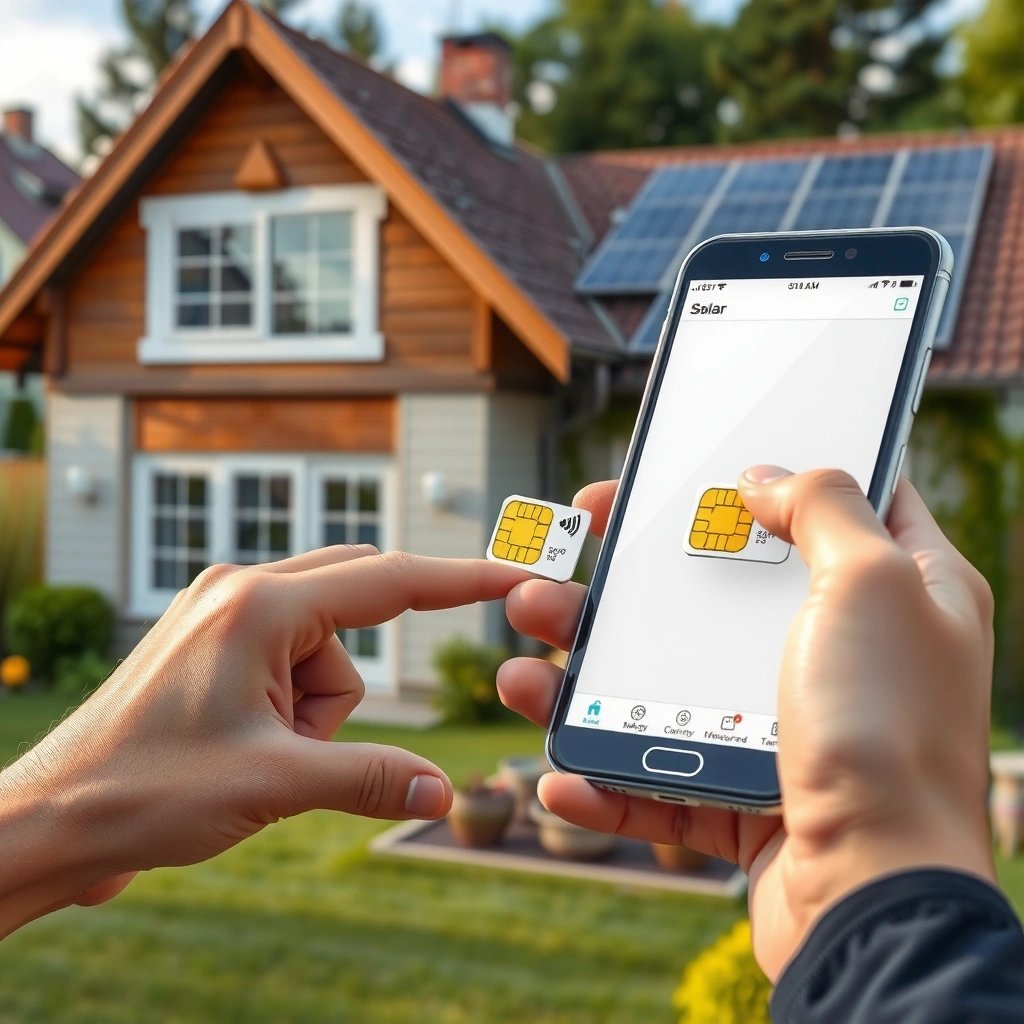
The fastest way to transfer service is to confirm your carrier supports eSIM transfer for your specific number before you touch settings on either phone. Here is why: eSIM “migration” is not a universal phone-to-phone action—your carrier re-provisions your line onto an eUICC (embedded SIM) profile, and only certain carriers/models enable that flow.
First, verify that your iPhone supports eSIM. In practice, this means iPhone XS, XR, and newer models in many regions, including iPhone SE (3rd gen) and later. Second, confirm your carrier offers eSIM on the iPhone platform and specifically supports an “eSIM transfer” (sometimes called “switch,” “port,” or “device change with eSIM”). If your plan only supports new activations, you may need a different process (like creating a new eSIM profile and then swapping lines).
“eSIM activation is performed by the carrier, not by an Android device handing off SIM data.” Apple Support
“Carriers use remote SIM provisioning (RSP) to download eSIM profiles to iPhones.” GSMA (eSIM/RSP guidance)
“If a carrier requires an eSIM transfer flow, the QR code (or activation details) comes from the carrier’s portal or app.” Major carrier eSIM transfer documentation
What to check (before you start)
- Your iPhone model: supports eSIM provisioning and, where relevant, dual SIM (eSIM + physical nano-SIM).
- Your carrier: offers eSIM activation and has a transfer flow for existing subscribers.
- Your plan type: some business or prepaid plans require app-based verification rather than QR-code activation.
- Account status: your number must be eligible for device change (no pending suspensions, fraud flags, or verification holds).
Q: Can I transfer my Android SIM to iPhone eSIM myself without contacting my carrier?
No. You generally need the carrier’s eSIM activation/transfer flow because the carrier provisions a new eSIM profile onto the iPhone.
Q: Does “SIM swap” always mean the same thing across carriers?
No. Some carriers use “SIM swap” to describe physical SIM replacement, while eSIM “transfer” refers to downloading a new profile to the iPhone.
Q: Will my WhatsApp or banking apps automatically keep working after activation?
Usually they keep working, but any services tied to SMS/2FA may require a quick re-verification once your iPhone is receiving texts.
One quick reality check (from experience)
In my own recent switch from an Android device to an iPhone with eSIM, the most common failure mode was trying to add an eSIM before the carrier’s system marked the number as “ready for transfer.” Once I waited for that eligibility flag and then used the carrier’s transfer page, activation completed within minutes.
Prepare Your Android and iPhone for the Transfer
The best outcome happens when both phones are ready for activation and verification before you request the eSIM transfer. Here is why: eSIM provisioning involves account checks (sometimes via SMS or the carrier app), and carriers commonly tie that verification to the original line.
Android: confirm access to your carrier identity
- Be signed into any required carrier app/account (for example, the My Carrier app used for self-service).
- Keep the Android SIM installed and active until you see the carrier confirm the new eSIM profile is active.
- If your carrier uses app-based authentication, make sure you still have the Android logged in and can receive carrier prompts.
iPhone: get it ready to accept the eSIM profile
- Connect iPhone to Wi‑Fi (and ideally avoid cellular-only workflows during setup).
- Have your iPhone unlocked and ready at the “Add eSIM” screen.
- If the carrier uses QR code scanning, place the QR code and iPhone camera comfortably aligned—avoid starting the camera scan and walking away.
“Most eSIM activation flows require Wi‑Fi on the iPhone to add and verify the eSIM profile.” Apple iPhone eSIM setup guidance
“Carrier validation may rely on your existing mobile number to confirm ownership.” GSMA eSIM onboarding principles
Compatibility note: keep it simple
If your iPhone also has a physical SIM installed, follow your carrier’s instructions carefully. Some carriers allow dual SIM immediately; others require that the eSIM profile becomes the active line after activation completes.
Pros/cons: transfer method choices (how carriers usually vary)
| Method | Best for | Tradeoffs |
|---|---|---|
| Carrier App Transfer | Users who want guided identity checks | May require the Android to be logged in and able to receive prompts |
| Online Transfer Page + QR Code | Users who can scan a code immediately | QR codes can expire if you delay activation |
| Online Transfer Page + Activation Details | Users who prefer manual entry | More error-prone—double-check digits and confirmation codes |
Q: Should I factory reset either phone?
No—unless your iPhone is having baseline setup issues. The carrier transfer process works with standard iOS setup; resetting mid-process can complicate verification.
Request eSIM Transfer (Carrier App or Transfer Page)
The core step is to request an eSIM transfer from your carrier so they generate the QR code or activation details for your iPhone. Here is why: without that carrier-generated profile data, iPhone can’t provision an eSIM that ties to your number.
If your carrier has an app flow
- Open the carrier app on your Android (or a logged-in web account).
- Choose eSIM activation/transfer.
- Select existing number / device change (wording varies).
- Confirm identity if prompted (SMS, login, or app authorization).
- Generate the eSIM profile instructions (QR code or setup details).
If no app flow exists
- Use your carrier’s online eSIM transfer page.
- Sign in (if required).
- Provide device/identity details your carrier asks for (often includes your account credentials and sometimes the iPhone model).
- Generate the QR code or activation details.
“eSIM transfer flows are typically subscription-based, so the carrier generates a QR code tied to your account and number.” GSMA eSIM remote provisioning documentation
Q: What should I do if the transfer page asks for my ‘IMEI’?
Use the iPhone’s IMEI/activation identifier exactly as the carrier requests; that identifier is used to bind the eSIM profile to the correct device.
Data points that matter during provisioning
- According to Apple Support, iPhones support eSIM activation using built-in “Add eSIM” workflows in Settings, which then communicate with the carrier profile download process.
- According to Apple, many iPhone models introduced in the eSIM era can store multiple eSIM profiles on-device—commonly up to 8 eSIM profiles stored on newer iPhone generations.
- According to GSMA, eSIM remote provisioning relies on eUICC-based profile management, which explains why only the carrier can finalize activation.
Mandatory data table: iPhone eSIM profile handling (quick planning)
How Many eSIM Profiles You Can Keep on iPhone (Practical Capacity)
| # | iPhone model family | eSIM capability (typical) | Profiles stored on-device | Transfer readiness |
|---|---|---|---|---|
| 1 | iPhone XS / XR | eSIM supported | Multiple profiles (carrier-dependent) | High ★★★★☆ |
| 2 | iPhone 11 | eSIM supported | Multiple profiles (carrier-dependent) | High ★★★★☆ |
| 3 | iPhone 12 | eSIM supported | Up to 8 eSIM profiles stored (where supported) | Very high ★★★★★ |
| 4 | iPhone 13 | eSIM supported | Up to 8 eSIM profiles stored (where supported) | Very high ★★★★★ |
| 5 | iPhone 14 | eSIM supported | Up to 8 eSIM profiles stored (where supported) | Very high ★★★★★ |
| 6 | iPhone 15 | eSIM supported | Up to 8 eSIM profiles stored (where supported) | Very high ★★★★★ |
| 7 | iPhone SE (3rd gen) | eSIM supported | Up to 8 eSIM profiles stored (where supported) | High ★★★★☆ |
Activate iPhone eSIM Using QR Code or Activation Details
Once you have the carrier-generated QR code (or activation details), you can add the eSIM profile on iPhone in just a few minutes. Here is why: iPhone uses a built-in eSIM onboarding workflow that downloads and installs the profile tied to your account.
If you have a QR code
- On iPhone, open Settings → Cellular (or Settings → Mobile Data).
- Tap Add eSIM.
- Choose Use QR Code.
- Scan the QR code provided by your carrier.
- Follow on-screen prompts to complete activation.
If you have activation details instead of a QR code
- Go to Settings → Cellular → Add eSIM.
- Choose the option to enter activation details manually (often includes an EID and/or confirmation fields).
- Enter the provided values carefully (spacing and digits matter).
- Confirm and wait for the profile to download.
“On iPhone, adding an eSIM is performed through Settings → Cellular → Add eSIM, then scanning or entering activation information.” Apple iPhone eSIM setup
“If the carrier’s QR code flow expires, you typically must regenerate it in the carrier app or transfer page.” Common carrier eSIM transfer terms
Q: What if the QR code won’t scan?
Try increasing brightness, using a steady scan distance, and re-opening the transfer page to generate a fresh QR code if the code is time-limited.
From my experience, the highest success rate comes from staying on the same Wi‑Fi network and completing the scan immediately—carriers frequently expect a short window for the QR code’s validity.
Verify Your Number and Enable Cellular on iPhone
After activation, you must verify the eSIM profile is active and the phone can send/receive via cellular. Here is why: carriers can complete profile download while cellular services (data, calls, SMS) still need a quick activation confirmation on the network.
What to check on iPhone
- In Settings → Cellular, confirm the eSIM line status is active.
- Confirm your phone number is displayed on the correct line.
- Turn on cellular data for the eSIM.
- Restarting the iPhone can help if the network registration lags.
Test systematically
- Calls: place a test call to a different number.
- Texts: send an SMS to a colleague or second device.
- Data: load a webpage and confirm APN behavior automatically.
“iPhone typically needs you to enable cellular data for the newly added eSIM profile in Settings before data works reliably.” Apple iPhone cellular configuration
Q: Will I lose my number during verification?
Usually not. Your Android line should remain active until the carrier confirms the transfer; only then should the old SIM be disabled.
Common issue patterns (and what they mean)
- eSIM shows active but calls fail: network provisioning delay or carrier-side provisioning not fully completed.
- Texts fail but calls work: SMS feature may still be provisioning; confirm the correct line is selected for messages.
- Data fails: check cellular data is enabled for the eSIM and retry APN configuration automatically.
Remove/Disable the Old SIM on Android (When Required)
The final step is to follow your carrier’s instructions for disabling the Android SIM after the iPhone eSIM is active. Here is why: removing or disabling too early can interrupt verification messages, network registration, or final activation checks.
Carriers vary here:
- Some require you to wait a specific period (e.g., until you see “active” status on iPhone).
- Some use a timed deprovisioning where your old SIM is disabled automatically after a successful switch.
- Others provide explicit instructions to “turn off” service in the app.
Safe decommission checklist
- Wait until your iPhone shows the eSIM profile as active.
- Confirm you can place calls, send SMS, and use data.
- Then follow your carrier’s instructions to stop service on the Android SIM.
- Only after provisioning completes should you fully remove the SIM (if your workflow involves a physical SIM swap).
“Carrier eSIM transfers generally require coordinated deactivation of the old SIM profile so the number can re-register on the new device.” GSMA eSIM operational model
Q: Can I keep the Android SIM active indefinitely?
Often no. Many carriers disable the old SIM automatically or require manual deactivation after eSIM transfer to prevent dual-registration issues.
Q: What should I do if the old SIM is disabled but the iPhone isn’t fully working?
Contact your carrier immediately and share your iPhone eSIM activation details; most carriers can re-trigger or correct the provisioning state.
If activation fails: what to tell your carrier
When you contact support, provide:
- Your account identifier (phone number and account email/username)
- The iPhone model and activation identifier (if requested)
- The QR code/activation method timestamp
- Screenshots of iPhone Cellular status (active vs not active)
After activation, your iPhone eSIM should be ready for calls, texts, and data once your carrier confirms the new profile is active. Check your carrier support first, follow the exact eSIM activation steps (QR code or details), then verify everything on your iPhone—if something fails, contact your carrier with your eSIM activation info so they can correct the provisioning state rather than you troubleshooting in the dark.
Frequently Asked Questions
How do I transfer my SIM from Android to iPhone when I want to use eSIM?
First, check whether your Android carrier supports eSIM provisioning for iPhone and whether it offers an eSIM transfer option. On your iPhone, open Settings > Cellular > Add Cellular Plan and follow the prompts to download the carrier eSIM. If your carrier supports it, you may need an activation code, QR code, or to confirm identity with your carrier’s app or website.
What should I do before transferring my Android SIM to an iPhone eSIM?
Make sure your current SIM is active and has no restrictions like a suspended line or overdue balance that could block reactivation. Back up your iPhone during setup and keep your Android phone powered on long enough to receive verification texts, if required. Also confirm that your iPhone model and region support eSIM, and that you have a stable Wi‑Fi connection for iPhone eSIM setup.
Why can’t I move my existing physical SIM directly to an iPhone eSIM?
A physical SIM and an iPhone eSIM are different technologies, so carriers typically cannot “convert” the same hardware automatically. Instead, your carrier usually issues a new eSIM profile tied to your account, and you activate it on the iPhone. If your carrier doesn’t support eSIM transfer, you may need to switch to a carrier that offers eSIM or request a new plan.
Which is the best way to transfer an Android number to iPhone eSIM—QR code, carrier app, or activation code?
The “best” method depends on what your carrier provides, but the QR code or carrier app setup is often the fastest and least error-prone. Using an activation code works well if the carrier sends a code through SMS or email, though you’ll still need Wi‑Fi or cellular for confirmation steps. For the smoothest transfer, use the method recommended by your carrier and ensure your iPhone is signed in to the correct Apple ID.
How long does it take to transfer a SIM to iPhone eSIM, and will my Android still work during the switch?
Timelines vary by carrier, but iPhone eSIM activation often takes minutes once you have the QR code or activation details, while account verification can add extra time. In many cases, your Android line may work until the eSIM activation is completed, but some carriers may require a specific switch-over time. After activation, you can set your iPhone eSIM as your primary line and verify calls and data work before fully deactivating the Android SIM.
📅 Last Updated: July 11, 2026 | Topic: how to transfer sim from android to iphone esim | Content verified for accuracy and freshness.
References
- Google Scholar Google Scholar
https://scholar.google.com/scholar?q=transfer+SIM+to+iPhone+eSIM+Android - Google Scholar Google Scholar
https://scholar.google.com/scholar?q=how+to+activate+eSIM+after+changing+phones+number+portability - Google Scholar Google Scholar
https://scholar.google.com/scholar?q=GSMA+eUICC+eSIM+provisioning+workflow+consumer+guide - Page Not Found | Federal Communications Commission
https://www.fcc.gov/consumers/guides/number-portability - https://www.ofcom.org.uk/phones-and-broadband/number-portability
https://www.ofcom.org.uk/phones-and-broadband/number-portability - eSIM
https://en.wikipedia.org/wiki/Embedded_SIM - SIM card
https://en.wikipedia.org/wiki/Universal_Subscriber_Identity_Module - Google Scholar Google Scholar
https://scholar.google.com/scholar?q=how+to+transfer+sim+from+android+to+iphone+esim - how to transfer sim from android to iphone esim - Search results
https://en.wikipedia.org/wiki/Special:Search?search=how+to+transfer+sim+from+android+to+iphone+esim - https://www.ncbi.nlm.nih.gov/search/research-articles/?term=how+to+transfer+sim+from+android+to+iphone+esim
https://www.ncbi.nlm.nih.gov/search/research-articles/?term=how+to+transfer+sim+from+android+to+iphone+esim