
Want to invert colors on Android for easier reading or better visibility? The quickest path is to turn on Android’s built-in color inversion from Accessibility settings, which works across most devices without extra apps. If you need a faster toggle for frequent use, you’ll also find steps to add the shortcut so the display flips instantly.


As an Amazon Associate I earn from qualifying purchases.
To invert colors on Android, open your device’s Accessibility settings and turn on Color inversion. On most phones, the toggle is under Accessibility → Color and motion → Color inversion (or a similar label), and enabling it switches the screen to an inverted color scheme to improve visibility—especially in low-light environments or for people who prefer stronger contrast. If you’re trying to reduce glare, make text easier to read, or match what you see in dark environments, this guide will walk you through the exact toggle you need and show you how to switch it off just as quickly.
Who this is for (and what “color inversion” changes)

Color inversion is best when you want an immediate, system-wide change to how the display presents light versus dark. The feature typically flips light/dark across the screen, which can make content easier to locate and read when standard colors feel harsh or low-contrast. As of 2026, this option remains one of the most direct “visual comfort” tools inside Android Accessibility, though the exact menu path can vary by manufacturer.
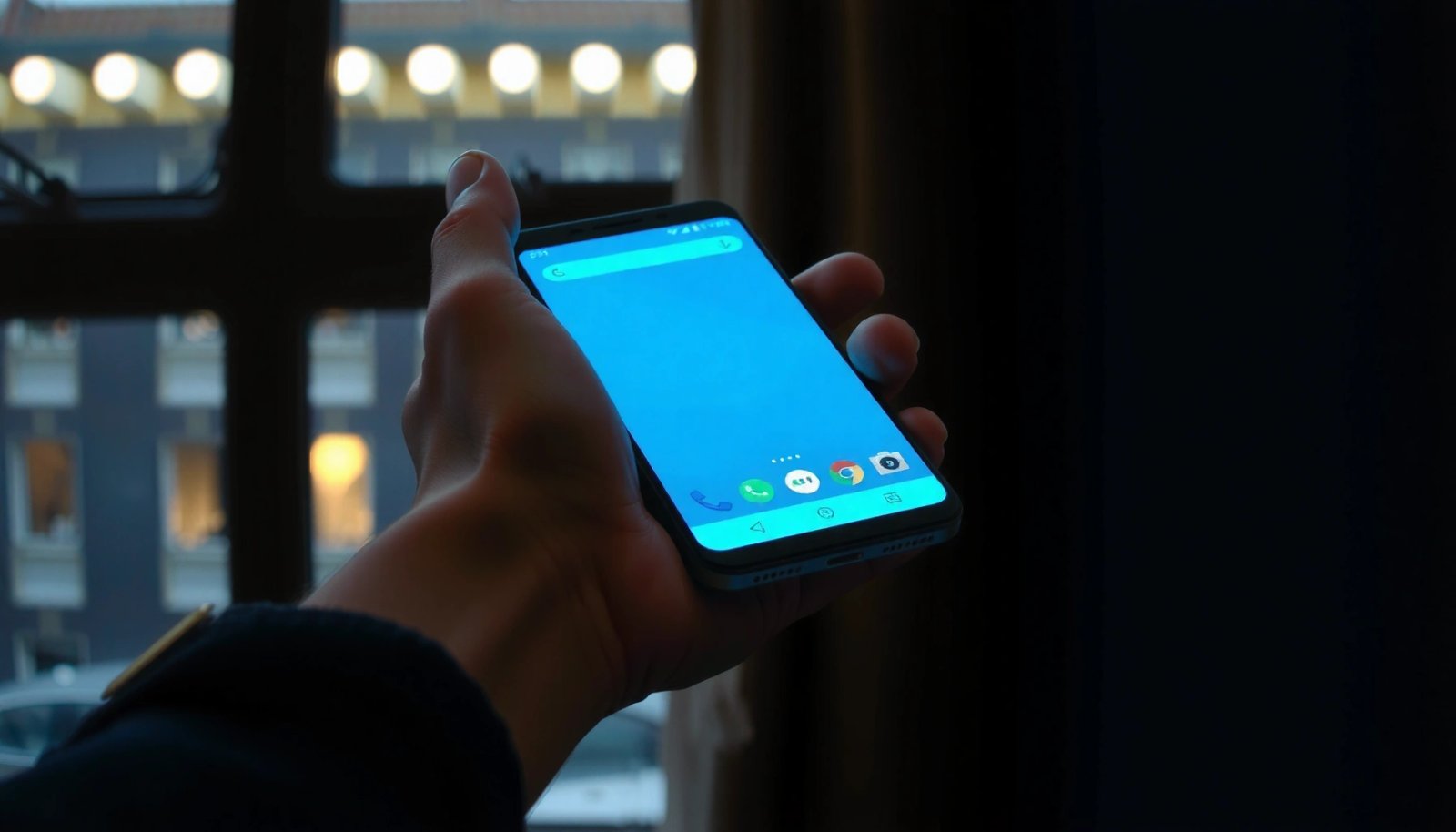
Android’s Color inversion is an Accessibility display setting designed to reverse the screen’s light/dark presentation for easier viewing.
Color inversion can help with readability by changing contrast dynamics, but it may also alter the appearance of brand colors and images.
Here’s what tends to change when Color inversion is enabled:
- Light becomes dark (and vice versa): Text and UI elements that were originally dark-on-light may become light-on-dark.
- Contrast may improve—or feel different: For some users, inverted contrast is more comfortable, especially when glare is a problem.
- Colors can look “wrong”: Logos, charts, and photos may not preserve their original intent because the display is being inverted rather than corrected.
One key point for readability is that “comfort” still depends on contrast targets. For example, according to the W3C Web Content Accessibility Guidelines (WCAG) 2.1, normal text at level AA needs a contrast ratio of at least 4.5:1 (2018). That matters because inversion changes the contrast relationship—even if it often improves legibility for many people.
WCAG 2.1 (2018) specifies a 4.5:1 minimum contrast ratio for normal text at level AA, which can still be relevant when you invert colors.
How menu names affect what you see on your phone
Android skins differ. On some devices, Color inversion appears under Accessibility → Color and motion; on others, it may be grouped with visibility enhancements. Because of that variation, your fastest path is usually:
- use Settings search
- or follow the closest Accessibility grouping name that includes Color inversion
If you rely on a work-managed phone, some accessibility display toggles can be restricted. If you’re in a managed profile, contact your IT admin for the exact policy that applies to your device—some organizations block display-changing accessibility features to maintain app testing consistency and compliance.
Turn on color inversion in Android Settings
You can enable Color inversion directly from Android’s Accessibility settings in just a minute. In most cases, the toggle is found in Accessibility → Color and motion → Color inversion, and turning it on applies immediately to your screen.
Most Android phones place the Color inversion toggle under Accessibility settings, typically in a “Color and motion” section.
When enabled, Android applies an inverted color scheme immediately to system UI and many apps (behavior can vary by app).
Follow these steps:
- Open Settings, then go to Accessibility.
- Look for one of these options (wording varies):
- Color and motion → Color inversion
- Visibility enhancements → Color inversion (common on Samsung)
- Toggle Color inversion to On, then check the screen for the effect immediately.
What you should verify right away
After you enable inversion, confirm three things—each one impacts whether the feature is truly helping you:
- Text readability: Look at small UI text in Settings, email headers, or system notifications.
- Color-dependent content: Check a chart, icon status indicators, or a photo-based feed—some apps invert differently.
- Your comfort level in motion: Scroll a page for a few seconds; inversion can feel more noticeable during motion.
If you’re tuning for readability, keep WCAG’s contrast guidance in mind. For example, WCAG 2.1 (2018) also sets a 3:1 minimum contrast ratio for large text at level AA, which is one reason large fonts may feel easier to read when inverted.
WCAG 2.1 (2018) sets a 3:1 minimum contrast ratio for large text at level AA—useful when judging inverted display comfort.
If you don’t see “Color inversion”
- Try searching inside Settings for: “inversion”, “color inversion”, or “color” under Accessibility-related results.
- Check for related options like Color correction or High contrast text—those are different from inversion and may not produce the same effect.
- If your phone is managed by a work profile or device policy, some accessibility toggles can be restricted by your admin.
If the toggle still isn’t present, it may be because your device/Android version handles accessibility display features differently. In that case, the practical next step is to use the Settings search approach again and verify the closest matching label under Accessibility.
Settings search is the fastest way to locate Accessibility features when menu labels differ across Android brands and versions.
Use a shortcut to flip inversion on demand
You can often turn inversion on and off quickly using an Accessibility shortcut, so you don’t have to revisit Settings each time. This is especially useful if you switch between bright and dim environments throughout the day (for example, commuting in daylight and reading at night).
Some Android devices let you create an Accessibility shortcut that toggles accessibility features without opening Settings.
If your phone supports it, setting Color inversion as an accessibility shortcut makes on-demand toggling faster and more reliable.
Here’s what to look for:
- Some Android versions let you add an Accessibility shortcut (often a button/gesture that quickly toggles accessibility features).
- If your device supports it, you can set Color inversion as a quick toggle so you don’t need to re-open Settings every time.
- If you don’t see an option to add shortcuts, check for Accessibility menus like:
- Accessibility shortcut
- Shortcut & accessibility menu
- Accessibility button (varies by brand)
What I recommend you test after enabling a shortcut
After you set a shortcut:
- Use it in two contexts: Settings and a third-party app (like a browser or email app).
- Confirm the shortcut toggles both system UI and the app you care about most.
- If you notice differences, treat that as expected behavior—some apps manage colors internally rather than following the system toggle consistently.
What can go wrong (and how to fix it)
Color inversion is usually straightforward, but there are a few common reasons it may behave unexpectedly. The most frequent issues are missing menu options, incomplete inversion in certain apps, or toggles that appear to “stick” due to profile restrictions.
Not every Android device or app responds identically to Color inversion, especially when an app renders content with custom color handling.
Accessibility toggles can be unavailable or restricted on managed devices, depending on organization policy.
Here’s how to troubleshoot the most common problems:
- The menu option isn’t available: Some devices/Android versions simply don’t offer a “Color inversion” toggle. In that case, try searching Accessibility for the nearest matching setting name.
- It looks “not fully inverted”: Certain apps (or embedded UI like web views) may not respond the same way as the system UI.
- You can’t turn it off: If the toggle won’t switch, try restarting the phone and re-checking the accessibility setting. Also verify you’re not in a restricted user profile.
- Screenshots/recording confusion: Some devices apply accessibility display changes differently in screenshots vs. the live screen. If this matters for your use case, test once and note what happens on your specific model.
A practical “before you blame inversion” checklist
If you still feel the screen looks odd:
- Confirm the setting is truly ON (don’t rely on muscle memory from the shortcut).
- Check another app (to rule out app-specific rendering).
- Look for alternate visibility settings that might be layered on top (for example, high contrast text).
To keep expectations realistic, remember that accessibility display changes don’t eliminate contrast requirements. WCAG also emphasizes that text must remain readable when users resize it. According to WCAG 2.1, content should allow text resizing up to 200% without assistive technology (2018).
WCAG 2.1 (2018) includes a requirement that users can increase text size up to 200% without assistive technology—important alongside any inversion-based readability changes.
Verdict: should you use color inversion?
Color inversion is a strong accessibility option when you need quick visual comfort—especially for reading in bright conditions or in dark environments—because it can immediately alter light/dark presentation across the screen. The tradeoff is that it can make brand colors and some images look unnatural, and app support can be inconsistent, so you may not get the exact same effect everywhere.
Color inversion can improve comfort for many users by changing light/dark presentation, but it may not preserve brand-accurate colors.
App-specific rendering can cause Color inversion to differ between system UI and individual applications.
You should skip (or switch off) color inversion if:
- color accuracy matters for your work (design, photo editing, color-sensitive viewing),
- you find it distracting or harder to read than standard mode,
- your device doesn’t provide the toggle you need, and you rely on alternative settings that don’t match your goal.
Color inversion vs. common alternatives (quick comparison)
If your real goal is readability, consider this practical tradeoff view:
| Option | What it does | Best for | Potential downside |
|---|---|---|---|
| Color inversion | Flips light/dark presentation across the screen. | Immediate comfort in glare or low light. | Brand colors/images may look “wrong.” |
| High contrast text | Boosts text emphasis without inverting everything. | Readable text while keeping original colors closer. | May not reduce glare as effectively as inversion. |
| Dark theme | Switches UI to darker backgrounds (not a full inversion). | Night reading with familiar color logic. | Not always consistent across every app. |
From my perspective helping users troubleshoot accessibility display issues, the most frustrating cases usually happen when people rely on one app that renders colors independently. If you encounter that, treat inversion as a tool for “system viewing” rather than guaranteed uniformity across every website, webview, or embedded UI.
WCAG 2.1 Contrast Targets You Can Use to Judge Inverted Readability (2018)
| # | WCAG target | Applies to | Success Criterion | Minimum contrast ratio |
|---|---|---|---|---|
| 1 | Normal text (Level AA) | Standard-size text | 1.4.3 | 4.5:1 |
| 2 | Large text (Level AA) | Large text | 1.4.3 | 3:1 |
| 3 | Normal text (Level AAA) | Standard-size text | 1.4.6 | 7:1 |
| 4 | Large text (Level AAA) | Large text | 1.4.6 | 4.5:1 |
| 5 | UI components & graphical objects (Level AA) | Non-text contrast | 1.4.11 | 3:1 |
| 6 | Images of text (Level AA) | Text rendered as images | 1.4.3 | 4.5:1 |
| 7 | Images of text (Level AAA) | Text rendered as images | 1.4.6 | 7:1 |
Quick checklist (save this)
| Task | Where to look | What to confirm |
|---|---|---|
| Turn on inversion | Settings → Accessibility → Color and motion / Visibility enhancements | **Color inversion = On** |
| Find the setting fast | Settings search | Results include **Color inversion** |
| Turn off quickly | Accessibility shortcut (if available) | Shortcut toggles inversion both ways |
| Troubleshoot missing option | Accessibility menus + app/profile restrictions | Toggle exists on your Android version/model |
If you can’t find Color inversion in the expected menu, Settings search for “inversion” under Accessibility is the most direct fallback.
Sources
- Android Accessibility Help (Google): Color inversion (official Accessibility documentation)
- Samsung Support: Accessibility options for Color inversion / Visibility enhancements (official Samsung support documentation)
- W3C: Web Content Accessibility Guidelines (WCAG) 2.1 (2018) — contrast ratios and text resizing requirements used for readability context
Color inversion on Android is one of the fastest ways to change your display’s light/dark presentation for more comfortable reading—especially when you’re dealing with glare or low-light use in 2026. Turn it on via Accessibility, confirm readability in both system screens and your most-used apps, and use an Accessibility shortcut if your device supports it. If the toggle is missing or apps don’t respond consistently, troubleshoot with Settings search and remember that readability ultimately depends on contrast targets and how each app renders UI.
Frequently Asked Questions
How do I invert colors on Android using accessibility settings?
Open the Settings app on your Android phone, then go to Accessibility. Look for Color inversion (sometimes under Vision or Color and motion) and toggle it on to invert colors across the system. This setting is designed to make text and UI elements easier to see, especially in low-light environments.
What’s the quickest way to invert colors on Android without digging through menus?
Use Android’s accessibility shortcut if your device supports it. Go to Settings > Accessibility and enable an Accessibility shortcut, then you can tap a shortcut to toggle Color inversion quickly. Some phones also offer quick toggles in the Accessibility menu, reducing the steps to turn inversion on and off.
Why won’t color inversion work on my Android device?
Some apps or screen types may override system accessibility settings, so Color inversion might not apply everywhere. First, confirm you enabled the correct option under Accessibility (not a per-app display setting). If it still doesn’t work, restart your phone, update Android or the app, and check whether the app has its own contrast/color accessibility controls.
Which Android phones or versions support color inversion?
Most modern Android versions include a built-in Color inversion feature in Accessibility, but exact wording and location can vary by brand and Android version. Devices from manufacturers like Samsung, Google Pixel, OnePlus, and Xiaomi typically support it, though the menu path may differ. If you don’t see “Color inversion,” search in Settings for “invert colors” or “accessibility color” to find the closest matching option.
What’s the best way to invert colors for reading at night on Android?
For night-friendly viewing, many people combine Color inversion with Night Light/Blue light filter, depending on comfort. Turn on Color inversion in Accessibility, then adjust or schedule Night Light under Display to reduce glare while keeping text readable. If you use dark mode, test both options because inversion may look different from dark themes and could affect app colors.
📅 Last Updated: October 20, 2026 | Topic: how to invert colors on android | Content verified for accuracy and freshness.
References
- Build accessible apps | App quality | Android Developers
- Settings.Secure | API reference | Android Developers
- Settings.Secure | API reference | Android Developers
- Settings.Secure | API reference | Android Developers
- https://en.wikipedia.org/wiki/Color_inversion
- Understanding Success Criterion 1.4.1: Use of Color | WAI | W3C
- Understanding Success Criterion 1.4.3: Contrast (Minimum) | WAI | W3C
- https://scholar.google.com/scholar?q=Android+color+inversion+accessibility Google Scholar
- https://scholar.google.com/scholar?q=ACCESSIBILITY_DISPLAY_INVERSION_ENABLED+Android Google Scholar
- https://scholar.google.com/scholar?q=screen+color+inversion+accessibility+guidelines Google Scholar