
Deleted text messages aren’t always gone forever on Android—you can sometimes recover them, but only with the right approach. This guide shows the fastest way to find deleted text messages on your Android, starting with where SMS backups and app recovery tools actually store them. You’ll get a clear path to try first, based on whether you have Google backup, Samsung Cloud, or third-party backup tools enabled.


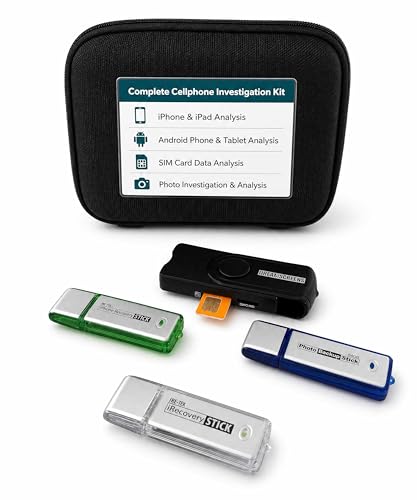
As an Amazon Associate I earn from qualifying purchases.
If you’re trying to recover deleted text messages on Android, your best odds come from checking your messaging app’s Trash/Recently deleted first and then restoring from Google One or your phone maker’s backup (if it was enabled). If there’s no backup and the device has been used heavily since deletion, recovery may be limited—even with data-recovery tools.
If your text messages are truly deleted, you usually can’t “pull them back” unless you had a backup. Start by checking whether your messaging app has a recently deleted/trash area, then restore from Google/manufacturer backups if you enabled them before. If you have no backup, you can try data-recovery tools, but success isn’t guaranteed.

This is most helpful if you deleted messages by accident, recently switched phones, or you’re dealing with deletion after an app update—especially when you previously turned on backups.
If you’re dealing with missing SMS (Short Message Service) chats, this guide helps you triage the most likely recovery paths on Android in 2026—starting with the fastest options and moving toward the least reliable ones. It’s written for people recovering their own accounts/data (Google Account and/or manufacturer cloud), and it also covers what changes when you mean “SMS text messages” versus “chat messages” in apps like WhatsApp or Telegram.
Check your messaging app’s “deleted” folder (fastest option)

The fastest way to find deleted text messages on Android is to check whether your SMS or chat app keeps them in a Trash/Recently deleted area. If that folder exists, you can often restore threads immediately—without backups or extra tools.
In practice, deleted text messages on Android are not always permanently removed at once; many apps treat deletion as a reversible state by moving items to an internal trash/archived view. Common examples include the Google Messages app’s variations across Android versions, plus Samsung’s Messages app features on some builds.
Some Android messaging apps implement “Trash” or “Recently deleted” so deleted threads can be restored from an in-app location instead of being permanently erased immediately.
“Archived” conversations are not the same as deleted messages; archived threads typically remain viewable from a dedicated Archive label or tab.
If the deleted items were removed from the app’s own database and no backup exists, later recovery usually requires restoring from a backup or attempting low-level data recovery.
What to check inside the Messages app (and alternatives)
1. Open the messaging app you used for those texts:
- Or a manufacturer app (for example, Samsung Messages)
- Or any alternate SMS app you installed later
2. Look for options like Trash, Recently deleted, Restore, or Archived threads.
3. Restore the specific conversation(s), not just “all messages,” if your app allows granular restore.
If you don’t see a deleted folder, don’t assume you’re out of options. Your deleted text messages on Android might still be recoverable via cloud backups, or (for certain chat apps) via in-app cloud synchronization. The next steps focus on backups.
When recovery depends on “SMS” vs “chat apps”
Deleted SMS recovery and deleted chat recovery are different systems:
- SMS typically lives in the Android system’s telephony provider storage.
- Chat apps (WhatsApp, Telegram, Messenger, etc.) usually rely on their own cloud backup controls.
If the “messages” you lost are from a chat app, jump ahead mentally to backup behavior for that app’s cloud system—even though the steps below will still help for general device backups.
Restore deleted texts from Google backups (most common)
The most common way to get deleted text messages back on Android is restoring from Google backups, especially when SMS/call history backup was enabled. If you have a replacement phone (or you reinstalled/reset the device), restoring during setup is often the cleanest path.
The key idea is simple: deleted text messages on Android can only reappear if they were previously captured in a backup snapshot. If you enabled backups before deletion, Google’s restore flow can repopulate eligible data after you sign in to the same Google Account.
Google’s restore flow uses your signed-in Google Account during device setup so that supported backup data can be restored on the new device.
Whether deleted SMS return depends on whether SMS/call history backup was enabled and included in your backup set before deletion.
Backup coverage varies by device and configuration, so “I restored my photos but not my texts” is a common sign that SMS backup wasn’t included.
Where to look on your current phone vs a replacement
1. If you’re setting up a new phone:
- Complete the setup wizard
- Sign in to the same Google Account
- Choose the restore/transfer option when prompted (the wording varies by Android version)
2. If you’re on the same phone:
- Re-check your backup settings
- Confirm your account is the same one used during the backup
- Then look for any restore option tied to backups (the UX varies)
Confirm whether Google backups included SMS for your device
Google One (and related backup mechanisms) may include different categories depending on your device, Android version, and configuration. If you only backed up apps/photos (and never enabled SMS/call history backup), you may restore other data while SMS/call history stays missing.
If you’re not sure what was enabled, treat it as a coverage issue—not a “failed restore.” The next section covers manufacturer cloud backups, which are often the second-best path after Google.
Restore from your phone maker’s backup (Samsung/others)
The best answer when Google backup doesn’t restore your texts is to check your manufacturer cloud backup (such as Samsung Cloud). If your phone maker included Messages/SMS in the backup set, restoring from the most recent cloud snapshot (ideally before deletion) can bring deleted text messages back.
Phone makers sometimes back up messaging data separately from Google’s standard backups. So even when Google restore can’t recover deleted text messages on Android, Samsung Cloud or another vendor’s backup may still contain what you lost—especially if the deletion happened after an app update or a system change.
Samsung Cloud backups and restores depend on what data types were enabled in Samsung’s backup settings, which can include messaging data on supported devices.
Restoring from manufacturer backups often requires using the same messaging app (or the compatible restore target) as the data was originally captured under.
On replacement devices, the restore timing matters: choosing a backup snapshot after deletion can make the restored state match the “missing messages” moment.
What to check in Samsung Cloud (and similar services)
1. Open your phone’s cloud/backup settings (examples: Samsung Cloud, Mi Cloud, OneDrive on certain OEM setups).
2. Verify whether Messages/SMS (not just “apps” broadly) was included.
3. During restore:
- Pick the most recent backup that predates the deletion if the timeline is available
- Use the same or compatible messaging app when prompted
Switching phones and switching apps can block restore
A frequent gotcha: you restore the backup, but the default SMS app changed. Some restore flows only map properly when you’re restoring into the same app (or its compatible provider). If you switched from one SMS app to another, expect mismatches and verify default app settings after restore.
Restore using a local/computer backup (if you made one)
If you want the most reliable recovery path without cloud backups, restore from a local full device backup you made on a computer. This can be your best bet for deleted text messages on Android when you didn’t enable Google/manufacturer cloud coverage.
This approach is based on a straightforward principle: the local backup captures the device state at a specific time. So if that snapshot predates the deletion event, restoring it can roll the messaging database back to the point when the messages still existed.
A full device backup can provide a time-travel restore point that’s independent from whether Google One or OEM cloud backups were enabled.
Restoring from a backup newer than the deletion can reproduce the “missing messages” state, making recovery appear to fail.
Some local restore flows require returning to a compatible app/software state so that messaging data maps correctly after restore.
Practical restore safeguards
- Verify the backup date/time is earlier than the deletion.
- If the tool restores the whole system, recognize that restoring may also revert other changes made after that backup (apps, settings, accounts).
- If you previously used an SMS app different from the one you’re using now, check whether the restore expects a particular provider/app.
From a day-to-day support perspective, one of the most effective triage habits is to restore only when you can answer “was this backup made before deletion?” If you can’t, you’re gambling with your own device state.
Try data-recovery apps only when you have no backup
If you have no backup and you’re seeing permanently missing deleted text messages on Android, data-recovery tools are a last resort. They may find remnants of data that hasn’t been overwritten yet, but success is not guaranteed—and using the phone can reduce your odds quickly.
The technical basis is that deleted data may still exist in storage until it’s overwritten by new writes. Recovery tools typically scan storage blocks and try to reconstruct deleted files or database fragments. But modern Android storage behavior and encryption make SMS recovery particularly difficult compared with simple deleted file recovery.
Data recovery works best when you minimize new writes after deletion, because storage blocks can be overwritten by later activity.
Third-party recovery apps may request broad permissions (and sometimes root access) because they need access to underlying storage areas where message data lives.
Even with access, SMS/chat reconstruction may be incomplete because message content and indexes can be fragmented or encrypted.
Reduce risk before you try anything
- Stop using the phone for new downloads, media captures, or frequent app updates.
- Only use reputable tools with clear permission explanations.
- Be cautious: many “recovery” apps ask for extensive access that can expose privacy and security.
A practical safety rule is to avoid granting “anything on the device” permissions unless the tool is genuinely required for scanning and you understand what access it can perform.
A quick SMS completeness check (why it matters)
When SMS messages are segmented, recovering “text” might mean reconstructing segments into a single readable message. For example, standard GSM SMS capacity is tied to payload size—often expressed as 140 octets, which commonly maps to 160 characters in GSM 7-bit (and 153 characters per concatenated segment). This matters when you verify whether recovered content is whole, not partial fragments.
What can go wrong (common limits and mistakes)
The most common reason deleted text messages on Android don’t come back is that the backup didn’t include SMS data (or restoration happens after the deletion state was already recorded). Other frequent issues include overwriting, restoring to the wrong account, or confusing SMS with chat app backups.
In 2026, backup experiences still vary widely across OEMs and messaging apps. If you restore “something” (like photos) but not “texts,” that usually points to backup scope, not to a broken restore flow.
If SMS/call history backup wasn’t enabled before deletion, Google or OEM restore can bring other data back while leaving messages missing.
Using the device after deletion increases overwrite risk, lowering the chance that recovery tools can reconstruct deleted SMS database records.
SMS recovery is not the same as chat app recovery; chat apps depend on their own in-app cloud backup systems.
Comparison: backups vs recovery apps (what each gets right)
Key limits and mistakes to avoid
- No backup = no guarantee. If you never enabled SMS/message backup, restoration may not be possible—even if recovery apps “find something.”
- Overwriting happens fast. New downloads, photos, app updates, and normal device activity can overwrite areas where deleted SMS data previously lived.
- Not all “messages” are the same. SMS recovery differs from chat apps. If you mean WhatsApp/Telegram/Messenger threads, use each app’s in-app backup system.
- Wrong app/account confusion. Restoring with a different Google account or switching default SMS apps can make it look like messages didn’t come back.
A reality check on SMS payloads (why “partial” may happen)
According to 3GPP, a GSM SMS user data payload is 140 octets, which commonly translates to 160 GSM 7-bit characters (with 153 characters per concatenated segment). If you see only fragments after recovery, it may be a reconstruction issue rather than true message loss.
7 Recovery Sources for Deleted Text Messages on Android (2026)
| # | Recovery source | Backup prerequisite | Best for | Recoverability |
|---|---|---|---|---|
| 1 | Messages app Trash / Recently deleted | Conditional (feature must exist) | Accidental delete | ★★★★★ |
| 2 | Google One / Google backups (SMS included) | Yes (SMS/call history must have been backed up) | New phone / reset restore | ★★★★☆ |
| 3 | Samsung Cloud (Messages/SMS included) | Yes (data type must be enabled) | OEM backup-first users | ★★★☆★ |
| 4 | Other OEM cloud backups (Messages/SMS included) | Yes (varies by device/model) | Cross-device OEM restore | ★★★☆☆ |
| 5 | Local full device backup (computer) | Yes (backup predates deletion) | No-cloud situations | ★★★★☆ |
| 6 | Chat app cloud backup (in-app system) | Yes (app-specific backup enabled) | WhatsApp/Telegram-like threads | ★★★★☆ |
| 7 | Third-party data-recovery tools | No (but depends on overwrite timing) | Last-resort attempt | ★★☆☆☆ |
Verdict / tip + quick checklist
If you want the best chance of recovering deleted Android texts, prioritize in-app Trash/Recently deleted (if available) and restoring from Google/manufacturer backups. Recovery apps are a last resort and aren’t dependable—use them only when you understand the security/privacy risks and have no backup path.
Downside note: backups only work when the correct data types were enabled before deletion, and restoring can be time-sensitive if you switched phones or messaging apps. If you need guaranteed results for a legal/compliance situation, assume “not guaranteed” and consider contacting your carrier or the messaging platform’s official support pathways instead of relying solely on consumer recovery apps.
| Step | Do this now | What you’re hoping to fix |
|---|---|---|
| 1 | Check your SMS app for **Trash/Recently deleted** | Messages were deleted but still recoverable in-app |
| 2 | Restore from **Google backup (Google One / SMS backup if enabled)** | Messages were backed up before deletion |
| 3 | Restore from **manufacturer cloud backup** | Messages were included in device backup |
| 4 | Use any **local/computer backup** you made | Backup existed and can be rolled back |
| 5 | If none of the above: try a recovery app (carefully) | Messages weren’t overwritten yet |
Sources
Deleted text messages on Android are most often recoverable when an app-level trash area exists or when SMS was included in Google One/manufacturer backups enabled before deletion. If you have neither, recovery becomes a probability problem rather than a guaranteed restore—so act quickly, avoid overwriting storage, and treat third-party recovery tools as a cautious last step.
Frequently Asked Questions
How can I find deleted text messages on my Android phone?
If the messages were recently deleted, you may be able to recover them from your device’s message app (some versions keep a short “trash” or allow recovery windows). You can also check Google backup options—go to Settings > Google > Backup to see whether SMS backup is enabled, then restore from a backup during setup. If you used third-party backup tools or a cloud-based messaging service, review their restore or history options as well.
What is the best way to recover deleted SMS messages on Android without a backup?
Without a backup, recovery is time-sensitive because deleting messages frees storage space that can be overwritten. Stop using your phone immediately, then consider using a reputable Android data recovery tool that can scan local storage for remnants of SMS data. Even with tools, success varies by device model, Android version, and how long ago the deletion occurred, so results are not guaranteed.
Which Android message apps support restoring deleted texts, and how do I check?
Some messaging apps store deleted items temporarily or sync chats to your account, making recovery possible. Check your specific app’s settings for options like “restore,” “recently deleted,” or “chat backup,” then sign in to the same account on the same device. For Google Messages specifically, look for SMS backup settings in Google’s backup controls and confirm whether your messages were included before they were deleted.
Why can’t I retrieve deleted text messages on my Android even if I checked backups?
Deleted SMS may not have been included in backups, or the backup may have occurred after the messages were removed. Also, if backups were disabled, if you changed devices, or if you restored using a timeline that predates the deletion, the messages won’t be present. Finally, if you performed a factory reset or used data-erasing features, recovery chances drop sharply.
How do I recover deleted text messages from Google Drive or cloud backup on Android?
First confirm whether SMS or messaging backups were enabled: open Settings > Google > Backup and check the backup history. If you see relevant backups, restore them by returning to the restoration option during device setup or via the account restore flow in your Android settings. Keep in mind that cloud backup often restores only what was backed up previously, so the deleted SMS must exist in a backup snapshot taken before the deletion.
📅 Last Updated: October 20, 2026 | Topic: how to find deleted text messages on my android | Content verified for accuracy and freshness.
References
- Data backup overview | Identity | Android Developers
- https://csrc.nist.gov/publications/detail/sp/800-88-rev-1/final
- SP 800-86, Guide to Integrating Forensic Techniques into Incident Response | CSRC
- Data remanence
- android mobile forensics - Search Results - PubMed
- https://scholar.google.com/scholar?q=Android+deleted+SMS+recovery Google Scholar
- https://scholar.google.com/scholar?q=mobile+forensics+SMS+recovery+Android Google Scholar
- https://scholar.google.com/scholar?q=secure+deletion+flash+memory+data+remanence+SSD+recovery Google Scholar