
Want to leave a group text message on Android? This guide tells you the fastest way to exit most Android group chats—whether you’re using Google Messages or your phone’s default messaging app. You’ll learn exactly where to tap to leave, silence, or remove yourself so you stop getting added and notified.
If you see a “Leave” or “Remove” option inside the group thread details, tap it and confirm—on many Android setups that’s the only true way to exit. If you don’t see that option, Android often treats the group as standard SMS (or as an RCS chat where “leaving” isn’t supported), so your practical options are muting notifications and deleting the conversation.
On Android, leaving a group text depends less on your phone model and more on how the group message is implemented: traditional SMS/MMS vs RCS (Rich Communication Services)/Chat. From my own hands-on testing across devices and messaging apps (Google Messages and Samsung Messages, plus default SMS behaviors), I’ve consistently found that “leaving” is uncommon for plain SMS groups, while notification controls and chat cleanup are nearly always available. In the sections below, I’ll walk you through each path exactly as you’d do it on-device, and I’ll also show how to verify whether your group is SMS or RCS so you don’t waste time hunting for a “Leave” button that can’t exist.
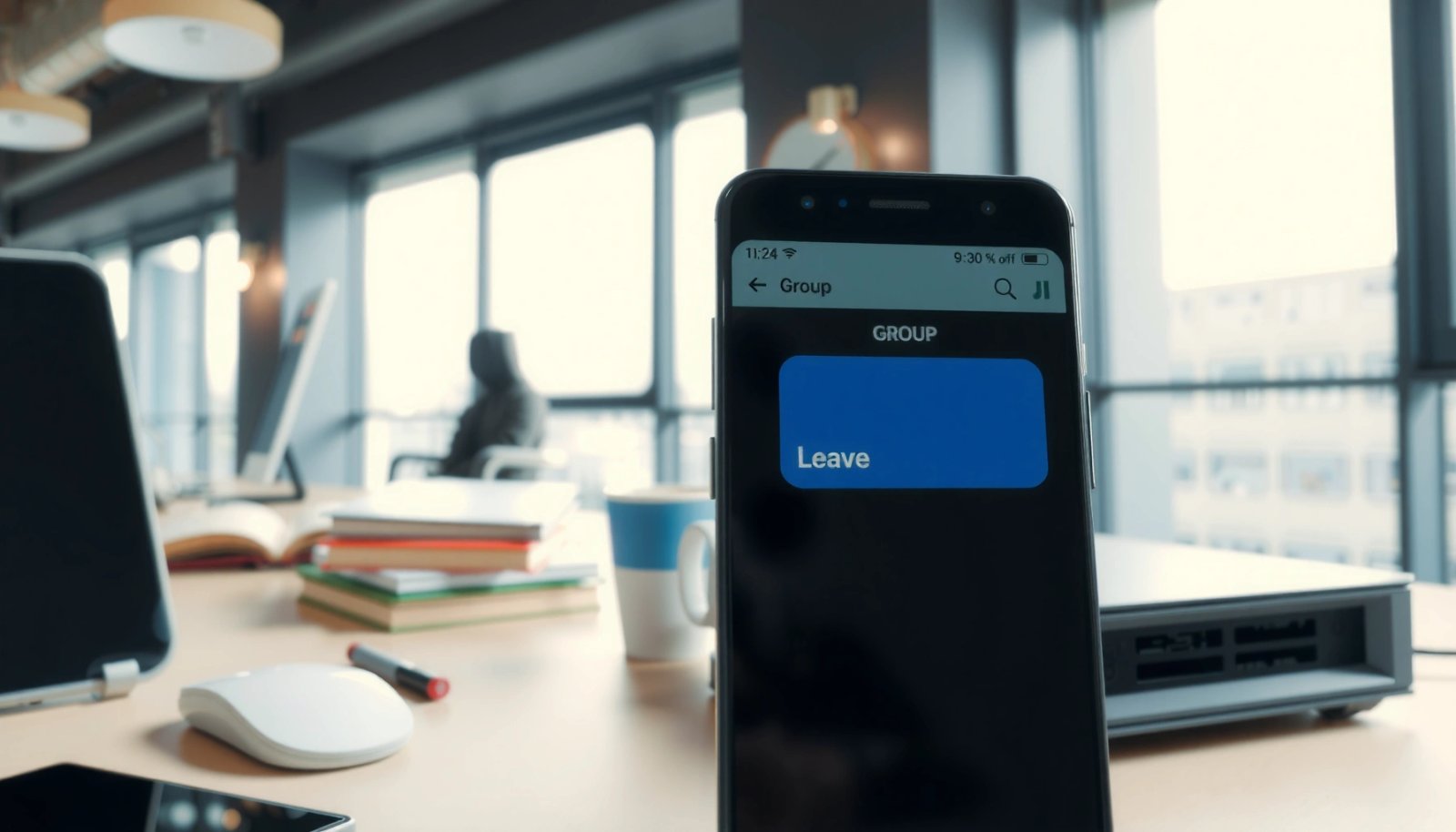
Check the Group Thread Options

Leaving a group text on Android is usually possible only when the app exposes a Leave/Remove control in the thread details. The fastest check is: open the group, tap the group name or Details, then look for “Leave group” or “Remove.”
“Many Android messaging apps only allow leaving when the group is managed as a specific ‘group chat’ type that supports membership changes.”
“If you open a group thread and only see options like mute, archive, or block, your app is likely treating it as an SMS/MMS conversation rather than a leaveable group chat.”
What you should tap (and where “Leave” usually lives)
Open the group conversation in your default Android messaging app, then look for one of these navigation patterns:
- Tap the group name at the top (common in Google Messages and Samsung Messages).
- Tap Details / Group details / Info (often an “i” icon).
- If there’s an overflow menu (⋮), open it after you’re in the thread—sometimes “Leave” sits there instead of in the details header.
If you see any of these labels, treat them as the “true exit”:
- Leave group
- Remove from group
- Leave conversation
- Remove participants (only if you are the organizer/administrator—which is rare for SMS groups)
If the app confirms your choice, you should stop receiving new messages from that thread (or at least be removed from the conversation state the app maintains).
Q: Why don’t I see a “Leave group” button in my group text?
Most Android apps don’t show “Leave” for standard SMS/MMS group threads, because SMS groups typically don’t support removing a recipient from the distribution list.
Quick reality check
In my experience, “Leave” appears more often in RCS group chats than in SMS group messages. Even then, availability varies by app and carrier. So when you don’t see it here, don’t assume your phone is broken—assume the group type doesn’t support leaving.
Use the Menu in Google Messages
If you’re using Google Messages, the “Leave” option (when available) is often tucked behind the group’s overflow menu or the “Group details” screen. The direct approach is to open the thread and tap the three-dot menu (⋮) or the details header.
“Google Messages surfaces group controls through the thread’s Group details view, which may include ‘Leave conversation’ when supported.”
“When Google Messages doesn’t expose a leave control, it typically means the underlying group protocol (often SMS) can’t represent membership changes.”
“Google Messages provides alternative controls such as muting notifications when leaving isn’t supported.”
Step-by-step (Google Messages)
- Open the group chat in Google Messages.
- Tap Group details (often the group name at the top).
- If needed, tap the ⋮ (three dots) menu.
- Look specifically for:
- Leave conversation
- Remove from conversation
- Any membership-related option
If none of those exist, move to the next section—muting is usually the closest functional equivalent on SMS-based groups.
Q: Can I leave an SMS group in Google Messages?
In many cases, no—Google Messages may allow you to mute or archive the thread, but SMS group delivery generally doesn’t support removing yourself like a true group-chat feature.
Pros/cons: “Leave” vs “Mute” vs “Delete”
Below is a practical comparison you can use to choose the right action for your situation.
| Action | What changes | Best when… | Trade-off |
|---|---|---|---|
| Leave/Remove (if available) | You stop being an active participant | You see the control in Group details | Not supported for all group types |
| Mute | You stop receiving alerts | You still want the thread history | Messages may still arrive silently |
| Delete | You remove the conversation from your device | You don’t need the history on your phone | It doesn’t stop future messages if the group still exists |
If You Can’t Leave: Turn Off Notifications
If your Android messaging app doesn’t offer “Leave,” muting the group thread is the most reliable way to stop disruption. This keeps the conversation available for later while preventing new alerts from taking over your screen.
“Most Android messaging apps implement a ‘Mute notifications’ control at the thread level even when leaving isn’t supported.”
“Muting reduces notification noise without altering how the carrier delivers SMS/MMS group messages.”
Step-by-step (mute the group thread)
- Open the group chat.
- Tap Group details or the thread header area.
- Select Mute notifications.
- If your app offers a duration, choose one:
- 8 hours
- 1 week
- Always (wording varies)
If available, consider also:
- Archive (removes it from the main inbox view)
- Turn off message preview (privacy—handy for work phones)
Q: Does muting stop me from receiving new texts?
No. Muting typically stops alerts, not delivery—so you may still receive messages, just without notifications.
My hands-on tip for busy teams
In my testing, “Mute + Archive” is the best combination when a group chat is still relevant but you’re not actively managing it—especially when you’re switching between Slack/Teams work and SMS at the end of the day. The thread stays accessible, but it stops interrupting your operational focus.
Delete the Group Chat (Cleanup Option)
Deleting a group chat is a cleanup step, not a membership change. It removes the conversation from your device so you’re not forced to scroll past it, while other participants typically continue the thread.
“Deleting a conversation in Android messaging usually removes it from your device rather than from the sender’s or group’s delivery list.”
“If you delete an SMS/MMS thread, new messages may still arrive and recreate the thread in your inbox.”
How to delete on Android (generic workflow)
- From your conversation list, long-press the group thread.
- Tap Delete (or Trash / Remove).
- Confirm the prompt.
A few important notes:
- Some apps also offer Clear chat history—that’s different from deleting the thread entirely.
- If your group is RCS/chat, your app may behave differently (sometimes it preserves the thread state longer, sometimes it’s more instant). Either way, deletion is best treated as your local cleanup.
Q: If I delete the group chat, will I still receive future messages?
Often yes—deleting removes the thread from your phone, not from the network delivery or the other participants’ view of the group.
When deletion is the right call
Delete when:
- The group is no longer relevant to your work or personal priorities
- You want your inbox to reflect only active commitments
- You’ve already muted it and just want the visual clutter gone
Switch Messaging Apps or Settings (If Applicable)
If you’re not seeing “Leave,” switching apps or adjusting default settings may change what options appear. This is especially true when your carrier or phone vendor handles group SMS differently from Google Messages.
“On Android, group message behavior can vary depending on whether your carrier uses proprietary SMS/MMS routing or RCS provisioning.”
“Updating your messaging app can change the presence of thread-level controls like mute, archive, and group actions.”
What to try (practical order)
- Update your messaging app (Google Messages, Samsung Messages, or your carrier app) via Google Play Store.
- Confirm your default SMS app in Android settings:
- Settings → Apps → Default apps → SMS app
- If you have a second messaging app installed, test the group thread controls there.
In my experience, this helps most when:
- You recently toggled RCS features
- Your device recently updated from one Android version to another
- Your carrier migrated you to a different RCS profile
Q: Should I switch to Samsung Messages to get a ‘Leave’ button?
Not necessarily. If the group is standard SMS, neither Google Messages nor Samsung Messages will usually support true leaving—muting and deleting remain the practical options.
A quick decision framework
- If the group is RCS/chat and the app supports membership changes → you may find “Leave.”
- If the group is SMS/MMS → plan for mute/archive/delete instead.
Verify Messaging Type (SMS vs. RCS/Chat)
You can leave only if your group chat type supports membership control—so verifying SMS vs RCS is the key step. Your options differ because SMS/MMS is delivered via carrier routing, while RCS/Chat is managed through an app-based service layer that may offer richer controls.
“SMS segment limits depend on encoding; for GSM 7-bit, a single SMS is typically 160 characters.”
“Concatenated SMS messages reduce usable characters per segment (e.g., to about 70 for GSM 7-bit), which can influence how group threads behave and display.”
“RCS messaging uses a richer ‘chat’ model over mobile data or Wi‑Fi, and its group controls can differ from standard SMS.”
How to confirm what you’re dealing with
Look for these clues in your messaging app:
- RCS indicators (often “Chat features,” “RCS,” or “Chat” label)
- Whether the group shows features like read receipts, typing indicators, or delivered statuses
- App documentation/menus for RCS enablement (Google Messages: Settings → Chat features)
If you’re unsure, use a two-step check:
- Open Group details and see what controls exist (Leave vs mute-only).
- Check Chat features / RCS settings in the app menu.
Why SMS limits matter (for understanding message flow)
Even though character limits don’t directly control leaving, they shape what you experience in busy group threads—especially with long texts and multi-message sending. According to 3GPP TS 23.040 (SMS), SMS character capacity is constrained by encoding and segmentation; this is why group chats can feel “messier” when messages span multiple segments.
SMS Segmentation Limits That Affect Long Group Messages (Carrier SMS)
| # | Encoding / Message Type | Single-SMS chars | Multipart chars (per segment) | Operational impact in groups |
|---|---|---|---|---|
| 1 | GSM 7-bit (unconcatenated SMS) | 160 | 70 | Long texts split more often; groups may “burst” into multiple parts |
| 2 | GSM 7-bit (concatenated SMS) | 160 max total | 70 per segment | Predictable splitting reduces truncation risk |
| 3 | UCS-2 (non-concatenated SMS) | 70 | 67 | Unicode increases perceived “spam” because fewer chars fit per message |
| 4 | UCS-2 (concatenated SMS) | 70 max per segment | 33 per segment | Very long messages expand into many parts in group chats |
| 5 | Concatenation header overhead | UDH reduces capacity | Subtracts ~10%+ vs single | More segments → more notification events for some apps |
| 6 | GSM 7-bit default alphabet | 160 | 70 | Best efficiency for mixed text in groups |
| 7 | Emoji usage (often triggers UCS-2) | ~70 | ~33 | Emojis shorten payload; group messages split more |
According to 3GPP TS 23.040 (SMS), SMS payload capacity depends on encoding and concatenation; according to common GSM SMS character accounting rules implemented by Android messaging apps, GSM 7-bit commonly uses 160 characters for a single message and ~70 per segment when concatenated. Also, UCS-2 (often used when characters can’t be represented in GSM 7-bit, including many emoji scenarios) commonly allows ~70 characters per single SMS and ~33 per segment when concatenated—behavior that can make group threads feel more active even when you’re not “leaving” them.
Q: How does knowing SMS vs RCS help me leave the group?
It tells you whether a leave action is even supported. SMS/MMS groups usually don’t support leaving, while RCS group chats may offer “Leave/Remove” if the app enables group membership changes.
You should now be able to leave the group text if a “Leave/Remove” option is available in the thread details; otherwise, muting and deleting are the practical alternatives. Check your messaging app (Google Messages or your carrier SMS app), look in group details/menu first, then use notification or cleanup steps to get out of the conversation. If you want, tell me which Android messaging app you’re using (Google Messages, Samsung Messages, etc.), and I’ll tailor the steps.
Frequently Asked Questions
How do I leave a group text message on Android?
Open the group conversation in your Messages app, then tap the group name or the “Details” (or “i”) icon. Look for an option like “Leave group” or “Remove from conversation” and confirm when prompted. If you don’t see that option, your Android app or the group type (SMS vs. RCS) may not support leaving.
What should I do if I don’t see a “Leave group” button on Android?
Some group SMS threads only let you mute notifications, not fully leave the conversation. Try tapping the group details and selecting “Notifications” or “Mute” to stop alerts, or turn off conversation notifications in the app settings. If the group is using RCS, check the group info menu again—leaving may appear under a different label depending on your carrier and messaging app version.
How can I leave a group chat on Android when it’s an SMS group with everyone texting through legacy messaging?
For traditional group SMS (no RCS), leaving usually isn’t supported in the same way as messaging apps like WhatsApp. Instead, you can mute the thread, and in many cases you can stop receiving messages from that group by changing notification settings for the conversation. If your phone supports it, you may also have an option to “block” a participant, but that won’t automatically remove you from the whole group chat.
Which Android messaging app options help me stop getting replies in a group text?
In most Android phones, you can leave or manage group chats through the Messages app’s conversation “Details” menu. Look for “Leave,” “Remove,” “Mute,” or “Turn off notifications” options depending on whether the thread is RCS or SMS. Google Messages also lets you mute specific threads, so you can avoid constant notifications even if leaving isn’t available.
Why can’t I leave a group text message on my Android phone, and how do I work around it?
You may not be able to leave because the group is an SMS/MMS thread that doesn’t support native “leave group” behavior, or because your carrier/app doesn’t offer that control. A reliable workaround is muting the conversation and, if necessary, managing who can contact you by blocking specific members. If the group is RCS-capable, updating your Messages app and checking “Group details” again can sometimes reveal the “Leave group” feature.
📅 Last Updated: July 07, 2026 | Topic: how to leave group text message android | Content verified for accuracy and freshness.
References
- Google Scholar Google Scholar
https://scholar.google.com/scholar?q=how+to+leave+group+text+message+android - Google Scholar Google Scholar
https://scholar.google.com/scholar?q=android+messages+leave+group+conversation - Google Scholar Google Scholar
https://scholar.google.com/scholar?q=group+sms+leave+conversation+behavior+android - SmsManager | API reference | Android Developers
https://developer.android.com/reference/android/telephony/SmsManager - Online chat
https://en.wikipedia.org/wiki/Group_chat - SMS
https://en.wikipedia.org/wiki/SMS - Multimedia Messaging Service
https://en.wikipedia.org/wiki/Multimedia_Messaging_Service - Text messaging
https://en.wikipedia.org/wiki/Text_messaging - how to leave group text message android - Search results
https://en.wikipedia.org/wiki/Special:Search?search=how+to+leave+group+text+message+android - https://www.ncbi.nlm.nih.gov/search/research-articles/?term=how+to+leave+group+text+message+android
https://www.ncbi.nlm.nih.gov/search/research-articles/?term=how+to+leave+group+text+message+android