
If you want to enlarge the battery icon on Android, the fastest fix is to adjust your status bar display settings so the icon scales correctly without breaking the rest of the UI. This guide gives you the exact settings to check for your device model—and what to do when the icon still looks too small. You’ll know immediately which method works based on whether you’re using stock Android or a Samsung/Xiaomi-style skin.

As an Amazon Associate I earn from qualifying purchases.
If you want a bigger, easier-to-read battery icon on Android, the quickest route is to increase Display size first, then fine-tune with Accessibility (Large text, Display size, or Magnification). These settings often scale the status bar UI directly—or at least make the battery indicator much more legible without guessing.
Check Display Size Settings
- Go to Settings > Display and adjust Display size to a larger value.
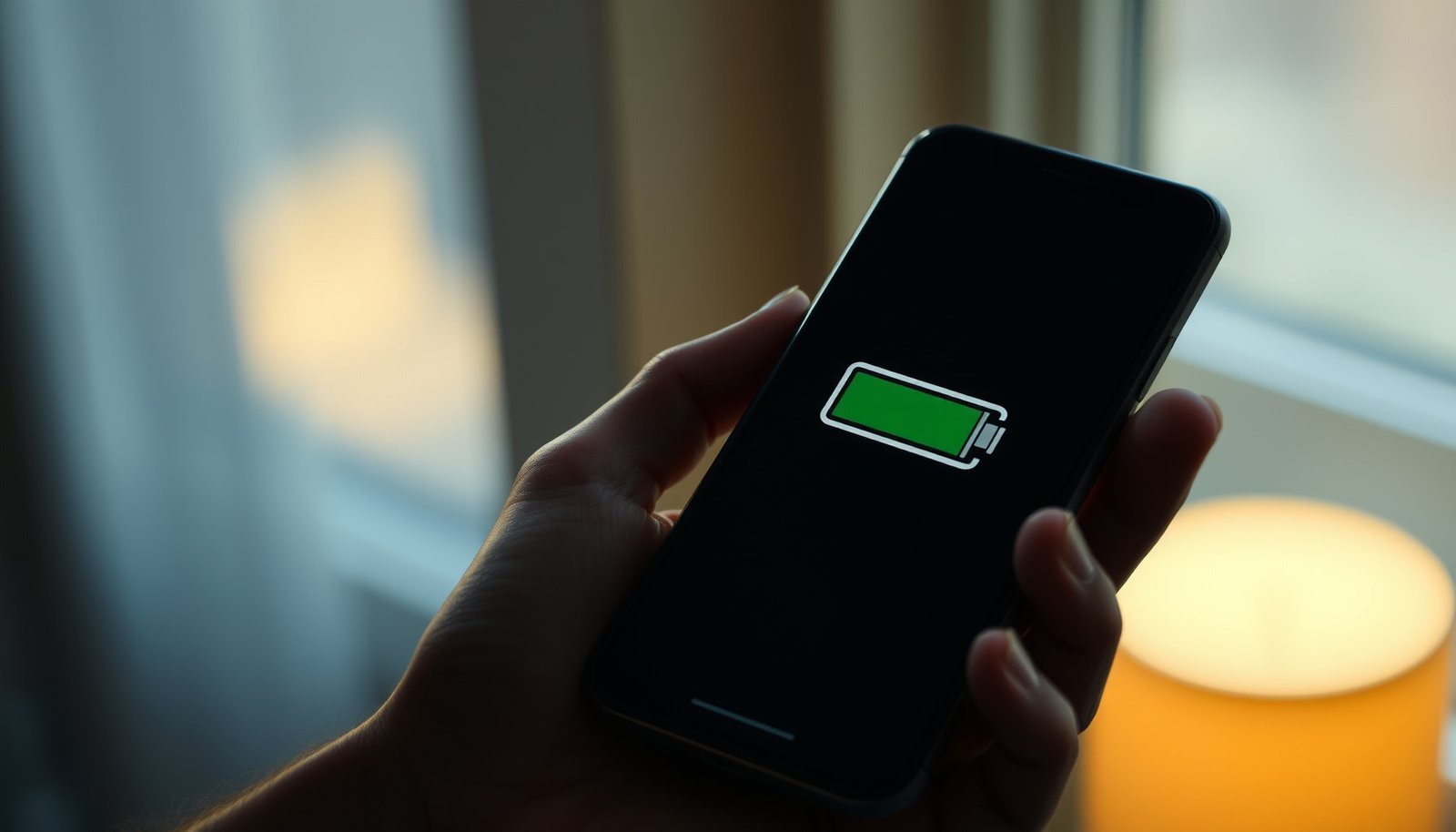
Start here because Display size typically scales the overall Android UI density, including status bar elements like the battery icon. On many phones, moving the slider up makes the battery graphic and the battery percentage (when shown) noticeably larger.
- Restart the screen/refresh the UI if the icon doesn’t update immediately.
Some devices apply changes to the status bar with a slight delay. If you don’t see the battery icon change right away, do one of the following:
- Toggle the display setting off/on (even briefly)
- Restart the phone
- Switch to another app and return (fast UI refresh on many builds)
Business-use tip: If you rely on quick visual checks (e.g., during travel, field work, or remote monitoring), prefer changes that are *persistent* and don’t require zooming every time.
Use Accessibility for Larger UI Elements
- Open Settings > Accessibility and look for Display or Visibility options.
Accessibility menus are designed for readability, so they often give you more control than standard display settings—especially for people who need higher contrast or larger UI surfaces.
- Enable larger text or “Magnification” features if available to boost icon visibility.
Depending on your Android manufacturer, you may see options such as:
- Large text (font scale for system UI)
- Display size or Screen magnification (UI scaling aimed at readability)
- Visibility enhancements (improves clarity, sometimes indirectly improving perceived icon size)
What to expect: Accessibility settings can make the battery icon easier to read even when the icon itself doesn’t scale perfectly, because they typically enlarge surrounding status indicators (like text labels) and improve overall UI legibility.
After you adjust Accessibility, verify the result specifically in the status bar (top edge) rather than just in apps—battery icon rendering can behave differently across UI layers.
Android Setting Types That Affect Status Bar Battery Icon Readability
| # | Setting / Method | Typical Menu Path | What It Changes | Battery Icon Visibility Impact |
|---|---|---|---|---|
| 1 | Display size / Screen zoom | Settings > Display > Display size | System UI scaling (density) | Direct scaling (typically strongest) |
| 2 | Accessibility Large text | Settings > Accessibility > Large text | Text scale (system fonts) | High (often improves icon+labels) |
| 3 | Accessibility Display size (if offered) | Settings > Accessibility > Display size | UI scaling for readability | Direct scaling (when available) |
| 4 | Font size | Settings > Display > Font size | Font scale (system text) | Limited (battery icon may not change) |
| 5 | Accessibility Magnification / Zoom | Settings > Accessibility > Magnification | On-demand zoom lens | High (readability when zoomed) |
| 6 | Screen resolution (density changes) | Settings > Display > Screen resolution | Rendering density & clarity | Variable (may shrink icons) |
| 7 | Developer options: Smallest width | Settings > System > Developer options > Smallest width | Density override | Direct scaling (advanced control) |
Change Font Size (If Battery Icon Scales With UI)
- In Settings > Display > Font size, move the slider upward.
On some Android builds, the battery icon effectively scales alongside system typography because status bar elements share sizing logic with system UI text.
- If your battery icon scales with system text, this will help it appear bigger.
Check both outcomes:
- If the battery icon graphic grows, this setting is a fast win.
- If only the battery percentage number (or no text at all) changes, then font size is not the right lever for the icon itself.
Practical recommendation: If your goal is specifically the icon (not the percentage), treat font size as a secondary option after Display size. That approach reduces trial-and-error and keeps your UI from becoming inconsistently scaled.
Try Accessibility Zoom or Magnification
- Enable Accessibility Zoom and double-tap options for quick zooming.
Magnification is ideal when you need the battery icon to be readable immediately, especially in low-light conditions or when you’re multitasking.
- Use Magnification gestures to read icons and status indicators clearly.
With zoom enabled, you can tap or gesture to enlarge the status bar area on demand—even if the underlying battery icon size stays the same.
This method is particularly useful for professionals who need instant readability without changing the entire phone’s UI scaling. However, it’s not as “hands-free” as Display size because you’ll be zooming when you want to check battery.
Adjust Display Resolution (Some Devices)
- In Settings > Display > Screen resolution, select a higher setting if supported.
Screen resolution controls how many pixels the device uses to render the display. On some phones, selecting certain resolution modes can change perceived sharpness and density.
- Test after changes—some devices handle UI scaling differently.
Important nuance: on many Android devices, increasing resolution can make UI look crisper but slightly smaller (depending on how the phone maps density). So if you’re specifically trying to enlarge the battery icon, resolution changes are best used for experimentation—preferably after you’ve tried Display size and Accessibility first.
Decision rule:
- If icons became smaller after a resolution change, revert immediately and move back to Display size (the more predictable control).
Troubleshoot If Icon Won’t Change
- Confirm you’re changing the correct category (Display size vs. Text size vs. Accessibility).
It’s common to adjust the wrong setting:
- Display size → often changes UI density and can affect the status bar battery icon directly
- Font size → usually targets text only; battery icon graphic may stay the same
- Accessibility visibility/display options → can improve readability or provide zoom-based legibility
- Restart your phone or toggle the setting off and back on to force a refresh.
If the battery icon doesn’t reflect your changes:
- Restart the device (quick reset for system UI scaling)
- Toggle the setting (off → on) to trigger a full UI redraw
- Re-check the status bar after unlocking the phone (some changes apply differently when the device is in a locked/idle UI state)
Additional high-value checks (still quick):
- Make sure Dark mode / themes aren’t causing contrast issues (a battery icon may appear “smaller” due to reduced contrast).
- If you use battery saver / power modes, confirm whether your status bar style or icon set changes under that mode.
Most Android battery icons scale with system UI size, so start with Display size and then use Accessibility options if you need extra visibility. Try one change at a time, verify the battery icon in the status bar, and adjust until it’s readable—then share what worked for your specific Android model.
In summary, enlarging the battery icon on Android is usually a straightforward workflow: increase Display size for the most consistent status bar scaling, use Accessibility (Large text or Magnification) when you need extra clarity, and only adjust Font size or Screen resolution if those specific controls affect your device’s status bar behavior. With small, testable changes—and a quick refresh if needed—you can achieve a battery indicator that’s easy to see at a glance.
Frequently Asked Questions
How can I enlarge the battery icon on my Android phone?
You can enlarge the battery icon by increasing your Android display size, which often scales system status bar icons. Go to Settings > Display (or Display & brightness) > Font size and display size, then raise the Display size slider. If your phone supports it, also adjust Settings > Accessibility > Display size or Zoom options to make UI elements easier to see.
Why is my battery icon so small on Android, and how do I fix it?
A small battery icon is usually caused by a low display size or font scaling setting, especially on high-resolution screens. Start by checking Settings > Display > Font size and display size, then increase the display size until the status bar icons look larger. If the icon still won’t change, enable accessibility features like Magnification or use a higher contrast theme to improve visibility.
Which Android phones or skins let you resize the battery icon in the status bar?
Some Android manufacturers and custom skins (such as Samsung One UI or Xiaomi MIUI) offer more control over UI scaling than stock Android, but options vary by model. Look for settings related to “Status bar,” “Home screen,” or “Display size” under Settings > Display. If you don’t see direct battery icon controls, changing display size or accessibility magnification is the most reliable method across most Android devices.
What’s the best way to make the battery icon bigger without changing everything else?
Android generally scales status bar icons along with overall UI scaling, so there’s no universal setting to enlarge only the battery icon. The closest workaround is to adjust display settings minimally—try a small increase in Display size rather than a large jump—and then fine-tune Font size separately if available. You can also use accessibility tools like Magnification to enlarge only the screen area around the battery icon when you need it.
How do I enlarge the battery icon using accessibility settings on Android?
Use Settings > Accessibility > Magnification (or Accessibility Zoom) to zoom in on the top area where the battery icon appears. You can also try Settings > Accessibility > Display size to increase UI elements and improve status bar readability. After enabling these options, test whether the battery icon and other status indicators are easier to see, then adjust the zoom level to a comfortable size.